PDF Import Splits Excel Into Sheets.
How to Get One Table
Excel's PDF import does not fail loudly. It reshapes your file into something that looks parsed and is not. In the r/excel thread asking what one feature users would add to Excel, a top comment names the exact symptom: import data from PDFs "without ... smearing each page to a separate worksheet." Run Data > Get Data > From File > From PDF on a multi-page statement and you get one query per page, a fresh set of Column1 and Column2 headings after the first page, and rows sliced at the page break. You asked for a spreadsheet. Excel returned a stack of fragments.
Key Takeaways
- Your five-page statement is not damaged: the PDF never carried a single table, so Power Query reports one table per page.
- Only the first fragment keeps the real titles, so pages 2 and 3 fall back to Column1, Column2, and Column3 and Append Queries refuses to line them up.
- Stop reading page by page and name the columns you want, then ImageToTable.ai reads the document as one record and forty statements land as forty rows.
What You Actually Get From a Multi-Page PDF Import
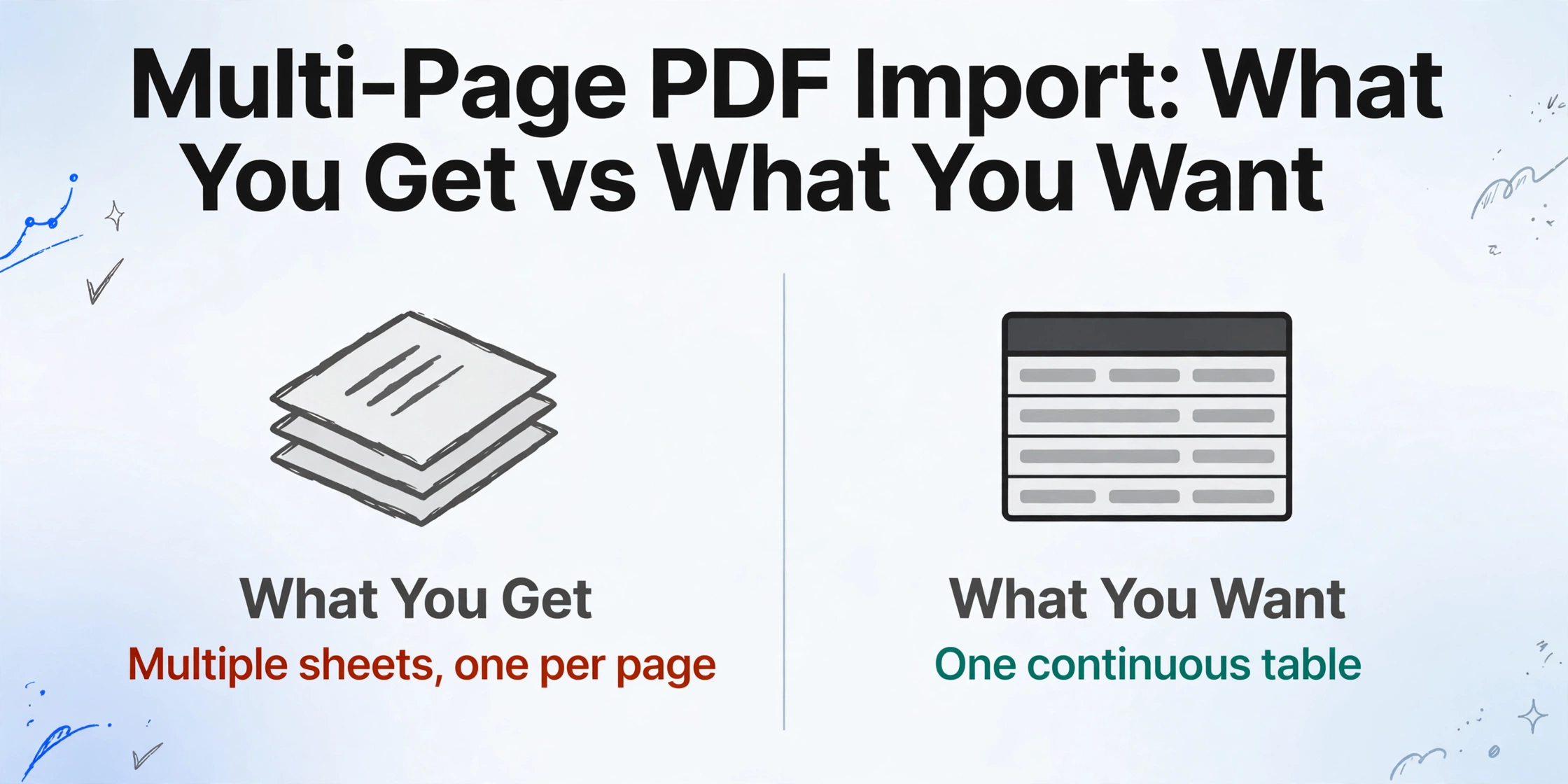
The import almost never errors. It returns the wrong shape, and every later symptom follows from that shape. When Power Query connects to your file, the Navigator window lists two different kinds of objects: individual tables near the top and entire pages near the bottom. Tick more than one and Power Query creates a separate query for each item. Choose Load and Excel writes each query to its own sheet, so a five-page statement becomes multiple worksheets and the table you wanted is now spread across all of them.
That is where "one PDF became several sheets" comes from. It is not damage to your file. It is the connector reporting what it believes it found, page by page. The rows and columns only look broken afterwards, because each of those per-page worksheets was read on its own and assigned its own column names.
A multi-page PDF does not arrive as one damaged table. It arrives as several small tables that were never joined, which is why no amount of reformatting fixes it.
Why Power Query Sees One Table Per Page

Power Query is not misreading your PDF. The PDF format does not contain a table for it to read. PDF was specified as a fixed-layout format, standardized as ISO 32000, where each page is a canvas of text and graphics pinned to coordinates. The idea that those coordinates form a three-column table with a header row is an interpretation, and the format only carries that interpretation when the file is a tagged PDF with logical structure (ISO 32000 clause 14.8). Most PDFs exported from accounting and banking systems are not tagged.
So Microsoft's connector has to guess, and the guess is exposed in a single function. Pdf.Tables is the engine behind Get Data > From PDF. It returns a table with three columns, Name, Kind, and Data, and Kind is either Table or Page. One of its options decides how aggressive the guessing is: MultiPageTables, which Microsoft's Pdf.Tables reference describes as controlling "whether similar tables on consecutive pages will be automatically combined into a single table." Its default is true.
That default explains the split behavior precisely. When consecutive pages share the same structure, the detector treats them as one table and combines them. When the layout shifts from page to page, a repeated header band, a different column count, a summary block that appears on only one page, the detector sees different tables and reports one per page. The stronger your document's per-page furniture, the more likely you get fragments.
This is the part most tutorials skip. They tell you to click Append and move on, without explaining that the file itself never held a single table, so the connector had nothing to keep together. The full picture of what a PDF can and cannot carry is worth understanding before you blame the export; see how PDFs become structured data for the wider version of that story.
Why the Headers on Page 2 Turn Into Data Rows

The column titles exist once, on the first fragment. After that page, the same words are just cell values. A user on Microsoft Q&A describes the exact failure this produces: a PDF table spanning three pages is "identified as three separate tables," and "only the first table contains the original column titles, and the other two tables display Column1, Column2, etc." Because the column names no longer match, the tables cannot be appended without editing. You can read the full thread in the Microsoft Q&A post.
The mechanism is straightforward once you see the shape of the output. Each per-page table is detected independently, so each one gets its own header-promotion step. On page one, "Use First Row as Headers" correctly turns Date, Description, and Amount into column names. On page two there is no header row to promote, because the repeated titles are simply the first row of data. Power Query falls back to Column1, Column2, and Column3. Append Queries, which stacks tables by matching column names, then refuses to line them up.
Where Rows Get Cut in Half at the Page Break
Page breaks land wherever the paper ended, so a wrapped description or a multi-line cell can arrive as two rows. Microsoft's own PDF connector documentation lists this as a known limitation under "Handling multi-line rows" and points to Table.FillDown to copy misaligned values into the row above, or Table.Group to combine adjacent rows. Neither runs automatically. The same page notes that EnforceBorderLines controls "whether border lines are always enforced as cell boundaries" and defaults to false, so a table drawn without full rules can be parsed with the wrong cell edges.
Two failure modes now compound. A record split across a page break becomes two rows, and the header problem from the previous section means you may not even notice, because the second row often loses the label that would identify it. Merged or loose cell borders make the column mapping worse, a separate extraction problem covered in why merged cells break table extraction.
Fixing It in Excel: Append Queries and the Header Dance
The repair runs inside Excel, and it is four steps you repeat for every file whose layout differs. It works, and it is manual. The trick is to make every fragment look alike before you stack them, then restore the real headers once at the end.
Select the fragments
In Navigator, tick Select multiple items and choose the tables you need. If the list is noisy, you can instead load the whole file and filter the query on Kind to keep only Table rows.
Demote the first table's headers
On the first fragment, use Transform > Use Headers as First Row. The real column titles drop into the data, and the table now uses Column1, Column2, and Column3 like the pages after it.
Append the rest
Use Home > Append Queries > Append as New and add every remaining fragment. Because all of them now share the same placeholder names, the columns line up without renaming each one by hand.
Promote the headers back
In the combined query, click Use First Row as Headers. The original titles return as the top row, and the stacked pages become one continuous table.
Two caveats keep this honest. The steps are saved in the query, so refreshing the same file is cheap, but a statement whose layout changes next month can re-break the detection and leave you to redo the header promotion. And if the PDF is a scan with no text layer, there is nothing to structure at all, because the connector does not run OCR. That case belongs to OCR-ing a scanned PDF into Excel instead.
A Route That Never Models the PDF as Pages
The sheet-per-page result is a symptom of page-oriented reading, so the alternative is to stop reading page by page. When the goal is a table rather than a copy of the page, you can define the output first and let the document be the unit of work. This is the difference between page-level reading and document-level understanding, and it is where an extraction tool starts to diverge from a page importer.
With Custom Column Extraction, you type the column names you want, such as Invoice Number, Statement Date, and Amount, and those names become the headers of the finished table. The tool reads the document to find each value rather than reading a fixed position, so a header band that repeats at the top of every page is treated as page furniture instead of a row of data. The output is one row per record, not one worksheet per page. Because the unit is the document, there is no second page whose column names can drift out of alignment with the first.
For a folder rather than a single file, the same design applies in batch. Batch-First Processing means you drop many PDFs at once and they merge into a single spreadsheet with the same headers, so forty monthly statements become forty rows in one table rather than forty sheets you assemble by hand. The mechanics of doing that without a query editor are covered in batch-processing documents without code. If you want to see the output shape on your own file before committing, the embedded demo below runs on a sample.
Files are processed securely and not stored.
When Each Page Is Really Its Own Document
One continuous table is the correct answer only when the pages belong to the same record. Sometimes they do not. A PDF can be a run of unrelated one-page documents, a different customer statement per page, a scan of dozens of separate invoices, in which case forcing them into one blanket table would merge records that should stay apart. The right move is not a better import; it is a grouping rule.
That is what Multi-Page Merge is for. It is a template setting that decides which extracted results belong to the same logical document, and you configure how it groups: start a new group whenever a tracked column's value changes, match rows that share a reference number across the whole batch, or group every fixed number of uploads. When the same field appears on several pages of a group, you choose how to resolve the overlap, keeping the first value, keeping the last, concatenating them, or splitting them back into separate rows. The important part is the direction of control. The tool does not silently guess which pages belong together; you supply the rule, and it applies that rule consistently.
Accuracy on the pages that do belong together still deserves a check, which is what Review Mode with Bbox-Assisted Verification provides. Hover or click any extracted cell and the original image highlights where that value came from, and the reverse works too: click a region on the document and it jumps back to the matching cell. You can trigger the highlighting on demand for a single file or set it to run automatically after processing. For statements where a single misread digit matters, that visual cross-check is faster than re-reading the page.
FAQ
Does Excel's From PDF import ever put a multi-page table on one sheet automatically?
Sometimes. When consecutive pages share the same table structure, the MultiPageTables option, which defaults to true, combines them into a single table. When the layout changes from page to page, they are detected as separate tables and land in separate worksheets. There is no setting that forces arbitrary pages into one table.
Why do pages 2 and 3 show Column1 and Column2 instead of my headers?
Each page's table is detected on its own, so the header promotion you applied to page one does not carry over. Only the first fragment has a real header row; later fragments use placeholder names, which is also why Append Queries fails until the names match.
Can Google Sheets import a multi-page PDF as one table?
Google Sheets has no native connector that detects tables inside a PDF the way Power Query does. The common workaround is to convert the PDF to an intermediate format and import that, or to use a dedicated extraction tool that returns a spreadsheet directly. Both avoid per-page sheets, but only the extraction route keeps you out of the cleanup.
What if my PDF is a scan without a text layer?
Power Query's PDF connector does not run OCR, so a pure image scan has no text for it to structure. You need an OCR step first, or a tool that reads the image directly. The tradeoffs are laid out in the scanned PDF to Excel guide.
Is there a one-click setting to stop the sheets splitting?
No. The behavior follows from how a PDF stores content, not from a checkbox. The closest built-in levers are MultiPageTables for structure that happens to match and the Append Queries plus header steps for everything else. If the files are very large, huge PDFs create their own problems before page splitting even matters. And if you were hoping Copilot would absorb the cleanup, that expectation has its own set of reasons, covered in why Copilot struggles with PDF to Excel.
Can I just convert the PDF to Excel instead of importing it?
You can, and it is a reasonable choice when the document is a single clean table and you only need the numbers once. When the input is a folder of differently formatted documents and the output has to keep consistent columns, a column-based PDF to Excel conversion is the more stable path, because the headers are defined by you rather than detected per page.
Once you see the split as a modelling choice rather than damage, the decision gets easier. If you have a few files and time to maintain a query, the append-and-promote sequence in Excel is enough. If the table is the point and the pages are just packaging, name the columns you need and let the document be the unit of work. You can test that on your own statement without setting anything up, and see whether your next multi-page PDF lands as one table or as a pile of sheets.