USCIS Notice Data Extraction for
Immigration Intake, Without Sorting First
The document with the shortest fuse in an immigration case is also the one most likely to sit unnoticed inside a pile of scans: a Request for Evidence (RFE). Under the USCIS Policy Manual, the standard response time is 84 days for most forms, 30 for a handful of others, with three extra days if the notice arrives by mail. An applicant who misses the printed deadline risks the case being denied as abandoned. That deadline is a date on one notice among many, and everything about how a firm's mail and scans are handled determines whether anyone sees it in time.
Key Takeaways
- 84 days is the standard window to answer an RFE, and missing it can get the case denied as abandoned.
- A missed deadline is usually not a calendaring mistake, it is a notice buried in a mixed stack that never reached a calendar.
- Name the columns once, let the model read the whole unsorted stack, then confirm only the deadline and receipt number on the original notice.
Missed RFE Deadlines Are a Document Handling Failure, Not a Calendaring One
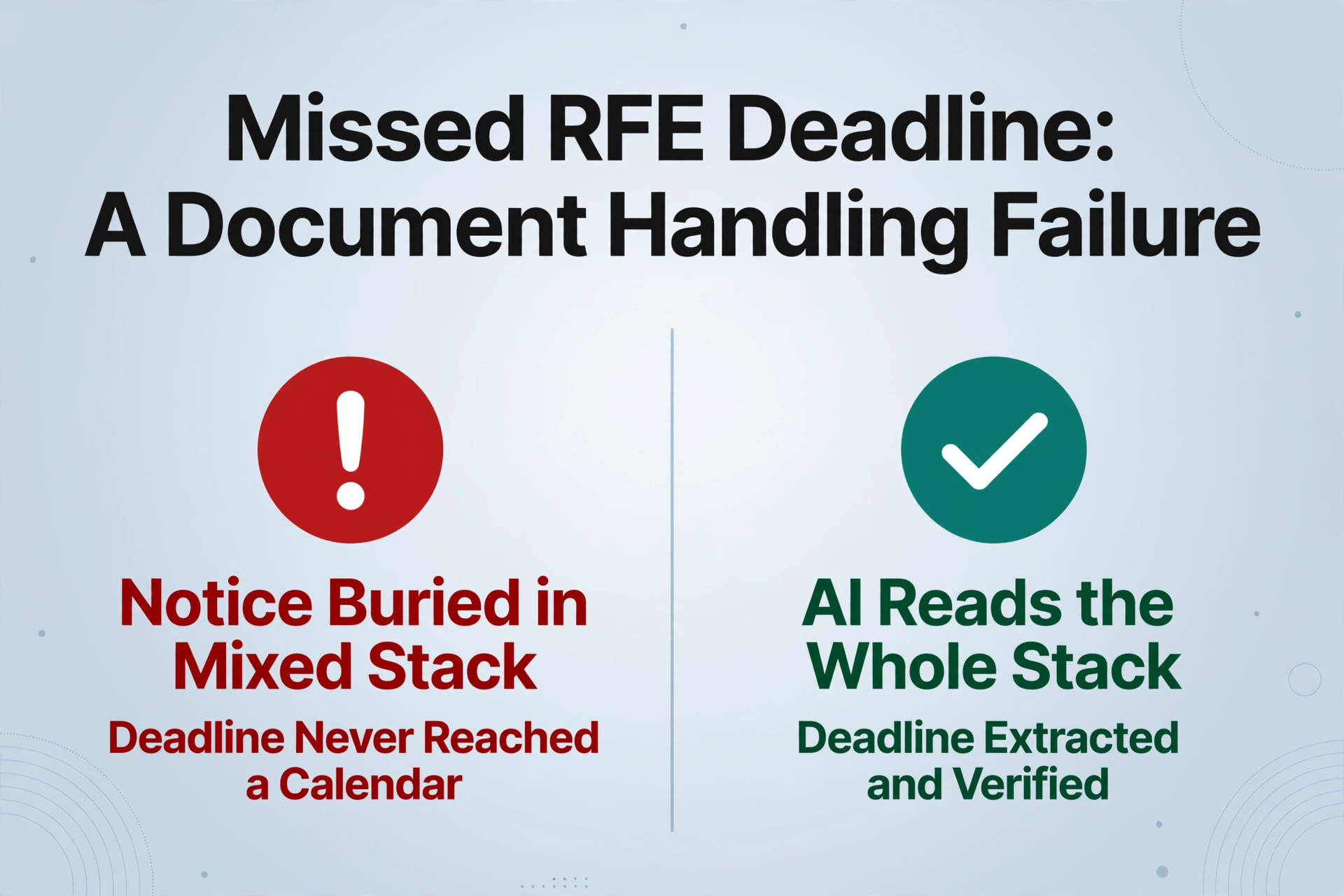
When an RFE response deadline is missed, the explanation usually is not that nobody wrote it down. It is that the notice spent its first week inside a mixed stack: scanned into the same PDF as a receipt notice and a biometrics appointment letter, filed under the wrong client, or photographed out of order with the deadline page buried in the middle. The deadline was printed on the notice, but it never reached a calendar because the document never reached the right person's attention.
Immigration intake teams know this failure mode by name. In a r/legaltech discussion about automated intake of USCIS documents, one commenter put the test the way a working paralegal would: "I'd run the trial on a realistic mix: USCIS notices, RFEs, receipts, translations, and any multi-document scans that usually cause humans to pause." Another added what the safe version of that automation has to include: "whether it routes uncertain items into a review bucket and leaves a clean trail of what it decided and why."
The unstated part of both comments is that the sorting step is the expensive one. The tool being discussed in that thread markets an "AI Mailroom" that classifies every document and files it into the right matter automatically. That is classification plus routing, and it is not what this article describes. This article describes the simpler, safer version: extraction does the reading, a type tag helps your team triage, and a human confirms the uncertain items.
What Intake Staff Actually Do With a Stack of Notices
USCIS sends far more paper than it admits exists. In fiscal year 2025 the agency received about 13.69 million applications and petitions and processed about 11.73 million, while the net backlog grew to roughly 6.28 million cases, up 65 percent from the prior year (USCIS FY 2025 annual report). Every one of those filings generates at least one notice on the way through, and most generate several: a receipt notice, an appointment letter, an RFE, an approval. For a firm with a few hundred open cases, the intake desk processes a pile of these every single week.
The workflow is routine and mostly manual. Someone opens the mail, scans what is paper, and reads each document to decide what it is. A paralegal enters the fields into the case file and the tracking spreadsheet: receipt number, notice type, service center, received date, case number, priority date if there is one, and for an RFE the response deadline. The professional standard for that step is plain. The American Immigration Council's practice tip on responding to an RFE tells practitioners to locate and calendar the due date first, and notes that many malpractice insurers require deadlines to be recorded in two separate locations.
Every field in that routine has a source. The receipt number is the 13-character tracker on the notice, starting with a three-letter service center code such as EAC, LIN, SRC, WAC, or IOE, that the firm uses to check status online. The notice type matters because the I-797 family hides several meanings: an I-797C communicates receipt, appointment, or transfer, while an I-797E is the notice that requests evidence, and confusing the two changes what the firm does next. The priority date appears on I-797s for family and employment petitions and controls when a visa number becomes available under the monthly Visa Bulletin. Each one is a small reading task, and none of them is hard in isolation.
Where the Reading of a Notice Stack Goes Wrong
The failures are structural rather than a matter of staff effort. A scanner that batches a client's whole mail drop produces one PDF with a receipt notice, an RFE, and a translated marriage certificate in sequence. The paralegal who opens it has to separate them mentally, and the deadline inside the middle page is exactly the value most likely to be mis-filed when the pages get attached to the wrong folder in the matter management system.
The same information appears with different layout conventions across the I-797 variants, so position-based templates fail regularly. Dates appear printed by machine or marked by hand on a cover letter someone attached. A translation sits next to the English original, and the intake staff may not read the foreign language. The same receipt number can appear on two notices that describe different actions, which a duplicate row in the tracking sheet will look exactly like. In a r/paralegal thread on form preparation time, an immigration paralegal reported that an hour and a half to two hours per form is the norm at their firm when clients do not supply every document up front. Most of that time is not typing. It is reading the stack to find which fields the case file is still missing.
The cost of an error compounds in one direction. A wrong spell of a petitioner name is fixable with a letter. A missed RFE deadline is a denied case, and the response window cannot be extended by regulation. The field that carries that risk is the one extraction must get right first.
Name the Columns You Need and Let the AI Read the Whole Stack
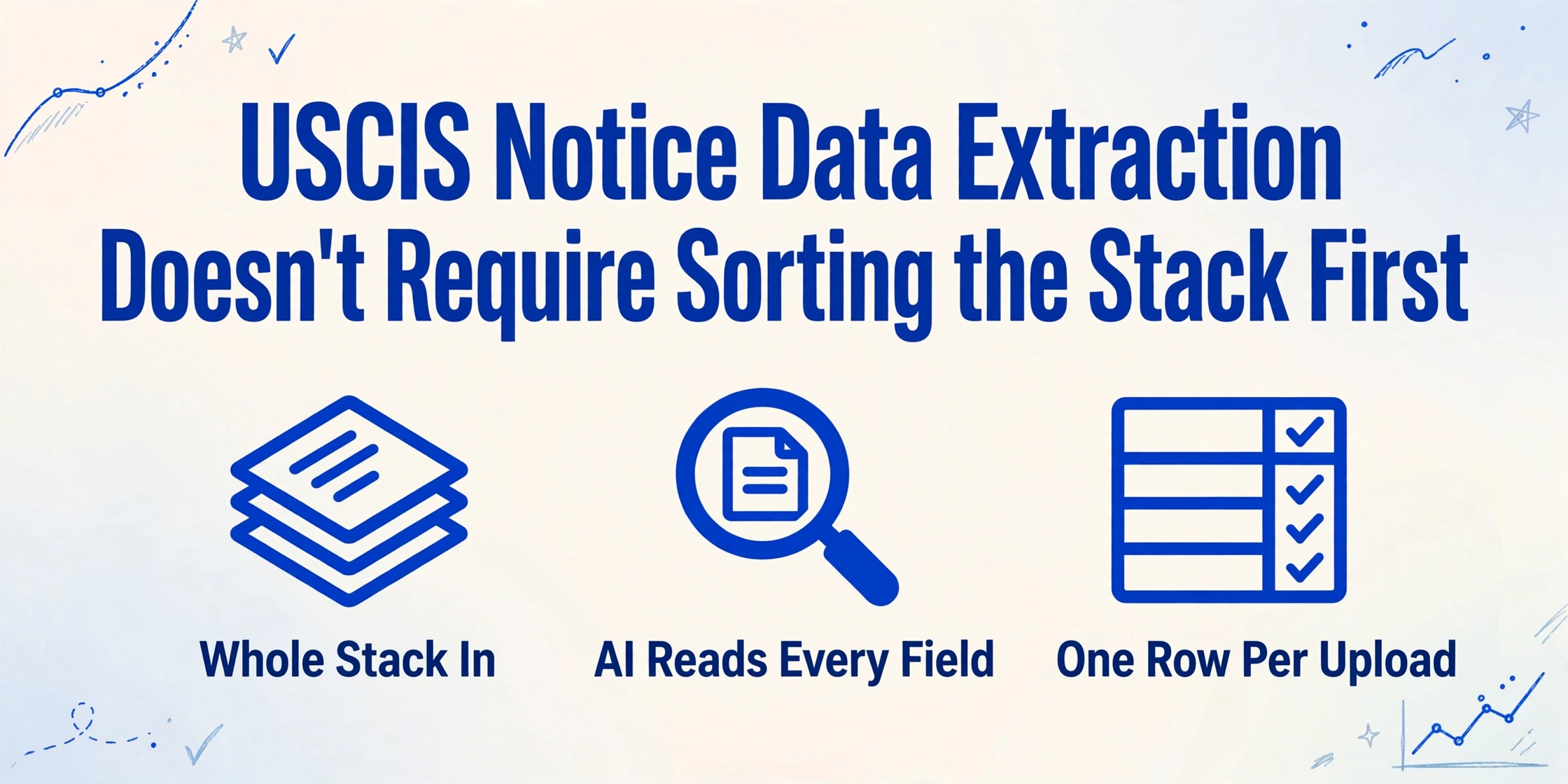
The core mechanism here is Custom Column Extraction. Instead of building a template for each notice layout, you type the column names you want, and a vision model reads each uploaded document and returns the value that fits each column by meaning. The column names you enter become the headers of the output spreadsheet, so the firm defines its case-file vocabulary once and every notice fills the same structure. No sorting step comes first, because the model does not need to know a document's type before it can read it: it reads the fields you named from whatever is in front of it.
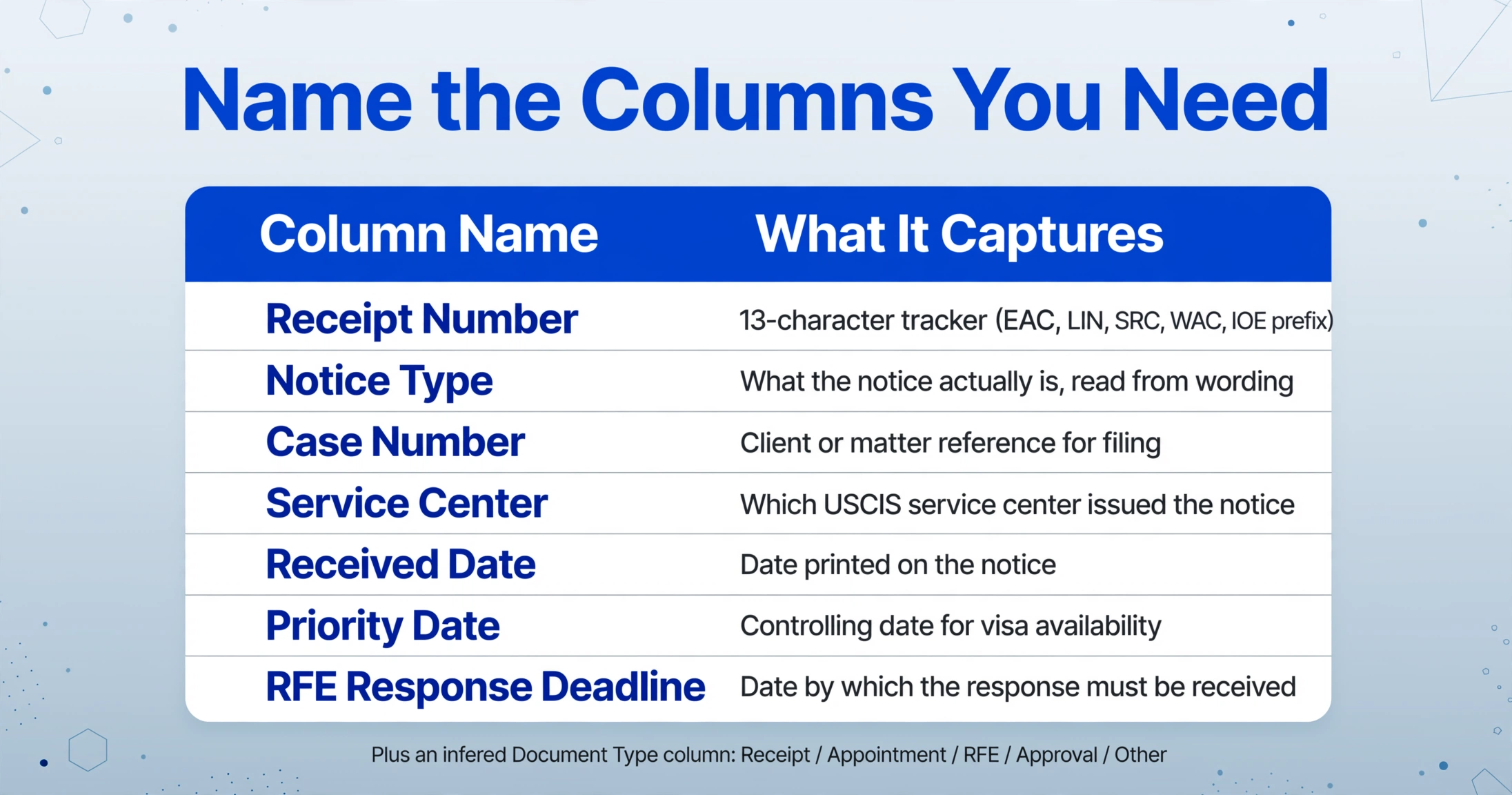
A workable column list for a USCIS notice stack looks like this:
| Column name | What it captures |
|---|---|
| Receipt Number | The 13-character tracker (EAC, LIN, SRC, WAC, IOE prefix) used for status checks |
| Notice Type | What the notice actually is, read from wording such as "receipt" or "request for evidence" |
| Case Number | The client or matter reference under which the notice is filed |
| Service Center | Which USCIS service center issued the notice |
| Received Date | The date printed on the notice, which anchors deadlines and status checks |
| Priority Date | The controlling date for visa availability on family and employment petitions |
| RFE Response Deadline | The date printed on the RFE by which the response must be received |
Two additions make the extraction usable as intake triage rather than just a data dump. An inferred column named Document Type (options: Receipt / Appointment / RFE / Approval / Other) asks the AI to tag each document with a category derived from its content. Because the tag is returned in its own column, it does not decide the document's fate. It gives the paralegal a filterable field: sort by Document Type, and the RFE rows surface with their deadlines next to them. Our guide to extracting specific fields from scanned forms covers the mixed-batch mechanics at work here, including how to handle multiple layouts in one upload.
The second addition is the review path that the r/legaltech commenter insisted on. Review Mode with Bbox verification lets anyone hover an extracted cell to see exactly where the value came from on the original notice, and reverse, click the region on the image to jump back to the cell. That turns the confirmation step into a spot check of the values that carry the case, especially the RFE deadline and the receipt number, instead of a full re-read of every notice. For the low-quality scans that plague intake desks, a higher processing tier runs the batch at a stronger model, which is the option the guide to OCR for legal documents covers on the scan-quality side.
Files are processed securely and not stored.
What This Does Not Do: No File Splitting, No Routing
The boundary matters precisely because the alternative being marketed in that legaltech thread sounds more complete. ImageToTable.ai does not classify a stack and then route each document into a different folder, matter, or system. It does not split a multi-document scan into separate files, and it does not write rows into Clio, Docketwise, or INSZoom on your behalf. If several documents were scanned into one PDF, you will get one row per upload, and separating them so each row carries one notice is a step a human does first. When that kind of pre-processing is part of your intake routine, our batch extraction workflow applies after the documents are split up.
The type tag from the inferred column is a hint for triage. It does not decide where a document belongs on its own. A document the model labels Other, or an RFE whose deadline it could not read cleanly, is exactly the row that should go to a person before anything is relied on. The review path exists so that uncertainty is visible instead of silent. This is the same honest line that batch extraction for small law firms in the discovery context draws, and discovery is a different workflow; the immigration intake version concentrates its confidence on the deadline field rather than on a document corpus.
Legal judgment stays with the firm. Extraction tells you what a notice says, not what to do about the broken evidence chain it describes, and nothing in the output is legal advice. Confidentiality handling for client immigration files still governs where the spreadsheet and the scans live, and firms subject to client-imposed or bar-imposed vendor restrictions should confirm the processing and retention model against those requirements first. Staff confirm the fields that carry the case, and the tool's value is compressing the reading and typing part of that week, not replacing the confirmation.
Setting Up the Intake Extraction Workflow
The workflow fits an afternoon and maps each step to one control rather than to a promise. This is what the configuration looks like:
Define the notice columns once
Use the field list above: Receipt Number, Notice Type, Case Number, Service Center, Received Date, Priority Date, RFE Response Deadline. Add the Document Type inferred column with the category options. These column names become your spreadsheet headers, so agree on them once for every intake channel.
Upload the whole stack, not the sorted pile
Put the client folder's scans into one batch. Order does not matter and formats can mix. The batch produces one spreadsheet with a row per notice, which is the consolidation that feeds the tracking sheet and the case file.
Filter by Document Type to find the RFE rows
Sort the output by the Document Type column. The RFE and NOID rows surface with their deadlines right next to them, and the receipt rows separate from the appointment rows without anyone having re-read the scans.
Verify the deadline and receipt number on the original
Open Review Mode and hover the cells for RFE Response Deadline and Receipt Number on the rows that will move a case. Bbox highlights exactly where each value came from, so confirming takes a glance at the notice rather than a second read-through.
Export and record the deadline in two places
Export to Excel or CSV. Enter the confirmed fields into the matter file and your calendar as the malpractice-insurance convention requires, then set the reminder. The extraction removed the reading and typing; the double recording stays as the safety net.
Firms that want to push the intake further can pair this with turning any uploaded document into a spreadsheet for the supporting evidence letters and translated documents, and the same column template handles both English originals and translated copies without a second setup. The distinct line against legal discovery work is covered in the discovery data extraction guide: different document populations, same underlying extraction.
FAQ
Can it tell a receipt notice from an RFE before anything is entered?
Yes, in the sense that matters for intake: the Document Type column tags each notice with its category, so the RFE rows can be sorted and reviewed without anyone reading every scan first. The tag is a suggestion for triage only; it does not decide where a document belongs. A document the model places in the "Other" bucket goes to a person, and the deadline on every RFE row is checked in Review Mode before it is relied on.
Does the RFE deadline get picked up from the date printed on the notice?
Yes. The Response Deadline column is read from the deadline printed on the notice, which is the date that governs under the USCIS Policy Manual. Because the deadline is also verified against the original image in Review Mode, the firm can catch a misread or an OCR artifact before the value lands in the calendar.
Our scans mix several documents in one PDF. Does that work?
Partially, and it is worth being explicit: the tool reads documents as uploaded, so a multi-document PDF returns a row for the upload as a whole. If separate notices were scanned into one file, a person separates them first and then the batch runs. The unsorted topic matters less than the uncombined one: notice order within the batch makes no difference to extraction.
Does this write into Clio, Docketwise, or our case management system?
No, and that is deliberate. The tool exports Excel, CSV, or JSON, and the confirmed fields are entered into the case management system by a person. It does not route documents into different matters or file them automatically. Tools that promise classify-and-route behavior are a different category, and a team that wants that should evaluate it on its own terms.
What if the scan is low quality or part of the page is cut off?
Poor scans come back to review. A higher processing tier uses a stronger model better suited to dense or degraded documents, and Review Mode makes the uncertain cells visible instead of silent. The scan-quality ceiling is the one every legal document processing workflow hits, and the practical response is the same: flag, confirm, correct.
The useful mental model is that intake is a reading problem before it is a typing problem. The paralegal's hour on a notice stack is mostly spent figuring out what each document is and which fields the case file still needs. Naming the columns once, letting a vision model read the whole stack, and tagging each document's type for triage compresses that reading into a review pass, while the deadline that can actually kill a case stays visible in its own column until a person confirms it.
Run one of your own notice scans through and check the deadline column yourself. Try it on a real RFE from your desk.