How to Extract Form Data to Excel
Without Re-typing a Single Field
The form on your desk has already been filled out. Every checkbox ticked, every blank written in, every signature line signed. And yet someone — maybe you — now needs to type all of that data into a spreadsheet, as though the form were still blank. Across HR onboarding, patient intake, survey collection, and field inspections, this is the default: forms arrive filled, and the data entry work begins.
Key Takeaways
- A 30-field form you type by hand has at least one mistake baked in — not from laziness, but from the 1–4% error floor built into human field-by-field transcription.
- Traditional OCR (optical character recognition — turning image text into editable data) fails on forms not because of handwriting, but because it memorizes field positions instead of understanding what fields mean — every form-version update, print-run variation, or scanner margin shift breaks that positional memory.
- Type your column names once and ImageToTable.ai reads every form for meaning rather than position — 150 survey forms that used to take 7 hours of manual entry become a minutes-long validation pass, across any mix of form layouts.
The Paper Form Bottleneck: Data Trapped on a Page
Most businesses don't struggle with having data. They struggle with data that arrives in the wrong shape. A patient intake form has every field completed — name, DOB, insurance ID, medical history checkboxes, signature — but it's ink on paper. An HR onboarding packet has five different forms per hire, each with its own layout, all filled by hand. A stack of event feedback surveys has 200 responses across three different form versions. The information exists. It just isn't in a spreadsheet. The same is true of a folder of approved leave forms payroll still keys in by hand — converting a leave request to Excel turns leave type, date range, and manager approval into payroll-ready rows.
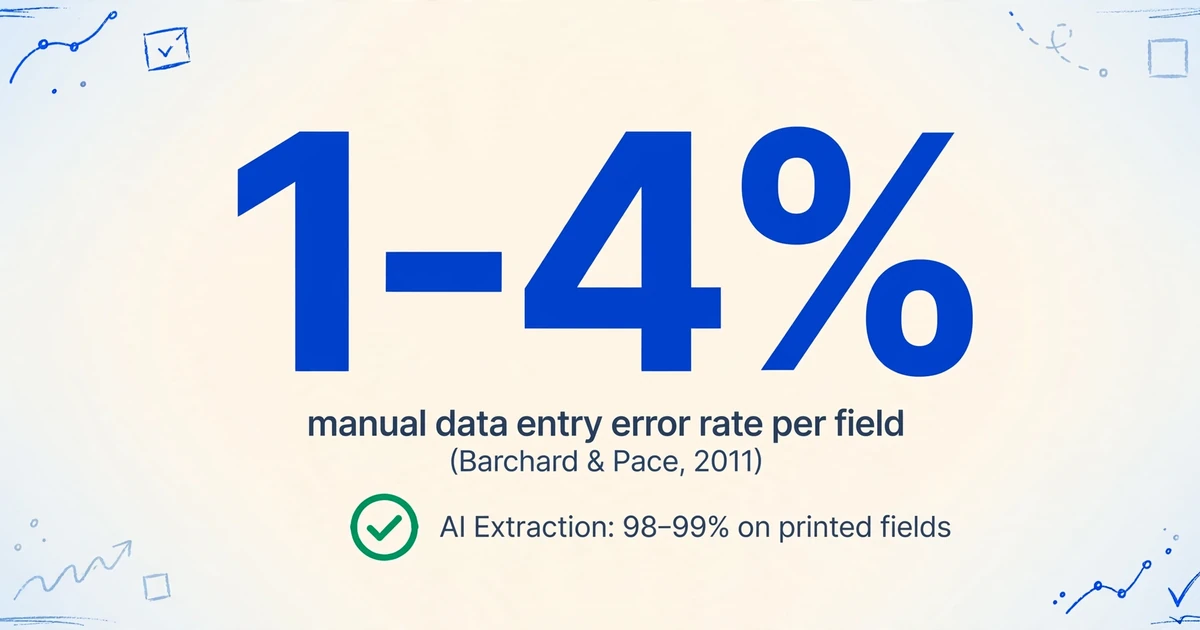
The conventional answer has been manual data entry. A 2011 study published in Behavior Research Methods by Barchard and Pace found that manual data entry carries an error rate of 1–4% per field — meaning a 30-field form is statistically likely to contain at least one error per entry. Double-key verification drops this to 0.3–0.5%, but at double the labor cost. At 3 minutes per form page for manual entry, a batch of 100 forms costs roughly 5 hours of pure keystroke work — before any review or correction.
That's the scale of the problem. But the deeper issue is that paper forms combine multiple data types on a single page that traditional OCR tools handle poorly: printed labels, handwritten answers, checkbox marks, conditional fields that only apply if a prior answer was "yes." Treating a form as one block of text — the way basic OCR does — produces output where a ticked checkbox reads as a random character, a handwritten name is disconnected from its printed label, and conditional explanations appear even when the triggering question was answered "no."
For a deeper look at why traditional OCR fails specifically on forms with checkbox and handwriting elements — and how vision-model AI handles spatial logic that OCR can't — see our guide on how AI reads handwritten forms and checkboxes to Excel.
Template Matching vs Semantic Reading: Why Forms Need a Different Approach
Most document extraction tools designed for forms take one of two approaches. Understanding the difference is the key to knowing whether a tool will work for your forms — or break the first time someone sends you a slightly different layout.
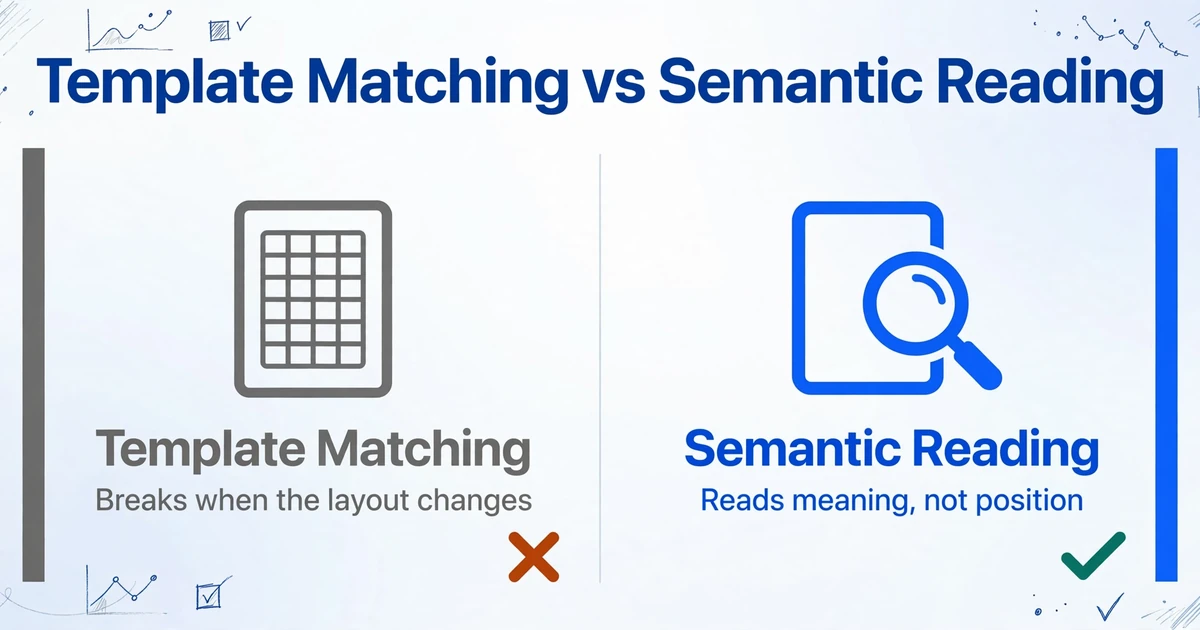
Template-based extraction — the approach used by Docparser, ABBYY, and most traditional OCR form processors — works by memorizing field positions. You open a form, draw a rectangle around each field you want to capture ("Name goes here, at coordinates X:120 Y:340"), and the tool reads whatever text falls inside that box on every subsequent form. This works reliably when every form has an identical layout — fillable PDFs from a single source, for example. But the moment a form layout changes — a new version, a different sender, a scanned document with slightly different margins — the template breaks. Each form variant needs its own template. Template maintenance becomes its own workload.
Column-name extraction takes the opposite approach. Instead of telling the tool where each field sits on the page, you tell it what you're looking for by defining output column names: "Full Name," "Date of Birth," "Consent (Yes/No)," "Insurance ID." The AI — powered by a vision language model (VLM) — reads the entire form image and locates each value by understanding what it represents semantically, not by memorizing its pixel position. A field labeled "DOB" on one form and "Date of Birth" on another both map to your "Date of Birth" column, because the AI understands they mean the same thing.
What this means in practice: One set of column names works across every form layout you receive. If a form changes — new version, new supplier, new department — you don't rebuild anything. The AI adapts because it reads for meaning, not position. This is the mechanism that makes batch processing of mixed-format forms possible without per-form configuration.
This approach is sometimes called custom column extraction: you define the columns — the output spreadsheet headers — and the AI fills the rows by reading each document. The column names you type are the output headers. If you need fields that aren't explicitly written on the form — like inferring a risk category from checkbox responses — you can use inferred columns to have the AI classify based on document content. Need columns that perform calculations? Computed columns handle arithmetic and conditional logic during extraction, so the output spreadsheet arrives with calculated values already populated. For a field-by-field methodology guide covering scan-quality thresholds, field-naming strategies, and mixed-form batch handling, see our dedicated article on extracting specific data from scanned forms.
What Can AI Extract From a Form — and What It Can't
Knowing what the AI can and can't read from a form determines whether you'll spend your time reviewing output or retyping from scratch. Here's how column-name extraction handles each data type that appears on real-world forms:
| Form Element | How AI Reads It | Reliability | Example Column Name |
|---|---|---|---|
| Printed text fields | Standard OCR on typed entries; VLM confirms semantic fit with the field label | 98–99% on clean scans at 300 DPI | Full Name |
| Handwritten entries (block letters) | VLM reads handwriting in context of the label — infers ambiguous characters from field expectations | 85–95% on clear block printing | Date of Birth |
| Handwritten entries (cursive) | VLM attempts contextual reading; accuracy varies significantly with handwriting style | 60–80%, budget review time | Reason for Visit |
| Checkboxes | VLM identifies the box structure, detects any mark (tick ✓, cross ✗, circle ○, filled ■), interprets as boolean | 95%+ on clean forms | Consent (Yes/No) |
| Radio button groups | VLM identifies the group, reads all option labels, returns the selected one | 95%+ on well-spaced groups | Gender (Male/Female/Other) |
| Conditional fields ("If yes, explain:____") | Define a column referencing the trigger field; AI checks the condition before extracting | High when trigger is a checkbox; lower when trigger is free-text | Explain_If_Yes |
| Table grids within forms | VLM identifies rows and columns, extracts cell-by-cell; multi-row output per form | 90%+ on clearly ruled grids | Item, Qty, Price |
| Signature presence | VLM detects whether a signature area contains writing; does not verify identity | Reliable for presence detection | Signature Present (Yes/No) |
Printed text on well-lit, straight-on scans at 300 DPI extracts near-perfectly. Handwritten block letters — the kind people use when they know someone else needs to read it — extract well enough that the review pass takes seconds per field rather than minutes per form. Cursive, faint pencil, and steep-angle phone photos are where accuracy degrades meaningfully — plan for a manual verification pass on those fields.
Step by Step: From a Stack of Forms to One Clean Excel Sheet
Here's the workflow that replaces the data entry marathon — using a survey collection scenario as a concrete example. You have 150 paper feedback forms from a conference. Each form asks for name, company, session attended, satisfaction rating (1–5 checkbox grid), and an optional open-ended comment. The forms came from three different print runs, so the layouts vary slightly. You need all of this in one Excel file.
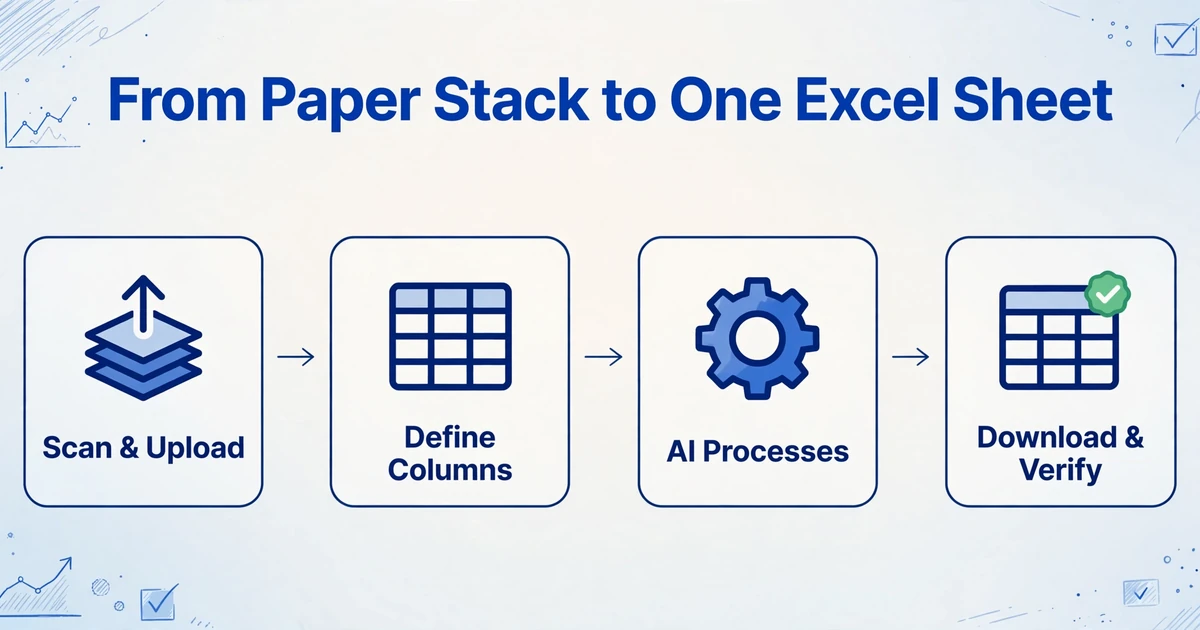
Scan or photograph all forms and upload in one batch. Scan at 300 DPI in grayscale for best results. Phone photos work, but shoot straight-on with even lighting. Formats can be JPG, PNG, PDF, or WebP — mixed formats in the same batch are fine. All 150 forms go into one upload.
Type the column names you want in your output spreadsheet. Enter: Full Name, Company, Session Attended, Satisfaction Rating, Comments. These become the headers of your Excel file. The AI reads every form and locates each value — regardless of which print-run layout that form came from.
AI processes all forms — each becomes one row. Processing runs at roughly 5–10 seconds per page, compared to roughly 3 minutes of manual entry. The satisfaction checkbox grid is read as a boolean per rating option, and the optional comment field is populated only where the respondent wrote something.
Download the Excel file and spot-check. Export as XLSX, CSV, or JSON. Sort by column, scan for empty cells where you expect data, and verify a sample of handwritten fields. The 150-form batch that would have taken 7+ hours of manual entry is now a review pass on an already-populated spreadsheet.
For a complete walkthrough of the extraction workflow — including how to set up column names for forms that combine multiple data types on one page — use our form data extraction tool that handles checkboxes, handwriting, and conditional fields in a single pass.
Handling Forms With Different Layouts in One Batch
Real-world form processing rarely involves a single form type. A doctor's office receives patient intake forms, insurance verification forms, and lab requisition forms — mixed in the same daily stack. A hiring department gets application forms, reference check forms, and tax withholding forms from each candidate. Running each form type as a separate extraction batch doubles or triples the processing overhead.
The column-name approach handles mixed batches by design. You define a column set that covers all the fields you need across all form types — say, 15 columns for a hiring batch. The AI processes each form independently: fields that exist on a given form are extracted; fields that don't appear are left blank. The output is one spreadsheet with consistent columns across all rows, regardless of which form type produced each row.
For mixed batches, include a column like Form Type in your definitions. The AI can identify the form type from its title or structure, giving you a column to filter by when reviewing. An HR team processing onboarding packets — employee info forms, W-4s, I-9s, emergency contacts, and direct deposit authorizations for multiple hires — can upload all forms in one batch and receive a single employee database with every field consolidated per person. Our guide on extracting new hire data from onboarding forms in bulk walks through this exact workflow, including computed columns for probation-date calculations and missing-form detection.
Real-world workflow: A medical practice receives three kinds of forms in the same daily batch — patient intake forms, insurance verification forms, and lab requisition sheets — each printed on a different layout. Instead of running three separate extraction jobs and sorting the paper by hand, they define one column set (Patient Name, Date of Birth, Insurance ID, Visit Type, Lab Ordered) and upload the entire day's paperwork at once. Intake forms populate the patient fields, lab requisitions populate the lab fields, and fields that don't appear on a given form stay blank. One spreadsheet at the end of the day, filtered by Form Type. For the field-by-field naming strategy behind a mixed-form batch — including how to handle checkbox and date fields across different layouts — see our guide on extracting specific data from scanned forms.
When Extraction Works — and When You Need a Human Review
No extraction tool achieves 100% accuracy on every form. The honest question is not "is it perfect" — it's "where does accuracy degrade, and what does the review workload look like compared to manual entry." Here's what to expect across different input conditions:
Near-perfect conditions: Clean, straight-on scans at 300+ DPI, dark ink on white paper, well-spaced fields, printed text. Printed field accuracy reaches 98–99%. Checkbox detection is reliable. The review pass is quick — scanning for outliers, verifying a sample.
Moderate conditions: 150–200 DPI scans, minor skew, slightly faded ink, phone photos taken straight-on, block-letter handwriting. Printed text remains reliable (90%+). Handwriting begins to degrade — block letters still extract well, but small or compressed writing may need correction on 10–20% of fields. Budget roughly 30 seconds per form for the review pass instead of 3 minutes for full re-entry.
Difficult conditions: Below 150 DPI, heavy skew, angled phone photos, cursive handwriting, densely packed checkboxes with overlapping marks, third-generation photocopies. Printed text drops below 85%. Handwriting becomes unreliable. Treat the AI output as a first draft — it will get most fields right, but plan for a more thorough manual review on handwritten entries. The time savings shift from "90% reduction" to "50–70% reduction" — still substantial, but not a full replacement for human verification.
The practical rule: if you're scanning forms specifically for AI extraction, scan at 300 DPI in grayscale (not black-and-white), keep the camera straight-on if using a phone, and use dark ink on light paper. These three decisions produce a larger accuracy improvement than any post-processing step.
Beyond Single Batches: Collection Links and Direct-to-Sheets Workflows
Form extraction that ends at "upload batch, download Excel" solves the data entry problem but leaves the collection problem untouched. Someone still has to gather all the forms into one place before extraction begins. Two capabilities close this gap:
Collection Links eliminate the form-gathering step. You generate a shareable link from your account, send it to form-fillers — employees filling out onboarding paperwork before their first day, patients completing intake forms at home, event attendees submitting feedback — and their uploads land directly in your processing queue. Each recipient opens the link, enters a short verification code, and uploads. No account creation, no app installation, no email attachments to organize. By the time you sit down to process, the forms are already collected and waiting.
For HR teams processing onboarding cohorts, a single Collection Link sent in the welcome email replaces the Monday-morning stack of paper forms. New hires complete forms at home, upload through the link, and their complete packet is in your queue — extracted and ready — before their first day.
Google Sheets integration takes a different angle: instead of downloading and importing, extracted data flows directly into a Google Sheet. The add-on runs as a sidebar inside Sheets — you upload forms, specify columns, and results append to the active sheet without leaving the spreadsheet. This is useful for teams whose downstream workflow already lives in Sheets: survey analysts building pivot tables, accountants reconciling form data against existing ledgers, operations teams maintaining live dashboards.
Both Collection Links and the Google Sheets add-on are included with an ImageToTable.ai account. The core extraction engine — the column-name approach described throughout this article — works identically whether you upload forms through the web app, receive them via Collection Link, or process them inside Google Sheets.
Frequently Asked Questions
Can AI read checkboxes that are ticked, circled, or crossed — or only standard check marks?
Yes — all three. The vision model doesn't classify the shape of the mark (is it a ✓ or ✗ or ○?). It understands that any mark inside a checkbox indicates "selected" and outputs a consistent boolean value. A column defined as Consent (Yes/No) will return "Yes" whether the respondent ticked, circled, crossed, or filled in the box. This is a fundamental difference from traditional OCR, which attempts to name the character and may output "V" for a tick or "O" for a circle — leaving you to decode which characters mean "checked" in your output.
What about forms with printed labels and handwritten answers — can the AI connect them correctly?
Yes. The AI reads the entire form in one visual pass — printed labels and handwritten values together — and preserves the relationship between them. "Full Name" (printed) next to "J. Smith" (handwritten) is understood as a key-value pair. This is unlike two-step OCR approaches that run print recognition and handwriting recognition separately, then attempt to stitch results afterward — which breaks whenever a handwritten value appears somewhere unexpected or a label shifts slightly. The AI's single-pass reading is closer to how a person looks at a form: they don't read all the printed text first, then all the handwriting; they read each field as a complete unit.
Do I need to separate forms by type before uploading — surveys in one batch, intake forms in another?
No. Define a column set that covers all the fields you need across every form type and upload everything together. The AI processes each document independently — fields that exist on a given form get extracted; fields that don't appear are left blank. Include a "Form Type" column in your definitions so you can filter the output by document type during review. This eliminates the sorting step that template-based tools require before processing can begin.
How does it handle conditional fields — like "If yes, please explain:" that should only be populated when the checkbox is selected?
Define a column for the conditional field with a name that references the trigger — for example, Explain_If_Yes. The AI checks whether the preceding checkbox was selected before extracting the explanation text. If the checkbox was unchecked, the cell is left empty because the explanation was never triggered. This prevents the most common form-extraction error: phantom data from fields that should not exist. Traditional OCR tools extract every populated field on the page regardless of logical dependencies — an "explanation" box filled with "N/A" still gets extracted as data.
Can I save my column setup and reuse it for every batch of the same form type?
Yes. Define your column names once and save them as a named template. Each new batch — next week's surveys, next month's intake forms, next quarter's inspection reports — loads the same column set. If your form changes, update the columns once and save the new version. The extraction adapts to form-layout changes automatically because it matches by meaning, not by position — so even if a field moves to a different part of the page in a new form version, your saved column set still works.
Can it process forms in languages other than English?
Yes. The AI reads forms in most major languages — Spanish, French, German, Portuguese, Japanese, Korean, and others. Form labels in other languages (e.g., "Nombre del Empleado" or "Date de Naissance") are matched to your English column names through semantic understanding. This is useful for multilingual workforces, international surveys, or forms collected across different regions where the same information is labeled differently.
Is extracted form data — especially sensitive fields like SSNs, medical history, or financial information — stored after processing?
Files uploaded to ImageToTable.ai are processed in memory and are not permanently stored. The platform is designed for extraction, not document storage — extracted data exists only for the duration of the processing job. For organizations with additional compliance requirements, verify that the processing environment meets your specific regulatory needs before uploading sensitive documents. For healthcare forms subject to HIPAA or financial forms subject to specific data-handling regulations, always confirm your compliance posture with the relevant standards.
The bottleneck in form processing isn't the form itself — it's the translation step between the filled page and the spreadsheet row. When that step goes from 3 minutes of typing per form to 10 seconds of AI reading per form, the question shifts from "can we process these forms" to "what do we do with the time we got back."
Upload your next batch of forms — surveys, intake forms, inspection checklists, onboarding packets — type your column names once, and get the data in Excel without retyping a single field.
Start Extracting