How to Extract Performance Reviews into Excel
for Talent Calibration
A talent calibration session is won or lost before anyone walks into the room. In a SHRM survey, 54% of HR professionals said their organization runs formal calibration sessions — and 69% cited inconsistent ratings as the most common reason ratings get changed once managers compare notes (SHRM). The meeting can only fix what the spreadsheet managed to capture.
Key Takeaways
- A 120-person review cycle costs 8 to 10 hours of transcription before calibration prep even starts — a line item nobody budgets for.
- Pay and promotion decisions are made from a spreadsheet nobody audited — a single mistyped rating number changes which performance band an employee lands in.
- Define your columns once and drop all the documents in — the sheet arrives with composite scores and performance tiers already computed, ready to pivot before the meeting starts.
The Calibration Bottleneck Is Data Assembly, Not Judgment
Talent calibration exists to normalize performance ratings across managers — to catch the manager whose whole team averages 4.6 while the company averages 3.9, and to make sure a "4" means the same thing in engineering that it does in sales. None of that can happen until every review is on one sheet, one row per employee, with comparable fields.
That assembly step is where the process silently fails. CEB (now part of Gartner) found managers spend an average of 210 hours a year on performance management activities — and employees another 40 hours each — while 77% of HR executives said reviews don't accurately reflect employee contributions (SHRM/CEB). A big slice of those 210 hours isn't writing feedback. It's gathering it — exporting reviews, printing forms, and re-typing ratings into a summary workbook that someone else will question the moment the numbers look off.
The fix isn't more judgment in the room. It's a trustworthy data layer under the room — and that layer starts with getting review documents into a spreadsheet without a transcription gauntlet.
Where Performance Review Data Actually Lives
Before you can extract anything, it helps to know what your review cycle actually produces. Even companies with performance software rarely have a single "export everything" button that hands over a ready-made calibration sheet. In practice, the data arrives in at least four shapes:
- Platform exports. Workday, Lattice, 15Five, and BambooHR all let admins pull cycle data — but the export is usually a raw dump of questions and answers, not a per-employee summary row. Culture Amp, for example, exports cycle data as CSV or XLSX that still needs reshaping before it matches your calibration format (Culture Amp support).
- Per-review PDFs. Some platforms only export each review as its own PDF — one file per employee, often delivered in batches of fifty. That's a folder full of documents, not a dataset.
- Word and Google Docs forms. Many mid-size teams still run review cycles on shared form templates: managers fill a doc, sign it, and email it back. HR ends up with an inbox of attachments, each in a slightly different edit state.
- Scanned or handwritten appraisal sheets. Still real in manufacturing, retail, and field operations — a manager fills a paper form, HR digitizes it, and the "digitizing" is usually retyping.
There is no universal export button because the documents themselves are the source of truth. The formats are whatever managers happened to use — which is exactly why the assembly step ends up manual for so many teams.
Alongside the formal documents, a lot of the evidence never leaves chat. The day-to-day praise, concerns, and coaching notes a manager sends in a Slack DM or a Teams channel are often what justifies a rating in the calibration room — and those manager feedback screenshots are just as retype-prone as the review forms themselves.
What Manual Assembly Costs a People Team
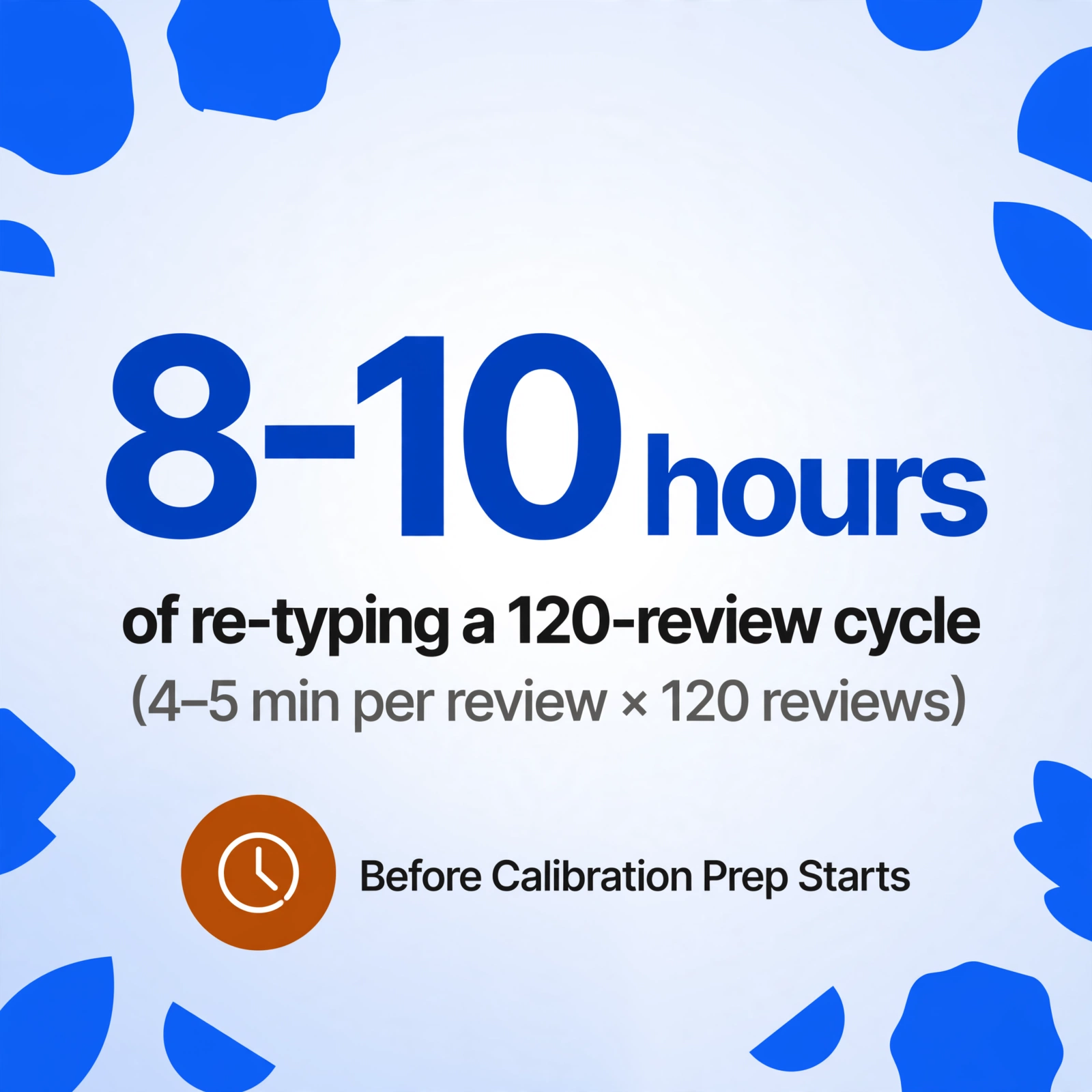
Here's the arithmetic no one budgets for. A people ops specialist consolidating a 120-person review cycle spends roughly 4 to 5 minutes per review re-typing the essentials — employee name, department, manager, overall rating, the five competency scores, promotion recommendation — and skimming the narrative sections for anything worth carrying over. At 120 reviews, that's 8 to 10 hours of transcription before calibration prep has even started.
Time is the visible cost. The invisible one is what a mistyped number does downstream. A transposed 4.2 becomes a 4.7 and changes which band an employee lands in. A skipped line in "Areas for Improvement" means a development conversation starts from the wrong place. When the calibration sheet feeds compensation and promotion decisions, every keystroke error has a name attached to it.
The deeper problem is that manual entry is at its worst exactly when it's most likely — at the end of a cycle, under a fixed session date, when everyone is exhausted. That's when transcription errors stop being rare exceptions and start being systematic.
The real cost isn't typing speed. It's that the spreadsheet becomes the single source of truth for pay, promotion, and succession decisions — and nobody ever audits the typing that built it.
Designing the Calibration Spreadsheet: What to Extract
The spreadsheet's job is to make rating differences visible and comparable — not to archive every word of every review. Teams that extract everything spend their session scrolling; teams that extract the right fields spend it deciding. (If you'd rather see the field set in action than read about it, the performance review data extraction to Excel tool page walks through the same columns with a live demo.)
| Field | Why It Belongs in the Sheet |
|---|---|
| Employee Name / Employee ID | Primary identifier. The ID matters when two employees share a name. |
| Department / Manager | The two pivot axes of calibration: distribution by team, and leniency checks per manager. |
| Review Period | Keeps multi-cycle sheets honest — last year's 4.0 isn't this year's. |
| Overall Rating | Captured as printed on the form — 4.2 on a 1–5 scale, "Exceeds Expectations", whatever the form uses. Normalize scales in Excel after extraction. |
| Competency Scores | One column per competency (Communication, Collaboration, Productivity, Quality, Leadership). Splitting them shows where a rating gap comes from. |
| Composite Score | A computed column: the AI averages the competency scores during extraction, so you get a single comparable number without post-processing. |
| Performance Tier | An inferred column: the AI maps each rating into your rubric — Top / Strong / Developing / Needs Improvement — even though the form never prints a tier. |
| Promotion Recommendation | The field that feeds succession planning — and the one most likely to be challenged in the room. |
| Strengths / Areas for Improvement / Development Goals | Narrative text columns. You don't need every sentence — you need the sentences that change a development plan. |
| High-Potential Flag | An inferred column for succession conversations: the AI flags employees whose reviews describe readiness for broader scope, based on the criteria you define. |
Two of these columns deserve special attention because they don't exist on any form. Performance Tier and High-Potential Flag are inferred columns — you type a column name with the options you want (e.g. "Performance Tier (options: Top/Strong/Developing/Needs Improvement)"), and the AI reads each review and assigns the category during extraction. No formulas, no second pass in Excel. And Composite Score is a computed column: describe the calculation in the column name ("Composite Score (Communication + Collaboration + Productivity + Quality + Leadership ÷ 5)") and the AI does the arithmetic as it reads the scores.
Step by Step: Turn Reviews into a Calibration Sheet
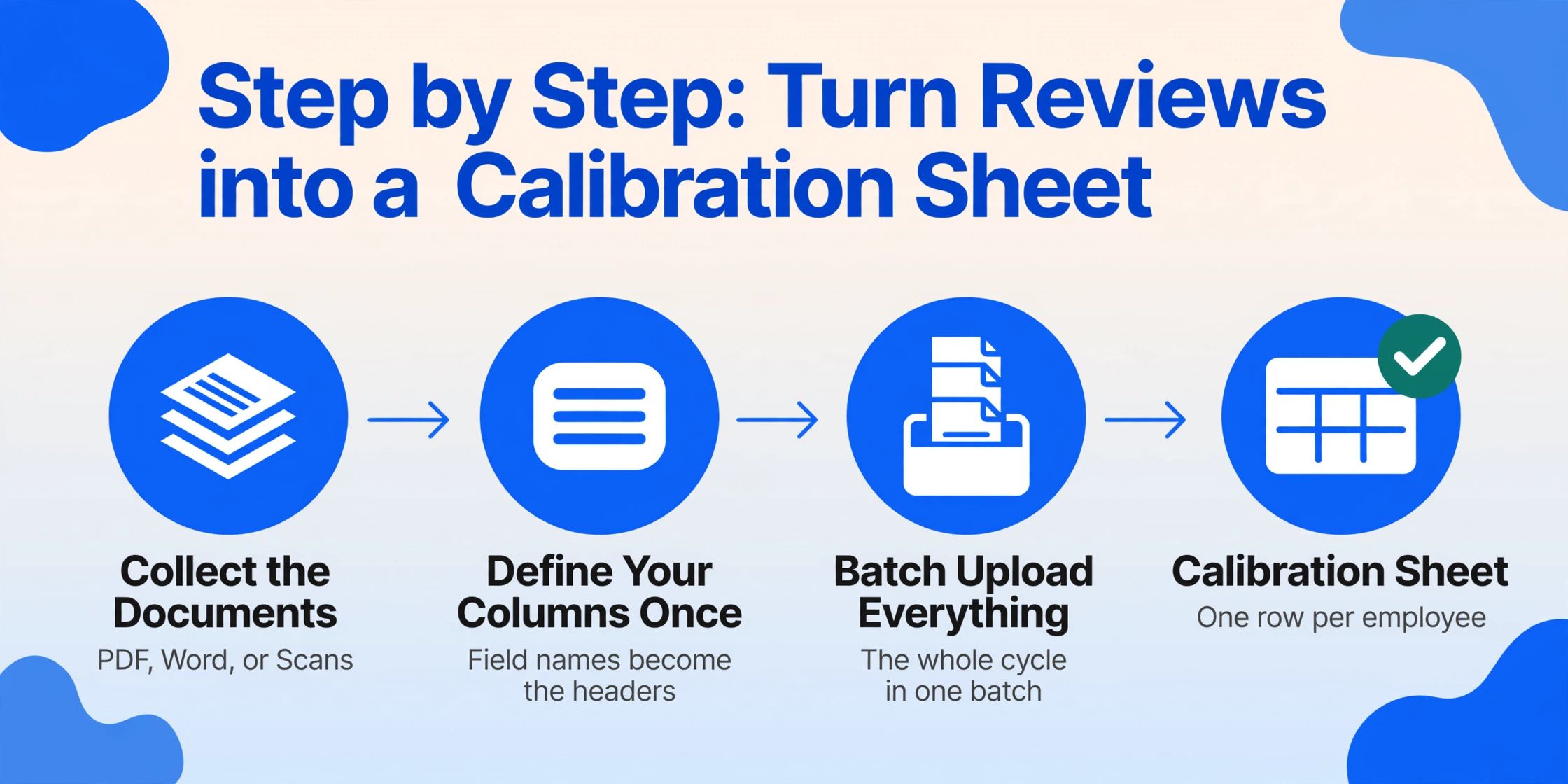
The workflow below works regardless of what your cycle produced — platform PDF exports, Word forms, scanned sheets, or a mix of all three. It's built on Custom Column Extraction: you type the field names you want, and the AI locates each value on each document by understanding what the field means, not where it sits. The column names you enter become the headers of the output spreadsheet, so the sheet matches your calibration format by construction.
Step 1: Collect the Review Documents
Gather everything in one place: PDF exports from your platform, completed Word or Google Docs forms, scans of paper appraisals. If you're pulling reviews from managers who still email them, a Collection Link — a shareable upload page that drops files straight into your processing queue — or the Email Inbox (forward reviews to your dedicated address and they land in the queue automatically) removes the "email me your review" chase. The same collection pattern we describe for resume data extraction for recruiting applies here: no one else needs an account, they just send files.
Step 2: Define Your Columns Once
Type the field list from the section above, adjusted for your cycle. Name the columns in plain language — "Overall Rating", "Communication Score", "Promotion Recommendation" — and add the two derived columns ("Performance Tier", "Composite Score"). You define this once per cycle; the same configuration can be saved as a template for the next one.
Step 3: Batch Upload Everything
Drop all the documents into a single batch — mixed formats, mixed layouts, no pre-sorting. Multi-page PDFs are split page by page and matched to the right review automatically. One batch of 120 reviews produces one table: 120 rows, one row per employee, with every column aligned.
Files are processed securely and not stored.
Step 4: Let the Derived Columns Do the Analysis Prep
Because Performance Tier and Composite Score are computed during extraction, the sheet arrives with the hard work already done: every employee has a tier and a comparable score, and you haven't written a single formula. If your cycle uses a rating scale that differs by department (1–5 here, 1–10 there), normalize the Overall Rating column in Excel once the data is out — that's a five-minute find-and-replace, not a retyping session.
Step 5: Spot-Check Before the Meeting
Before the calibration session, run a quick verification pass. In Review Mode, hover over any extracted cell and the original document highlights exactly where that value came from — so when a manager challenges a rating in the room, you can show the source in seconds instead of digging through the folder. Review Mode is also where a mistyped digit gets caught before it reaches a pay conversation.
Step 6: Export and Pivot
Export to Excel (XLSX) and you have the calibration sheet — one row per employee, columns ready to pivot. From here the sheet becomes the working document for the session itself.
From Raw Sheet to Calibration Session
The point of the sheet is to make the session's work visible before it starts. Three checks turn raw rows into a calibration agenda.
Check the distribution against your target curve. HR consultant Dick Grote's commonly cited benchmark distribution puts solid performers at 50–60% of the workforce, with the top band at 5–10% and the bottom at 2–5% (SHRM). Filter by Performance Tier and count. A company where 80% of employees are "Top" isn't a high-performing company — it's an uncalibrated one.
Pivot by manager to find leniency and severity. Insert a pivot table with Manager as rows and Average of Composite Score as values, then compare each manager's team average to the company average. The manager at 4.6 against a company average of 3.9 is your first calibration discussion — not because their team is bad, but because their scale is different.
Build the pre-read packet by tier and department. Filter the sheet to the employees each session will discuss, and share the relevant rows (ratings, narrative highlights, promotion recommendations) ahead of time. Managers arrive having already seen the evidence — which is exactly the documented-evidence dynamic that keeps calibration sessions productive instead of impression-based.
The same extraction workflow that built this sheet extends to the rest of your HR document stack. The onboarding form extraction guide covers pulling structured employee records from onboarding paperwork, the batch payslip extraction guide shows the pattern applied to payroll documents for audit, and batch offer letter processing turns the promotions decided in calibration into contract records — one column-definition approach, many document types.
Why Review Forms Break Positional Parsing
Performance review forms are a worst-case layout for traditional OCR. The rating table has merged cells and column checkboxes. Competencies are laid out as Likert grids — five columns of circles, one per row. Comment boxes sit below each section, and managers write in them at whatever length the box allows. On a scanned sheet, ratings are sometimes hand-marked rather than typed.
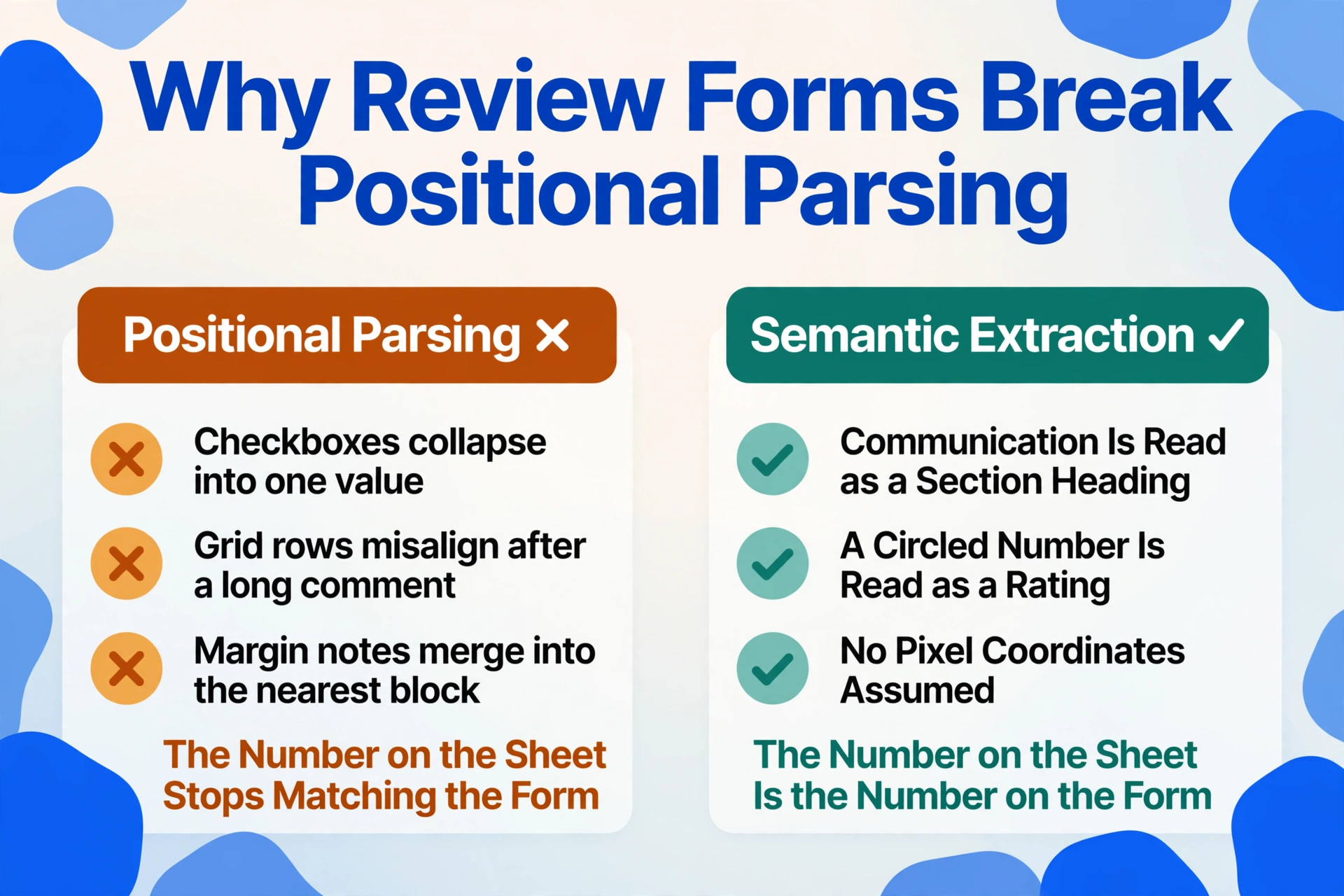
Position-based parsers — the kind that look for text at expected coordinates — break on this in specific ways: the checkbox column collapses into a single value, the grid rows misalign after a long comment, the handwritten margin note merges into the nearest text block. Semantic extraction sidesteps the whole class of failure because it never assumes where a value lives. The AI reads "Communication" as a section heading, knows the row under it is the communication score, and understands that a circled number in the grid is a rating — by meaning, not by pixel position.
This matters more in HR than in most domains because the data is the argument. In a thread on r/humanresources, practitioners debate how to distinguish a 4 from a 5 on a 1–5 scale — whether "exceeds expectations" requires volume of output, quality, or both (r/humanresources). If experienced HR people disagree about what a rating means, the extraction layer at least has to be beyond dispute — the number on the sheet has to be the number on the form.
Honest limits: clean printed forms extract reliably, including checkboxes and rating grids. Dense handwriting in comment boxes produces lower confidence — treat handwritten-only appraisals as needing extra manual review, and lean on Review Mode to verify them.
Sensitive Data: Lawful Basis, Retention, and Fairness
Performance reviews are employment records, and the spreadsheet you build from them is a dataset of personal data. That changes how the workflow should be run — not to scare you away from it, but so the file is built the way it can be defended.
Under the GDPR, processing performance data typically rests on employment necessity or legitimate interest as the lawful basis, and employees retain the right to access their data (Article 15) and to have inaccuracies corrected (Article 16) — which means the source-traceability of every extracted value matters, and retention periods for old cycles should be defined and enforced rather than left to accumulate. In the US, the EEOC's framework on disparate impact applies when ratings feed promotion or compensation decisions: the criteria you filter on (tier, composite score) should be job-related, and the calibration process itself — who reviewed, what evidence — should be documented.
Operationally, a spreadsheet pipeline is defensible because it's transparent: extract only the fields the calibration needs (data minimization), verify values against the source document with Review Mode before the meeting, and keep the auditable trail of where each number came from. If an employee requests deletion or correction, you're editing rows in a file you control — not untangling a vendor's database.
FAQ
Can it read handwritten performance review forms?
Printed or typed forms — including filled checkboxes, rating grids, and comment sections — extract reliably. Legible handwriting on a structured form (like a paper appraisal sheet with labeled fields) extracts well. Dense cursive handwriting in unstructured boxes produces lower confidence and should be manually reviewed; the AI flags low-confidence regions so you know where to look.
My reviews are already in Lattice, Workday, or 15Five — do I still need extraction?
If your platform exports a per-employee summary with all the fields you need for calibration, use that export — extraction adds nothing there. But platform exports are often question-by-question dumps or per-review PDFs that still require assembly, and teams running Word or Google Docs forms outside the platform have no export at all. Extraction fills the gap between what the platform hands you and what the calibration sheet needs.
Can it calculate a composite score across competencies?
Yes. Define a computed column like "Composite Score (Communication + Collaboration + Productivity + Quality + Leadership ÷ 5)" and the AI averages the extracted competency scores during processing — the result appears in the sheet as a new column, no Excel formulas needed. This works across the whole batch in one pass.
Can it classify ratings into performance tiers?
Yes, with an inferred column. Type "Performance Tier (options: Top/Strong/Developing/Needs Improvement)" and the AI assigns each employee a tier based on their ratings and your defined categories — even though the form itself never prints a tier. You set the labels and the criteria; the sheet arrives with the classification done.
How many reviews can I process at once?
Batch uploads handle a full review cycle in one session — dozens to hundreds of documents are processed in parallel and merged into a single output table, one row per employee. Multi-page PDFs are split and matched automatically, so a 40-page cycle export doesn't need any manual page handling.
Is employee performance data kept private?
Files are processed and automatically deleted after a configurable retention period, and no training data is retained from customer uploads. The extracted spreadsheet lives in a file you control — which is exactly what makes responding to access or deletion requests straightforward.
Talent calibration only ever works with the data you bring into the room. If that data is still sitting in a folder of PDFs and forms, the session is already negotiating from a deficit — no amount of facilitation skill fixes a spreadsheet that was never built.
Build next cycle's sheet from the documents themselves. Upload a handful of your actual review files and see the calibration table take shape in seconds — ratings, competencies, tiers, and feedback in one pass, verified against the source before anyone sits down to argue about a 4.2.