How to Extract Job-Site Receipts
into Excel by Cost Code and Phase
CFMA's 2024 Construction Financial Benchmarker — surveying 1,290 US contractors — found that cost administration alone consumes 5.4% of project revenue for the average general contractor. On a $5 million project, that's $270,000 spent not on materials or labor but on the accounting overhead of reconciling where costs belong. A meaningful fraction of that overhead traces back to a single repetitive task: taking a crumpled Home Depot receipt out of a superintendent's truck, reading the abbreviated item descriptions, and deciding which of 50 CSI MasterFormat divisions each line item should charge. This article covers the extraction side of that problem — and how to solve it in the time it takes to drink a cup of coffee.
Key Takeaways
- A single Home Depot receipt can charge materials to three different CSI divisions and two project phases — but most tracking tools treat one receipt as one category.
- Manual line-item coding costs $58 per report with a 19% error rate — not because people are careless, but because thermal paper fades within hours and a 50-line receipt exhausts even the most diligent project accountant.
- Define your CSI rules once as extraction columns and the AI codes every line item during processing — replacing four hours of typing with four minutes of machine time and a 15-minute review.
Why Job-Site Receipts Defeat Standard Expense Tracking
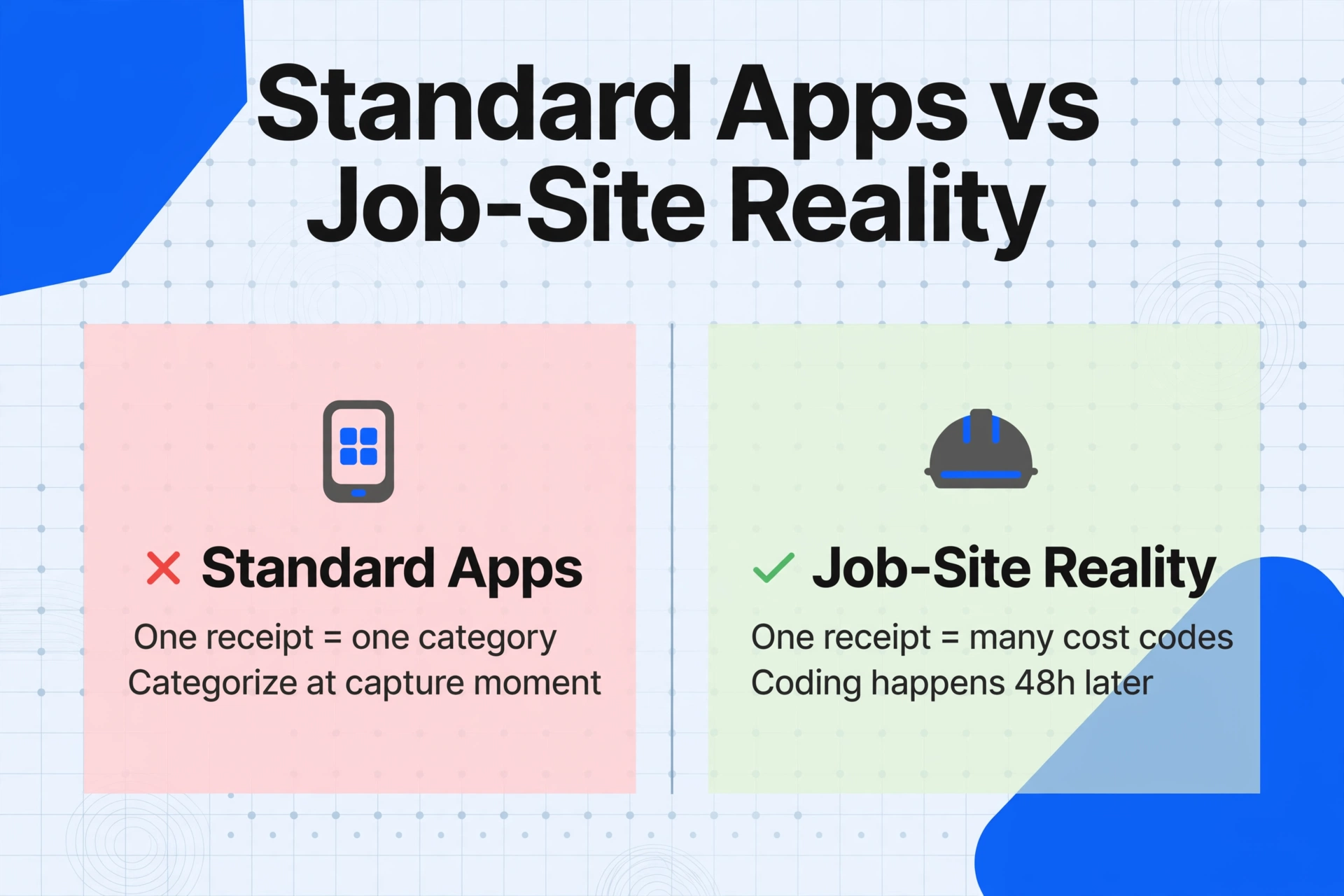
Most receipt-tracking advice starts from the wrong end of the problem. Open the app, snap the receipt, tag it as "Office Supplies," done. The workflow assumes one receipt equals one category, and the categorization happens at the moment of capture. A construction site is actively hostile to both assumptions.
A superintendent buying materials at 6:45 a.m. — standing in a Home Depot Pro checkout line in work gloves, with a crew waiting in the truck — is generating a receipt under conditions that actively prevent immediate processing. The receipt goes into a pocket, then the truck console, then a jacket pocket. By the time it reaches the office 48 hours later, thermal paper has already begun its chemical fade in response to body heat and sunlight. The home office now needs to read a thermal receipt with half-vanished text, decode abbreviated item descriptions ("2X6 SPF #2 16'" = 2×6 Spruce-Pine-Fir, #2 grade, 16-foot length), and — critically — assign every line item to the correct cost code and project phase based on where that material was used on site. The desk-based freelancer never has to do that last part. The contractor has to do it for every single receipt.
The tool landscape reflects this mismatch. When one contractor on r/Construction described their workflow — "We use buildertrend. You just snap a photo of the receipt and attach it to the job. It can read the receipt and sometimes even get the cost code correct" — the word "sometimes" carries most of the weight. The capture tool exists. The feature is there. But automatic cost code assignment only works when the receipt is legible, the item descriptions are unambiguous, and the software's rules are correctly configured. On an active job site where receipts are crumpled, faded, and carry handwritten notes scrawled in a truck cab, those conditions rarely hold.
The root issue is structural, not behavioral. A contractor's receipt serves two masters that most tracking tools don't connect: IRS substantiation (what was bought, when, from whom, how much) and job cost allocation (which project, which phase, which CSI cost code). A desk worker only needs the first. A contractor needs both — and the two systems pull in different directions. Generic receipt scanners answer the first question well and ignore the second entirely.
The Coding Layer Every Construction Receipt Needs
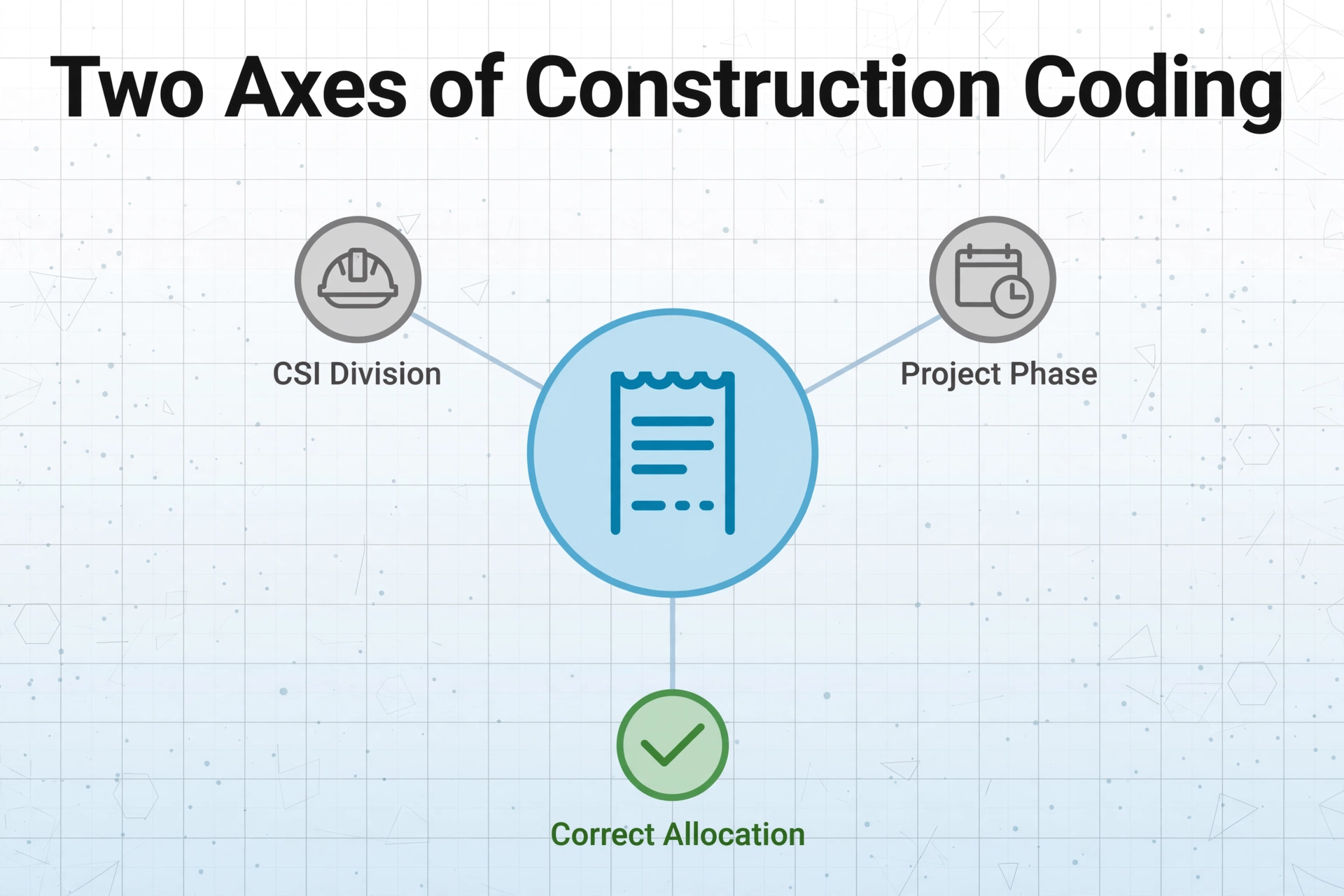
Before you can extract data from a receipt, you need to know where it's going. In construction, every dollar spent on materials lands in two parallel classification systems — and the assignments are rarely obvious from the receipt alone.
CSI MasterFormat cost codes classify work by trade and material type. Developed by the Construction Specifications Institute, the system organizes construction into 50 divisions — Division 03 for Concrete, Division 06 for Wood and Plastics, Division 08 for Doors and Windows, Division 22 for Plumbing, Division 26 for Electrical, and so on. Each division drills down to six-digit sections: 03 30 00 for Cast-in-Place Concrete, 06 11 00 for Wood Framing, 08 11 00 for Metal Doors and Frames. The system is the industry standard for specifications, estimating, and job cost tracking — it's what Procore, Sage 300 CRE, Viewpoint Vista, and Foundation Software all use as their default coding backbone.
Project phases classify work by when it happens: Foundation, Rough (framing, MEP rough-in, roofing, exterior shell), and Finish (drywall, paint, flooring, trim, fixtures, final punch). A phase isn't a substitute for a cost code — it's a second axis. Division 06 (Wood) material could be Foundation-phase form lumber, Rough-phase framing lumber, or Finish-phase trim stock. Same CSI division, three different phases, three different budget lines.
Now consider an actual Home Depot receipt from a job site. The receipt shows:
| Item | Qty | Price |
|---|---|---|
| 2X6 SPF #2 16' | 18 | $14.97 |
| 2X4 KD HT 92-5/8" | 30 | $3.87 |
| QUIKRETE 80LB 5000 | 12 | $6.48 |
| DRYWALL 1/2X4X8 REG | 8 | $15.28 |
| DECK SCREW 3" #10 T25 | 1 | $31.97 |
The receipt itself tells you none of this: the 2×6 framing lumber belongs to Division 06 (Wood), Phase Rough; the QUIKRETE to Division 03 (Concrete), Phase Foundation; the drywall to Division 09 (Finishes), Phase Finish; and the deck screws could go to either Rough (deck substructure) or Phase Finish (deck surface), depending on the job. Every one of those assignments is a decision the contractor or PM makes — and currently, most make it by writing the job number and cost code in pen on the corner of a thermal receipt that starts fading the moment it leaves the store.
This is where the extraction methodology matters. A tool that only reads what's printed on the receipt — vendor, date, items, totals — leaves you with the same coding work on the other side. A tool that can apply coding rules during extraction collapses two steps into one. More on that below.
Step-by-Step: From Crumpled Receipt to Coded Excel Rows
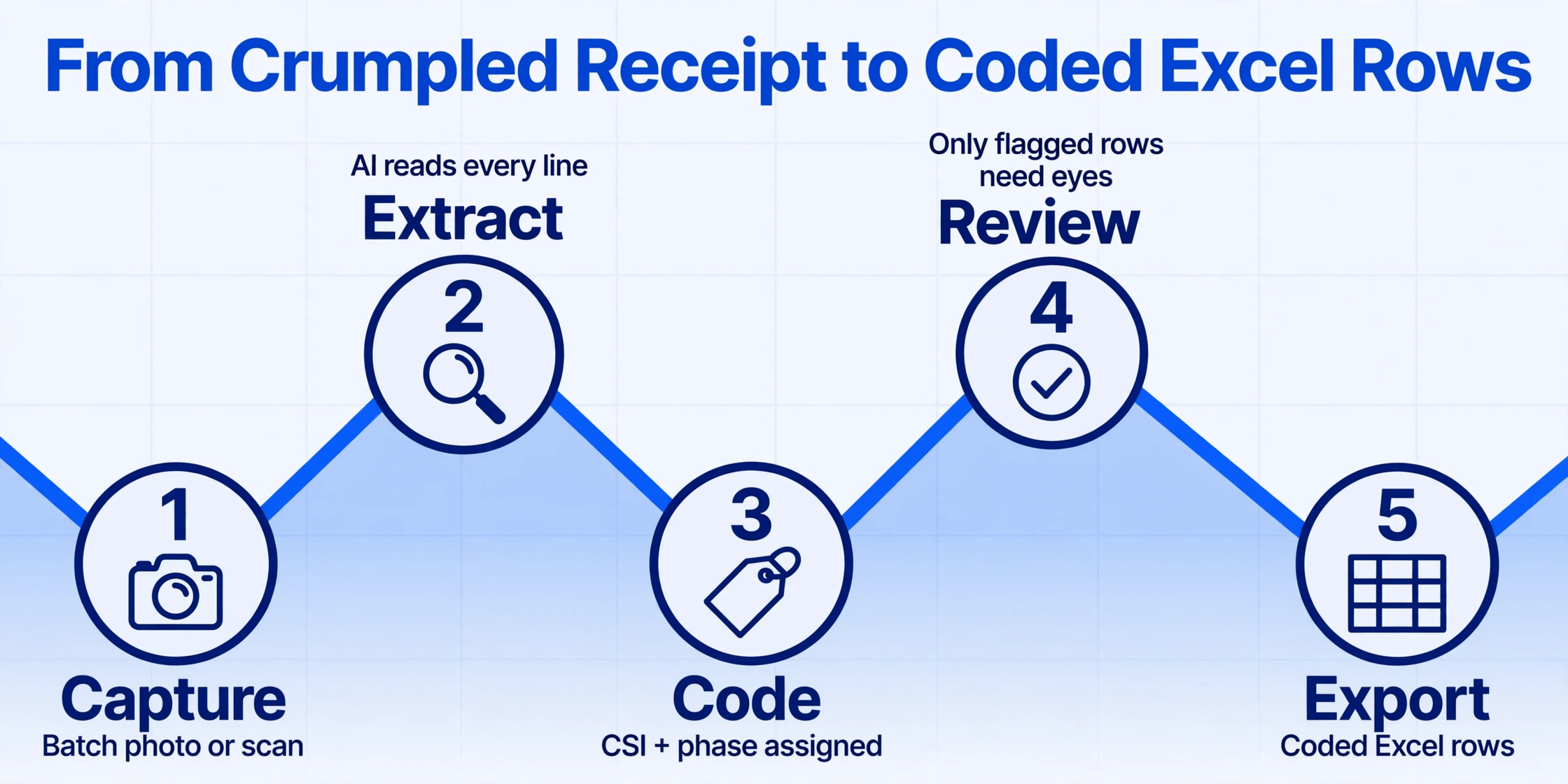
Construction receipt coding currently follows a two-pass sequence — extract the data, then manually code each line item to its CSI division and phase — because most extraction tools can only read what's printed, not understand what it means. The five-step workflow below collapses both passes into one by applying coding rules during extraction, so the AI reads the item description and assigns the cost code and phase at the same time it extracts the dollar amounts.
Step 1: Batch Capture — Photograph or Scan Receipts in Bulk
The first step is the lowest-friction one, and it should stay that way. Don't rename files. Don't sort by supplier. Don't pre-categorize. Take a phone photo of each receipt — or if your team collects paper receipts into an envelope over the course of a week, do a single scanning session at the end of the week with a multifunction printer's document feeder. The goal is to get every receipt into a folder of image files (JPG/PNG) or PDFs as quickly as possible. File naming doesn't matter — the extraction tool reads what's on the receipt, not what's in the filename.
This batch-capture approach directly addresses the 12-to-48-hour window where most receipt loss happens. A Foundation Software analysis of construction expense tracking found that manual processing costs $58 per report, takes 20 minutes, and carries a 19% error rate — figures driven largely by delayed processing, where memory of which job a material was for has already faded along with the thermal print. By collapsing capture into a single bulk session, you close the temporal gap where information degrades.
Step 2: Define Extraction Columns — Phase, Cost Code, and Job Number
This is where the Custom Column Extraction approach changes the game. Instead of extracting what the receipt happens to show and then coding manually afterward, you define the columns you want in your output before extraction — and the AI fills them based on what it reads from each receipt.
For a construction job-costing use case, a practical column set looks like this:
| Column Name | Type | What It Does |
|---|---|---|
| Supplier | Direct Extraction | Reads vendor name from receipt header (Home Depot #3824, Lowe's #1587, White Cap, etc.) |
| Date | Direct Extraction | Transaction date — AI standardizes format automatically |
| Receipt Total | Direct Extraction | Grand total including tax |
| Item Description | Direct Extraction | Individual line item as printed on receipt |
| Qty | Direct Extraction | Quantity purchased per line |
| Unit Price | Direct Extraction | Per-unit price from receipt |
| Line Total | Computed Column | Qty × Unit Price — cross-verifies receipt totals |
| CSI Division (03, 06, 08, 09, 22, 26, etc.) | Inferred Column | AI determines division from item description — "QUIKRETE" → 03-Concrete, "2X6 SPF" → 06-Wood |
| Phase (Foundation/Rough/Finish) | Inferred Column | AI infers build phase from material type — concrete → Foundation, framing lumber → Rough, drywall → Finish |
| Job Number | Inferred Column | If you define a mapping (Supplier X = Job 14, Supplier Y = Job 27), AI applies it |
| Notes | Direct Extraction | Captures any handwritten annotations on the receipt (cost code scribbles, PO references) |
The Inferred Column is the mechanism that bridges the gap between "what the receipt says" and "what your job cost system needs." Unlike traditional OCR tools that can only read printed characters, the AI reads the item description semantically — it understands that "QUIKRETE 80LB 5000" is a concrete product, therefore Division 03, and concrete is a Foundation-phase material. This is the same capability that lets you define a column like Category (options: Meals/Transport/Office/Other) for expense receipts and have the AI classify each line — applied to construction cost coding instead.
The one-time setup advantage: You define these columns once, save them as a template, and reuse them for every receipt batch. The column structure stays the same. The AI reads each new batch of receipts against the same extraction schema — no per-supplier template, no per-format rule, no training cycle. Change from Home Depot to Lowe's to a local lumber yard's handwritten receipt, and the extraction logic adapts because it's reading meaning, not matching a template layout.
Step 3: Upload and Extract — One Batch, One Output
Upload every receipt file — all 30, 50, or 100 of them — as a single batch. The AI processes them concurrently and populates one unified spreadsheet. Per-page processing time averages 5 to 10 seconds, meaning a batch of 50 receipts completes in roughly 4 to 8 minutes of processing time. You don't need to monitor it — the extraction runs in the background while you handle other tasks.
The batch-first design is worth underlining because it aligns with how construction accounting actually works. Material receipts don't arrive one at a time in a steady trickle — they pile up over a week or a month and arrive at the office in a stack. Processing them one-by-one through a mobile app (snap, categorize, confirm, next — repeat 50 times) is the workflow that breaks. Processing the entire stack in one batch with a single extraction pass is the workflow that scales to the volume real contractors handle.
Files are processed securely and not stored.
Step 4: Spot-Check Inferred Codes
After extraction, the output spreadsheet contains every receipt's line items, already tagged with CSI Division and Phase. Your job at this stage is review, not data entry. Scan the Division and Phase columns for items the AI might have miscategorized — deck screws that could go to either Rough or Finish, a multi-purpose adhesive that spans divisions. Flag these for manual reassignment if needed. The volume is dramatically lower than coding every line from scratch: instead of 400 manual coding decisions across 50 receipts, you're reviewing perhaps 20 edge-case assignments.
This review step also gives you a natural quality checkpoint. If a receipt total doesn't match the sum of line items (the Computed Column catches this), or if an item description was too faded for confident extraction, the discrepancy is visible in a single spreadsheet rather than buried in a stack of thermal paper. Foundation's data — that 19% of manual expense reports contain errors — becomes addressable when errors surface during review instead of during month-end reconciliation.
Step 5: Export to Excel and Import to Your Job Cost System
Download the completed spreadsheet as Excel (XLSX). The column structure — Supplier, Date, Item Description, Qty, Unit Price, Line Total, CSI Division, Phase, Job Number — matches what your job cost system expects. One-time column mapping in Procore, Sage 300 CRE, Viewpoint Vista, or Foundation Software lets you import directly. If you're using an Excel-based job cost workbook (which is where most small-to-midsize contractors start), the output is already in the right format — paste it into your cost log and the coding is done.
For teams using Procore's accounting integrations or Sage 300 CRE's direct integration, the import workflow is straightforward: the extracted spreadsheet becomes the input file that feeds cost data into the ERP without the manual data-entry step that introduces coding errors. This is the final link in the chain — extraction → coding → import — and it's where the cumulative time savings across a month of receipts become visible in the general ledger.
What Happens When Receipts Are Faded, Crumpled, or Handwritten
Job-site receipts arrive in worse condition than almost any other business document. Thermal paper — which powers 92% of US retail receipts including Home Depot and Lowe's — degrades through a simple chemical process: heat and UV light reverse the thermal reaction that created the text. A receipt sitting in a truck cab on a summer afternoon can lose significant legibility within hours. By the time it reaches the office at month-end, the vendor name, date, and totals — often printed near the margins where folding and exposure concentrate — may be partially or fully invisible.
Traditional OCR fails here in a predictable way. OCR engines convert images to text by detecting contrast between dark characters and light backgrounds. When thermal text has faded to near-background color, the contrast disappears and OCR reads nothing — or worse, reads fragments and produces garbled output that's harder to catch than a blank cell. You can attempt digital restoration: scan the receipt as a color image, invert it in photo editing software, adjust contrast and saturation. This sometimes recovers enough information for OCR to work, but it adds a per-receipt processing step that defeats the batch efficiency you're aiming for.
Vision-language AI takes a fundamentally different approach because it reads documents the way a human does — by interpreting visual patterns holistically rather than detecting individual character edges. Faded text that a human can still puzzle out ("I can see something was $14.97...") is text that a vision model can often recover in context — because it's not measuring contrast thresholds, it's recognizing the shape of a price pattern in the right location on a receipt. Crumpled receipts with crease lines bisecting text? Same mechanism: the model perceives the continuous word across the fold, not two isolated character fragments.
Handwritten annotations — cost code numbers jotted in the margin, a project name scrawled at the top, a PO reference number in ballpoint pen — are the third dimension where vision AI pulls ahead. Traditional OCR treats handwriting as a distinct problem requiring separate handwriting recognition models. The vision model reads printed text and handwriting through the same pipeline, because they're both visual patterns it understands. A superintendent's ballpoint "Job 14 — FDN" in the corner of a Home Depot receipt gets extracted alongside the printed item lines, not as a separate processing pass. This is covered in more depth in our guide to batch-processing handwritten receipts.
One practical note: if a receipt is so degraded that neither a human nor an AI can read it, the extraction will produce a blank or low-confidence result — and that's actually the better outcome. A blank cell tells you to find the original (or the supplier's digital copy). A garbled guess at $14.97 that's really $41.97 creates a coding error that propagates through your job cost report undetected.
Handling Cross-Phase and Multi-Job Receipts
Not every receipt maps cleanly to one phase and one job. A single trip to Home Depot or White Cap might include concrete for the Foundation phase on Job 14, framing lumber for the Rough phase on Job 14, and PVC conduit for Rough on Job 27. The receipt is a single document covering three distinct cost allocations. Your extraction workflow needs to handle this without forcing you to split the receipt into three separate files before processing.
The approach is to extract at the line-item level rather than at the receipt level. Each row in the output spreadsheet represents one receipt line item, not one receipt. The AI assigns Phase and Cost Code per line based on what the item is. The QUIKRETE line gets Foundation + Division 03. The 2×6 line gets Rough + Division 06. The PVC conduit line gets Rough + Division 26 — but also needs the correct Job Number, which is where additional context matters.
For multi-job receipts, the cleanest workflow is to use a Job Number column with inference rules based on supplier or item context. If White Cap supplies are always for Job 14 and ABC Supply roofing materials are always for Job 27, define those mappings in the extraction schema and the AI applies them automatically. For receipts where a single supplier serves multiple jobs, the Inferred Column can use the item type to determine job assignment — concrete items → Job 14 (the project with active foundation work), roofing items → Job 27 (the project in the envelope phase). This isn't 100% automatic — edge cases will exist — but it reduces the per-receipt decision count from "every line item" to "the ambiguous ones."
From Excel to Your Job Cost System
The coded Excel output is designed to feed directly into whatever system manages your project financials. The path varies by platform:
Excel-based job cost workbooks — the starting point for many small-to-midsize contractors. Your job cost template likely has columns for Date, Supplier, Description, Amount, Cost Code, and Phase. The extracted spreadsheet matches this structure. Paste the data into your cost log, verify the cross-phase splits, and the monthly cost-tracking update is done. Contractors tracking 10 to 30 active receipts per month can collapse what used to be a Friday-afternoon data-entry session into a 15-minute review pass. Our guide to batch-processing construction POs into job cost covers the Excel integration pattern in more detail.
Procore — Procore's financials module accepts cost data imports through its accounting integrations. If you use Procore with the Sage 300 CRE, Viewpoint Vista, or QuickBooks connector, the extracted spreadsheet becomes the import source file. Column mapping is a one-time setup: your extraction template columns (Supplier, Date, CSI Division, Phase, Amount) map to Procore's cost code, cost type, and commitment fields once, and subsequent batches follow the same mapping.
Sage 300 CRE / Viewpoint Vista / Foundation Software — These ERP-level platforms support CSV or Excel import for cost transactions. The key is consistent column naming between your extraction template and the ERP's import format. Set up the mapping once during implementation, and receipt data flows from extraction → spreadsheet → ERP without intermediate manual entry. The time savings compound across months because the extraction template doesn't change — only the receipts do.
QuickBooks + manual tracking — If you're still in the phase where QuickBooks handles the books and a separate Excel sheet handles job costing, the extraction output serves both. The same spreadsheet that feeds your Excel cost log also provides the receipt-level documentation the IRS requires under Treas. Reg. §1.162-3 for materials and supplies used in business operations. For contractors on federal projects, the same extraction chain supports Davis-Bacon certified payroll documentation under the Form WH-347 requirements — every dollar of material cost traceable to a specific contract, phase, and payroll period.
FAQ
Can AI extraction handle the abbreviated item descriptions on Home Depot and Lowe's receipts?
Yes. The AI reads descriptions like "2X6 SPF #2 16'" or "QUIKRETE 80LB 5000" and understands them semantically — it knows these refer to lumber and concrete respectively — which is how it assigns the correct CSI Division and Phase. Unlike keyword-matching systems that would need a lookup table of every possible supplier abbreviation, the vision model recognizes product categories from context the way a construction professional would.
What if a receipt has both taxable and tax-exempt materials?
Construction receipts frequently mix taxable and exempt items — especially in states where materials for government or non-profit projects are tax-exempt. You can add a Tax Status inferred column to your extraction schema. The AI reads the receipt's tax breakdown (typically shown at the bottom of Home Depot and Lowe's receipts) and assigns tax status per line item where the receipt provides that detail. Where the receipt doesn't break out tax by line, the column flags the receipt level tax for your accountant to handle.
Does this work on photos taken with a phone at the job site?
Yes. The vision model handles phone photos — including those with uneven lighting, angled perspective, or partial shadow — better than traditional OCR because it processes the entire image holistically rather than trying to deskew and binarize it first. A photo taken in a truck cab at 7 a.m. under uneven light will produce a less clean extraction than a flatbed scan, but the core fields (supplier, date, items, totals) typically extract correctly. For critical receipts, a flatbed scan or photocopy at the office is ideal — but the workflow is designed to work with real-world input quality.
Can I save my column setup so I don't have to redefine it every month?
Yes. Once you define your extraction columns — Supplier, Date, Item Description, Qty, Unit Price, Line Total, CSI Division, Phase, Job Number — you save them as a reusable template. Each new batch of receipts processes against the same column schema. This is the template-free extraction paradigm: you define the output structure once, and the AI adapts to whatever receipt formats arrive in subsequent batches.
How do I handle receipts that are completely illegible — where even a person can't read them?
For receipts where thermal fading or physical damage has destroyed the text beyond recovery, the AI will return empty or low-confidence cells for the affected fields. This is preferable to a hallucinated value that creates a hidden error in your job cost ledger. The practical workflow for illegible receipts: check if the supplier provides digital copies (Home Depot Pro Xtra and Lowe's Pro accounts both offer online purchase history with item-level detail), or reference the credit card statement as a secondary source for the total while requesting a duplicate receipt from the supplier.
Putting It All Together: What Changes When You Stop Typing and Start Extracting
The core argument of this article is not that construction receipt coding is painful — that part is obvious to anyone who has done it. The argument is that the pain comes from a specific workflow design: extract first, code second. The extraction produces a spreadsheet of raw receipt data. The coding happens afterward, manually, line by line, as a separate cognitive task. That sequence is what generates the $58-per-report cost and 19% error rate that Foundation documented — because every manual coding decision is an opportunity for a tired project accountant to assign drywall to Division 06 instead of Division 09.
Reverse the sequence. Define the coding rules before extraction — through inferred columns that map item descriptions to CSI divisions and phases — and the extraction output arrives pre-coded. Your job becomes review, not data entry. The difference is not incremental. It's the difference between processing 50 receipts in four hours of manual work versus four minutes of AI processing and 15 minutes of review — and it's the difference between a coding error that hides in a spreadsheet until the monthly cost variance meeting surfaces it, and a coding error that's visible in the review pass before it hits the job cost ledger.
For a deeper look at the broader receipt-tracking challenges specific to contractors — including the physical and structural forces that make job-site receipts uniquely hard to manage — read our analysis of the contractor receipt tracking problem. For the complete picture of what AI receipt extraction can do across document types, see the complete guide to receipt data extraction.