How to Extract Japanese Tax Return Data to Excel
for Quick Filing (2026 Guide)
Roughly 4 million sole proprietors and freelancers in Japan file a kakutei shinkoku (確定申告) each year between February 16 and March 15. The Form B (B様式) they submit — across its Sheet 1, Sheet 2, and supplementary income statement — carries over 50 distinct data fields: revenue totals, expense categories, six types of deductions with independent calculation areas, taxable income, tax amounts, and prepaid tax credits. If you are handing your paperwork to a tax accountant (税理士), what they typically want is not a paper form. It is a spreadsheet — one row per tax year, every field in its own column, ready to import into their analysis software. Getting there by retyping every field manually takes roughly two hours. With extraction, the same data lands in Excel in under 15 minutes — and the column definition you set up once works for next year, and the year after.
Key Takeaways
- A Japanese tax return (確定申告書B様式) contains 50+ fields across Sheet 1, Sheet 2, and the income statement — and whether you use freee, Yayoi, or the NTA Preparation Corner, your tax accountant still retypes every field into their own analysis spreadsheet.
- freee, Yayoi, and the NTA all render the same deduction block at slightly different row positions and font sizes. A template-based tool calibrated to freee's output misaligns every field on a Yayoi printout — because it reads coordinates, not meaning.
- Semantic extraction identifies "Medical Expense Deduction (医療費控除)" by its label, not its location on the page. Define the column names once, extract every year's return from any source, and a Computed Column automatically flags deduction arithmetic errors before the data reaches your accountant.
What a Japanese Tax Return Form Contains — and What Each Section Means for Extraction
The Japanese individual income tax return uses Form B (確定申告書B様式), issued by the National Tax Agency (国税庁, NTA) under the Income Tax Act Article 120 (所得税法第120条). The form consists of two sheets and one supplementary document — each with a distinct extraction profile.
The form's 50-plus fields are not laid out as a continuous table — they are organized into seven independent calculation blocks with intermediate subtotals, cross-references between sheets, and fields that populate automatically from earlier sections. Manual transcription from this layout to Excel is where errors concentrate.
Sheet 1 (第一表): Core Calculation
- Income Block (収入金額等) — business income (事業), real estate income (不動産), salary income (給与), miscellaneous income (雑). Values transferred from the income statement.
- Expense Block (所得金額) — net income per category after deducting necessary expenses (必要経費). Each income type has its own deduction row.
- Deduction Block (所得から差し引かれる金額) — seven deduction types in fixed layout: social insurance (社会保険料控除), small business mutual aid (小規模企業共済等), life insurance (生命保険料控除), earthquake insurance (地震保険料控除), medical expenses (医療費控除), spouse (配偶者控除), and dependents (扶養控除). Each is a single row with a value field.
Sheet 2 (第二表) and Income Statement
- Sheet 2 fields — income breakdown by source type, employment income calculation (給与所得の計算), public pension deductions, donation credits (寄附金控除), foreign tax credits (外国税額控除), and dependent/spouse addresses for residency verification.
- Income Statement (収支内訳書 or 青色申告決算書) — the revenue-and-expense ledger that feeds into Sheet 1. White return (白色申告) uses the simplified Statement of Earnings and Expenses (収支内訳書); blue return (青色申告) uses the detailed Financial Statement (青色申告決算書) with double-entry bookkeeping. Under the Special Taxation Measures Act Article 25-2 (租税特別措置法第25条の2), blue return filers qualify for a ¥650,000 special deduction — the largest single deduction on the form.
The core extraction challenge: Sheet 1's deduction block is a one-row-per-deduction vertical layout, while Sheet 2's income breakdown is a multi-column horizontal layout. A template-based OCR tool configured for one layout fails on the other. Semantic extraction reads each field by what it represents — "medical expense deduction" is the same value whether it appears in row 28 of Sheet 1 or row 8 of a printed e-Tax confirmation — so the same column definition works across both sheets, across different years' form layouts, and across forms generated by different software (freee, Yayoi, or the NTA's own Preparation Corner).
Why Accounting Software Alone Doesn't Produce the Spreadsheet Your Accountant Needs
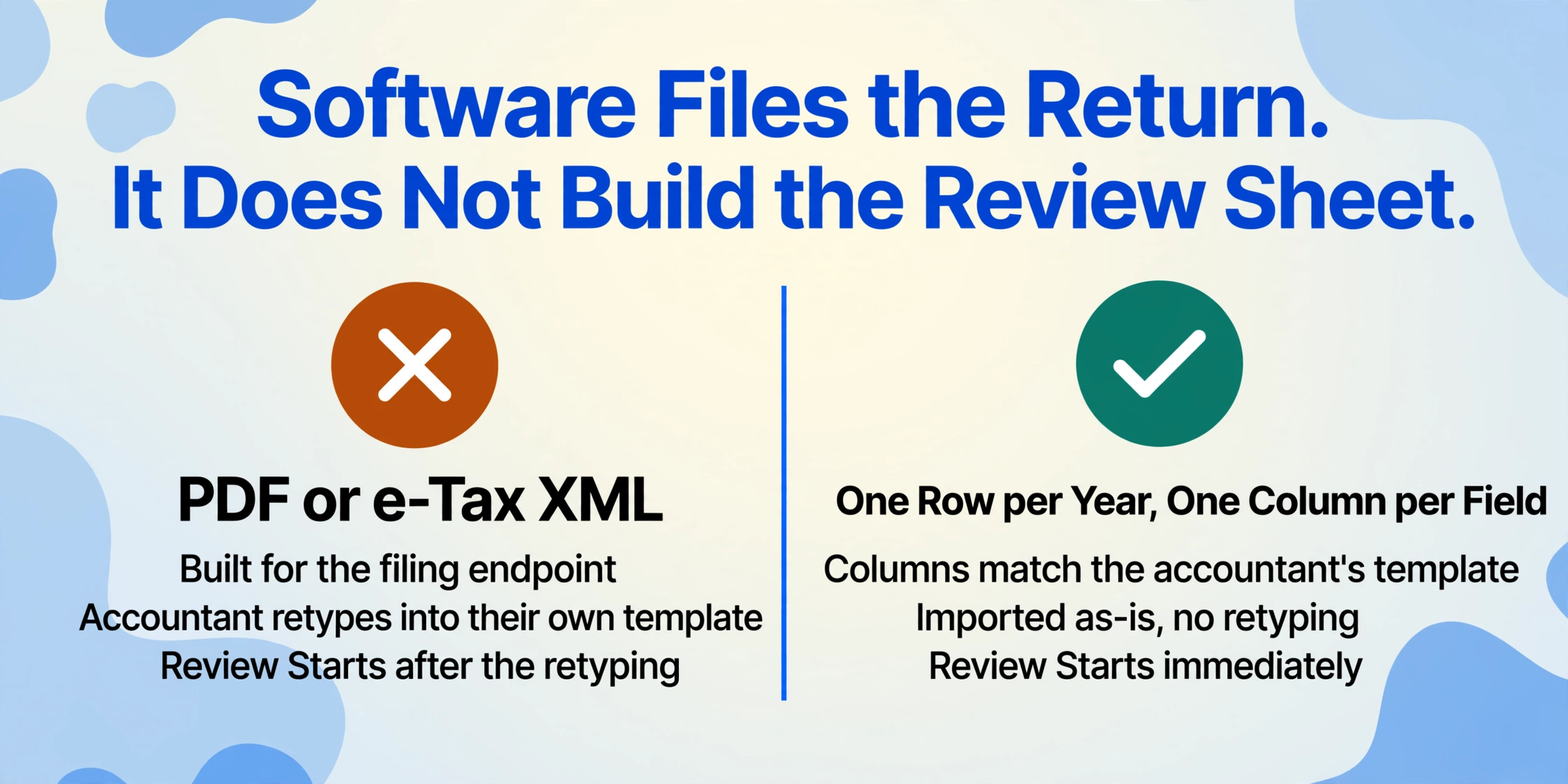
Japan's three dominant accounting platforms — freee Accounting (freee会計), Yayoi Accounting (弥生会計), and MoneyForward Cloud Accounting (マネーフォワード クラウド会計) — each generate a tax return as a final output: a PDF or e-Tax XML package ready for electronic submission. The software optimizes for the filing endpoint. What it does not produce is an Excel workbook where each row is a tax year and each column is a field from the return — the format a tax accountant uses to spot anomalies, compare year-over-year trends, and verify that the deduction totals on Sheet 1 match the supporting schedules on Sheet 2.
A tax accountant reviewing your return does not open the PDF and read it line by line. They import the data into their own analysis template — a spreadsheet with conditional formatting rules, cross-year variance checks, and deduction-eligibility thresholds. If you hand them a PDF, they retype the data into that template. If you hand them an Excel file with the same column structure they already use, the review starts immediately.
There is a second scenario where software alone falls short: previous years' paper returns. A freelancer who filed on paper in 2023 and 2024, then switched to freee in 2025, has two years of data that exist only as printed forms in a file folder. If the accountant needs to compare 2023 income against 2025 — for a loan application, a visa renewal, or an audit — those paper forms must be digitized. Manually retyping two years of returns into a spreadsheet takes roughly two hours per year. Extraction turns two years into 30 minutes of scanning and column definition.
Setting Up Your Tax Return Extraction Workflow
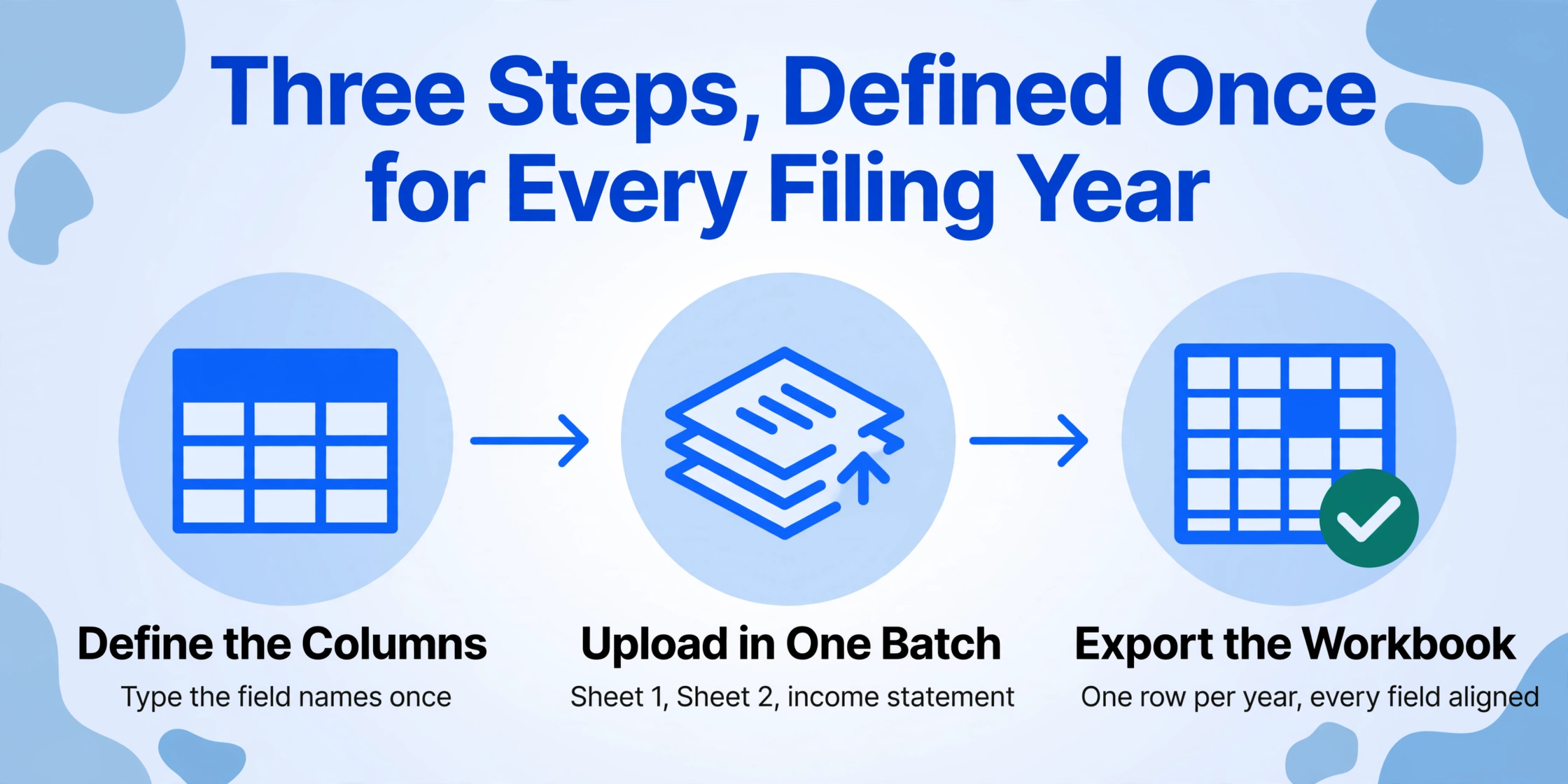
The workflow that replaces retyping a tax return has three steps. The first — defining your columns — is the one-time setup. Once done, it works for every year's return, every filing method, and across both white and blue returns.
Define your columns — once, for every filing year
Type the field names exactly as you want them to appear as column headers. The standard set for Form B covers four groups: Revenue fields — Business Income (事業所得, 収入金額), Real Estate Income (不動産所得), Employment Income (給与所得), Miscellaneous Income (雑所得); Expense fields — Necessary Expenses (必要経費), Net Income per category; Deduction fields — Social Insurance (社会保険料控除), Life Insurance (生命保険料控除), Earthquake Insurance (地震保険料控除), Medical Expenses (医療費控除), Spouse Deduction (配偶者控除), Dependents (扶養控除), Basic Deduction (基礎控除), Donation Deduction (寄附金控除); Tax fields — Taxable Income (課税所得金額), Calculated Tax (算出税額), Dividend Credit (配当控除), Foreign Tax Credit (外国税額控除), Prepaid Tax (予定納税額), Withholding Tax (源泉徴収税額), Final Tax Due or Refund (納付税額 or 還付税額). This is Custom Column Extraction: you define the output schema, and the AI maps each field on the form to your column by semantic meaning — regardless of whether the form was generated by freee (which prints deduction fields in a different font size than Yayoi) or by the NTA's Preparation Corner (which reorders certain blocks).
Upload Sheet 1, Sheet 2, and the income statement in one batch
Scan or photograph all pages of the return — Sheet 1 (第一表), Sheet 2 (第二表), and the income statement (収支内訳書 or 青色申告決算書) — and drop them into one upload. Batch processing handles the entire return as a single job: each page is processed independently, the AI locates each field across the pages, and all results merge into one row in the spreadsheet. A typical return is four to six pages — two for Sheet 1, one for Sheet 2, and one to three for the income statement, depending on the number of revenue sources. The upload accepts scans from a document scanner, photos taken with a smartphone, or PDF exports from accounting software. For multi-year returns, upload all years in one batch — the AI processes each year's form independently and outputs one row per year.
Export to Excel and begin the review
Download the extracted data as an Excel file. You now have one row per tax year, with every form field in its own column — the exact format a tax accountant uses. The spreadsheet is immediately importable into Yayoi, freee, or MoneyForward for cross-referencing against your books. More importantly, add a Computed Column — "Deduction Total vs. Sheet 1 Check (Social Insurance + Life Insurance + Medical + Spouse + Dependent + Basic + Other = Total Deductions on Sheet 1? 'OK' : 'MISMATCH')" — and the extraction flags any arithmetic discrepancy between individual deduction fields and the printed total before the data reaches the accountant. A single MISMATCH flag tells you which row needs a second look, instead of discovering the error during the accountant's reconciliation call.
The same column schema works next year, and for returns filed by different methods — freee-generated PDF, Yayoi printout, NTA Preparation Corner output, or a scanned copy of a hand-filled paper form from 2022. The form layout, governed by the NTA's annual instructions (確定申告の手引き), may shift slightly between years, but the field names and their semantic meaning do not change. What changes each year is how close the March 15 deadline is — and setting up the columns in January means February's filing window is for review, not data entry.
Files are processed securely and not stored.
Handling the Deduction Block: Where Manual Transcription Goes Wrong
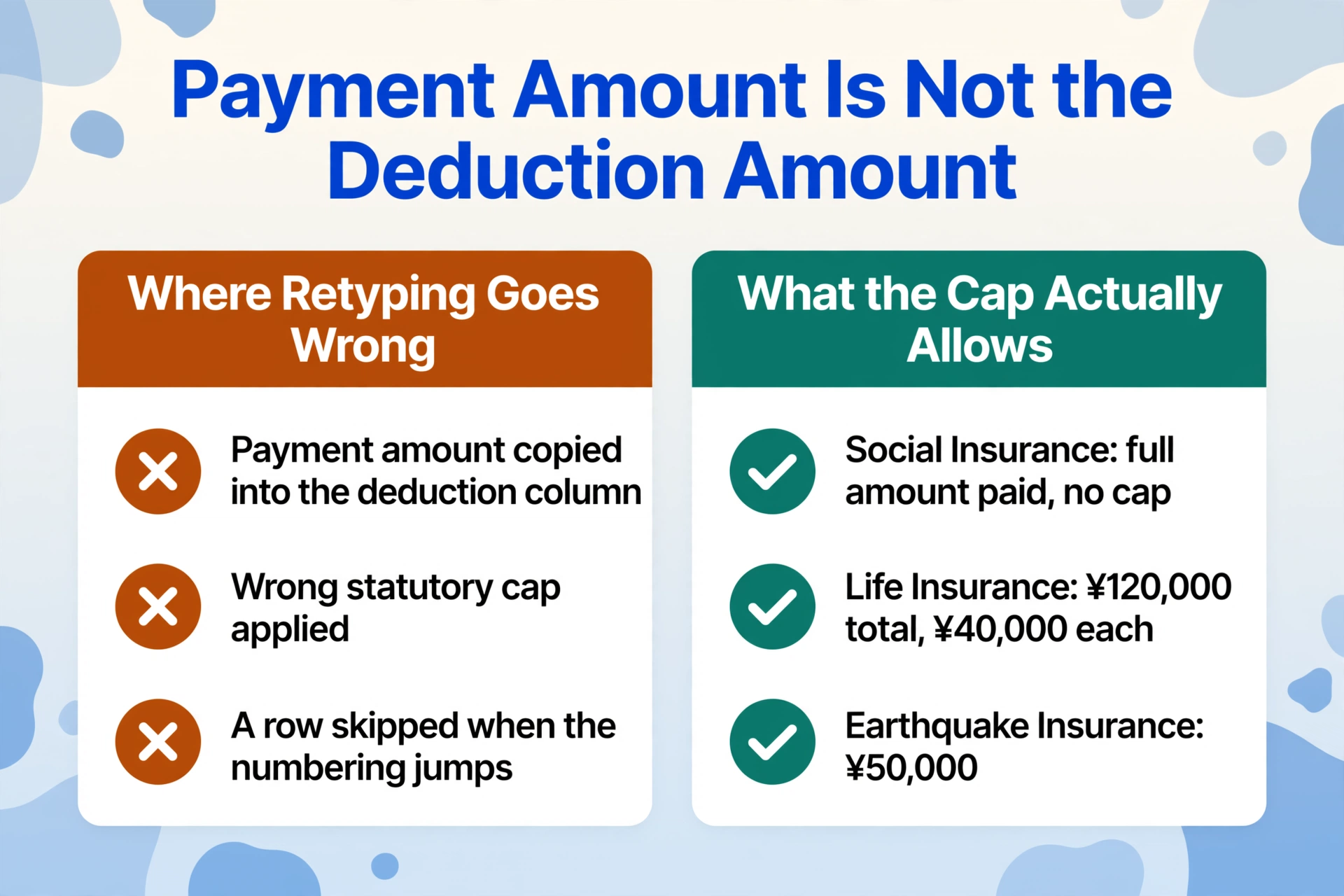
The deduction section on Sheet 1 (所得から差し引かれる金額) is laid out as a vertical list of deduction types, each with a two-part structure: a payment amount (支払金額, the total paid during the year for that category) and a deduction amount (控除額, the amount that actually reduces taxable income after applying statutory caps). The relationship between the two is not one-to-one — each deduction type has its own cap and calculation formula defined by the Income Tax Act. This is where manual transcription produces the most errors: a transcriber copying the payment amount into the deduction column, or applying the wrong cap, or skipping a field entirely because the form's numbering system makes it easy to lose a row.
| Deduction Type | Japanese (Form Field) | Statutory Cap | Extraction Note |
|---|---|---|---|
| Social Insurance | 社会保険料控除 | Full amount paid | Includes national pension (国民年金), health insurance (国民健康保険), and employee insurance. No cap — the extraction must capture the payment amount as-is. |
| Small Business Mutual Aid | 小規模企業共済等掛金控除 | Full amount paid | iDeCo (イデコ) contributions, small business mutual aid (小規模企業共済), and disability support mutual aid (心身障害者扶養共済). Separate from social insurance. |
| Life Insurance | 生命保険料控除 | ¥120,000 total (across general, individual annuity, and nursing care categories, ¥40,000 each) | Three sub-categories on the form. The extraction must capture each sub-category separately if the accountant needs granularity. |
| Earthquake Insurance | 地震保険料控除 | ¥50,000 | Single field; straightforward to extract. Often combined with long-term non-life insurance (長期損害保険料) on older forms. |
| Medical Expenses | 医療費控除 | Min(¥2,000,000, actual expenses − ¥100,000 or 5% of income) | Two fields on the form: total medical expenses paid (支払医療費) and insurance reimbursements (保険金等補填額). The deduction amount is computed. Extraction must capture both inputs to verify the calculation. |
| Spouse Deduction | 配偶者控除 | ¥380,000 (general) to ¥480,000 (elderly spouse, 70+) | Depends on spouse's income bracket and the filer's income. The form field is a single deduction amount — the qualifying conditions are on Sheet 2. |
| Dependents | 扶養控除 | ¥380,000–¥630,000 per dependent (age-dependent) | Multiple dependent rows on Sheet 2. Sheet 1 shows the aggregate deduction total. Cross-verification between the two sheets catches misreads. |
Each deduction type occupies a fixed row position on the form — social insurance is always row 21, life insurance row 24, medical expenses row 27 — but the printed value differs for every filer. A template-based OCR tool that reads "row 21, column 3" as the social insurance deduction will fail on a Yayoi-generated form where the deduction block is shifted down by one line due to a different font. Semantic extraction reads "the field labeled 社会保険料控除" — its position on the page is irrelevant.
The Computed Column that catches every deduction error: Define a verification column — "Deduction Cross-Check (Sheet 1 Total vs. Sum of Individual Fields — Match? 'OK' : 'CHECK')". The extraction sums every individual deduction field and compares it against the printed total on Sheet 1. A single CHECK in a row of OKs tells you a deduction field was misread — and the spreadsheet lets you fix that one field rather than re-auditing the entire deduction column. At a 20% marginal tax rate, a missed ¥50,000 medical deduction is ¥10,000 in unnecessary tax — and the verification column catches it before the accountant does.
Moving Extracted Data Into Your Accountant's Workflow
The extracted Excel file maps directly to the workflow of a Japanese tax accountant. Most accountants use one of three platforms — Yayoi Tax (弥生シリーズ), TKC (FX2/MX series), or MJS Accounting (会計大将) — and all three accept CSV imports with custom field mapping. The extracted spreadsheet becomes the accountant's input: open the CSV, map the columns to their internal chart of accounts, and the data flows directly into their review template. No retyping, no print-to-scan-to-OCR detour.
For the freelancer working across years, the multi-year extraction delivers a dataset that was previously only possible with hours of manual work: same-row year-over-year comparison. Open the spreadsheet, sort by year, and each column becomes a time series — revenue growth in column B, deduction utilization in column H, effective tax rate in column Q. A tax accountant reviewing three years of returns can spot a ¥300,000 revenue dip in 2024 against 2023 and a 2025 recovery in under 30 seconds when the data is already in columns. When it is spread across three PDFs, that same comparison takes five minutes per field — and most fields go unchecked.
Yayoi (弥生). The market leader among tax accountant firms. Yayoi Tax Suite accepts CSV imports for client data migration — open the client file, select "外部データ取込" (external data import), choose the CSV, and map columns to Yayoi's account fields. The extraction's column names (e.g. "Social Insurance Deduction") map directly to Yayoi's deduction categories without renaming.
TKC (FX2/MX). The dominant platform for mid-sized tax accountant offices. TKC's data migration utility accepts formatted CSV with column headers — the extracted output matches TKC's expected field order when the extraction columns are defined in TKC's standard sequence. For offices processing 100-plus client returns per season, the time savings multiply: 15 minutes saved per return across 100 clients is 25 hours recovered during the shortest month of the year.
MJS Accounting (会計大将). Widely used by both in-house accounting departments and independent tax accountants. Import via the "他システムデータ取込" function — the extraction's Excel output imports directly without intermediate format conversion. MJS's automatic audit checks (erroneous deduction totals, missing required fields) trigger on the imported column data, providing a second validation layer after the extraction's own Computed Column verification.
The extraction pipeline also connects back to the source documents that feed into the return. The revenue totals on your tax return come from invoices — and extracting data from Japanese invoices (請求書) into the same spreadsheet gives the accountant a direct line from individual transactions to the aggregate numbers on the return. The expense totals come from bank passbook entries — and extracting passbook (通帳) data into Excel creates the ledger that validates the expense amounts on the income statement. A tax return with extractable support documents is auditable. One without them is an assertion on paper.
The same extraction logic applies across tax jurisdictions with similar forms — UK SA100 self-assessment extraction, for instance, follows an identical workflow: define columns for the return's fields, upload the form pages, and get an Excel row per tax year. The form's language and the deduction names change — but the extraction principle, and the efficiency gain over manual entry, does not.
Frequently Asked Questions
Can AI extraction handle tax returns generated by different accounting software?
Yes — and this is the core advantage of semantic extraction over template-based OCR. A tax return generated by freee prints deduction fields in a sans-serif font with the total box aligned right. A return generated by Yayoi uses a serif font with a slightly different row spacing. A return printed from the NTA Preparation Corner follows yet another layout with a different section header style. A template configured for freee's layout will misalign every field on a Yayoi printout. Semantic extraction reads "the value labeled 課税所得金額 (taxable income)" — its font, row position, and alignment on the page are irrelevant. Upload returns from freee, Yayoi, and the NTA site in the same batch, and the output column "Taxable Income" contains the correct value from each.
What about handwritten corrections or annotations on a printed tax return?
Vision-model-powered extraction can read handwritten text alongside printed fields — so a tax accountant's marginal note like "控除追加 ¥45,000" (add ¥45,000 deduction) or a checkmark next to a field is captured as additional context. However, handwriting that crosses printed grid lines, is written at an angle, or uses faded pencil is less reliable. For returns with critical handwritten corrections — such as an amended deduction amount written in red pen — verify those specific fields manually before sending the spreadsheet to the accountant. The extraction handles the bulk of printed fields; the manual check is limited to the handwritten exceptions, not the entire form.
Can I extract multiple years of returns in one batch and get one row per year?
Yes. Upload all years' returns — 2023, 2024, and 2025 — in one batch. The extraction processes each year's form pages independently and outputs one row per tax year in the merged spreadsheet. The column schema defined in Step 1 applies uniformly across all years. For a three-year comparison, this means roughly 15 pages scanned (five per year), a single batch upload, and an Excel output with three rows — one per year, all columns aligned. Manual retyping for the same three years would take close to six hours; extraction takes 15 minutes of scanning plus processing time.
What if my tax return includes both business income and employment income (salary from a side job)?
Form B is designed for filers with multiple income types — that is the standard case, not an edge case. If you have business income (事業所得) from freelancing and employment income (給与所得) from a part-time job, both appear on the same form: employment income data goes in the 給与 section on Sheet 2, business income goes in the 事業 section on Sheet 1, and the net totals flow into the combined income field. The extraction captures both. For employment income specifically, the key source numbers come from the withholding slip (源泉徴収票, gensen chōshūhyō) issued by the employer — if you have both the tax return and the withholding slip, extracting both into the same spreadsheet gives the accountant the full picture: what the employer reported vs. what appeared on the final return.
Does the extraction handle the difference between white return (白色申告) and blue return (青色申告) forms?
Yes. The Form B (B様式) itself is the same for both white and blue return filers — the difference is in the supplementary documents. White return filers attach the Statement of Earnings and Expenses (収支内訳書), which is a simpler single-page income-and-expense summary. Blue return filers attach the Blue Return Financial Statement (青色申告決算書), which includes a balance sheet (貸借対照表), a profit-and-loss statement (損益計算書), and a detailed expense breakdown by category. Both documents can be uploaded alongside the return itself in the same batch. The extraction reads each document's fields independently — the blue return's balance sheet fields (assets, liabilities, net worth) appear as additional columns in the output, beyond the standard Form B fields.
Do I still need to keep the original tax return documents after extraction?
Under Japan's Electronic Bookkeeping Act (電子帳簿保存法), scanned copies of tax documents can serve as legally admissible records if they meet specific resolution and timestamp requirements — the 2022 amendment significantly relaxed the requirements for electronic preservation. However, the National Tax Agency (国税庁) may request original documents during a tax audit (税務調査), particularly for the supporting schedules behind deductions. Best practice for both freelancers and tax accountants: extract the return data to Excel for the analysis workflow, but retain the original paper or PDF returns for the statutory retention period — seven years for blue return filers (青色申告), five years for white return filers (白色申告), per the Income Tax Act Article 231-2. The extraction replaces the manual data entry step — it does not replace the legal record-keeping obligation.
Making February About Review, Not Data Entry
The Japanese tax filing window — February 16 to March 15 for individual income tax (所得税の確定申告) — is fixed by statute. Every year, 4 million sole proprietors and freelancers face the same deadline with the same sequence: gather the year's receipts, passbooks, insurance certificates, and proof of deductions; compile the income statement; fill out or generate the return; and — if working with a tax accountant — hand over a stack of documents that the accountant then retypes into their own system.
The extraction workflow described here removes the retyping step from both sides. For the freelancer, an afternoon of scanning replaces two hours of manual field transcription. For the tax accountant, a CSV import replaces per-client data entry — and the time recovered during the busiest month of the year shifts from keystrokes to analysis. The deduction verification column catches arithmetic errors before they reach the accountant's desk. The column schema, defined once, works for every subsequent tax year. And the spreadsheet output — one row per year, every field aligned — becomes the dataset the accountant actually needs: structured, auditable, and ready for the comparison work that justifies their fee.
What changes each year is not the form structure — the NTA's annual tax guide (確定申告の手引き) preserves the same field layout, deduction order, and calculation logic with only minor updates for tax reform adjustments. What changes is how close you are to March 15 and how much of the preceding month you spent typing numbers that were already printed on paper.