How to Extract ACORD 25 COI Data to Excel
for Subcontractor Compliance
Most general contractors assume a Certificate of Insurance means they're protected. The ACORD 25 form itself says otherwise — right on the page, it states the certificate "confers no rights upon the certificate holder." The coverage you think you have only exists if the right endorsements were actually added to the underlying policy. And verifying that across 40, 80, or 200 subcontractors — by opening each PDF and typing policy numbers, dates, limits, and endorsement form numbers into a spreadsheet — is how compliance gaps survive until a claim exposes them.
Key Takeaways
- 15–20% of data in a manually maintained COI compliance spreadsheet is wrong — not from carelessness, but because the open-PDF-scan-type-repeat cycle is a structurally error-prone process.
- The ACORD 25 form itself warns in bold text that it "confers no rights upon the certificate holder" — meaning the Additional Insured checkbox your team relies on has zero legal weight without the actual endorsement form number backing it.
- Template-free AI extraction reads by field meaning, not page position — so a single 12-column template works across every insurer's certificate format, and your team verifies endorsements instead of retyping policy numbers.
The ACORD 25 — the Certificate of Liability Insurance form adopted by more than 36,000 organizations across 100-plus countries — is the universal proof-of-coverage document in North American construction. A single mid-size project might involve 40 or more subcontractors, each submitting this one-page form. The administrative workflow most teams use — opening each PDF, visually scanning for policy numbers, typing them into a spreadsheet, and then doing the same for limits, dates, and endorsement checks — takes 15 to 45 minutes per certificate, with industry data suggesting manual insurance data entry error rates of 15 to 20 percent.
That error rate isn't just inefficiency. It means roughly one in six certificates in your tracking spreadsheet has a wrong policy number, a missed expiration date, or an endorsement that was checked on the form but never actually attached to the policy. And when a claim happens — general liability claims in construction average $30,000 to $75,000, with serious cases easily exceeding $100,000 — the spreadsheet doesn't pay it. The insurance that was supposed to be there either pays or it doesn't, based on what was actually in the policy, not what someone typed into Excel.
Extracting ACORD 25 data doesn't require an enterprise COI management platform with per-certificate pricing and six-month onboarding. This article walks through a practical, column-by-column extraction workflow that turns a stack of ACORD 25 PDFs into a structured Excel compliance tracker — using AI that reads the form by understanding what each field means, not where it's printed.
What's on an ACORD 25 (and What Actually Matters for Compliance)
The ACORD 25 is a deceptively simple document. One page, standardized layout, sections everyone in construction recognizes. But knowing which fields carry compliance weight — and which ones are informational noise — is the difference between a tracker that protects your company and one that gives you false confidence.
The form is organized into blocks. At the top: PRODUCER (the insurance agent or broker who issued the certificate) and INSURED (the subcontractor or vendor whose coverage is being documented). These identify who arranged the coverage and who holds it — useful for contact purposes but not compliance-critical.
Below that, INSURER A through F list the insurance companies providing coverage, each with their NAIC number. The NAIC number is a unique identifier assigned to every insurance carrier — it's the fastest way to verify an insurer is legitimate and not a shell. A missing or incorrect NAIC number is a red flag.
The core of the form is the COVERAGES section, a grid covering five lines of business:
| Coverage Line | What It Covers | Compliance Check |
|---|---|---|
| Commercial General Liability | Bodily injury and property damage caused by the subcontractor's operations | Is the per-occurrence limit ≥ your contract requirement (typically $1M)? Is the general aggregate ≥ $2M? Is it occurrence-form (not claims-made)? |
| Automobile Liability | Vehicle accidents during business operations | Is coverage listed if the sub drives on-site? Combined single limit typically $1M. |
| Umbrella / Excess Liability | Additional coverage above primary policy limits | Does it follow-form over the GL and auto policies? Is the limit sufficient for the project risk profile? |
| Workers' Compensation | Employee injury or illness on the job | Are statutory limits listed? Are proprietors/partners/officers excluded? (If yes, they're personally uninsured on-site.) |
| Other | Pollution, professional liability, builders risk, etc. | Only relevant if your contract specifically requires it. |
For each coverage line, the form shows: the insurance carrier name, policy number, effective date, expiration date, and limit amounts (each occurrence and aggregate). There are also two critical checkboxes — Additional Insured and Waiver of Subrogation — marked Y or N. A "Y" in the Additional Insured column is the most commonly misunderstood signal on this form. It means the agent claims an Additional Insured endorsement exists. It does not mean the endorsement was actually added to the policy. The form itself, in bold text at the bottom, warns: "If the certificate holder is an ADDITIONAL INSURED, the policy(ies) must have ADDITIONAL INSURED provisions or be endorsed. A statement on this certificate does not confer rights to the certificate holder in lieu of such endorsement(s)."
Below the coverages grid, the DESCRIPTION OF OPERATIONS / LOCATIONS / VEHICLES section is a free-text field. This is where agents add project-specific language, name additional insureds, reference contract numbers, and — critically — sometimes make promises the policy doesn't actually support. Insurance industry guidance explicitly warns that language added here that contradicts or expands beyond the policy creates a false representation. A compliance reviewer needs to read this section carefully.
Finally, the CERTIFICATE HOLDER box names who requested and received the certificate — typically your company. The CANCELLATION clause states that notice will be delivered "in accordance with the policy provisions" — which, in practice, often means no notice at all. The ACORD 25 does not obligate the insurer to notify you if a subcontractor's policy is cancelled. Your only reliable protection is proactive expiration tracking.
Why Standardized Forms Don't Mean Standardized Extraction
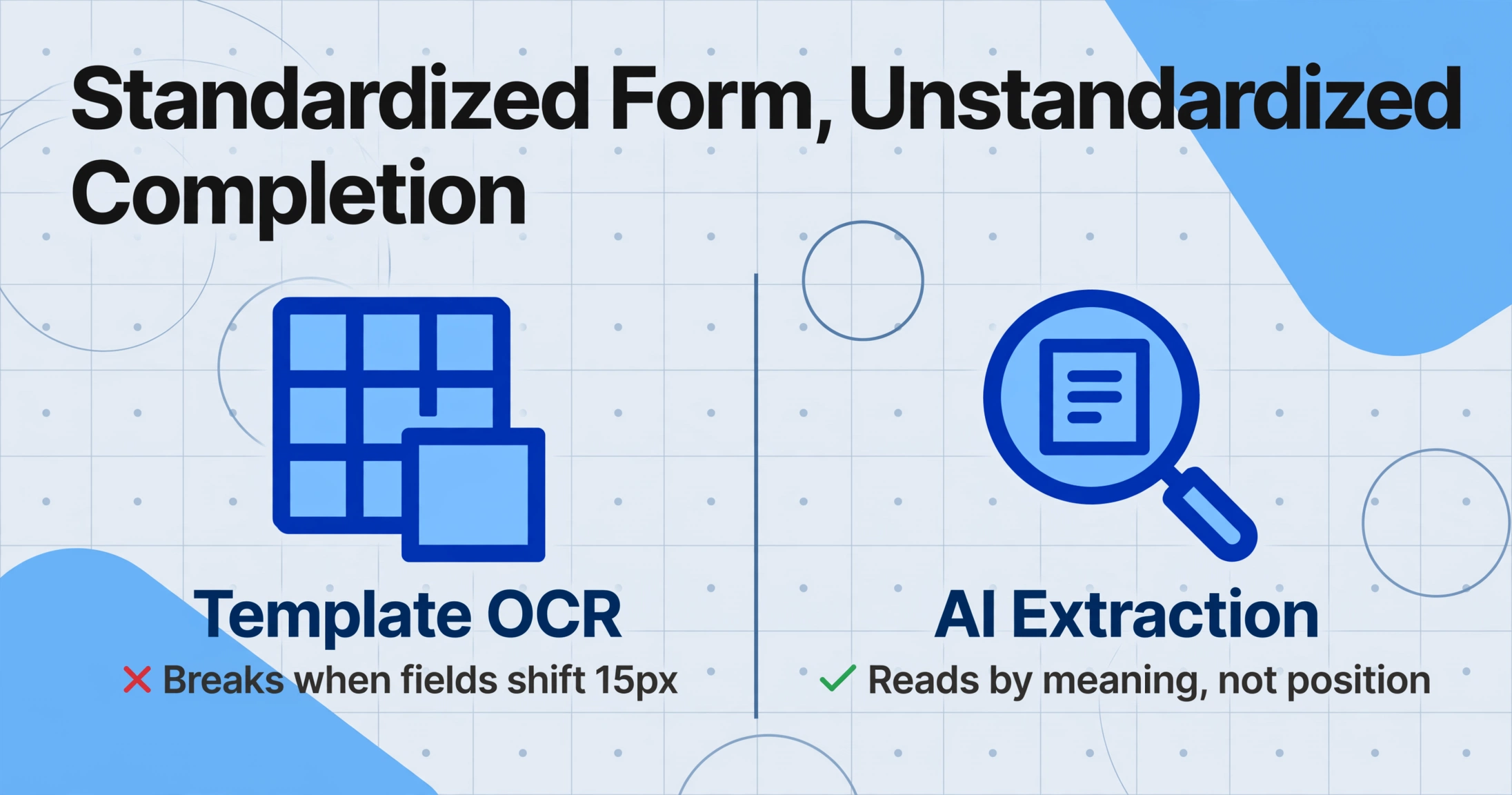
The ACORD 25 is standardized by design — that's the whole point of the ACORD system. Every form uses the same section layout, the same field labels, the same checkbox positions. So why doesn't traditional OCR just read it?
Because the form is standardized. The completion is not.
Each insurance carrier uses different agency management systems to populate ACORD 25s. Applied Epic formats dates one way; Vertafore formats them another. Some carriers print policy numbers in the exact field box; others spill them across boundaries. Handwritten entries — still common when brokers make last-minute adjustments — appear in unpredictable locations with varying legibility. The Description of Operations field varies from two words ("per attached") to three dense paragraphs of project-specific language.
Template-based OCR — the kind built into most document processing tools — works by defining fixed zones on the page: "the policy number is at coordinates (x=400, y=280)." When a different insurer's software shifts that field by 15 pixels, or a handwritten note pushes the coverage grid down half an inch, the template breaks. You get garbled output or blank cells, and the time you thought you saved goes into fixing extraction errors.
This is where AI extraction that uses Custom Column Extraction fundamentally differs. Instead of telling the tool where data lives on the page (position-based), you tell it what you want (semantic-based). You type the column names — "General Liability Policy Number," "GL Each Occurrence Limit," "Additional Insured Endorsement Form" — and the AI locates each value by understanding what it means, regardless of where it sits on the page or which insurer filled it out. The form can shift. The AI doesn't care.
This distinction is especially important for ACORD 25s because they typically arrive as scanned PDFs or email attachments — not pristine digital originals. Skew from a desktop scanner, compression artifacts from email, or a broker's stamp partially obscuring a field are all routine. Template-based OCR fails on any of these. Semantic extraction — trained on visual understanding, not coordinate mapping — handles them as normal input.
The 12 Fields Every COI Compliance Tracker Needs
Not every field on the ACORD 25 belongs in your compliance spreadsheet. A well-designed tracker extracts the fields that answer one question: "If a claim happens involving this subcontractor tomorrow, do we have coverage?" Here are the 12 columns to extract, what each captures, and why it matters.
| Column Name | What It Captures | Why It Matters for Compliance |
|---|---|---|
| Subcontractor Name | The named insured on the certificate | Must match the legal entity name on your subcontract. Mismatch = the certificate is for a different company. |
| Insurance Carrier | The insurance company name (Insurer A, B, C) | Cross-reference with AM Best rating. Carriers below A- rating may not meet your contract's financial strength requirements. |
| NAIC Number | The unique insurer identifier | A quick legitimacy check. Missing or invalid NAIC number warrants immediate follow-up. |
| Policy Number(s) | One per coverage line (GL, Auto, Umbrella, WC) | Every claim references the policy number. A single digit wrong means the claim goes to the wrong policy. |
| Coverage Type | GL, Auto, Umbrella, Workers' Comp | Flags whether a required coverage line is present or missing entirely. |
| Effective Date | Policy start date | The sub cannot begin work before this date. A certificate issued with a future effective date is a promise, not current coverage. |
| Expiration Date | Policy end date | The single most-tracked field. Use Excel conditional formatting to flag anything expiring within 30 days. An expired policy at the time of a claim is equivalent to no policy. |
| Each Occurrence Limit | Per-claim limit for GL | Compare against your contract minimum (typically $1M). A $500K limit that doesn't meet your $1M requirement is a compliance failure. |
| General Aggregate Limit | Total policy limit across all claims | Caps total payouts. If the sub has multiple active projects, the aggregate may be partially exhausted. Typically $2M minimum. |
| Additional Insured (Y/N) | Checkbox status from the coverage grid | A "Y" means the agent claims you're an AI — but the endorsement form number tells you whether it's enforceable. CG 20 10 covers ongoing operations only; CG 20 37 adds completed operations. Without CG 20 37, you have no AI coverage after the sub finishes work, which is when most defect claims arise. |
| AI Endorsement Form # | The ISO form number from the Description of Operations or attached endorsements | This field separates verified coverage from a checked box. CG 20 10 (04/13) is the standard for scheduled ongoing operations AI. CG 20 37 adds completed operations. CG 20 33 provides blanket AI when required by written contract. If this field is empty and the AI box is checked, request the endorsement document. |
| Waiver of Subrogation (Y/N) | Checkbox status for subrogation waiver | Without it, the insurer can sue your company to recover claim payouts. The corresponding endorsement (CG 24 04) must be attached to the policy — a Y in this box without the endorsement is unenforceable. |
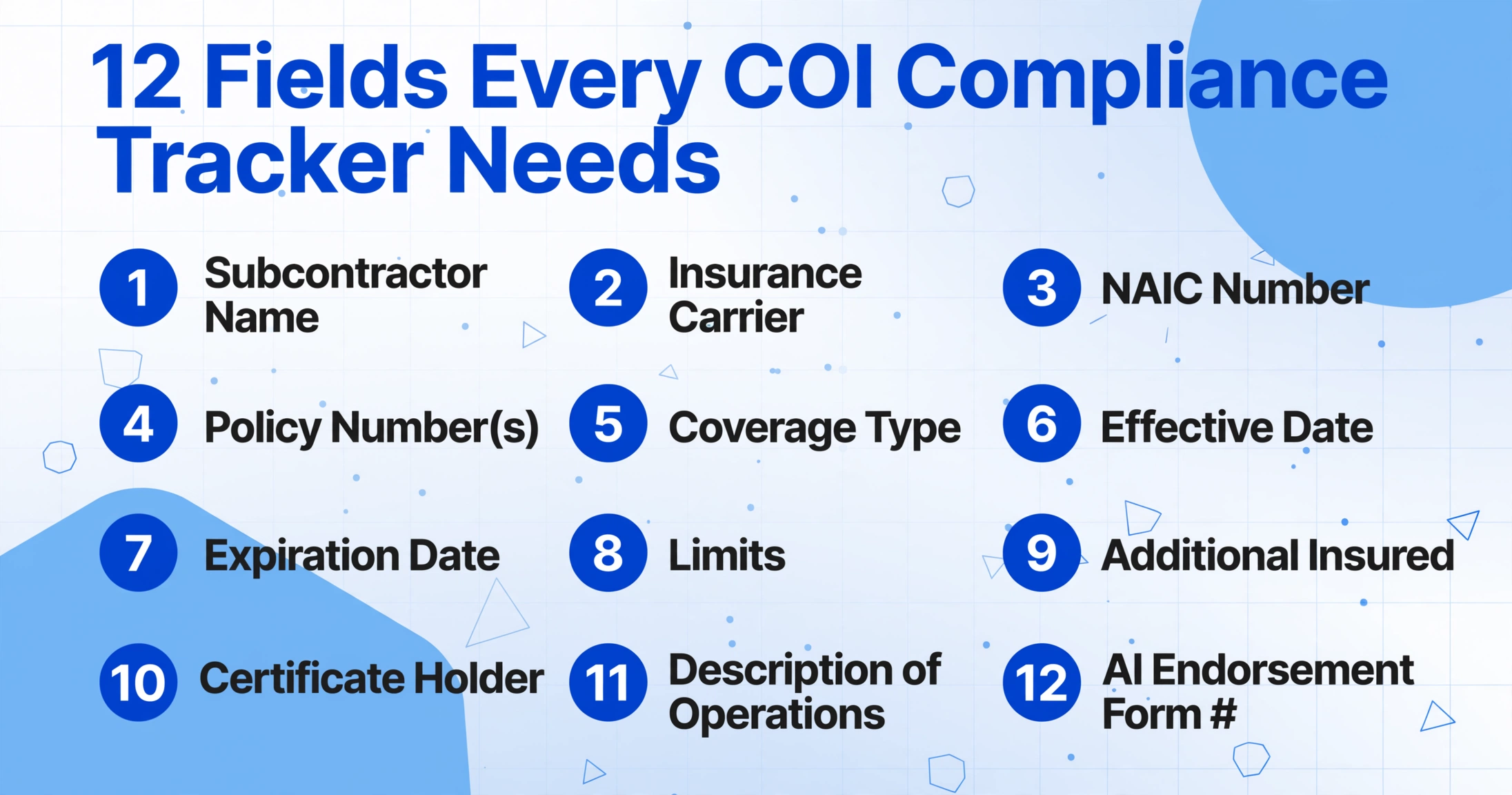
Two fields worth adding if your contracts require them: Primary & Noncontributory language — which ensures the sub's policy pays first, before your own GL coverage kicks in — and Certificate Holder — confirming your company is correctly named.
With this column list defined, the extraction tool needs no training, no template, and no zone-drawing. You type these column names once, save them as a template, and apply them to every ACORD 25 that comes in — regardless of which insurer issued it.
Building Your COI Extraction-to-Excel Workflow
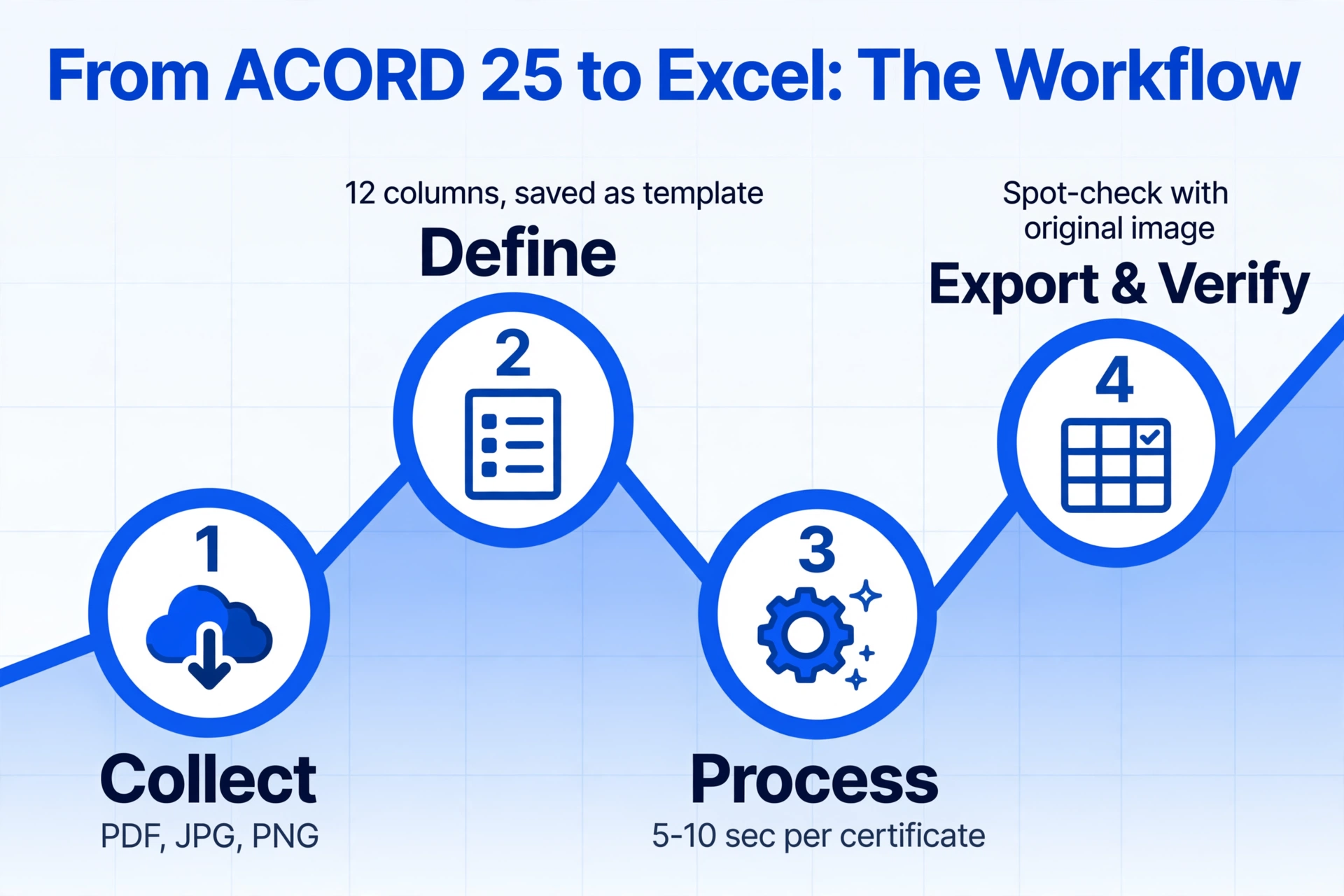
Here is the workflow, start to finish, for turning a batch of ACORD 25 PDFs into a structured Excel compliance tracker.
Collect the certificates.
Gather all ACORD 25 PDFs from subcontractors — email attachments, shared folders, or a Collection Link you send to each sub so they upload directly into your processing queue. PDF, JPG, and PNG are all supported. The tool accepts individual files or batch uploads — drop 50 certificates at once and they process as a group.
Define your extraction columns.
Type the 12 column names from the table above — or your own subset based on contract requirements. These column names become your Excel headers. Save them as a reusable template so every new batch uses the same extraction schema. If your contract requirements evolve, update the template once and all future extractions follow the new schema — no retraining, no reconfiguration.
Process the batch.
The AI reads each ACORD 25, locates every field by semantic meaning, and extracts the data into a structured table. Processing takes approximately 5–10 seconds per certificate. The output is a single unified Excel spreadsheet where each row is one subcontractor and each column is one of your defined fields — ready for compliance review.
Export and verify.
Download the Excel file. Review the extracted data — the tool preserves the original certificate image alongside extracted results so you can spot-check any field. For the Additional Insured column specifically, verify that the endorsement form number (CG 20 10, CG 20 37, etc.) is present, not just the Y/N checkbox. If your contract requires completed operations coverage and only CG 20 10 appears, flag it for follow-up.
Files are processed securely and not stored.
This workflow replaces the manual cycle of open-PDF → scan-with-eyes → type-into-Excel → check-next-field. The extraction handles the data capture; you handle the compliance decisions — which is where your expertise actually adds value.
From Extracted Data to Compliance Dashboard
The Excel file you get from extraction is structured data — every subcontractor in rows, every compliance field in columns. That structure unlocks spreadsheet operations that are impossible with manual tracking, where data lives in different tabs, different formats, and often just in someone's inbox.
Here are three Excel patterns that turn extracted COI data into a live compliance dashboard:
Expiration alerts with conditional formatting. Select the Expiration Date column. Apply a conditional formatting rule: if the date is within the next 30 days, highlight the cell red. A second rule: if within 31–60 days, highlight yellow. Sort by this column descending, and the subcontractors whose policies expire soonest rise to the top — no calendar reminders, no email chasing that starts after the policy already lapsed.
Coverage gap detection with a pivot table. Create a pivot table with Subcontractor Name as rows, Coverage Type as columns, and Policy Number as values. Any cell that's blank means that subcontractor lacks that coverage type entirely. A subcontractor missing Workers' Comp but working on-site six days a week is an audit time bomb — and a pivot table surfaces it in seconds.
Endorsement verification with a filter column. Add a helper column called "AI Status" with this formula: =IF(AND([AI Endorsement Form #]="", [Additional Insured]="Y"), "UNVERIFIED — Request Endorsement", IF([AI Endorsement Form #]="", "No AI Claimed", "Verified")). This flags every certificate where the Additional Insured box is checked but no endorsement form number was extracted — the exact scenario where a claim gets denied because the COI checkbox had no backing policy language.
For teams managing 30 or more subcontractors, these three Excel patterns handle 90% of ongoing compliance monitoring. The extraction workflow feeds clean data in; the dashboard patterns surface risk out. The human review step — which can't be automated away — focuses on the flagged items, not on retyping policy numbers.
If you're working in Google Sheets instead of Excel, the same patterns apply with identical conditional formatting and pivot table functionality. The scale-up from 30 to 200 subcontractors is where the spreadsheet-native approach particularly shines — you're not learning a new platform, just feeding more data into the workflow you already built.
ACORD 25 Extraction vs. Full COI Management Platforms: When to Use Which
A fair question at this point: if purpose-built COI management platforms exist — and they do, with real capabilities — why use extraction-to-Excel instead?
The answer depends on where you are in the compliance maturity curve.
ACORD 25 extraction to Excel is the right fit when: You're managing 10–80 subcontractors across a handful of active projects. Your compliance review is done in-house by a project administrator or risk coordinator who knows the contract requirements and makes judgment calls on borderline cases. You need the extraction piece — getting data off the form and into a structured format — but you don't need automated renewal chasing, multi-tier approval workflows, or ERP integration. Your current pain point is the typing, not the tracking infrastructure.
Purpose-built COI platforms (myCOI, Jones, bcs, TrustLayer, SmartCompliance) become the right choice when: You're managing 200+ subcontractors across dozens of projects, with compliance requirements that vary by project, by trade, and by owner contract. You need automated renewal workflows, subcontractor self-service portals, and direct integration with Procore, Sage, or CMiC. At this scale, the administrative overhead of manual review — even with extracted data — becomes the bottleneck. Platforms handle the workflow; extraction handles the data capture.
The key insight: extraction and compliance management are separate functions, and they don't have to come from the same vendor. You can extract ACORD 25 data with a lightweight tool today, build your compliance dashboard in Excel, and if you later outgrow the spreadsheet, the structured data you've been accumulating imports cleanly into any platform. The extraction doesn't lock you into a platform decision — it solves today's problem without pre-committing to tomorrow's infrastructure.
The gap this approach fills is the one most articles skip: the construction team that knows manual data entry is broken but isn't ready — in budget, in volume, or in organizational readiness — to deploy an enterprise COI platform. You can automate COI data extraction without automating the entire compliance workflow — and the same column-based extraction approach works across any COI format, not just ACORD 25.
For a deeper look at what goes wrong when compliance tracking fails, the real cost of COI non-compliance in construction — from audit premium recalculations to denied claims — puts the risk in concrete numbers.
Frequently Asked Questions
Does AI extraction handle handwritten entries on ACORD 25 forms?
Yes. Modern AI extraction based on vision models reads both printed text and handwriting — including cursive — on the same form. This matters for ACORD 25s because brokers frequently hand-write corrections, add policy numbers in pen, or annotate coverage details in margins. Traditional OCR that only reads machine-printed text will miss these entries entirely. Vision-based AI treats handwriting as part of the document image and reads it the same way it reads printed text. Accuracy on clear handwriting is comparable to printed text; heavily stylized cursive or heavily compressed scans may reduce confidence and warrant a manual spot-check.
Can the extraction tool identify CG 20 10 and CG 20 37 endorsement form numbers?
Yes — if the endorsement form number appears on the certificate or is included in the Description of Operations section. Many brokers type "CG 20 10 (04/13), CG 20 37 (10/01)" into the Description of Operations field. The extraction tool reads this as text and extracts it into your designated column. However, the endorsement form number appearing on the certificate does not guarantee the endorsement was actually attached to the policy. The ACORD 25 itself warns that a statement on the certificate does not confer rights. For high-risk subcontractors or projects with strict owner requirements, request a copy of the actual endorsement page in addition to the certificate.
How does this compare to ABBYY Vantage or other enterprise IDP tools for ACORD 25 extraction?
Enterprise IDP (Intelligent Document Processing) platforms like ABBYY Vantage offer trained extraction skills for ACORD 25 — but they operate on a fundamentally different model. ABBYY's ACORD 25 skill is described as a "preview skill" that "may require further training on your specific documents before it can be used in production." This is template-based extraction at its core: a model trained on sample documents that needs retraining when formats vary. Template-free AI extraction skips the training step entirely — you define column names, the AI reads each document fresh, no sample set needed. For teams processing ACORD 25s from dozens of different insurers with varying completion styles, the template-free approach avoids the training maintenance burden that template-based tools accumulate over time.
What if a subcontractor sends a non-ACORD 25 COI — a carrier-specific form or a legacy ACORD version?
Template-free extraction handles any COI format because it locates fields by meaning, not by position. A carrier-specific certificate with a different layout, a pre-2016 ACORD 25 revision with a different field arrangement, or even an ACORD 27 (Evidence of Property Insurance) — the AI reads the document content and finds what you asked for. The column names you defined for standard ACORD 25s work on non-standard forms without modification. This is the practical advantage of semantic extraction over template matching: you don't maintain separate templates for each insurer's version of the form.
Is the extracted data accurate enough to use directly for compliance decisions?
Printed text on ACORD 25 forms — policy numbers, dates, carrier names, limit amounts — achieves up to 99% accuracy with AI extraction. The areas that warrant human review are: (1) the Description of Operations free-text field, where complex endorsement language may require contextual interpretation; (2) handwritten entries, which may have lower confidence depending on legibility; and (3) the Additional Insured checkbox, which should always be cross-referenced against the endorsement form number column. The extraction tool preserves the original PDF image alongside extracted data, so verifying any specific field is a single-click comparison — no need to re-open the original file.
Can I extract data from ACORD 25s directly into Google Sheets instead of Excel?
Yes. The Google Sheets Add-on lets you upload ACORD 25 PDFs from within a spreadsheet, define extraction columns, and append results directly to the active sheet — no file export/import step. This is useful if your compliance tracking already lives in Google Sheets and you want the extraction to feed directly into your existing workbook structure. The same column-name template system works across both the web interface and the Sheets add-on.