How to Batch 5 Vendor Quotes
Into One Google Sheets Comparison Table
In a Reddit thread on r/procurement titled "How do you guys compare 5 different PDF quotes without losing your mind?", the top responses were variations of the same answer: open each PDF, find the numbers, type them into a spreadsheet, repeat. One commenter had automated their weighted scoring formulas — conditional formatting, pivot tables, the works. The bottleneck was still step one: getting the data out of the PDFs and into the cells. This article is about what happens when that step moves inside the Google Sheets sidebar — where you upload all five quotes in one session, define your comparison columns once, and get a single comparison table written directly into your sheet.
Key Takeaways
- 4 to 6 hours every month vanish into manually copying numbers from five different supplier quote PDFs into one comparison spreadsheet.
- ImageToTable.ai's column-name extraction maps "Rate," "Price Per Each," and "Unit Price" from three different PDFs into the same spreadsheet column by recognizing what each field means rather than where it sits on the page.
- A 5-supplier RFQ round drops from 60 minutes of typing to under 2 minutes — a 45× speed increase that turns vendor comparison from a recurring half-day task into something that happens while you pour a cup of coffee.
The 5-Supplier RFQ: Same Data, Five Different Layouts
Procurement best practices converge on a consistent number: invite three to five qualified suppliers per RFQ. Fewer than three and you're not creating competitive tension. More than five and evaluation complexity outweighs the marginal pricing benefit. CAPS Research, co-sponsored by the Institute for Supply Management and Arizona State University's W. P. Carey School of Business, benchmarks procurement processes across 20 industry sectors — and the three-to-five range is the structural default across sectors (APQC Procurement Benchmarking).
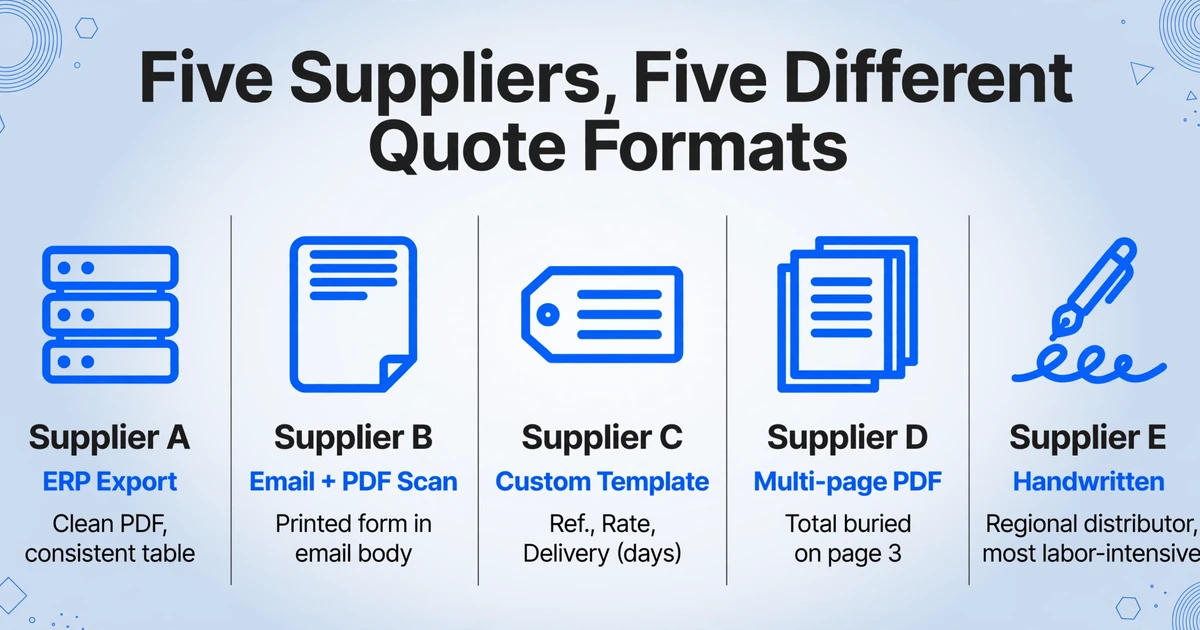
Five qualified suppliers means five quote responses. And five responses means five different formats. Supplier A exports from their ERP — a clean PDF with item codes, descriptions, unit prices, and lead times in a consistent table. Supplier B writes their quote in an email body and attaches it as a PDF scan of a printed form. Supplier C uses their own quote template with column labels you've never seen before: "Ref." instead of "Item Code," "Rate" instead of "Unit Price," "Delivery (working days)" instead of "Lead Time." Supplier D itemizes by row but puts the total on page 3. Supplier E's PDF is a scanned handwritten quote form from a smaller regional distributor — your most cost-competitive option, and your most labor-intensive to digitize.
Your Google Sheets comparison template doesn't care about any of this diversity. It has clean columns: Supplier Name, Item Description, Quantity, Unit Price, Line Total, Lead Time, Payment Terms, Delivery Terms. The format gap — what sits between "five messy PDFs" and "one clean spreadsheet" — is you, manually translating data across formats for 60 to 90 minutes per quoting round.
The structural problem: A procurement manager on r/supplychain described their RFQ cycle as "manually comparing quotes across 5 vendors for a few categories of components." Each comparison round took half a day — not because the comparison logic was complex, but because each supplier's PDF required different visual scanning patterns to locate the same fields. The brain adapts quickly. The hands don't.
Enterprise Software Solves This — at Enterprise Prices
SAP Ariba and Coupa dominate the source-to-pay market, both named Leaders in the 2025 and 2026 Gartner Magic Quadrant for Source-to-Pay Suites. Their e-sourcing modules handle exactly this problem: send structured RFQs to suppliers, receive standardized responses, and generate automated comparison tables. No PDF-to-spreadsheet translation required — the platform enforces structure from the start.
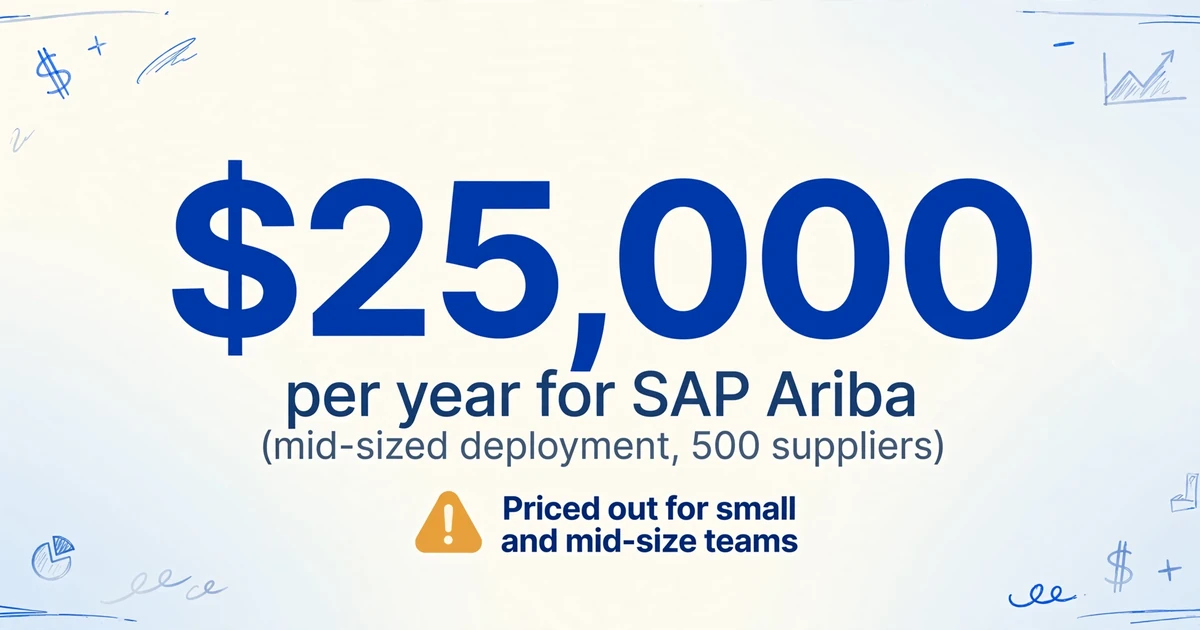
The price tag makes them irrelevant to the small and mid-size procurement teams doing the bulk of this work. SAP Ariba starts at approximately $25,000 per year for a mid-sized deployment with 500 suppliers and five users on the Supplier Lifecycle & Performance module. Coupa's starting price is around $2,500 per month, with typical mid-market deployments running $200,000 to $800,000 annually plus $100,000 to $400,000 in implementation costs. AuraVMS, a dedicated RFQ tool for small businesses, starts at $5 per month — but requires suppliers to submit through its platform, which means you can't process the PDFs already sitting in your inbox.
The procurement software market was valued at $6.6 billion in 2024. The tools built for $250,000+ deployments and the tools built for $5-per-month RFQ automation share a common assumption: that the supplier will use the tool's submission format. The reality for a small procurement team is that quotes arrive as email attachments — PDFs, scanned forms, and the occasional Excel file — and the comparison has to happen with what you've got, not with what a platform requires.
The Sheet-as-System Reality — And What's Missing
When a small business or mid-market procurement team can't justify a six-figure source-to-pay suite, the default toolchain is straightforward: Google Sheets for comparison + Gmail for receiving PDFs + manual data entry to connect the two. This isn't a failure of procurement sophistication. It's a rational adaptation to the tools available — Sheets gives you real-time collaboration, shareable links, and formula-based scoring without IT procurement or vendor onboarding.
What's missing in this stack isn't the analysis layer. Google Sheets handles conditional formatting, weighted scoring, and pivot-table summaries as well as any procurement platform. What's missing is the ingestion layer — the mechanism that converts five PDF attachments into five rows of structured data without human transcription.
For single-quote extraction — pulling data from one vendor quote PDF into a spreadsheet — a step-by-step guide covers the fundamentals of column-name extraction through the add-on. Batch processing builds on the same sidebar interface but introduces challenges that don't exist at single-file scale: consistent column mapping across suppliers with different terminology, handling fields that appear in some quotes but not others, and producing a comparison-ready table where every row aligns to the same column structure regardless of source format.
How Column-Name Extraction Unifies Five Different Quote Formats
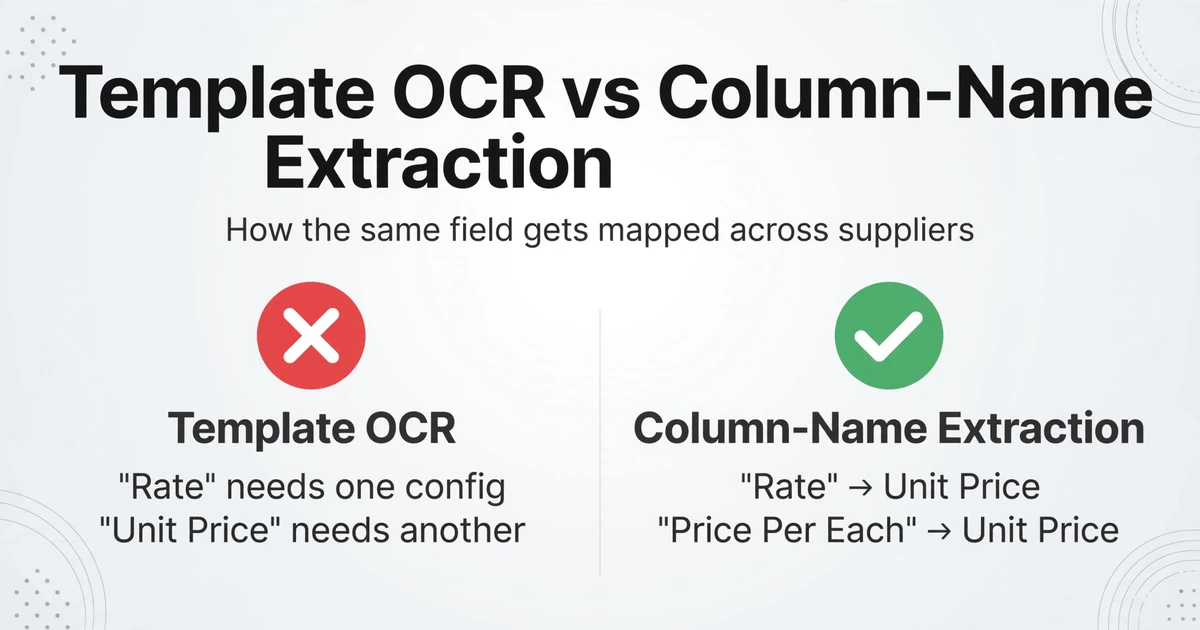
The engine that makes batch processing work across inconsistent formats is column-name extraction: instead of telling the tool where to find data on each supplier's PDF — drawing boxes around fields, building per-supplier templates — you tell it what you want extracted. You define your comparison columns once: "Supplier Name / Item Description / Unit Price / MOQ / Lead Time (Days) / Payment Terms." The AI locates each value in every document by understanding what it means semantically, not where it sits on the page.
This is the mechanism that handles the vocabulary problem across suppliers. Supplier A's PDF labels a field "Rate." Supplier B labels it "Unit Price." Supplier C labels it "Price Per Each." A template-based tool sees three different field names and requires three separate configurations. Column-name extraction recognizes that all three refer to the same procurement concept — unit price — and maps them to the same output column automatically. This is the difference between extraction and understanding: traditional OCR extracts text strings by position; column-name extraction extracts data points by semantic role.
For the format diversity of a real RFQ round — one ERP-generated PDF, one email-body text, one scanned handwritten form — the extraction approach is identical across all three. You don't change your column definitions per supplier. You don't train templates per format. The column names you defined once produce rows in the same table from every document in the batch.
The Batch Workflow: Upload All Five, Get One Table
A Google Sheets add-on is a sidebar panel that opens inside your spreadsheet — accessible from the Extensions menu in the same window and tab as your comparison sheet. It is not a separate tool that processes quotes on a website and exports a file you then import into Sheets. It is the extraction interface, running inside the spreadsheet, with the active sheet as its direct output destination.
For batch vendor quote comparison, this architecture matters in one specific way: the sidebar receives five quote PDFs, extracts data from all of them using the same column definitions, and writes every result as consecutive rows directly into the sheet you're looking at — no download button, no "import CSV to Sheets" step, no intermediate dashboard. For the full capability rundown — supported field types, formats, and plan details — see the Google Sheets extraction feature page.
Here's the batch workflow in three actions:
Open the sidebar, type the field names you want compared across suppliers: "Supplier Name / Item Description / Unit Price / MOQ / Lead Time (Days) / Payment Terms." These become your table headers. When you're logged in with an API key, the sidebar saves this configuration — next RFQ round, your comparison columns are already set.
Click upload in the sidebar, select every quote PDF — Supplier A's ERP export, Supplier B's PDF scan, Supplier C's handwritten form — and confirm. The add-on accepts PDF, JPG, PNG, and WebP. All five process in the same batch with the same column structure.
The AI reads each file, locates the values matching your column names, and appends them as new rows at the bottom of your active sheet. Supplier A's data in row 2, Supplier B's in row 3 — same columns, same order. Your existing comparison formulas remain intact above or to the right of the output area.
Files are processed securely and not stored.
The Missing-Field Problem: When Supplier A Lists Payment Terms and Supplier B Doesn't
In a single-quote workflow, a missing field is a minor inconvenience — you type "N/A" or leave the cell blank and move on. In a batch of five quotes feeding into the same comparison table, missing fields create structural problems. If Supplier A specifies "Net 30" in their payment terms but Supplier B's quote doesn't mention payment terms at all, your comparison column has a gap. If you're scoring suppliers by weighted criteria that includes payment terms, Supplier B's missing data pulls their score down — not because their terms are worse, but because they didn't state them.
The add-on handles missing fields with a consistent strategy: when a column you defined doesn't appear in a supplier's document, the output cell for that supplier in that column is left empty. No error. No placeholder text. An empty cell — which is exactly what you'd create if you were entering the data manually and couldn't find the field.
This is the correct behavior for a comparison table. Your conditional formatting can highlight missing cells. Your scoring formula can treat empty cells as "not provided" rather than zero. The output structure doesn't break because one supplier omitted a field — every row has the same columns in the same order, with blanks where data wasn't present in the source document.
In practice, missing fields are the norm, not the exception, in multi-supplier quote comparison. A procurement professional on r/procurement described their standard RFQ process with nine manual steps and noted that step 5 — "comparing inclusions/exclusions between what the suppliers offered and what we requested" — was the most time-consuming step. Some suppliers send brochures instead of structured responses. Some itemize line by line but skip the summary fields you need. Some PDFs have all the data but spread across four pages with the total buried on page 4. The extraction approach handles all of these: if the data is present anywhere in the document, the AI finds it by semantic meaning and maps it to the correct column. If it's not present, the cell is blank. No template breaks. No row misalignment. No manual reconciliation.
The Speed Multiplier: Five Quotes in One Session vs. Five Separate Sessions
The efficiency gain of batch processing isn't additive — it's structural. Processing one quote through the sidebar takes about 15 to 30 seconds: upload the PDF, the AI locates your defined fields, data appears in the sheet. Processing five quotes one at a time — five upload sessions, five separate extraction rounds — takes roughly 2 to 3 minutes total, plus the time to open each file and confirm the upload. That's already 10 to 20 times faster than manual data entry, which clocks roughly 3 minutes per quote for reading, locating each field, and typing.
Batch processing compresses this further: select all five quote files in one upload, start one extraction session, and all five rows appear in the sheet. The five extractions run sequentially — each file is read, each set of values is located, each row is appended — but you initiate the batch once. For a 5-supplier RFQ round, the entire data extraction phase, from selecting files to having comparison-ready rows in Sheets, completes in under 2 minutes.
| Method | 5-Vendor RFQ Time | Monthly (4 RFQs) | Key Limitation |
|---|---|---|---|
| Manual copy-paste | 60–90 minutes | 4–6 hours | Transcription errors; format switching fatigue |
| Single-quote extraction (×5 sessions) | 2–3 minutes | 8–12 minutes | Five separate upload sessions |
| Sidebar batch (all 5 at once) | <2 minutes | <8 minutes | Files must be accessible from the browser device |
The monthly compounding is where the structural difference becomes visible. If you run one RFQ round per week — four rounds a month, each comparing five suppliers — manual data entry consumes 4 to 6 hours monthly on transcription alone. Batch extraction through the sidebar reduces this to under 8 minutes. That's not a 2× improvement. It's not 5×. It's roughly a 45× reduction — from "this is a recurring half-day task" to "this happens while you get coffee."
For procurement teams that process quotes across multiple categories — raw materials from one set of suppliers, packaging from another, logistics services from a third — the weekly RFQ load can reach three or four separate quoting rounds. At 60 to 90 minutes each, manual comparison becomes the dominant activity in a procurement professional's week — a finding consistent with data showing procurement professionals spend an average of 2 hours and 45 minutes daily on sourcing tasks, much of it in data consolidation rather than strategic evaluation.
Beyond Vendor Quotes: Batch Processing Across Document Types
The batch mechanism in the add-on sidebar works identically across document types — the columns change, the workflow doesn't. If you run procurement and also process supplier invoices through the same Google Sheets tracking system, the batch invoice processing workflow follows the same pattern: define invoice columns, upload all supplier invoices at once, get one ledger table. If your procurement role extends to expense reconciliation, batch expense report processing works the same way — upload your team's monthly submissions, get one reimbursement table. And if your organization tracks receipts for tax purposes alongside vendor quotes, the batch receipt processing guide covers the same sidebar pattern for receipt volumes.
For those working through the web interface rather than the Sheets sidebar — uploading to the ImageToTable.ai website and exporting to Excel — the general batch vendor quote comparison guide covers the web-based workflow with the same column-name extraction mechanism. The extraction engine is the same; the delivery method is what differs.
The common thread is that Google Sheets is already the system of record — for vendor comparisons, for invoice tracking, for expense reconciliation. The add-on doesn't replace the spreadsheet. It replaces the data entry that feeds it. The same column-name extraction that handles five vendor quotes with different terminology also handles thirty supplier invoices with different layouts and a hundred receipts from different POS systems. The sidebar is the ingestion layer that was always missing from the Sheets-as-system architecture.
For teams already comparing vendor quotes manually in Google Sheets — but who also want the full comparison framework including weighted scoring, conditional formatting, and what goes wrong when those spreadsheets get complex — our common vendor quote comparison mistakes article covers the spreadsheet-side pitfalls that batch extraction doesn't solve. And for the broader question of whether manual quote comparison still makes sense at all, the manual vs. AI comparison workflow examines the break-even point where extraction stops being optional.
FAQ
Can the add-on handle quotes with line items — multiple products per supplier?
Yes. When a supplier's quote contains multiple line items, define your columns to capture the repeating structure: "Item Description / Quantity / Unit Price / Line Total." The AI recognizes that these fields repeat for each line item and creates a separate row per item — so Supplier A with five line items produces five rows, each with the same supplier name but different item data. For comparison purposes, you can then group by supplier in your sheet using a pivot table or the QUERY function.
What if one supplier quotes in a different currency?
The add-on extracts the values as they appear in the document. If Supplier A quotes in USD and Supplier B in EUR, the extracted numbers reflect their original currencies. To compare across currencies, add a column for "Currency" and use a GOOGLEFINANCE formula in an adjacent column to convert — for example, =GOOGLEFINANCE("CURRENCY:EURUSD") — applied once per row. The extraction itself doesn't convert currencies; it captures what's on the page.
Do I need to set up different column names for each supplier?
No. The column definitions you set up once — "Unit Price," "MOQ," "Lead Time," etc. — work across all suppliers regardless of what terminology each supplier uses. This is the core mechanism of column-name extraction: the AI recognizes that "Rate," "Price Per Each," and "Unit Price" all refer to the same procurement concept. You don't configure mappings per supplier.
Will the add-on work with scanned handwritten quotes?
Yes. The AI engine processes scanned documents and handwritten text the same way it processes digital PDFs. Accuracy for handwriting depends on legibility — clear block handwriting extracts as reliably as printed text, while highly stylized cursive and dense handwriting may have lower accuracy. The engine identifies both printed text and handwriting through its visual language model, with recognition accuracy up to 99% for printed data. For handwritten quotes, the output should be reviewed before using it as the basis for purchasing decisions.
What happens if I need to compare more than five suppliers?
The batch upload in the sidebar handles any number of files in a single session — five, ten, twenty. The only constraint is that files must be uploaded from the same browser session. There is no per-batch file limit.