ImageToTable.ai vs Google Sheets OCR:
Structured Column Extraction vs 5-Step Copy-Paste Workflow
Google Drive's built-in OCR is genuinely useful — and free. Upload a PDF, open it with Google Docs, and the text becomes editable. For a single document where you just need the words on the page, that's enough. The limitation appears when you need specific fields extracted, when you're processing more than 10 pages, or when you're handling a batch of invoices that all need to land in the same spreadsheet with aligned columns.
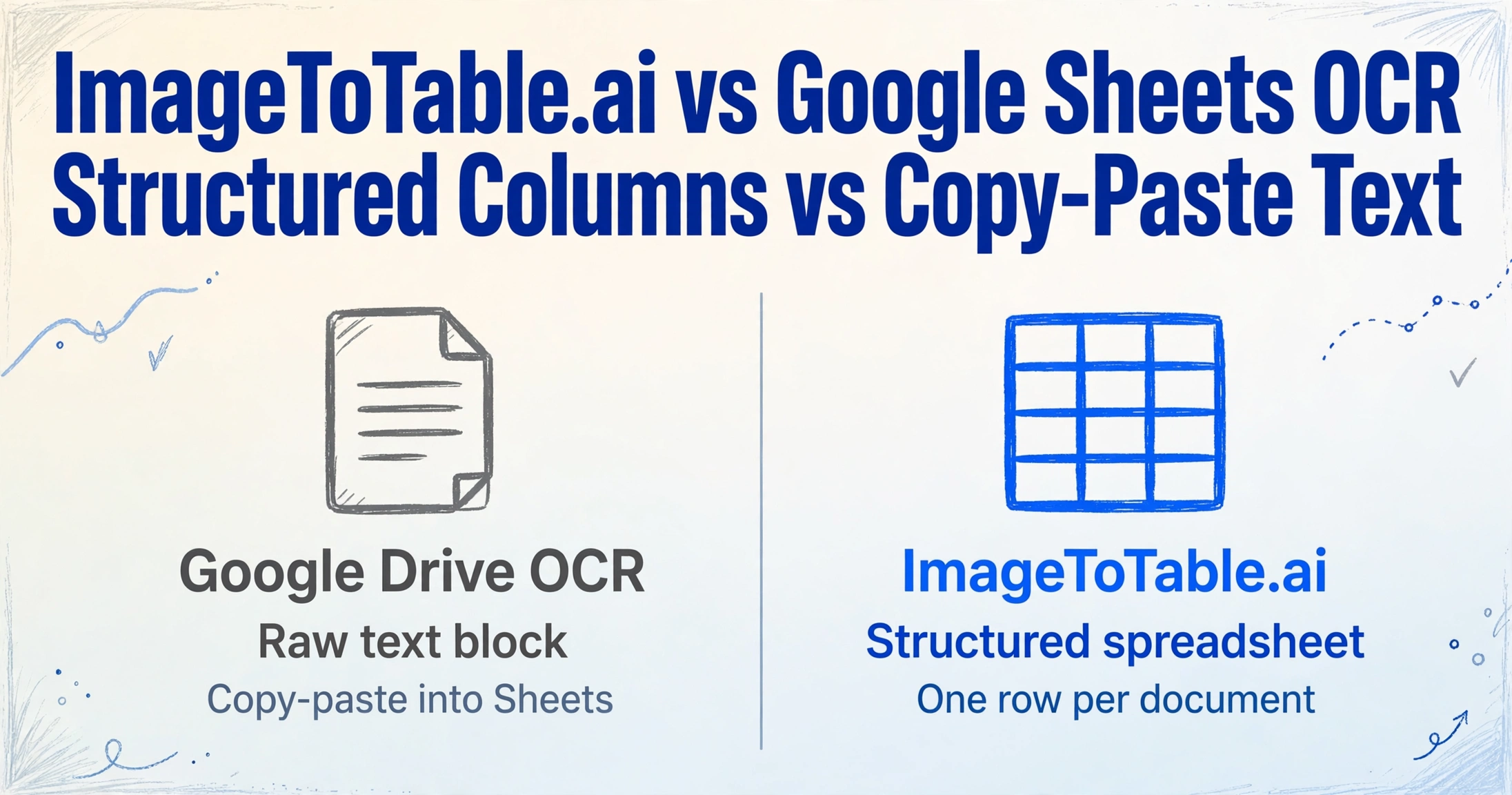
Quick Comparison
Choose ImageToTable.ai if…
- You need specific fields extracted — not just raw text from the page
- You're processing more than one document and want them merged into one table
- Your PDFs are longer than 10 pages
- You work with scanned images, phone photos, or handwritten documents
- You want column-aligned output ready for analysis — not a wall of text to sort through
- You process documents regularly and a manual 5-step workflow doesn't scale
Use Google Drive OCR if…
- You need to OCR a single document occasionally, for free
- Your document is under 10 pages and under 2 MB
- You just need the words on the page — not structured fields
- You're already in Google Workspace and have no budget for additional tools
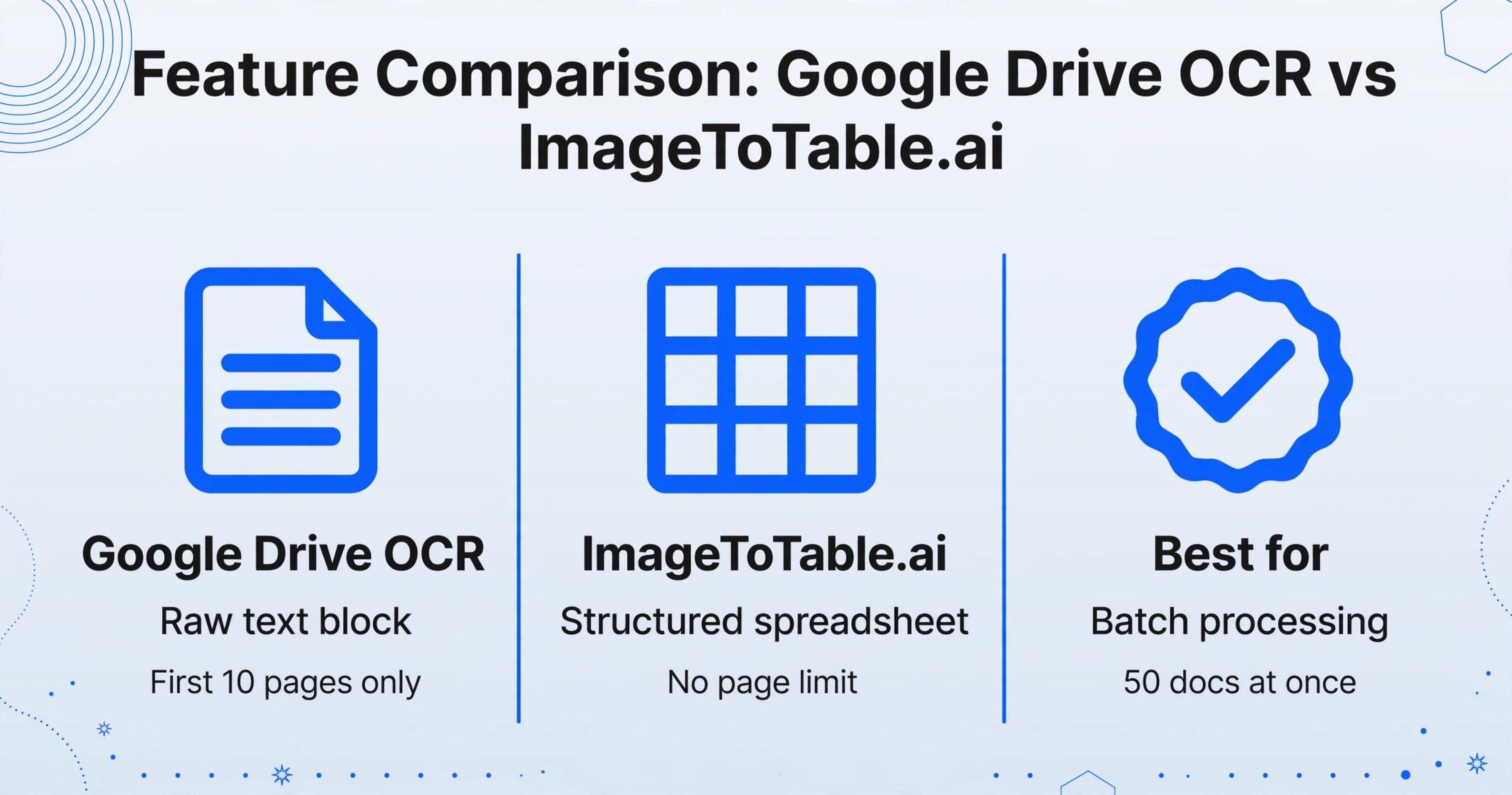
Feature Comparison
| Feature | Google Drive OCR (via Google Docs) | ImageToTable.ai |
|---|---|---|
| Output type | Raw text block — the words from the page, in approximate reading order, without field structure | Structured spreadsheet — custom column headers, one row per document, all data aligned |
| Page limit | First 10 pages only — content beyond page 10 is silently discarded | No page limit — multi-page PDFs processed in full |
| File size limit | 2 MB recommended for reliable results; larger files may fail or produce degraded output | Up to 10 MB per file; scanned documents and high-resolution images supported |
| Batch processing | One file at a time — each document requires a separate manual upload, open, and copy step | Upload multiple files at once; all extracted data merges into one aligned spreadsheet |
| Custom field extraction | None — you get what's on the page; locating specific fields (invoice number, vendor, total) requires manual scanning | Type the column names you want; the AI extracts matching fields from every document in the batch |
| Table and column structure | Tables frequently lose alignment — columns merge, rows break, formatting collapses to plain text | Structured output with consistent column headers regardless of source document layout |
| Steps required | Upload to Drive → right-click → Open with Google Docs → wait → copy content → paste into Sheets → manually sort into columns | Upload files → enter column names → download Excel |
| Cost | Free (included in Google account) | Free guest mode to test; paid plans from $9/month for 150 documents |
What You Actually Get from Google Drive OCR
The Google Drive OCR workflow is widely used because it costs nothing and requires no new tools. The process: upload a PDF or image to Google Drive, right-click and select "Open with Google Docs," and the document opens as an editable Google Doc with the recognized text below the original image.
What you get is the text content of the page — in reading order, approximately. For a single document where you need to find a specific piece of information, this works. The problem for structured data extraction is that Google Docs OCR doesn't know what an "invoice number" or "vendor name" is. It gives you all the text on the page. You then need to read through it, locate the fields you need, and manually copy them into your spreadsheet — one document at a time.
Google's own documentation and support community confirm several consistent limitations. First: Google Docs extracts text only from the first 10 pages of a PDF. Content beyond page 10 is silently skipped — there is no warning that the remaining pages weren't processed. Second: tables and column structures are not reliably preserved. As documented in multiple OCR guides, "lists, tables, and columns are not likely to be detected correctly" — the text appears, but the structure collapses. Third: files over 2 MB may produce degraded results. Excel users hit a comparable built-in ceiling with Data from Picture — our Excel Data from Picture comparison covers that feature.
The Batch Processing Problem
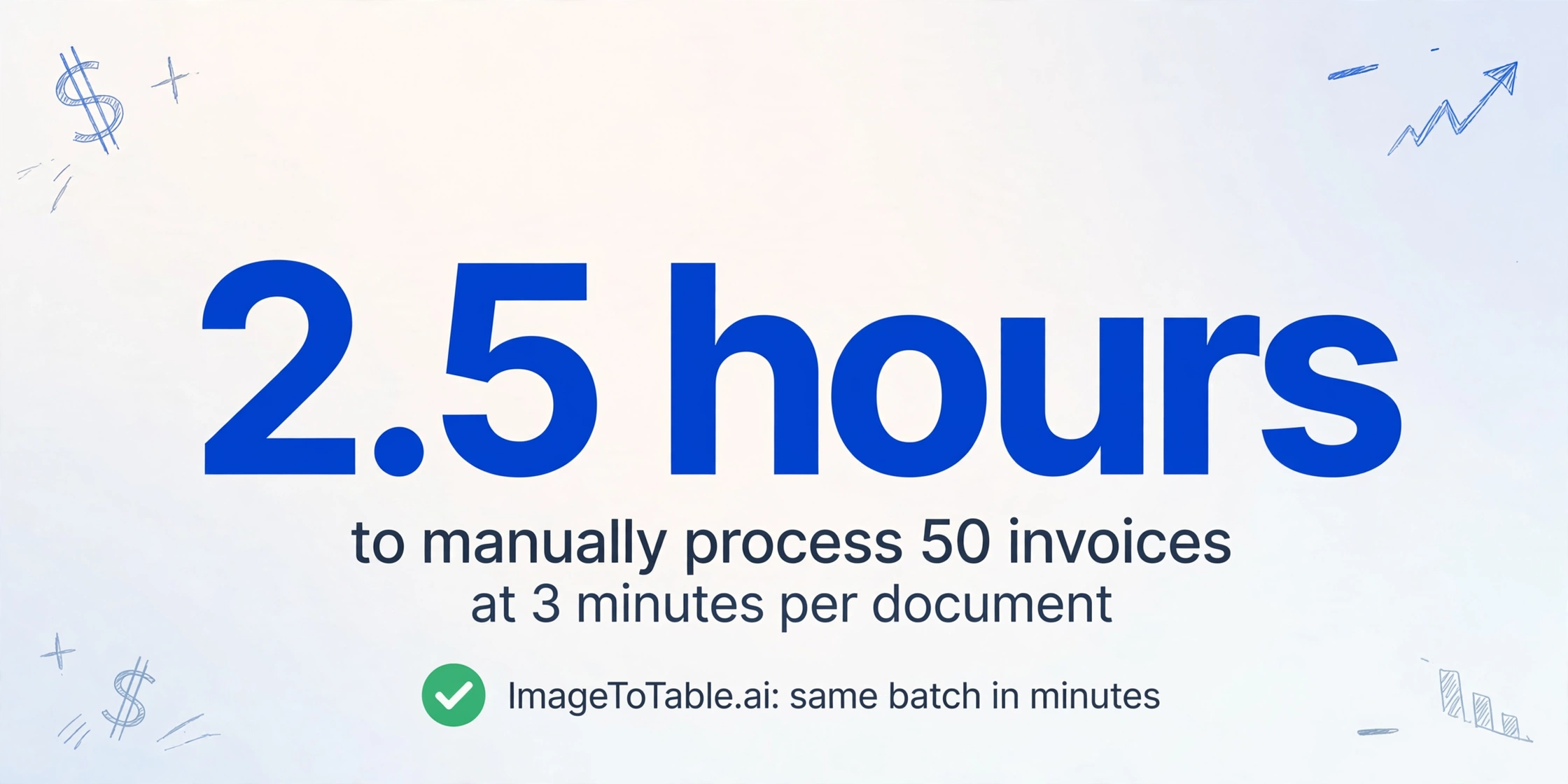
Google Drive OCR has no batch processing mode. Each document is a separate operation: upload to Drive, open with Docs, wait for OCR to complete, copy the extracted text, paste into your spreadsheet, then manually sort the text into the right columns. For one document per week, this is tolerable. For 50 purchase orders from 30 different suppliers, the manual overhead compounds quickly.
The compounding problem is alignment. Even after extracting text from 10 invoices through Google Docs, you have 10 separate text blocks — not one coherent table. To build a spreadsheet from them, you need to read each block, identify the relevant fields, and manually copy them into the right cells. The column headers don't appear automatically; you create them manually. If a supplier's invoice puts the total in a different position, you may miss it.
ImageToTable.ai handles batch processing differently. Upload all 50 invoices at once, specify the columns you want (vendor, invoice number, date, amount, due date), and download a single Excel file where every document occupies one row with the same column structure — regardless of how different the original invoice formats were from each other. If you'd rather stay with an API-driven raw-text pipeline at scale, AWS Textract is the developer-grade option — our AWS Textract comparison covers it.
Cost Comparison
Google Drive OCR is free — there's no subscription, no per-page cost, and no account required beyond a Google account. For occasional single-document use, this is genuinely hard to compete with on price.
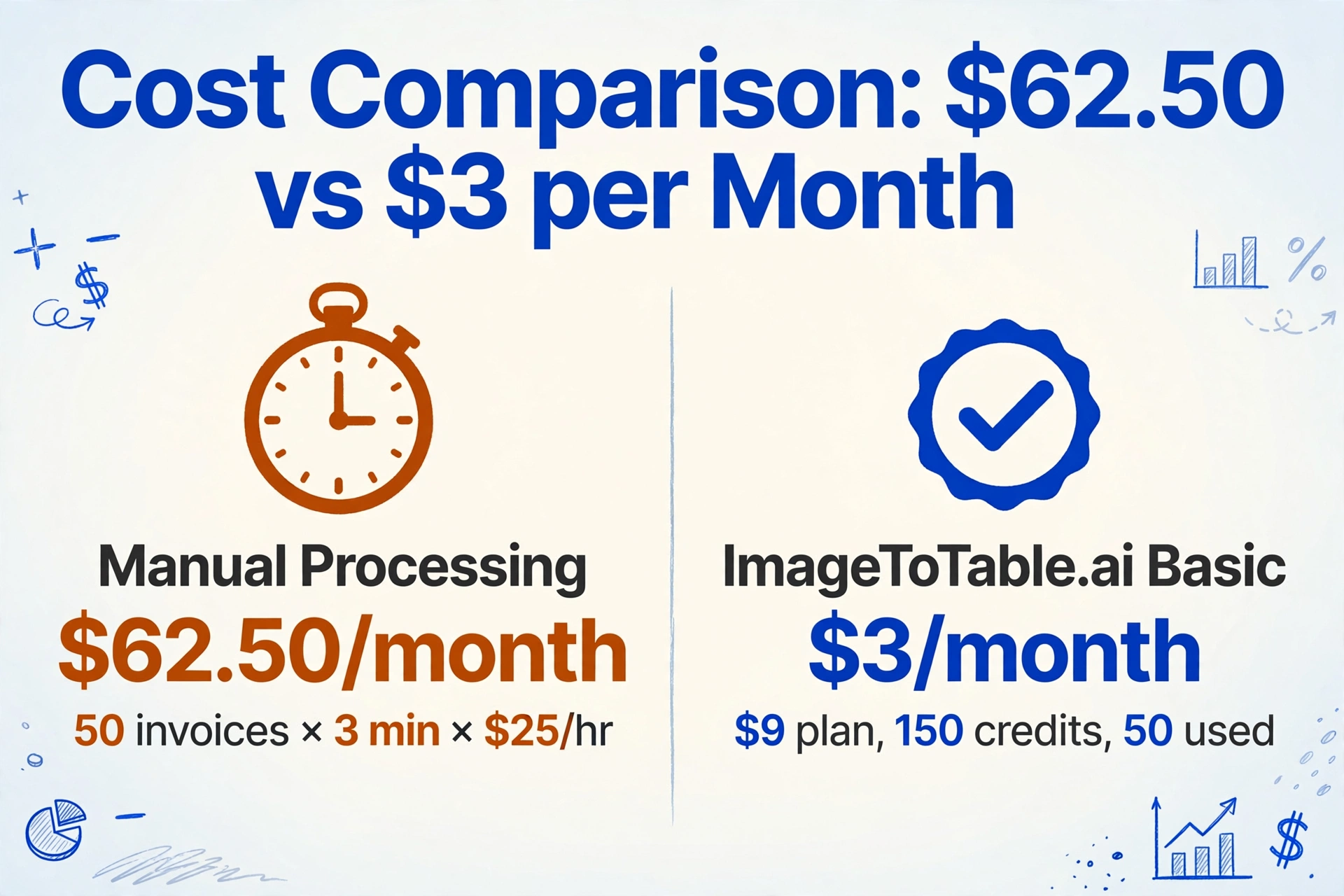
The cost comparison changes when you factor in time. At an average of 3 minutes per document for manual field entry (even with OCR handling the text recognition), processing 50 invoices per month takes roughly 2.5 hours. At a $25/hour labor cost, that's $62.50/month in staff time — not counting the risk of data entry errors that require correction.
ImageToTable.ai's Basic plan is $9/month for 150 document credits. For 50 invoices per month, the effective cost is $3/month of the $9 plan. The remaining 100 credits carry over to handle receipts, forms, or other documents in the same billing period.
Pricing as of 2026-05. See ImageToTable.ai pricing for current rates.
When Google Drive OCR Is the Right Choice
Google Drive OCR is the right tool in a narrow but real set of situations:
Occasional single-document needs. If you receive one contract or one scan per week and just need to search its text or extract a few lines manually, Google Drive OCR is free and requires no new tools. The 10-page limit and unstructured output aren't problems when the task is that simple.
Zero budget constraints. If your organization has no room for any additional tool spend and you're comfortable doing manual field-by-field extraction, Google Drive OCR handles the text recognition step at no cost.
Already-structured documents. For documents that are already well-structured digital PDFs (not scanned images), Google Docs may preserve enough of the layout to make copy-pasting into Sheets manageable. The limitations are sharpest for scanned documents, handwriting, and complex table layouts.
Documented Limitations
These constraints are documented across Google's official support channels and independent OCR guides:
"Google Docs will extract text only from the first ten pages of your PDF file." — Google Docs Help Community
"Lists, tables, and columns are not likely to be detected correctly during conversion. Google Docs do not retain the original format, so you will have to edit it manually." — How to Use OCR in Google Docs, Redactable
"Google's guidance says the file should be 2 MB or smaller for best results." — How to Perform OCR in Google Drive, Cisdem
Frequently Asked Questions
How do you use Google Drive to OCR a PDF into Google Sheets?
Upload your PDF to Google Drive, right-click it, and select "Open with Google Docs." Google Docs performs OCR and displays the extracted text below the original image. You then manually copy the text and paste it into Google Sheets, then rearrange the data into columns by hand. Note that only the first 10 pages of a PDF are processed, and table structures are rarely preserved accurately. ImageToTable.ai skips this multi-step process: upload your files, specify column names, and download a structured Excel file.
Why does Google Drive OCR only process 10 pages?
This is a documented limitation of Google Docs' OCR feature — it processes text from the first 10 pages of a PDF and silently ignores the rest. For short documents this isn't an issue, but for multi-page invoices, contracts, or reports, content beyond page 10 is lost without warning. ImageToTable.ai has no page limit — multi-page PDFs are processed in full, with all extracted data combined into one structured output.
Can Google Sheets extract specific fields like invoice number or total from a PDF?
Not directly. Google Drive OCR extracts the full text of a document — it doesn't identify or isolate specific fields. To get "invoice number" or "vendor name" into a spreadsheet column, you need to read the extracted text and copy the relevant values manually. ImageToTable.ai handles this step automatically: you name the columns you want (e.g., "Invoice Number", "Vendor", "Total Amount"), and the AI extracts those specific fields from every document in your batch.
Does Google Drive OCR support handwritten documents?
Google Docs OCR has limited support for handwriting, and accuracy is significantly lower than for printed text. Non-English handwriting is particularly unreliable. ImageToTable.ai uses a vision LLM trained to handle handwriting, cursive text, stamps, checkboxes, and mixed printed/handwritten content — including documents where some fields are filled in by hand on a printed form.
Is there a free way to extract structured data from PDFs into Google Sheets?
Google Drive OCR is free but only extracts raw text, not structured fields. For structured extraction without a subscription, ImageToTable.ai's guest mode lets you upload documents and extract custom columns without creating an account — you can test the structured output before committing to a paid plan. For regular use beyond occasional single documents, the time cost of manual field extraction from Google Docs typically outweighs the subscription cost of a dedicated extraction tool.
Try ImageToTable.ai Free
No sign-up required to test. Upload your documents, name the columns you need, and download a structured Excel file — the entire process takes under two minutes. If you are starting from a general browser OCR job, use the online OCR route map to choose between text, Word, and structured table output.
No credit card required. Free credits included on signup.