ImageToTable.ai vs Excel "Data from Picture":
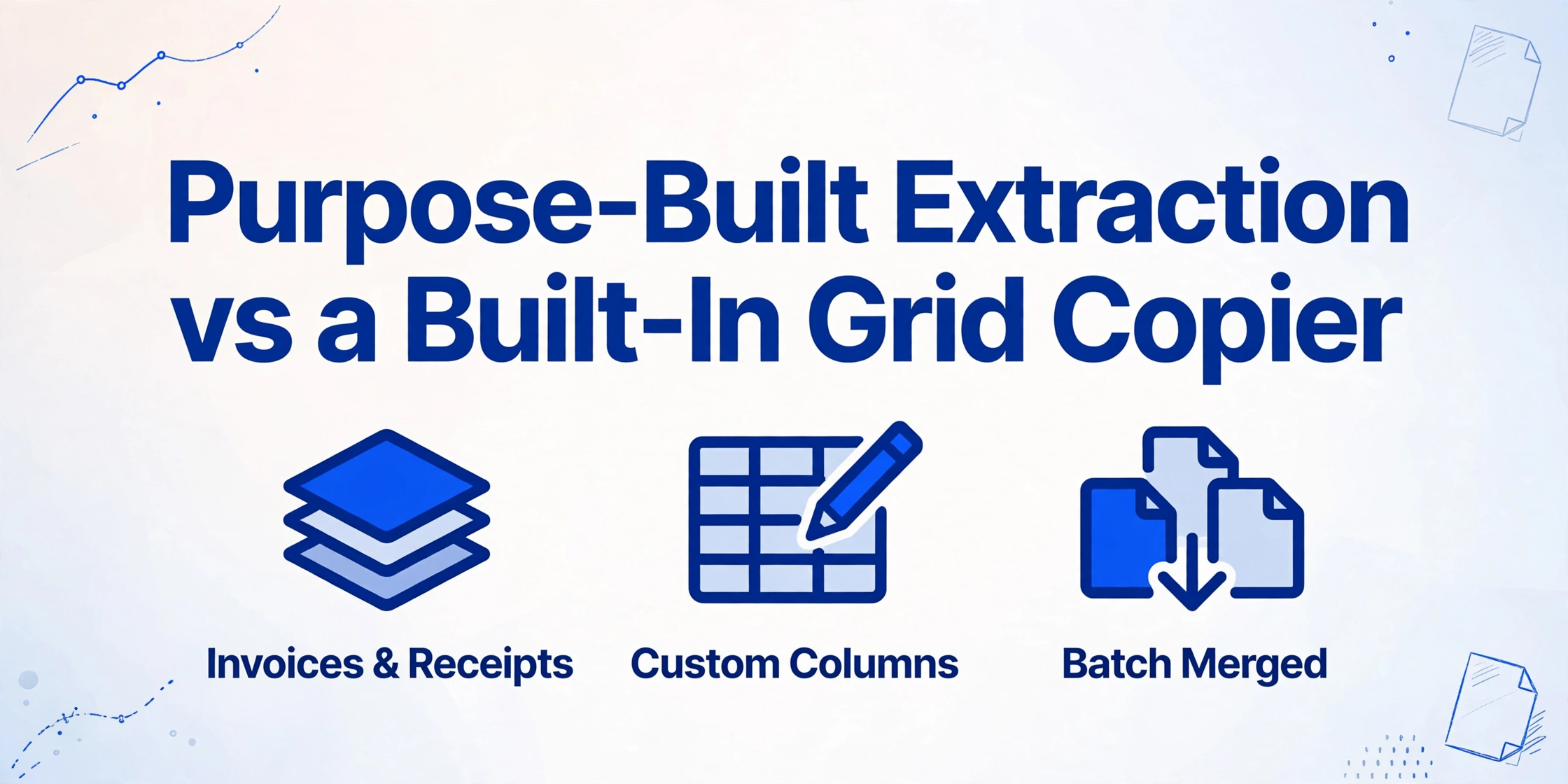
Purpose-Built Extraction vs a Built-In Grid Copier
Excel's "Data from Picture" and ImageToTable.ai both accept images as input. What they do with those images is fundamentally different. Data from Picture is a grid copier — it mirrors a clean table photo into spreadsheet cells. ImageToTable.ai is a document extraction tool — it reads any document, finds the fields you ask for, and outputs a structured table with your column names. For simple screenshots, the Excel feature may be all you need. For invoices, receipts, forms, or any batch of real business documents, the two tools are not in the same category.
Quick Comparison
Choose ImageToTable.ai if…
- Your documents are invoices, receipts, purchase orders, or forms — not clean grid screenshots
- You want to define specific column names and extract only those fields
- You're processing multiple documents and need them merged into one spreadsheet
- Your documents include scanned PDFs, phone photos, or multi-page files
- You work in Google Sheets and want extracted data to land there directly
- Your team uses M365 Semi-Annual Channel and the Data from Picture button simply doesn't appear
Use Excel "Data from Picture" if…
- You have a clean, well-lit photo or screenshot of a simple printed table
- It's a one-off task and you're already working in Excel
- The table has clear borders, standard fonts, and no mixed content around it
- You don't need custom column names — the headers in the image are fine as-is
- The document is in one of the 22 supported languages (no Chinese, Japanese, Korean, or Arabic)
Feature Comparison
| Feature | Excel "Data from Picture" | ImageToTable.ai |
|---|---|---|
| Document types handled | Clean grid tables in photos/screenshots only; fails on invoices, receipts, and mixed-layout documents | Invoices, receipts, forms, bank statements, contracts, purchase orders, scanned images, phone photos |
| PDF input | Not supported — image files only (.jpg, .png, .bmp, .tiff); scanned PDFs must be converted first | Native PDF support |
| Custom column naming | Not supported — output columns mirror whatever headers appear in the image | Core feature — type the column names you want; those become your Excel headers |
| Batch processing | One image at a time; no queue, no multi-file merging | Upload multiple files; all merged into one aligned spreadsheet automatically |
| Accounting / currency format | Known failure: currency symbol and value are split into 3–4 separate cells; the review panel cannot fix cell-merge issues | Handles currency formatting correctly; outputs clean numeric values |
| Output destination | Active Excel sheet only | Excel (XLSX), CSV, JSON, Word; or directly into Google Sheets via the add-on |
| Google Sheets support | Not available | Dedicated Google Sheets sidebar add-on — upload files, name columns, append data directly to the active sheet |
| Handwriting support | Poor — described by independent testers as producing "miserable" results | Handles handwriting, cursive, checkboxes, stamps |
| Language support | 22 languages (Latin scripts only); no Chinese, Japanese, Korean, Arabic, Hindi | All languages supported by the underlying vision LLM |
| Availability | Microsoft 365 (Current Channel only); not available on perpetual licenses or Semi-Annual Enterprise Channel | Any browser, any OS, no installation required |
| Cost | Included with M365 subscription (if on the right update channel) | Free guest tier; paid from $9/month; pay-as-you-go from $6/50 pages |
What "Data from Picture" Actually Does
Excel's Data from Picture is engineered around a specific and narrow scenario: you see a clean table somewhere — a printed schedule, a whiteboard list, a website screenshot — and you want that grid in your spreadsheet without retyping it. The feature takes a photo, uploads it to Microsoft's servers, and mirrors the grid structure back into cells. It was never designed to understand documents.
The distinction matters because a document is not a grid. An invoice has a header block (vendor name, address, invoice number, date), a line-item table, and a footer block (subtotals, tax, total due) — three distinct structural zones arranged around a page, not a single uniform row-and-column grid. Excel's OCR has no concept of zones, fields, or document semantics. When it encounters an invoice, it attempts to treat the entire page as one table and produces misaligned, garbled output that requires significant manual correction to make usable.
ImageToTable.ai processes documents differently. Its vision LLM reads the page the way a person does — understanding that "Invoice #" followed by a number is an identifier, that the row labeled "Total" contains the final amount, and that each line item belongs to the same row even if it wraps across two lines of print. The output is structured around the fields you asked for, not the visual grid it happened to find on the page.
The Currency Format Problem
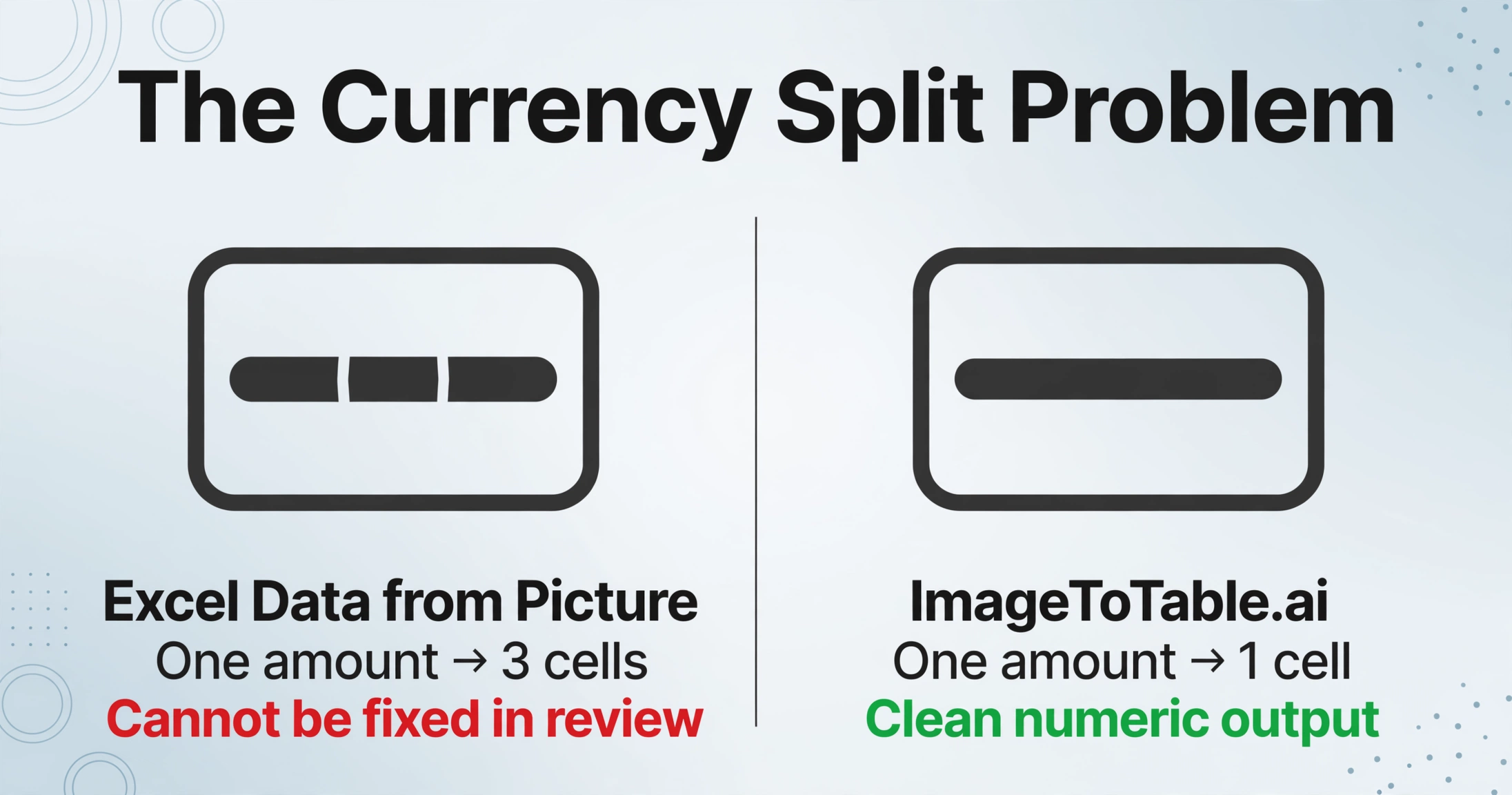
Even for the narrow case where Data from Picture is the right tool — clean tables with numeric data — there is a documented failure that makes it particularly unreliable for financial work.
When a table uses Excel's own Accounting format (currency symbol aligned to the left edge of the cell, value to the right), Data from Picture splits the content into three or four separate cells: one for the currency symbol, one for the space, one for the value. Office Watch, which documented this in detail, described it as the feature's "biggest weakness" — and noted a critical compounding problem: "Cell splitting is a particular problem because the Review process can't handle cell merge issues at all." The review panel that lets users correct uncertain cells has no mechanism for merging cells, so currency-split errors cannot be fixed in the review step. They must be corrected manually after insertion.
For accounting teams, AP staff, and anyone processing financial documents, this failure mode in the tool's core review workflow makes Data from Picture unreliable for exactly the documents it would most often be used on.
The Feature That Isn't There
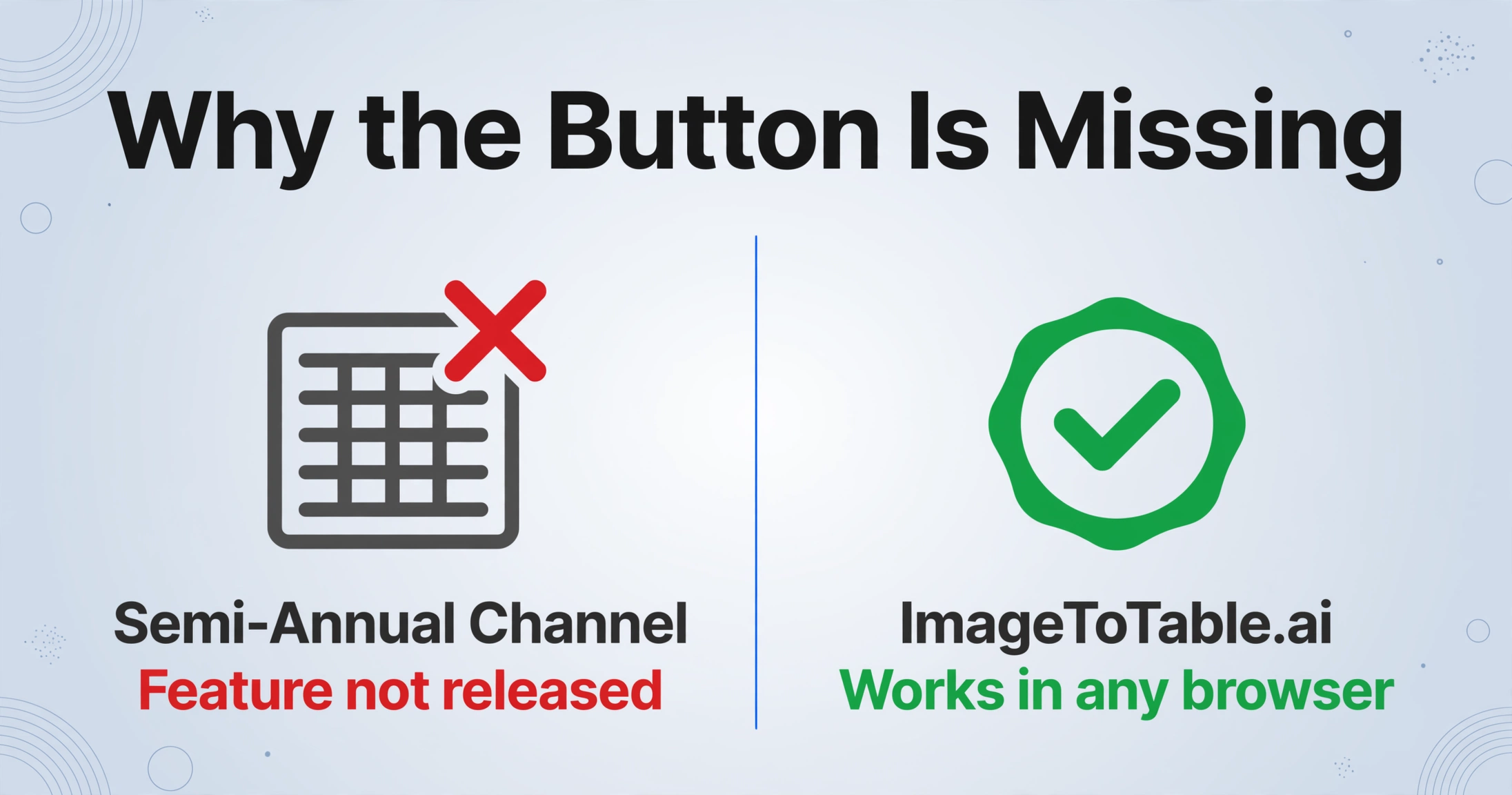
A significant fraction of enterprise Excel users who look for Data from Picture simply cannot find it — not because of a settings issue, but because Microsoft has not released the feature to their update channel.
Data from Picture is available only on Microsoft 365 subscriptions running the Current Channel update track. Organizations on the Semi-Annual Enterprise Channel — the default for most large IT departments, chosen because it receives fewer disruptive updates — do not have access. As Microsoft's own Q&A response explains: "The reason why the Data from Picture feature has not been released on the Semi-Annual channel is because the Semi-Annual channel is designed for organizations that prefer to have fewer feature updates." Users on perpetual licenses (Office 2019, 2021, 2024) also do not have access regardless of Windows version.
Microsoft's own community forums have multiple threads titled "Data from Picture is missing in Excel" and "Data from Picture button not showing" — a consistent pattern across TechCommunity and the Microsoft Q&A forum, with dozens of variations. The root causes vary (wrong update channel, Edge WebView2 not installed, wrong Windows version), but the net effect is the same: the feature is nominally part of M365 but practically unavailable to a large portion of enterprise subscribers.
Where the Built-In Feature Is Enough
Data from Picture is genuinely useful for the scenario it was designed for: a one-off, clean table that you want in a spreadsheet immediately, without leaving Excel.
If you photograph a printed timetable, a whiteboard schedule, or a simple roster — well-lit, straight-on, uniform fonts, clear grid borders — the feature works reliably for a quick copy. The review pane highlights uncertain cells so you can catch errors before committing. For users already in Excel who occasionally need to digitize a simple table and have no interest in a separate tool subscription, it covers the use case adequately.
The important word is "simple." The Spreadsheet Guru, after hands-on testing, described the AI as "quite underwhelming compared to my expectations" and noted that Excel "failed miserably" on handwritten data. Their recommendation for anything beyond basic printed tables was to use a dedicated third-party OCR tool. For business documents — which rarely look like a clean whiteboard grid — Data from Picture is the wrong tool for the job. For raw table grids specifically, the ExtractTable table-extraction API is one such dedicated option.
Already on Google Sheets?
If your team works in Google Sheets rather than Excel, the Data from Picture question doesn't apply — Google Sheets has no equivalent built-in feature. ImageToTable.ai's Google Sheets sidebar add-on fills this gap directly: upload images or PDFs, specify the column names you want to extract, and append the structured data to the active sheet — without leaving Google Sheets. The add-on syncs with your account history and templates, and usage counts against your plan quota. Google Drive's own OCR-via-Docs workflow has a similar built-in ceiling — our Google Sheets OCR comparison covers it.
Frequently Asked Questions
Can Excel's "Data from Picture" process invoices or receipts?
Not reliably. The feature is designed for clean, uniform grid tables in photos. Invoices and receipts have a mixed layout — a header section with vendor and date fields, a line-item table, and a footer with totals — which is not a single uniform grid. Excel's OCR has no concept of document zones or named fields, so it attempts to treat the entire page as one table and typically produces misaligned output. ImageToTable.ai is designed specifically for document layouts like invoices and receipts, extracting the fields you name regardless of how the document is laid out.
Why is the "Data from Picture" button missing in my Excel?
The most common reasons: your organization is on the Semi-Annual Enterprise Channel (the default for most large IT departments), which does not receive this feature; you're on a perpetual Office license (Office 2019, 2021, or 2024) rather than Microsoft 365; or Edge WebView2 is not installed on your system. Microsoft's own community forums have dozens of threads about this problem. If the button is missing and you need document extraction today, ImageToTable.ai works in any browser with no installation required.
Can Excel's "Data from Picture" handle PDFs?
Not directly. The Data from Picture feature accepts image files (.jpg, .png, .bmp, .tiff) and clipboard screenshots only — not PDF files. Excel has a separate "Data from PDF" feature via Power Query, but that extracts pre-existing machine-readable text from PDFs with embedded text layers; it cannot OCR scanned image-based PDFs. If your invoices or receipts are scanned PDFs, you would need to convert each page to an image file first. ImageToTable.ai accepts PDFs natively.
Does Excel "Data from Picture" support batch processing?
No. The feature processes one image at a time. There is no queue, no folder input, and no way to merge output from multiple images into a single spreadsheet automatically. Each document requires a separate manual operation. ImageToTable.ai supports uploading multiple files in one batch and merges all extracted data into a single aligned spreadsheet with consistent column names across every document.
Does ImageToTable.ai work with Google Sheets?
Yes. ImageToTable.ai offers a dedicated Google Sheets sidebar add-on. You can upload images or PDFs, specify the column names you want to extract, and append the structured data directly to your active Google Sheet — without leaving the spreadsheet. The add-on runs in account mode when connected with your API key, syncing with your web history and templates. Usage counts against your plan quota.
Try ImageToTable.ai Free
Upload your invoices, receipts, or forms, name your columns, and download a merged Excel or push directly to Google Sheets — no account required to try.
No credit card required. Free credits included on signup.