The Solo Business Owner's Guide to Scanning Receipts into Excel
No Accounting Software Needed
If you file a Schedule C, the IRS doesn't care whether you use QuickBooks, a spreadsheet, or a paper ledger — only that your records are complete and accurate. But almost every article about receipt management starts from the same assumption: that you should leave Excel behind and subscribe to an accounting app. For a lot of sole proprietors, that's not what they're looking for. They've built a system that works. What they need isn't a replacement — it's a way to stop hand-typing receipt data into it.

Key Takeaways
- Five data points — vendor, amount, payment method, date, and description — are all the IRS requires from any expense receipt, which means the spreadsheet you've been feeling guilty about using is already fully compliant.
- The accounting software industry keeps selling sole proprietors platforms that solve problems the IRS never created while the one friction that actually eats your time is the simplest thing: reading the total off each receipt and typing it into a cell.
- You can stop being the data entry clerk by defining your own column names once and letting ImageToTable.ai locate the matching values on any receipt format without template setup, app migration, or learning double-entry bookkeeping.
Why a Spreadsheet Is Enough for Most Sole Proprietors
There's a recurring debate on Reddit — in r/smallbusiness, r/Bookkeeping, and every personal finance subreddit — about whether sole proprietors should use accounting software or just stick with an Excel spreadsheet. The accounting side says Excel is error-prone and doesn't scale. The spreadsheet side says QuickBooks is $30/month of complexity they don't need. Both have a point, but the spreadsheet side has a better argument than the software industry admits.
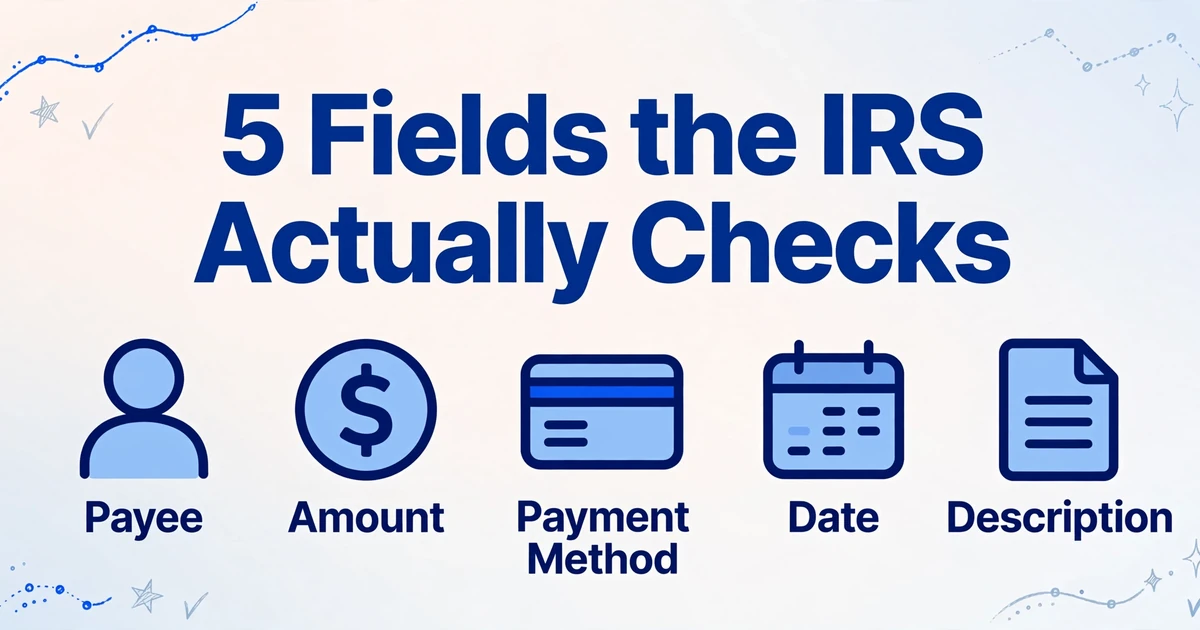
Here's what the IRS actually requires. IRS Publication 583 states that sole proprietors must maintain a "recordkeeping system suited to your business" that clearly shows gross income, deductions, and credits. The IRS enumerates the supporting documents you need to keep — sales slips, paid bills, invoices, receipts, deposit slips, canceled checks — and specifies that these documents must contain:
- Payee's name and address — who you paid
- Amount paid — how much
- Proof of payment — canceled check, credit card statement, or cash register receipt
- Date incurred — when the expense happened
- Description of the item or service — what it was for
That's five data points. A spreadsheet with five columns — Vendor, Amount, Payment Method, Date, and Description — satisfies every one of these IRS recordkeeping requirements. The IRS does not mandate double-entry bookkeeping, chart of accounts, or journal entries for Schedule C filers. A single-entry spreadsheet that tracks income and deductible expenses is entirely compliant, as long as you keep the original receipts as supporting documents.
There's a persistent myth that purchases under $75 don't require receipts. This is not true. The IRS requires receipts for all business expenses you intend to deduct, regardless of amount. The $75 rule applies only to business travel and entertainment expenses — not to office supplies, materials, software subscriptions, or the hundred other things sole proprietors spend money on. And digital receipt images are fully IRS-accepted: IRS Revenue Procedure 97-22 has recognized scanned/digital copies as valid records since 1997, as long as they're legible and complete.
So a spreadsheet works for compliance. But compliance doesn't fill in the cells. The real problem isn't whether you can use Excel — it's the 20 minutes you spend squinting at each receipt, finding the total, the date, the vendor name, and typing them into the right columns. That's where the friction lives.
What Makes a Receipt IRS-Ready — and What's Just Extra Work
Receipt scanning tools and accounting apps often extract far more data than a sole proprietor actually needs. Expensify SmartScan pulls vendor, date, total, category, and payment method — then layers on approval workflows, policy checks, and reimbursement routing. Shoeboxed adds human verification and 15 tax categories. Dext Prepare extracts individual line items, tax breakdowns, and maps them to general ledger codes.
If you're a sole proprietor filing Schedule C, you don't need any of that. You don't have an approval workflow because you approve your own expenses. You don't need general ledger mapping because you don't use double-entry. You need exactly five fields per receipt — the five the IRS actually checks — pushed directly into your spreadsheet. Everything else is software solving problems you don't have.
This is important because it means you can evaluate tools differently than the standard review articles suggest. Most "best receipt scanner" roundups rank apps by feature breadth — how many integrations, how many categories, how many workflow automations. For a sole proprietor, the relevant question is narrower: can I define which columns I want, scan a stack of receipts, and get those exact columns populated in one output file? If the answer is yes, you don't need QuickBooks. If the answer is no, the tool isn't actually solving your problem — it's adding steps.
Why "Scan → Spreadsheet" Breaks Down When Every Receipt Looks Different
The idea of "just scan a receipt into Excel" sounds simple. The reality is that receipts from different merchants have almost nothing in common structurally. A Home Depot receipt prints the total in bold at bottom-right, lists item SKUs in narrow columns, and puts the store address at the top. A Starbucks receipt centers everything, uses abbreviated item names, and prints the total mid-receipt. An Amazon digital invoice uses a web layout with the total in a summary box on the right and line items in variable-width rows. A hand-filled contractor receipt might have the total scrawled diagonally in a corner.
Traditional receipt OCR approaches fail here for a structural reason, not a technology one:
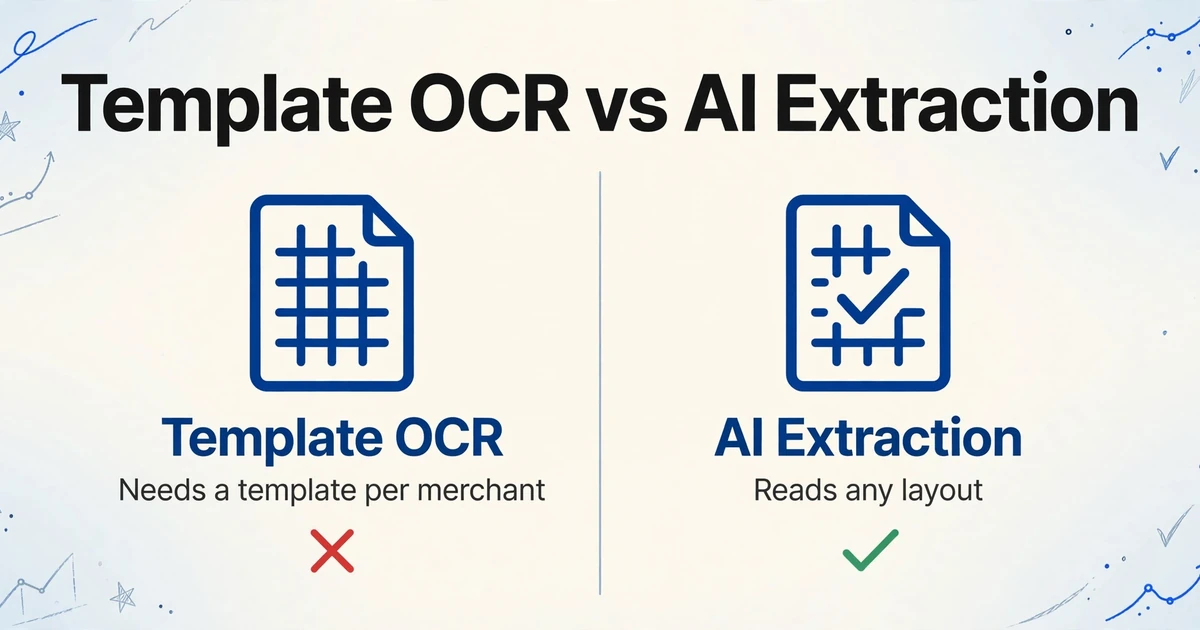
Template OCR requires you to define, for each merchant format, the exact coordinates of each field — "the total is at pixel position (340, 580)." This works for one receipt format. It breaks the moment you receive a receipt from a different merchant, because the total is at a completely different position. To cover 20 different merchants, you'd need 20 templates. To cover every merchant a sole proprietor might buy from in a year, you'd need more templates than you have time to build.
AI receipt scanning apps (Expensify SmartScan, SparkReceipt, Dext Prepare) solve the format problem by using machine learning to identify common fields — vendor, date, total, tax — regardless of layout. This is a genuine improvement over template OCR. But these apps operate on a fixed set of fields they've been trained to recognize. They decide what to extract and how to categorize it. You can't tell them "I only need these four columns in this order" because they weren't designed to output to your spreadsheet structure.
The gap is narrower than it seems. These tools extract the right data from any receipt format. Where they fall short for the Excel-first sole proprietor is the output step: the data lands in their app, categorized by their taxonomy, and requires an export/import step to reach your spreadsheet. If your system already has columns labeled Vendor, Amount, Date, Category, and Notes, you don't want the tool to rename them to Merchant, Total, Transaction Date, GL Account, and Memo — you want them to match your headers, because those headers flow into your monthly summary and your tax prep spreadsheet.
This is where the approach flips. Instead of the tool deciding what to extract and how to label it, you tell the tool what you want — and it finds it.
Custom Column Extraction: You Name the Columns, the AI Finds the Data
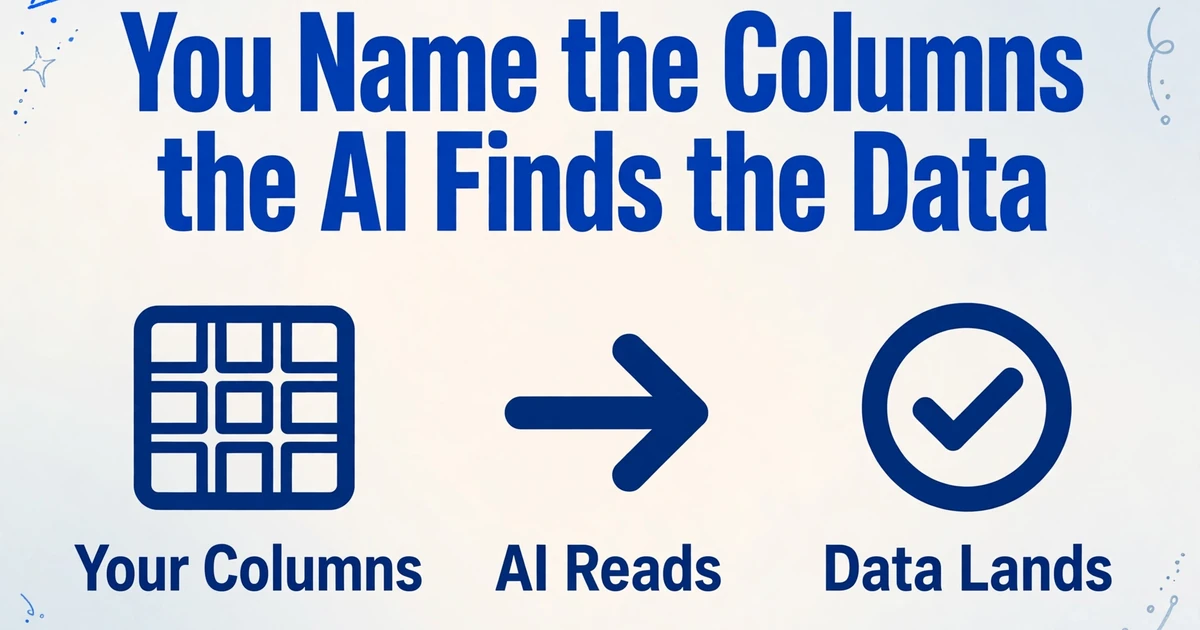
Column-name extraction works differently from receipt scanning apps. With a receipt scanner, you upload a receipt and the tool returns a set of pre-defined fields — vendor, date, total, category — in whatever structure the tool's developers decided on. With custom column extraction, you start by typing the column headers you want in your spreadsheet. The AI then reads each receipt and locates the corresponding values anywhere on the page, regardless of where the merchant printed them.
The difference matters for a specific reason: your column names define your workflow downstream. If your monthly expense summary references the column Vendor, you don't want to re-label "Merchant" every time. If your Schedule C prep workbook splits expenses by Category, you need that column — not whatever category taxonomy a third-party app assigns. Column-name extraction means the output already matches your spreadsheet structure, because you defined the structure before extraction began.
Here's how it works in practice for a sole proprietor doing month-end:
- Open your expense spreadsheet. Note the columns you actually use — for most sole proprietors, it's
Date,Vendor,Amount,Category, andDescription. - In the extraction tool, type those exact column names.
- Upload every receipt from the month — PDFs, photos, screenshots of digital invoices, whatever you have.
- The AI processes each receipt, finds the values matching your column names, and outputs a single spreadsheet with all your month's expenses populated under your headers.
You can experience this directly:
Files are processed securely and not stored.
This workflow doesn't require you to change anything about how you manage your books. Your spreadsheet template stays the same. Your monthly process stays the same. The only thing that changes is the data entry step — the AI fills the cells instead of your fingers.
Batch Processing: Turn a Month's Worth of Receipts into One Expense Sheet
Processing one receipt at a time defeats the purpose of automation. The real friction in month-end bookkeeping isn't the first receipt — it's the fortieth receipt, when you've been typing for two hours and your eyes are glazing over.
This is where individual receipt-scanning apps hit their ceiling. They're designed for the "snap a receipt after lunch" workflow — one receipt, one entry, one categorization. That's fine if you scan as you go. But sole proprietors rarely scan as they go. They accumulate receipts in a folder, an envelope, or a shoebox (the origin story of the brand name is not a coincidence), and process them in batches — weekly, monthly, or quarterly. By month-end, there might be 30 to 100 receipts to process.
Batch processing changes the math. Upload all your receipts at once — the AI processes them in parallel and merges the extracted data into a single output table. What was a multi-hour manual data entry session becomes a few minutes of uploading and a few seconds of processing. The efficiency gain is not linear — it compounds, because batch processing eliminates the context-switching cost of handling each receipt individually.
One r/Bookkeeping user described their monthly routine with striking precision: "Each month I spend literal DAYS organizing, scanning and inputting their expenses into a spreadsheet." The managers they bookkeep for spend $50K+ collectively each month — gas, project materials, hotels, meals, subscriptions — and dump the receipts in a pile on their desk. The bookkeeper's job is to turn that pile into a spreadsheet with columns for vendor, date, subtotal, tax breakdown, and total charges.
This is the exact workflow that batch extraction solves. The bookkeeper defines the columns once. The managers upload their own receipts (or the bookkeeper uploads the pile in one go). The output is a single spreadsheet with every expense populated in the right columns. What took days becomes minutes — not because the AI is magic, but because the AI is doing the only part of the workflow that requires repetitive human attention: reading receipts and typing numbers.
Getting Receipts from Contractors and Clients — Without Chasing People Down
Sole proprietors who work with subcontractors or have clients submitting expense receipts face an additional friction point: getting the receipts in the first place. Emailing attachments gets unwieldy. Shared folders get disorganized. Texted photos of receipts get lost in message threads.
Collection Links provide a simpler path. You generate a shareable link — a URL like /c/xxxx — and send it to whoever needs to submit receipts. The recipient opens the link on their phone or computer, enters a short verification code, and uploads their receipts directly. Files land in your processing queue automatically. The recipient doesn't need to create an account, install an app, or learn a new tool. They just upload and close the page.
This is useful for a few scenarios common to sole proprietors:
- You have a 1099 contractor who buys materials on your behalf. Instead of collecting paper receipts at the end of each project, they upload photos from their phone as they buy. You process them in batches.
- You have a virtual assistant or bookkeeper who organizes your receipts. They use the link to upload everything they've gathered, and you process the batch.
- You share office space or equipment costs with another sole proprietor. Each of you uploads your share of the receipts, and the combined extraction output gives both of you a clear record.
The link remains active as long as you keep it — no expiration, no per-use limit. You can embed it in an email signature, a shared document, or a client onboarding message, and receipts will keep coming in without any follow-up from you. (For more on this workflow, see how Collection Links connect document gathering and data extraction into a single workflow.)
Beyond Receipts: Invoices, Bank Statements, and the Documents That Come With Running a Business
Receipts are the most common document type for sole proprietors, but they're not the only one. Once you're set up with column-name extraction for receipts, the same workflow extends to other documents without additional setup:
Vendor invoices — if you buy inventory or materials from suppliers, their invoices contain the same core fields (vendor, date, amount, description) plus line items. The same column-name approach extracts them into the same spreadsheet structure. See the invoice automation workflow for the full process.
Bank and credit card statements — if you reconcile your expense spreadsheet against your bank account, extracting statement data into Excel eliminates the manual line-by-line comparison. The AI can pull transaction date, description, debit, credit, and balance from any bank's statement format.
1099 forms from clients — at year end, multiple 1099-NEC and 1099-MISC forms arrive from different clients in different formats. Extracting payer name, EIN, and amount into a single spreadsheet simplifies Schedule C income reporting.
What ties these together is a single principle: you define the columns, and the AI finds the values. The document type doesn't matter — receipts, invoices, statements, forms — because the AI isn't template-matching against a known document structure. It's reading the page and locating the data that matches the column names you specified. This is fundamentally different from OCR, and it's why the same five-column setup works across every document type a sole proprietor encounters. For a deeper explanation of how template-free extraction works, see why training data shouldn't be required for document extraction.
FAQ
Does this replace QuickBooks or Xero?
No — and it's not trying to. ImageToTable.ai doesn't do double-entry bookkeeping, bank reconciliation, invoice creation, or tax filing. Those are the functions of full accounting software. What it does is eliminate the manual data entry step between "I have a stack of business documents" and "I have a clean spreadsheet." If you already manage your books in Excel, this fills the gap. If you use QuickBooks but find the receipt-scanning add-on cumbersome, you can pre-process receipts through column-name extraction and import the clean spreadsheet into QuickBooks — saving the per-receipt data entry while keeping the accounting platform you're already invested in.
Are scanned receipt images IRS-compliant?
Yes. IRS Revenue Procedure 97-22 (issued in 1997) explicitly accepts digital images of original paper documents as valid records, provided the images are accurate, legible, and complete reproductions of the original. The IRS has accepted scanned and photographed receipts for over 25 years. The key requirement is that the digital copy must be as readable as the original — a blurry photo taken in bad light doesn't qualify, but a clear scan or well-lit photo does. Keep both the original receipts (at least until you've verified the scans) and the digital copies organized by tax year.
Can I export to Google Sheets instead of Excel?
Yes. ImageToTable.ai has a Google Sheets sidebar add-on that lets you upload receipts and extract data directly into your spreadsheet without leaving Google Sheets. The workflow is the same — type your column names, upload your receipts, get the data populated — but the output lands directly in your active sheet rather than a downloaded file. If you use Google Sheets as your primary expense tracker, this eliminates the download-and-import step entirely.
What if the AI misreads handwriting on a receipt?
Handwritten amounts on receipts — tip adjustments on restaurant receipts, manually totaled contractor invoices, scribbled notes on cash register tapes — are the hardest case for any AI extraction tool. ImageToTable.ai's vision model handles handwriting better than traditional OCR because it reads by understanding context (what a total typically looks like, where amounts usually appear on a receipt) rather than by matching individual character shapes. But no tool gets handwriting right 100% of the time. For critical amounts — especially large expenses or anything you'd be uncomfortable explaining in an audit — verify the extracted value against the original receipt. The time saved on the 95% of receipts that extract correctly still dramatically outweighs the few seconds spent spot-checking the edge cases.
How is this different from Expensify SmartScan or Shoeboxed?
Expensify and Shoeboxed are receipt management platforms designed to handle the full expense lifecycle: capture, categorization, approval, reimbursement, and accounting sync. They're built for organizations that need policy enforcement, multi-level approvals, and integration with accounting software. ImageToTable.ai is designed for a narrower but equally real use case: extracting specific columns of data from any document format and outputting them directly to a spreadsheet. If you want an app that manages the entire expense process — especially if you have employees submitting expenses that need approval — Expensify is designed for that. If what you want is "receipts in, my five columns populated, Excel out," ImageToTable.ai targets that specific workflow with less overhead. They're not substitutes — they're different tools for different needs.
What does this actually cost compared to accounting software?
QuickBooks Simple Start is $30/month ($360/year). Xero Early is $15/month ($180/year, with limits). FreshBooks Lite is $19/month ($228/year). Wave's receipt scanning requires the $16/month Pro plan. ImageToTable.ai offers a free tier with daily points that covers occasional use, and paid plans for regular volume — meaning a sole proprietor processing 20-40 receipts per month can potentially operate on the free tier. If your receipt volume exceeds the free tier, paid plans start below the cost of most accounting software subscriptions. For the sole proprietor who specifically wants to stay on Excel and only needs the extraction step automated, the cost difference is meaningful over a full year. (Check the pricing page for current plan details.)
The Bottom Line
Sole proprietors don't have a software problem. They have a data entry problem. The software industry responds to the data entry problem by selling full accounting platforms — which is like responding to a leaky faucet by remodeling the kitchen. It works, but it's a lot more than you needed.
If you've already built a system in Excel that tracks your expenses the way you want them tracked — your columns, your categories, your monthly summary structure — you don't need to abandon it. You need a way to get receipt data into it without typing. Column-name extraction does exactly that: you define the columns, you upload the receipts, and the data lands where it belongs. No template configuration, no software migration, no learning double-entry bookkeeping.
Your spreadsheet is fine. You just need to stop being the one filling it in.
No credit card. No template setup. Type your column names and upload.