Grab the Amount and Merchant Name
From a Bank SMS Alert
By the end of a regular spending day, your phone has a small pile of bank SMS alerts: a coffee run, a lunch tab, a recurring subscription, a gas station fill-up. Each one contains exactly two pieces of information you actually need for your budget — the transaction amount and the merchant name. But Chase writes its alerts one way, Bank of America another, Wells Fargo a third, and American Express a fourth. The amount moves around in the sentence depending on who sent it. Manually copying each one into a budgeting app takes ten to fifteen seconds per message, and when you do it for a week’s worth of transactions, those seconds add up to a chore you repeat every single month.
Key Takeaways
- Four US banks announce the same $42.50 purchase at AMAZON.COM — but the dollar amount sits at word position 3 in Chase, position 6 in Wells Fargo, and position 2 in Amex.
- A position-trained tool that works on Chase silently fails on Bank of America — it expects the amount in a sentence slot that does not exist in the other bank's message template.
- Visual AI reads the message as a transaction — it finds the merchant in ALL CAPS and the amount after the currency symbol, processing all four bank formats in one batch with zero per-bank rules.
Why the Same Transaction Looks Different on Every Bank
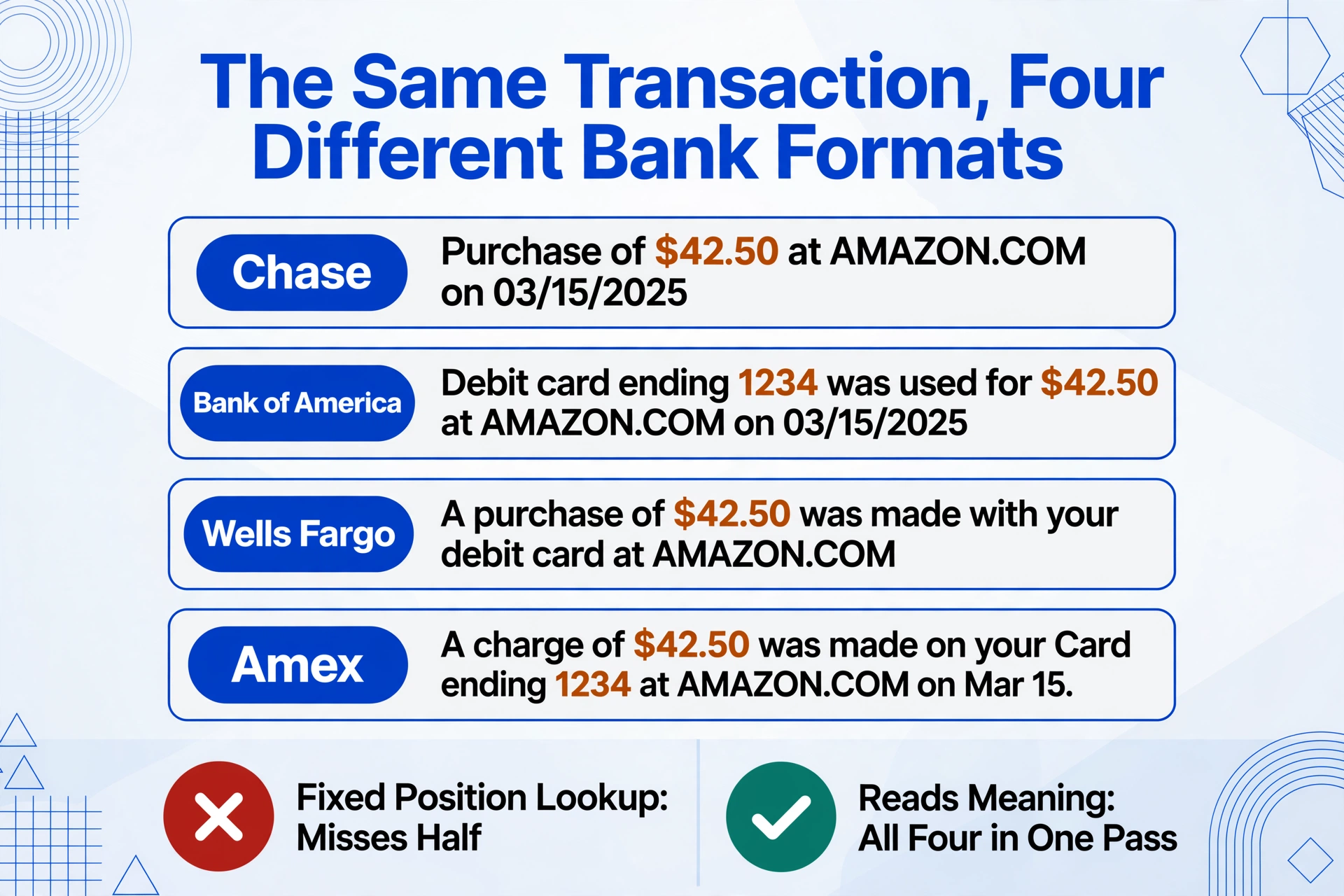
Bank SMS alerts follow a basic pattern — card identifier, amount, merchant, date — but each institution arranges them in its own order. A $42.50 purchase at AMAZON.COM produces noticeably different messages:
Chase
Chase: Purchase of $42.50 at AMAZON.COM on 03/15/2025 — Card ending 1234
Bank of America
BofA Alert: Debit card ending 1234 was used for $42.50 at AMAZON.COM on 03/15/2025
Wells Fargo
Wells Fargo: A purchase of $42.50 was made with your debit card at AMAZON.COM
American Express
AMEX: A charge of $42.50 was made on your Card ending 1234 at AMAZON.COM on Mar 15.
In the Chase version, the amount is the third word after the colon (of $42.50). In the Amex version, it is also near the front. In the Wells Fargo version, it sits between purchase of and was made. Each message is perfectly readable to a human, but the amount “moves around” in the text because each bank uses a different sentence template. The merchant name also varies: some banks use the full legal name (AMAZON.COM), others shorten it, and a few include the merchant’s city or state when the name alone might cause confusion.
This format variance is the core reason a simple copy-paste approach fails. If you screenshot ten alerts from four different banks, the amount dollar sign appears at a different character offset in nearly every message. A tool that looks for the dollar sign in the “usual spot” will miss half of them.
What Traditional OCR Misses in an SMS Screenshot
Traditional OCR (Optical Character Recognition) reads text by locating shapes that look like letters and numbers, then outputting everything in reading order. It does not understand that $42.50 is the price while 03/15/2025 is the date. Both are just strings of characters sitting on the same line.
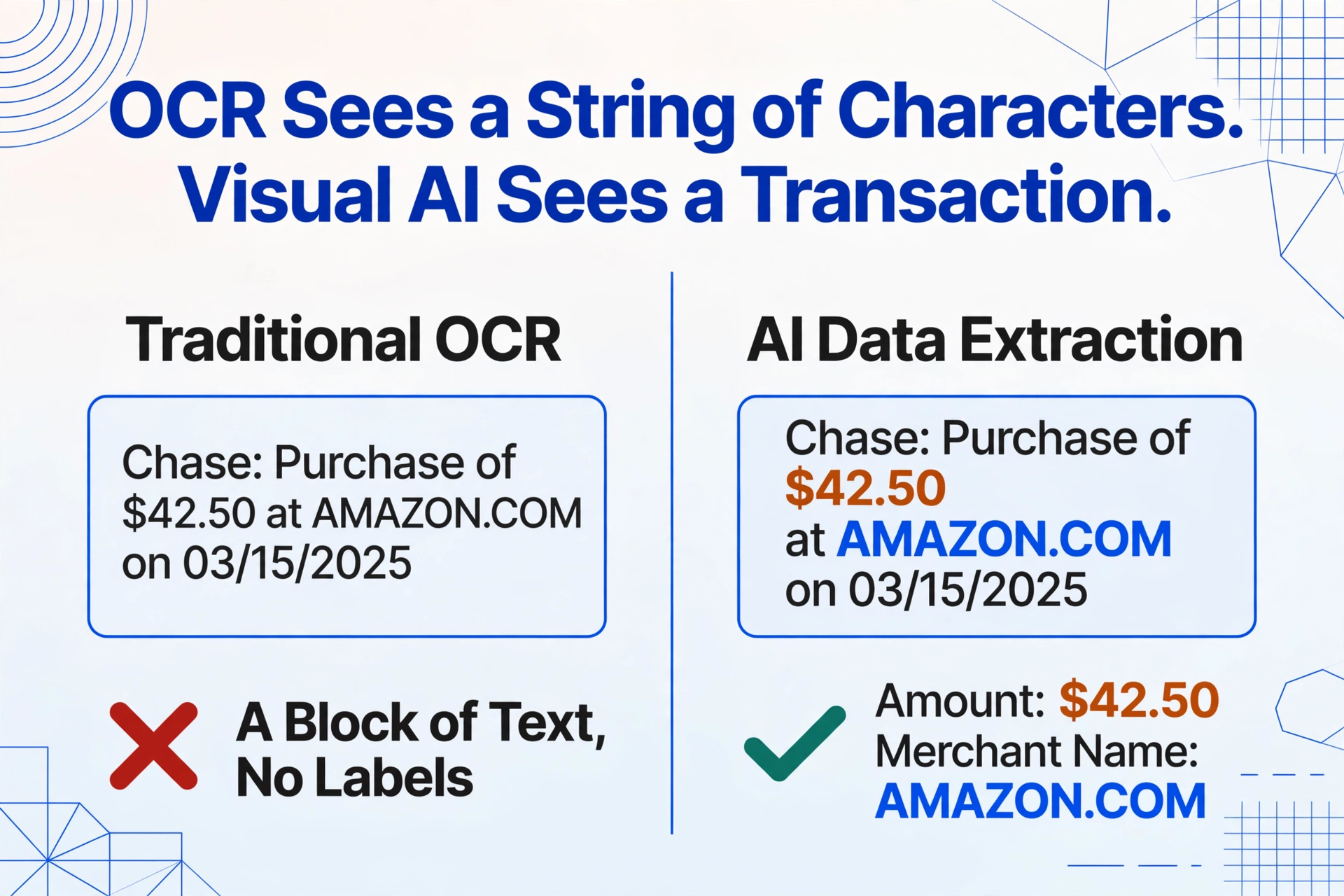
On a clean, structured document like an invoice, this limitation is manageable because the layout itself tells you which number is which — the total is in the bottom-right cell, the date is next to “Date:”. But a bank SMS alert has no such visual structure. It is a single sentence or two. The dollar sign and the merchant name sit next to each other without any column divider or label to separate them. OCR hands you back a block of text and leaves it to you to pick out which substring is the amount.
“The difference is simple: OCR sees a string of characters. Visual AI sees a transaction.”
This is where the line between OCR and what the industry calls AI data extraction (or vision-based extraction) becomes a practical difference, not just a technical one. Optical character recognition can tell you what characters appear on the screenshot. A vision language model can tell you which of those characters is the transaction amount and which is the merchant name.
How Visual AI Picks Out the Amount and Merchant
Instead of scanning left-to-right and outputting all the text it finds, a vision language model looks at the screenshot the way a person does: it reads the message, understands the context (“this is a bank transaction notification”), and identifies the pieces that match what it knows a transaction contains — an amount (usually prefixed by a dollar sign), a merchant name (usually in all caps or following “at”), and a date.
This is what Custom Column Extraction is built on: you define the columns you want — in this case, Amount and Merchant Name — and the AI locates the corresponding values by understanding what they mean, not by guessing where on the screen they usually sit. The same principle applies whether you are extracting data from a bank SMS alert, a payment screenshot that is not a table, or an invoice in a format you have never seen before. Unlike template-based tools where you would have to “train” the system for each bank’s format or draw a box around where the dollar sign appears, semantic extraction works without caring whether Chase puts the amount in the third word or Amex puts it in the last word.
The practical effect: the same two-column setup (Amount, Merchant Name) handles a Chase SMS, a Bank of America SMS, a Wells Fargo SMS, and an Amex SMS in one pass. You do not tell the AI “look at position X on the screen”. You tell it what you want, and it finds it.
From SMS Screenshots to a Spreadsheet
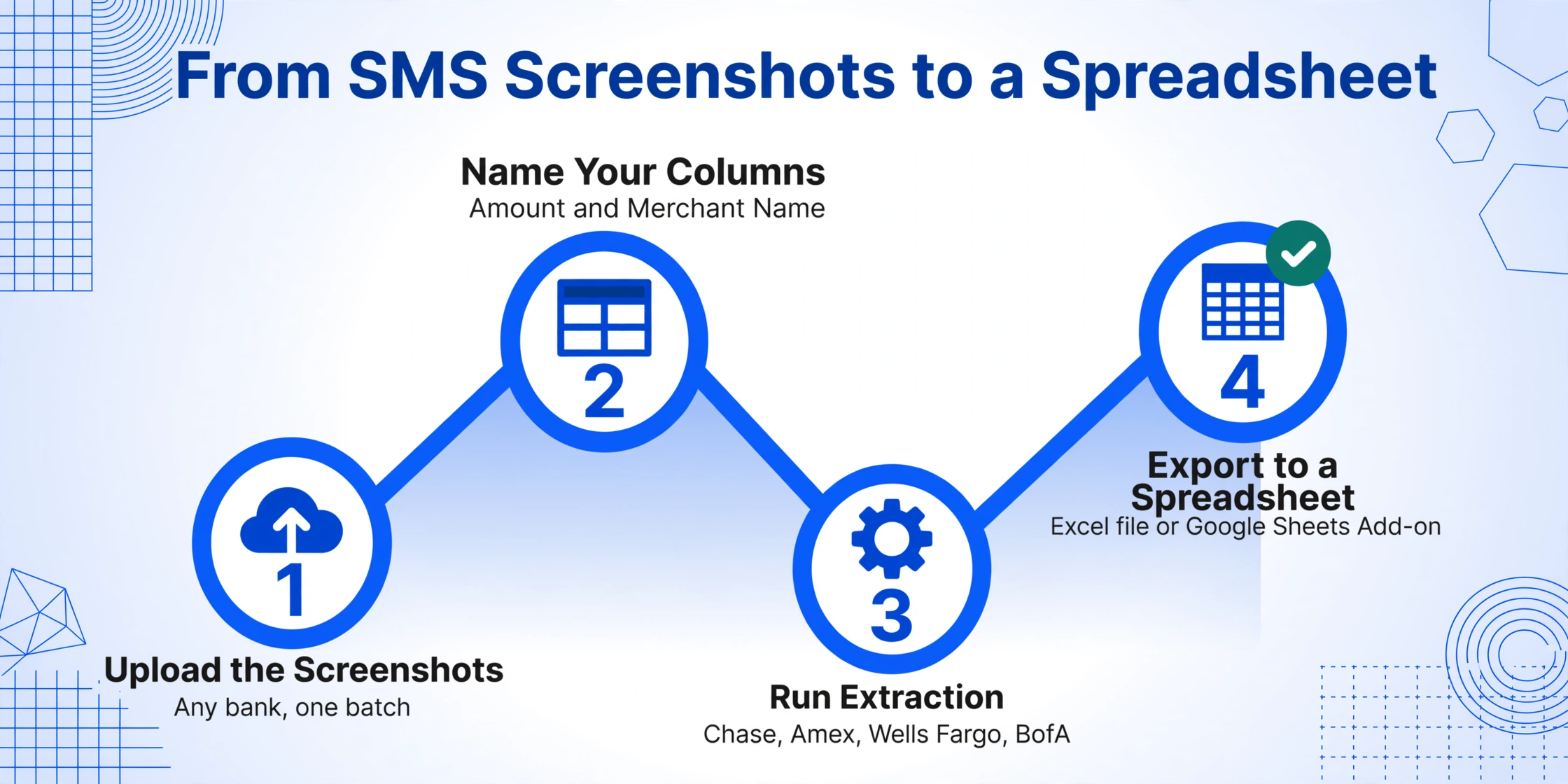
Getting the data out of a stack of SMS alert screenshots follows the same workflow whether you have three messages from this week or thirty from last month.
Select all the SMS alert screenshots from your camera roll, gallery, or downloads folder. They do not need to be from the same bank or the same card. The upload is batch-friendly by design.
Create two columns: Amount and Merchant Name. That is the entire setup. Optionally add a Date column if you want each transaction timestamped in your output table.
The AI reads every screenshot, identifies the amount and merchant name in each SMS alert, and writes them into a single table. Chase, Amex, Wells Fargo, and Bank of America alerts are processed together without any format-specific configuration.
Download the result as an Excel file or push it straight into Google Sheets using the sidebar add-on. Each row is one SMS alert: amount in the first column, merchant name in the second, date in the third if you added it.
The same approach works whether the SMS alerts are screenshots of iPhone’s Messages app (which uses chat-bubble styling), Android’s default SMS app (which uses a different card layout), or even a Gmail screenshot if you receive alerts by email instead of SMS. The visual AI does not depend on the container’s styling — it reads the text content and identifies the transaction fields inside it.
If the SMS also contains an order number or tracking code (for example, a purchase confirmation that combines bank alert + order notification), the same principle applies — the concept transfers naturally from bank alerts to SMS order confirmations, where the task is pulling a shipping tracking number instead of a merchant name.
What This Approach Doesn’t Cover
Visual AI extraction from SMS screenshots handles the core fields well, but it has clear boundaries worth knowing:
- Screenshots only — this method works on images you have captured. It does not read SMS messages directly from your phone’s messaging database (that would require an app with SMS permissions, which is a different product category entirely).
- Message cropping matters — if the screenshot cuts off the dollar sign or truncates the merchant name, the AI can only work with what is visible. A full-height screenshot that shows the entire alert text yields the best result.
- Non-English alerts — the core fields (amount and date) transfer well across languages because digits are universal. A Chase alert in Spanish still starts with “Chase:” and contains a dollar amount. Regional banks in non-English markets may format differently.
- Stacked alerts — some phones group multiple SMS notifications into a single screenshot. If you capture a lock-screen view showing four bank alerts stacked together, the AI can still identify individual amounts and merchants within the screenshot.
Frequently Asked Questions
Does this work with both debit and credit card alerts?
Yes. Most banks send the same format for both debit and credit card transactions. The alert message may say “debit card” or “credit card” at the front, but the amount and merchant name appear in the same relative position regardless of the card type.
What about bank transfer or wire alerts, not card purchases?
Incoming wire and ACH transfer alerts also contain an amount and a sender name in place of a merchant. The same Custom Column Extraction setup works — just swap the second column from “Merchant Name” to “Sender Name” and the AI adjusts its search accordingly.
Can I process alerts from multiple banks in one batch?
That is the scenario the tool is built for. Upload screenshots from Chase, Bank of America, Wells Fargo, and any other bank all at once. The AI reads each screenshot independently and assigns the correct amount and merchant name per message, ignoring which bank sent it.
Do I need to sort the screenshots by bank before uploading?
No. Sorting is unnecessary because the extraction does not rely on batch homogeneity. A Chase alert in batch position #1 and a Wells Fargo alert in batch position #7 are processed identically. The only sorting that makes sense is chronological, and you can do that after extraction using the date column in the output spreadsheet.
The amount and merchant name in a bank SMS alert are sitting in plain text. The challenge has never been about the data being inaccessible — it is that every bank formats it differently, and traditional extraction tools do not understand what the numbers mean. Visual AI removes that bottleneck by reading the message semantically, the same way you do, and putting the result into a table you can use immediately.