Catch Duplicate Pay, Raises, and Leavers
Before Payroll Runs
An EY survey of U.S. payrolls found that one in five contains an error, and that correcting a single error costs an employer $291 on average. Those are the errors that get fixed with an adjustment on the next run. A duplicate direct deposit or a payment to someone who already left is a different problem. The money is out, and getting it back can require the employee's written agreement depending on the state.
Key Takeaways
- Pre-run checking still feels manual no matter which payroll software you run, because the errors that cost the most are comparisons the register itself cannot make.
- Every provider's preview covers one system and one period, so a duplicate deposit, an unapproved raise, and a leaver still getting paid slip past the very screens built to catch them.
- Land every provider's register in one sheet with a column for what changed and the three errors surface while they are still a row you can edit — ImageToTable.ai turns each PDF register into that sheet.
A Pre-Run Check Is a Comparison, Not a Proofread
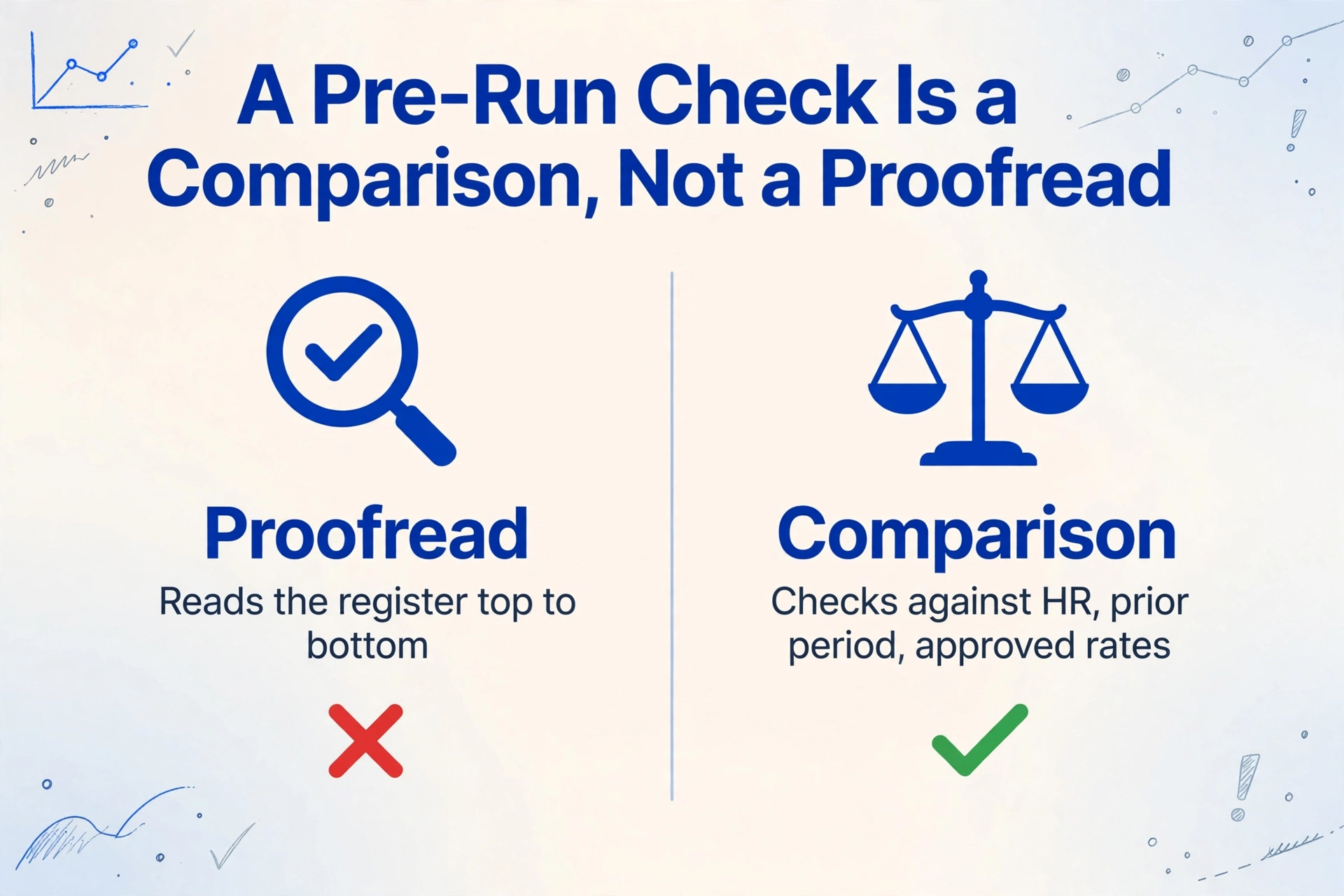
The payroll errors that cost the most are not typos you can catch by reading the register from top to bottom. They are relational. A duplicate payment is the same person, account, or amount appearing twice for one period. An anomalous raise is this period's pay compared against the last one, or against the rate someone actually approved. A payment to a leaver is the payroll roster compared against HR's termination list. None of those conditions lives inside the register itself, because a register only shows what the system is about to pay, not what it should be paying.
Each of the three checks that matter before a run is a comparison against something the payroll register does not contain.
That distinction explains why pre-run checking still feels manual even in teams running ADP, Gusto, or QuickBooks Payroll. The software gives you the run. It does not hand you the baseline you need to judge the run.
What a Normal Pre-Run Review Actually Involves
Before running payroll, three roles usually touch the run, and each one sees only part of the picture.
The payroll specialist builds the run and reviews the preview. HR owns the change data for the period: new hires, rate changes, terminations, benefit and deduction changes. Finance approves the funding and reconciles the liability afterward. The documents in play are the time records, a change report for the period, and the register or preview report the payroll system produces. A payroll register is the line-by-line report of what the system is about to pay every employee: gross, deductions, taxes, net, and the pay period it belongs to.
ADP's guidance for practitioners is a useful summary of what experienced payroll staff look at. It recommends checking whether totals are trending normally against the prior period, whether headcount and regular and overtime hours make sense, and whether any payment is unusually large, unusually small, or missing entirely. ADP notes that the system may flag some of this automatically, and that the practitioner should still verify it (ADP).
Most modern providers do generate a pre-run artifact. ADP RUN shows a Preview Payroll page, Gusto flags discrepancies during its review step, Paychex produces an Employee Earnings Record, and Rippling advertises duplicate-entry and incomplete-timecard flags before submission. The catch is scope. Each of those views covers one system and the current period. It cannot see another provider's register, and it does not put last period's number next to this one.
The Three Anomalies a Register Cannot Flag by Itself
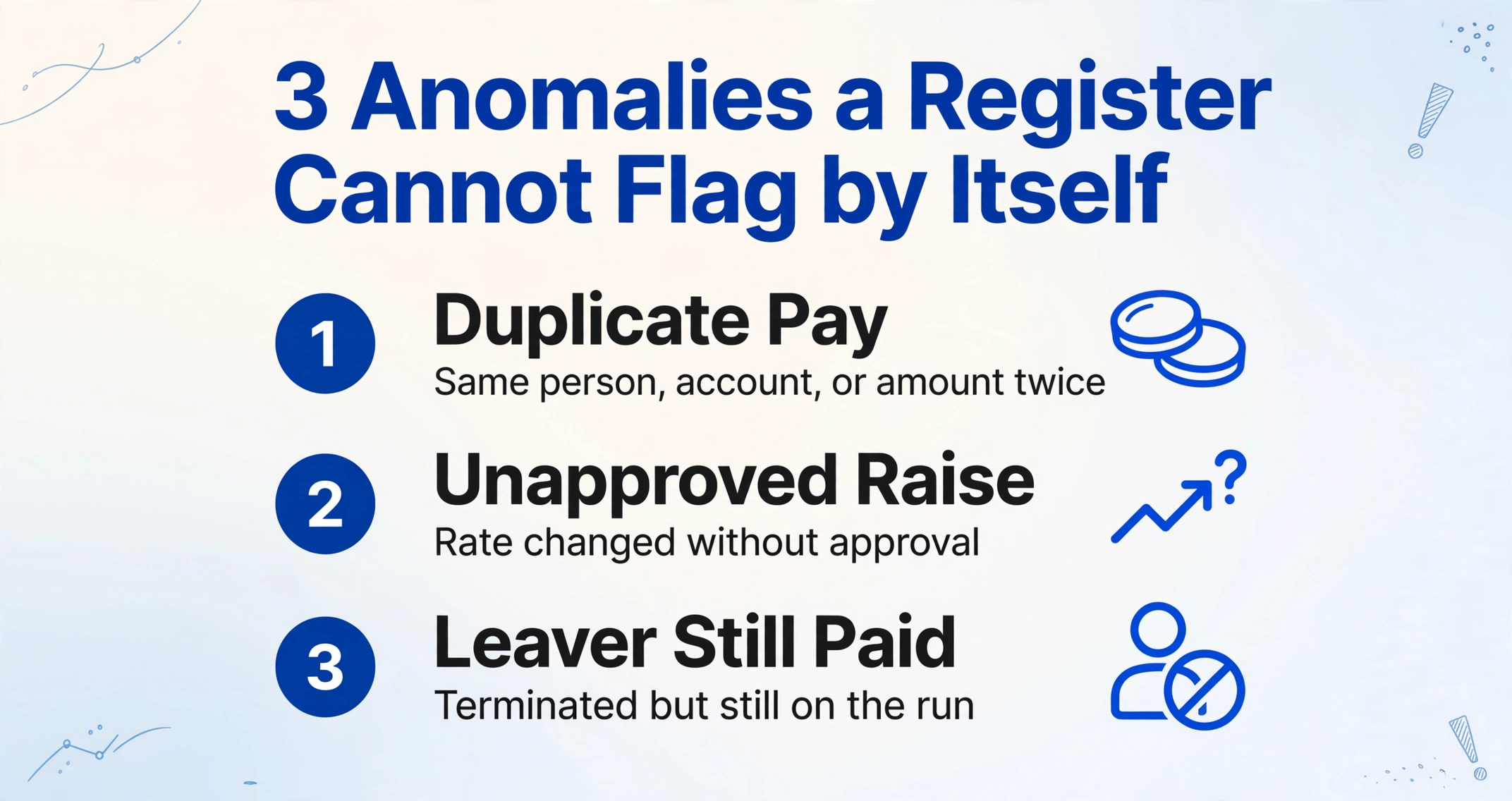
A register records what the system is about to pay, so it can catch a broken total but it cannot catch a wrong person, a wrong rate, or a wrong status.
Duplicate pay
A duplicate is rarely two identical lines under the same employee ID. It is more often a near-duplicate record, a rehired employee who was never merged, or a single bank account receiving two payments in one run. Government payroll audits test for exactly this pattern, listing duplicate Social Security numbers, similar names, and identical addresses as the flags to screen for (City of San Marcos payroll audit report). Matching on name alone misses the bank account, and matching on the bank account catches the worst case, where a leaver's pay was routed somewhere it should not have gone.
Pay rate changes nobody approved
A raise entered twice, or entered with the wrong effective date, does not look wrong in isolation. It only looks wrong next to the prior period or next to the approved rate. This is the check ADP describes as trending against the last period, and it is why a single-period register is not enough data. Auditors commonly require documented justification when net pay moves more than 20% from one period to the next without a stated driver.
Terminated employees still on the run
The standard audit procedure is to compare the list of terminated employees against the current payroll register and investigate the overlap. A post-termination payment happens when HR records the termination but payroll eligibility does not update before the cut, or when the termination date is entered after the run. The payment is real, the tax reporting is now attached to the wrong leaving date, and recovery runs into state wage law. Several states require written employee consent before you can deduct an overpayment, and some prohibit taking it from a final paycheck at all (Littler).
None of this is a software failure. It is the shape of the work. Employee status lives in an HR system, hours live in a time system or a foreman's spreadsheet, and the run lives in a payroll provider, so every handoff is a chance for a change to arrive after the cut. PayrollOrg's 2025 global survey lists late or inaccurate time data and inputs arriving after the payroll cut-off among the leading root causes of reduced payroll accuracy (PayrollOrg, 2025).
A wrong payment also distorts the tax deposit for the period, which is a smaller number with a larger tail. IRS Publication 15 sets the failure-to-deposit penalty at 2% of the shortfall for deposits 1 to 5 days late, 5% for 6 to 15 days, and 15% once the amount is still unpaid more than 10 days after the first IRS notice (IRS Publication 15). Catching the problem before the run keeps the deposit correct, not just the paycheck.
When the data is spread across those systems, and each provider hands you a register as a PDF in its own layout, the only way to run the three comparisons is to export everything into one spreadsheet and read it by hand. One practitioner in the r/Payroll thread that prompted this article described the routine plainly: "After importing payroll I manually review salary changes, check pay for terminated employees vs. a list I keep for final paychecks" (r/Payroll).
Step 1: Turn Every Provider's Register Into One Sheet
The comparison cannot start until every register sits in one sheet with the same columns, one row per employee per period.
This is where Custom Column Extraction does the work that a report export cannot. You type the column names you want, such as Employee ID, Name, Bank Account, Gross Pay, Net Pay, and Pay Period End, and the AI finds each value in any of the uploaded documents by understanding what the field means. It does not matter that Provider A labels a field "Net" and Provider B labels it "Net Pay Amount", or that one register is a clean export and the next is a scanned PDF. Because batch processing merges every file into one table, last period's register and this period's register can land in the same sheet.
Controlling the output shape is the point. Fix the column names, then set a Format Requirement for each one, for example dates as YYYY-MM-DD, amounts as numbers with two decimals, and IDs kept as text so leading zeros survive. Once both periods share that shape, a variance column becomes possible. The single-document version of this workflow is covered in the payroll register to Excel guide.
Step 2: Add the Checks the Register Does Not Print
Columns you define can carry arithmetic and simple conditional tests during extraction, so the sheet arrives with the first layer of checking already done.
Computed Columns let you describe a calculation in the column name itself, and the AI performs it while reading the document instead of leaving it for you in Excel. A net pay audit column can be written as Net Pay Check (Gross Pay - Total Deductions), and a cross-period check as Change vs Prior Period (This Period Net - Prior Period Net). Conditional logic is supported too, so a column like Pay Change Flag (Change vs Prior Period % > 20) turns a raw number into a line you can sort and eyeball in one pass. The demo accepts the column-name form without a login; logged-in users can move multi-step math into Rule Format and keep the visible column names clean.
For the duplicate check, the useful columns are identifiers rather than arithmetic: employee ID, bank account, amount, pay period. The duplicate rule itself runs across rows, which is a spreadsheet job, not an extraction job.
Files are processed securely and not stored.
Step 3: Send Every Flagged Value Back to the Source
A flag is only useful if someone can confirm it in seconds, because a false positive costs the same time as a real one.
Review Mode with Bbox closes that gap. Hover or click any extracted cell and the original document highlights the exact region the value came from, and the reverse works too: click a region on the page and it jumps back to the matching cell. For a pay rate that looks wrong, this is the difference between trusting the number and knowing where it came from. It matters because extraction is not perfect. Printed table data is recognized at up to 99% accuracy, and the review layer is how the remaining cases get caught before the run. The same audit-trail habit is covered in the batch payslip extraction and HR audit workflow.
Step 4: Run the Duplicate, Raise, and Leaver Rules in Excel
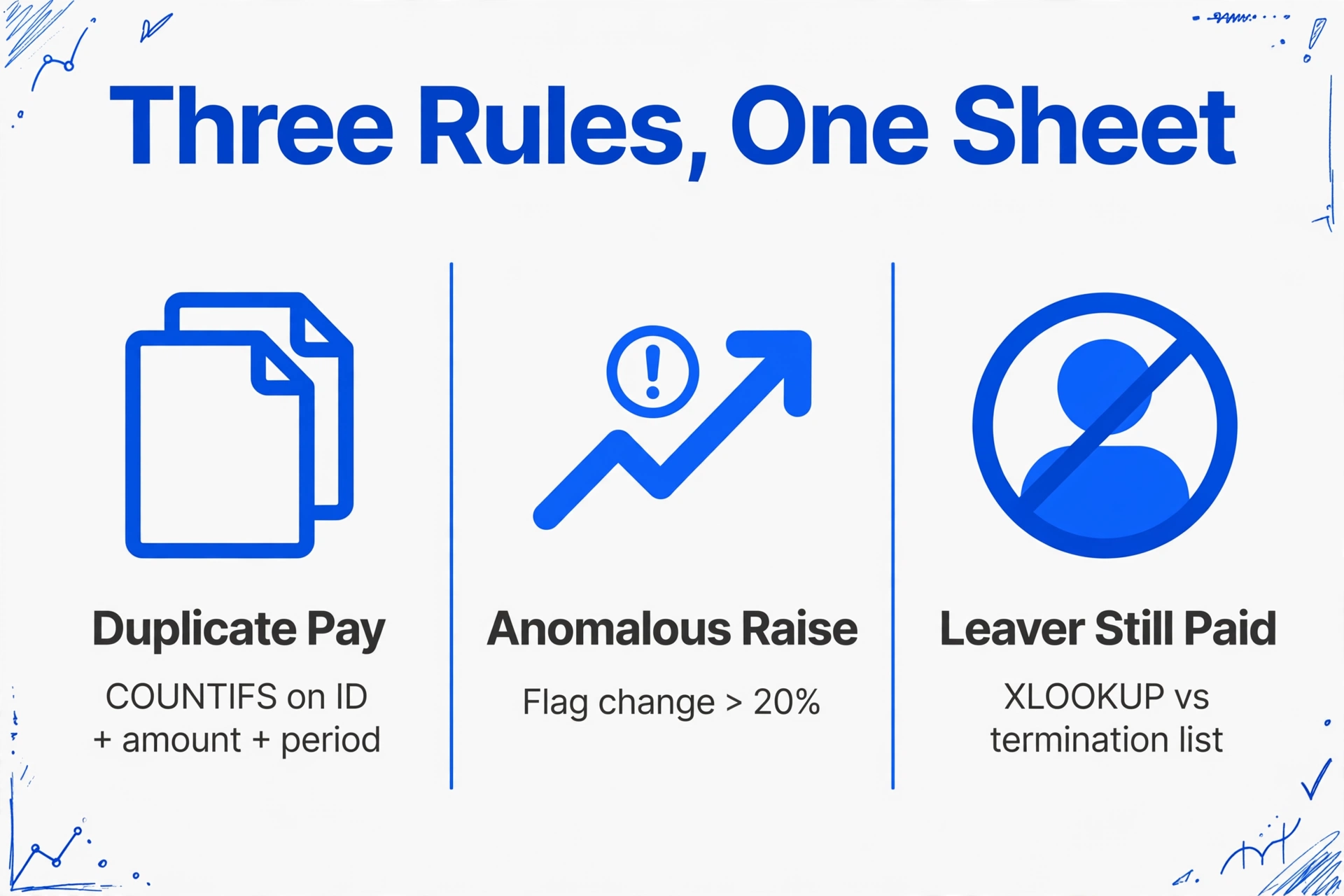
The consolidated sheet is the hard part; the three business rules themselves are a few standard spreadsheet formulas.
| Anomaly | What to compare | Typical rule |
|---|---|---|
| Duplicate pay | Employee ID, amount, pay period, bank account | COUNTIFS on ID + amount + period; group by bank account and flag any account with more than one payment in the run |
| Anomalous raise | This period net vs prior period net, or vs approved rate | Conditional formatting on the change column; investigate anything past 20% |
| Leaver still paid | Payroll roster vs HR termination list | XLOOKUP the roster against the termination list; flag any termination date on or before the period end |
ImageToTable is not a payroll business-rules engine. It puts structured register data into one sheet; the duplicate, raise, and leaver rules are the user's, written in Excel and kept under the payroll team's own control.
It is worth separating this from the invoice world. The same duplicate logic applied to vendor invoices is covered in automated invoice duplicate detection, but payroll runs on different keys (employee, bank account, pay period) and different consequences, so the two are not the same workflow. The arithmetic side of a payslip is handled separately in net pay verification with computed columns, and leaver-specific documents are covered in extracting P45 leaver data. If the bottleneck is upstream, the month-end timesheet close covers the collection window, and the cost of manual timesheet entry explains why that data is late in the first place.
What This Setup Does Not Do
It does not connect to your payroll provider, and it does not know your pay rules.
- No live integration. There is no direct hook into ADP, Gusto, QuickBooks Payroll, Paychex, Rippling, or Workday. You export the register from each provider, then extract it into the shared sheet.
- No payroll rules engine. Shift differentials, garnishments, multi-state tax, and final-pay statutes are not modeled. The tool structures the data those rules operate on.
- Extraction is not perfect. Printed tables reach up to 99% accuracy. Review Mode exists because the last percent has to be checked by a person, not assumed away.
- It does not fix segregation of duties. One person preparing and approving the run is a control weakness no data tool patches. The consolidated sheet should still go to a second reviewer, which is the same reason ADP tells practitioners to verify what the system flags.
- It cannot recover an overpayment. Whether you may deduct after the fact is governed by state law, and some states require written consent.
FAQ
What is a payroll pre-run check?
A payroll pre-run check is a structured comparison of the preliminary payroll register against three things outside it: HR's current employee status, the prior period's pay, and the approved pay rates. It happens after the register is generated but before the run is submitted, so an error is corrected rather than recovered.
How do I find duplicate payments in payroll?
Match on the keys that identify the payment, not the person's name: employee ID, amount, and pay period, then group by bank account and flag any account with two payments in the same run. Near-duplicate employee records and rehires are the cases a name-based match misses.
How do I catch terminated employees still on payroll?
Compare the payroll roster against HR's termination list and flag anyone whose termination date falls on or before the pay period end. The durable fix is closing the handoff so HR status flows to payroll eligibility before the cutoff.
Can payroll software flag a 20% pay increase automatically?
Some can, within limits. ADP, Gusto, and Rippling surface anomalies such as large changes or duplicate entries, but each operates on its own system and the current period. The cross-provider, cross-period version of the check runs in your consolidated sheet.
Does a pre-run check replace a payroll audit?
No. A pre-run check is a control performed every cycle before submission. A payroll audit is a periodic review of records, access, and controls, often run by an outside party. They overlap in the tests they use, not in their purpose.
The point of all of this is to make the money's exit a decision rather than a discovery. When the register lands in one sheet with a variance column and a termination list beside it, the three errors that used to surface on payday surface while they are still a row you can edit.
Test it on your own register. Upload a recent payroll run and this period's, define the columns you check by hand today, and see how much of the eyeballing disappears.