Turn Odometer Photos Into Your
Google Sheets Mileage Log — No Extra Apps
A 2025 Stride Tax survey found that gig workers using automatic tracking claimed 2,300 more deductible miles per year than those relying on manual logs — roughly $1,610 in additional deductions at the then-current rate. That gap comes from one source: miles you drove but never wrote down. Most gig workers already have a habit that solves half this problem. At the start of a shift, they photograph their odometer. At the end of a shift, they photograph it again. The miles are recorded. The evidence exists. What's missing is the step between "photo on my phone" and "number in my spreadsheet." This article is about removing that step — with a Sheets sidebar add-on that reads odometer digits from photos and places them directly into your mileage log, IRS rate calculation included.
Key Takeaways
- 2,300 — that's how many more deductible miles gig workers with automatic tracking claim each year compared to manual loggers, yet most already photograph their odometer at every shift start and end. The evidence exists in your camera roll. What's lost is the 30 seconds per photo spent reading digits and typing them cell by cell across 10+ shifts a week.
- Google Sheets costs $0, but the transcription time across 5–7 shifts per week adds up to $56/month in opportunity cost — roughly the same as a MileIQ subscription after its 2026 price hike. The spreadsheet comparison framework hides the real cost: you're paying with time what others pay with money, and the typing tax compounds every shift you work.
- Vision AI reads odometer digits from any display — digital LCD, rolling mechanical, glare-obscured — and ImageToTable.ai places the reading directly into your spreadsheet cell along with the photo's timestamp for the date. Same free sheet, same photo habit you already have, the typing step disappears.
The Odometer Photo Habit Every Gig Worker Already Has
A quiet consensus has formed across Reddit's driver communities — r/uberdrivers, r/doordash_drivers, r/couriersofreddit, r/AmazonFlexDrivers. The thread topics vary, but the comments converge on the same practice:
"I take a picture of my odometer reading every Monday, just for backup."
"Odometer photo at start/end + log in Google Sheets feels like the best 'low battery + IRS-proof' middle ground."
"Even a simple notebook works; I just like odometer photo logs as a backup because it's quick."
These aren't drivers who refuse to track mileage. They're drivers who already track it — with their phone camera. The photo serves as a timestamped, geotagged record of the odometer reading at a specific moment. It's contemporaneous evidence, which is exactly what IRS Publication 463 requires: records created at or near the time of the trip. A photo taken at the end of a DoorDash shift at 9:47 PM with GPS coordinates embedded is about as contemporaneous as evidence gets.
The problem is what happens between the photo and the spreadsheet. Right now, that gap is filled by one action: manually reading the odometer number from the photo and typing it cell by cell into Google Sheets. At the beginning of a shift, that's one number. At the end, it's another. Multiply by 5-7 shifts per week, and the time cost compounds — not because any single entry is hard, but because the switch from "looking at a photo" to "typing into a cell" breaks the rhythm of logging out after a shift.
Gig workers who use manual mileage logs spend an average of 2.8 hours per month on mileage-related recordkeeping, according to a 2024 survey of independent contractors. At a $20/hr opportunity cost, that's $56 per month spent on data entry — roughly the cost of a MileIQ subscription. The difference: MileIQ buys you GPS tracking. The spreadsheet approach keeps your data where you want it, free, with zero vendor lock-in. The only thing it costs is typing time — and that's what the add-on eliminates.
What the IRS Actually Requires in a Mileage Log
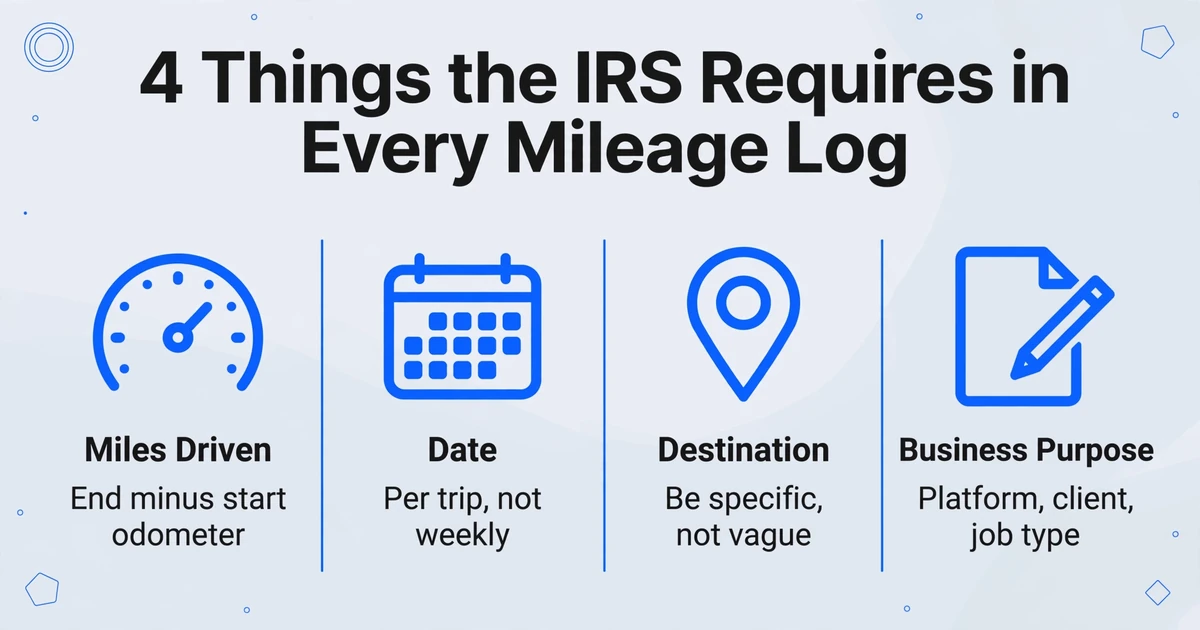
Before examining how to get odometer readings into a sheet, it's worth understanding what the IRS expects the sheet to contain. The requirements are specific enough that getting them wrong means losing deductions in an audit — but they're also simple enough that a well-structured Google Sheet satisfies them completely.
Under IRS Publication 463, Chapter 5 and Internal Revenue Code Section 274(d), an adequate mileage log must capture four elements for every business trip:
| Required Element | What to Record | Your Sheet Column |
|---|---|---|
| Miles driven | The number of business miles for each trip — typically end odometer minus start odometer | =StartOdo - EndOdo formula |
| Date | The date of each trip (not a weekly total) | Date column |
| Destination | The place or area you traveled to — be specific ("Downtown Dallas deliveries") not vague ("client meetings") | Destination column |
| Business purpose | The reason the trip was business-related — platform name, client type, job description | Purpose column |
In addition, you must record your vehicle's odometer reading at the start and end of each tax year, and whenever you begin using a new vehicle for business.
Two other requirements carry as much weight as the data fields themselves. First, records must be contemporaneous — created at or near the time of the trip. The IRS explicitly considers a weekly log to be timely, but logs reconstructed months later from memory do not meet the standard and have been repeatedly rejected in Tax Court. Second, the IRS won't accept a mileage log during an audit. Reddit's r/uberdrivers has a thread on this exact anxiety — one driver posted: "A written log requires you to write down your odometer reading at the start and end of each shift. The app doesn't. In an audit, the IRS can ask for the log, not just the app summary." The takeaway: an app's GPS summary without contemporaneous odometer records may not hold up. An odometer photo with a timestamp does.
For gig workers, the 2026 standard mileage rate is 72.5 cents per mile for business use (IRS Notice 2026-10). At 25,000 business miles per year — a realistic number for a full-time rideshare or delivery driver — that's an $18,125 deduction. For a driver in the 22% federal tax bracket who also pays 15.3% self-employment tax, properly documenting every mile means roughly $6,700 in tax savings. Every unlogged mile is 72.5 cents that stays in the IRS's pocket.
Why the Spreadsheet Keeps Winning Over the $8.99 App
The mileage tracking app market is crowded, but the economics tell a story that explains why so many gig workers stick with spreadsheets:
| Tool | Annual Cost | Auto-Detect | IRS Export | Catch |
|---|---|---|---|---|
| Google Sheets | Free | No (requires manual input) | Manual | Typing time is the tax |
| MileIQ | $90/yr ($8.99/mo) | Yes (GPS background) | Yes | Free tier capped at 40 trips/month; price increased 50% in 2026 from $5.99 |
| Everlance | $69.99/yr (Starter) $99.99/yr (Premium) | Yes (GPS) | Yes (Premium) | Free tier: 30 trips/month — one day of delivery work |
| Stride | Free | No (manual start/stop) | Yes | Must remember to tap start before every shift; no automatic trip detection |
| QuickBooks Self-Employed | $240/yr ($20/mo) | Yes (GPS) | Yes | Full accounting suite — overkill if all you need is a mileage log |

The MileIQ price hike from $59.99 to $89.99 per year triggered a wave of Reddit frustration in early 2026. One user on r/uberdrivers put it bluntly: "They're raising their prices by 50% — just another greedy tech company. I'll move to a different app instead." Another on r/couriersofreddit posted: "Use google sheets. It's free, simple, and easy to use. I put in my starting and ending odometers and then it calculates my miles for me."
The spreadsheet isn't winning because it has better features. It's winning because it costs nothing, it gives you full control over your data structure, and it doesn't lock your historical mileage logs inside a subscription you have to keep paying to access. If you cancel MileIQ, you lose access to the app. If you stop using your Google Sheet, the file is still in your Drive — yours, forever, readable by any CSV parser or tax preparer.
But the spreadsheet has one genuine weakness that paid apps exploit: data entry friction. MileIQ's value proposition isn't "our app tracks miles better than you can." It's "you'll forget to log miles, and we won't." The GPS auto-detection catches trips even when you're tired, distracted, or just not in the mood. An odometer photo workflow addresses this differently — not by automating detection, but by making the evidence-to-data step so fast that logging a shift becomes a 30-second habit instead of a 5-minute chore.
How the Photo-to-Sheet Gap Actually Closes
Traditional OCR — the kind built into document scanners and receipt apps — performs poorly on odometer displays. A 2019 Frontiers in Applied Mathematics and Statistics study on mileage extraction from odometer pictures documented the core challenge: odometer characters vary wildly in color, intensity, font, and texture across different vehicles. A digital LCD odometer in a 2023 Toyota looks nothing like the mechanical rolling digits in a 2012 Ford Transit. Standard OCR engines, trained on printed documents with consistent fonts and clean backgrounds, fail when confronted with the segmented LED digits of a modern dashboard or the glare on a sunlit odometer window.
This is where vision-based AI extraction changes the outcome. Instead of trying to segment individual characters and match them against a font library — the OCR approach — a vision large model reads the odometer display holistically, the way a human eye does. It understands that the illuminated number cluster in the center of the dashboard is the odometer. It recognizes that "1-2-5-8-4-7" in the context of an odometer photo means 125,847 miles, not a random string of digits. And critically, it handles the variation across vehicle types without retraining — because it's reasoning about what odometer digits look like in any form, not matching pixels against a template of one specific display type.
This capability isn't theoretical. A Google Sheets sidebar add-on that uses vision-model extraction can take a photo of an odometer — whether it's a crisp digital display or a glare-obscured analog dial — and output the reading directly into a spreadsheet cell. The add-on operates as a side panel inside Google Sheets, accessible from the Extensions menu. There's no separate app to open, no export button to click. The photo goes in the sidebar. The odometer reading lands in your sheet. For the full capability rundown — supported field types, formats, and plan details — see the Google Sheets add-on reference.
The extraction can also capture the date from the photo's metadata — every smartphone photo carries an EXIF timestamp. Combined with the odometer reading, you get the two hard fields of your mileage log (Date and Odometer Reading) in a single upload, without touching your keyboard.
Building Your Mileage Log in Google Sheets
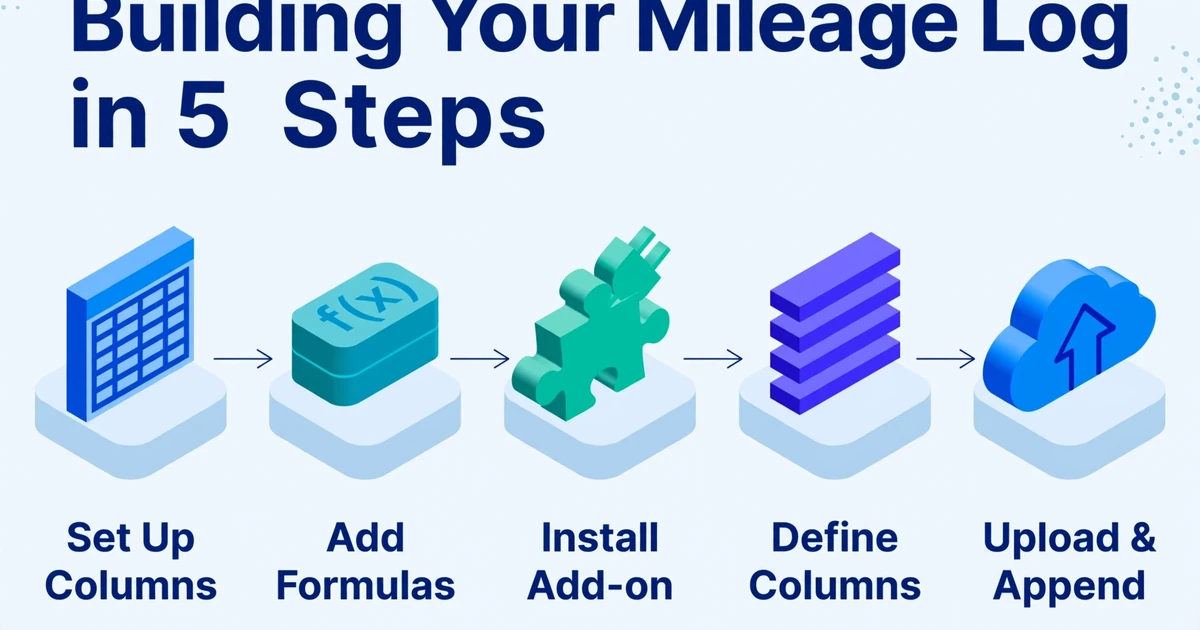
Here's how to set up a Google Sheets mileage log that meets IRS requirements, auto-calculates your deduction, and integrates with the sidebar add-on for photo-to-cell extraction.
Step 1 — Create the sheet structure. Open a new Google Sheet and set up these column headers in Row 1:
Date | Start Odometer | End Odometer | Miles Driven | Destination | Platform/Purpose | IRS Rate | Deduction | Notes
Step 2 — Add formulas that do the math for you. In the Miles Driven column (Column D, starting at Row 2), enter: =C2-B2. This subtracts your start odometer reading from your end odometer reading to calculate miles driven for that shift. Replace the cell references if your columns are arranged differently.
In the Deduction column (Column H), enter: =D2*0.725 for the 2026 rate. Want the sheet to automatically use the correct rate each year? Hardcode the rate value in a separate cell (say, J1) as 0.725, then use =D2*$J$1 in the Deduction column — update one cell each January and the entire year recalculates.
Step 3 — Install the sidebar add-on. From the Extensions menu in Google Sheets, find and install an AI extraction add-on. Once installed, it opens as a narrow panel on the right side of your spreadsheet. You don't leave the tab. You don't open another app.
Step 4 — Define the extraction columns. In the sidebar, type the column names you want the AI to extract from your odometer photos: "Date" and "Odometer Reading." These column names tell the AI what to look for. The AI reads the photo, locates the odometer display, extracts the number, and pulls the photo's timestamp for the date.
Step 5 — Upload and append. Take your shift-start odometer photo. Drag it into the sidebar. The extracted date and reading appear in the next empty row of your sheet, under the "Date" and "Start Odometer" columns. Repeat with your shift-end photo — date and reading land in the next row under "End Odometer." Your miles-driven formula fires automatically. Your deduction column calculates instantly.
The entire loop: snap photo at end of shift → open sidebar → upload photo → reading appears in sheet. Secondary benefit: the uploaded photos remain accessible as timestamped, IRS-ready evidence. If you ever need to prove that a specific reading was accurate on a specific date, the photo and the spreadsheet entry corroborate each other — exactly the substantiation chain Section 274(d) expects.
One add-on user described the difference succinctly: "I used to spend 30 minutes every Sunday typing odometer readings from my camera roll. Now it's under 90 seconds. The spreadsheet does the rest."
What About Multi-Vehicle and Multi-Platform Tracking
Gig workers rarely operate in a clean single-vehicle, single-platform environment. A driver might use their own car for Uber and a rental for Lyft. A DoorDash driver might have a second vehicle for larger catering orders. A field service tech might drive a company van during the week and their personal car for weekend side work.
The spreadsheet approach handles this by adding one column: Vehicle. Each row in your mileage log gets a vehicle identifier — the license plate, a nickname ("Work Van," "Personal Car"), or the last four digits of the VIN. The IRS requires you to record odometer readings at the start and end of each tax year for every vehicle used for business, and to track mileage separately per vehicle if you use the actual expense method for one and standard mileage for another.
For multi-platform tracking — logging separate miles for Uber vs. DoorDash vs. Amazon Flex — add a Platform column or combine it with the Purpose column ("DoorDash — downtown lunch shift"). At tax time, filtering by platform gives you per-platform mileage totals. This matters because some platforms report estimated mileage on your 1099-K, and having your own per-platform log lets you verify (and often exceed, since platform estimates typically exclude deadhead miles and return trips) what the platform reports.
The same sidebar add-on that extracts odometer readings can also process expense receipts — gas station receipts, maintenance invoices, parking stubs. If you're already running a mileage log in Sheets, it makes sense to run your expense tracking there too. Instead of maintaining a separate expense app, you can use the add-on to extract receipt data directly into a companion expense tab in the same spreadsheet. Odometer readings in one tab, receipts in another, and a summary tab that pulls from both for quarterly estimated tax calculations. One spreadsheet, no subscription fees, data you control.
Frequently Asked Questions
Does the IRS accept a Google Sheets mileage log?
Yes. IRS Publication 463 does not mandate a specific format — paper logbook, spreadsheet, or app are all acceptable, provided the required elements are present: date, miles driven, destination, and business purpose for each trip, plus odometer readings at the start and end of the tax year. A Google Sheet that contains these fields and is maintained contemporaneously (updated at least weekly) meets the "adequate records" standard. Export or print the relevant tabs as PDF before filing — keep the file with your tax return for at least three years.
What if the AI misreads my odometer from the photo?
Extracted data lands directly in your sheet as editable text. If the reading comes through with a digit off — say "125847" instead of "125487" — you correct it in the cell, same as you'd fix a typo. The verification step is visual: you glance at the photo and the cell, confirm they match, and move on. This is faster than typing the entire number from scratch because you're doing a spot-check rather than full data entry. For best results, photograph the odometer straight-on with minimal glare — the same way you'd take a photo you plan to read yourself.
Can I track mileage for multiple vehicles in the same sheet?
Yes. Add a "Vehicle" column to your log and tag each row with the vehicle identifier. Create separate tabs per vehicle if you prefer segregation, or use a single tab with filters. The IRS requirement is that you record odometer readings for each vehicle used for business at the start and end of the tax year. A well-structured sheet with a vehicle column satisfies this. If you use the standard mileage rate for one vehicle and the actual expense method for another, keeping separate tabs per vehicle makes the year-end calculation cleaner.
How do I combine mileage tracking with expense receipts?
Keep mileage on one tab and expenses on another tab within the same Google Sheet. The sidebar add-on can handle both: extract odometer readings for the mileage tab, and extract vendor/date/amount/category for the expense tab. A third summary tab can pull totals from both using simple =SUM references. At tax time, your Schedule C line items — vehicle expenses (Line 9) and other business expenses (Lines 8-27) — map directly to the totals in your summary tab. For the expense side specifically, the add-on's receipt extraction workflow covers the same sidebar-to-sheet pattern for gas receipts, maintenance invoices, and parking fees.
Does the add-on replace the need for a mileage tracking app entirely?
It depends on your tolerance for manual steps. A GPS-based app like MileIQ or Everlance tracks every mile automatically — you don't even have to remember to start logging. The odometer photo + add-on workflow requires two deliberate actions per shift: photograph the odometer at the start and photograph it again at the end. The trade-off is cost ($0 vs. $90+/year), data ownership (your Drive vs. a vendor's server), and audit readiness (timestamped photos vs. GPS-only logs). For drivers who reliably photograph their odometer anyway — and Reddit suggests many do — the add-on path removes the typing without adding a subscription. For drivers who struggle with consistency, GPS auto-detection may be worth the monthly fee.
What about mileage deductions for commuting — does that count?
No. The IRS explicitly excludes commuting miles — travel between your home and a regular workplace — from the business mileage deduction. However, for gig workers whose home is their principal place of business (which is the case for most independent contractors who do administrative work from home), travel from home to the first pickup or client site is deductible. The same applies to return trips from the last drop-off back home. Publication 463 provides examples distinguishing deductible business travel from non-deductible commuting. When in doubt, document the business purpose in your log row — the IRS looks for contemporaneous records with specific purpose descriptions, not vague entries.
Can I use the same add-on for meter reading extraction at rental properties?
Yes. The same photo-to-sheet extraction pattern applies to any field-captured numeric reading — utility meters, water meters, equipment hour counters. The column names change ("Meter Reading" instead of "Odometer Reading") but the workflow is identical: photograph the display, upload through the sidebar, reading lands in your sheet. For a full breakdown of this pattern applied to utility tracking, see our guide on extracting meter readings into Google Sheets. For property managers and landlords tracking utility readings across multiple units, the batch upload capability means photographing several meters during a site visit and processing all photos into the sheet in one session.
You already photograph your odometer. The missing step isn't another app — it's the 30 seconds you spend reading the photo and typing the number. The add-on replaces those 30 seconds with a drag-and-drop. Try it on this week's shifts. See if your mileage log stays current past Friday.
Try the Google Sheets Add-on for Your Mileage Log