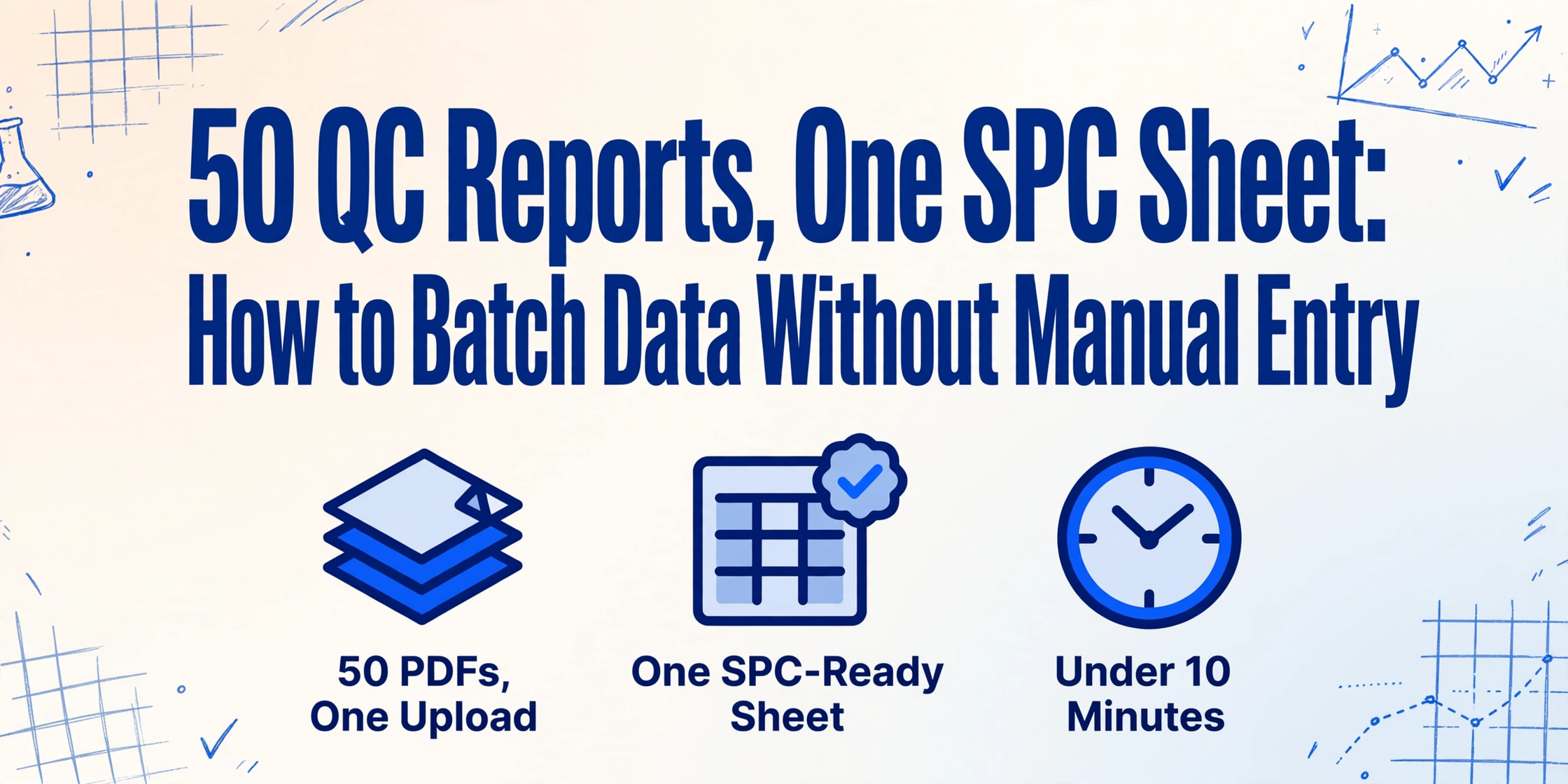
50 QC Reports, One SPC Sheet: How to
Batch Data Without Manual Entry
A single QC lab running 30 finished-product release tests per day—each with 15 to 20 measured parameters from three or four different instruments—generates roughly 450 to 600 data points that someone has to type into a spreadsheet before anyone can build an SPC chart. At the widely cited 1% per-field manual entry error rate, that's 4 to 6 wrong numbers entering the workbook every day. But the real damage multiplier is what happens next: each transcription error that lands inside a control chart has a non-trivial chance of triggering an out-of-control signal. For a lab operating under 21 CFR 211.192, that signal doesn't just flag a chart—it triggers a mandatory investigation. A single mistyped digit can consume 4 to 8 hours of analyst and supervisor time, and the batch sits unreleased for the duration.
Key Takeaways
- Thirty daily QC tests at 3 minutes of manual entry each costs your lab $21,000 a year in transcription labor—typing numbers that instruments already generated.
- The cost your budget never shows: each mistyped digit inside a control chart can trigger a mandatory OOS investigation consuming 4 to 8 hours, and every phantom alarm trains operators to stop trusting SPC charts altogether.
- Define your SPC column names once, batch-upload 50 instrument PDFs from any brand in one operation, and receive one audit-ready spreadsheet with OOS flags surfaced in a single column—your role shifts from typing 600 fields a day to reviewing only the flagged exceptions.
The Two-Phase Entry Trap in QC Labs
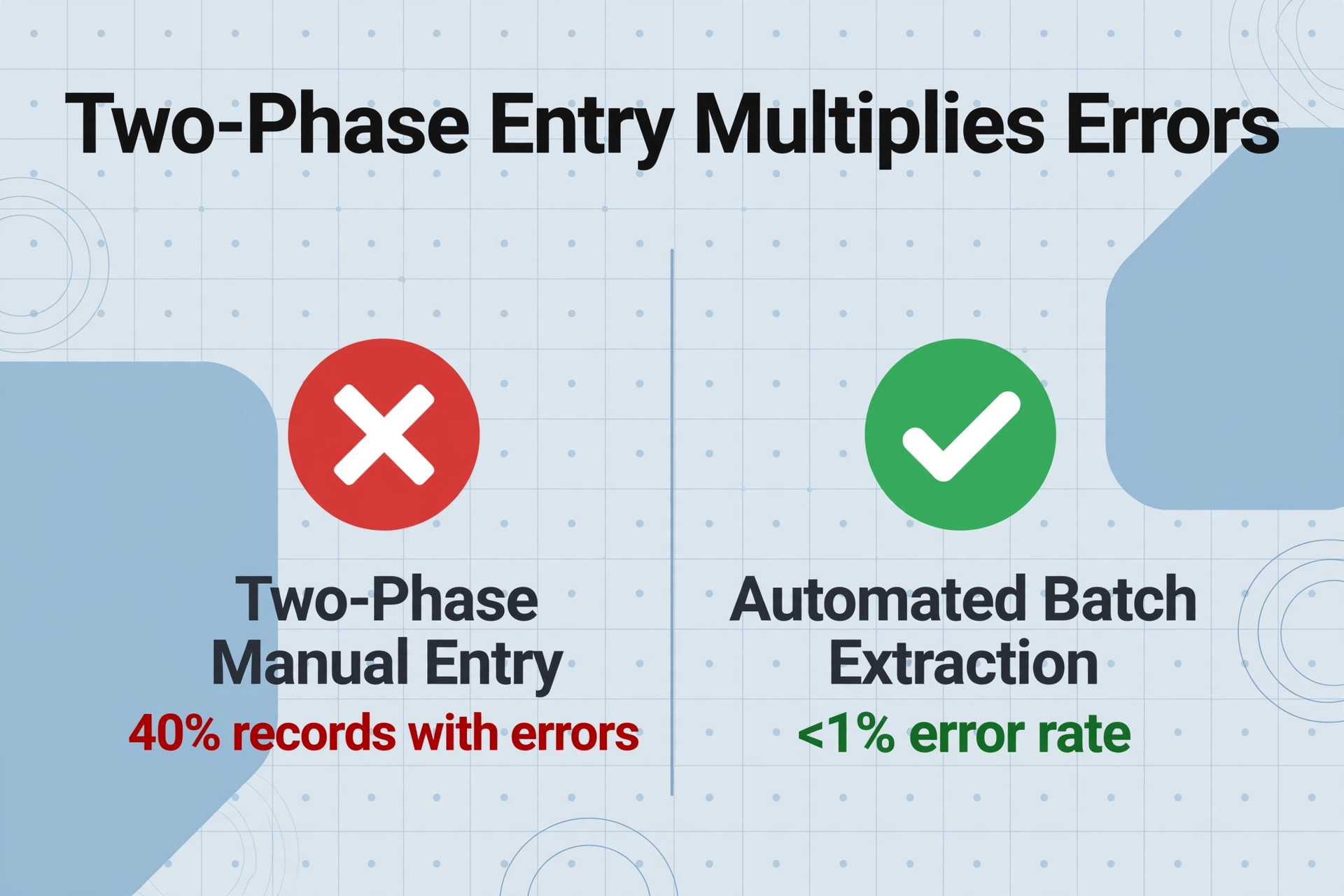
Most manufacturing QC labs don't do single-phase manual entry. They do two-phase entry: a technician records measurements on paper at the instrument, and a second person—sometimes the same technician, sometimes another—transcribes those paper values into Excel or a LIMS. Each phase multiplies the error exposure.
According to Beamex, when data passes through two manual entry points, statistically 40% of records contain at least one error. A facility running 10,000 calibrations or quality tests per year under two-phase entry generates approximately 4,000 faulty data points. These aren't theoretical numbers—they represent real investigations, real rework, and real hours burned by people who should be analyzing trends, not chasing keystroke mistakes.
The consequence that gets the least attention is what manual entry errors do to SPC chart credibility. When operators see control charts routinely triggering on what they know are data entry mistakes, they stop trusting the charts. Every phantom out-of-control signal trains the floor that the SPC system cries wolf—and once that lesson sinks in, the real quality signals fade into noise. A lab manager who dismissed five false alarms in a month is unlikely to respond urgently to the sixth one that was legitimate. The automation investment many plants made in SPC software is partially wasted if the data feeding it is still hand-typed.
For a QC lab processing 30 batch release tests daily with 15–20 measured parameters each, a 1% field-level transcription error rate means 120–180 mistakes per month entering SPC workbooks. Each mistake risks either a wrongful batch hold or a release that should have been stopped.
Why Single-Report Extraction Doesn't Survive Batch Scale
Single-report extraction tools—the kind where you upload one PDF, get one row of data, and repeat—optimize for a workflow that doesn't exist in a production QC lab. Nobody runs one test, gets one report, and enters one row. The daily reality is a stack: the Shimadzu HPLC finished its run and generated a PDF with 12 assay parameters. The Mettler Toledo Karl Fischer titrator produced its moisture content report. The Instron tensile tester output its mechanical properties summary. The Agilent GC returned its residual solvent analysis. Multiply by the number of batches tested that day, and you have 30 to 50 instrument reports that need to be merged into a single dataset before any SPC analysis can begin.
Batch processing isn't just single processing done 50 times. It introduces challenges that a one-at-a-time workflow never encounters:
- Naming conventions break under scale. When you process one report, the output row belongs to one batch. When you process 50, you need batch identifiers, sample IDs, instrument IDs, and timestamps attached to each row so the merged spreadsheet remains queryable and traceable. A column called "Assay (%)" with 50 identical headers is useless—you need "Batch-20260627-01 | HPLC | Assay (%)" in the workflow, or better yet, the instrument and batch as separate columns linking each row to its source.
- Result merging is the real bottleneck, not extraction speed. Even if you could extract each report in 10 seconds, manually merging 50 output rows into the master SPC workbook—aligning columns from instruments with different layout conventions, checking for gaps, resolving duplicate columns—eats the time you saved on extraction. A tool designed for batch processing produces one unified spreadsheet in one pass, with all rows aligned to the same column schema.
- Exception handling compounds. A single report with a missing parameter is a 5-second decision. A batch of 50 reports where 6 are missing different fields, 2 have illegible thermal-print values, and 3 contain OOS flags becomes a 45-minute reconciliation exercise. Batch-scale processing needs to surface exceptions systematically—not leave you scrolling through 50 rows hunting for gaps.
For a deeper walkthrough of the single-report extraction workflow for QC labs, see our how-to guide on extracting manufacturing QC lab report data into Excel. The rest of this article focuses on what changes when you need to do it 50 times a day.
How Instrument-Generated PDFs Defeat Template-Based Tools
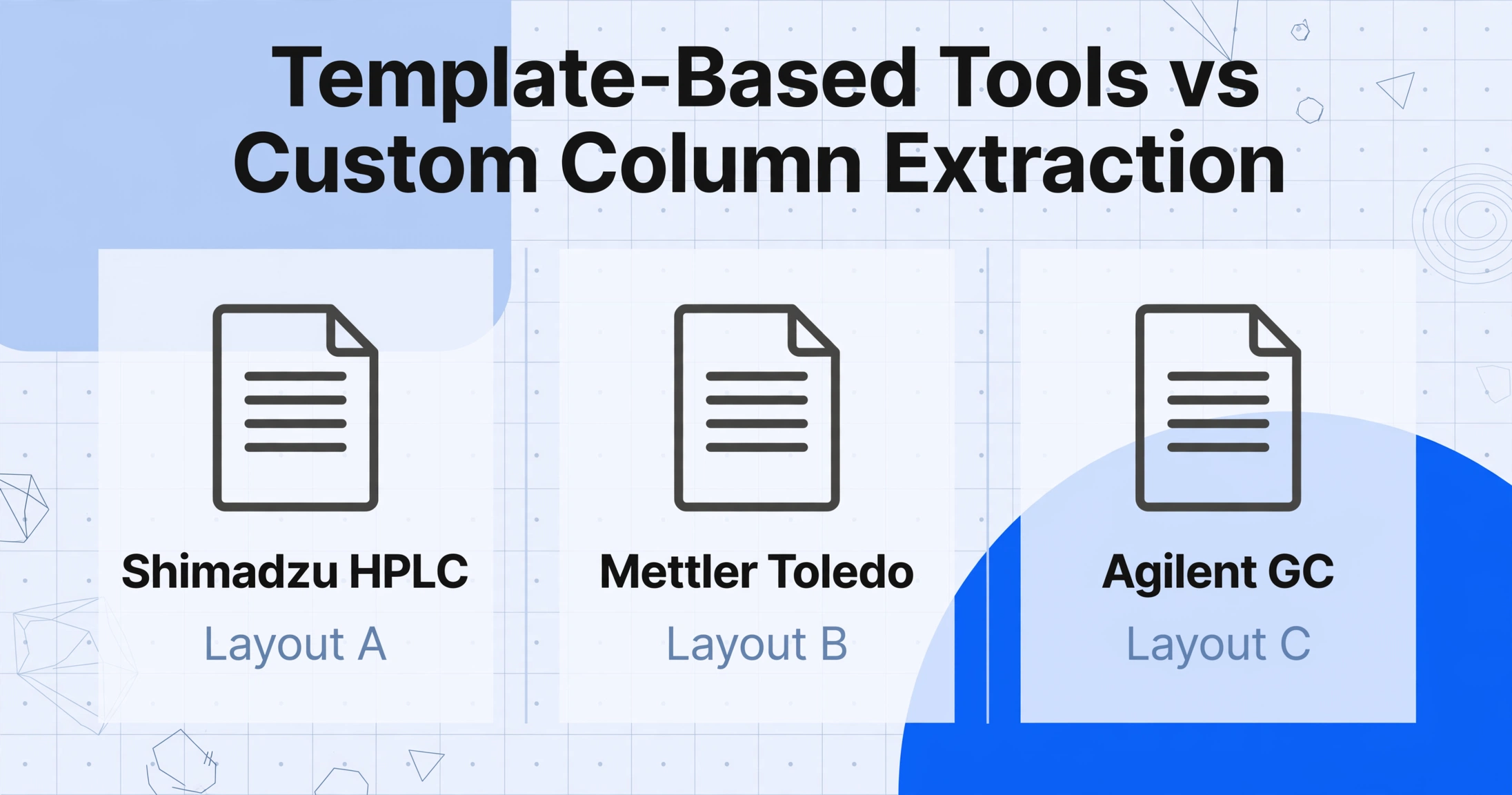
Walk into a QC lab with instruments from different vendors, and you have a format fragmentation problem that template-based extraction tools were never designed to solve. A Shimadzu HPLC running LabSolutions prints assay results in a table with columns labeled "Compound Name / Retention Time / Area / Concentration / Unit." A Mettler Toledo titrator running LabX prints a report with "Sample ID / Result / RSD / n" in a completely different layout. An Agilent GC running OpenLab CDS produces yet another structure—sometimes with the same parameter named differently across software versions. Three instruments, three PDF layouts, and none of them were designed to be machine-read into a spreadsheet.
Traditional OCR and template-based IDP tools demand that you define, for each instrument PDF layout, the exact coordinates or anchor patterns where each data point lives. When the lab upgrades to a new version of LabSolutions and the report layout shifts by three lines, the template breaks silently—extracting the wrong value into the wrong column, with no indication that anything went wrong until QA catches it in batch review. A lab with five instruments and periodic software updates is effectively maintaining five fragile extraction templates that degrade over time.
The alternative is Custom Column Extraction: instead of telling the tool where data sits on the page, you tell it what data you want. Type the column headers that match your SPC data fields—"Assay (%)", "Moisture Content (%)", "Tensile Strength (MPa)"—and the AI locates each value by understanding what the text means, not where it appears. A result printed as "Assay: 99.2%" on one report and "Content: 99.2% (as-is basis)" on another maps to the same output column because the model recognizes both as assay values, not because both appeared at X=320, Y=480. This semantic approach—template-free and format-independent—is the only extraction paradigm that stays functional across a multi-instrument lab environment.
For labs running Agilent, Shimadzu, and Mettler Toledo instruments side by side, the same column definitions work across all three instrument formats without reconfiguration. The extraction output lands in a single spreadsheet with identical column structure regardless of which instrument generated each source PDF. This is the foundational difference between a tool designed for variable-format batch environments and one optimized for single-format, single-report use.
The OOS Flag Problem Nobody Talks About
An Out-of-Specification result on a QC lab report isn't just a red number. Under FDA's 2006 OOS investigation guidance, every OOS result triggers a mandatory two-phase investigation: Phase I examines whether a laboratory error caused the result, Phase II investigates the manufacturing process itself. The investigation must be documented, the root cause identified, and corrective actions implemented before the batch can be released. A single OOS investigation routinely consumes 3 to 10 business days, and the batch record review requirement under 21 CFR 211.192 means the quality unit must approve every investigation conclusion.
Now consider what happens when OOS results travel through a manual transcription step. A technician types "0.052" when the instrument report said "0.025"—a single-digit transposition—and the value exceeds the specification limit. The SPC chart flags it. The investigation begins. Four hours later, QA finds the original instrument printout, compares it to the Excel entry, and discovers it was a typo. The batch was never out of spec. The investigation was wasted on a keystroke error.
The reverse scenario is more dangerous: an instrument report shows a genuine OOS value, the technician transcribes it incorrectly as a passing value, and the batch is released without investigation. The manufacturing root cause—contamination, process drift, raw material variability—goes undetected until it affects subsequent batches, potentially triggering a recall. A transcription error didn't just waste time; it circumvented a regulatory safeguard designed to catch systemic quality failures.
When extraction is automated, OOS flags are handled systematically. Define an Inferred Column called "Pass/Fail Status" with a rule like "PASS if all measured values within specification limits; FAIL if any value out of spec"—the AI evaluates every extracted value against its specification during processing and flags violations automatically. The output spreadsheet contains a dedicated column where OOS conditions are surfaced across all 50 reports in a single view. Instead of scrolling through instrument PDFs hunting for red text, QC reviewers scan one column, spot the three FAIL rows, and open only those three reports for investigation. The attention goes where it belongs: to the exceptions, not to verifying every number that was already correctly printed by the instrument.
Closing the Gap Between Instrument Output and SPC Input
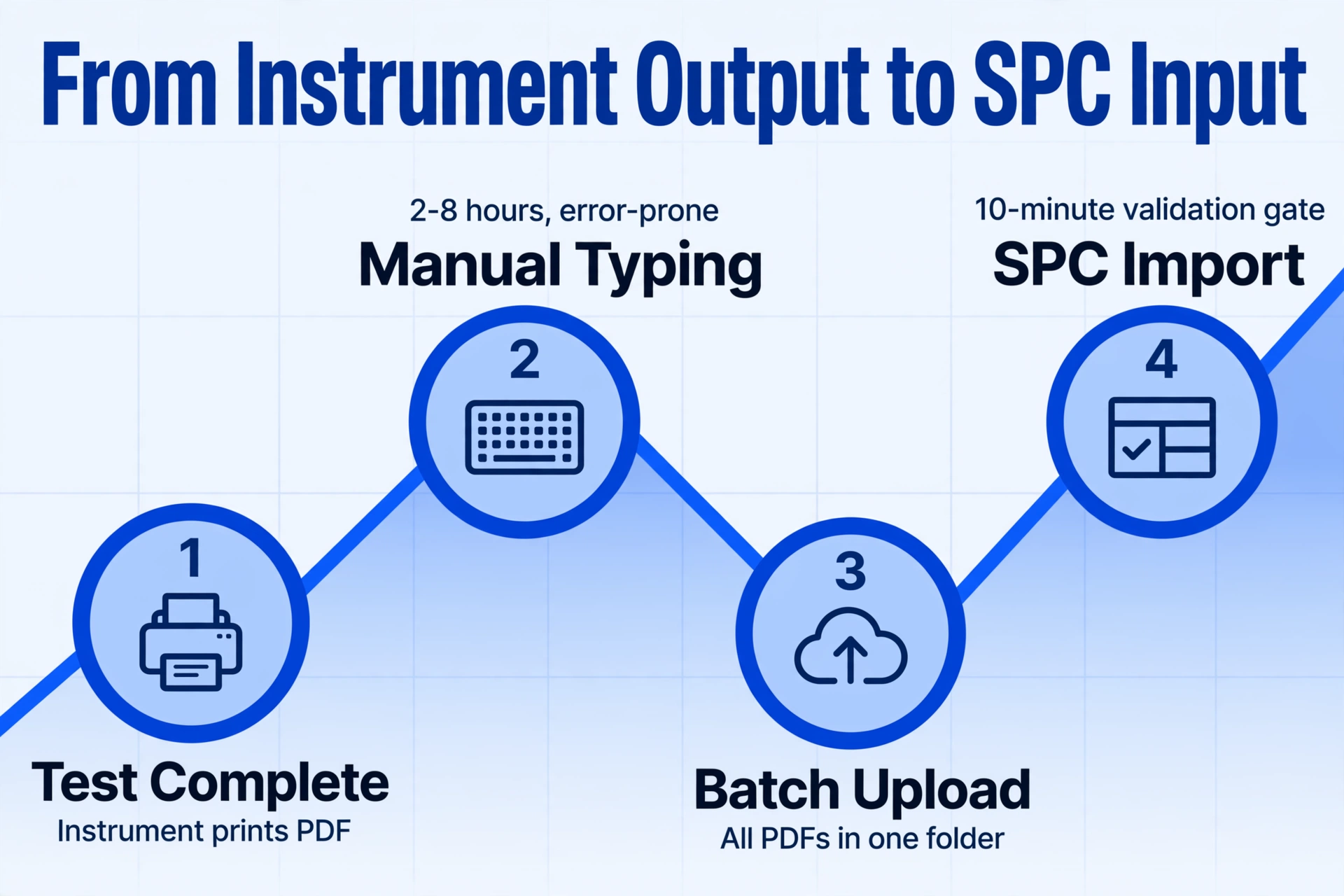
The data flow in a manual QC lab looks like this: instrument completes test → instrument prints PDF → technician reads PDF → technician types numbers into Excel → QA reviews Excel → data copied into SPC software for control charting. Each arrow in that chain is a latency point and an error introduction point. The gap between "test complete" and "data in SPC" is typically 2 to 8 hours—not because the test takes long, but because the transcription-review-copy pipeline is sequential and human-paced.
In an automated batch pipeline, the flow collapses to: instruments complete tests throughout the day → all PDFs collected into a batch folder → batch uploaded at end of shift or end of day → AI extracts all reports into one structured spreadsheet → spreadsheet imported directly into SPC software. The extraction step itself takes 5 to 10 seconds per page, so 50 reports complete in under 10 minutes of processing time. The 2-to-8-hour transcription window becomes a 10-minute validation gate where QC reviewers spot-check a sample of results instead of typing every field.
Most SPC software platforms—Minitab Real-Time SPC, InfinityQS, JMP, WinSPC, dataPARC—accept CSV or Excel import as a standard data ingestion path. The spreadsheet that comes out of batch extraction is already formatted for this import step: each row is one test result, each column maps to one SPC parameter, and control limits configured in the SPC software automatically generate I-MR, Xbar-R, or Xbar-S charts the moment the data loads. Cp and Cpk calculations update immediately because the underlying dataset is complete and correctly structured from the start.
The productivity math: a lab processing 30 daily batches with 15 parameters each, transcribed by a technician earning $28/hour, burns approximately $84 per day in manual data entry labor alone (3 minutes per report × 30 reports = 90 minutes). Over a 250-working-day year, that's $21,000 in labor spent typing numbers that instruments already generated digitally. The investigation time triggered by transcription errors—conservatively, one investigation per week at 4 hours—adds another $5,600 annually. The combined $26,600 is the recurring cost of not automating, before factoring in the harder-to-quantify costs of delayed batch releases and eroded SPC chart trust.
Building a Traceable Batch Record Pipeline
Automating extraction raises a legitimate compliance question: if nobody is typing the numbers, how do you prove to an auditor that the value in the spreadsheet actually came from the instrument report? The audit trail doesn't disappear in automation—it changes form.
Under 21 CFR 211.188, batch production and control records must include complete documentation of each significant step, including laboratory control results and the identity of persons performing and checking each step. When extraction is automated, the traceability chain works through metadata, not keystrokes: each row in the output spreadsheet links back to its source PDF by filename; the batch processing timestamp records when the extraction was performed; the user who initiated the batch and reviewed the results is logged; and the original PDFs remain available as the unalterable source of truth.
The ASTM D6299 standard for statistical quality assurance emphasizes that control chart statistics must be computed from traceable, verifiable data. An automated extraction pipeline with source file references in every row satisfies this requirement more systematically than a handwritten logbook entry, because the link between the spreadsheet value and the instrument report is programmatic rather than dependent on someone remembering to note which instrument printout they were looking at. Auditors inspecting a batch record can click from the spreadsheet row back to the original PDF and confirm the value in under 30 seconds—faster and more definitive than tracing handwriting across a paper log.
The practical workflow for compliance: organize daily instrument PDFs in folders by date and test station (Raw Material / In-Process / Finished Product), batch-process each station's reports into its own spreadsheet with a column identifying the source instrument, and save the output alongside the original PDFs in the batch record package. The extracted spreadsheet becomes the working data file for SPC analysis; the original PDFs remain the immutable evidence. This is structurally similar to how labs already handle chromatographic data files—the raw .lcm or .d folder is the source, the processed report is the working output—extended to the full set of instruments in the lab.
Setting Up the Batch Processing Workflow
Moving from manual transcription to automated batch extraction doesn't require a LIMS implementation project. The following workflow can be operational within a single shift:
Define Your SPC Columns
List every test parameter that feeds into your SPC charts: "Assay (%)", "Moisture Content (%)", "pH", "Viscosity (cP)", "Dissolution (%)", "Hardness (N)", etc. These become the column names in your extraction template. Add metadata columns too: "Batch ID", "Sample ID", "Test Station", "Instrument", "Test Date". Add an inferred column "Pass/Fail" to automatically flag OOS conditions against your specification limits.
Collect Daily Instrument Reports
At the end of each shift or end of day, gather all instrument-generated PDF reports into folders organized by test station. Most instrument control software—LabSolutions, OpenLab, LabX—can be configured to auto-save PDF reports to a network folder, eliminating the print-then-scan step. If your lab still uses instruments with thermal printers, scan or photograph the printouts into image files—the AI handles both digital PDFs and photographed printouts with the same column definitions.
Batch Upload and Extract
Upload all PDFs from the day's batch folder in one operation. The batch processing engine extracts data from every report using your column definitions and produces one unified spreadsheet. All rows are aligned to the same column schema regardless of which instrument generated each source PDF. Processing time for 50 reports is approximately 5 to 10 minutes of machine time.
Validate OOS Flags and Spot-Check
Open the merged spreadsheet and review the "Pass/Fail" column. Any rows flagged as FAIL get priority attention—open the source PDF, verify the extracted value matches the report, and initiate OOS investigation if confirmed. For passing rows, spot-check a sample (10-15% of rows) by comparing extracted values against the source PDFs. This replaces typing 600 fields with reviewing 60 to 90 fields.
Import to SPC Software and Archive
Import the validated spreadsheet into Minitab, InfinityQS, JMP, or your SPC platform of choice. Control charts, capability indices, and trend analyses populate immediately from the complete dataset. Save the extraction output alongside the original PDFs in the batch record package for audit trail completeness. The extraction spreadsheet becomes part of the permanent batch record required by 21 CFR 211.188.
Compared to the conventional single-report extraction workflow, the batch approach front-loads column definition and instrument configuration, then processes all reports in parallel—the same setup work that would take 10 minutes for one report takes the same 10 minutes for 50. That scale economics is what batch-first design unlocks.
Frequently Asked Questions
Does this work with handwritten notes or annotations on lab reports?
Yes. The AI engine handles both printed text and handwriting—including handwritten lot numbers, analyst initials, or margin notes that appear alongside instrument-printed results. If a technician hand-writes the dilution factor or sample weight on the printed report, that value can be extracted into its own column alongside the instrument-printed data. For labs that primarily use paper-based recording, see our QC lab report extraction guide for techniques specific to handwritten forms.
What about scanned thermal printouts from older instruments?
Thermal printouts that have been scanned or photographed work the same as digital PDFs—the AI reads the visual content regardless of whether it originated as a digital report or a paper printout. However, faded thermal paper (common in prints older than 6-12 months) may reduce extraction accuracy. For archival thermal records, the best practice is to photograph them under consistent lighting within a few weeks of printing, before the thermal coating degrades.
Do I need a separate setup for each instrument model?
No. Because Custom Column Extraction works semantically rather than by template matching, the same column definitions work across instruments. "Assay (%)" finds the assay value whether it appears on a Shimadzu report, an Agilent report, or a Mettler Toledo report. The only time you might add instrument-specific columns is when different instrument types measure fundamentally different parameters—you wouldn't look for "Tensile Strength" on an HPLC report because it doesn't exist there. The AI simply returns empty for columns that have no matching data in a given report.
How does this affect 21 CFR Part 11 compliance for electronic records?
The batch extraction tool generates an output spreadsheet from instrument PDFs—it is a data transformation step, not a system of record. The original instrument PDFs remain your electronic source records, subject to the same Part 11 controls (audit trails, electronic signatures, access controls) that your lab already applies to instrument output. The extraction spreadsheet serves as a working document for SPC analysis and batch record compilation. For labs operating under full Part 11 electronic record requirements, extracted data should be reviewed and approved by the quality unit in your existing document management or LIMS system, just as manually entered data would be. The automation changes how data moves from instrument to spreadsheet; it doesn't change your compliance framework—it reduces the transcription errors that create compliance findings.
Can I process reports from multiple manufacturing sites into one enterprise SPC view?
Yes. By adding a "Site" column to your extraction template and processing each site's daily reports as separate batches (each producing its own output file), you can consolidate all site data into a single enterprise SPC dashboard. The unified column schema across all sites means data from Plant A's Shimadzu HPLC and Plant B's Waters Alliance system land in the same structured format. This is particularly valuable for organizations implementing IATF 16949-style enterprise-wide SPC monitoring across multiple manufacturing locations.
What about lab instruments that export to LIMS directly—do I still need this?
If every instrument in your lab exports structured data directly to a LIMS, and that LIMS feeds your SPC software, you don't have a manual transcription problem. But in most manufacturing QC labs, what's directly connected is typically a minority of instruments—the HPLC might export via CDS, but the titrator, moisture balance, viscometer, and hardness tester still generate standalone PDFs or printouts. Batch extraction bridges the gap between the connected instruments and the unconnected ones, producing a unified output that can be imported alongside LIMS data feeds. The manufacturing document extraction landscape is evolving toward hybrid models where structured instrument feeds and AI-extracted PDF data coexist in the same SPC pipeline.
How do I handle samples that are tested at multiple test stations with different specifications?
Define a column structure that includes test station context: "Raw Material | Identity (Pass/Fail)", "In-Process | Assay (%)", "Finished Product | Dissolution (%)". Each column applies only to reports that contain that parameter, so a raw material report populates the raw material columns, a finished product report populates the finished product columns, and the output spreadsheet naturally partitions results by test station with blank cells where a parameter doesn't apply to a given sample. You can also use batch processing techniques developed for other manufacturing document types—the column-based approach transfers across document categories.