Batch Process Purchase Orders into Excel:
One Setup, Every Supplier Format
A Reddit user in r/smallbusiness described their daily routine: download PO PDF attachments from email, manually type vendor name, PO number, line items, quantities, and prices into Excel — per supplier, per order. "The format varies slightly between clients," they wrote. "We have 30+ suppliers." That's not a tooling problem. It's a format fragmentation problem — and template-based extraction makes it worse, not better.
This page is the batch-to-Excel workflow guide. If you're deciding whether automated PO data entry is worth it for your team — and what the manual alternative actually costs — start with our purchase order data entry automation guide. For the full field-by-field extraction reference across header and line-item data, see the complete guide to PO data extraction.
Why Purchase Orders Are Harder to Batch Than Invoices
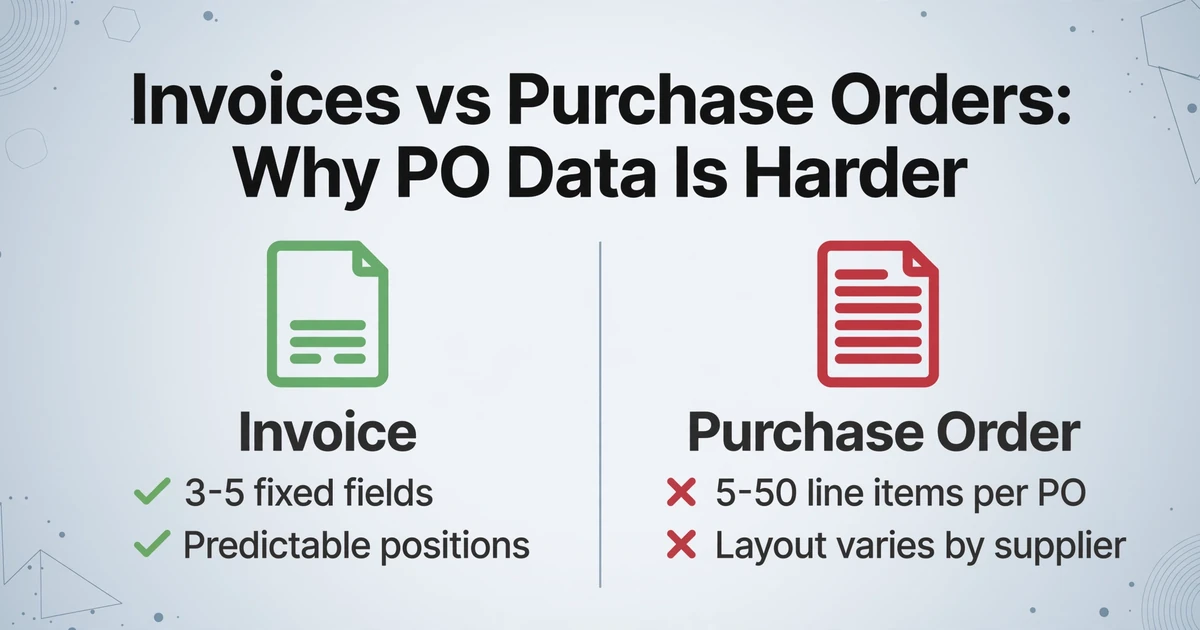
Invoices have it relatively easy. Most carry a consistent shape: seller info at the top, a table of line items in the middle, totals at the bottom. PO data extraction is harder for two reasons that compound each other: line items are the primary payload, and their table structures vary wildly across suppliers.
An invoice's core data points — invoice number, date, total — are usually three to five fields that sit in predictable positions. A purchase order's core data is a list: 5, 15, or 50 rows of item codes, descriptions, quantities, unit prices, and line totals. Each row has to be extracted individually and matched to the right PO header. Miss one row and you've under-ordered. Duplicate one and you've double-counted your committed spend.
Now multiply that by the number of suppliers sending you POs. A mid-sized manufacturer or distributor might receive POs from 20–80 different customers, each with their own layout. One customer puts the line-item table on page 1. Another splits it across six pages with repeated column headers on every page. A third puts quantities before descriptions; a fourth puts them after. None of them is "wrong" — they just have different ERP systems generating their PO PDFs — but every format difference is a decision your extraction tool has to handle.
Key insight: 57% of procurement leaders still rely on manual data entry for purchase orders, according to independent industry surveys. The bottleneck isn't unwillingness to automate — it's that the available automation tools demand you solve the format problem before you can solve the data entry problem, and solving the format problem for a diverse supplier base is itself a full-time job.
The Template Trap: Why One-Per-Supplier Doesn't Scale
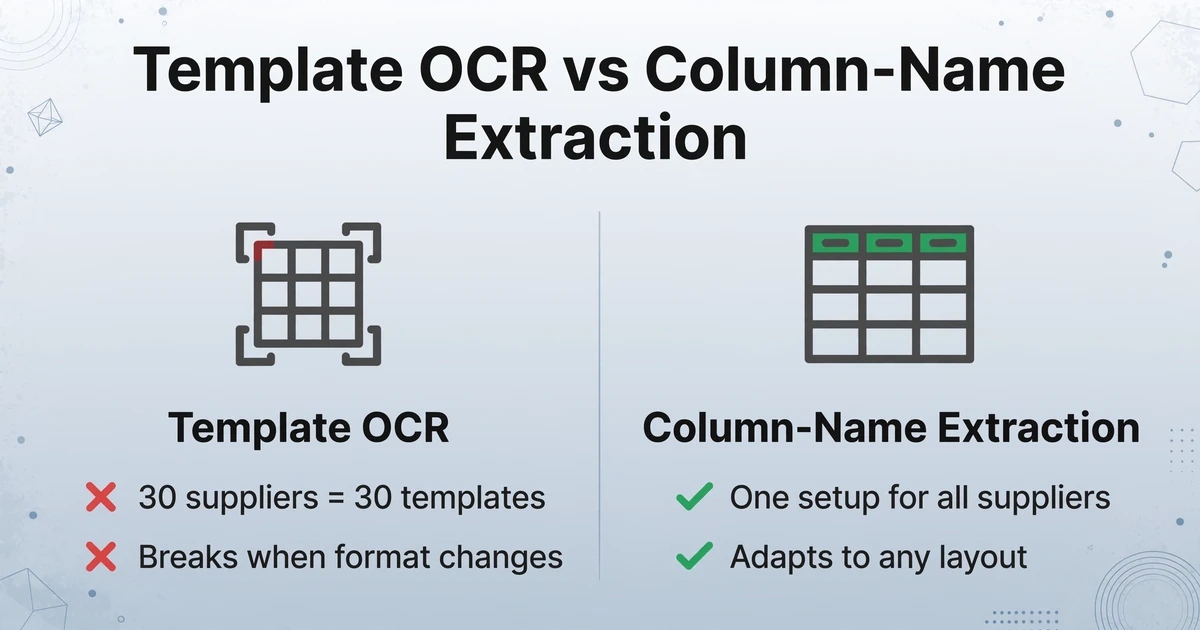
Template-based PO extraction tools — and most of the established players in this space fall into this category — work like this: you upload a sample PO from Supplier A, draw bounding boxes around each field, label them, and save the template. Next time Supplier A sends a PO with the same layout, the tool recognizes it and extracts the data. Works fine — until Supplier A updates their PO format. Then the template breaks and you're back to square one.
The real failure mode is template multiplication. If you have 30 suppliers, you need 30 templates. Every new supplier means a new template setup session — usually 10 to 15 minutes of drawing boxes and labeling fields. When Supplier #31 comes onboard, someone has to stop what they're doing, open the extraction tool, and build template #31. And if any of your existing 30 suppliers change their ERP or PO format (which happens: system upgrades, new purchasing software, merger-driven format consolidation), you find out when the extraction silently fails.
This is the template trap: the tool that was supposed to save you time has created a new class of maintenance work. You've replaced "manually typing PO data" with "manually maintaining PO templates." For a Reddit user in r/AI_Agents who described their daily grind of "reading POs, OCs, and quotations from email PDFs and manually entering data," this trade-off isn't a solution — it's a lateral move.
The problem isn't that templates don't work. It's that templates assume format stability, and procurement reality is format diversity. Each template encodes a specific layout. When every supplier has a different layout, template quantity scales linearly with supplier count — and your template library becomes the bottleneck you were trying to eliminate.
How Column-Name Extraction Handles Every PO Layout
Here's a different approach: instead of telling the tool where each field sits on the page, you tell it what each field means. This is column-name extraction — you define the columns you want (e.g., "PO Number," "Supplier Name," "Item Code," "Quantity," "Unit Price," "Line Total"), and the AI locates each value by understanding its semantic role in the document, not its pixel coordinates.
The column names you enter become the headers of your output spreadsheet. If you type "PO Number / Supplier / SKU / Qty / Unit Price / Line Total," those are the exact columns in your Excel — across every supplier, every format. The AI doesn't care whether Supplier A puts the PO number in the top-right corner and Supplier B puts it in the top-left. It finds the value by understanding what a PO number is, not where it sits.
This is the difference between template OCR and vision AI. Template OCR matches patterns by position; vision AI reads documents the way a person does — understanding context and meaning. A column-name extraction engine can process a 15-page PO with 300 line items in under a minute. Page breaks, repeated headers, interspersed subtotals — the AI treats the document as one continuous data set, not as disconnected PDF pages that need to be stitched back together.
Files are processed securely and not stored.
Batch Processing Workflow: From 50 PDFs to One Spreadsheet
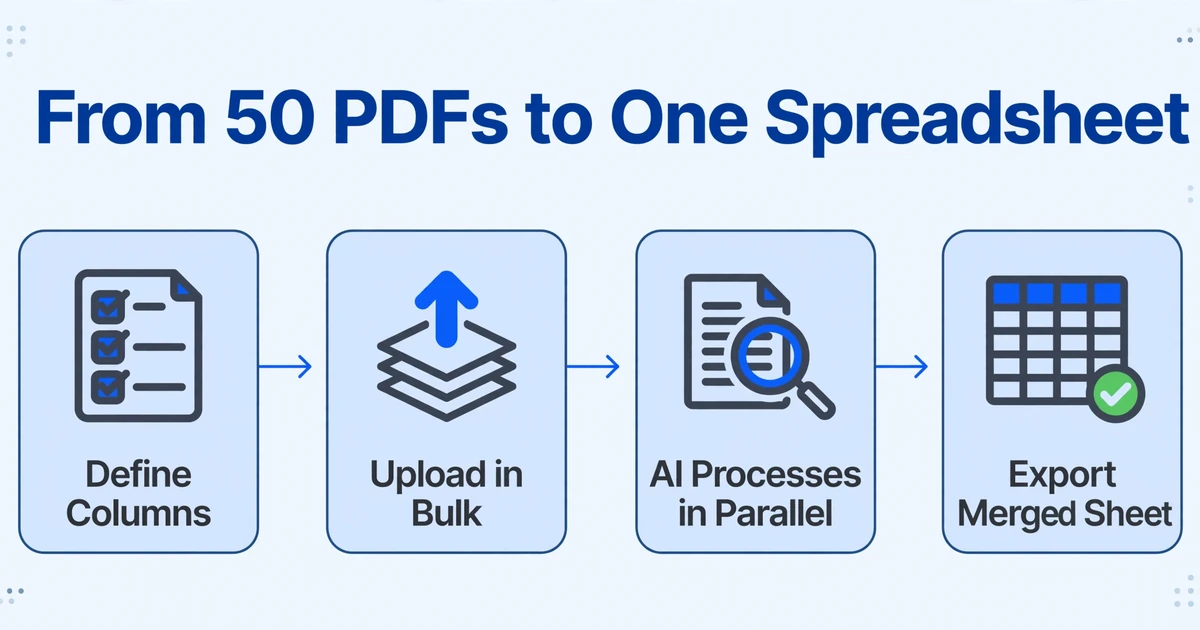
The batch PO workflow in ImageToTable.ai is designed around one principle: the tool adapts to your documents, not the other way around. Here's the end-to-end process for converting a stack of supplier POs into a single, analysis-ready spreadsheet.
Define your output columns. Enter the field names you want extracted — for example: "Purchase Order Number / Issue Date / Supplier Company Name / Item Code / Item Description / Quantity Ordered / Unit Price / Line Total / Order Total Amount." These become your spreadsheet's column headers. You set this up once; the same column list works for every supplier.
Upload all your PO files at once. Drag in 20, 50, or 100 PO PDFs (or JPGs, PNGs, screenshots) in a single batch. The tool accepts scanned paper POs, emailed PDF attachments, ERP-generated output — any format your suppliers send you.
AI processes each document in parallel. Each PO is matched against your column definitions. The AI reads the document contextually — extracting the PO number, supplier name, and every line item row, regardless of where they appear on the page.
Review and export the merged spreadsheet. All extracted data appears in a single table. Each row represents one line item from one PO, with the PO header fields (number, date, supplier) carried into every row for that PO. Export as XLSX — formatted, sorted, and ready for ERP import or spend analysis.
Processing time scales with document count, not format complexity. A single-page PO processes in seconds. A batch of 50 single-page POs completes in a few minutes. The AI doesn't slow down because it encounters an unfamiliar layout — that's the whole point of semantic over positional extraction.
If your team works in Google Sheets rather than Excel — or you want a live dashboard that keeps updating as batches complete — the same batch workflow can feed results straight into a Sheets-based dashboard. See our guide to batch-processing purchase orders into a Google Sheets dashboard, or go straight to the purchase order to Google Sheets tool if you just want POs landing as rows in your active sheet.
For a worked example of this workflow at the 50-PO-per-month scale with Japanese procurement conventions — consumption tax classification, settlement-day payment terms, and fiscal-year grouping — see our guide to batch-processing Japanese purchase orders into a procurement dashboard.
What about multi-page POs with repeated column headers? The AI recognizes these as one continuous table. A 15-page PO with 300 line items produces 300 rows in your output, not 15 separate tables that you then have to manually stitch together.
Skip Email Attachment Hunting: Let Suppliers Upload Directly
Even after you solve the extraction problem, there's a logistical one hiding underneath: getting the PO files into the system. If your current workflow is "check email → download PDF attachments → save to folder → upload to extraction tool," the extraction is automated but the collection isn't.
Collection Link is a feature that closes this gap. You generate a unique URL (e.g., /c/abc123) and share it with your suppliers. They open the link, enter a short verification code, and upload their PO files directly. The files land in your processing queue — no email, no download, no folder. The supplier doesn't need an account, doesn't need to log in, doesn't need to install anything.
For teams managing POs from dozens of suppliers, this cuts out the least efficient part of the process: the human-in-the-middle step of collecting scattered email attachments. Instead of "check 30 supplier emails → download 30 PDFs → organize → upload," the flow becomes "supplier uploads → PO appears in your queue → batch process → export."
What PO Formats Does This Work On?
Column-name extraction works across any PO format because it doesn't depend on layout or generation method:
- ERP-generated PDFs — SAP, Oracle, NetSuite, Microsoft Dynamics, QuickBooks. Each ERP outputs POs differently; the AI doesn't care.
- Scanned paper POs — For suppliers who still send paper, a phone photo or scanner PDF works. The AI reads the text regardless of scan quality (within reason — very low-resolution scans will reduce accuracy).
- Email body POs — Some smaller suppliers send POs as plain text in the email body. Take a screenshot, upload it, same column-name extraction applies.
- Japanese-language POs — 発注書 from Japanese suppliers follow the same format-diversity pattern but with Japanese field conventions (発注番号, 納期, 支払条件). See our guide to extracting Japanese purchase order data for the specific column schema, consumption tax classification, and payment-term conventions.
- Multi-format mixed batches — One batch can include ERP PDFs, scans, and screenshots. The AI processes each independently but outputs them to the same unified spreadsheet.
Practical limit: For best results, the document should be reasonably legible — 150 DPI or higher for scans. Severely skewed photos or documents with heavy background patterns may produce partial results. The AI's accuracy on line items typically exceeds 90% for clean printed PO tables, dropping for handwritten annotations or densely packed small-type tables.
Frequently Asked Questions
Can this handle POs where line items span multiple pages?
Yes. The AI treats multi-page POs as one continuous document. A 15-page PO with 300 line items produces 300 rows, with PO header fields (number, date, supplier) carried into every row. Repeated column headers on each page are recognized as headers and excluded from the output — no duplicates, no fragments.
What if suppliers use different names for the same field — e.g., "Item No." vs. "SKU" vs. "Product Code"?
The AI maps semantically equivalent terms. If you specify the column name "Item Code," it will locate fields labeled "Item No.," "SKU," "Product Code," or "Part Number" within the document and map them to your Item Code column. You don't need to list every synonym — the AI understands that these refer to the same concept.
Do I need to set up anything per supplier?
No. The column list you define once works across all suppliers. There's no template building, no per-supplier configuration, no training phase. Type your columns, upload your files, get your spreadsheet. This is the core difference between column-name extraction and template-based tools — see our comparison of purchase order extraction tools if you're weighing template-based vendors against column-name extraction for your supplier mix.
What happens if a PO is missing a field — for example, some suppliers don't include payment terms?
The cell for that field is left blank in the output for that PO. Your spreadsheet structure stays consistent across all rows; missing fields simply appear as empty cells. There's no error, no manual fix required, no template mismatch alert.
Can I export directly to my ERP format?
Yes — if you configure your column names to match your ERP's import format. Use your ERP's exact column headers when setting up extraction, and the XLSX output will be ready for direct import. Date formats and number formatting can be specified in your extraction instructions to match your ERP's requirements.
How accurate is line-item extraction for dense PO tables?
For clean, printed PO tables, line-item accuracy typically exceeds 90%. The main accuracy drops come from: very small fonts (below 8pt), heavy background patterns behind the table, handwritten annotations over printed fields, and severely skewed scans. The FAQ answer is not "99% always" — it's "90%+ for typical printed POs, less for edge cases." That's an honest trade-off worth making: 90%+ automated with occasional manual spot-checks vs. 100% manual with guaranteed fatigue errors.
Does this work for order confirmations (OC) and sales orders too?
Yes. The same column-name extraction approach works for any structured document type. For order confirmations, specify columns like "Order Number / Confirmation Date / Confirmed Delivery Date / Confirmed Quantity / Unit Price." For sales orders, specify "Sales Order Number / Customer PO Number / Shipping Address / Product Code / Ordered Quantity." The mechanism is the same — you tell the AI what you want, it finds it in the document.
For individual PO processing where you need specific header fields and selected line items rather than bulk batch extraction, see how to extract only the fields you need from purchase orders.
For batch purchase order processing, our dedicated converter handles bulk PO extraction from any supplier format into one consolidated spreadsheet.