How to Build a Three-Way Matching Workflow in Google Sheets:
Step-by-Step from PO to Invoice Approval
Our breakdown of why three-way matching fails in manufacturing established that the bottleneck isn't the matching algorithm — it's the data extraction step that precedes it. Ardent Partners' 2025 AP benchmarks put the average first-pass mismatch rate at 22%, and in manufacturing — with blanket POs, partial shipments, and unit-of-measure drift between the dock and the invoice — that number climbs higher. The diagnosis is clear: you can't match three documents if two of them are still locked inside unstructured PDFs. The question this article answers is: what do you actually build to solve it — and can you build it without an ERP? The foundation is a repeatable PDF to Google Sheets extraction step that turns each document into clean rows before any matching formula runs.
This is the build guide. It walks through the four extraction and matching layers of a Google Sheets pipeline step by step — what columns to define, which formulas to write, and how suppliers submit documents directly via a Collection Link. If you're looking for the reconciliation framework instead — tolerance rules, auto-match zones, and how to handle ambiguous item names during review — see our companion guide to three-way matching in Google Sheets without an ERP.
Key Takeaways
- A 22% first-pass mismatch rate sounds like an algorithm problem, but it starts upstream in the data extraction step.
- 66% of AP teams still type invoice data into their ERP by hand, so the matching module sits idle while someone finishes keying.
- ImageToTable.ai's column-name extraction reads every supplier's format without a pre-configured template, turning what was a three-department investigation into a VLOOKUP and a green cell.
What Three-Way Matching Actually Requires — More Than Tolerance Thresholds
Three-way matching is the process of comparing a purchase order, a goods receipt, and a supplier invoice before authorizing payment — verifying that what was ordered matches what was received and what was billed. Under ISO 9001:2015 Clause 8.4, verification that purchased products meet specified requirements is mandatory for certified manufacturers, and three-way matching is the operational mechanism most companies use to satisfy it. The ACFE 2024 Report to the Nations — which estimates organizations lose 5% of annual revenue to occupational fraud — identifies it as a key control against billing schemes. The regulatory logic is sound. The data problem underneath it is what breaks in practice.
Most advice about fixing three-way matching focuses on the matching layer: tighten tolerance thresholds, add approval workflows, configure auto-matching rules in the ERP. None of this fixes the problem that the three documents arrive from three different systems in three different formats — and two of them are unstructured. The PO lives in procurement's system. The goods receipt may or may not have been entered from a paper packing slip. The supplier invoice arrives as a PDF. Before any matching logic can compare these documents, someone has to extract the data from the two that aren't already in a structured format, enter it into a comparable layout, and hope the units and line items align. The matching layer — VLOOKUP, IF statements, conditional formatting — is the easy part. The extraction layer is where the pipeline lives or dies.
A working three-way matching pipeline doesn't start with better matching rules. It starts with getting all three documents into the same structured format in the same spreadsheet. Once they're there, matching is a formula exercise. The hard part is getting them there.
Why ERP Advice Doesn't Fit a Spreadsheet Workflow
SAP's MM module, Oracle E-Business Suite, Microsoft Dynamics 365 — all include three-way matching modules with configurable tolerances. SAP, for example, handles matching through the GR/IR clearing account: goods receipt (transaction MIGO) posts a debit, invoice receipt (MIRO) posts a credit, and the system automatically clears matched line items. The logic is mature and well-documented.
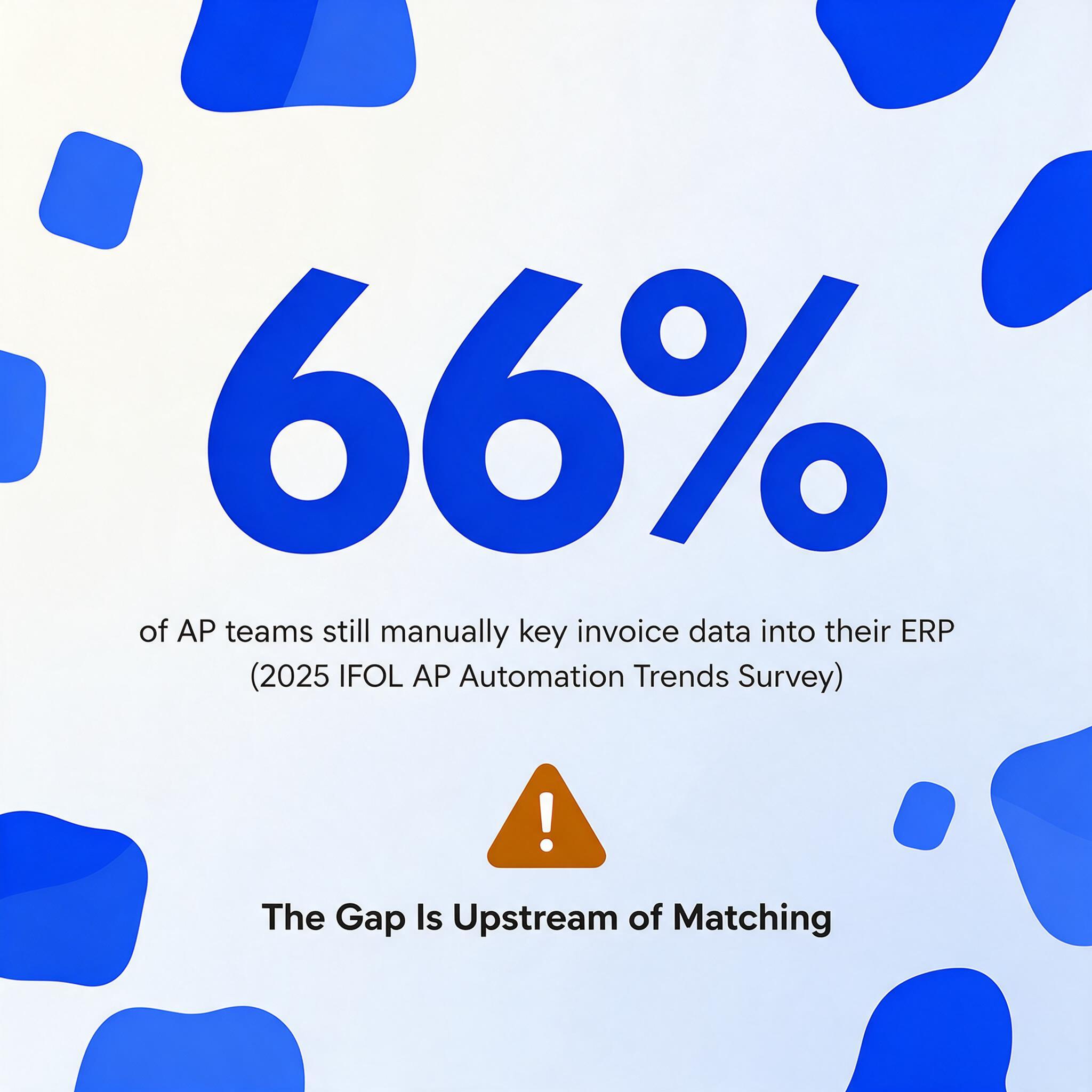
The logic also assumes something that in a substantial number of procurement operations is not true: that all three documents exist as structured, comparable data inside the ERP before the matching logic runs. The 2025 IFOL AP Automation Trends Survey found that 66% of AP teams still manually key invoice data into their ERP. For procurement teams managing supplier relationships across 50 to 200 vendors — many of them small machine shops, local distributors, and specialty suppliers that send PDFs by email — every invoice is a manual data entry event before matching can begin.
If you're in that group — whether because your company runs procurement through spreadsheets, because your ERP's invoice capture requires per-supplier template configuration you don't have bandwidth to maintain, or because your supplier base includes enough small vendors that PDF is the only format they send — the ERP's matching module is addressing a problem downstream of the one you actually have. You don't need a better matching algorithm. You need a way to get PO data, receiving data, and invoice data into one structured view — and the tool you already use for procurement tracking is likely a spreadsheet. The question is how to turn that spreadsheet into a pipeline.
The Three-Layer Pipeline Architecture
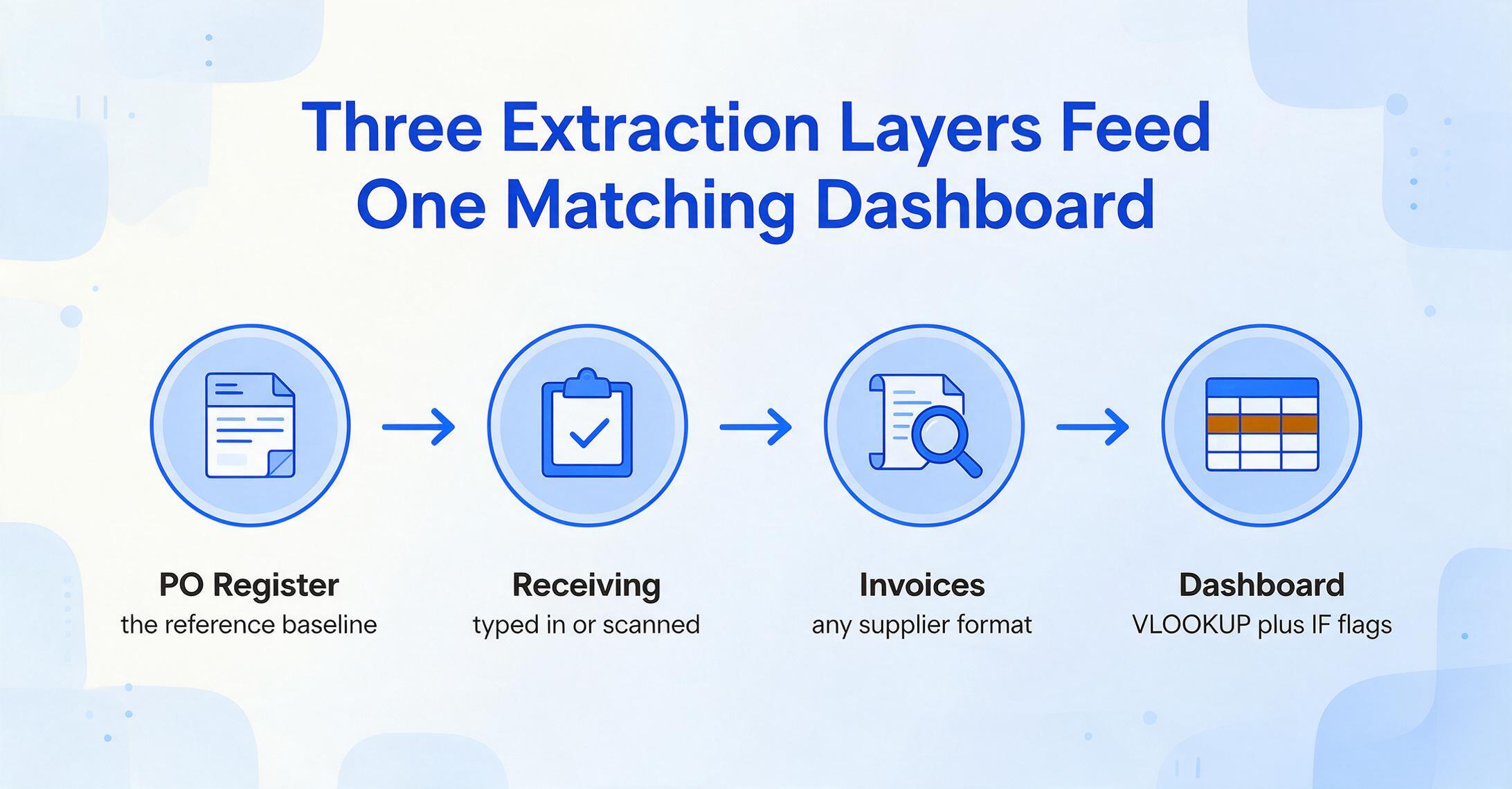
The pipeline has three layers, one for each document in the three-way match, plus a fourth that sits on top of them: the matching dashboard. The first three layers extract structured data from unstructured documents. The fourth compares them. If any of the first three layers produces inconsistent or incomplete data, the matching layer can't do its job.
Each layer fills a specific gap in the procurement-to-payment chain. The PO layer establishes the baseline — what was ordered, at what price, from whom. The receiving layer confirms what physically arrived. The invoice layer captures what the supplier billed. The matching dashboard is where all three converge — and where the spreadsheet replaces the three-department investigation that the problem analysis identified as the structural weakness in traditional matching workflows.
The tool that powers the unstructured-to-structured conversion in layers 1 and 3 is Custom Column Extraction: instead of drawing boxes around fields on each document or building a template per supplier format, you type the column names you want — "PO Number," "Vendor Name," "Line Item," "Quantity," "Unit Price," "Line Total" — and the AI reads the document to find those values by understanding what they mean, not where they sit on the page. A structured PO from SAP's PDF output and a handwritten PO from a local supplier look nothing alike. But both contain a PO number, vendor name, quantities, and prices. Column-name extraction searches for the meaning of those fields across any layout — eliminating the per-supplier, per-format template maintenance that makes template-based OCR impractical for procurement teams dealing with dozens of different supplier document formats.
Layer 1 — Purchase Order Extraction: The Reference Baseline
Every three-way match starts with the purchase order. The PO sets the terms: which vendor, what items, what quantity, at what price, for delivery when. In an ERP-integrated environment, this data already exists as structured line items — the PO was created in the system. But in a spreadsheet-based procurement workflow, POs arrive in several forms: PDFs generated by the buyer's own system, emailed POs from suppliers confirming an order, or scanned documents from smaller vendors who operate on paper. Getting PO data into a structured format is the first step — and for spreadsheet-based teams, it's a step that determines whether the rest of the pipeline is even possible.
The extraction columns for a PO depend on what your matching process needs to reference. At minimum:
| Column | What It Captures | Why It Matters for Matching |
|---|---|---|
| PO Number | Unique PO identifier | The key field — every receiving report and invoice must reference this to match |
| Vendor Name | Supplier name as it appears on the PO | Cross-reference against the invoice vendor — confirms same supplier |
| Line Item | Item description, SKU, or part number | Matches to receiving and invoice line items for item-level comparison |
| Quantity | Quantity ordered per line | Compared against received quantity and invoiced quantity |
| Unit Price | Agreed unit price per line | Price variance check — the most common audit flag |
| Line Total | Quantity × Unit Price per line | Compared against invoiced line total — catches extension errors |
| Delivery Date | Expected delivery date | Used to verify receiving dates and flag late deliveries |
| PO Total | Sum of all line totals | The aggregate amount the invoice should not exceed without explanation |
For purchase orders generated internally in a consistent format — your own company's PO template — the extraction is straightforward. The AI reads the same fields from the same general layout every time. For supplier-confirmation POs that arrive in the vendor's format, the extraction adapts: the column names stay the same, and the AI locates the values regardless of layout. A single extraction run populates the PO register tab with structured data — one row per PO, or one row per line item depending on whether you want header-level or line-level granularity for matching. The guide to single-PO extraction with the Google Sheets add-on walks through the column setup and first extraction workflow. For high-volume teams processing dozens of POs at once, the batch PO processing dashboard applies the same extraction engine across multiple POs in one session.
Files are processed securely and not stored.
The demo above uses the purchase order preset — a pre-configured set of extraction columns designed for PO documents. Upload a purchase order and watch the fields populate without typing. If your POs contain fields the preset doesn't cover (a commodity surcharge line, a freight terms section, internal cost-center codes), add them as custom columns — the extraction engine treats them the same way. The preset gives you the starting point. Your custom columns extend it to match your matching dashboard's requirements.
Layer 2 — Receiving Report Data: The Tricky Middle Document
The goods receipt is the document most likely to be missing from a structured system — and it's the document that makes three-way matching a three-way process. Without receiving confirmation, you're doing two-way matching (PO vs. invoice) and paying for goods you can't confirm were delivered. The ACFE specifically identifies the goods receipt as the control that prevents billing fraud — paying for goods never shipped. Skipping it isn't a shortcut. It's a gap in the control framework.
Receiving data is harder to structure than PO data because of how it's created — at the dock, often on paper, by staff whose priority is unloading trucks, not entering data. The packing slip is typically a multi-part carbon form or a thermal-print document from the carrier. The receiving clerk signs it, records the received quantity (sometimes in units that differ from the PO), and files the physical copy. Whether that data makes it into a digital system depends on whether someone types it in after the fact — and that step is the first one that gets skipped during a busy receiving day.
For the pipeline, receiving data has two viable entry paths. The first is direct manual entry: the receiving clerk — or a designated data-entry person — types the key fields into a Google Sheet as part of the receiving workflow. The columns mirror the PO columns: PO Number (to link back), Item Received, Quantity Received, Receipt Date, Carrier, Condition. This path works when receiving volume is moderate (under 30 shipments per day) and the dock has access to a device with Sheets open. The advantage is control — the receiving data is structured from the moment of entry, with no downstream conversion needed.
The second path is document extraction from the packing slip itself — taking a photo or scan of the signed packing slip and running it through the same extraction engine used for POs and invoices. This path works when manual entry isn't feasible — high-volume docks, remote receiving locations, or operations where the packing slip is the only receiving record. The extraction columns are the same: PO Number, Item Description, Quantity Received, Receipt Date, Carrier. A phone photo of a packing slip processed through the sidebar add-on populates the receiving tab in the same structured format as the manually entered data. The key limitation: handwriting on packing slips reduces extraction accuracy compared to printed POs and invoices. Spot-checking is recommended for critical shipments. For a detailed accuracy breakdown by document quality, see our guide on handwritten document extraction accuracy — the same principles apply to packing slips and receiving reports.
Whichever path you use, the output is the same: a receiving register tab with PO Number as the key field that links every receipt to its originating purchase order. Without that link, the matching dashboard can't do its job.
Layer 3 — Supplier Invoice Extraction: The Format Problem You Don't Control
Supplier invoices are where the format diversity problem peaks. A single procurement operation might receive invoices from a large MRO distributor in a structured SAP-generated PDF, from a regional metals supplier in a homegrown Excel-to-PDF format, from a local machine shop as a photographed handwritten document, and from an international vendor with different date formats, currency conventions, and tax line structures. Template-based OCR — where you build a field-mapping template for each supplier's layout and update it when the layout changes — breaks under this diversity or consumes so much maintenance time that the extraction effort equals the manual entry it was supposed to replace.
Custom Column Extraction solves this by decoupling the extraction logic from any specific layout. The column names are defined once. The AI reads each invoice — regardless of format — and finds the values that match those column definitions. An invoice column configuration for three-way matching typically includes:
| Column | Source | Matching Role |
|---|---|---|
| Invoice Number | Extracted from invoice | Unique identifier — prevents duplicate payment |
| PO Number | Extracted from invoice | The critical link field — must match a PO in the PO register tab for matching to work |
| Vendor Name | Extracted from invoice | Cross-reference against PO vendor — catches wrong-PO-reference errors |
| Invoice Date | Extracted from invoice | Payment term calculation; aging analysis |
| Due Date | Extracted from invoice | Early-payment discount window tracking |
| Line Item Description | Extracted from invoice | Match to PO line item — confirms same goods billed as ordered |
| Quantity | Extracted from invoice | Variance check against PO quantity and received quantity |
| Unit Price | Extracted from invoice | Variance check against PO unit price — price increase detection |
| Line Total | Extracted from invoice | Extension check — confirms Qty × Unit Price = Line Total on the invoice itself |
| Invoice Total | Extracted from invoice | Aggregate match against PO total ± tolerance; payment authorization trigger |
You can also add inferred columns — columns that capture data not explicitly printed on the invoice but derivable from its context. For example, a column defined as Match Status (options: Ready to Match/Needs PO Reference/Missing Line Items) lets the AI classify each invoice during extraction based on whether it found a PO number and whether line items were extractable. Invoices that arrive from suppliers who don't include PO numbers on their documents are flagged immediately — they enter the matching dashboard with a "Needs PO Reference" status, and the AP clerk knows not to attempt a match until the PO number is added. This is categorization-as-extraction: the classification decision happens in the same pass that populates the data, not in a separate review step.
Computed columns handle math that would otherwise require post-extraction spreadsheet formulas. Define a column as Extension Check (Line Total - Quantity * Unit Price) and the AI performs the calculation during extraction, flagging any line where the invoiced line total doesn't equal quantity times unit price. The output is a variance number — zero means the extension is correct, a non-zero value identifies an arithmetic error on the supplier's invoice. This shifts the matching dashboard's role from "find the errors" to "review the flagged rows" — a workflow where the AI does the detection and the human does the disposition. For a full treatment of computed column syntax and capabilities, see our guide to computed columns in document extraction.
Format differences cause false variances before any formula runs. One supplier dates an invoice 05/06/2026, another writes 06/05/2026, and the same part number might carry a leading zero on one document and not on the next. The extraction layer applies a consistent output format to dates and identifiers as it writes each row, so a flagged mismatch in the dashboard reflects a real discrepancy instead of a formatting one.
The same invoice extraction layer that powers the three-way matching pipeline is the engine behind the broader supplier-to-AP invoice pipeline — the column structure differs, but the extraction mechanism is identical. Once built for matching, the same pipeline feeds AP reporting, accrual calculations, and audit documentation.
The Matching Dashboard: VLOOKUP, IF, and Conditional Formatting
With all three layers populated — PO register, receiving register, and invoice register — the matching dashboard is where they converge. This is a single tab that pulls data from all three source tabs using lookup functions and applies comparison logic to flag matches, variances, and missing data. The matching logic itself is not complex. A spreadsheet can do it. What was always complex — and what the pipeline solves — is getting the data into a state where the spreadsheet can do it. For the reconciliation-focused counterpart to this pipeline — tolerance rules, auto-match zones, and the human judgment layer for ambiguous item descriptions — see our guide to three-way matching in Google Sheets without an ERP.
The matching dashboard structure, built in Google Sheets:
| Column | Source | Formula / Logic |
|---|---|---|
| A: PO Number | Pulled from invoice register | Primary key — every subsequent column references this |
| B: Invoice Number | From invoice register | Direct reference: ='Invoice Register'!A2 |
| C: Vendor | From invoice register | Direct reference |
| D: PO Vendor | VLOOKUP from PO register | =VLOOKUP(A2, 'PO Register'!A:H, 2, FALSE) |
| E: PO Quantity | VLOOKUP from PO register | Matches line item quantity on the PO |
| F: Received Qty | VLOOKUP from receiving register | =VLOOKUP(A2, 'Receiving'!A:G, 3, FALSE) |
| G: Invoiced Qty | From invoice register | Direct reference |
| H: PO Unit Price | VLOOKUP from PO register | Price baseline for variance check |
| I: Invoiced Unit Price | From invoice register | Direct reference |
| J: Qty Variance | Computed | =G2-E2 — positive means billed more than ordered |
| K: Price Variance | Computed | =I2-H2 — positive means unit price increase vs. PO |
| L: Line Total Variance | Computed | =(G2*I2)-(E2*H2) — combined quantity + price effect |
| M: Received vs. Invoiced | Computed | =G2-F2 — billed quantity vs. what arrived |
| N: Match Status | Computed | =IF(AND(J2=0,K2=0,M2=0),"MATCHED",IF(F2="","NO RECEIPT","VARIANCE")) |
| O: Notes | Manual | Explanation for variances: "Supplier surcharge not on PO," "Partial shipment — balance due next month" |
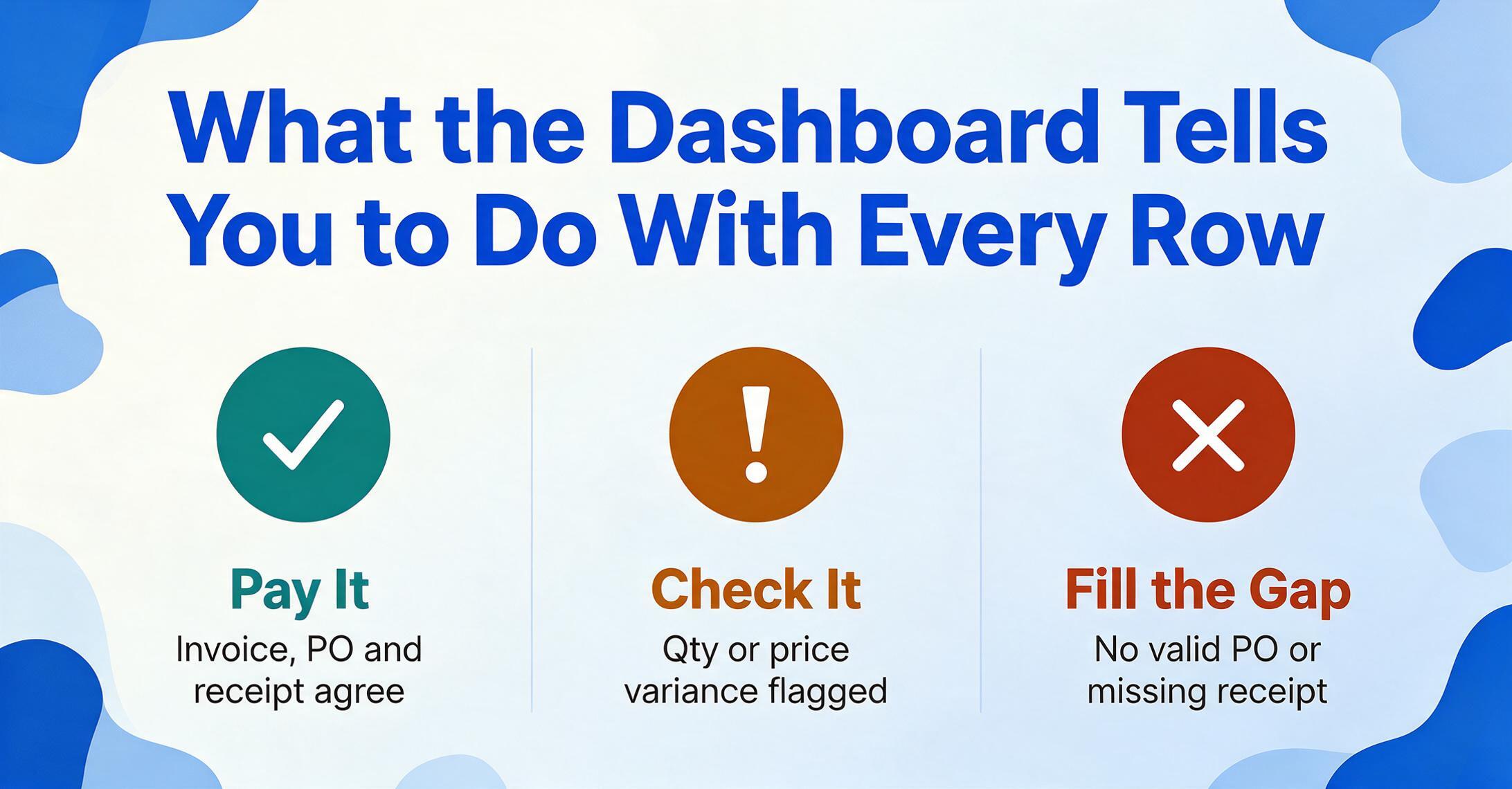
Conditional formatting turns this from a table into a dashboard: highlight Column N in green for "MATCHED," amber for "NO RECEIPT," red for "VARIANCE." Apply a red border to any row where Column J (Qty Variance) exceeds a configurable threshold — 5% for bulk materials, 2% for high-value engineered components. Add a top-row summary: =COUNTIF(N:N,"MATCHED") to count matched invoices, =COUNTIF(N:N,"VARIANCE") for exceptions, =SUMIF(N:N,"VARIANCE",L:L) for total dollar value of variances.
The key architectural decision is the PO Number as the universal key. Every VLOOKUP in the matching dashboard references the PO Number column. If a supplier invoice doesn't include a PO number — and our breakdown of the matching problem confirmed this is the single most common root cause of matching failure — the row populates with #N/A errors across every VLOOKUP column, immediately visible in the dashboard. The fix is simple: add the PO number to the invoice register row and the formulas recalculate. But the visibility is the point. Without the dashboard, an invoice missing a PO number sits in a queue until someone notices. With the dashboard, it's flagged the moment the row populates.
The matching formulas aren't the hard part. Every AP clerk who's comfortable with VLOOKUP has built a version of this in Excel. What changes is where the data comes from: the PO line items, the receiving quantities, and the invoice details arrive in the same structured format, extracted from their original documents in seconds instead of typed by hand.
For partial deliveries — the most common complexity in manufacturing procurement where one PO covers multiple shipments — add a "Delivery Number" column to both the receiving register and the invoice register. The VLOOKUP becomes a two-key lookup: match on PO Number AND Delivery Number. Each partial delivery gets its own matching row, and the cumulative-received calculation (=SUMIFS(F:F, A:A, A2, [Delivery], "<="&[@Delivery])) tracks how much of the total PO quantity has been delivered across all partial shipments. The same logic handles blanket POs with rolling monthly releases — the dashboard tracks cumulative quantities against the total PO authorization.
Collection Link — Let Suppliers Submit Documents Directly
One of the persistent inefficiencies in three-way matching is the document handoff from the supplier to your AP team. The supplier sends the invoice by email. The AP clerk downloads the attachment, saves it to a shared drive or local folder, and then uploads it to the extraction tool. That download-and-reupload cycle isn't the bottleneck — but it's an extra step that accumulates friction when you're processing 100+ invoices a month from 50 different suppliers.
A Collection Link eliminates that intermediate step. It's a shareable URL (in the format /c/xxxx) that you generate and send to a supplier. The supplier opens the link, enters a short verification code displayed on the page, and uploads their invoice directly — no account creation, no login, no software installation. The file lands in your account's processing queue automatically, with the supplier identified by the link they used. You can create a separate Collection Link for each supplier (or one per supplier group), so incoming files are pre-sorted by source before extraction even begins.
Applied to the three-way matching pipeline, a Collection Link changes the document flow from "supplier emails invoice → you download → you upload → you extract" to "supplier uploads directly → file appears in your queue → you extract." It removes the download-and-reupload step entirely. For suppliers who send multiple documents — a packing slip and an invoice for the same shipment — a single Collection Link captures both files, and the extraction engine processes each according to the column definitions in the sheet. For the detailed setup and workflow, see our guide to document collection with extraction.
Collection Link doesn't replace supplier relationships with a portal. It replaces the email attachment download loop with a direct upload path. The supplier doesn't need training, credentials, or software. They need the link and the verification code. The rest is the same extraction pipeline — just with one fewer step between "supplier sends" and "data is in your sheet."
What This Replaces — and What It Doesn't
A pipeline is a specific claim: it says "this sequence of steps produces this output." It's important to be precise about what the pipeline described here replaces, what it complements, and what it was never designed to do.
What it replaces:
- Manual data entry from POs and invoices into spreadsheets. The extraction layers convert unstructured documents to structured rows. Typing PO line items and invoice fields into a tracking sheet is the step that disappears.
- Per-supplier OCR template maintenance. Column-name extraction reads any document layout without pre-configured templates. A new supplier is onboarded by sending them a Collection Link — no template-building required.
- The three-department investigation loop. When PO data, receiving data, and invoice data are all in one structured dashboard, the question "does the invoice match the PO?" is answered by looking at a conditional formatting cell, not by calling procurement and the receiving dock.
- Missing-document blind spots. The dashboard's VLOOKUP structure exposes gaps immediately: #N/A on the PO VLOOKUP means the invoice doesn't reference a valid PO. Blank on the received quantity means the goods receipt was never entered. These aren't findings of a monthly audit — they're visible on every row in real time.
What it doesn't replace:
- An ERP for organizations that need one. At 2,000–3,000 invoices per month, a spreadsheet-based matching dashboard reaches its practical limit. Exception volume overwhelms manual review. At that scale, the ERP's value — automated matching, integrated audit trails, segregation-of-duties enforcement — becomes necessary, not optional. The pipeline feeds the ERP with structured data; it doesn't replace the ERP as a control environment.
- Human judgment on exceptions. The dashboard flags variances. It doesn't resolve them. A $47.50 difference between invoiced and PO unit price could be a legitimate surcharge the procurement team negotiated but never communicated to AP, or it could be an error. The AI can't know which — and shouldn't be asked to decide. The flag triggers human review. The review requires business context the AI doesn't have.
- The receiving process itself. If goods receipts aren't being created — if the dock isn't logging what arrives — the pipeline exposes the gap in the receiving tab but can't manufacture the data. The receiving layer requires process discipline: someone has to confirm and record what was delivered. The pipeline structures that data. It doesn't create it from nothing.
- Supplier compliance with PO-number-on-invoice requirements. The pipeline makes the absence of a PO number visible. It doesn't make suppliers include one. That requires a procurement policy — and enforcement — not a technical solution.
FAQ
How many invoices can this pipeline handle per month before it breaks?
The structural limit is not the extraction engine — it handles batch uploads of multiple files in one session — but the matching dashboard's manual review capacity. A single AP clerk reviewing and dispositioning variances can handle roughly 300–500 invoices per month comfortably with a well-structured matching dashboard, assuming a 22% exception rate (66–110 exceptions to investigate). Above 1,000 invoices per month, the exception volume demands either multiple AP clerks or a transition to an ERP with automated matching rules. The pipeline's value at higher volumes shifts from "primary matching tool" to "data ingestion engine that feeds structured data into the ERP" — the extraction layers continue to work; the dashboard becomes a pre-ERP validation step rather than the final matching environment.
What if my POs use blanket pricing that changes monthly — can the pipeline handle variable prices?
Yes — but it requires the PO register to be maintained as a living document, not a one-time extraction. For a blanket PO with monthly price adjustments indexed to a commodity market rate, the PO register row for that vendor needs to be updated each month with the current effective price. The VLOOKUP in the matching dashboard will reflect the updated price. The alternative — and the one that preserves an audit trail — is to add an "Effective Date" column to the PO register and use a VLOOKUP with date-range matching: pull the PO price that was effective on the invoice date, not the current price. This is more complex to set up but accurately reflects what the agreed price was at the time of shipment — which is what the three-way match is supposed to verify.
Does the extraction work on handwritten packing slips and receiving documents?
Yes — the AI reads handwritten text, including the numbers and notations typical on dock-signed packing slips. However, accuracy on handwritten documents is lower than on printed ones, and heavily degraded documents (faded thermal prints, carbon copies with faint text, packing slips crumpled and re-flattened) will produce more extraction errors. For receiving data specifically, we recommend: (a) if feasible, have the receiving clerk enter key fields (PO Number, Item, Quantity, Date) directly into the Google Sheet at the dock — manual entry at the point of receipt is faster and more accurate than extraction from a degraded document later; (b) if extraction from the packing slip is the only viable path, spot-check a sample of rows against the original document, particularly for high-value shipments; (c) use the packing slip photo as the attachment stored alongside the receiving row — even if extraction misses a digit, the original document is one click away for verification.
Can I use this pipeline without the Google Sheets add-on — just the web app?
Yes. The extraction engine is the same whether you access it through the sidebar add-on inside Sheets or through the web application at ImageToTable.ai. The add-on's advantage is that extraction output writes directly into the active sheet — no download-and-reupload cycle. With the web app, you upload documents in the browser, download the extracted Excel file, and paste or import the rows into your matching dashboard. The column definitions are the same. The extraction quality is identical. The add-on removes one step (the download-and-import); the web app works with any spreadsheet tool, not just Google Sheets. Choose based on whether that one step matters at your volume.
What's the setup time for the full pipeline — PO register, receiving register, invoice register, and matching dashboard?
For someone comfortable with VLOOKUP and conditional formatting in Google Sheets, building the full four-tab pipeline takes roughly two hours: 30 minutes to design and create the four tabs with the column structures described above, 45 minutes to write and test the VLOOKUP and IF formulas in the matching dashboard, 30 minutes to set up conditional formatting and summary metrics, and 15 minutes to define the extraction column sets in the add-on sidebar. The column definitions are saved in the sheet and persist across sessions — you define them once, and they're available every time you open the sidebar and select that sheet. After initial setup, the monthly workflow is: (1) extract any new POs into the PO register, (2) enter or extract receiving data, (3) extract supplier invoices, (4) open the matching dashboard and review the flagged rows. The first month takes the longest because of setup and data population. The third month is routine. For the full capability rundown — supported field types, formats, and plan details — see the Google Sheets document extraction add-on.
How do I handle currency differences between POs and supplier invoices?
The extraction engine captures the numeric value and currency symbol as they appear on the document. It does not perform currency conversion. If your PO is in USD and a supplier invoices in EUR, the matching dashboard will show a variance because the numeric amounts won't match — even if the converted values are correct. The fix is to add a "Currency" column to both the PO register and invoice register, and a "Conversion Rate" column that references a manually maintained or formula-fed exchange rate. The matching price comparison then uses the converted amount rather than the raw extracted amount. The pipeline's job is extraction. Currency conversion is a spreadsheet-layer operation.
The Bottom Line
The three-way matching pipeline described here is not a replacement for an ERP in organizations that need one. It's a system for the teams who are already running procurement through spreadsheets — because their ERP's invoice capture requires template maintenance they can't sustain, because their supplier base spans formats their matching module can't handle, or because their transaction volume sits in the gap between "too complex for manual matching" and "large enough to justify an ERP upgrade." For those teams, the question isn't "should we automate matching." It's "can we get all three documents into the same structured format fast enough that matching becomes a formula exercise instead of a three-department investigation."
The pipeline answers that question with three extraction layers and one dashboard. The PO layer gives you the reference baseline. The receiving layer confirms what arrived. The invoice layer captures what was billed. The matching dashboard compares them — with VLOOKUP, IF statements, and conditional formatting — and flags every row that needs human attention. The extraction engine, powered by AI that reads documents by meaning rather than position, handles the format diversity that makes template-based approaches unsustainable across a multi-supplier procurement operation. The Collection Link removes the email-attachment download loop from the document intake process.
The structural gap that our problem analysis identified — three departments, three systems, no single owner of the data pipeline — doesn't disappear. But when all three document types arrive in the same structured format in the same spreadsheet, with the same PO Number as the universal key, the matching step no longer requires cross-department investigation. The organizational gap remains. The data no longer carries the accumulated drift of three different input channels. That's what makes matching a spreadsheet exercise instead of a staffing problem.
Start with the PO extraction layer. Upload a purchase order in the demo below. See whether the fields that matter for your matching workflow — PO number, vendor, line items, quantities, prices — come back structured in seconds rather than typed in minutes. If that first layer works, the rest of the pipeline is built on the same engine.