How to Extract UK P11D Benefits Data into Excel
for HMRC Annual Reporting (2026 Guide)
The 2025/26 tax year is one of the last in which most UK employers will file a traditional P11D (Expenses and Benefits form) at all — HMRC makes payrolling of benefits in kind mandatory for most benefits from April 2027. But the July 2026 filing round still runs the old way, and the P11D(b) summary plus Class 1A National Insurance never go away. For an HR or payroll team sitting on 80, 150, or 200 P11D drafts exported from the payroll system, the real work between the tax-year end on 5 April and the 6 July deadline is not filling in forms — it is pulling the cash-equivalent figures off every draft into one spreadsheet so someone can review them, tie them back to the ledger, and total them for the P11D(b) before submission.
Key Takeaways
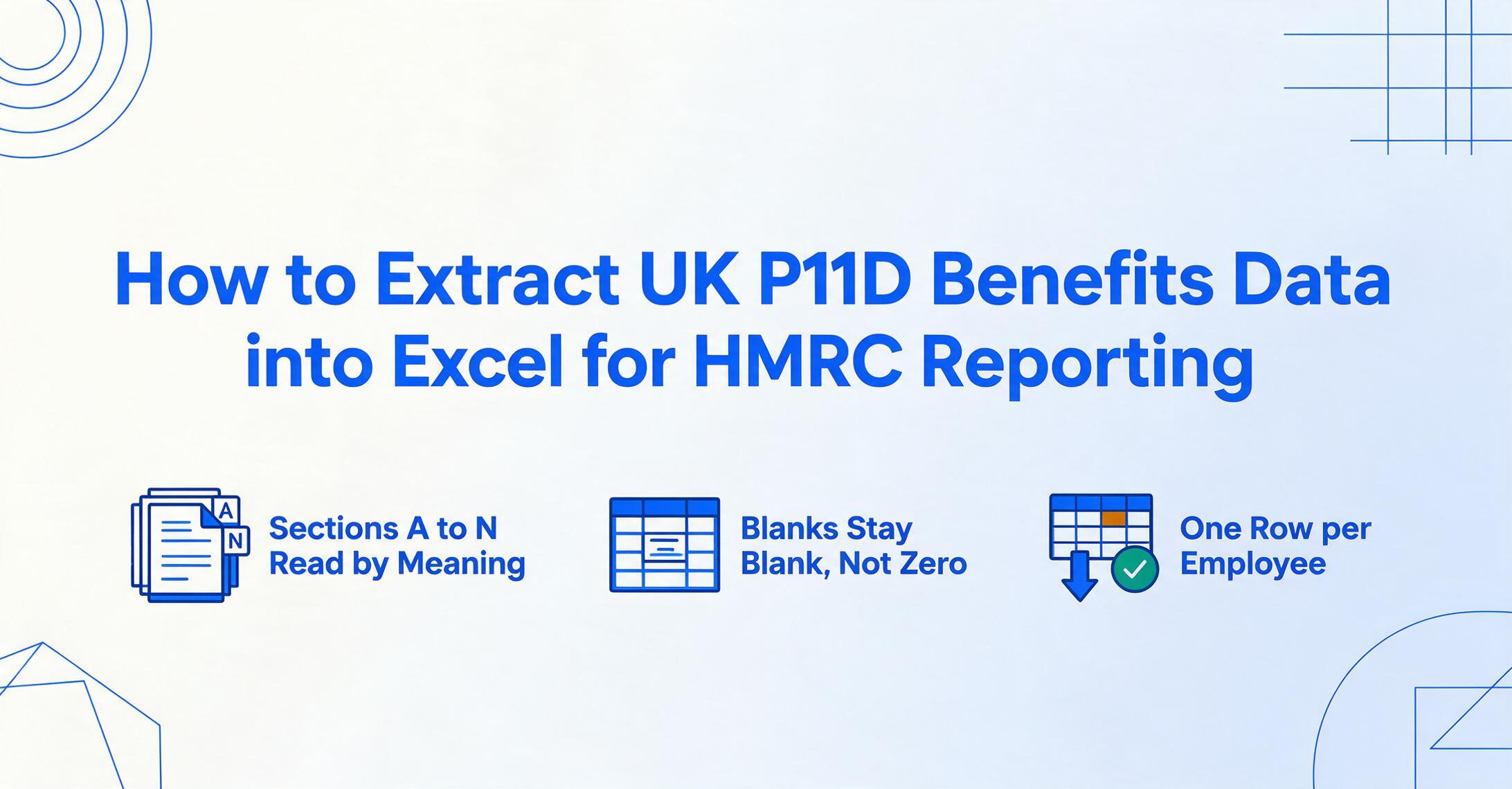
- P11D season is a data-gathering problem dressed up as a filing deadline — 150 drafts each carry only 2 or 3 populated sections out of 14.
- Each benefit section is valued by a different rule, so no natural cross-check exists — a mistyped digit in Section F looks exactly as plausible as the correct one.
- Read the form by what each field means, not where it sits on the page — one column definition extracts Sage, BrightPay, and Xero drafts into the same P11D(b)-ready spreadsheet.
What Goes on a P11D — and Which Fields Land in Your Spreadsheet
A P11D reports the taxable benefits in kind (BIK) — non-cash perks like a company car, private medical cover, or a low-interest loan — that an employer provided to a single employee or director during the tax year (6 April to 5 April). One form covers one person. HMRC organises the form into 14 lettered sections, A through N, each covering a benefit category with its own valuation rule, and it is those section values you need in columns.
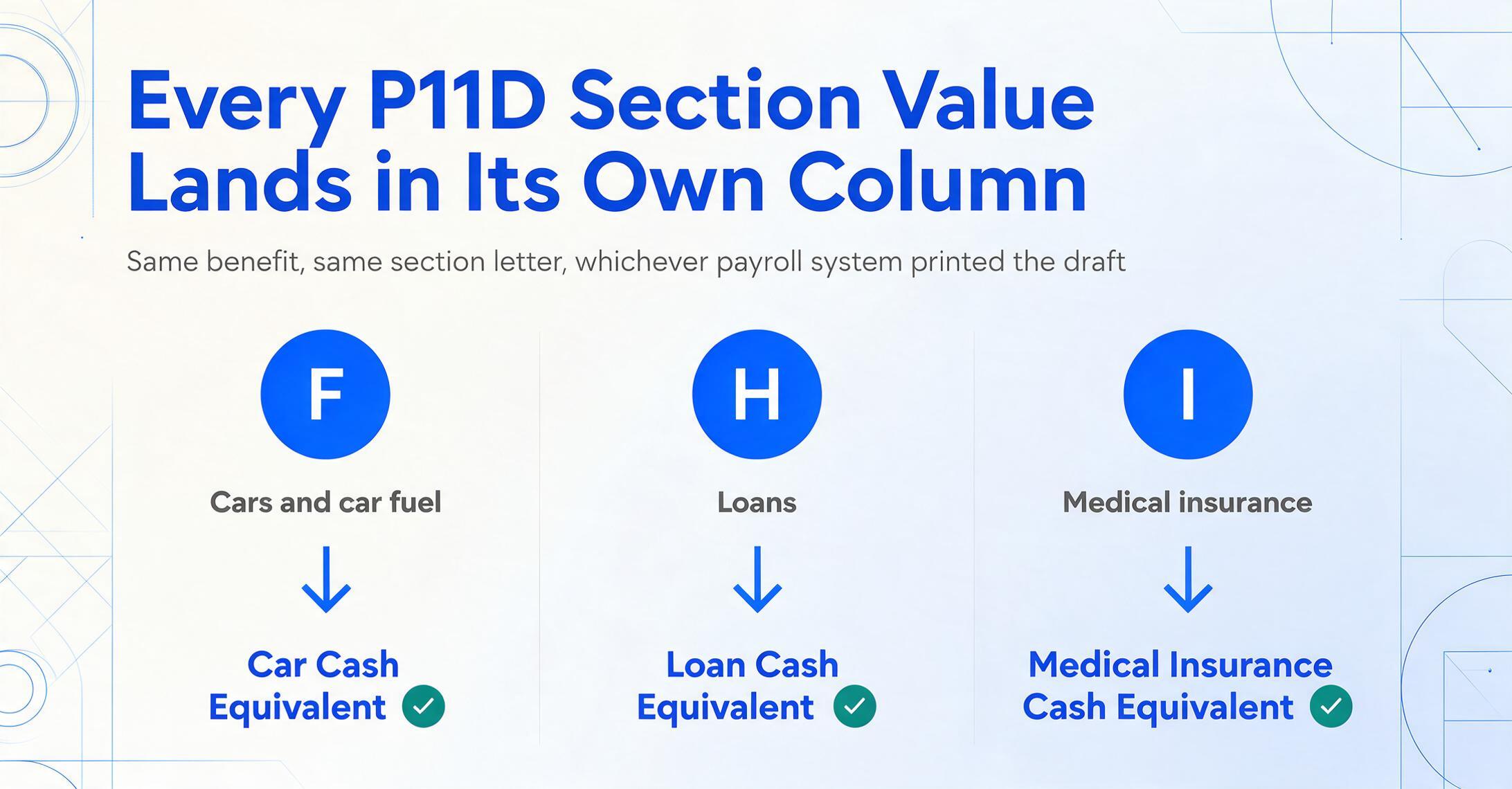
Knowing the section letters matters for extraction because the same benefit always lives in the same section regardless of which payroll system printed the draft. Here are the sections as HMRC defines them on the official "How to complete P11D and P11D(b)" guidance:
Sections A–G
- A — Assets transferred (cars, property, goods)
- B — Payments made on behalf of the employee
- C — Vouchers and credit cards
- D — Living accommodation
- E — Mileage allowance payments
- F — Cars and car fuel
- G — Vans and van fuel
Sections H–N
- H — Interest-free and low-interest loans
- I — Private medical treatment or insurance
- J — Qualifying relocation expenses
- K — Services supplied
- L — Assets placed at the employee's disposal
- M — Other items (subscriptions, professional fees)
- N — Expenses payments made on behalf of the employee
Within every section, two numbers do the work. The cash equivalent is the taxable value of the benefit — for a company car it is the P11D value (list price plus accessories) multiplied by an appropriate percentage set by the car's CO2 emissions and fuel type. The amount made good is any contribution the employee paid toward the benefit, which reduces the taxable value. The figure that actually flows to HMRC is cash equivalent minus amount made good. A benefit flagged with the 1A indicator is one on which the employer owes Class 1A National Insurance — which matters when you build the P11D(b) total later.
So a practical P11D extraction spreadsheet is one row per employee and a column set that mixes identity fields with per-section benefit values:
Identity & Reference
- Employee name and NINO — National Insurance number, two letters + six digits + one suffix letter (e.g. QQ 12 34 56 C).
- Employer PAYE reference — anchors each row to the right employer entity.
- Director indicator — directors have some benefit rules that differ from ordinary employees.
Benefit Values (per section)
- Car cash equivalent, car fuel cash equivalent (Section F) — usually the largest single BIK.
- Medical insurance cash equivalent (Section I) — extremely common, easy to overlook.
- Loan cash equivalent (Section H) — only if total loans exceeded £10,000 at any point in the year.
- Amount made good per section, and the 1A flag per benefit.
The core extraction principle: You name the columns your P11D(b) working file needs — "Employee NINO," "Car Cash Equivalent," "Medical Insurance Cash Equivalent," "Amount Made Good," "Total Taxable Benefit" — and the AI locates each value on each P11D draft by understanding what the field means, not where it sits. This is Custom Column Extraction: you define the output schema; the document defines nothing. The same column names work whether the draft came out of Sage, BrightPay, Xero, or IRIS because the AI reads the label's meaning, not a fixed template position.
Why P11D Benefit Data Is Harder to Extract Than a Payslip
A payslip has a stable, repeating field set — gross, tax, NI, net — that looks broadly the same person to person. A P11D does not, and that is the first reason manual transcription drags. Every employee's form is sparse in a different place: one director has Sections F, H, and I populated; a field engineer has only Section G; an office manager has just Section I. You are not reading the same 20 boxes on every page — you are hunting for whichever two or three of the fourteen sections happen to carry a value, and skipping the empty ones without mistaking a blank for a zero.
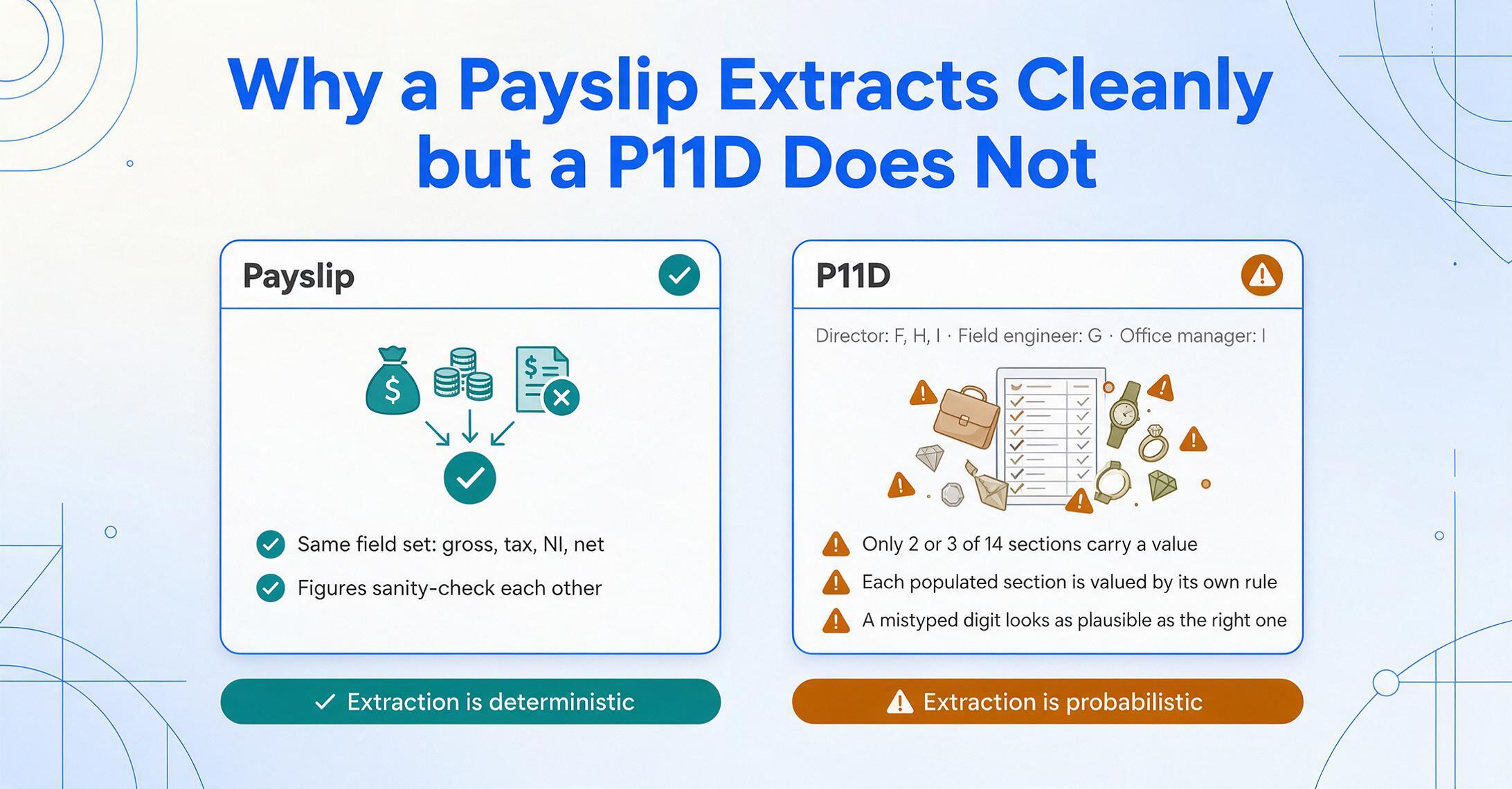
The second reason is that each populated section is valued by a different rule, so the numbers do not sanity-check against each other the way payslip figures do. A company car cash equivalent depends on list price and CO2 band; a beneficial loan depends on the average balance and HMRC's official rate of interest; medical cover is simply the premium. There is no single "does this look right" heuristic across sections, which means an operator retyping the figures has no natural error trap — a digit typed wrong in Section F looks exactly as plausible as the correct one.
The third reason is layout. HMRC mandates the data content of a P11D, not its visual form, so substitute P11D outputs from different payroll software place the same section values in different positions. Sage might print benefits in a stacked table with section letters down the left; BrightPay might group them differently; a draft exported to PDF from a bureau's own template might reorder everything. A template-based OCR tool trained on one provider's layout breaks on the next. Reading by meaning rather than by coordinates — the same principle behind extracting P60 year-end certificates across payroll providers — is what lets one column definition cover every source.
Setting Up Your P11D Extraction Workflow
The workflow that replaces manual P11D transcription has three steps, and the first — defining your columns — is the one you do once and reuse for every employee, every payroll provider, and every future tax year the P11D survives.
Define your output columns
Type the field names you want as spreadsheet headers. A workable P11D(b) preparation set is: Employee Name, NINO, Employer PAYE Reference, Director (Yes/No), Car Cash Equivalent, Car Fuel Cash Equivalent, Van Cash Equivalent, Medical Insurance Cash Equivalent, Loan Cash Equivalent, Relocation Cash Equivalent, Other Cash Equivalent, Total Amount Made Good, Total Taxable Benefit. Because the AI matches by meaning, it maps each draft's Section F value to your "Car Cash Equivalent" column whether the form labels it "Cars and car fuel" or the software's own wording.
Upload every P11D draft in one batch
Drop in the whole folder — 150 PDFs, a mix of software-generated drafts and scanned paper forms from an older year. Batch processing runs them as a single job: each file is read independently and all results are merged into one spreadsheet. Inputs can be PDF exports, scans, or phone photos of a printed P11D — all three work. If the drafts are scattered across colleagues or an outsourced payroll bureau, a Collection Link (a shareable link others open to upload files straight into your processing queue, no account needed) lets them all land in one place.
Export and review
Download the Excel file — one row per employee, columns in the order you defined — then run the validation pass in the section below before it feeds the P11D(b). Export is also available as CSV for import into accounting tools or JSON for audit workflows, and results can be written straight into Google Sheets through the sidebar add-on if your team reconciles there.
Those three steps are the whole of P11D to Excel conversion — the column list you write in step one is what every later draft, from any payroll provider, is matched against.
You can try the extraction step on a single P11D right here — upload a draft (or a photo of one) and name a couple of columns to see how the section values map:
Files are processed securely and not stored.
Building the P11D(b) Total from Your Extracted Data
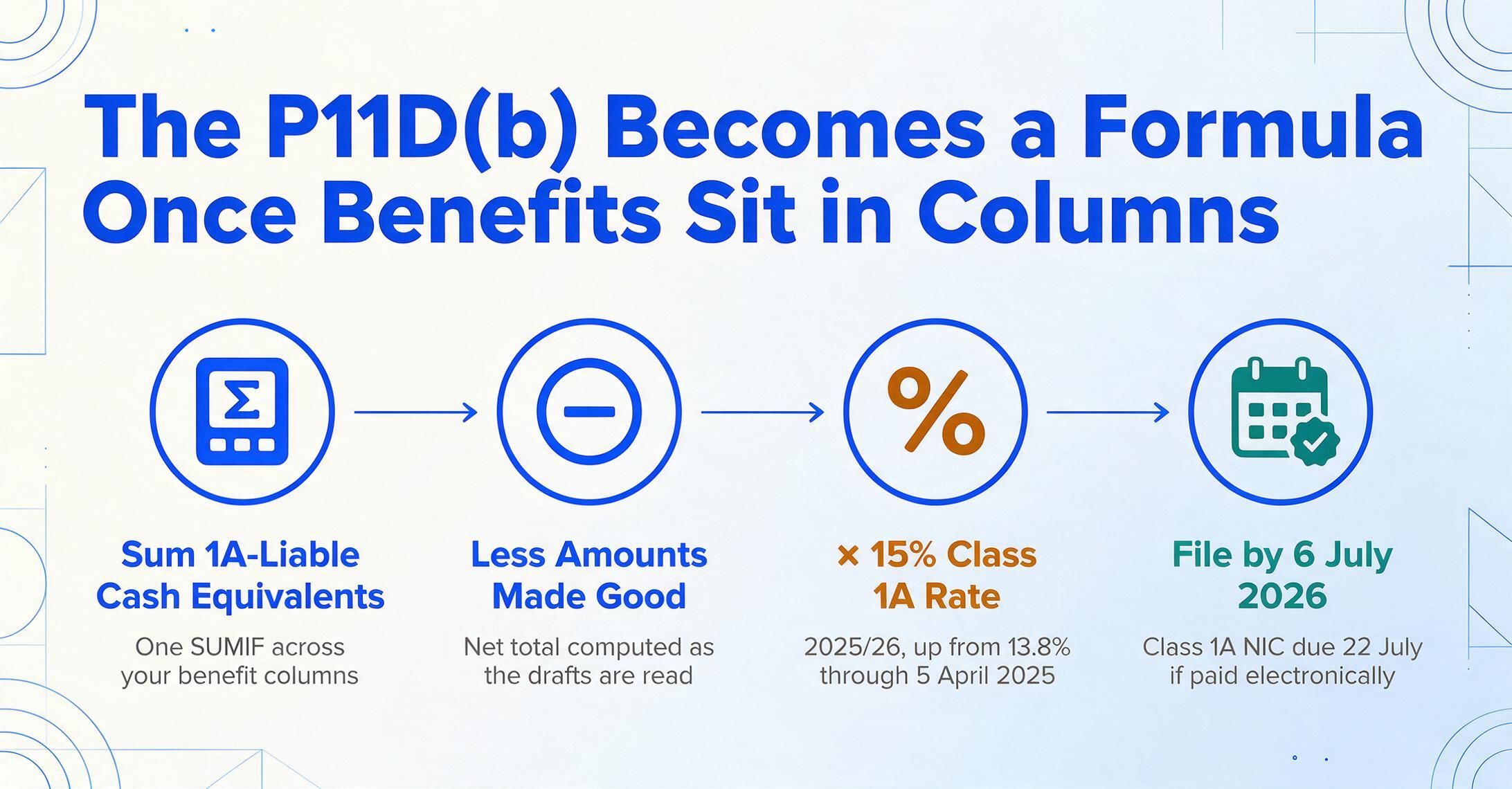
A structured spreadsheet is not the end of the job — it is what makes the P11D(b) a formula instead of a calculator session. The P11D(b) is the employer's declaration of total Class 1A National Insurance owed across every benefit reported for every employee. HMRC's CWG5 guidance sets the arithmetic: add together the cash equivalent of every benefit liable to Class 1A, then multiply the total by the Class 1A rate — 15% for 2025/26, up from the 13.8% that applied through 5 April 2025.
With extracted data in columns, that is one SUMIF across your 1A-liable benefit columns and one multiplication. But the tool can go a step further: a computed column lets the AI calculate values during extraction rather than after. Name a column Total Taxable Benefit (sum of cash equivalents minus amounts made good) and the per-employee net figure is filled in as the drafts are read — so the number you sum for the P11D(b) is already net of employee contributions, one of the more common manual-aggregation slips.
The deadlines this feeds: P11Ds and the P11D(b) must reach HMRC by 6 July following the tax year (6 July 2026 for 2025/26), and employees must get their copy by the same date. The Class 1A NIC itself is due by 22 July if paid electronically, or 19 July by cheque. Late filing draws a penalty of £100 per 50 employees for each month the return is outstanding — which is why finishing the data pass in early July, not late, is the whole point. For a month-by-month checklist that turns the 92-day deadline window into a realistic May-and-June working schedule, see our P11D deadline checklist.
Validating Extracted P11D Data Before It Feeds the P11D(b)
Because each section is valued by its own rule, the validation pass here is less about arithmetic checks and more about shape and completeness. The checks below run column by column in Excel and surface the handful of rows worth eyeballing against the source draft — not every field on every row.
| Check | What to Look For | Why It Matters |
|---|---|---|
| NINO format | Two letters, six digits, one suffix letter (A–D). Invalid start letters include D, F, I, Q, U, V. | The NINO is HMRC's identity key — a malformed one detaches the benefit from the right employee record. |
| Blank vs zero | An empty section should stay blank in the cell, not become 0. | A coerced zero implies "benefit provided, valued at nil," which is not the same as "no benefit in this section" and can distort the Class 1A total. |
| Amount made good ≤ cash equivalent | The employee contribution should never exceed the benefit's cash equivalent. | A made-good figure larger than the cash equivalent is an extraction or source error — the net taxable value can't go negative. |
| Car fuel without a car | A Section F car-fuel cash equivalent should not appear on a row with no car cash equivalent. | Fuel benefit only arises where a company car benefit exists — a lone fuel figure flags a mis-mapped row. |
| Loan threshold plausibility | A Section H loan value should correspond to loans that exceeded £10,000 at some point in the year. | Loans under the £10,000 aggregate threshold are not reportable — a small loan figure may be a misread. |
| 1A total reconciles to P11D(b) | The sum of 1A-liable cash equivalents × 15% should match the Class 1A figure you declare. | This is the single number HMRC uses to bill you — a spreadsheet that ties out to it end-to-end is your audit trail. |
Each extracted row carries its source file reference, so any flagged row is one click from the original draft. That traceability is what makes column-level checks realistic at 150 employees — manual transcription could never sustain them, which is precisely why manual P11D preparation tends to skip validation and hope.
P11D vs P60 vs P45: Three Forms, Three Extraction Jobs
UK payroll teams handle three statutory employee forms, and they are easy to conflate but need different column definitions. A P60 is the year-end certificate of pay and tax deducted, issued to everyone on payroll at 5 April. A P45 is issued when someone leaves, summarising pay and tax to their leaving date. A P11D reports taxable benefits in kind and is the only one of the three concerned with perks rather than pay.
The practical upshot: a P11D column set is about section cash equivalents and Class 1A liability, and does not overlap with a pay-and-tax form beyond the identity fields. If your team processes all three, keep a separate saved column definition for each and reuse them — the batch workflow is identical, but the field names are form-specific. See our guides to extracting P45 leaver data into Excel, the complete P45 extraction workflow, and batch-processing P60s for a payroll audit for the pay-and-tax side of the same toolkit.
FAQ
Can I extract data from P11D drafts before I've filed them with HMRC?
Yes — that is the most common use. The extraction reads whatever is on the draft, so you can pull the section cash equivalents into a spreadsheet for internal review, ledger reconciliation, or P11D(b) aggregation before anything is submitted. Nothing about the process depends on the form having been filed; it works on the software-generated draft, a scan, or a photo.
How does it handle P11Ds where most sections are blank?
It fills only the columns that have values and leaves the rest of the row blank rather than inserting zeros. This is deliberate: on a P11D an empty section means "no benefit in this category," which is different from a benefit valued at zero. Preserving blanks keeps your Class 1A total accurate and avoids phantom benefit lines.
Does the tool calculate the Class 1A NIC for me?
It can total the 1A-liable cash equivalents for you through a computed column, and you multiply that total by the Class 1A rate (15% for 2025/26). The tool extracts and aggregates the underlying figures; you or your payroll software apply the rate and file the P11D(b). It does not submit to HMRC — it prepares the reconciliation-ready data that makes the P11D(b) a quick formula rather than a manual tally.
Will it pick up the company car cash equivalent correctly?
It extracts the car cash equivalent value as printed in Section F of the draft — it does not recalculate the car benefit from list price and CO2 band, because that calculation has already been done by whoever produced the draft. If you need the underlying inputs (P11D value, appropriate percentage, dates available) as separate columns and the draft shows them, you can name those columns too and they will be extracted alongside the cash equivalent.
We're moving to payrolling benefits from April 2027 — is this still useful?
Yes, for two reasons. First, the 2025/26 round still requires full P11Ds filed by 6 July 2026. Second, even under mandatory payrolling the P11D(b) and Class 1A NIC remain, and living accommodation and beneficial loans are expected to stay outside payrolling initially — so some benefit reporting continues. Extracting historical P11Ds into a spreadsheet is also useful when auditing your benefit data ahead of the switch.
Is employee benefit data secure during extraction?
P11Ds carry sensitive personal data — NINOs, salaries implied by benefit values, medical cover details. A responsible extraction platform encrypts files in transit and at rest, does not use uploaded documents to train its models, and deletes source files within a defined retention window after processing. Confirm these commitments before uploading any employee documents.
P11D season is a data-gathering problem dressed up as a filing problem. Define your section columns once, let the drafts fill the spreadsheet, and the P11D(b) becomes a single sum you can actually trust before 6 July.
Extract Your First P11D BatchNo sign-up required to test on a sample. Secure processing with automatic file deletion.