The AP Data-Entry Workflow:
Five Steps from PDF to General Ledger
AP automation isn't one big switch. It's five separate handoffs, each with its own tooling, its own failure mode, and its own automation ceiling. Most tools sold as "AP automation" cover two of those handoffs at most. The other three are where invoices stall, duplicates slip through, and staff re-check PDFs against ERP screens by hand. Covering the whole chain, not just the extraction step, is what separates automation that holds up when every supplier formats invoices differently from automation that only works on the sample.
Key Takeaways
- What most tools call AP automation automates exactly one step — reading fields off a page — out of the five handoffs an invoice travels from inbox to general ledger.
- The 70% cost gap between average ($9.40) and best-in-class ($2.78) per invoice doesn't come from better extraction — it comes from automating the handoffs between extraction and posting.
- The pipeline test: if your AP tool can't export a batch of 50 invoices to your accounting system in one operation, you haven't automated AP — you've only moved the bottleneck from extraction to re-keying.
The Five Handoffs in the AP Data-Entry Pipeline
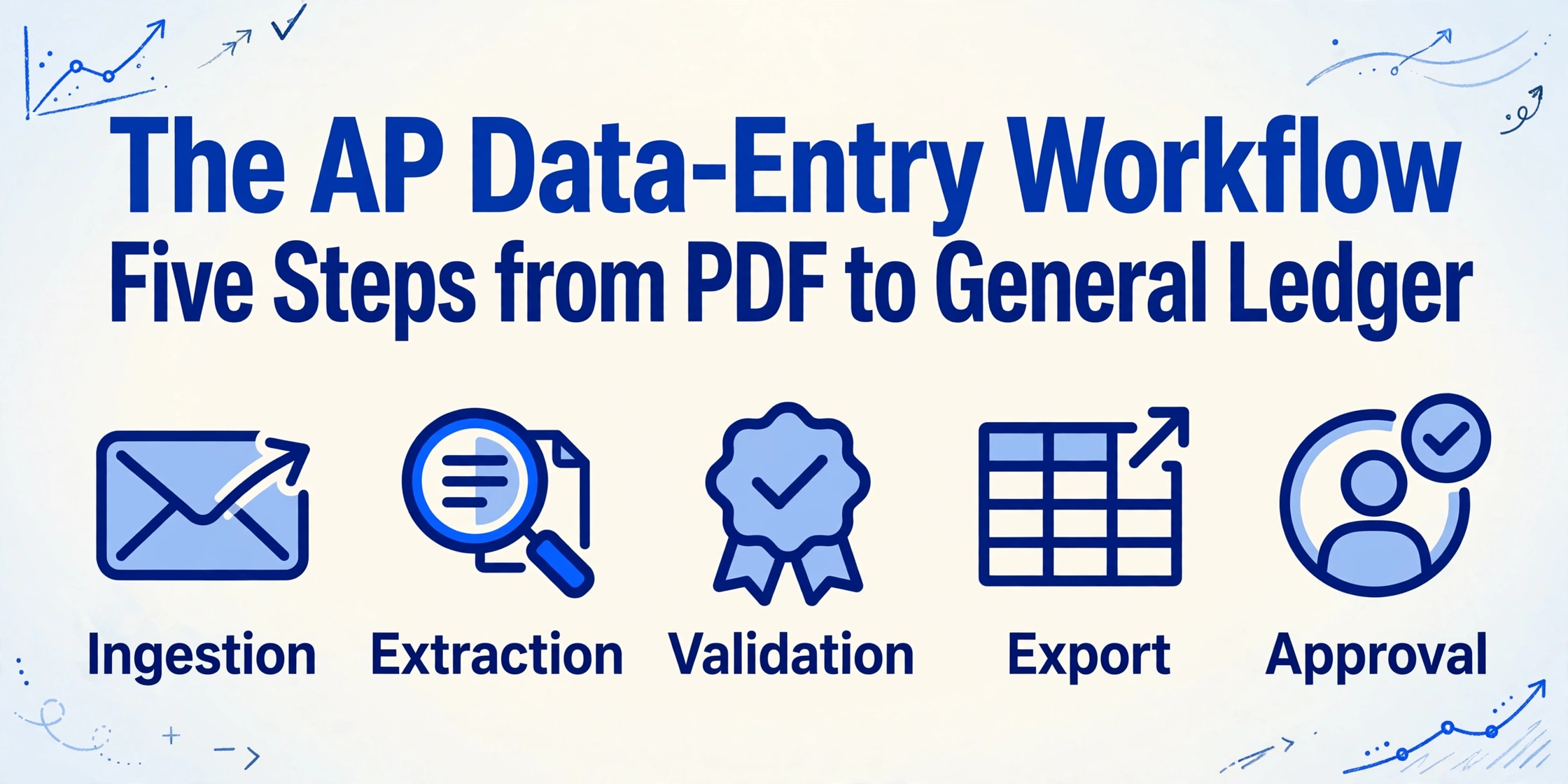
Accounts payable data entry isn't one task. It's a pipeline: a sequence of discrete steps, each handing off to the next. Each handoff is both a failure point and an automation opportunity. The five steps are:
Most AP automation tools live entirely in step 2. A few extend into steps 1 and 3. Almost none touch steps 4 and 5. And that's why, in practice, "we automated AP" often means "we automated invoice data extraction and nothing else changed." The pipeline's overall throughput is still governed by its slowest handoff.
According to Ardent Partners' 2025 AP Metrics That Matter report, the average organization spends $9.40 to process a single invoice, while best-in-class teams — the top 20% — have driven that number down to $2.78 through end-to-end automation.¹ That 70% cost gap isn't from better extraction alone. It comes from automating the handoffs between extraction and posting — the steps where data sits waiting for a human to move it forward.
Ingestion: Getting Invoices Into One Place
The first bottleneck in most AP workflows has nothing to do with reading invoice data. It's getting the invoice into the system at all. Invoices arrive through email attachments, supplier portals (Coupa, Ariba), paper mail, shared network drives, and increasingly, EDI feeds. An AP clerk at a mid-size manufacturing company might pull invoices from seven different channels before they can even begin data entry. An email parser for the attachment pile removes only one of those channels, but it is often the one that costs the most time.
The IOFM 2024 AP Benchmarking study found that manual invoice processing averages 12.5 minutes per invoice, and the first 1.5 minutes of that is simply locating and opening the file.² Before a single field is read, the pipeline is already consuming billable staff time.
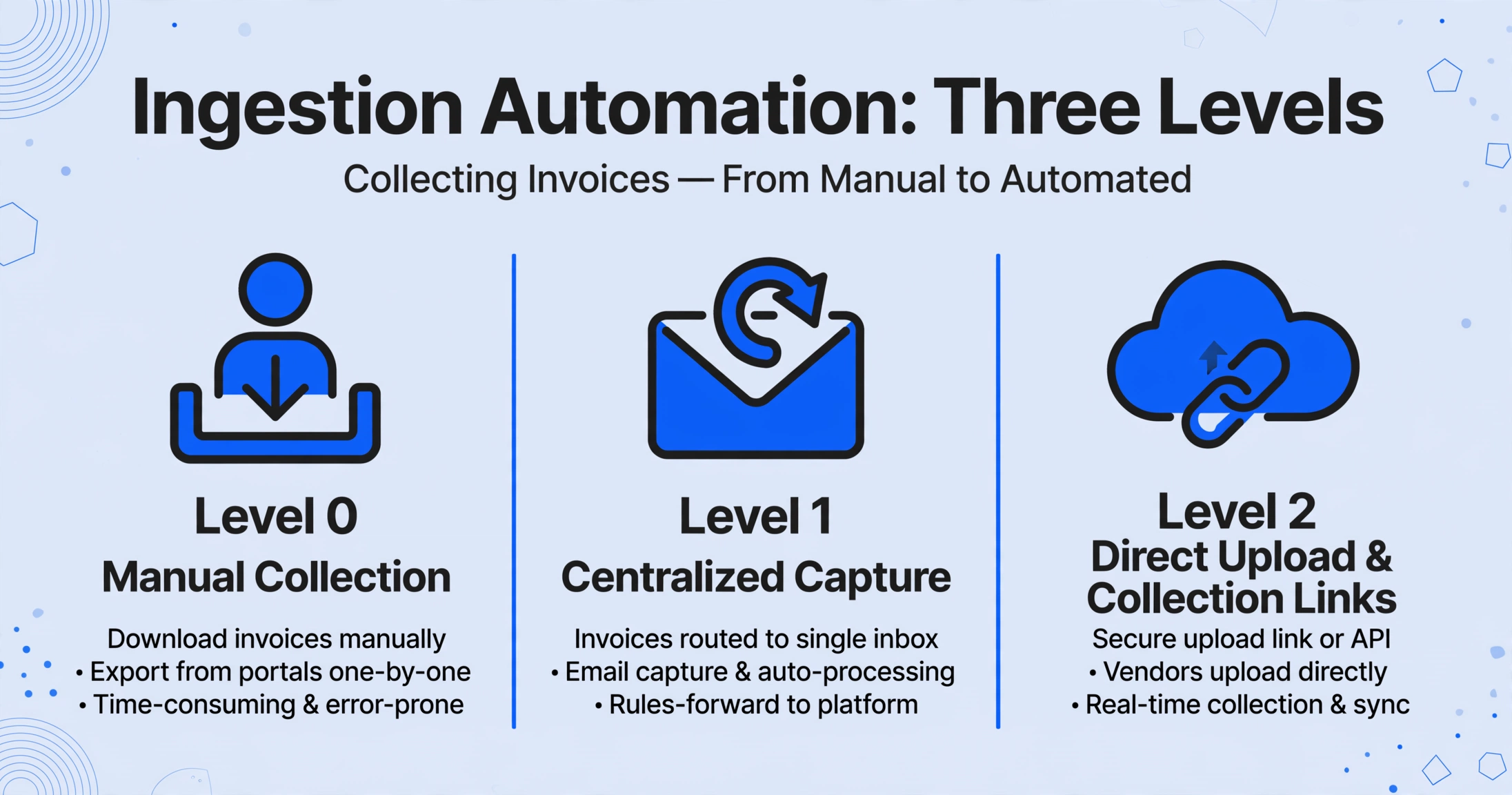
Ingestion automation falls into three levels:
- Level 0 — Manual collection. Someone downloads attachments from email, prints paper invoices to scan, logs into each supplier portal separately. This is where most small and mid-size AP teams still operate.
- Level 1 — Centralized capture. An email parser or dedicated inbox automatically routes attachments into a processing queue. Paper invoices get batch-scanned to a watched folder. This eliminates the multi-channel hunting but doesn't solve the format problem.
- Level 2 — Direct upload and Collection Links. Instead of chasing invoices, you give suppliers and internal stakeholders a link where they upload directly. ImageToTable.ai's Collection Link feature does exactly this: you generate a shareable URL (no registration required for the uploader), the sender drops files in, and they land in your processing queue. The ingestion step collapses from "find and download" to "open the queue."
On Reddit's r/Accounting, one user described their ingestion reality with 1,500-2,000 monthly supplier invoices: "invoices hit a shared inbox as PDF attachments, someone opens each one, types the header info into NetSuite, matches to PO manually, routes for approval via email, chases down approvers when they ignore it."³ The ingestion step in that workflow — opening attachments and routing them to the right person — is entirely manual and repeated thousands of times per month.
What changes with automation: Invoices go from scattered across inboxes and drives to one structured intake point. The capture step goes from minutes to seconds per invoice.
What doesn't: Someone still needs to decide which invoices to process, handle supplier inquiries about missing invoices, and maintain the intake channels.
Extraction: Where the Biggest Shift Happens
This is the step where technology has made the most dramatic leap — and where the difference between the old approach and the new approach produces the largest time savings in the entire pipeline. Extraction means reading individual fields from a document: invoice number, issue date, due date, vendor name, line item descriptions, quantities, unit prices, tax amounts, and the invoice total. Getting this step right or wrong cascades through every downstream handoff.
The old way: template-based OCR
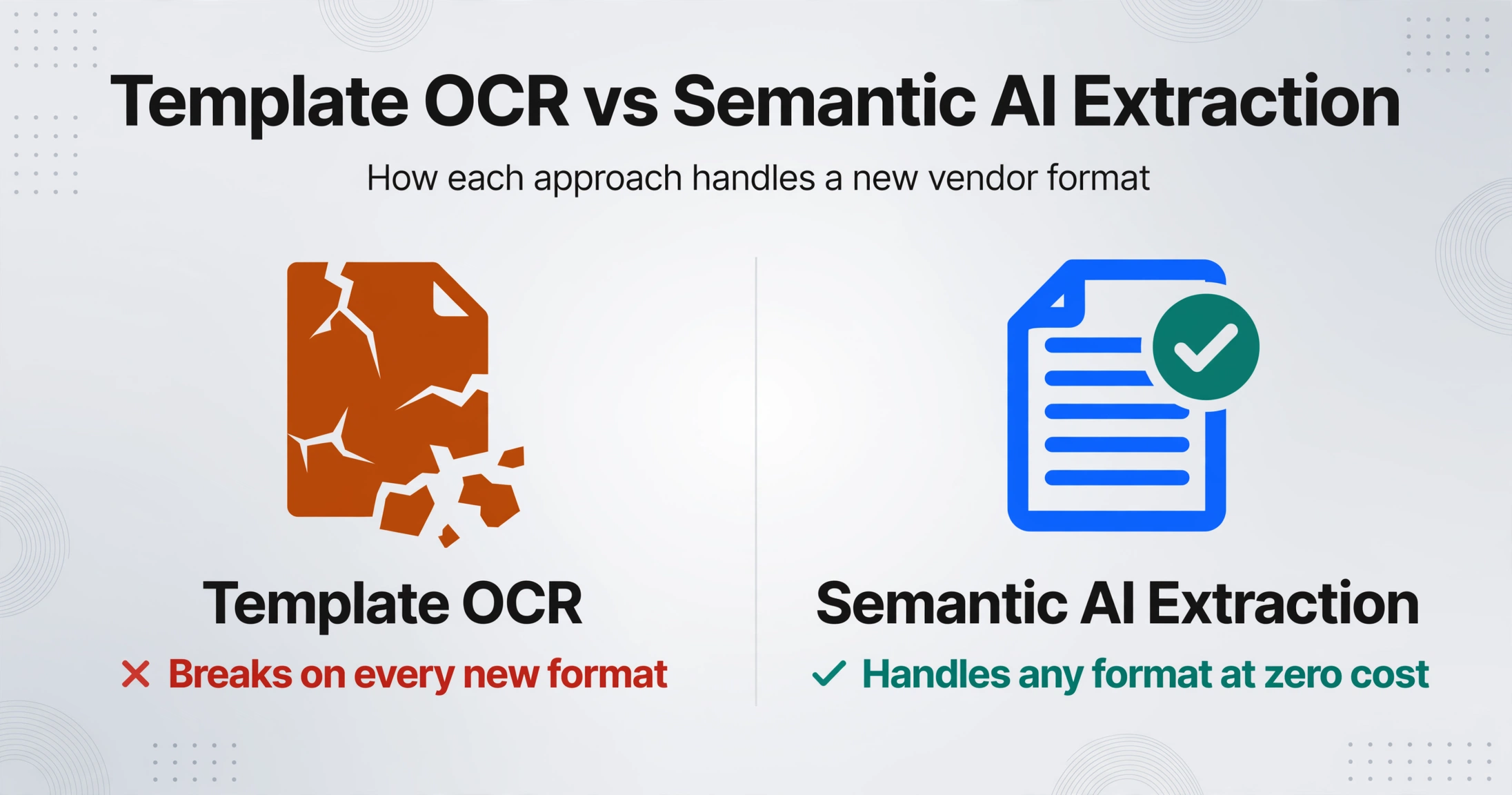
Traditional AP automation tools rely on Optical Character Recognition (OCR) paired with templates or zonal mapping. For each vendor, you define where each field sits on the page — "Invoice Number is in the top-right corner, 3 inches down, 2 inches from the right margin." OCR reads the characters in that box. If the vendor changes their invoice layout — and they will — the template breaks. You create a new template. Multiply by 200 vendors, each with their own format and periodic layout changes, and template maintenance becomes a job in itself.
That same Reddit user who processes 1,500-2,000 invoices reported trying the OCR built into their ERP: "it chokes on half our invoices because every machine shop and raw materials supplier formats theirs differently."³ This is the template problem in one sentence. If your tool depends on knowing where data sits, it fails the moment a new format appears.
The new way: semantic AI extraction
AI-driven extraction works differently. Instead of programming templates for each format, you tell the system what you want — the field names — and a vision language model reads the document to find each field by understanding what it means, not where it sits. A field labeled "Invoice Number" gets located whether it's in the top-right corner, the center header, or buried in a text block. This is Custom Column Extraction: you type the column names you want in your output table (e.g. "Invoice #", "Supplier", "Net Amount", "Tax", "Gross Total"), and the AI scans each document for those values regardless of layout.
This format-independent approach means you can batch-process invoices from 50 different suppliers — each with their own invoice design — and get a single unified spreadsheet as output. The extraction step, which consumed the largest share of manual processing time, drops from 4 minutes per invoice (manual keying) to under 10 seconds per page.
Files are processed securely and not stored.
The difference compounds with volume. A single invoice processed manually takes roughly 4 minutes just for data entry. Processing 100 invoices means nearly 7 hours of keying. With semantic extraction, those 100 invoices complete in about 17 minutes — and the output is already structured as a spreadsheet, ready for validation.
Beyond direct field extraction, the AI can also perform computed columns during extraction — for example, verifying that the sum of line-item amounts matches the invoice total, or calculating the difference between the PO amount and the invoiced amount. This moves validation work upstream into the extraction step, catching discrepancies before they reach the approval queue.
Validation: Catching Errors Before They Hit the Ledger
Extraction produces data. Validation decides whether that data is correct. This is the handoff where most pipelines leak productivity — and where the automation ceiling is lower than most vendor marketing suggests.
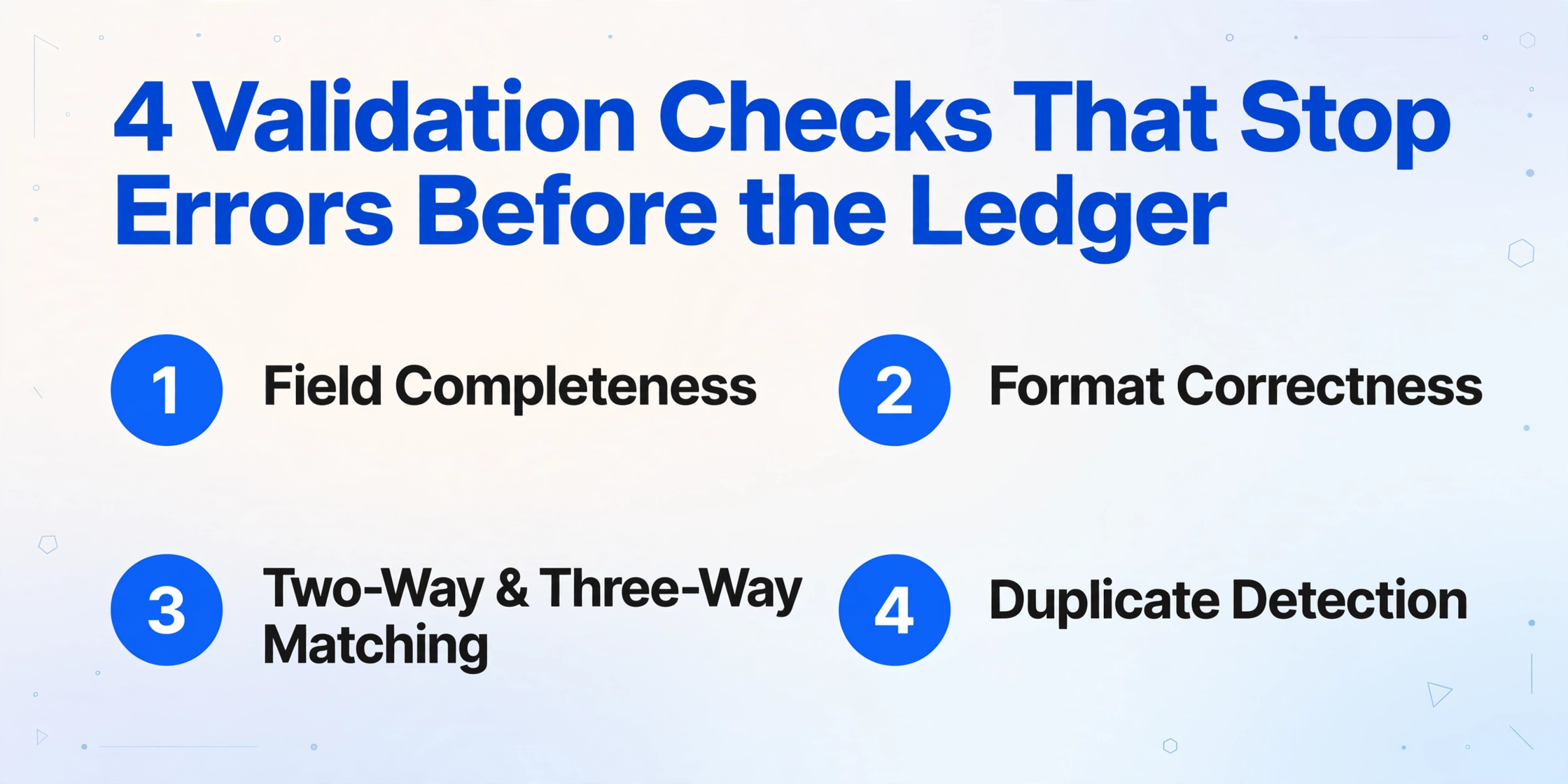
Validation in AP covers several distinct checks:
- Field completeness. Are all required fields present? Missing invoice date, missing vendor tax ID, or a blank total should stop the invoice before it reaches the ERP.
- Format correctness. Are dates in the expected format? Are currency amounts parsed correctly across international suppliers (who may use commas as decimal separators)? Did the AI correctly distinguish between the invoice date and the due date?
- Two-way and three-way matching. Does the invoice amount match the purchase order? Do the quantities match the receiving report? Three-way matching — PO vs. receipt vs. invoice — is the gold standard for AP control and a core SOX compliance requirement for public companies.
- Duplicate detection. Has this invoice already been processed? A duplicate is rarely a byte-for-byte copy, so a quick eyeball misses it: the same invoice arrives through two channels, or gets keyed twice under a number that differs by a prefix. Catching it needs the whole batch checked against itself, which is what duplicate invoice detection automates.
The Ardent Partners 2025 report found that 53% of AP professionals cite invoice exceptions as their biggest challenge, with an average exception rate of 14%.⁴ Best-in-class teams have driven that down to 9%, but that still means roughly 1 in 10 invoices requires manual intervention.
The exceptions that remain still need a person, but reviewing one doesn't have to mean re-reading the invoice. ImageToTable.ai's review screen ties each extracted cell to its source: hover the "Net Amount" cell and the matching region highlights on the original scan; click a region and it jumps back to the cell it filled. A spot-check becomes a few seconds instead of a full re-read, and auto-annotate can generate the highlights before anyone opens the file.
What changes with automation: Automated format standardization, duplicate flagging, and basic PO matching. AI can verify arithmetic (totals match line sums), flag missing required fields, and normalize date/currency formats before the invoice reaches a human.
What doesn't: Three-way matching with incomplete receiving data, resolving vendor disputes about pricing, and judging whether a line-item description matches the PO scope. These require context that sits in email threads, contracts, and human memory — not on the invoice page.
Export and Posting: Bridging to Your Accounting Software
This is the handoff that separates a useful extraction tool from a tool that actually closes the AP loop. You've extracted and validated invoice data. Now it needs to land in your accounting system — QuickBooks, Xero, NetSuite, SAP, or whatever ERP your finance team uses. The export step is where format compatibility, batch handling, and integration depth determine whether you're still doing double entry.
The best-case scenario for export is direct integration: extracted data flows automatically into your accounting software, creating a vendor bill with line items, tax codes, and due dates. In practice, most small and mid-size AP teams land somewhere between:
- Manual re-entry. Extract to Excel, then manually type the same data into QuickBooks. This defeats the purpose of automation — you've saved time on extraction but spent it on re-keying.
- CSV/Excel import. Export from the extraction tool, format the spreadsheet to match your ERP's import template, upload. An improvement, but still a manual handoff with formatting friction.
- Direct spreadsheet write. If your workflow lives in spreadsheets, the extraction output writes directly into Google Sheets or Excel — no intermediate export-import step. ImageToTable.ai's Google Sheets add-on and Excel export are built for this pattern: extracted data appends directly to your working sheet.
The export handoff is where pipeline design matters most. If your extraction tool produces clean, structured output but can't connect to your accounting system, you haven't automated the pipeline — you've only automated one step and created a new manual task at the next handoff. The IOFM data shows that the data-entry step (extraction) consumes about 4 minutes per invoice manually, but the downstream posting and reconciliation adds another 3-4 minutes. A tool that automates extraction but forces manual posting only addresses half the problem.
Batch export is critical here. Processing invoices individually — extract one, export one, post one — doesn't scale. A batch-first design means you upload 50 invoices at once, extract all 50 in parallel, validate the batch as a whole, and export a single spreadsheet or CSV with all 50 rows. The step from "all 50 extracted" to "all 50 posted" should be one operation, not 50. The practical form of that operation, one row per invoice in a payment-ready log rather than 50 separate exports, is building an accounts payable log from a batch upload.
The Human Steps Automation Doesn't Replace
Not every step in the AP pipeline should be automated. Some steps require judgment that current AI doesn't reliably provide — and more importantly, some steps carry compliance or fiduciary responsibility that organizations shouldn't delegate to a model.
The approval step is the clearest example. An AP manager reviewing a $45,000 equipment invoice isn't just checking that the numbers add up. They're verifying that the equipment was actually received, that the price matches the negotiated contract, that the budget has headroom, and that the purchase was properly authorized. These are governance decisions, not data-entry decisions. Automation can route the invoice to the right approver and surface relevant context (PO details, receiving status, budget remaining), but it shouldn't approve the payment. This is why Ardent Partners data shows the best-in-class touchless processing rate is 49.2%, not 100% — the 50.8% of invoices that still get human touches include approvals, exception resolution, and complex validations that benefit from human oversight.
GL coding and cost-center assignment are in a gray zone. AI can suggest a GL account based on the vendor and description — and it often gets it right for recurring suppliers — but judgment calls about capitalizing vs. expensing, or allocating a single invoice across multiple cost centers, still require a finance person who understands the business context.
The key principle: automate the mechanical steps where humans are slow and error-prone (reading fields, typing data, checking formats), and preserve the judgment steps where humans add value (approval, dispute resolution, strategic allocation). The pipeline gets faster not because humans are removed, but because humans are freed from the parts they were never good at.
Where the Pipeline Breaks: Format Fragmentation and Integration Gaps
Most AP automation failures share a root cause: the pipeline is only as strong as its weakest handoff. A tool that extracts invoice data perfectly but can't export it to your ERP is a broken pipeline. A workflow that automates ingestion and extraction but leaves validation entirely manual still creates a bottleneck. Understanding where pipelines break helps you evaluate tools against your actual workflow — not against a demo that only shows step 2.
The two most common failure points:
Format fragmentation at the extraction step. This is what the Reddit user described: OCR that works on some vendor formats but chokes on others. Traditional template-based OCR fails here because each new vendor format requires a new template — and industrial suppliers, service providers, and international vendors all format invoices differently. This is precisely where semantic AI extraction is transformative: by locating fields based on meaning rather than position, it handles format variation at zero marginal cost. You don't maintain 200 templates. You maintain one set of column names.
Integration gaps at the export step. The data is extracted and clean, but getting it into the ERP requires reformatting, manual CSV mapping, or — worst case — re-typing. The export handoff is where batch processing becomes essential: processing 50 invoices through extraction and then exporting all 50 in one operation eliminates 49 repetitions of the same export workflow. For teams using Google Sheets as their primary AP tracker, the add-on approach (extracted data writes directly to the sheet) removes the export handoff entirely.
The pipeline test. When evaluating any AP automation tool — whether an enterprise platform like Coupa or Medius, or a lightweight extraction tool — map it against all five handoffs in your actual workflow: ingestion, extraction, validation, export, and approval. A tool that scores 10/10 on extraction but 0/10 on export creates a new bottleneck where an old one was removed. The total pipeline speed is still bounded by the slowest step.
FAQ
Does ImageToTable.ai integrate directly with QuickBooks or NetSuite?
ImageToTable.ai does not offer native ERP integrations. Extracted data exports as Excel (XLSX), CSV, or directly into Google Sheets via the add-on. For QuickBooks and Xero users, this means you export the batch to Excel and use your accounting software's import function — typically a 30-second step. For NetSuite and SAP users, the CSV format maps to standard import templates. If your ERP requires API-level integration, you'll need a middleware step or a tool built for that specific handoff.
How many invoices can I process in one batch?
The free tier supports processing a limited number of files, and paid plans scale from there: Basic ($9/mo) covers moderate-volume teams, Pro ($19/mo) handles higher throughput, and Max ($59/mo) is built for heavy batch processing with the highest credit allocation. Each paid plan also sets a per-batch ceiling — 100 files on Basic, 200 on Pro, and 300 on Max — and every file in a batch consumes one credit. A batch of 50 invoices consumes 50 credits and sits well inside every paid tier. The processing itself is parallelized: invoices within a batch are extracted concurrently, so 50 invoices complete in roughly the same wall-clock time as 5.
Can it handle handwritten invoices or paper scans?
Yes. The vision language model powering the extraction reads handwriting, printed text, tables, and checkboxes. For paper invoices, you'll need to scan or photograph them first — the upload accepts JPG, PNG, PDF, and WebP. Handwriting accuracy depends on legibility: clear block printing extracts reliably; rushed cursive with heavy strikethroughs will have lower accuracy and may need manual review during validation.
What happens with multi-currency invoices — will it mix up amounts?
The AI reads the currency symbol or code directly from the invoice (USD, EUR, GBP, JPY, etc.) and includes it in the extracted output. It distinguishes between the invoice currency and any tax amounts listed in local currency. For post-processing, you can use computed columns to apply a conversion rate if needed — for example, defining a column that multiplies the extracted amount by a fixed exchange rate. The tool doesn't automatically convert currencies, which is the safer behavior: currency conversion should be an explicit step, not something the AI decides silently.
Do I need to set up templates for each vendor?
No. This is the core difference between template-based OCR and AI-driven extraction. With ImageToTable.ai, you define the column names you want extracted — "Invoice Number", "Supplier", "PO Number", "Net Amount", "Tax", "Total" — and the AI finds those fields on each invoice regardless of the vendor's layout. You can save column configurations as reusable templates within the tool, but those templates define what to extract, not where. A new vendor with a completely unfamiliar invoice format requires zero setup beyond uploading the file.
How do I get suppliers to send invoices in a format the tool can read?
You don't need to change how suppliers send invoices. The tool accepts PDFs, images, and screenshots — formats nearly every supplier already uses. If you want to streamline the ingestion step further, use the Collection Link feature: generate a shareable URL, send it to your suppliers, and they upload invoices directly to your processing queue. No registration or login required on their end. This eliminates the email-attachment hunting step from your workflow entirely.
What accuracy can I expect, and when should I double-check the output?
Printed invoice data achieves up to 99% accuracy for common fields (dates, amounts, vendor names). Handwriting and poorly scanned documents will be lower. As a practical rule: for recurring vendors with clean PDF invoices, spot-check every 10th invoice during validation. For first-time vendors, handwritten invoices, or invoices with complex line-item tables, review the full extraction before posting. The validation step exists for a reason — automated extraction reduces the checking workload from "read every field on every invoice" to "verify edge cases," but it doesn't eliminate the need for human review entirely.
The AP data-entry pipeline has five handoffs. Automating two of them is a start. Automating four — with the fifth preserved for human judgment — is where the measurable cost difference between $9.40 and $2.78 per invoice actually lives.
Test the extraction step on your own invoices — see how much of the pipeline it actually changes.
Process Your Invoices FreeNo credit card. First 50 invoice pages free.