How to Get Clean, Accurate Output
from AI Document Extraction
AI document extraction is different from traditional OCR: instead of dumping everything on a page into a text stream, you define specific columns and the model finds those fields across any document layout. That shift puts more control in your hands — but it also means the quality of your output depends heavily on how you define your columns. These are the techniques that make the difference between a messy first pass and a clean, analysis-ready table.

Key Takeaways
- Column names are not spreadsheet labels — each one is a search instruction that the AI reads, interprets, and executes across every document in the batch.
- A single missing field in a row does not produce a blank cell — it silently shifts every value to its right by one column, and the misalignment is undetectable until a reconciliation fails downstream.
- ImageToTable.ai pairs every extracted value with its column index number, so a missing field produces a visible empty cell at the correct position instead of shifting the entire row to the left.
Your Column Names Are Instructions
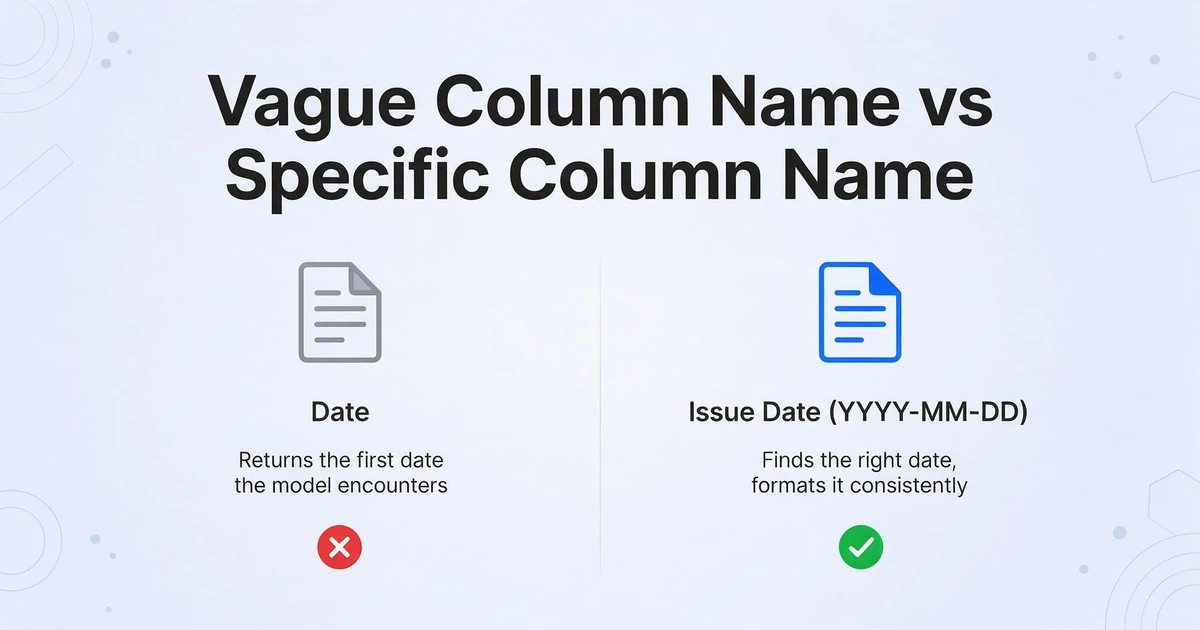
When you type a column name into an AI extraction tool, you're not just labeling a spreadsheet column — you're telling the model what to look for, how to identify it, and how to format the result. The model reads the column name as an instruction and applies it to every document in the batch.
This means a vague column name produces vague output: "Date" on an invoice that has five different dates gives you whichever one the model encounters first. A specific column name produces specific output: "Issue Date (YYYY-MM-DD)" tells the model which date to find and how to format it.
The eight tips below cover the main ways to make column names work harder for you — from format control to disambiguation to the structural techniques that prevent silent errors in batch processing.
Eight Tips for Better Extraction Results
1. Embed format requirements in the column name
Instead of "Date", write "Date (YYYY-MM-DD)". Instead of "Amount", write "Amount (number only, no currency symbol)". The model reads the column name as both a field identifier and a formatting instruction.
This matters because different source documents format the same value differently — "March 15, 2024", "15/03/2024", and "2024-03-15" are the same date in three formats. If you name the column "Date (YYYY-MM-DD)", the output is standardized to one format across all documents in the batch, with no post-processing needed. The same principle applies to amounts: "Total Amount (number only, 2 decimal places)" removes currency symbols and thousands separators so the column is ready for numeric operations without cleanup.
2. Disambiguate when a document has multiple instances of the same field type
A purchase order has an Order Date, a Delivery Date, and a Payment Due Date. If you ask for "Date", you'll get whichever date the model finds first. Ask for "Order Date", "Delivery Date", and "Due Date" as three separate columns — the specificity guides the extraction to the right value each time.
This applies equally to amounts (invoice total vs. deposit paid vs. balance due), names (vendor vs. recipient vs. contact person), and reference numbers (PO number vs. invoice number vs. tracking number). Any field type that can appear more than once on a document needs a disambiguating name.
3. Use natural language for inferred or classified fields
You don't need to know what a document calls a field — you can describe what you want. "Transaction Type (Debit or Credit)" works as a column name even when different banks label the same concept "Withdrawal/Deposit", "DR/CR", or just use positive/negative amounts. The model classifies each transaction based on semantic understanding, not a keyword match against the source document.
This also works for conditional fields: "Status (Paid or Unpaid, based on payment stamp or confirmation text)" is a valid instruction. The model evaluates the document and applies your classification logic — you're not limited to fields that are literally present with that exact label.
4. Add an example value to ambiguous columns
When a field name alone might be interpreted multiple ways, adding an example value in parentheses resolves the ambiguity. The model treats the example as a calibration signal — the same mechanism as few-shot prompting in a language model prompt.
Three cases where this consistently helps:
- Classification fields with a specific taxonomy: "Expense Category (e.g. Rent, Utilities, Payroll, Travel)" — the example values define exactly which categories to use, rather than letting the model invent its own. Without the examples, two batches processed at different times might produce inconsistent category names.
- Format anchoring across inconsistent sources: "Phone (e.g. +1-415-555-0123)" — when documents from different countries or systems use different formatting conventions, an example pins the output to one format without needing an explicit formatting rule.
- Distinguishing between similar identifiers: "PO Number (e.g. PO-2024-0892, not the invoice number)" — on documents that contain multiple reference numbers, the example explicitly rules out the wrong one.
The example doesn't have to be real data — a plausible sample value is enough. It functions as a pattern demonstrator, not a filter.
5. Understand how column indexing prevents silent errors
A structural property of reliable AI extraction: each extracted value should be paired with its column index number, not just its position in a comma-separated string. This matters more than it initially appears.
Without explicit column indexing, a missing field causes a silent column shift. If a row has five columns but the model omits field 3 because it's absent from a particular document, fields 4 and 5 land in the wrong columns for that row. In a batch of 50 documents, this kind of misalignment is hard to catch — totals end up in vendor name columns, dates end up in amount columns — until the numbers don't reconcile downstream.
With indexed output (e.g. "1. 2024-03-15", "2. 1590.00", "3. ACME Supplies"), each value carries its column identity explicitly. A missing field produces an empty placeholder at the correct index rather than silently shifting subsequent values left. Every row maintains the same structure regardless of how many fields were actually present in the source document, and empty cells correctly mark missing data instead of corrupting adjacent columns.
This also suppresses a class of hallucination errors: without the index constraint, a model may fill a missing field with a plausible-sounding adjacent value rather than leaving it blank. Explicit indexing makes "nothing found here" a valid, recognized output state.
6. Use auto-detect first when working with an unfamiliar document type
When you encounter a document type you haven't extracted from before, upload it without specifying any columns. The model will analyze the document's visual structure and generate an initial field list based on what it finds.
Use that output to understand what fields are consistently present and how the source document labels them — then refine your column names for subsequent batch runs. This is faster than guessing at column names and iterating through blank cells to find what the document actually contains. It's especially useful for unfamiliar layouts: lab reports from a new hospital system, statements from a bank you've just added to your workflow, or a new supplier's invoice format.
7. Be explicit about whether you want one row per document or one row per line item
An invoice with eight line items can produce either one row (with items concatenated or summarized) or eight rows (one per item). The column names you specify determine which behavior you get.
If you specify document-level columns — "Vendor Name", "Invoice Date", "Total Amount" — you get one row per document. If you specify line-item-level columns — "Item Description", "Quantity", "Unit Price", "Line Total" — you get one row per line item across all documents in the batch. Mixing both types in one column set is also valid: the model will repeat document-level values for each line item row, producing a denormalized table that's easy to filter and pivot in Excel.
8. Batch documents of the same type together
When all documents in a batch share the same column schema, each document becomes a set of rows in one clean merged table. Mixing fundamentally different document types without a distinguishing column creates ambiguity — the "Amount" from an invoice and the "Amount" from a bank statement mean different things, and they'll be indistinguishable in the merged output.
If you need to merge different document types, add a "Document Type" or "Source" column. The model can read this directly from each document and populate it automatically — you don't need to label each file manually.
Before and After: Vague vs. Precise Column Names
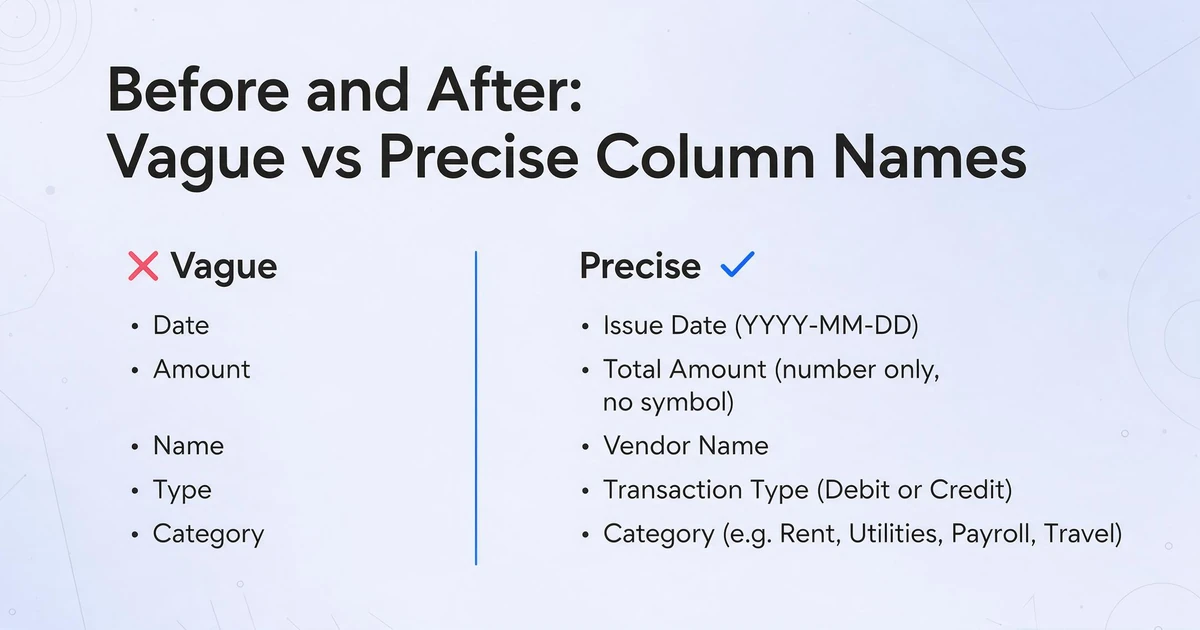
| Vague column name | Better column name | Why it's better |
|---|---|---|
| Date | Issue Date (YYYY-MM-DD) | Disambiguates which date; standardizes format across all source documents |
| Amount | Total Amount (number only, no symbol) | Removes currency symbols and formatting; ready for numeric operations |
| Name | Vendor Name | Distinguishes vendor from recipient, contact person, or approver on the same document |
| Type | Transaction Type (Debit or Credit) | Provides valid output values; works regardless of how the bank labels the column |
| Category | Category (e.g. Rent, Utilities, Payroll, Travel) | Few-shot example locks the taxonomy; prevents inconsistent category names across batches |
| ID | Invoice Number (e.g. INV-2024-0892, not PO number) | Rules out adjacent identifiers; example pins the expected format |
Frequently Asked Questions
What if I don't know what columns to ask for?
Upload the document without specifying any columns. The model will analyze the document structure and generate a suggested field list based on what it detects — a starting point you can refine. This auto-detect mode is the fastest way to understand a new document type without guessing at field names.
I'm consistently getting blank cells for a field I know is in the document. What's wrong?
Usually a naming ambiguity. The model couldn't confidently match your column name to a field in the document — either because the name is too generic ("Info", "Details"), because the document uses an unusual label for that field, or because the field is present but not clearly distinct from surrounding text. Try a more specific description, add an example value in parentheses, or check whether the field label in the source document differs significantly from what you asked for.
Can I reuse the same column set across different document types?
Yes, but add a "Document Type" column so you can distinguish rows in the merged output. If you're extracting "Amount" and "Date" from both invoices and receipts in one batch, those fields mean the same thing and the merged table is clean. If you're mixing invoices with bank statements, the semantics diverge — an "Amount" from an invoice total and an "Amount" from a single bank transaction aren't the same field, and you'll want to separate or label them.
How is writing a column name different from writing a formatting rule?
The column name tells the model what to find. A formatting rule (or format hint embedded in the column name) tells it how to render the value once found. Both can be expressed in the column name itself: "Total Amount (number only, 2 decimal places)" identifies the field and specifies the output format in one instruction. Keeping them together in the column name is simpler than managing a separate rules field — and it's immediately visible in your output table header.
Why does indexed output matter if I'm only processing one document at a time?
Even with a single document, column indexing ensures that a missing field produces a visible blank cell rather than shifting subsequent values left. A bank statement where a particular transaction has no memo will produce an empty cell in the Memo column — not a date or amount value shifted into that slot. The behavior is most consequential in batch processing where missing fields are common, but the structural correctness it provides applies to any multi-column extraction.
Try these techniques with your own documents — upload a batch, apply the column naming patterns above, and compare the output to your previous results.
Start Extracting