Get the Amount From a
WeChat Red Packet (红包) or Transfer Screenshot
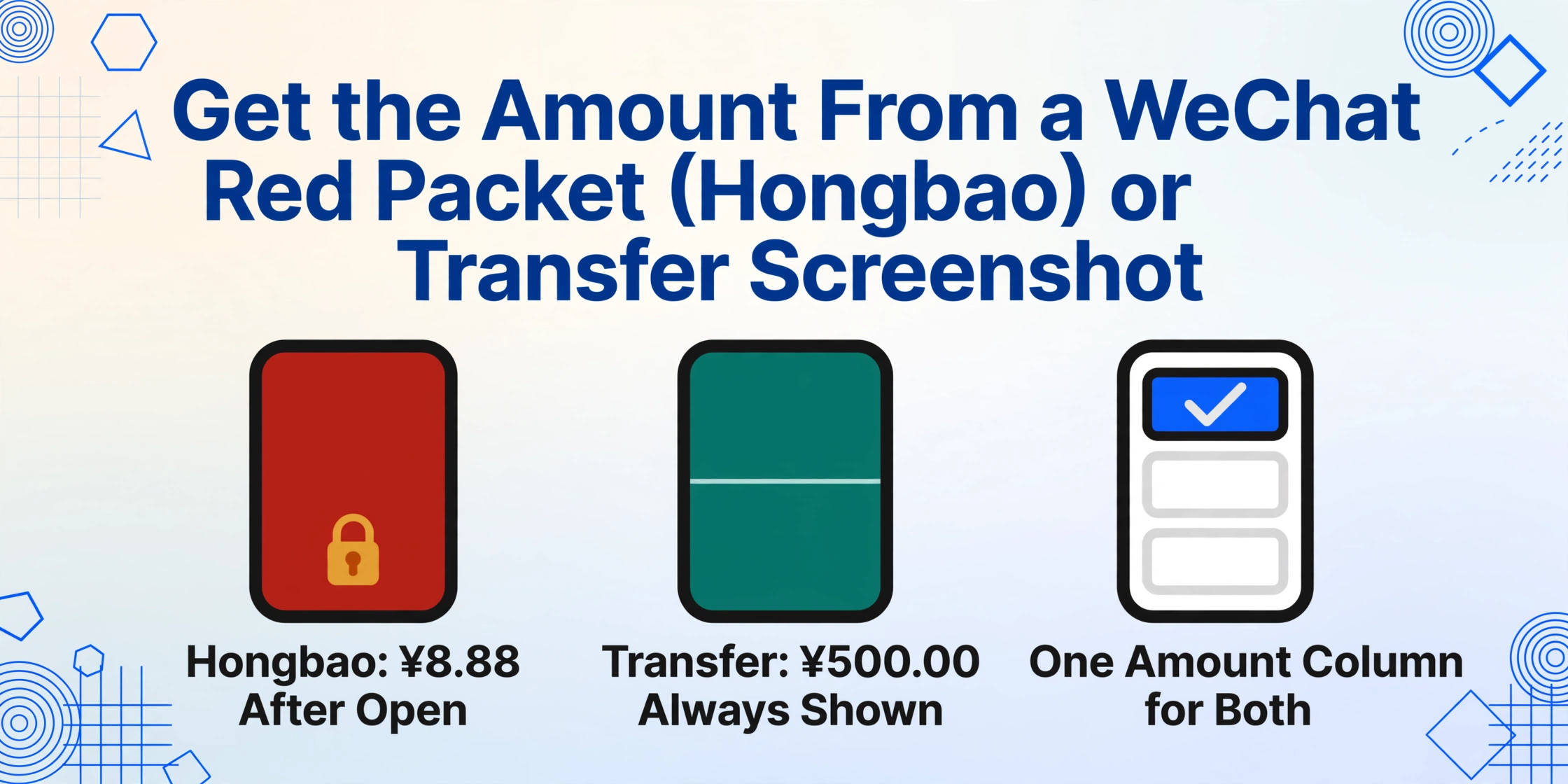
Take a screenshot of a WeChat chat where someone just sent you a red packet (红包). What you capture is not a text message — it is a red card with a gold lock, a greeting line like "Happy New Year!" and a button that says "Open." The amount is inside that card. Before you tap "Open," the number is hidden from view. After you open it, the amount appears on the same red card for a few seconds before the entire card collapses into a system message. A transfer (转账) arrives differently: a green card that shows the full amount upfront, with an "Accept" (收款) button attached. Between these two card types — one that hides its number until opened, one that displays it immediately — lies a surprisingly specific extraction problem for anyone trying to log payment data from WeChat chat screenshots.
Key Takeaways
- A red packet (红包) screenshot taken before opening has no visible amount — take the screenshot after tapping "Open," when the number appears briefly on the red card before it collapses into a system message.
- A transfer (转账) card displays the full amount upfront in a green card — no reveal step needed, making it the more reliable screenshot source for payment logs.
- Process red packet and transfer screenshots together with one "Amount" column — the same AI reads both card types by their visual structure as embedded chat objects, not by per-card templates.
What a WeChat Red Packet (红包) Looks Like in a Chat Screenshot
WeChat offers two ways to send money inside a chat: red packets (红包) and transfers (转账). They look different, behave differently, and — critically for anyone trying to extract data from screenshots — they display their amounts in different ways at different moments.
A red packet is designed as a gift. When someone sends one in a private chat or group chat, what appears in the conversation is a red card with these elements:
- A red-orange gradient background with the sender's custom cover image or the default red envelope design
- The word "红包" (red packet) prominently displayed
- A greeting message from the sender (e.g., "Happy New Year" or "Thanks!")
- A circular gold lock icon and a "Open" (开) button at the bottom
- The sender's avatar and name appear above or beside the card
Before the recipient taps "Open," the amount is deliberately hidden. This is by design — the red packet is a surprise. The screenshot captures a card with no visible number, just the expectation of one. After the recipient opens it, the card transforms: the amount appears in large text on the red background (e.g., "¥8.88"), along with a "You've received" message. This post-open state lasts a few seconds before the card collapses into a grey system message in the chat log: "You've received the red packet." The amount then appears only in smaller text as part of that system message.
For screenshot-based extraction, there are effectively two versions of the red packet: the pre-open card (no amount visible — not useful for extraction) and the post-open card or system message (amount visible). Someone taking a screenshot after opening captures a card where the amount is the most visually prominent element — large, centered, in a contrasting color against the red background. This is the version that holds the data you need.
How a WeChat Transfer (转账) Card Differs From a Red Packet
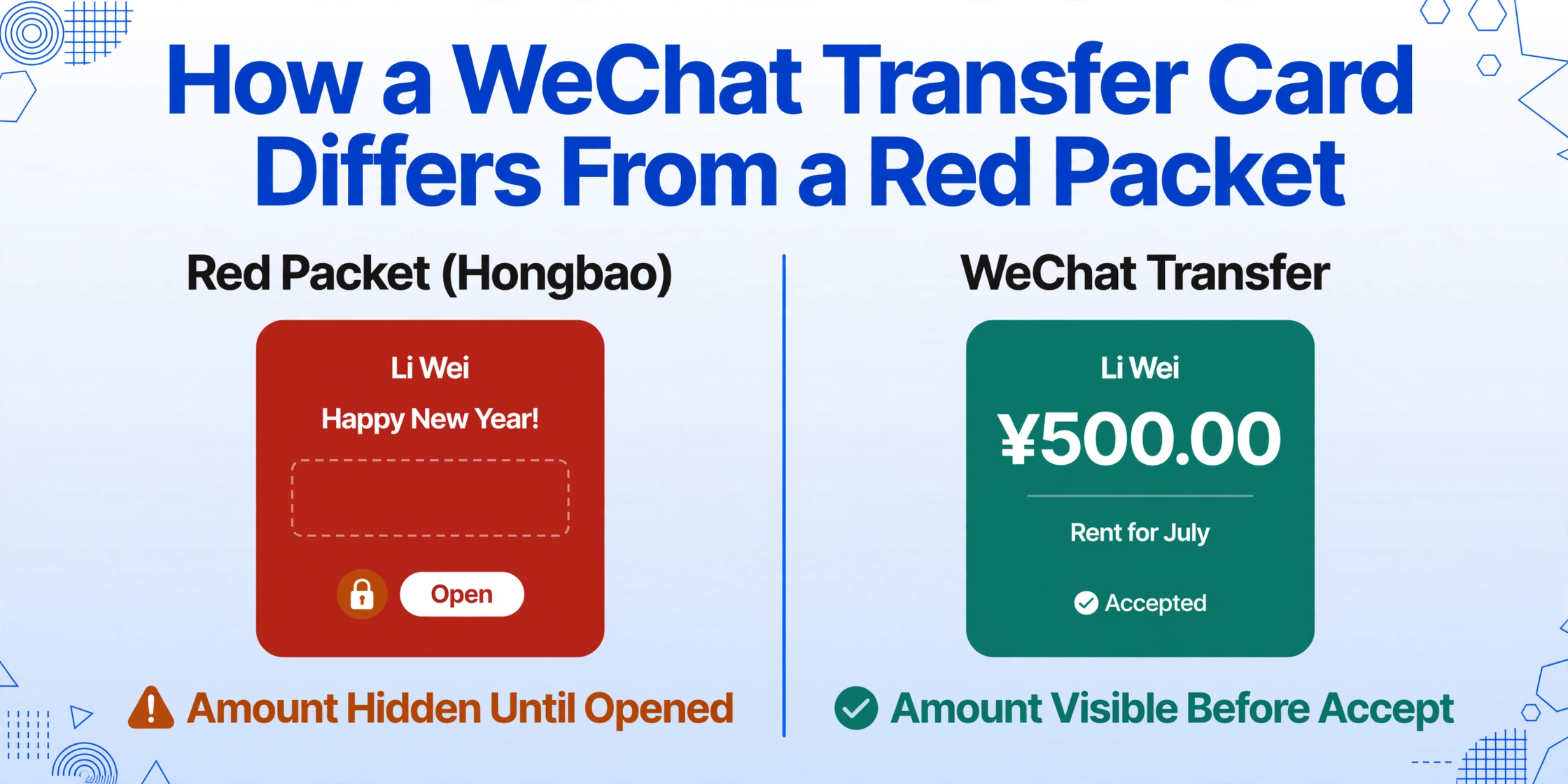
WeChat's transfer function (转账) is the more straightforward of the two payment types — designed for direct money movement rather than gift-giving. When someone initiates a transfer, what appears in the chat is a green card with a distinctly different layout from the red packet:
- A green-background card (contrasting with the red packet's red-orange) with a simpler, more transactional design
- The amount is displayed immediately and prominently in large text (e.g., "¥500.00")
- Below the amount, a thin separator line and then the sender's optional note or remark (备注), such as "Rent for July"
- A status indicator at the bottom: "未收款" (not yet accepted) if pending, or "已收款" (accepted) after the recipient taps "Accept" (收款)
- The sender's name (their WeChat display name) appears above the card
Unlike the red packet where the amount is a reveal, the transfer card shows its full amount before any action is taken. The recipient sees exactly how much they'll receive before deciding to accept. This makes the transfer screenshot fundamentally different from the red packet screenshot: the amount is always visible, always in the same position on the card, and always formatted as a currency value with the ¥ symbol.
There is another practical difference. A red packet in a group chat is a lottery — the sender sets a total amount and a number of recipients, and each person receives a random split. A transfer is always person-to-person: the full amount goes to one recipient. For anyone tracking income from WeChat — a freelancer logging client payments, for instance — the transfer card is the more reliable record because the amount is unambiguous and visible in a single glance.
The key difference for data extraction: A transfer card screenshot always contains the full amount in a predictable visual location. A red packet screenshot contains the amount only if it was captured after opening — and even then, the amount may appear in the card (large, centered) or in the collapsed system message (small, inline) depending on how much time passed before the screenshot was taken.
Why Traditional OCR Gets Confused by These Chat-Embedded Cards
A WeChat chat screenshot is not a document. It is a conversation thread containing multiple visual objects: text bubbles (grey or green), system messages (small grey text), and — in the case of red packets and transfers — styled cards that sit inside the chat flow as if they were messages, but are visually and structurally distinct from the surrounding text.
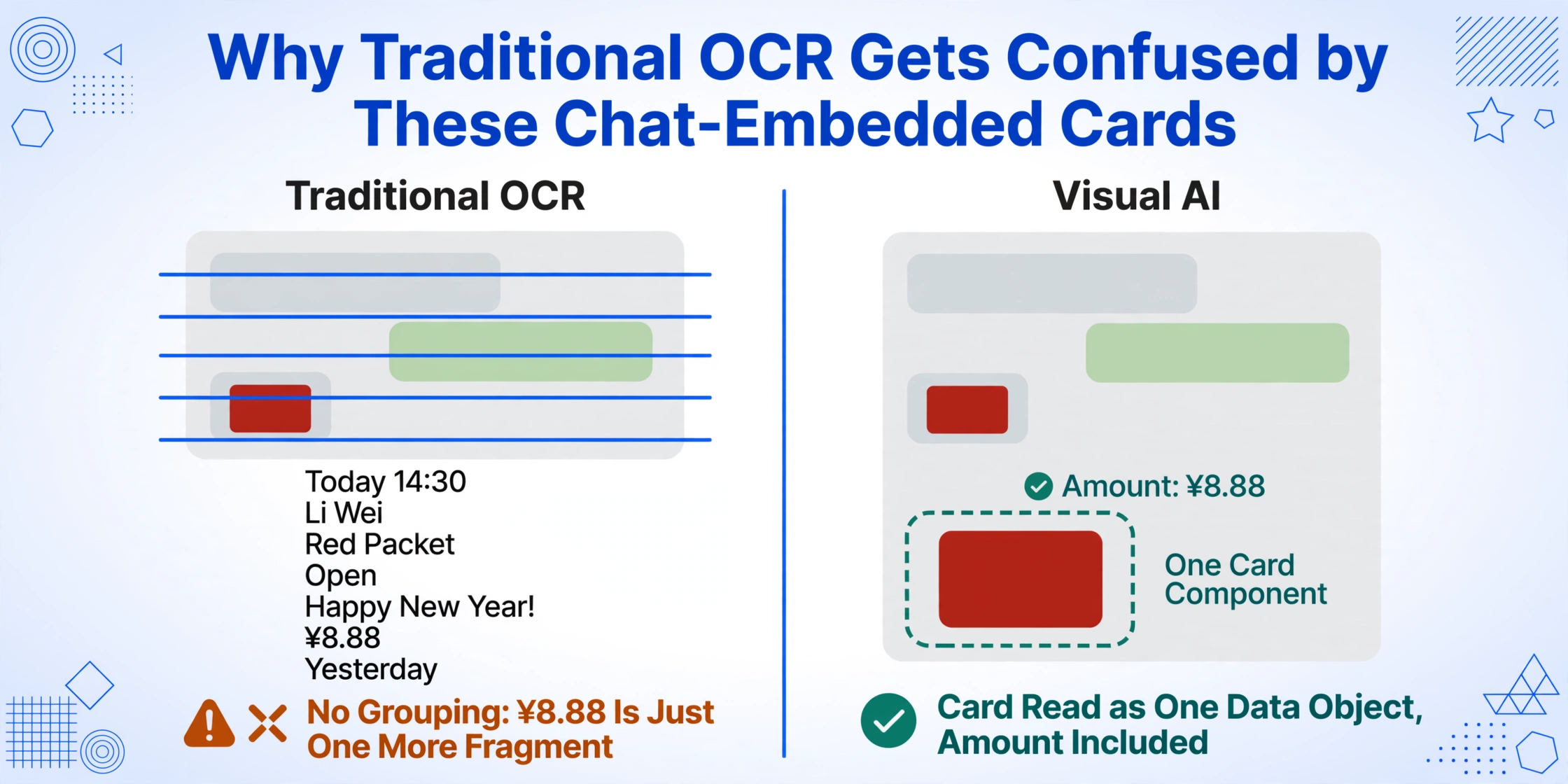
Traditional OCR tools approach every pixel on the screen as potential text to read. They scan the image left to right, top to bottom, and output everything that looks like a character. On a WeChat chat screenshot that contains a red packet card, the OCR output might look something like:
Today 14:30
Li Wei
红包
Open
Happy New Year!
You've received
¥8.88
Red Packet
Li Wei sent a red packet
Yesterday
The problem is immediate. The OCR tool has no awareness that the red card is a single visual component. It does not know that "¥8.88" is the amount field of a red packet, while "红包" is the title of the card, and "Open" is a button label. It treats them as independent text fragments scattered across the image. The output is a flat list of everything it read, with no grouping, no hierarchy, and no indication that the card elements belong together as one data object.
The card's decorative design compounds the problem. The red gradient background, the gold lock icon, the custom cover image — these visual elements are not text, but traditional OCR still processes them as image features. In low-light screenshots or compressed images, the gradient transitions can confuse the OCR's character detection, making it misread parts of the card text or miss the amount entirely. A transfer card's green background and clean minimal design is less prone to this issue — but the fundamental problem remains: the OCR reads the card as disconnected text rather than recognizing it as a structured payment record embedded inside a chat.
This is where semantic extraction — the approach used by Custom Column Extraction — diverges from traditional OCR. Instead of scanning for all text, it first identifies the visual structure of the screenshot: here is a chat thread, here is a red card, here is a green card, here are text bubbles. Then it reads the content within each component, associating the amount with the card it belongs to, rather than treating it as an isolated string of characters somewhere on the screen.
Visual AI Reads the Card as a Structured Data Object
The distinction between "reading all text" and "understanding visual components" is what makes visual AI suitable for extracting amounts from WeChat's chat-embedded payment cards. A vision model processes the screenshot holistically — it sees the card's boundary, recognizes that the red rectangle with the gold lock is a single interactive component, and reads the text inside that component as related data rather than independent fragments.
On a red packet screenshot captured after opening, the visual AI identifies:
- The card boundary: a distinct red-orange rectangle with rounded corners, visually separated from the chat bubbles above and below it
- The greeting text: "Happy New Year!" — recognized as the sender's message, visually distinct from the amount by its smaller font size
- The amount: "¥8.88" — the largest text element on the card, with a different visual weight from the surrounding elements
- The system context: the card sits in a chat, so the sender's name (from the message metadata above the card) can be associated with the transaction
On a transfer card screenshot, the same model identifies:
- The card boundary: a green, more minimal rectangle with a clean top-to-bottom layout
- The amount: immediately identifiable as the headline element, displayed prominently with the ¥ symbol
- The status indicator: "已收款" or "未收款" — a small but critical piece of metadata that traditional OCR would likely treat as stray text
- The remark (备注): if the sender included a note, it appears below the amount in a distinct visual tier
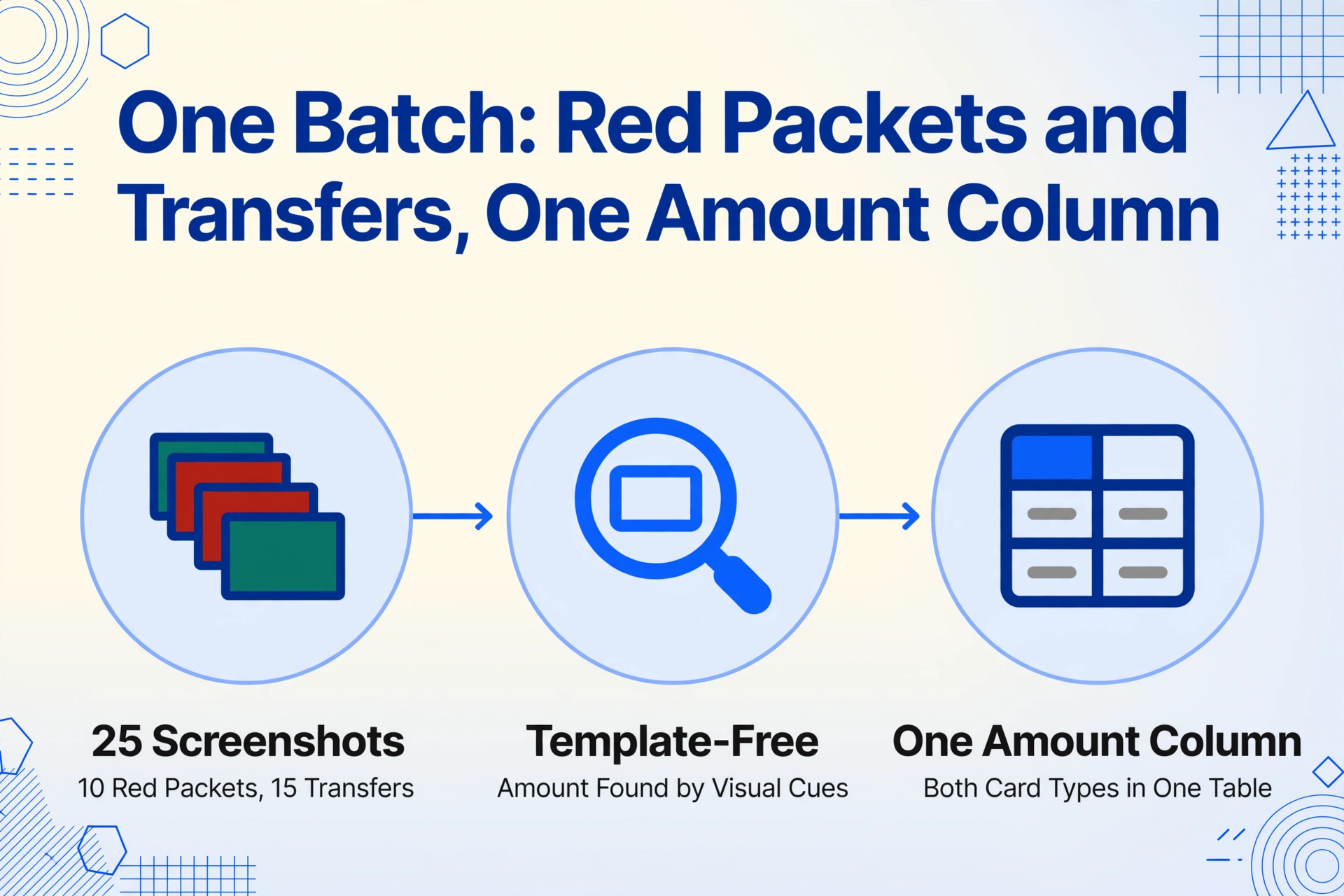
This component-aware reading means you can define a single column — "Amount" — and the AI finds it on both card types in a mixed batch. A set of 30 WeChat chat screenshots containing 18 red packet captures and 12 transfer confirmations can be processed together with one column definition, producing a single output table where each row shows the amount and the sender's name from each screenshot. No per-card-type configuration, no separate batches for red vs green cards.
What a Red Packet or Transfer Screenshot Cannot Tell You
While the amount is reliably extractable from both card types under the right conditions, there are data points that a chat screenshot simply does not carry — regardless of the extraction method.
A red packet screenshot — even the post-open version — contains no order number, no transaction ID, and no merchant reference. WeChat Pay assigns a transaction ID to every payment, but that ID lives in the Wallet (钱包) transaction history, not on the red packet card itself. For group red packets, the screenshot shows only your share of the total — you do not see the sender's total amount or how it was split among other recipients.
A transfer card screenshot similarly lacks an order number or payment method detail. The sender's name on the card is their WeChat display name — editable, changeable, and not a verified identity. If you are logging transfers for accounting purposes, record the amount and the timestamp (visible from the chat message metadata above the card), but be aware that the sender's name field is the least stable identifier in the set. For permanent record-keeping, pair the screenshot with the corresponding Wallet transaction entry where the official transaction ID is available.
FAQ
Can I extract the amount from a red packet screenshot before opening it?
No — the pre-open red packet card deliberately hides the amount. The screenshot shows the card design, the greeting, and the "Open" button, but the amount is not rendered until the recipient taps to open it. If you need to record the amount, take the screenshot after opening, when the amount is displayed on the card or in the resulting system message.
Does a WeChat transfer card screenshot count as proof of payment?
It depends on the context. A transfer card showing "已收款" (accepted) confirms the recipient received the money. For personal record-keeping, roommate expense splitting, or informal receipts, the screenshot is sufficient. For formal tax or audit purposes in China, the official transaction record from WeChat Wallet (钱包) — which includes the 28-digit transaction ID — carries more weight. The same distinction applies to WeChat Pay transaction screenshots in general: the on-screen amount is useful for tracking, but the transaction ID is the verifiable reference.
Can I process red packet and transfer screenshots together in the same batch?
Yes. The same column definition — "Amount" — works on both card types because the visual AI identifies the amount field by its visual characteristics (large text, currency format, prominent position on the card) rather than by a pre-defined template for red cards vs green cards. A batch containing 10 red packet captures and 15 transfer screenshots produces one merged output table with the amount column filled for every row.
Can I extract amounts from group red packet screenshots?
Yes — but only the amount you received, not the total the sender distributed. A group red packet screenshot after opening shows your individual share (e.g., "¥3.50 of a ¥50 red packet"). If you need to track per-person distribution in a group buy or shared expense, you would need separate screenshots from each participant's perspective.
Does the transfer card show the recipient's full name or just their display name?
The card shows the sender's (or recipient's) WeChat display name (昵称), not their real name or WeChat ID. This name can be changed by the user at any time. For a reliable link between a transfer and a specific person, use the timestamp and the transaction amount as supporting data alongside the display name. For formal records, reference the transaction ID from the Wallet history — that ID never changes.
The amount is on the card. The question is how to get it off without retyping every screenshot. Custom Column Extraction treats each card as a structured data object — whether it is a red packet with a hidden amount or a transfer card with the full amount upfront. Define "Amount" as a column, upload your WeChat chat screenshots, and let the AI read the card components by their visual structure, not by their pixel positions. A batch of 30 screenshots — red packets, transfers, or a mix of both — becomes a single spreadsheet in one pass, no per-card configuration needed.
Try It on a Chat ScreenshotNo sign-up required. Upload a screenshot and see the extraction result immediately.