Build a Retail Inventory Spreadsheet
from Every Supplier's Purchase Order
A UNFI purchase order arrives as an EDI 850 with GTIN codes and SSCC-18 pallet labels. A Faire order lands in your inbox as a portal-generated PDF with a completely different layout. A small regional supplier emails a hand-typed Excel sheet with their own SKU naming convention. Every one of these documents contains the same essential data — SKU, quantity, cost, delivery date — but retrieving it requires a different mental mapping exercise each time. Multiply by 15 suppliers and 30 POs a month, and what should take minutes eats entire afternoons.
Key Takeaways
- 15 suppliers send purchase orders in 15 different layouts, and every one of them forces you to find the same four fields — SKU, quantity, cost, delivery date — in a different corner of the page.
- Template-based extraction tools solve this by demanding one template per supplier layout — turning a 15-supplier data entry problem into a 15-template maintenance burden that breaks every time a supplier updates their format.
- Define your inventory columns once — with retail-specific fields like landed unit cost (freight-inclusive) and separate ordered-vs-received columns — and ImageToTable.ai reads any supplier's PO by understanding what each field means, not where it sits on the page.
Why a Unified PO-to-Inventory Spreadsheet Is a Retail Problem, Not a General One
Most purchase order extraction guides treat a PO as an isolated document — extract the vendor name, the PO number, the date, the line items, and you're done. That framing works if you're an accounts payable clerk matching POs to invoices. But a retail buyer or inventory manager isn't closing a payable — they're feeding stock levels.
In retail, a PO is the starting point of an inventory transaction. The data needs to flow into a spreadsheet where it answers specific questions: How many units of SKU X are on order right now? When do they arrive? What's my landed cost per unit once freight and handling are factored in? Which supplier is consistently shipping partial quantities and when do I need to trigger a second order?
These are not questions that a generic PO extraction workflow answers. They require a spreadsheet structure designed around inventory logic, not document logic. The distinction matters: a "PO table" has one row per line item per PO. An inventory spreadsheet has one row per SKU, aggregating across POs, with columns for on-order quantities, received quantities, backordered quantities, and rolling landed cost. Building the second from the first is the retail-specific step that most guides leave out.
The Reddit thread "How do small businesses actually track 30+ purchase orders without losing their minds" captures the reality: the questioner looked at procurement software like SAP, Tradogram, and Procurify but balked at $300–$500/month minimum pricing. They didn't need a full ERP — they needed a way to get PO data into their spreadsheet without typing it. That's a retail inventory problem, not a procurement automation problem.
The Four Data Points Every Retail Inventory Spreadsheet Needs from a PO
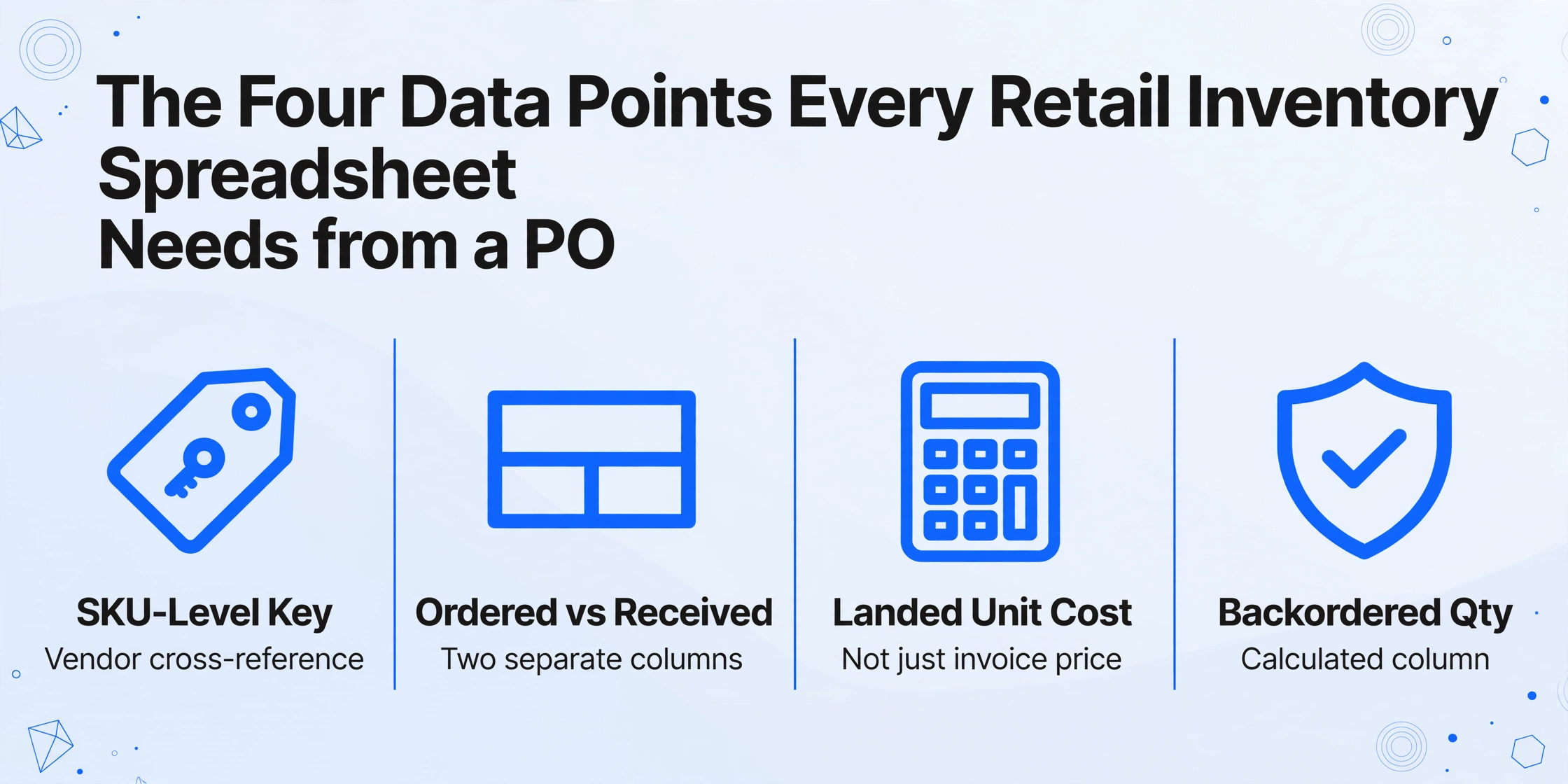
Before discussing how to extract data, it's worth defining what to extract. A retail inventory spreadsheet built from purchase orders needs more columns than a generic PO log. Here are the four that separate an inventory-ready sheet from a document archive:
SKU-Level Key with Vendor Cross-Reference
Your internal SKU is the master key. But supplier POs rarely use it — UNFI references GTIN/UPC, Faire uses their own product ID, and a small vendor might use description-only. Your spreadsheet needs a column that captures whatever identifier the supplier used, plus a cross-reference lookup (even a simple VLOOKUP table on a separate tab) that maps supplier codes to your SKU. Without this mapping, extracted PO line items can't update your inventory counts.
Ordered Quantity vs. Received Quantity — Two Separate Columns
When a supplier ships 48 of 60 units and backorders the remaining 12, you need to know both numbers. Recording only what arrived means you lose visibility on committed-but-not-yet-received stock. A single "Quantity" column is the most common spreadsheet design mistake in retail PO tracking. Use separate Ordered Qty and Received Qty columns, with a third calculated column for Backordered (Ordered - Received).
Landed Unit Cost, Not Just Invoice Price
The per-unit price on a PO is rarely your true cost. Freight, customs duties, port handling, and insurance add up. Under FASB ASC 330, these costs must be capitalized into inventory value rather than expensed immediately. For retail accounting, your spreadsheet should track Supplier Unit Price and Total Landed Cost per line item. Landed cost allocation is typically done on a value-proportional basis: if Product A represents 40% of the shipment's total invoice value, it absorbs 40% of the freight and handling charges. Including this column means your cost-of-goods-sold calculation is accurate from day one, not after a monthly adjustment.
Expected Delivery Date with Status Flag
A PO's "delivery date" field is often aspirational. What matters for inventory planning is the difference between the supplier's committed date and the actual receiving date. A column for Expected Delivery Date plus a Status flag (On Time / Delayed / Partial / Received) gives you a single-row view of every line item's current state. This is the column that tells you whether you need to trigger a reorder before the stockout happens.
The Multi-Supplier Format Problem: Why Generic PO Guides Miss the Point
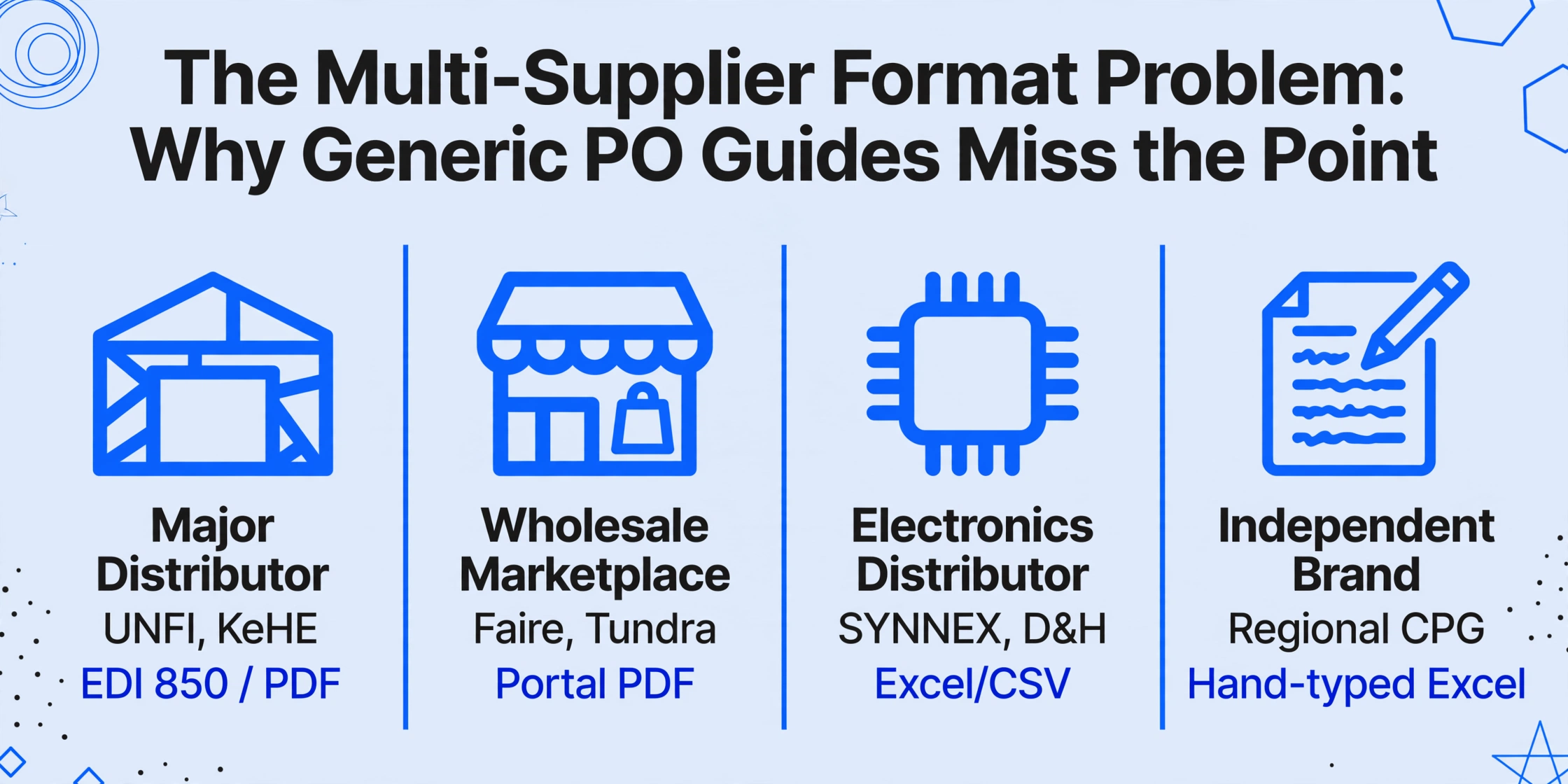
Most PO extraction articles assume a standard format — a PDF with a header block and a line-item table below it. But retail buyers deal with a format landscape that generic guides never acknowledge:
| Supplier Type | Example | Typical Format | Extraction Challenge |
|---|---|---|---|
| Major distributor (EDI) | UNFI, KeHE, McLane | EDI 850 / portal PDF export | Uses GTIN/UPC codes instead of your SKU; line items reference pallet-level SSCC-18 logistics codes that don't map 1:1 to product SKUs |
| Wholesale marketplace | Faire, Tundra, Abound | Portal-generated PDF / email confirmation | Product names embedded in branded layout; SKU often buried in fine print below the image; order totals split by ship window |
| Consumer electronics distributor | SYNNEX, D&H, Ingram Micro | Excel/CSV download or email attachment | Column headers use distributor's internal codes; item descriptions are truncated engineering specs that don't match your retail-facing product names |
| Independent brand / small supplier | Regional CPG brands, local artisans | Hand-typed Excel template or even a photo of a handwritten form | No standardized fields; quantities and costs mixed with handwritten notes about substitutions and lead time changes; case-pack vs. unit ambiguity |
This format fragmentation is the real bottleneck. A retail buyer doesn't need one extraction setup — they need one extraction setup that works across all of these. As discussed in our batch purchase order extraction guide, the core mechanism is the same regardless of format: you define the columns you want, and the AI reads each document to find the matching values. But the retail-specific layer — SKU cross-referencing, landed cost computation, partial-receipt tracking — is what transforms extracted data into usable inventory intelligence.
The "one format per supplier" assumption is why most PO extraction tools fail for retail.
Template-based OCR tools require you to draw bounding boxes on each supplier's PO layout. When you have 15 suppliers each with a different format, you need 15 templates. Change one supplier's format and you rebuild the template. Retail inventory turnover doesn't wait for template maintenance.
Step-by-Step: Building Your Retail Inventory Spreadsheet from Supplier POs
Here is a workflow that produces an inventory-ready spreadsheet from purchase orders in any format — no per-supplier template setup required.
Define Your Inventory Spreadsheet Columns
Open a blank sheet and create your target columns — these are the headers the extraction will populate. For a retail inventory spreadsheet, include: Supplier Name, Supplier PO Number, Supplier SKU/Code, Your Internal SKU, Product Description, Ordered Qty, Received Qty, Supplier Unit Price, Freight Cost (allocated), Landed Unit Cost, Expected Delivery Date, Status. The extraction tool uses these same column names to locate matching data in each PO — you type "Supplier SKU/Code" as a column name, and it finds the supplier's product identifier on every document.
Upload All POs in One Batch
Drag in PDFs from Faire, Excel sheets from SYNNEX, email screenshots from small vendors — every format in a single upload. The tool doesn't require you to pre-sort by supplier or format. Each document is processed independently, and results are merged into one table where each row represents one line item from one PO. This is where template-free extraction earns its value: you upload 30 POs from 10 suppliers in one step, not 10 setups of 30 minutes each.
Review the Merged Table — Especially SKU Cross-References
The extraction produces a unified table with all line items from all POs. Spot-check the Supplier SKU/Code column — this is your key for mapping to internal SKUs. A five-minute review catches edge cases: a Faire PO that lists "Variant: 8oz" in a separate field from the main SKU, or a hand-typed Excel sheet where the supplier used "ea" in the quantity column instead of a number. Fix any anomalies before the data enters your live inventory sheet.
Export to XLSX and Connect to Your Inventory Tracker
Export the merged table as an Excel file. If you maintain a master inventory spreadsheet, use VLOOKUP or INDEX-MATCH to pull the on-order quantities into your inventory sheet by SKU. If you use inventory software like Cin7, Lightspeed Retail, or Zoho Inventory, most platforms accept XLSX imports for PO data. The key is that the file you import already has your column structure — no reformatting needed between extraction and import.
The process above works for standard PO data. You can see it in action with the embedded tool below — upload a purchase order and watch how the AI locates each field regardless of where it appears on the page.
Files are processed securely and not stored.
Beyond Extraction: Landed Cost, Partial Receiving, and Other Retail Realities
Getting PO data into a spreadsheet is the first half. The second half — the part that retail-specific spreadsheets actually live and die on — is what happens when the numbers don't add up cleanly.
Landed Cost Allocation: Why "Unit Price" Is Never Your Real Cost
Say you receive a shipment from UNFI: $5,000 in product value, $400 in freight, $75 in fuel surcharge, and $25 handling fee — $500 in total additional costs. If 60% of the shipment value is SKU A and 40% is SKU B, SKU A absorbs $300 of the freight and SKU B absorbs $200. A spreadsheet that only records the supplier's unit price understates your true inventory cost by 10%, which compounds into inaccurate margin reporting and incorrect reorder decisions.
With computed column extraction, you can embed this allocation logic directly into the extraction step. Define a column called Landed Unit Cost (Supplier Unit Price + Allocated Freight) and specify the allocation rule — for example, value-proportional across the shipment. The AI calculates it during extraction, and your exported spreadsheet already has the adjusted cost. No separate reconciliation step.
Partial Receiving: When 48 of 60 Units Arrive
Suppliers don't always ship full quantities. A PO for 60 units might arrive as 30 this week and 30 next week — or 48 now with 12 backordered indefinitely. In a manual spreadsheet, this means updating a row twice and tracking which quantities belong to which receiving event. The approach outlined above — separate Ordered Qty and Received Qty columns with a calculated Backordered column — handles this natively. Each time you receive a partial shipment, you update only the Received Qty for that line item, and the Backordered value recalculates automatically.
For retailers using formal receiving workflows, the purchase order to Excel converter can be integrated into the receiving process: scan or upload the packing slip alongside the original PO, extract both, and compare the ordered-vs-received quantities in a single view.
From Data to Decision: The Reorder Trigger
The end goal of this entire workflow isn't a spreadsheet — it's knowing when to reorder before the shelf goes empty. One column worth adding to your inventory sheet is a simple Reorder Flag: if (On-Hand Qty + On-Order Qty - Backordered Qty) drops below your reorder point, the flag lights up. This single formula, fed by the accurate PO data you extract, transforms a static inventory list into an active stock-management tool.
Frequently Asked Questions
Can this handle different currencies from international suppliers?
Yes. The extraction reads the currency as it appears on the PO — USD, EUR, GBP, etc. If you need all costs in your base currency for the inventory spreadsheet, add a computed column during extraction that applies your standard exchange rate. The output is a unified table with costs already converted.
What if my small supplier sends POs as handwritten forms or photos?
The AI reads handwriting and phone photos of paper forms — no scanner required. A supplier who emails a photo of a filled-out PO form from their phone produces the same extracted output as a machine-generated PDF. The accuracy on handwritten digits (quantities, prices) is high but not perfect; a quick review pass catches any misreads, which is far faster than typing the entire document from scratch.
How does this compare to using EDI for purchase orders?
EDI (Electronic Data Interchange) works for large distributors — UNFI sends you an EDI 850, your system ingests it automatically. But EDI requires per-trading-partner setup ($1,500–$5,000+ per partner for initial configuration, plus ongoing fees), and it only works with suppliers who support EDI. Small brands, marketplace-only sellers, and international suppliers rarely offer EDI connections. Document-level extraction fills the gap: it processes any format your suppliers actually send, without per-supplier setup. Many retailers use EDI for their top 3–5 distributors and document extraction for the remaining 20+ suppliers — the two approaches complement each other.
What happens to my data after extraction?
Files are processed for extraction and then deleted. The extracted data is exported to your spreadsheet; no documents or data are retained after the session. For retailers handling supplier pricing that's commercially sensitive, this means your cost data stays in your spreadsheet, not on a third-party server.
Can I reuse the same column template month after month?
Yes. Once you define your column structure — Supplier Name, Supplier SKU, Ordered Qty, Received Qty, Landed Unit Cost, Expected Delivery Date, Status — save it as a template. Next month's batch uses the same columns, same extraction logic, and outputs data into the same spreadsheet structure. The only thing that changes is the POs themselves.
Every retail buyer eventually hits the point where the number of suppliers outpaces the speed of manual data entry. The spreadsheet itself isn't the bottleneck — it's the handoff between the document and the cell. Closing that gap with column-name-defined extraction means you define the structure once, and every supplier's PO, regardless of format, feeds into the same inventory view.