5 P60 Data Entry Mistakes That Put
Payroll Reconciliation at Risk
Every May, after the payroll software finishes printing P60s, someone opens an Excel workbook and starts typing. For a payroll bureau handling 15 employer clients and 400 employees, that typing session lasts the better part of a week. The spreadsheet gets NI numbers, PAYE references, pay figures, tax deducted, and student loan deductions transcribed from certificates generated by Sage, Xero, BrightPay, ADP, IRIS, and — for employees who brought in a paper P60 from a previous employer — whatever payroll system printed it three years ago. What happens in that Excel session determines whether the year-end reconciliation passes or whether someone in September is still untangling a wrong tax code entered four months earlier.
Key Takeaways
- A mistyped NI digit produces another perfectly valid NI number — every format check approves it, and the employee's P60 data lands silently on someone else's HMRC record without triggering a single alert.
- P60 pay and tax figures swapped into adjacent columns produce a plausible effective tax rate — close enough that a reconciliation discrepancy gets attributed to rounding differences instead of triggering the full audit it deserves.
- These are not attention-to-detail failures — removing the manual typing step eliminates errors that format validation is structurally incapable of catching, and the person who used to type becomes a reviewer who spots mistakes instead of creating them.
The Transcription Blind Spot in P60 Data Entry
The payroll industry has spent years discussing P60 errors — but almost always from the software side. Wrong tax code applied during the year. Incorrect NI category letter in the payroll system. RTI submission flagged by HMRC. These are processing errors: the payroll software generated a wrong certificate because the data fed into it was wrong, or a configuration setting was off. The fix is in the payroll system.
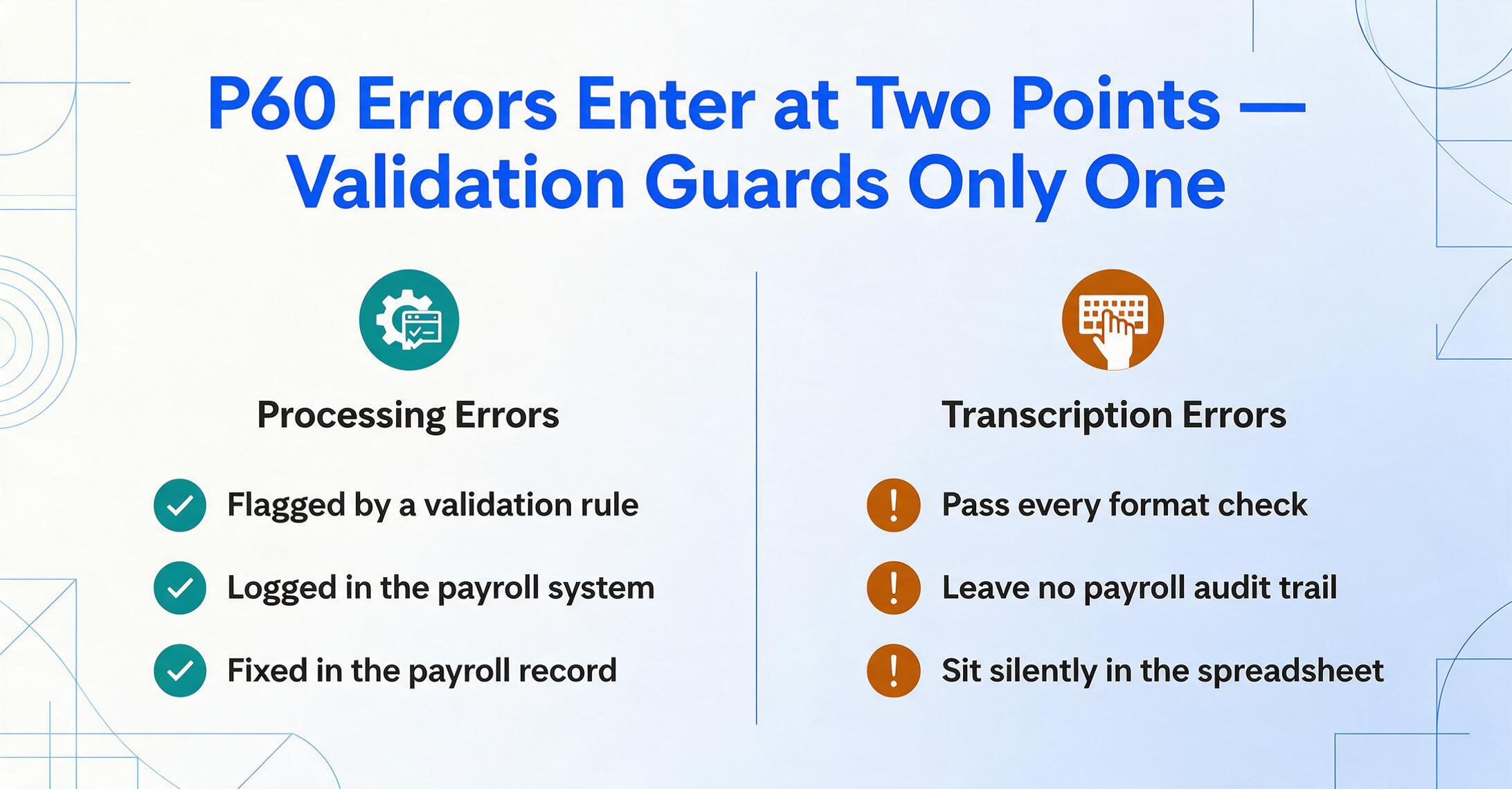
But there is a second category of P60 error that payroll blogs, accounting firm guides, and HMRC advisory pages barely mention: the errors introduced after the P60 is correctly generated, during the moment when a person reads the certificate and types its data into a reconciliation spreadsheet. A payroll bureau verifying year-end FPS totals against P60 output is not fixing software — it is verifying that the software output matches HMRC submissions. The source document is the P60. The transcription target is a spreadsheet. Every field transcribed is an opportunity for an error that no payroll software audit trail will catch, because the payroll system was never involved in the transcription.
These errors are structurally different from processing errors. A processing error is caught when the payroll system flags a validation rule — an invalid NI format, a tax code that doesn't match HMRC records. A transcription error is caught when someone manually compares the spreadsheet cell against the P60 PDF. If nobody does that comparison, the error sits in the spreadsheet, feeds into the reconciliation report, and eventually surfaces when an employee notices their tax code is wrong — or a mortgage lender rejects an application because the pay figure on the P60 doesn't match the employer's verification.
The five mistakes below are the ones that survive format validation, pass month-end checks, and surface months later. They are not "check your work more carefully" problems — they are symptoms of a workflow where the transcription step itself is the root cause.
Mistake #1: NI Number Transposition — The Error That Finds the Wrong Employee
The National Insurance number format — two prefix letters, six digits, one suffix letter — looks like it should catch transposition errors automatically. Any payroll software, any Excel validation formula, any RTI submission will reject a string that doesn't match the pattern. But here is what the format check actually catches: wrong-length entries, characters where digits belong, invalid prefix letters (D, F, I, Q, U, V as the first character; D, F, I, O, Q, U, V as the second).
What it does not catch is a transposition within the six-digit segment. QQ 12 34 56 C typed as QQ 12 43 56 C passes every format validation in existence — nine characters, two valid prefix letters, six digits, one valid suffix letter. The payroll software accepts it. HMRC's RTI system accepts it. And it routes the employee's tax and NI data to the wrong HMRC record — a record that might belong to a completely different person, or to nobody at all until HMRC's matching algorithm eventually flags the mismatch.
A single transposition in the six-digit segment creates a valid NI number that belongs to a different individual — or creates a combination that doesn't correspond to any issued NI number but passes format validation. In either case, the downstream damage is not a rejected submission — it is a silently accepted submission with wrong identity binding. The employee's P60 data lands on someone else's National Insurance record. That someone else's State Pension entitlement calculation incorporates someone else's earnings. That someone else's Self Assessment pre-population shows income from an employer they never worked for.
The suffix letter is another layer of hidden complexity. The four valid letters — A, B, C, D — correspond to the calendar quarter in which the NI number was originally issued. Payroll administrators who worked before RTI know this because NI cards used to arrive quarterly, and the suffix was the quarter marker. Someone who entered the profession in 2020 may never have heard of the quarterly suffix system. So when they transcribe a P60 and see QQ 12 34 56 C, they don't know that C means "issued in October-December quarter" — and they wouldn't flag it if the suffix were wrong because format validation checks only that the suffix is A/B/C/D or space, not that it matches the NI number's issuance quarter.
The structural problem: NI number transposition errors pass every automated check available to a payroll operator working with a spreadsheet. The only way to catch them is manual comparison between the spreadsheet cell and the original P60 — the exact comparison that scaled data entry makes impossible to perform on every field for every row.
The accounting firm that took on a new client and discovered the NI number had been wrong "for a few years" — documented on AccountingWEB — is not an outlier. It is what happens when a transposition error enters the system and format validation says "looks fine to me."
Mistake #2: Tax Code Mis-Entry — The Error That Costs Employees Real Money
A tax code on a P60 is not just a string like 1257L. It is the final state of the employee's PAYE calculation for the tax year, and it carries two critical pieces of information: the code number itself, which determines the tax-free allowance, and an optional basis indicator — W1 or M1 — which tells HMRC whether the code was applied on a cumulative or emergency (non-cumulative) basis.
The transcription error that happens most often with tax codes is not typing 1257L as 1258L. It is omitting the basis indicator when the P60 shows 1257L W1. If the spreadsheet column captures only the code and drops the W1/M1 suffix, the reconciliation report loses the information that this employee was on an emergency tax basis at year-end. The next employer who receives this data — or the accountant who prepares the Self Assessment return from it — sees a standard cumulative code and applies it as if there is no W1/M1 issue. The employee's tax is calculated incorrectly for the next tax year, based on a code that was never supposed to carry forward.
The real-world impact is not hypothetical. Audit Consulting Group's P60 correction casebook includes an employee named Emma in Manchester whose P60 showed the wrong tax code — the result was an £890 overpayment that took a corrected P60 and an HMRC refund process to resolve. That is £890 of an employee's money held by HMRC for months, because one code on one certificate was wrong. When the error is transcription rather than payroll system — the payroll system generated the correct code, but the person transcribing the P60 typed it into the spreadsheet incorrectly — the path to resolution is longer. The employer can point to the correct P60. The transcription is the error, not the source document. But the payroll operator who transcribed it wrong six months ago may not be the person fielding the employee's call in September.
Tax code mis-entry also cascades through the Self Assessment pipeline. If an accounting firm uses P60 data — transcribed from client documents — to populate the Employment pages of the SA100 tax return, a wrong code on the return creates a mismatch with HMRC's RTI data. HMRC may flag the return for inquiry, and the accountant's next communication with the client starts with explaining why a typing error in May triggered an HMRC letter in November.
Mistake #3: Total Pay and Tax Deducted — One Column Swap That Breaks Everything
A P60 for an employee who held two jobs in the same tax year shows two sets of figures that are easily confused under time pressure. "Pay in This Employment" is the gross pay from this specific employer. "Total Pay for Year" includes pay from previous employments, carried forward from the P45. "Tax Deducted" in this employment is the PAYE tax this employer deducted. "Total Tax for Year" aggregates tax from all employments.
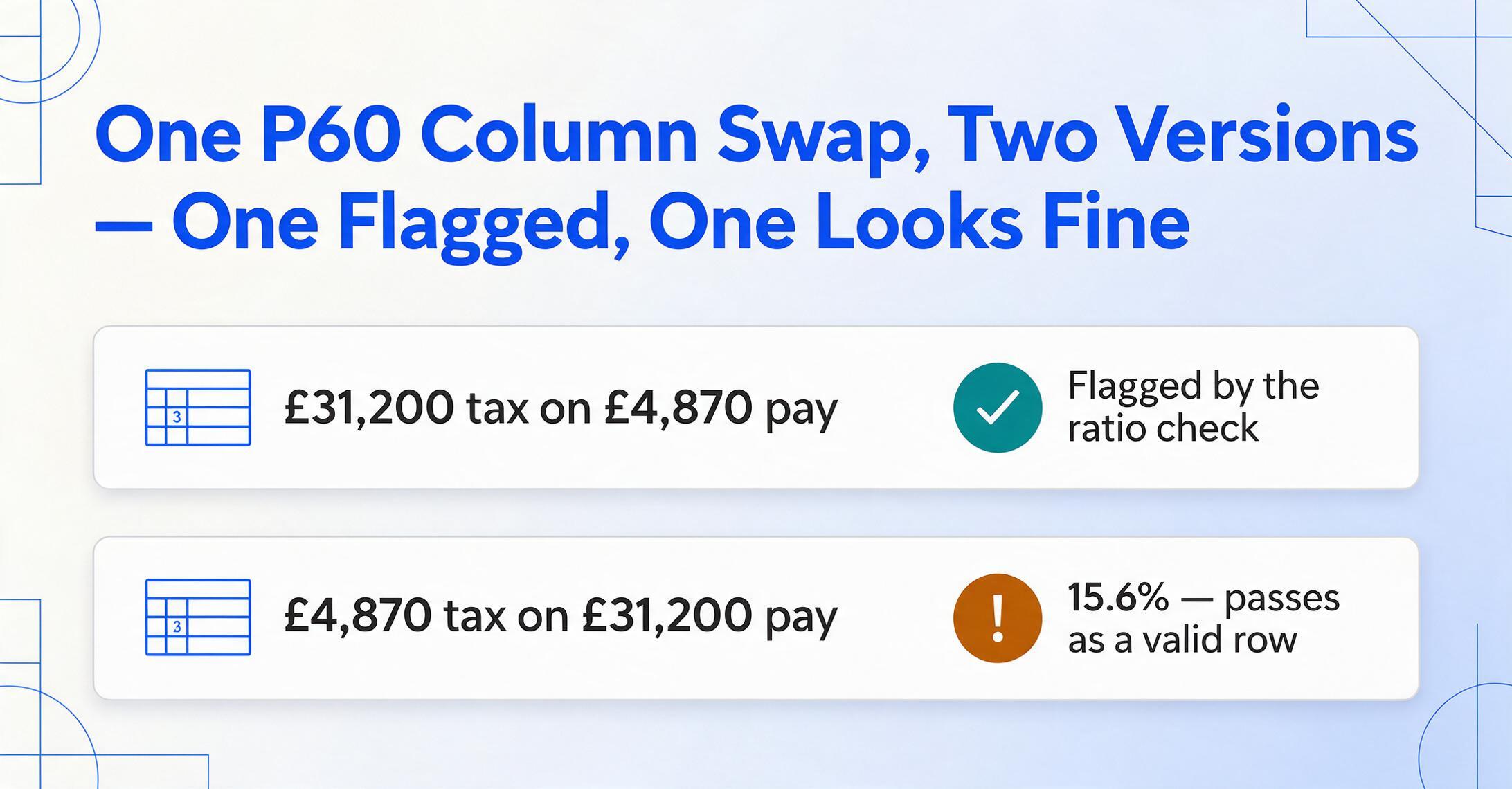
On a Sage-printed P60, these four figures might appear in two adjacent columns. On a Xero-printed P60, they might appear in a vertical stack. On a paper P60 brought in by an employee from a previous employer five years ago, they might appear in a completely different layout. A payroll operator transcribing 80 P60s in a day, moving between different layout formats every few certificates, types "Pay in This Employment" into the "Tax Deducted" column once. One row. One swap. And that row now shows £31,200 of tax on £4,870 of pay — or the reverse, £4,870 of tax on £31,200 of pay.
The first number triggers an automated check — tax-to-pay ratio. Anyone looking at a spreadsheet row with £31,200 of tax on £4,870 of pay will notice. But the reverse — £4,870 of tax on £31,200 of pay — is a plausible effective tax rate of 15.6%. It passes the proportionality check. It passes the format check. It feeds into the reconciliation report as a valid row, and the total-rows reconciliation against FPS data comes out slightly off — close enough to attribute to rounding or a small RTI timing difference, not far enough to trigger a full re-audit of every row.
This specific error has a documented parallel in HMRC's own software. In one tax year, HMRC's Basic PAYE Tools (BPT) software produced P60 PDFs where the NI earnings bands were transposed — the PDF showed wrong figures that did not match the RTI submission. Payroll administrators discussing it on AccountingWEB described spending "unchargeable time" diagnosing an error that wasn't theirs. HMRC's response was that the error appeared only on the PDF, not in the contribution agency data — which means the PDF the payroll operator is reading and transcribing from may contain layout errors that even the software provider hasn't caught.
When a human transposition error combines with a source document layout that is itself ambiguous — two columns with similar numeric values, no visual separator — the error becomes virtually undetectable until someone reconciles the individual row against the original P60 PDF. At 80 rows a day, nobody reconciles every row against the original PDF.
Reversal errors share a common DNA: they happen at the boundary between two tasks — finishing one P60 and starting the next — and they persist because the resulting number is individually plausible even though it is contextually wrong. Format validation sees a number in the expected range and moves on.
Mistake #4: Leaving Date Mismatch — When the P45 and P60 Tell Different Stories
This mistake does not happen on a single document. It happens in the gap between two documents that reference the same employee. An employee who left Employer A in March and started at Employer B in April appears on two sets of P60 data. Employer A's P60 shows pay up to a March leaving date. Employer B's P60 shows pay from the April start date. Both certificates are individually correct. But the sum of the two — when transcribed into a spreadsheet row for the employee — needs to respect a constraint that nobody is checking: the leaving date on the P45 should precede the start date of the next employment, and the total pay across both P60s should correspond to the full-year figures.
When the leaving date on the P45 is transcribed incorrectly — typed as 31/03 instead of 28/02, for example — the new employer applies the wrong tax code because the P45 is the document the new employer uses to determine the employee's cumulative tax position. If the P45 shows a leaving date two weeks later than actual, the new employer's payroll software applies a cumulative code that assumes two extra weeks of tax-free allowance from the previous employment — allowance the employee already used. The employee ends up under-taxed for the remainder of the year and receives an HMRC Simple Assessment letter the following autumn demanding payment of the shortfall.
HMRC's guidance on correcting a wrong leaving date says: update your payroll records with the correct date, and do not report the amendment in your next FPS — because doing so may create a duplicate employment record. But this guidance applies to the employer who made the original FPS submission. If the transcription error happens in a payroll bureau's reconciliation spreadsheet — the leaving date was typed wrong during data entry, not during the original FPS — the bureau has no FPS to amend. The error exists only in the spreadsheet. And the spreadsheet feeds the bureau's reconciliation report, which feeds the employer's sign-off, which may result in the employer issuing a corrected P60 that fixes a problem that didn't exist in the original P60 — creating a correction loop that wastes everyone's time.
The structural gap is cross-document validation. Payroll software validates within a single document — NI format on the P60, tax code format on the P45. No system validates across documents — that is, no system checks that the P45 leaving date and P60 "Pay in This Employment" figure are consistent with the employee's total pay trajectory. That cross-document check is what the payroll operator is supposed to do manually when transcribing. And it is the first check dropped when the volume exceeds the available time.
Mistake #5: Student Loan Plan Confusion — Plan 1, 2, 4, 5, or Postgraduate?
Of the five mistakes in this article, this is the one where payroll administrators are least at fault — and the one that generates the most employee complaints months after the P60 was issued. The UK student loan repayment system now has five plan types, each with a different repayment threshold, and an employee's plan is determined by where they studied, when they graduated, and what type of course they took.
The matrix looks like this:
| Plan | Who It Applies To | 2026/27 Threshold | Repayment Rate |
|---|---|---|---|
| Plan 1 | Pre-2012 England & Wales, all Northern Ireland | £26,900 | 9% |
| Plan 2 | 2012-2023 England, ongoing Wales | £29,385 | 9% |
| Plan 4 | All Scottish borrowers | £33,795 | 9% |
| Plan 5 | 2023+ England undergraduates | £25,000 | 9% |
| Postgraduate (Plan 3) | Master's and doctoral borrowers | £21,000 | 6% |

HMRC's employer guidance says: if your employee does not know which plan they're on, use Plan 5 in your payroll software until you receive a Student Loan Start Notice (SL1). Defaulting to Plan 5 is a sensible administrative fallback — but it means that every employee who is actually on Plan 1, 2, or 4 but didn't tell their employer gets deductions calculated at the wrong threshold. A Plan 1 borrower (threshold £26,900) treated as Plan 5 (threshold £25,000) starts repaying £1,900 of income earlier than they should — which, at 9%, means roughly £171 a year of over-deductions. A Plan 4 borrower (threshold £33,795) treated as Plan 5 (£25,000) overpays on £8,795 of income — roughly £792 a year.
The transcription dimension of this error is subtler. When a payroll operator transcribes P60 data into a reconciliation spreadsheet, the P60 shows a student loan deduction figure — a single number in whole pounds. It does not show which plan generated that deduction. The operator types £1,200 into the spreadsheet column labelled "Student Loan Deductions." The number is correct. The plan is invisible. Two employees with the same salary and the same £1,200 deduction can be on different plans — one Plan 1, one Plan 2 — and the spreadsheet treats them identically. The reconciliation report that compares total P60 deductions against FPS totals will match, because the deduction amounts are correct. The error is not in the amount — it is in the plan type recorded in the payroll system, which the P60 summarises without naming.
When HMRC eventually cross-references employee plan types — which they do, and which can take months because SLC data flows through HMRC to employers asynchronously — the employer receives a notification that an employee was on the wrong plan. The employer then needs to correct past deductions, which may involve the employee claiming a refund from SLC. Martin Lewis at MoneySavingExpert has documented the Plan 2 repayment threshold freeze and the broader problem of over-deductions: employees on variable incomes, employees who started repaying too early, and employees on the wrong plan by default. The refund process goes through SLC, not through payroll — but the original error lives in the payroll record that the P60 summarises, and the reconciliation spreadsheet that doesn't capture plan type amplifies the invisibility of the error.
The plan confusion error is a structural feature of a system with five plan types and no visible plan identifier on the P60. The P60 reports the deduction — the payroll operator transcribes the deduction correctly — and nobody knows the plan is wrong until HMRC says so. The spreadsheet column called "Student Loan Deductions" captures the symptom (amount deducted) but not the diagnosis (which plan generated it).
Why AI Extraction Changes the Error Profile — Not Just the Speed
Every mistake described above shares a root cause that training, checklists, and second reviews address only at the surface. The root cause is the transcription step itself — the moment when a person reads a PDF and types its data into a cell. Removing that step removes an entire category of errors that no validation formula catches.
When P60 data is extracted by AI rather than typed by hand, the error profile shifts. The NI number is read directly from the certificate — no transposition opportunity between page and cell. The tax code arrives complete with its W1/M1 indicator because the extraction preserves the full string, not what a person remembers to type. The pay and tax figures are mapped to their correct columns by semantic meaning — "Pay in This Employment" vs "Total Pay for Year" — rather than by the operator's spatial navigation across a layout they saw for the first time ten seconds ago. The student loan deduction is extracted as the printed value, and the plan type question becomes a payroll system configuration issue rather than a transcription issue.
This doesn't mean extraction eliminates all errors. It changes what errors remain. Instead of transposition errors — wrong digit, wrong column, omitted suffix — the remaining errors are verification errors: did the AI misread a poorly printed character? Did it map the NI category letter from the wrong row when an employee had a mid-year category change? These verification errors are faster to spot because the operator reviews extracted data against the source document, rather than typing and reviewing simultaneously. The operator becomes a reviewer, not a transcriber — and reviewers catch errors that transcribers create.
For the full workflow — from P60 PDFs to reconciliation-ready spreadsheet, including column definitions that work across Sage, Xero, BrightPay, and any payroll provider's P60 layout — see our guide to extracting UK P60 data into Excel. For the broader problem of manual P60 data entry as a structural bottleneck in payroll year-end, see the hidden cost of P60 data entry.