How to Extract Data from Japanese
Withholding Tax Certificates to Excel
Every January, HR teams at Japanese companies and foreign subsidiaries hand out a single-page document to each employee — the withholding tax certificate (源泉徴収票, Gensen Choshu-hyo). For a mid-sized company with 300 employees, that is 300 separate certificates. For a payroll service bureau managing 20 clients, it can run into the thousands. Most teams already have payroll software that calculates these numbers. The bottleneck is not the math — it is the extraction: getting each employee's salary, withholding tax, social insurance, and deduction data out of those PDFs or paper copies and into a spreadsheet that global headquarters or an external accountant can actually use.
What’s on a Gensen Choshu-hyo — the 26 fields that matter for extraction
A Gensen Choshu-hyo is not a payslip. It is an annual tax summary — the Japanese equivalent of combining elements of a US W-2, a summary of deductions, and a dependents declaration into one government-mandated form. Under Article 226 of Japan’s Income Tax Act, every employer must issue one to every employee by January 31 of the following year, and within one month of termination for anyone who leaves mid-year. The National Tax Agency (NTA) publishes the official format guidelines in its annual Withholding Tax Guide (源泉徴収の仕方).
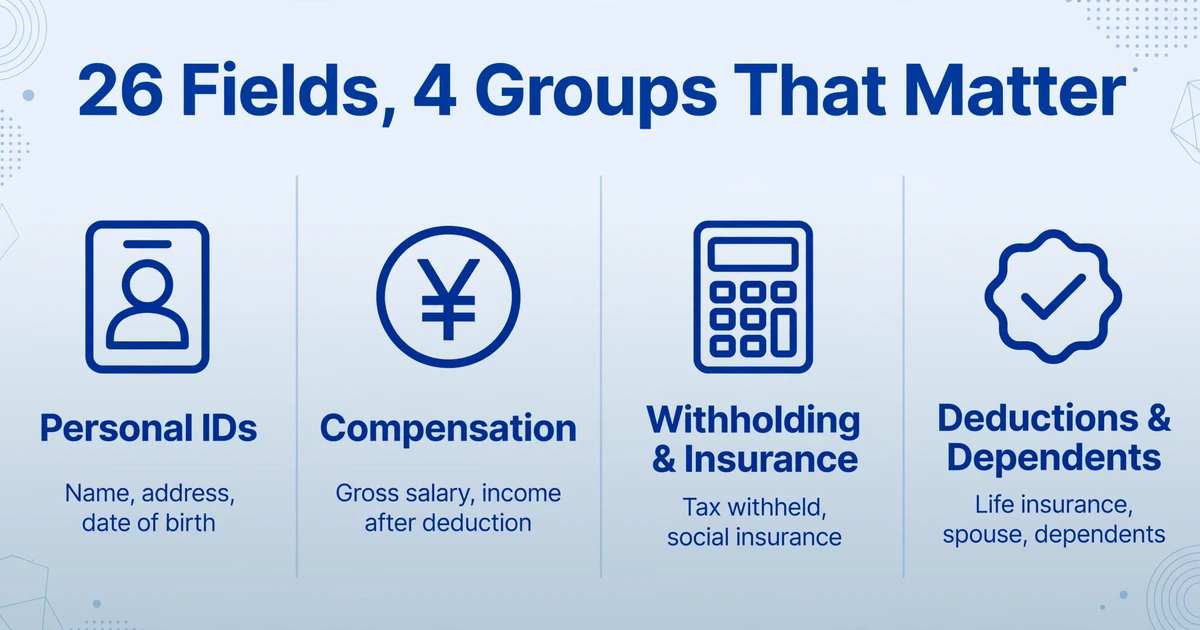
The certificate contains 26 defined fields. For extraction purposes, the ones you will care about most fall into four groups:
Personal identifiers — employee name, address, date of birth, job title, and the employer’s corporate number (法人番号, a 13-digit ID that uniquely identifies the company). The employee’s My Number (個人番号) is present on the employer’s copy but appears blank or masked on the employee copy, so extraction workflows need not involve My Number data.
Compensation figures — total gross salary (支払金額, paid during the year, including bonuses and overtime), income after the statutory employment income deduction (給与所得控除後の金額), and total amount of deductions from income (所得控除の額の合計額). These three numbers form the taxable income calculation chain. The employment income deduction follows a progressive formula published by the NTA — for example, for salary between ¥3.6M and ¥6.6M, the deduction equals revenue × 20% + ¥440,000.
Withholding and insurance — withholding tax amount (源泉徴収税額, national income tax actually withheld during the year), social insurance total (社会保険料等の金額 — this includes health insurance, welfare pension, employment insurance, and workers’ accident insurance combined). Note that residence tax (住民税) is not shown on the Gensen Choshu-hyo — it is calculated and billed separately by the municipality starting the following June.
Deductions and dependents — life insurance premium deductions (生命保険料控除), earthquake insurance deductions (地震保険料控除), housing loan tax credit (住宅借入金等特別控除), spousal exemption details (配偶者控除), and the number of dependent family members by category (specific dependents aged 19–22, elderly dependents 70+, and others including children under 16). These fields are essential for any downstream tax planning or expatriate compensation equalization calculations.
Key takeaway: The three fields every global HR team needs are gross salary (支払金額), withholding tax (源泉徴収税額), and social insurance total (社会保険料等の金額). Start with those. The 23 other fields can be extracted incrementally as your reporting needs expand.
Why PDF extraction beats the CSV export route for most teams
Japanese payroll software can export data. Yayoi Payroll (弥生給与) outputs CSV from its summary tables and supports e-Tax CSV format for electronic filing. freee HR & Payroll (freee人事労務) generates withholding certificates and can export year-end adjustment data to CSV. SmartHR lets employees submit declarations digitally and produces the certificates for distribution. MoneyForward Cloud Payroll handles the full calculation cycle. If you run one payroll system for all employees, the CSV export path exists.
Three realities make the CSV route harder than it sounds in practice:
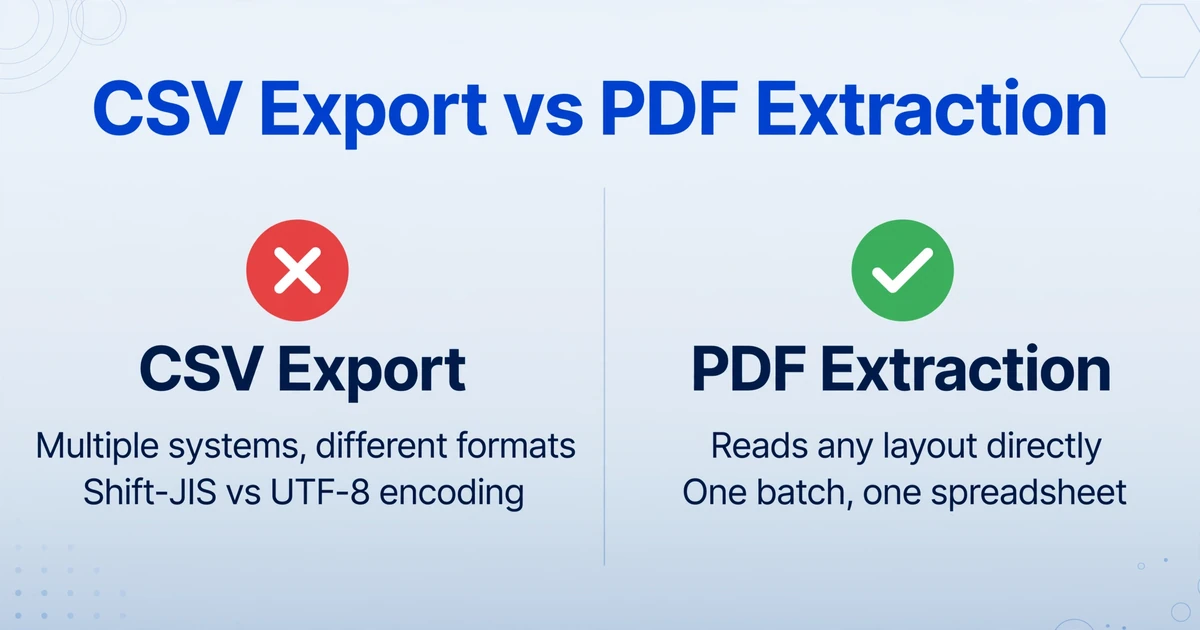
Different software, different formats. A foreign subsidiary that switched from an outsourced payroll provider (say, using Yayoi Payroll) to SmartHR mid-year now has employees whose Gensen Choshu-hyo data lives in two systems. The CSV layouts differ. The column headers are in Japanese. The date formats, number delimiters, and encoding (Shift-JIS vs. UTF-8) vary. Merging data from two system exports into one spreadsheet for global reporting requires a translator and a data-cleaning script — or a tool that reads the PDFs directly.
Retiring and transferring employees are outside your system. When an employee leaves, you issue a Gensen Choshu-hyo within one month. That employee takes it to their next employer, who must factor the previous income into the year-end adjustment calculation. If your company is the new employer, you receive a paper or PDF certificate from the employee’s previous job — issued by Payroll System A, when you run Payroll System B. Standard CSV export will not bridge that gap.
Global headquarters does not read Japanese. The most common pain point for foreign-affiliated companies (外資系, gaishikei) with Japan subsidiaries is the monthly or quarterly reporting cycle. The regional HR lead in Singapore or the global compensation team in New York needs Japan employee salary data in English, in a consistent Excel template, with columns like "Annual Gross Salary," "Income Tax Withheld," and "Social Insurance Contributions." A CSV export from Yayoi Payroll labeled 支払金額, 源泉徴収税額, and 社会保険料等の金額 requires manual translation and reformatting every cycle.
Put simply, the CSV export path works when your entire employee lifecycle happens inside one payroll system and all stakeholders read Japanese. The moment you cross systems, languages, or company boundaries, you are back to manual data entry — reading values off a PDF and typing them into Excel.
Step-by-step: extracting gensen choshu-hyo data to Excel
This workflow assumes you have a stack of Gensen Choshu-hyo documents — PDFs from your payroll system, scanned paper copies from previous employers, or photographed certificates from departing employees — and you need a single Excel file with one row per employee.
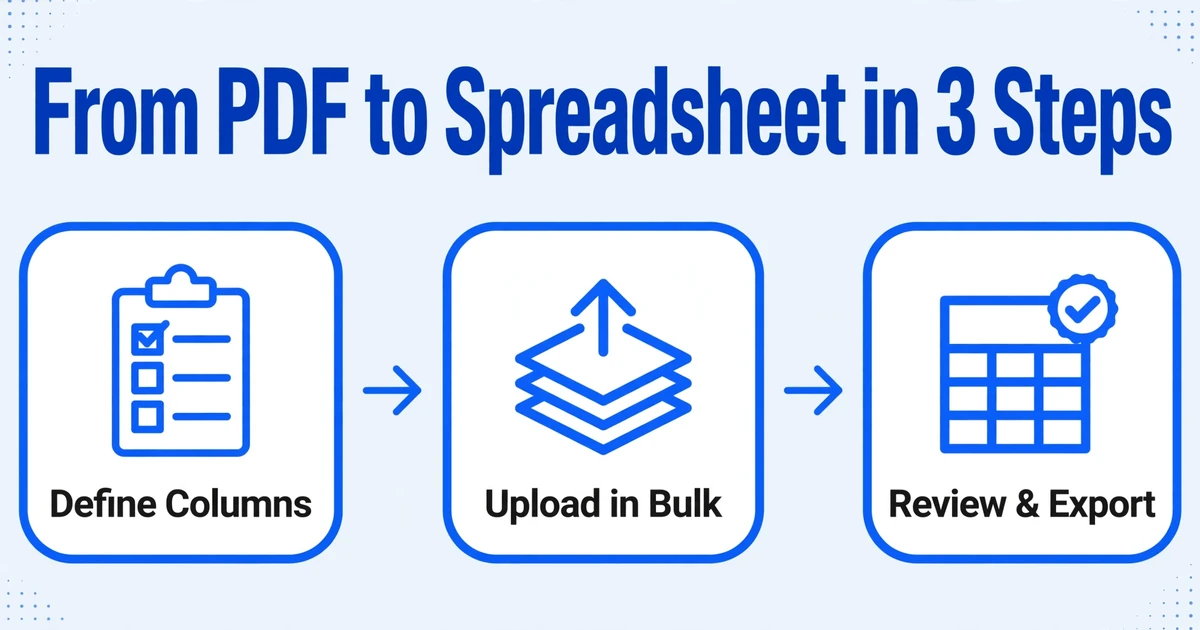
Step 1: Define your extraction columns. Unlike template-based OCR tools that require you to draw rectangles around each data field on a specific form layout, ImageToTable.ai uses column-name extraction: you simply type the names of the data fields you want, and the AI reads each document to locate and extract those values by understanding what they mean, not where they sit on the page. This matters for Gensen Choshu-hyo because different payroll software packages format the certificate differently — Yayoi places fields in one arrangement, SmartHR in another, and paper certificates from small employers follow yet another layout.
For a basic extraction run, start with these column names:
| Column name (English) | Japanese field name | What it extracts |
|---|---|---|
| Employee Name | 氏名 | Taxpayer's full name |
| Gross Salary (JPY) | 支払金額 | Total annual salary including bonuses and overtime |
| Income After Deduction (JPY) | 給与所得控除後の金額 | Gross salary minus statutory employment income deduction |
| Withholding Tax (JPY) | 源泉徴収税額 | National income tax actually withheld during the year |
| Social Insurance Total (JPY) | 社会保険料等の金額 | Combined health insurance, pension, employment insurance |
| Deductible Amount Total (JPY) | 所得控除の額の合計額 | Sum of all deduction amounts applied |
| Date of Birth | 生年月日 | Employee date of birth (YYYY-MM-DD or Japanese era) |
| Employer Name | 給与支払者の名称 | Company/employer name issuing the certificate |
You can add columns for life insurance deductions, earthquake insurance deductions, housing loan credits, dependent counts, and spousal exemption details as needed. The extraction engine does not require retraining — you add the column name and it finds the value.
Step 2: Upload your documents. Upload all Gensen Choshu-hyo files in a single batch — PDFs, scanned images, and photos all accepted. The tool processes them together and merges the extracted data into one spreadsheet, with one row per certificate.
Files are processed securely and not stored.
Step 3: Review and export. The tool processes a single page in 5 to 10 seconds — roughly 18 times faster than manual entry, which averages 3 minutes per document. Once extraction completes, you see a preview table with all rows and columns. Spot-check a few rows against the original PDFs, make any corrections directly in the preview if needed, then export as Excel (XLSX) or CSV. The exported file is immediately ready for reporting, uploading to your global HRIS, or forwarding to your external accountant.
Why this works across different Gensen Choshu-hyo formats: The AI reads fields by semantic understanding, not by fixed coordinates. Whether the certificate was generated by Yayoi, SmartHR, freee, or a small accounting firm’s custom template, “支払金額” is still “支払金額.” No retraining, no template per payroll provider, no drawing boxes.
Batch processing during year-end adjustment season
The year-end adjustment cycle (年末調整, Nenmatsu Chosei) creates a predictable annual spike. Employers must complete the withholding reconciliation by December 31, issue certificates by January 31, and — critically for companies with 100 or more employees who filed 100+ statutory reports the prior year — submit the withholding tax summary to the tax office electronically via e-Tax or optical disk. Starting January 2027, that threshold drops to 30 reports, pulling more mid-sized firms into mandatory electronic filing.
For HR teams, the parallel challenge is internal. While the tax office receives its electronic summary, senior management, regional headquarters, and external auditors all want their own structured reports — and those reports need data aggregated across all employees, not just submitted to the NTA. This is where batch extraction changes the economics of the task:
Single upload, single output file. Instead of opening 300 PDFs one at a time and copying numbers row by row, you drag all 300 certificates into one upload. The tool processes them in one batch and outputs a single spreadsheet with 300 rows — each employee is one row, each column is a field you defined.
Column consistency across mixed sources. When some employees have certificates from SmartHR and others still have paper certificates from a predecessor company’s payroll run, the column-name extraction approach ensures that “Gross Salary (JPY)” extracts the same underlying data field regardless of which employer or software produced the document. You get one clean column, not two fragmented ones.
Ready for downstream analysis. With all employee data in one spreadsheet, you can immediately run year-over-year comparisons, calculate aggregate tax and social insurance totals for budget forecasting, flag employees with unusual deduction patterns for review, and generate the English-language summary reports that global headquarters expects.
For companies that need to collect the certificates themselves before processing, a Collection Link — a shareable URL that lets recipients upload files directly into your processing queue without registering for an account — can be sent to each employee or department head. The uploaded certificates appear in your queue ready for batch extraction. This is especially useful when employees have paper-only certificates from previous employers that need to be photographed and submitted.
Special cases: multi-employer consolidation and retiring employees
Two scenarios trip up even experienced HR teams every year-end cycle:
Mid-year hires with prior employment. An employee who joined your company in September brings a Gensen Choshu-hyo from their previous employer covering January through August. Your payroll system cannot process this certificate — the data must be manually entered into the year-end adjustment calculation so that the combined income from both employers is correctly taxed. With extraction, you treat the previous employer’s certificate as just another document in the batch. It gets extracted into the same spreadsheet, with an “Employer Name” column that immediately identifies which row belongs to which employer. The combined data is ready for your year-end adjustment worksheet.
Retiring employees and the one-month deadline. Japan’s Income Tax Act requires that a retired employee receive their Gensen Choshu-hyo within one month of their final working day. For an HR team processing departures in October or November — before the year-end rush — this means generating individual certificates out of cycle. Extraction handles these one-off cases the same way as batch processing: upload the certificate PDF, define the columns once, and export. The consistency matters because the retiree’s data still needs to feed into annual reports and may be needed for pension calculations or foreign tax credit claims in their home country.
Frequently Asked Questions
Does this work with handwritten Gensen Choshu-hyo or low-quality scans?
Yes, within reasonable limits. The extraction engine reads printed text, handwriting, and scanned images, but accuracy depends on scan quality. A clear 200+ DPI scan of a printed certificate will extract at up to 99% accuracy for printed text fields. Faint handwriting, heavy creases, or low-resolution phone photos in poor lighting introduce more variance. In practice, most HR teams receive either PDFs directly from payroll software or clean printed copies — both extract well. For photographed certificates from employees, a quality guideline (flat surface, good lighting, entire document visible) eliminates most issues before upload.
Can I extract residence tax (住民税) from the Gensen Choshu-hyo?
No — and the reason is regulatory, not technical. Residence tax (住民税) is not displayed on the Gensen Choshu-hyo at all. It is calculated separately by each municipality based on the previous year’s income and billed to the employer in monthly installments starting in June. The Gensen Choshu-hyo shows only national income tax (源泉徴収税額), not residence tax. If your global reporting needs residence tax data, you will need to source it from the municipality’s tax levy notice (特別徴収税額通知書) or from your payroll system’s monthly deduction records.
Does the extraction tool read My Number (個人番号)?
No. The employee copy of the Gensen Choshu-hyo — the version most HR teams work with — has the My Number field masked or blank. The unmasked My Number appears only on the employer’s copy (源泉徴収票の控え), which is typically stored separately for compliance reasons. Extraction workflows that use the employee copy do not encounter My Number data at all.
What about retirement income certificates (退職所得の源泉徴収票) — can those be extracted the same way?
Not with the same column setup, because the retirement income certificate is a different form with different fields. It uses a separate tax calculation: taxable amount = (gross payment − retirement income deduction) × ½, where the deduction is ¥400,000 per service year up to 20 years and ¥700,000 per year beyond that. If you process a significant number of retirement certificates, define a separate set of column names — “Gross Retirement Payment,” “Years of Service,” “Retirement Income Deduction,” “Withholding Tax” — and run them as a separate batch. The extraction method is the same; the column definitions are different.
Is the payslip preset the right one for Gensen Choshu-hyo?
The payslip preset provides a reasonable starting point because Gensen Choshu-hyo shares structural similarities with payroll documents: employee identity fields, compensation amounts, deduction totals, and tax withheld. However, for production use, defining your own custom columns — using the exact Japanese field labels shown in the table above — will yield more consistent results than relying on the preset alone. Think of the preset as a demonstration of capability; your custom column definitions are what turn the demo into a repeatable workflow.
Can the tool handle certificates that are entirely in Japanese?
Yes. The underlying AI models read Japanese text natively. When you define a column like “Gross Salary (JPY),” the extraction engine looks for 支払金額 on the document and returns the numeric value regardless of surrounding Japanese text. You do not need to translate the document first, and the extraction result can be output with English column headers while the source data remains in Japanese.
Your spreadsheet starts with the first certificate you do not type by hand
The hidden cost of manual Gensen Choshu-hyo processing is not the 3 minutes per document — it is the compounding of those minutes across dozens or hundreds of employees, the formatting errors introduced when someone copies a Japanese field label into the wrong column, and the day or two lost every January that could have been spent on actual compensation analysis rather than data entry. The Japanese payroll software ecosystem already handles the computation. The gap is the final yard: getting the results out of the PDF and into the spreadsheet where decisions happen.