How to Extract Korean Tax Invoice
Data to Excel
South Korea's National Tax Service processes over 600 million electronic tax invoices per year — 99% of all invoices issued in the country. Yet for the finance teams that receive those invoices, the extraction problem remains stubbornly manual: copying business registration numbers (사업자등록번호), supply values (공급가액), and VAT amounts (세액) one field at a time from PDF or print into a spreadsheet. This guide walks through the mandatory fields on a Korean tax invoice (세금계산서), why standard OCR tools stumble on them, and how to extract the data you actually need into Excel — ready for quarterly VAT filing.
Key Takeaways
- 99% of Korean invoices are already electronic — yet the AP clerk copying supply values (공급가액) into Excel by hand doesn't feel any of that progress.
- Seven mandatory fields, dozens of vendor layouts: HomeTax, Popbill, Barobill, and Douzone each put business registration numbers and VAT amounts in different spots, so template-based tools need a new configuration for every supplier.
- ImageToTable.ai reads supply value as a concept, not a pixel coordinate — one column definition extracts every vendor's tax invoice into the same spreadsheet, no per-supplier setup required.
Korean Tax Invoice vs. Standard Invoice: The 7 Fields That Define Korean Tax Invoices
A Korean tax invoice (세금계산서) is not a generic commercial invoice with a VAT line added. It is a legally prescribed document format defined by Article 32 of Korea's VAT Act, and every field on it serves a specific compliance purpose. If you are extracting data from Korean supplier invoices into Excel — whether for AP processing, VAT return preparation, or ERP import — understanding these mandatory fields is the prerequisite.
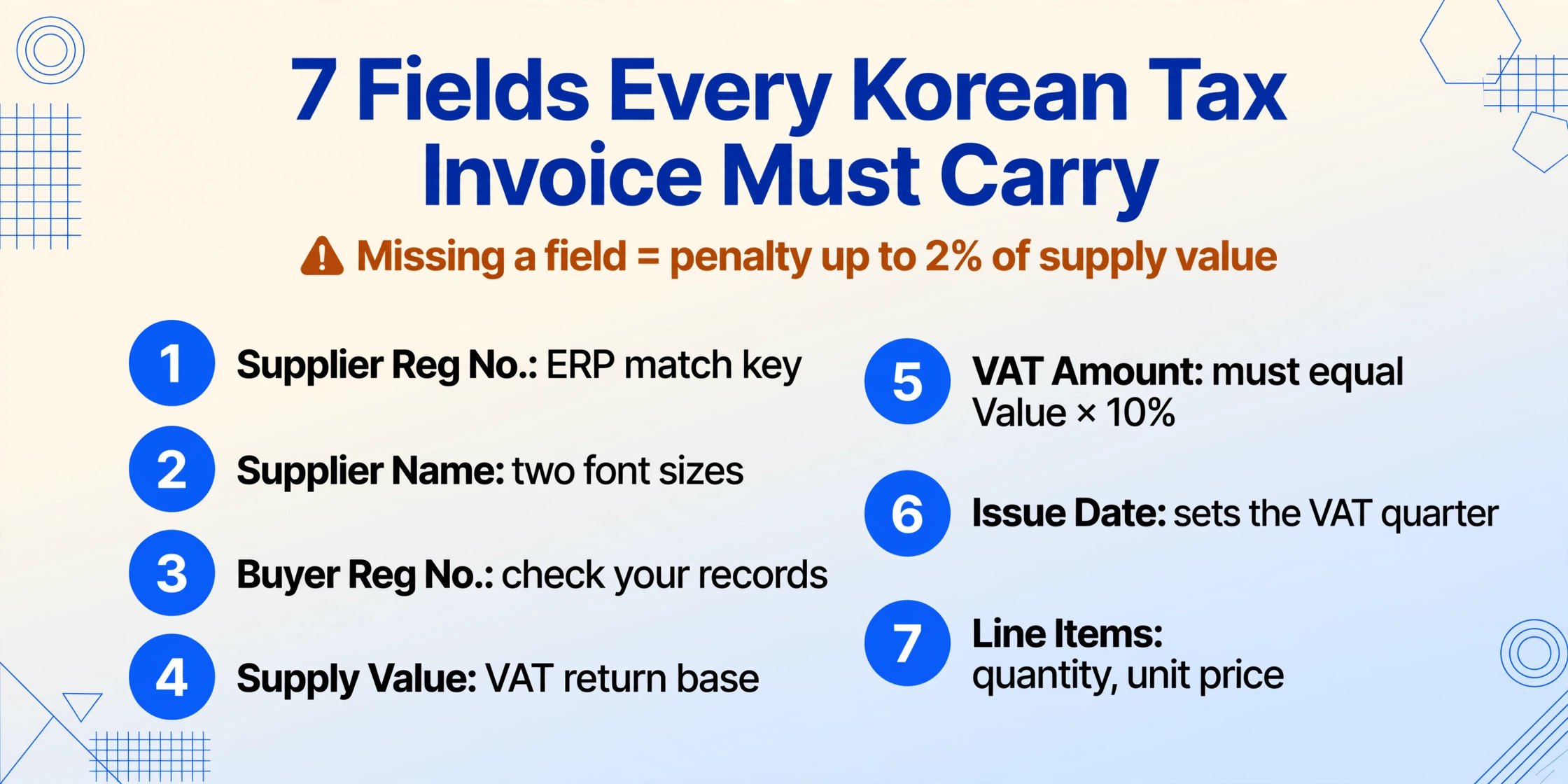
Under Article 32, a tax invoice must contain the following information. Missing any of these on the issued invoice exposes the supplier to a penalty of up to 2% of the supply value:
| # | Field (EN) | Field (KO) | Why it matters for extraction |
|---|---|---|---|
| 1 | Supplier registration number | 공급자 등록번호 | 10-digit business registration number (사업자등록번호) (format: XXX-XX-XXXXX). Primary key for supplier matching in ERP. |
| 2 | Supplier name & representative | 상호 / 성명 | Company name + representative's name. Often printed in different font sizes. |
| 3 | Buyer registration number | 공급받는자 등록번호 | Your own business registration number — must be verified against your records for reconciliation. |
| 4 | Supply value | 공급가액 | Net amount before VAT. The base number for your VAT return calculation. |
| 5 | VAT amount | 세액 | 10% of supply value. Must equal exactly supply value × 10% — any mismatch flags an error. |
| 6 | Date of issue | 작성일자 | Determines which quarterly VAT period the invoice falls into. |
| 7 | Line items (description, quantity, unit price) | 품목 / 수량 / 단가 | Item-level detail. Optional on simplified invoices but standard on full tax invoices. |
Beyond these seven core fields, electronic tax invoices issued through the NTS HomeTax (홈택스) system carry an additional NTS approval number (국세청승인번호) — a unique identifier assigned by the tax authority that confirms the invoice was properly transmitted. Since July 2023, all businesses with annual revenue above KRW 100 million are required to issue electronically, so most invoices you encounter will carry this number.
The practical consequence for data extraction: a single tax invoice contains at minimum 7 distinct data points that need to land in separate Excel columns, with the two registration numbers following a strict format and the supply value / VAT requiring arithmetic validation. This is the document structure you are working with — and it explains why a generic "scan and dump" approach rarely produces usable output. For a field-by-field map of the same data across the broader family of Korean tax documents — cash receipts, delivery notes, and business registration certificates included — see our Korean tax document processing guide.
Understanding the fields is step one. The next question is why getting them out of the document cleanly is harder than it looks.
Why Copy-Paste and Standard OCR Break on Korean Tax Invoices
Korean tax invoices (세금계산서) present three specific challenges that generic OCR tools and manual copy-paste workflows handle poorly — and these challenges compound when you are processing invoices from multiple suppliers.
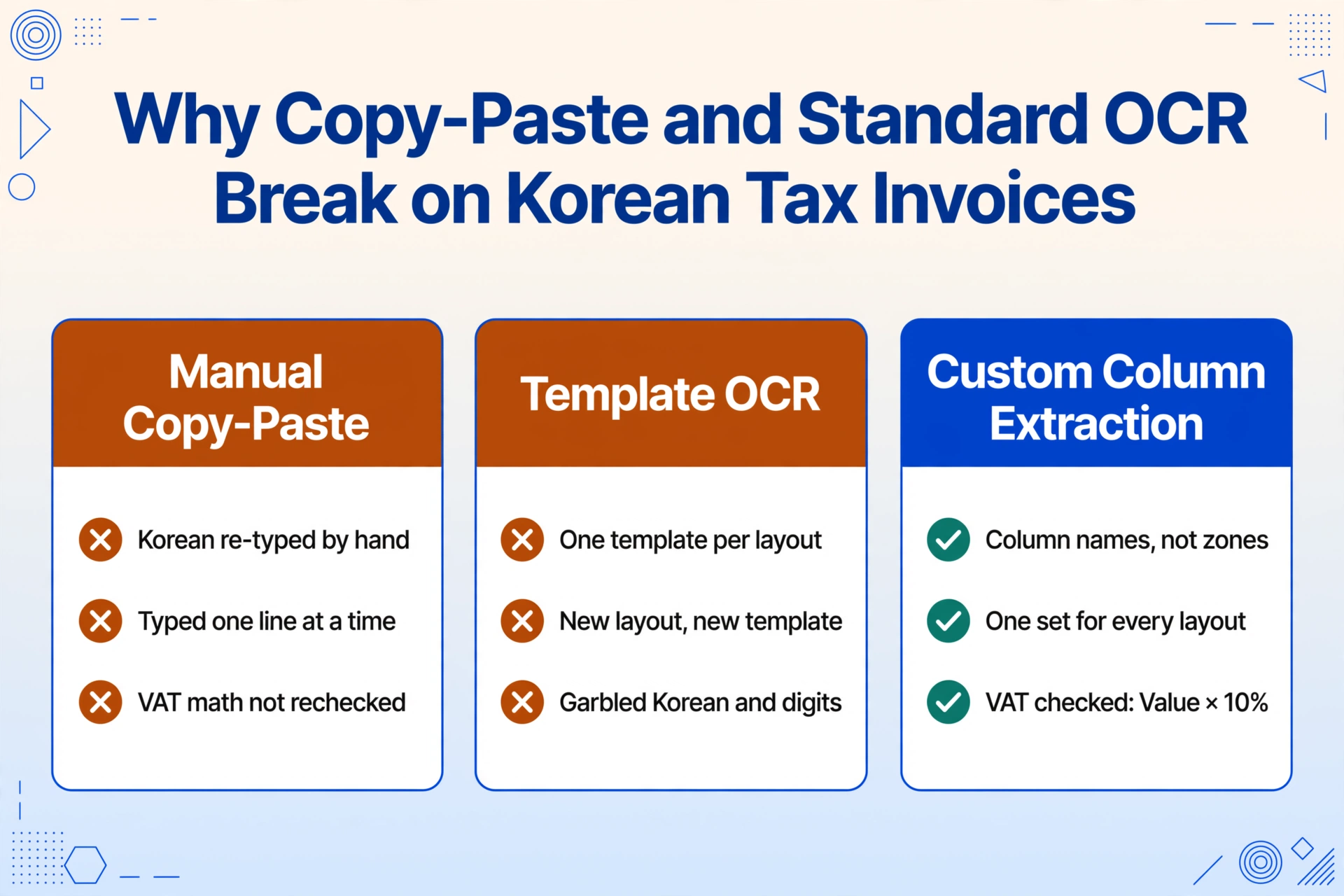
Challenge 1: Mixed Korean and numeric text. A typical tax invoice contains Korean characters (company names, item descriptions), Arabic numerals (registration numbers, amounts), and sometimes English abbreviations — all within the same visual region. Standard OCR engines optimized for single-language documents often misread Korean characters in close proximity to numbers, producing garbled output like confusing similar-looking characters or misinterpreting comma-separated Korean amounts.
Challenge 2: No standardized field positions. While the content of a tax invoice is standardized by law, the layout is not. An electronic tax invoice issued through HomeTax follows a recognizable two-panel structure (supplier on the left, buyer on the right). But invoices issued through third-party ASP services — Popbill (팝빌), Barobill (바로빌), or ERP-generated invoices from Douzone Bizon (더존비즈온) — may arrange the same fields in different positions, font sizes, and table structures. Template-based OCR, which relies on predefined zones to locate fields, needs a separate template for each layout variant.
Challenge 3: The supply value / VAT amount / total amount validation trap. On a correctly issued tax invoice, the three bottom-line numbers follow a strict relationship: total amount (합계금액) = supply value (공급가액) + VAT amount (세액). When manual entry introduces a single-digit transposition — ₩3,004,000 copied as ₩3,040,000 — the error silently propagates into your VAT return. You may not catch it until the NTS cross-references your filing against the supplier's transmitted data, which can trigger an inquiry or adjustment notice.
According to NTS data, electronic issuance reduced paper invoice compliance costs by an estimated ₩900 billion per year. But the last-mile problem — getting data out of those electronic invoices into your own systems — still sits on the AP clerk's desk.
This is where the distinction between template-based extraction and semantic extraction matters. Template-based tools ask you to draw rectangles around each field and save the coordinates — workable if all your invoices come from one supplier in one format, but impractical when you receive tax invoices from dozens of vendors. Semantic extraction — the approach used by vision-language models — reads the document the way a human does: it understands that the number next to the supply value label is the supply value regardless of where on the page it appears.
With the challenges defined, here is the actual extraction workflow.
Step-by-Step: Extracting Tax Invoice Fields Into Excel
ImageToTable.ai uses Custom Column Extraction to pull specific fields from any document layout. The core idea: instead of mapping field coordinates on a template, you type the column names you want — in Korean or English — and the AI locates the corresponding values by understanding what each field label means, not where it sits on the page. The column names you enter become the exact headers of your output spreadsheet.
Upload your tax invoice files
Upload one or multiple tax invoice files — PDF exports from HomeTax, scanned paper invoices (JPG/PNG), or screenshots from your email. The tool accepts PDF, JPG, PNG, and WebP. For batch processing, upload all files at once; results merge into a single spreadsheet with one row per invoice.
Define your extraction columns
Enter the field names that match what you need in your spreadsheet. You can use Korean labels, English labels, or a mix — the AI understands both. For a standard tax invoice extraction, a practical column set is:
작성일자— Issue date공급자 사업자등록번호— Supplier registration number공급자 상호— Supplier company name공급받는자 사업자등록번호— Buyer registration number공급가액— Supply value (net before VAT)세액— VAT amount합계금액— Total amount국세청승인번호— NTS approval number (for electronic tax invoices)
Generate and download your Excel
Click extract. Each invoice produces one row in the output spreadsheet, with your column names as headers. A single-page tax invoice typically processes in 5–10 seconds. The output downloads as XLSX, CSV, or JSON — ready for import into your accounting system or further analysis in Excel. For a detailed walkthrough of field-level invoice extraction beyond Korean tax invoices, see how to extract invoice fields to a spreadsheet.
Two features are particularly useful for Korean tax invoices. First, Inferred Columns let you add columns for data that is not explicitly printed on the invoice. For example, adding a column named VAT Period (options: Q1/Q2/Q3/Q4) will make the AI read the date of issuance (작성일자), determine which quarterly VAT period it falls into (Jan–Mar = Q1, Apr–Jun = Q2, Jul–Sep = Q3, Oct–Dec = Q4), and fill in the period label — saving you a manual VLOOKUP step in Excel. Second, Computed Columns can validate the arithmetic: a column named VAT Check (공급가액 × 0.1 = 세액?) will output "OK" or the discrepancy amount, flagging invoices where the numbers do not add up before they reach your VAT return.
Try it on your own tax invoice below — no login required:
Files are processed securely and not stored.
One invoice is straightforward. The real test is processing a batch before the VAT filing deadline.
Handling Hundreds of Tax Invoices Before Quarterly VAT Deadlines
Korean VAT returns are filed quarterly, with each return due by the 25th of the month following the quarter's end: January 25 (Q4), April 25 (Q1), July 25 (Q2), and October 25 (Q3). In the weeks before each deadline, AP teams at mid-sized Korean businesses — particularly those using external tax accountant (세무사) firms — face a compressed window to consolidate all supplier tax invoices into a single dataset that reconciles against the NTS e-invoice records.
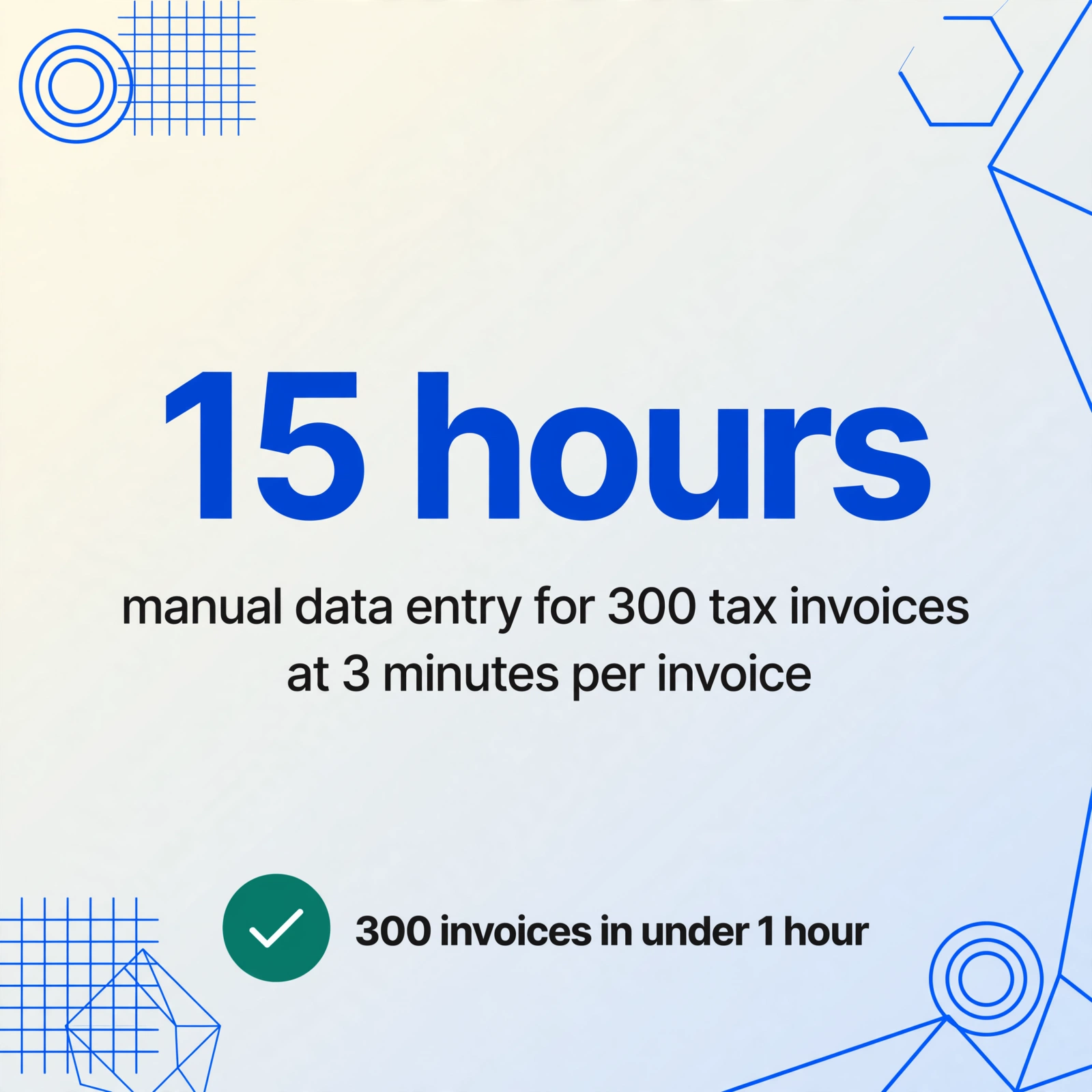
The volume is not trivial. A company with 30–50 active suppliers receiving monthly invoices accumulates 90–150 tax invoices per quarter. A construction firm or trading company dealing with subcontractors and material suppliers can easily reach 300–500. At 3 minutes per invoice for manual entry, 300 invoices consume 15 hours of concentrated data-entry work — typically compressed into the last week before the filing deadline.
Batch processing changes this arithmetic. Upload all tax invoices at once — whether they are PDF downloads from HomeTax, email attachments from different suppliers, or scanned paper copies. The same column definition applies across all files. Results merge into a single Excel file, one row per invoice, sorted chronologically. At 5–10 seconds per page, 300 invoices process in under an hour with no manual re-keying.
This is where the semantic extraction approach proves its value over templates. Your 300 invoices likely come from dozens of suppliers, each using a slightly different layout — some issued via HomeTax, some through Popbill or Barobill, some through their own Douzone ERP. A template-based tool would require a separate configuration for each layout. Custom Column Extraction uses the same column names across all variants, because it reads the field labels (supply value, VAT amount, business registration number) rather than the pixel coordinates.
One practical tip for batch runs: add a File Name column. The tool automatically populates it with the source filename for each row, making it easy to trace any extracted value back to the original document if a number looks off during review. For deeper traceability, you can also learn about broader approaches to batch invoice data extraction.
From Excel to Douzone, ECOUNT, or SAP Korea
Extracting tax invoice data into Excel is rarely the final step. For most Korean businesses, the data needs to flow into an ERP or accounting system — and the Korean market has a distinct software landscape dominated by local vendors.
Douzone Bizon (더존비즈온) is the leading domestic ERP and accounting platform in South Korea, with the largest market share in the SMB and tax accounting segments. Its products — WEHAGO for cloud-based SMBs, iCUBE for mid-sized enterprises, and Smart A for tax accounting firms — all expect structured import files with specific column mappings. The extracted Excel from ImageToTable.ai can be reformatted to match Douzone's import template: typically business registration number as the primary supplier key, supply value and VAT amount in separate numeric columns, and date of issuance in YYYY-MM-DD format.
ECOUNT ERP is popular among Korean SMBs and supports CSV/Excel imports for AP transactions. Its import format expects supplier registration number, invoice date, description, amount, and VAT as distinct columns — which maps directly to the extraction column set described in this guide.
SAP Korea serves larger enterprises and typically requires data mapping through its FI (Financial Accounting) module. The extracted Excel can serve as an intermediate staging file before batch upload through SAP's LSMW or BDC tools.
Regardless of which system you use, the key principle is the same: define your extraction columns to match your ERP's expected import fields from the start. If your Douzone import template expects a column called 거래처코드 (vendor code) rather than 사업자등록번호, name your extraction column accordingly. The AI extracts the value based on what the field represents on the document, not what you call the column — so your output is already formatted for import without an extra mapping step.
For a broader view of how invoice extraction fits into AP automation workflows, see the invoice extraction field guide.
Frequently Asked Questions
Can the tool read both electronic and paper tax invoices?
Yes. Electronic tax invoices (전자세금계산서) downloaded as PDF from HomeTax and paper invoices scanned as JPG or PNG are both supported. The AI reads the visual content of the document regardless of how it was originally generated. Scanned documents with clear print quality produce the same extraction accuracy as born-digital PDFs. Up to 99% accuracy for printed table data under normal scan conditions.
Does it extract line items or just invoice-level totals?
Both. If you define columns for line-item fields — 품목 (item description), 수량 (quantity), 단가 (unit price), 공급가액 (line supply value) — the tool creates one row per line item. If you only define invoice-level fields (total supply value, VAT amount, total amount), you get one row per invoice. The choice depends on whether you need item-level detail for cost accounting or just the totals for VAT filing.
How does it handle business registration number format (XXX-XX-XXXXX)?
The 10-digit business registration number (사업자등록번호) is extracted as-is, preserving the hyphen-separated format. If your ERP import requires the number without hyphens, you can add a computed column with a rule to strip formatting — or simply use Excel's SUBSTITUTE function on the output to remove dashes in one step.
What about the NTS approval number?
The NTS approval number (국세청승인번호) appears on electronic tax invoices as a long alphanumeric code (typically in the format XXXXXXXX-XXXXXXXX). Add it as a column name and it will be extracted alongside the other fields. This number is useful for cross-referencing against your HomeTax records to confirm that a particular invoice was properly transmitted to the NTS.
Can I process invoices in Korean and other languages in the same batch?
Yes. If your business receives both Korean tax invoices and invoices from overseas suppliers (e.g., English, Japanese, or Chinese invoices), you can include them in the same batch. The AI processes 200+ languages natively. Column names in Korean will match Korean-language fields; for non-Korean invoices in the same batch, the AI maps equivalent field concepts (e.g., "Supply Value" matches the supply value field). For country-specific guides, see Japanese qualified invoice extraction, German Rechnung extraction, or Mexican CFDI extraction.
Is the extracted data sufficient for VAT return filing?
The extracted Excel provides the raw data — supply value, VAT amount, supplier/buyer business registration numbers, and dates — that feeds into the VAT return preparation. However, the actual VAT return filing in Korea is done through HomeTax or through your tax accountant/accounting software (Douzone, ECOUNT, etc.). The extraction output serves as the structured input for that filing process, not as a direct submission to the NTS. For businesses dealing with US tax forms alongside Korean invoices, see our guide on extracting W-2 and 1099 tax form data.
See What Your Next VAT Deadline Prep Could Look Like
The gap between receiving tax invoices and having clean, structured data in your ERP is where hours disappear every quarter. Whether you process 30 invoices or 300, the extraction step should take minutes, not days. Upload a tax invoice — real or sample — and see the fields land in the right columns on the first pass.