How to Extract Invoice Data
by Field, Not by Page
Most invoice extraction tools make the same silent assumption: that you want every data point on the page. Vendor name, invoice number, date, due date, subtotal, tax, line items, shipping address, payment terms, bank details — they pull it all. Then you spend ten minutes deleting columns. Selective extraction reverses that logic: you name the fields you want, and the AI finds only those. It means less post-extraction cleanup, higher per-field accuracy, and a spreadsheet that arrives closer to done. This guide shows you exactly how to do it — field by field, not page by page.
Key Takeaways
- Conventional wisdom says extract every field from every invoice — you never know which data you might need later.
- 97% per-field accuracy sounds excellent — but across 20 fields only 54% of invoices come through fully correct because each extra field is an independent failure point.
- Extract only the 6 fields your accounting system actually needs and your straight-through rate jumps to 83% — the cleanup step disappears entirely.
The "Extract Everything" Assumption That Slows You Down
The median business spends $21.40 to process a single invoice manually, according to APQC's 2024–2025 benchmarking cycle. With AI-powered extraction, the best-in-class cost drops to $2.78 — an 87% reduction. But that savings only materializes if the data lands in your spreadsheet clean.
Ask a finance team what they want extracted from an invoice, and most will say "everything." The reasoning sounds reasonable: more data means better analysis down the road. But in practice, extracting "everything" creates a cleanup phase that erases most of the efficiency gain. Each field an AI extracts carries a small independent error probability. When you pull 20 fields instead of 8, those probabilities compound — and suddenly you're auditing extraction results instead of reviewing the original document.
The frustration isn't theoretical. As one user on r/Accounting put it after testing AI extraction on a batch of 100 invoices: "I realized that it was never accurate and I spent more time reviewing and editing it [than] waiting for it to upload." The culprit wasn't the AI — it was the assumption that every field on every invoice needed to come through.
Ardent Partners' State of ePayables 2025 report found that only 35.4% of invoices process straight-through without human intervention, and the average exception rate sits at 18.4%. Much of that exception handling traces back to one root cause: the extractor tried to pull too much. When every column demands human verification, automation doesn't remove the bottleneck — it just relocates it from data entry to data review.
This is the core of the selective extraction argument. You don't need the shipping address on every invoice if your accounting system only maps vendor name, amount, and due date. You don't need line item descriptions if you expense by category. Extracting fewer fields isn't a compromise — it's the fastest path to a spreadsheet you can actually use.
Why Fewer Fields Mean Higher Accuracy (The Math Nobody Talks About)
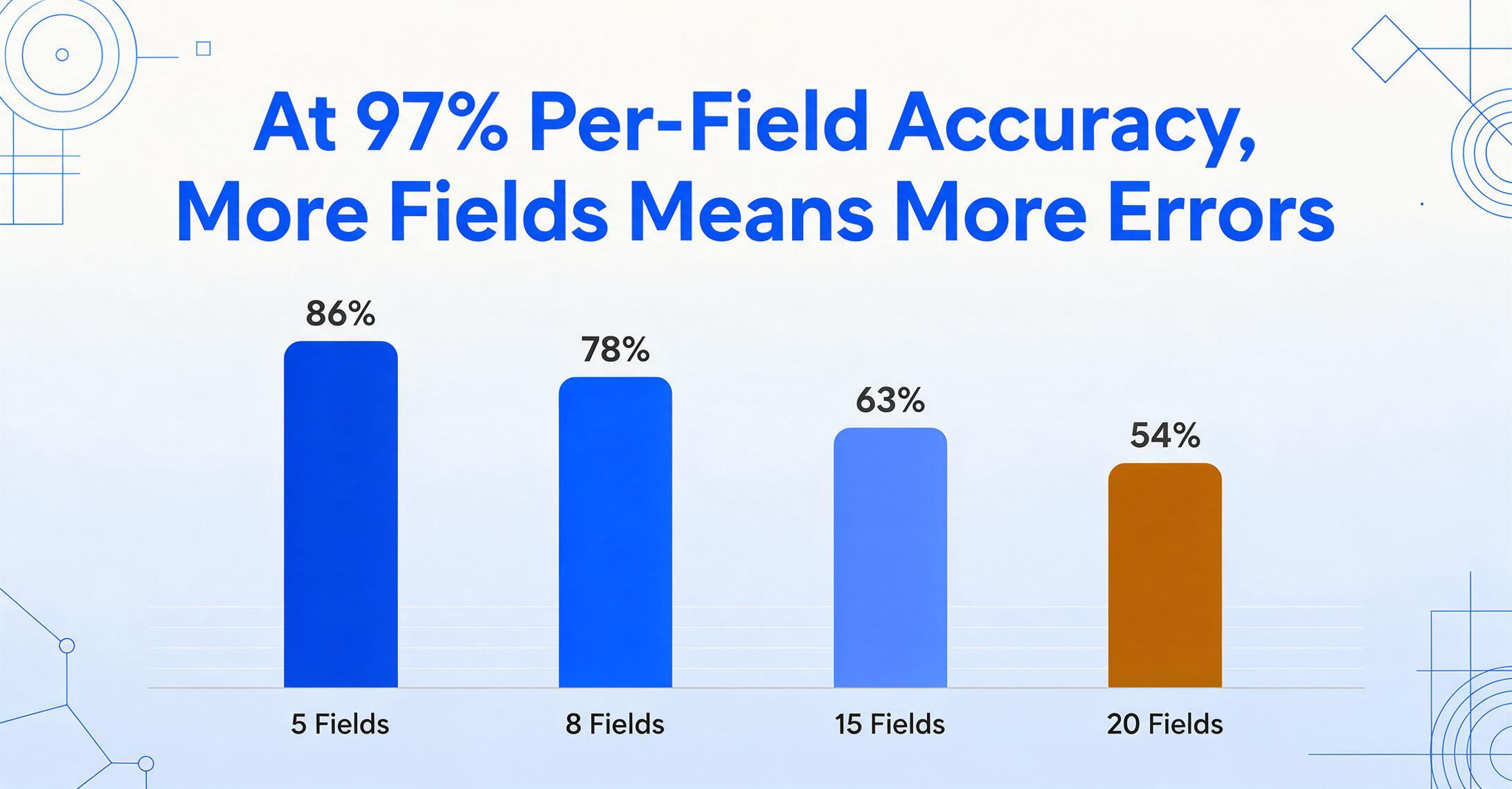
Even at 97% per-field accuracy — a strong benchmark for modern AI extraction engines — extracting 20 fields means only about 54% of invoices come through fully correct. Drop to 8 fields, and that number jumps to roughly 78%.
The math is straightforward: 0.97 raised to the 8th power = 0.784, but 0.97 raised to the 20th power = 0.544. Every additional field you extract is another roll of the dice. Compound error is the reason "extract everything" workflows fail at scale, and it's a concept almost no invoice extraction article addresses.
Here is how field-level risk compounds across typical extraction scenarios, based on the per-field accuracy rates observed in production AI extraction pipelines:
| Fields Extracted | Per-Field Accuracy | Fully Correct Invoices | Invoices Needing Review | Example Scenario |
|---|---|---|---|---|
| 5 | 97% | ~86% | 14% | Invoice #, Date, Vendor, Total, Tax |
| 8 | 97% | ~78% | 22% | Above + Due Date, PO #, Currency |
| 15 | 97% | ~63% | 37% | Above + Line Items, Billing Address, Payment Terms, Shipping |
| 20 | 97% | ~54% | 46% | Above + Contact Info, Bank Details, Discount Terms, Notes |
This table doesn't mean you should only ever extract 5 fields. It means you should be deliberate about which fields you extract — because every column you add to your extraction list has a real cost in review time. Not all fields carry the same risk, either. A misread invoice date is an inconvenience. A misread total amount can trigger overpayment. Here is how field types break down by risk:
| Risk Level | Fields | Extraction Strategy |
|---|---|---|
| High | Total Amount, VAT/Tax Amount, Due Date, Bank Account # | Always verify. Errors here have direct financial impact. |
| Medium | Invoice Number, PO Number, Vendor Name, Currency | Spot-check. Errors cause reconciliation issues but are usually caught downstream. |
| Low | Invoice Date, Shipping Address, Payment Terms, Line Descriptions | Accept AI output. Errors here rarely affect downstream processes. |
The takeaway is simple: extract high-risk fields with verification, medium-risk fields with spot-checks, and consider whether low-risk fields are even worth the screen space. This is the field-level thinking that separates a usable extraction workflow from one that creates as much work as it saves.
How Custom Column Extraction Works: You Define the Output
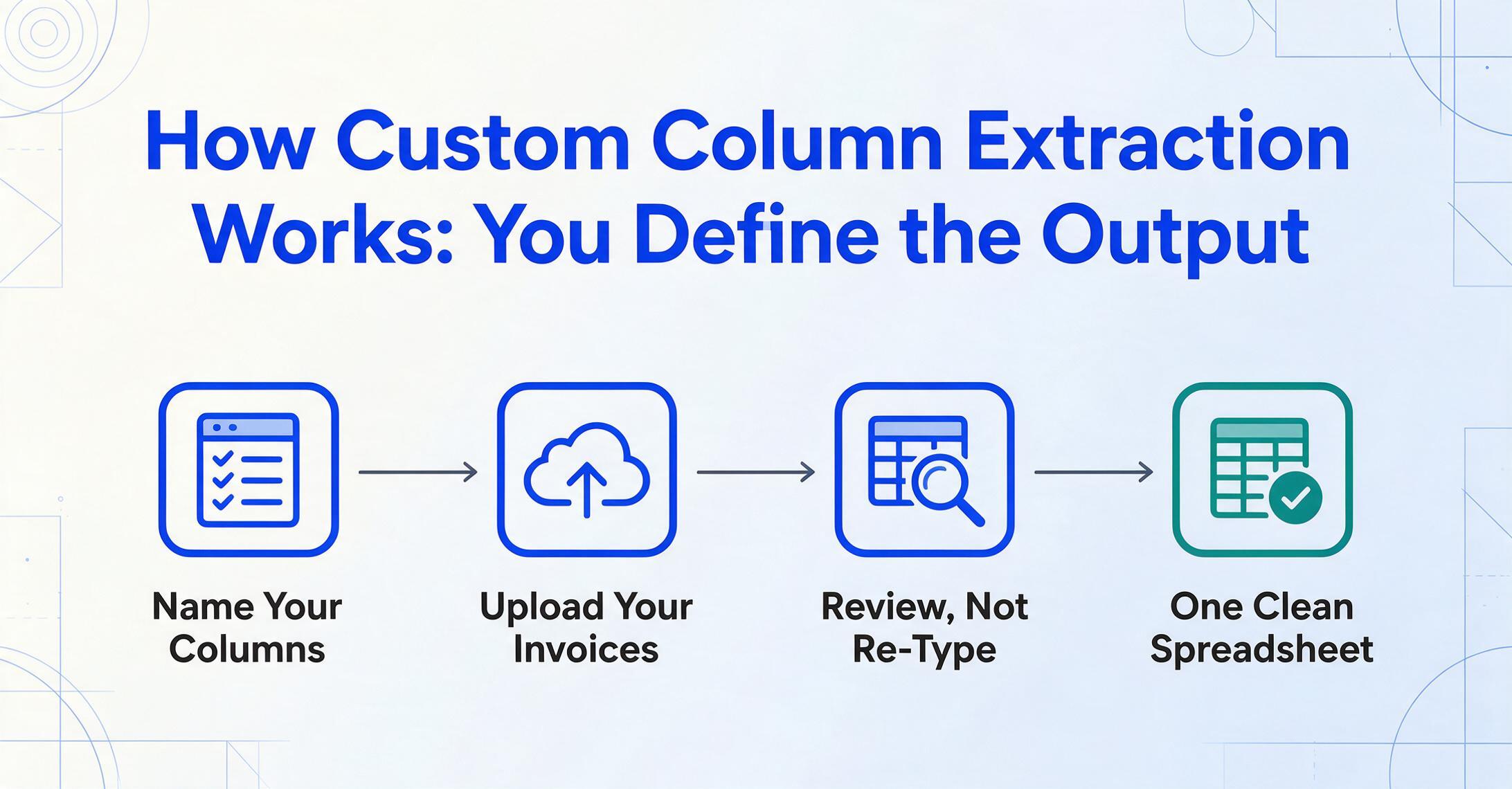
Traditional PDF extraction tools ask you to draw zones around each field on a sample invoice. Custom Column Extraction works in the opposite direction: you type the column names you want, and the AI locates the corresponding values by understanding what each field means, not where it sits on the page.
This distinction — semantic extraction vs. positional extraction — is what makes selective field extraction possible at scale. A zone-based tool (Docparser, ABBYY, or any template OCR engine) needs you to define a bounding box for every field on every vendor's invoice format. When a new supplier sends a differently laid-out invoice, the zones miss their targets and you get garbage. With Custom Column Extraction — ImageToTable.ai's core mechanism — you type "Invoice Number," "Due Date," "Total Amount" once, and the AI finds those values on any layout because it reads for meaning, not position.
Here is how selective extraction works in practice:
Try it yourself. The demo below is live — upload an invoice (or any document), type the columns you want, and see the AI locate them. No sign-up required.
Files are processed securely and not stored.
Which Fields to Extract (and Which to Skip)
The right fields depend on what happens to the data after extraction. A bookkeeper reconciling QuickBooks entries needs different columns than an accountant preparing month-end accruals or a procurement manager auditing supplier spend.
Start by asking: what does your destination system actually require? If you're importing into QuickBooks Online, it cares about Vendor, Date, Due Date, Amount, and Category. It doesn't need the supplier's bank account number or the line-item SKU. If you're feeding data into SAP or NetSuite, you may need PO Number for three-way matching. If you're building a spend dashboard in Google Sheets, you want Vendor, Category, Amount, and Date — the invoice number is nice-to-have but not blocking.
Here is a field prioritization framework based on the three most common invoice-to-system workflows:
| Workflow | Must Extract (Non-Negotiable) | Consider (If Time Allows) | Skip |
|---|---|---|---|
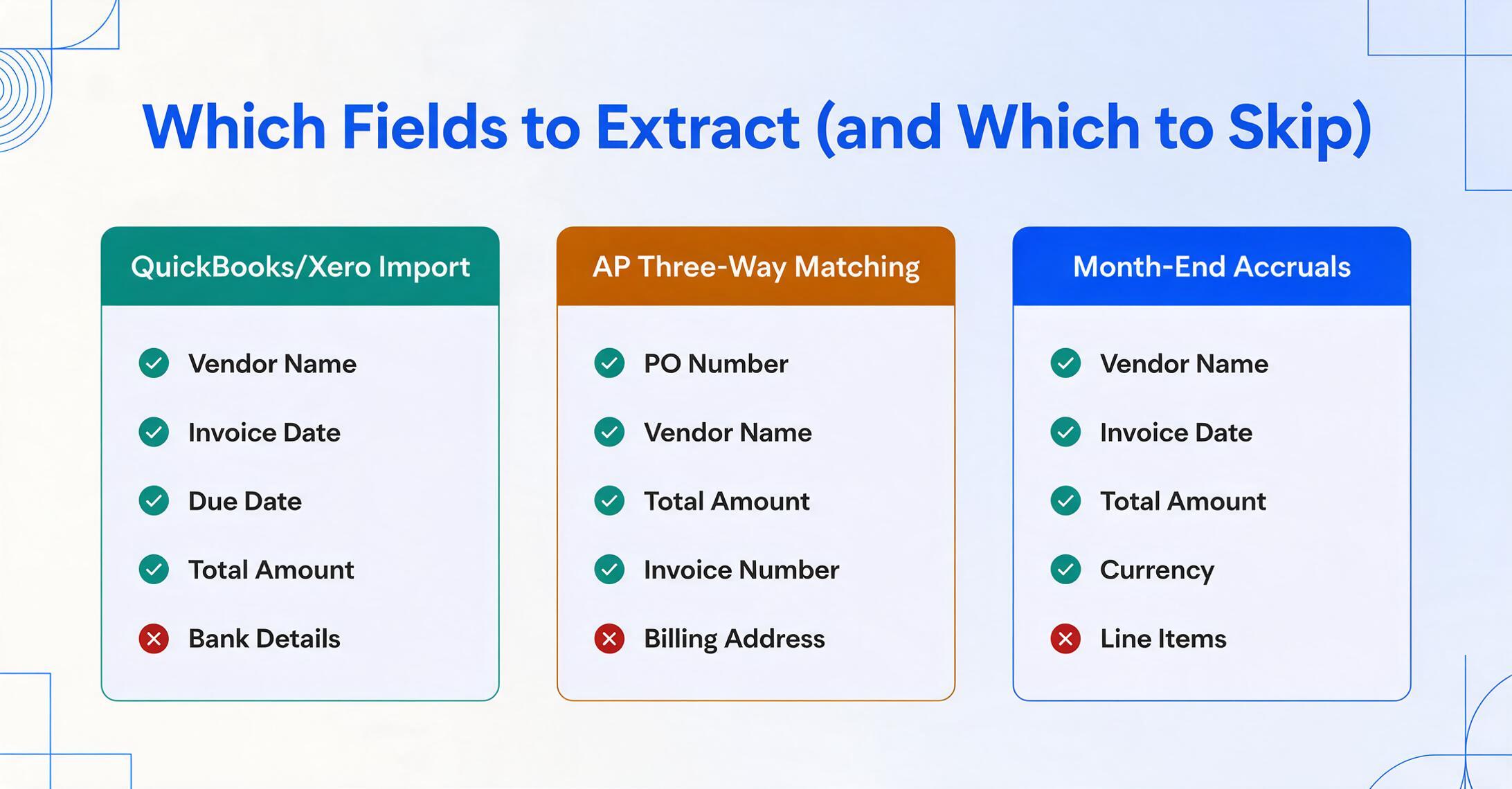
| QuickBooks/Xero Import | Vendor Name, Invoice Date, Due Date, Total Amount | Invoice Number, PO Number, Category | Line Items, Shipping Address, Payment Terms, Bank Details |
| AP Three-Way Matching | PO Number, Vendor Name, Total Amount, Invoice Number | Line Items (Qty, Unit Price), Tax Amount, Currency | Billing Address, Contact Info, Discount Terms |
| Month-End Accruals | Vendor Name, Invoice Date, Total Amount, Currency | Due Date, Department/Cost Center, Category | PO Number, Line Items, Shipping, Payment Terms |
The goal is extraction that terminates at the spreadsheet — not extraction followed by a cleanup phase. If a column in your output doesn't feed a downstream system, a report, or a decision, it's costing you review time without delivering value.
ImageToTable.ai stores these column configurations as presets — reusable column-name templates. Define your field list once, save it as a preset, and every future invoice batch processes against the same selective column set. For recurring invoice formats from the same vendors (think monthly utility bills, weekly supplier deliveries), presets eliminate the setup step entirely.
What Happens When You Also Need Computed Columns
Extracting an invoice total gives you a number. What you often need is the answer to a question: is the line-item sum equal to the stated total? What's the tax-exclusive amount when only the gross is shown? These are computed columns — fields the AI calculates during extraction, not just reads off the page.
Computed Columns are one of the most underused capabilities in AI invoice extraction. Instead of extracting raw data and running formulas in Excel afterward, you define the computation in a column name — and the AI produces the answer directly in your output table.
Practical invoice examples:
- Line Total (Qty × Unit Price) — The invoice lists quantity and unit price in separate columns; you get the product in one column.
- VAT Amount (Total × 20%) — When only the gross total appears, the AI applies the tax rate and outputs the tax amount.
- Discrepancy (Total − Sum of Line Items) — Automatically flags invoices where the stated total doesn't match the line-item math.
- Category (options: Raw Materials/Finished Goods/Services/Overhead) — The AI reads the line-item descriptions and classifies each row into your chart of accounts.
Computed columns compound the benefit of selective extraction. If you can extract fewer fields and compute the rest, your accuracy ceiling rises further — because you're removing fields from the "extraction dice roll" entirely and replacing them with deterministic arithmetic the AI performs on fields it already read correctly.
When the Invoice Isn't Yours: Collection Links for Multi-Party Fields
Not every invoice you need data from lands in your inbox. If you're an accountant pulling monthly expense receipts from 30 clients, or a contractor collecting vendor invoices for job-costing, the bottleneck isn't extraction — it's collection. Someone else has the file.
Collection Link solves this by generating a shareable upload page tied to your account. You send the link to a client, field worker, or supplier. They open it, enter a short verification code, and upload their invoice directly — no registration, no login, no access to your other files. The invoice lands in your processing queue, where your preselected columns and preset apply automatically.
This turns your selective extraction setup into a pipeline. You define the fields once (say, "Vendor, Date, Amount, Job Code"). Every invoice that comes through the Collection Link — whether from three clients or thirty — processes against the same selective column configuration. The sender never sees your columns. They just upload. You get exactly the fields you need, no more.
Batch Processing: Apply Your Field Selection at Scale
A manual AP clerk processes 25 to 40 invoices per day, according to IOFM benchmarks. With batch processing — uploading multiple files at once and processing them against the same column definitions — that number jumps to hundreds. The key is that every invoice in the batch uses the same selective column set, which means every output row is equally sparse, equally clean, and equally ready for import.
Batch processing with selective columns creates a consistent output structure that downstream systems can consume without manual reformatting. Upload 50 invoices, name 6 columns, get one spreadsheet with 50 rows and exactly 6 columns. No column mismatch, no stray data from the 51st invoice that happened to have an extra field.
The cost math is compelling. Ardent Partners' 2025 benchmarks put the average manual invoice processing cost at $9.84, with the Institute of Finance & Management (IOFM) citing up to $16 per invoice for fully manual workflows. At 500 invoices per month, that's $4,920 to $8,000 monthly on manual data entry alone. A selective batch extraction workflow — where an AI pulls only the fields your accounting system needs and you verify only the high-risk ones — brings the per-invoice cost below $3, a reduction of 70% or more.
For teams managing invoices across multiple clients or departments, ImageToTable.ai's batch invoice processing preserves per-batch field configurations. A construction firm might extract "Vendor, Job Code, Amount, Retention %" for subcontractor invoices while extracting "Vendor, GL Code, Amount, Tax" for overhead invoices — two different column sets, two different batches, one tool.
Frequently Asked Questions
What if I only need line items but not the header fields?
You can extract only line-item-level data — product descriptions, quantities, unit prices, line totals — without touching header fields like invoice number or vendor name. Define your columns as "Description," "Qty," "Unit Price," and "Line Total." The AI returns one row per line item, and you still get one spreadsheet. This is especially useful for inventory reconciliation or spend categorization where the per-item data matters more than the per-invoice metadata.
Does extracting fewer fields actually make the AI more accurate on the fields I keep?
Not directly — the AI doesn't get "more accurate" per field when you ask for fewer. But the overall automation rate improves, because there are fewer fields that could contain an error. With 6 fields at 97% accuracy, about 83% of your invoices come through clean. With 18 fields, that drops to around 58%. You spend less aggregate time reviewing corrections, which is the real efficiency metric.
Can I save my column selection and reuse it every month?
Yes — this is exactly what presets are for. Define your column names once (e.g., "Vendor, Invoice #, Date, Due Date, Total, Tax"), save the preset, and every new batch defaults to that same column configuration. You can maintain multiple presets for different vendors, document types, or accounting workflows and switch between them with one click.
What happens if an invoice is missing one of the fields I asked for?
The AI leaves that cell blank in the output. It doesn't hallucinate values or fill in guesses. If you specify "PO Number" and a particular invoice doesn't have one, that row's PO Number column will be empty. This is actually a feature — a blank cell is actionable (you know to follow up for the PO), whereas a hallucinated PO number could corrupt your reconciliation.
How does this compare to just uploading the invoice to ChatGPT and asking it to extract fields?
A general-purpose LLM like ChatGPT can extract fields from a single invoice, but it doesn't handle batches natively — you'd upload one file at a time, and the output format varies by prompt. Purpose-built extraction tools provide a consistent column structure across every document in a batch, which is what makes the output importable into QuickBooks, Xero, or any spreadsheet workflow. General LLMs also lack presets, Collection Links, and the batch UI that eliminates file-by-file interaction.
Is there a limit to how specific my column names can be?
No character limit, but the best results come from using the language the AI understands — standard financial terms like "Invoice Number," "Due Date," "Net Amount." You can be more specific with inferred columns: a column named "Category (options: Raw Materials, Finished Goods, Services)" tells the AI to read each line-item description and classify it into one of those buckets — a task that normally happens manually after extraction.
Selective Extraction Is Faster Than Full Extraction — Here Is Why
The conventional wisdom says: extract everything, you never know what you'll need later. The data says: extract everything, and you'll spend more time cleaning than you saved by automating.
Selective extraction flips the default from "pull everything and delete later" to "name what you need and get exactly that." The spreadsheet arrives with the columns you asked for and nothing else. No delete step. No "what does this column even mean" moment. When you only extract 6 fields instead of 20, your invoices go from a coin-flip chance of being correct (54%) to a strong probability (83%) — and the ones that aren't correct have fewer fields to verify.
APQC's benchmarks make clear where the cost lives: $21.40 per manual invoice, falling to $2.78 with AI automation. The gap between those numbers isn't just the extraction step — it's the review, the cleanup, the re-formatting, the column deletion. Selective extraction eliminates the cleanup step from the equation.
Try it on your own invoices. Upload a few PDFs, name 5 or 6 columns you actually need, and see what comes back. If the result is cleaner than the output you're used to — with fewer columns to delete and fewer fields to verify — you've found your extraction strategy.
Try It Now