How to Extract German Handelsrechnung Export Data
for Customs and Accounting
A German export commercial invoice (Handelsrechnung) carries roughly a dozen fields that a domestic invoice (Rechnung) does not: the exporter's EORI number, the 11-digit customs tariff number (Zolltarifnummer) per line item, the country of origin (Ursprungsland) per position, the applicable Incoterms, the net weight and gross weight, and the export confirmation section (Ausfuhrbestätigung). Every one of these fields was typed into the invoice template by the export department. And every one of them must be retyped into at least two other systems: the ATLAS export declaration for customs, and the internal ERP for accounting. The extraction approach described below replaces both retyping steps with a single structured output — one row per Handelsrechnung, columns defined once, every field captured from the PDF.
Key Takeaways
- A German Handelsrechnung carries roughly a dozen customs-only fields — EORI number, 11-digit HS code per line item, country of origin, Incoterms, net and gross weight — that a domestic Rechnung never requires, and each one must be retyped from the PDF into ATLAS and the ERP.
- An exporter with 30 monthly shipments transcribes about 240 customs fields from PDFs into spreadsheets every month — every keystroke a potential mismatch between what customs sees and what accounting books, a discrepancy the Finanzamt cross-references during audits.
- Define your extraction columns once, upload the PDFs instead of retyping them, and both pipelines — ATLAS export declaration and ERP accounting entry — draw from one structured spreadsheet, eliminating the transcription gap at its source.
What Makes a Handelsrechnung Different from a Domestic Rechnung
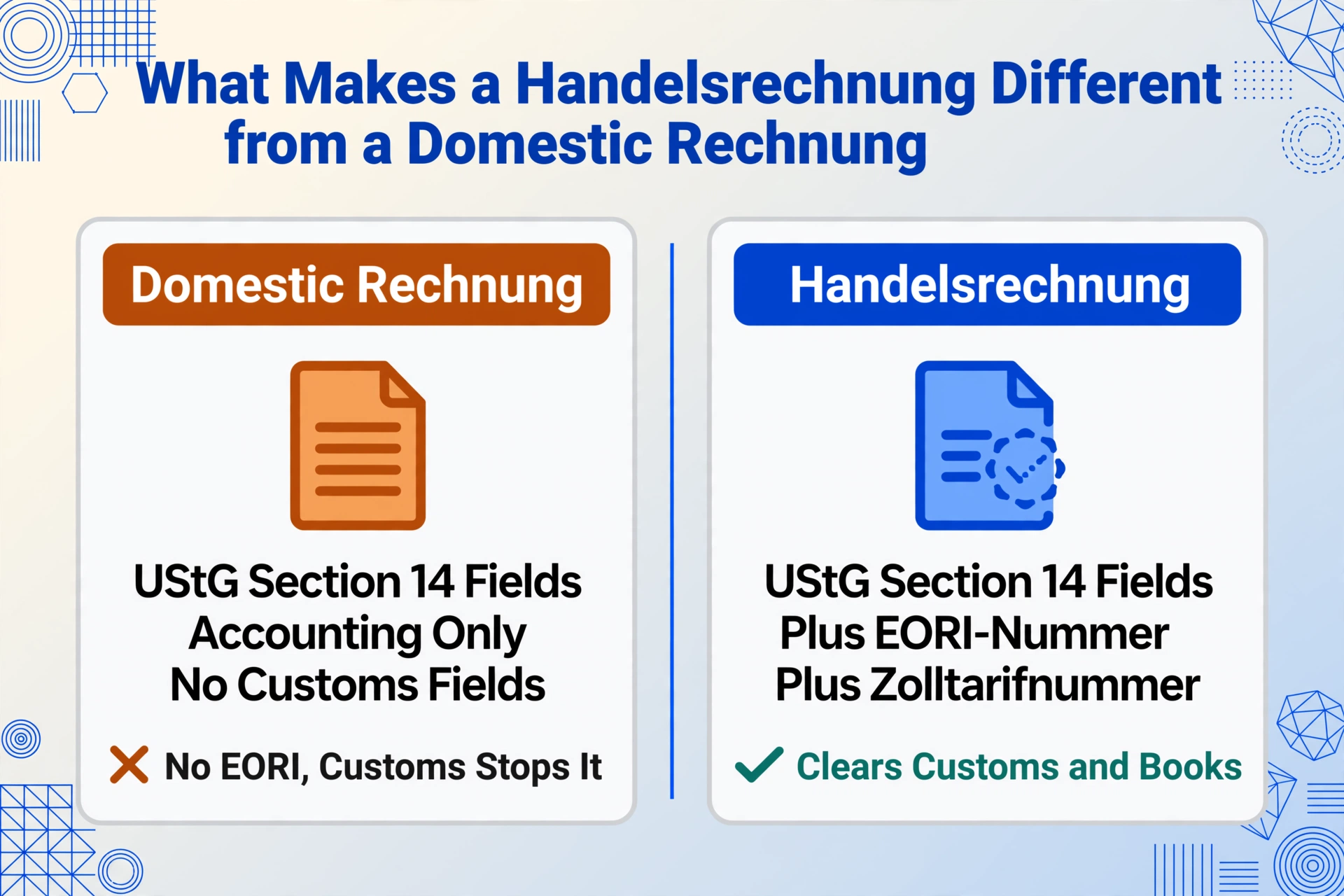
Every German business issues invoices. A domestic Rechnung (sales invoice) must include, under §14 UStG, the supplier's name and address, the invoice date and number, the customer's name and address, the quantity and description of goods or services, the net amount, the VAT rate and amount, and the gross total. Those are the fields that feed the accounts receivable system, the VAT return (Umsatzsteuervoranmeldung), and the year-end financial statements. They are the fields every German accounting software — DATEV, Lexware, SAP — is built to ingest.
A Handelsrechnung carries all of those fields. But it also carries an additional set of fields that exist for one reason: the goods are crossing a customs border. These are the fields that customs authorities in the destination country require to assess duties, verify origin, and validate the declared value. Under the Union Customs Code (UCC, Regulation (EU) No 952/2013), any commercial invoice accompanying goods exported from the EU to a non-EU country must include:
| Field (German Term) | English Description | Why Customs Needs It |
|---|---|---|
| EORI-Nummer | Economic Operators' Registration and Identification number — format: DE + 15 digits | Identifies the exporter in the EU customs system. Required under UCC Art. 9 for all customs declarations. Without it, ATLAS rejects the export declaration. |
| Zolltarifnummer (HS Code) | 11-digit German customs tariff code per line item — first 6 digits = international HS, digits 7-8 = EU Combined Nomenclature, digits 9-10 = TARIC, digit 11 = German national code | Determines the export control classification, any export restrictions, and — for the importer — the import duty rate at destination. Per line item, not per invoice. |
| Ursprungsland | Country of origin per line item — the country where goods were wholly obtained or underwent last substantial processing (UCC Art. 60) | Determines preferential duty eligibility at destination. Must be stated per line item because one shipment can contain goods from multiple origins. |
| Lieferbedingungen (Incoterms) | Incoterms 2020 clause — e.g. EXW Stuttgart, FOB Hamburg, CIF New York, DDP Tokyo | Defines who bears transport cost, insurance, and customs risk at each leg. Determines what the declared customs value includes (freight + insurance, or not). |
| Nettogewicht / Bruttogewicht | Net weight (goods only) and gross weight (goods + packaging) per line item or per shipment in kilograms | Required for transport documents (CMR, AWB, B/L) and customs valuation. Gross weight determines freight charges and handling requirements. |
| Ausfuhrbestätigung | Export confirmation section — typically a reserved area for customs stamps or the electronic ATLAS exit note (Ausgangsvermerk) | Proof that goods physically left the EU customs territory. Required for VAT zero-rating under §4 Nr. 1a UStG. Without it, the exporter cannot substantiate the tax exemption on the UVA. |
Every one of these fields is typed into the Handelsrechnung template by the export department. The same fields must then appear in the ATLAS export declaration — and the export department or a customs broker retypes them there. And then the accounting department needs a subset (invoice number, total, EORI for the export ledger) retyped a third time into the internal ERP. The Handelsrechnung is created once. Its data is entered three times.
The Dual Pipeline Problem: One Invoice, Two Systems, Zero Connection
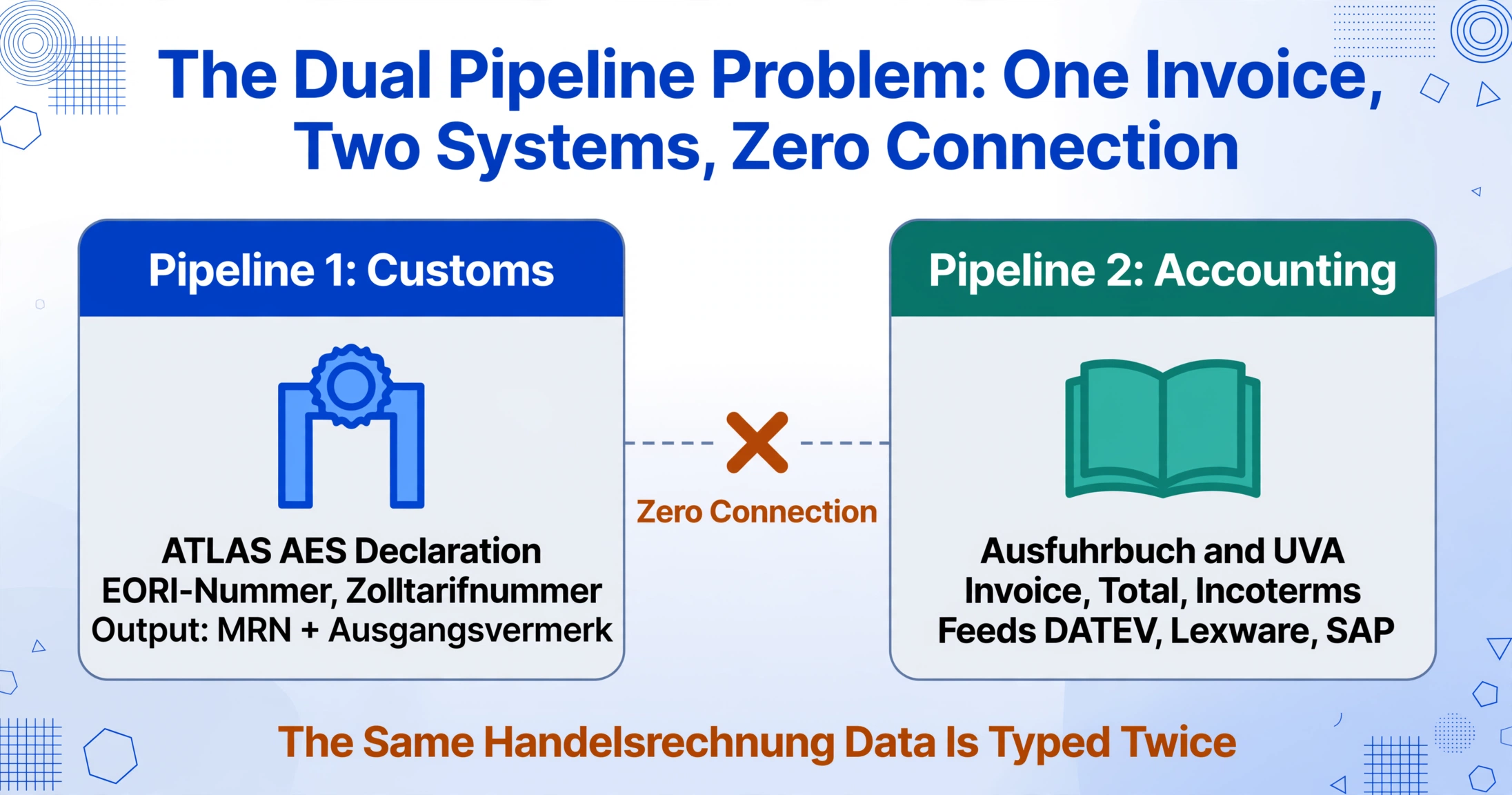
A German exporter shipping 30 consignments a month creates 30 Handelsrechnungen. Each one goes through two entirely separate data pipelines — and neither pipeline talks to the other.
Pipeline 1: Customs (ATLAS AES). The export department or a Zollspediteur takes the data from the Handelsrechnung and enters it into the ATLAS AES export declaration (Ausfuhranmeldung). This declaration requires the EORI number, the HS codes per line item, the country of origin per line item, the Incoterms, the customs value, and the net/gross weight. The declaration is submitted through ATLAS-compatible software — AEB Export Filing, DAKOSY GE, MIC-CUST, SAP GTS — or through the customs broker's own system. ATLAS processes it, conducts a risk analysis, and if accepted, issues the Export Accompanying Document (EAD, Ausfuhrbegleitdokument) with an 18-character Movement Reference Number (MRN). When the goods leave the EU, the exporter receives the exit confirmation (Ausgangsvermerk) — the proof that the goods physically exited, which substantiates the VAT zero-rating.
Pipeline 2: Accounting (ERP). The accounting department receives the same Handelsrechnung — typically as a PDF from the export department or from the document management system. The accountant needs to book the export sale: the invoice number, the invoice date, the customer name, the total value, the Incoterms for cost allocation (freight and insurance are booked to different accounts than the goods value), and the EORI number for the export ledger (Ausfuhrbuch). For the VAT return (Umsatzsteuervoranmeldung or UVA), the accountant needs to match each Handelsrechnung against its Ausgangsvermerk to substantiate the tax-free export revenue under §4 Nr. 1a UStG. For Intrastat reporting (intra-EU trade statistics, mandatory under the Außenhandelsstatistikgesetz), the accountant needs the HS codes, the country of destination, and the statistical value per commodity code.
The gap. Pipeline 1 receives its data from the export department, who either types it directly into ATLAS software or emails it to a broker. Pipeline 2 receives its data from the PDF of the Handelsrechnung, which arrives in the accounting inbox as a flat document — every field visible, none of it structured. The accountant opens the PDF and retypes the invoice number, the date, the total, the EORI, the Incoterms, and the HS codes into the ERP. For 30 Handelsrechnungen a month, with roughly 8 customs-relevant fields each, that is 240 fields manually transcribed from PDF to spreadsheet — per month. Every keystroke is a potential transcription error. Every error cascades: a mistyped HS code in the accounting ledger might not match the HS code filed in ATLAS, creating a discrepancy that surfaces during a customs audit (Zollprüfung) or a VAT audit (Umsatzsteuer-Sonderprüfung).
This is the same structural gap described in the analysis of why ATLAS creates the data re-entry gap it was designed to close — the system that digitized customs declarations returns data to the importer as a PDF, and the manual transcription step fills the gap between ATLAS output and ERP input. The Handelsrechnung is the starting point of that same pipeline on the export side: the data is created as structured input, delivered internally as a PDF, and retyped into every system that needs it.
How to Set Up the Extraction: Define Your Columns Once, Process Every Handelsrechnung
The fix is not changing how the export department creates Handelsrechnungen. They already type the data once. The fix is capturing that data from the PDF at the point where it enters each downstream pipeline — removing the retyping step that sits between the PDF and the system.
Custom Column Extraction works by defining a set of column names that describe what you want to extract from each document. The AI reads each PDF, understands the content semantically, and locates the matching value for each column — regardless of where on the page the value sits or how the layout differs between invoices. You define the columns once. Every Handelsrechnung you upload afterwards populates the same spreadsheet structure.
Step 1: Define the Core Customs Columns
These are the fields that Pipeline 1 — the ATLAS export declaration — requires. Define each column using the exact German terminology your export team uses, so the AI matches the semantic context correctly:
| Column Name | What the AI Extracts |
|---|---|
Handelsrechnung Nummer (Commercial Invoice Number) | The invoice number — typically prefixed "HR-" or "EX-" on German export invoices, distinct from domestic Rechnung numbering |
Handelsrechnung Datum (Invoice Date, DD.MM.YYYY) | The invoice issue date in German date format |
EORI-Nummer (DE + 15 digits) | The exporter's EORI number — must match the entity filing the ATLAS declaration |
Kunde (Customer Name and Address) | The foreign buyer's full name and address including country |
Zolltarifnummer (11-digit Customs Tariff Code) per Position | The full 11-digit German tariff code for each line item on the invoice |
Ursprungsland (Country of Origin, ISO Code) per Position | The origin country per line item — e.g. DE for German-origin goods, CN for goods of Chinese origin |
Lieferbedingungen (Incoterms 2020) | The Incoterms clause — e.g. FOB Hamburg, CIF New York, EXW Stuttgart, DDP Tokyo |
Nettogewicht pro Position (Net Weight per Line Item, in kg) | Net weight per commodity line |
Bruttogewicht Gesamt (Total Gross Weight, in kg) | Total gross weight of the shipment including all packaging |
Step 2: Add Inferred Columns for Cross-Checking
Inferred columns let the AI derive information from what it has already read — producing values that the Handelsrechnung may state implicitly but the customs declaration requires explicitly. Add these columns below your direct extraction columns:
| Inferred Column Name | What the AI Derives |
|---|---|
HS Chapter (derive from Zolltarifnummer: output 2-digit chapter number with description, e.g. "84 — Machinery and Mechanical Appliances") | Converts the 11-digit code into the human-readable HS chapter — useful for Intrastat commodity grouping and for catching misclassifications where a code's chapter doesn't match the product description |
Bestimmungsland (Country of Destination, from Customer Address) | Extracts the destination country from the customer address — the country the goods are physically shipped to, which may differ from the billing address |
Step 3: Add a Computed Column for Customs Value Validation
A common error on German export declarations is the customs value mismatch — the value declared on the Handelsrechnung (which may be stated as EXW, FOB, or CIF depending on the Incoterms used) differs from the value the ATLAS declaration requires. The ATLAS export declaration needs the statistical value at the German border — typically the FOB or EXW value plus inland transport to the German port or airport of exit.
Add a Computed Column to flag any gap between the invoice total and the sum of the line items, which is a precursor to the customs value calculation:
| Computed Column Name | What the AI Calculates |
|---|---|
Invoice Total vs Line Item Sum Check (Rechnungssumme minus Summe aller Positionen — output "OK" if matched within €1, "CHECK" if difference exceeds €1) | Sums all line-item amounts and compares against the invoice total — catches arithmetic errors before the data reaches the ATLAS declaration or the accounting entry |
Positionen Anzahl (Number of Line Items, count total commodity lines on this invoice) | Counts the number of line items — useful for verifying that the extraction captured all rows and for Intrastat reporting where each commodity code is a separate statistical entry |
Files are processed securely and not stored.
Step 4: Upload Every Handelsrechnung from Every Export Shipment
Upload the Handelsrechnung PDFs — from the current month, the current quarter, or an entire fiscal year. The AI processes each invoice independently within the batch. An invoice that uses a different layout (different template, different column positions, different Incoterms placement) is handled the same way as the standard template — because the AI locates fields by their semantic meaning, not their position on the page.
For German exporters who also maintain domestic Rechnungen alongside Handelsrechnungen, the extraction approach handles both document types in the same batch — define the customs-relevant columns (EORI, HS codes, origin, Incoterms, weights) as your columns, and for domestic Rechnungen (which lack these fields), those cells will simply be empty. The common fields — invoice number, date, customer, total — populate across both document types, giving you one consolidated export spreadsheet regardless of whether the invoice is a domestic Rechnung or an export Handelsrechnung.
What You Get: One Row Per Handelsrechnung, Every Field in Its Place
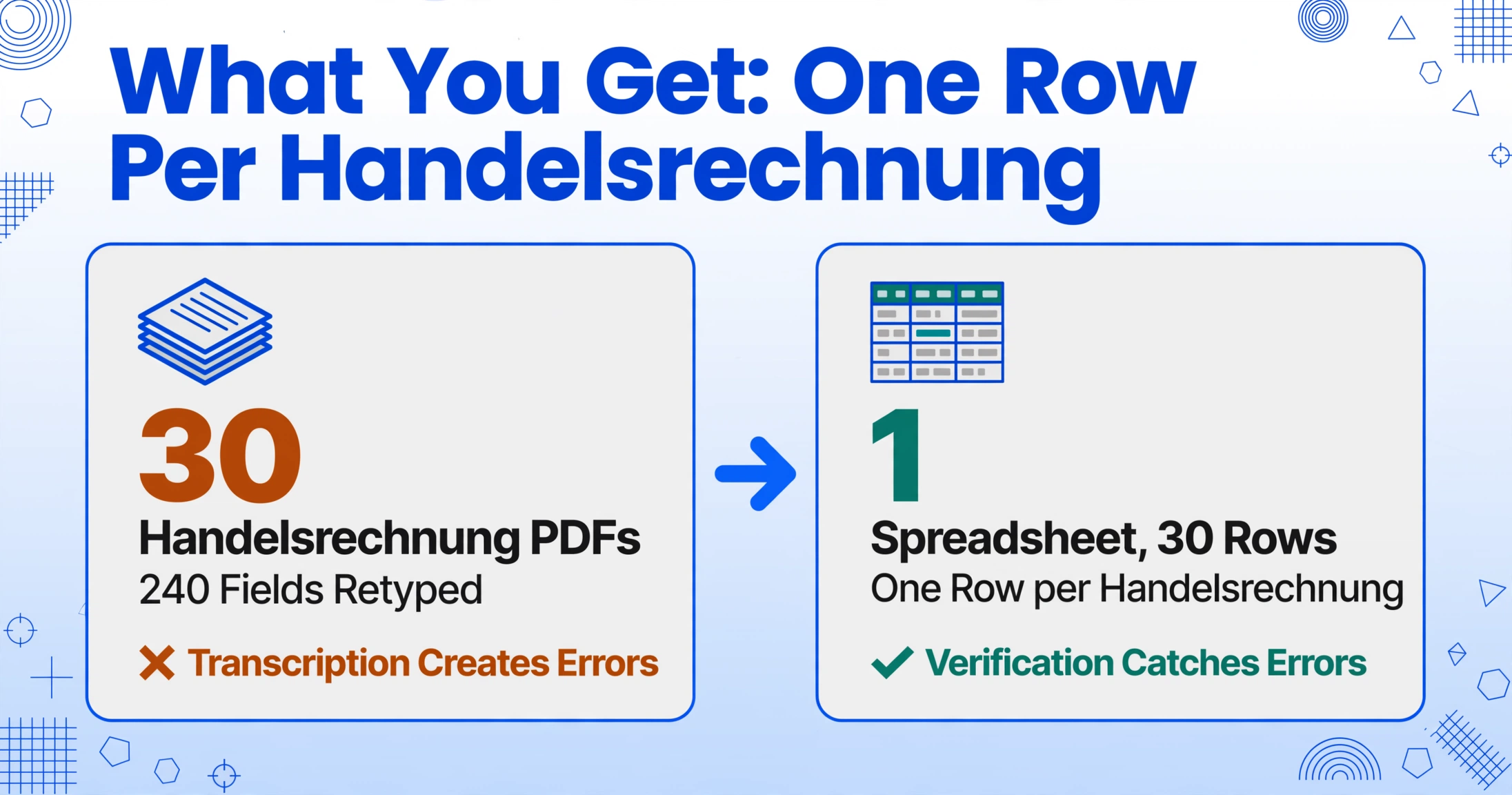
The output is a spreadsheet — Excel, CSV, or directly into Google Sheets via the Google Sheets Add-on — with one row per Handelsrechnung. The columns are the ones you defined. The values in each cell are what the AI extracted from the PDF.
This spreadsheet feeds both pipelines simultaneously:
The EORI number, HS codes, countries of origin, Incoterms, and weights that the ATLAS declaration requires are already in the spreadsheet. The export department or customs broker enters them into the ATLAS software directly from the spreadsheet — no need to open each PDF and retype them. If your ATLAS software (AEB, DAKOSY, MIC-CUST) supports CSV or Excel import for bulk declarations, the data feeds the declaration directly. If you use a customs broker, you send them the spreadsheet instead of the PDFs — the broker enters the data faster and with fewer transcription errors because they are copying from a table, not reading from a PDF.
The invoice number, date, customer, total, EORI, and Incoterms feed the export ledger (Ausfuhrbuch) and the VAT return (UVA). The HS chapters and destination countries feed the Intrastat declaration. Instead of the accountant opening 30 PDFs and retyping 240 fields, the accountant opens one spreadsheet, verifies the values against the PDFs, and imports the data into DATEV, Lexware, or SAP. Verification catches errors. Transcription creates them.
The spreadsheet becomes the single source of truth for the Handelsrechnung data. Filter by EORI number to confirm every export declaration uses the correct exporter identifier. Filter by HS chapter to group export volume by commodity for the quarterly Intrastat report. Compare the computed column "Invoice Total vs Line Item Sum Check" to catch arithmetic discrepancies before they reach the ATLAS declaration. The same dataset that feeds the export declaration feeds the accounting entry — source data consistent across both pipelines, eliminating the common audit finding where the customs-filed value differs from the accounting-booked value.
FAQ — German Handelsrechnung Data Extraction
Can this handle Handelsrechnungen with multiple line items, each with different HS codes and countries of origin?
Yes. Each line item is extracted with its own HS code and country of origin. The output preserves the one-row-per-invoice structure — if you need one row per line item instead, define your columns with the prefix "per Position" and the AI will treat each commodity line as a separate extraction unit. For most export workflows, however, one row per invoice with the HS codes and origins aggregated or represented by the primary commodity is sufficient, because the ATLAS declaration already contains the line-item detail and the accounting entry only needs the invoice-level summary.
How does the extraction handle different Incoterms — specifically the difference between EXW, FOB, and CIF values on the same invoice?
The AI extracts the Incoterms as stated on the invoice — FOB Hamburg, CIF New York, EXW Stuttgart. It does not calculate the transport or insurance add-ons. For the customs value calculation (the value that goes into the ATLAS declaration), you need to adjust the invoice value based on the Incoterms: EXW value + inland transport to the EU border = statistical value; FOB value is typically sufficient as-is for the ATLAS export declaration; CIF value includes freight and insurance that must be separated for the export-side declaration. The Computed Column "Invoice Total vs Line Item Sum Check" validates the invoice arithmetic, but the Incoterms-to-customs-value adjustment remains a manual calculation step — or can be automated with a Computed Column if your freight and insurance costs are known per shipment.
Does this replace the ATLAS AES export declaration filing?
No. The extraction produces the input data for the ATLAS declaration. Filing the declaration still requires ATLAS-compatible software (AEB, DAKOSY, MIC-CUST, SAP GTS, or the customs broker's system) and an active ATLAS participant registration with the German customs administration (Generalzolldirektion). The extraction replaces the manual data-entry step — reading the Handelsrechnung PDF and typing the fields into the ATLAS software — not the software itself. For the complete workflow from customs declaration to a structured dataset, the guide to extracting German customs declaration data to Excel covers the import-side equivalent.
How does the Ausfuhrbestätigung / Ausgangsvermerk fit into this workflow?
The Ausfuhrbestätigung (export confirmation) is the proof that the goods physically left the EU customs territory. It is issued by the customs office of exit via ATLAS after the goods are presented and cleared. It is not a field on the Handelsrechnung itself — it is a separate electronic message or stamp that arrives after the export declaration is processed. In the extraction workflow, the Handelsrechnung data is extracted first (producing the input for the ATLAS declaration). After the declaration is filed and the goods exit, the Ausgangsvermerk is received. At that point, you can add a column to your spreadsheet — Ausgangsvermerk erhalten (J/N) — and manually mark each row when the confirmation arrives, giving your accounting team a single view of which exports are substantiated for VAT zero-rating and which are pending.
Can the same column setup extract data from German domestic Rechnungen as well?
Yes — the common fields (invoice number, date, customer, amounts) populate from any invoice format. The customs-specific columns (EORI, HS codes, origin, Incoterms, weights) will be empty for domestic Rechnungen. This means you can upload a mixed batch — 20 Handelsrechnungen and 40 domestic Rechnungen — and get one unified spreadsheet. Sort by the EORI column to separate export invoices from domestic ones. The same principle applies to extracting ELSTER tax form data: define the columns once and feed them from the source documents — the guide to extracting German ELSTER tax form data to Excel applies the same column-definition approach to a different document type.
The Handelsrechnung already contains every field your customs declaration and your accounting system need. The bottleneck is not missing data — it is a PDF where spreadsheets should be.
Extract a Handelsrechnung