How to Extract German Customs Declaration Data to Excel
Without Re-Typing Every Field
Germany's ATLAS (Automated Tariff and Local Customs Clearance System) processes customs declarations covering roughly €5–6 billion in EU customs revenue every year — the largest single-member contribution to the EU customs union. Your customs broker (Zollvertreter) or freight forwarder (Spediteur) submits the declaration electronically through ATLAS. What lands in your inbox afterwards is a PDF backup — the same declaration, now sitting in a file format your ERP and Excel cannot read. The 11-digit customs tariff number (Zolltarifnummer, also called Codenummer or Warennummer), the declared customs value (Zollwert), the country of origin (Ursprungsland), the net mass (Eigenmasse) — every field is present, correctly stated, and locked inside a document designed for archiving, not for reconciliation against supplier invoices. Extracting those fields into a spreadsheet, one declaration at a time, is the step nobody budgets for in the monthly import reporting cycle.
Key Takeaways
- ATLAS processes customs declarations covering roughly €5–6 billion in EU customs revenue each year — but the PDF Zollanmeldung you receive retains none of that as structured data, leaving you to retype 11-digit tariff codes from a flat document.
- The gap is not technical: ATLAS validates the declaration as structured data, returns a structured tax assessment, and sends you a PDF designed for archiving — the format-translation step exists because nobody budgeted for the bridge between ATLAS output and Excel.
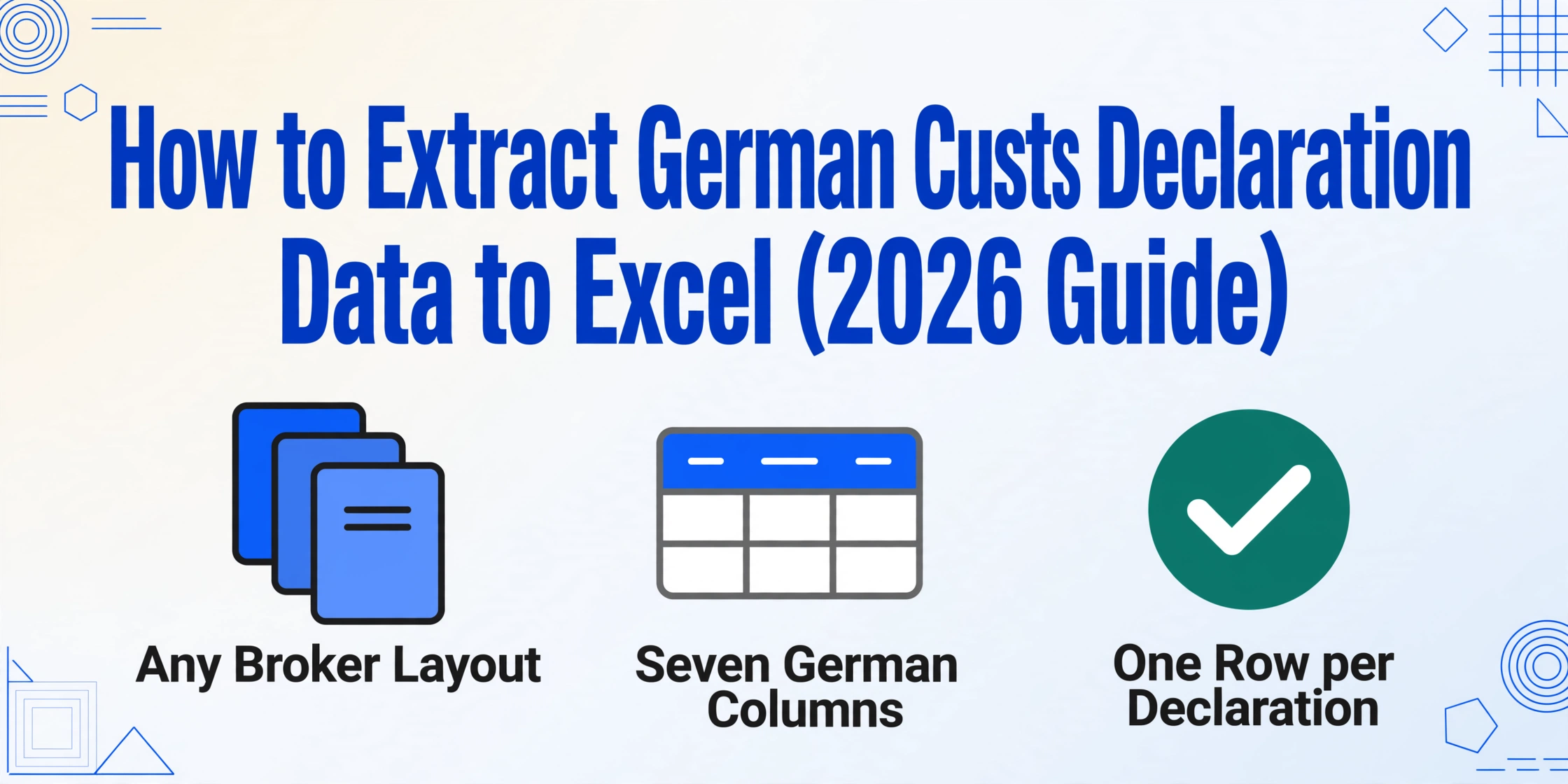
- Define seven column names once, upload a month's worth of Zollanmeldungen, and the 2.5 hours of manual field transcription becomes a 10-minute verification — your expertise returning to the supplier invoice reconciliation it was meant for.
Where Zollanmeldung Data Comes From — and Where It Gets Stuck
Every import shipment entering Germany from outside the EU requires a customs declaration — a Zollanmeldung (customs declaration, also known as Einheitspapier or SAD — Single Administrative Document) — that assigns the goods to a customs procedure, classifies them under an 11-digit customs tariff number (Zolltarifnummer), and declares their value, origin, and net mass. The declaration is submitted electronically through ATLAS, Germany's national customs IT platform operated by the ITZBund under the legal framework of Articles 158–163 of the Union Customs Code (UZK). ATLAS returns a Master Reference Number (MRN, 18-digit), validates the declaration against tariff schedules, and — if accepted — releases the goods into free circulation.
The declaration itself is structured data. ATLAS ingests it as structured data. The problem is what happens afterwards. The customs broker sends you a PDF copy of the Zollanmeldung for your records — the same data, rendered as a flat document. If you import through multiple brokers or entry points, each one sends declarations in their own format: one broker's PDF layout, another broker's scanned paper form, a third's ATLAS Internet-Zollanmeldung (IZA) printout. The fields are the same across every declaration — Zolltarifnummer, Ursprungsland, Warenwert, Versand-/Bestimmungsland, Zollverfahrenscode, EORI-Nummer, Eigenmasse — but they live in different positions on different pages, and none of them will copy-paste cleanly into a spreadsheet.
The gap between ATLAS and your spreadsheet is the PDF that sits between them — a document your system can display but not read. Every field you retype from a Zollanmeldung PDF into Excel is a field ATLAS already has in structured form. The manual entry is not adding information; it is translating format, one declaration at a time.
Why Manual Entry Creates a Reconciliation Gap
A German import manager overseeing 30 import shipments per month across three product categories receives roughly 30 Zollanmeldung PDFs from the customs broker. Each declaration contains — at a minimum — the 11-digit Zolltarifnummer (the German-specific extension of the 6-digit international Harmonized System code, expanded through the EU Combined Nomenclature at 8 digits, the TARIC at 10 digits, and the national level at 11), the customs value in EUR, the country of origin, and the EORI number. A complete import declaration on the ATLAS position-level screen (Positionsdaten) adds the net mass (Eigenmasse in kg), number of packages (Anzahl der Packstücke), item price (Artikelpreis), and the customs procedure code (Zollverfahrenscode, a 4-digit field indicating which procedure the goods are being entered into and which procedure they came from).
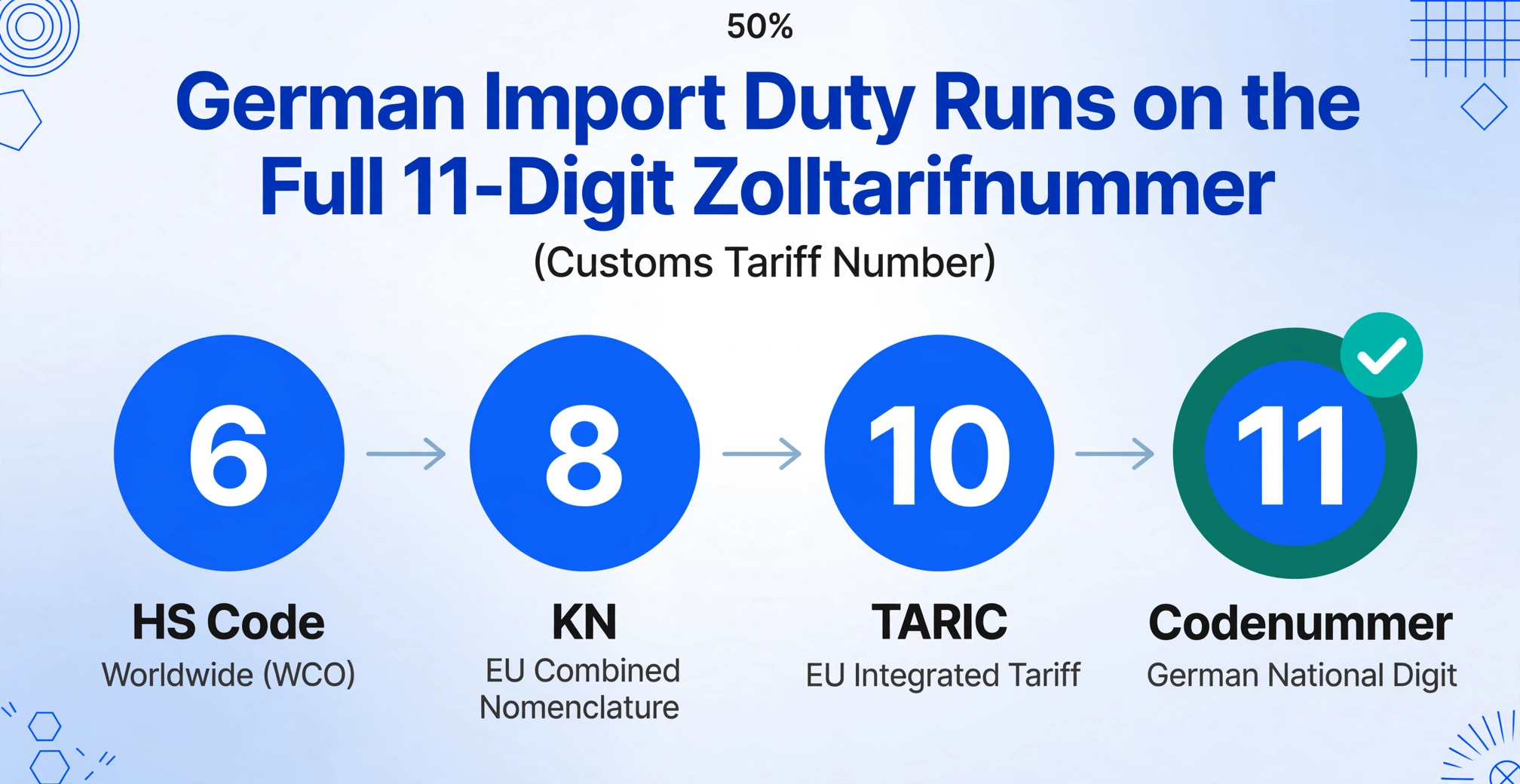
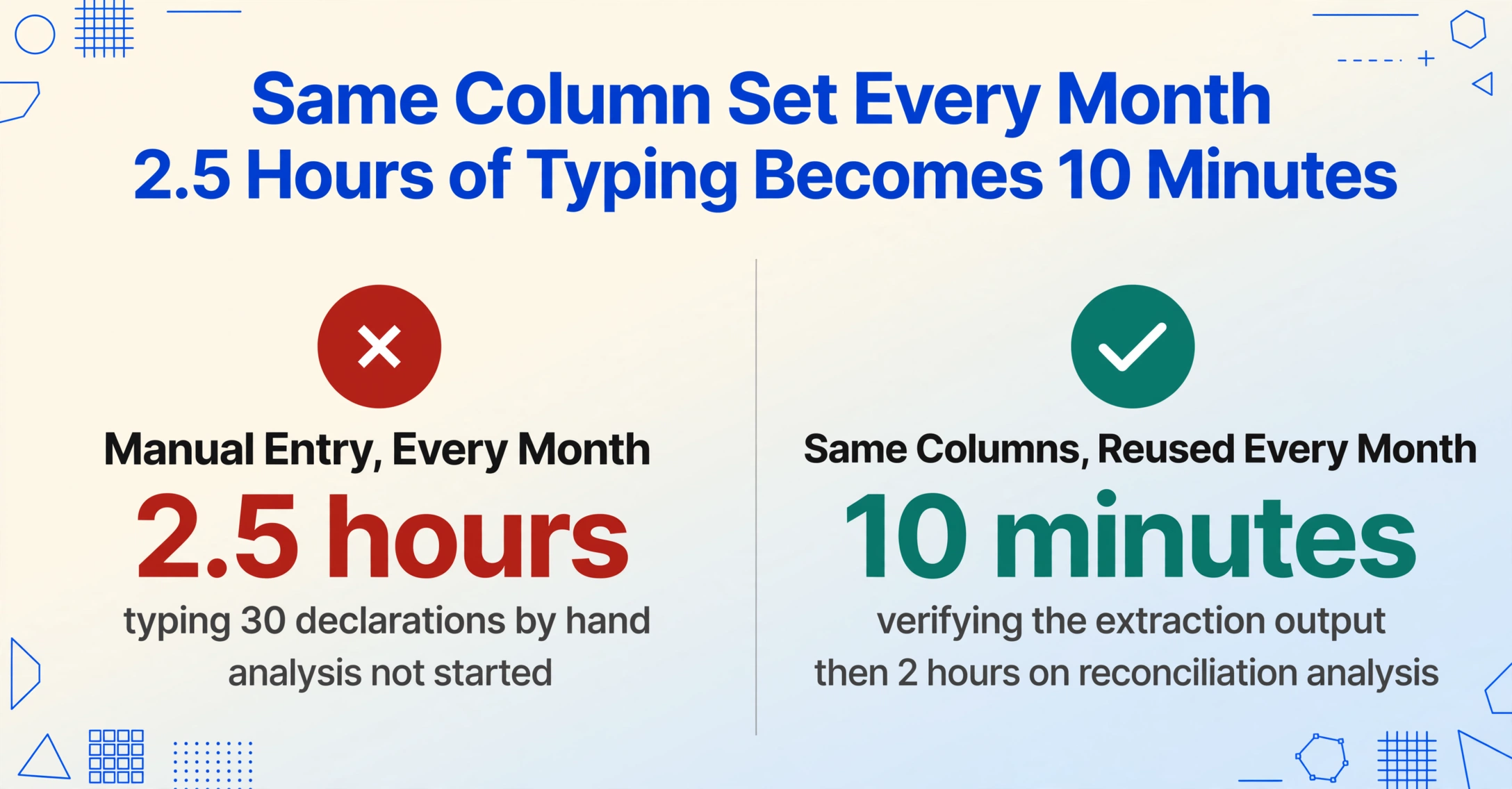
Extracting these fields manually from 30 declarations into a single spreadsheet for monthly reporting takes roughly 4 to 5 minutes per declaration — locating the fields on each PDF, typing the values, and verifying you typed the 11-digit Zolltarifnummer correctly (not the 10-digit TARIC or 8-digit KN, but the full 11-digit Codenummer, which is what German customs actually uses for import duty calculation). At 30 declarations, that is 2.5 hours of data entry before a single row of analysis begins.
The reconciliation gap is not just time. It is three structural problems that compound with volume:
First, HS code transposition. A Zolltarifnummer looks like "6204.62.31.00.0" — five number groups totalling 11 digits. Retyping it from a PDF into Excel introduces a transposition error roughly 1 in 500 keystrokes under normal typing conditions. An 11-digit tariff code is 11 keystrokes. Across 30 declarations with an average of 3 tariff lines each, that is roughly 990 keystrokes — meaning roughly two tariff codes in the spreadsheet will be wrong. The error is invisible until a customs audit or a duty recalculation reveals it.
Second, the reconciliation delay. The purpose of extracting Zollanmeldung data is to reconcile it against the supplier's commercial invoice (Handelsrechnung). The invoice says the goods cost €12,000 FOB Shenzhen. The Zollanmeldung declares a customs value of €12,800 — the CIF Hamburg value, freight-adjusted. If the import manager enters customs data a week after the goods arrived, the discrepancy between invoice and declaration is discovered a week late. A systematic data gap between ATLAS submission and spreadsheet availability means discrepancies compound — 30 shipments, 30 potential adjustments, discovered in a batch at month-end instead of when the shipment cleared.
Third, no cross-declaration comparison. When Zollanmeldung data lives in 30 separate PDFs, asking "which of this month's imports used tariff heading 6204?" requires opening 30 documents and scanning each one. Asking "what was the average declared customs value per kilogram for our textile imports to Hamburg in Q3?" requires extracting all the data first — which nobody does, because the extraction itself is the bottleneck. The data exists. It is simply not in a format that supports questions. This is structurally identical to the extraction bottleneck for AU BAS data preparation for GST reporting — the documents contain the answers, but they are scattered across files, and comparison requires extraction first.
How to Extract Zollanmeldung Fields into a Single Excel Spreadsheet
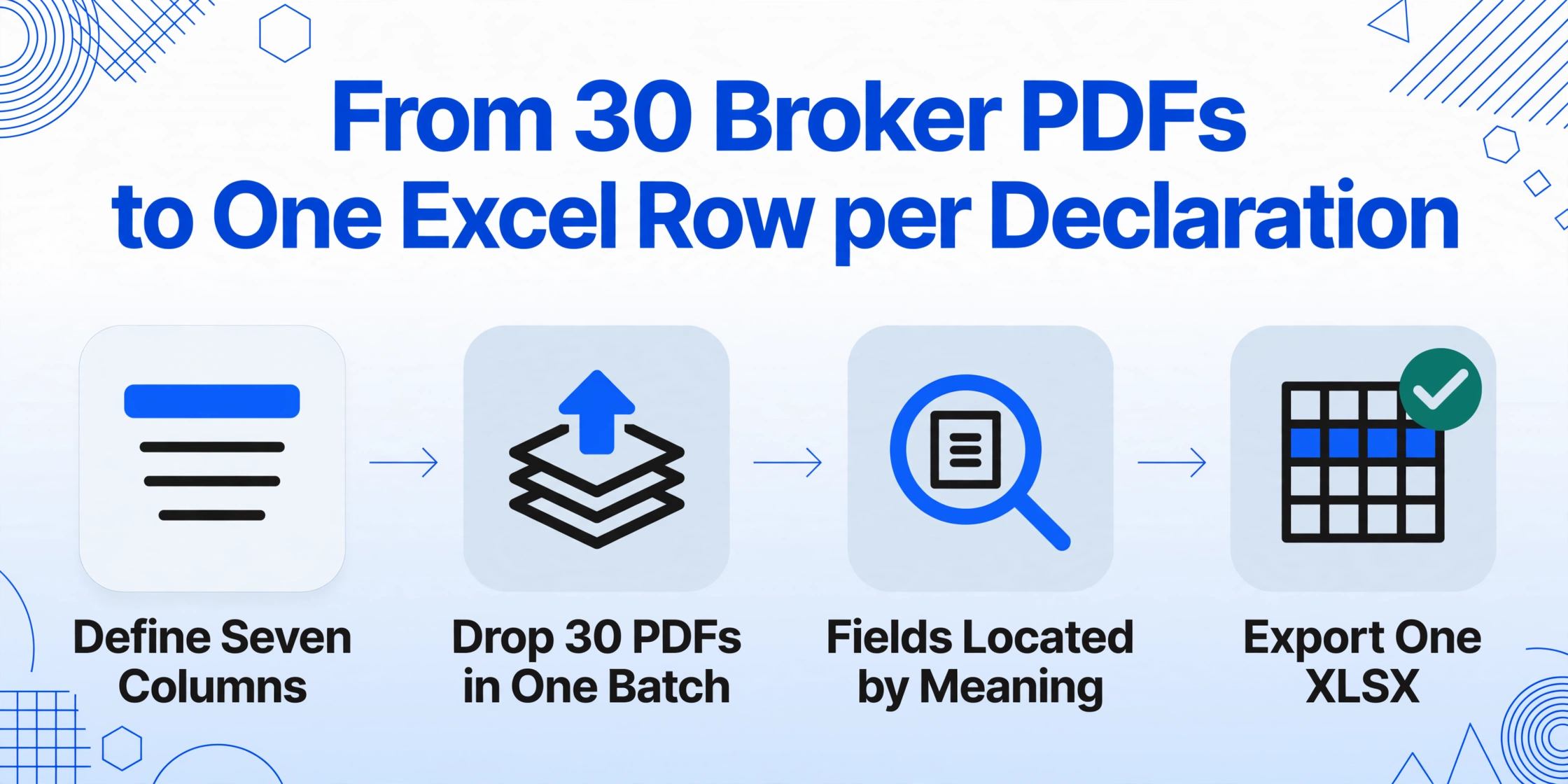
Custom Column Extraction reverses the workflow. Instead of opening each Zollanmeldung PDF and typing its fields into Excel, you define the columns once — using the exact German customs field names your team uses — and drop all 30 declarations into the upload area. The engine reads each PDF, locates each field by understanding what it means (not where it sits on the page), and populates one spreadsheet with one row per declaration, the columns you defined as headers. The output is not 30 separate extractions that need merging — it is one file, exportable as Excel (XLSX), structured for the reconciliation step that follows.
The column names you type become the headers of your output spreadsheet. For a complete import declaration reconciliation, define at minimum these seven columns: "Zolltarifnummer (Customs Tariff Number, 11-digit)", "Ursprungsland (Country of Origin)", "Warenwert (Customs Value in EUR)", "Versand-/Bestimmungsland (Country of Dispatch/Destination)", "Zollverfahrenscode (Customs Procedure Code, 4-digit)", "EORI-Nummer (EORI Number, format DE+15 digits)", "Eigenmasse (Net Mass in kg)". Column names written in English tell the AI what to find — the AI reads each PDF in German and locates the matching field regardless of where it appears on the page.
The full 11-digit Zolltarifnummer encodes the HS chapter (first 2 digits), heading (4 digits), subheading (6 digits), EU Combined Nomenclature (8 digits), TARIC (10 digits), and the national German code (11 digits). Add an Inferred Column: "HS Chapter (derive from Zolltarifnummer, output 2-digit number with chapter description, e.g. '62 — Articles of Apparel')". The AI extracts the full code and infers the chapter classification in one pass. This gives you an instant breakdown of imports by product category without any manual tariff look-up.
Drop every Zollanmeldung PDF from the month's imports into the upload area — the ATLAS printouts from your broker, the IZA (Internet-Zollanmeldung) exports, even scanned paper declarations if your broker still sends printed copies. The batch engine processes all files simultaneously. The output is one spreadsheet with one row per declaration, your seven columns as headers, and the HS Chapter column auto-populated. Export as Excel — the same file your monthly import report references.
Files are processed securely and not stored.
What You Can Do With Extracted Zollanmeldung Data
The spreadsheet is not the destination — it is the layer that makes the next three workflows possible. These are the workflows the monthly import report depends on, and they all start from the same extracted dataset.
Supplier invoice reconciliation. The most immediate use of extracted Zollanmeldung data is cross-referencing it against the supplier's commercial invoice (Handelsrechnung). The invoice states the FOB value; the Zollanmeldung states the CIF customs value (Zollwert) — which includes freight and insurance to the EU border. The difference between the two values determines whether the declared customs value is consistent with the underlying transaction. With the Zollanmeldung data in a spreadsheet next to the invoice data, this check is a side-by-side column comparison. Without the spreadsheet, it is 30 PDFs versus 30 supplier invoices, cross-referenced manually, one pair at a time, usually at month-end when the forwarder's invoice and the import VAT statement arrive together.
Monthly import summary by tariff heading. With the extracted spreadsheet and the inferred HS Chapter column, generating a monthly import summary — total customs value by tariff chapter, total net mass by country of origin, number of declarations by customs procedure code — is a pivot table. Open the exported Excel, select the columns, create the pivot, and the report is done. This replaces the manual process of opening each Zollanmeldung PDF, noting the Zolltarifnummer and Warenwert, and typing the values into a separate reporting spreadsheet — a task that consumes another hour for 30 declarations and is always the last thing finished before the monthly finance meeting.
EORI and procedure code audit trail. Every Zollanmeldung carries the importer's EORI number (Economic Operators' Registration and Identification number — a unique identifier for EU customs participants, format DE followed by 15 digits), which replaces the old German Zollnummer as the primary participant identifier since July 1, 2009 under Regulation (EG) No. 312/2009. A spreadsheet with every declaration's EORI — the importer, the declarant, the representative — creates an audit trail that the customs broker (Zollvertreter) cannot provide in aggregated form. Filter by EORI to see which entity declared which shipments, filter by Zollverfahrenscode to see which imports entered under standard clearance (customs procedure code starting with "40") versus inward processing (code starting with "51"). The data was always in the declarations. It becomes auditable when it is in a spreadsheet.
The same approach to extracting structured fields from German official forms applies to other document types in the trade compliance workflow — the pattern of defining columns once and processing batches of PDFs is identical whether the document is a Zollanmeldung, an ELSTER tax return, or a commercial invoice cross-reference. The fields change; the extraction mechanism does not.
Beyond the Single Declaration: Building a Customs Data Hub
The single-batch extraction solves the monthly reporting problem. The structural improvement comes when the same column definition — the seven customs fields plus the inferred HS Chapter — is reused every month. The column names defined in January work for February's declarations, and March's, without reconfiguration. Each month's batch produces a spreadsheet with the same columns. Concatenate the monthly files, and you have a year-to-date customs data hub — every import declaration filed through ATLAS, every Zolltarifnummer, every declared customs value, every country of origin, in one sortable, filterable Excel file.
This is not a customs management platform replacement. It does not submit declarations to ATLAS — that remains the Zollvertreter's job. What it replaces is the manual data bridge between the broker's PDF output and the importer's internal systems — the step where an import manager or logistics coordinator opens a PDF, reads a tariff code, and types it into a spreadsheet. That step is format translation, not trade expertise. Removing it from the workflow means the person who used to spend 2.5 hours typing fields into Excel now spends 10 minutes verifying the extraction output and 2 hours on the reconciliation analysis that actually requires their knowledge of the company's supply chain.
This is the same principle behind extracting data from German ELSTER tax forms into Excel — a tax return is structured data displayed as a PDF, and extracting it into a spreadsheet is format translation, not accounting. The customs declaration is no different from the tax return in this respect. Both are official forms where every field has a defined meaning, and the only thing standing between the field and the spreadsheet is the step that types it.
FAQ — German Customs Declaration Data Extraction
Can the extraction handle Zollanmeldungen from different customs brokers with different PDF layouts?
Yes. The AI locates fields by understanding what they mean — not by expecting them at a specific position on the page. Whether one broker places the Zolltarifnummer in the top-right item-data section and another lists it in a table column, the AI identifies the 11-digit tariff code by its structure and context. The column definitions in English ("Zolltarifnummer (Customs Tariff Number, 11-digit)") tell the AI what to find; the AI reads each PDF in German and retrieves the matching value. This also means declarations from different ATLAS modules — Einfuhr (import), Ausfuhr (export), or Versand (transit, NCTS) — can be in the same batch, because the field names and meanings are consistent across the procedure types.
What is the difference between a 10-digit TARIC code and an 11-digit Zolltarifnummer?
The Zolltarifnummer (also called Codenummer or Warennummer) is Germany's 11-digit national extension of the international Harmonized System (HS) code. The structure is: first 6 digits = international HS code (administered by the World Customs Organization), digits 7–8 = EU Combined Nomenclature (KN), digits 9–10 = EU TARIC (integrated tariff), digit 11 = German national sub-classification for excise duties and national trade restrictions. For import declarations in Germany, the full 11-digit code is required. For export declarations, the 8-digit KN code suffices. When defining your extraction column, specify "11-digit" to ensure the AI retrieves the complete Codenummer rather than the shorter export-format code.
Does the extraction work with scanned paper Zollanmeldungen, not just digital PDFs?
Yes — the AI processes scanned and photographed documents as well as born-digital PDFs. If your customs broker sends printed declarations and you scan them, or if you receive ATLAS printouts from an older shipment archive, the extraction reads them the same way it reads a digital PDF. Extraction quality follows input quality — a flatbed scan at 300 DPI produces the most reliable results, a phone photo of a printed declaration still works but may require a spot-check on the 11-digit tariff code. Declarations containing handwritten amendments (common when a Zollamt corrects a tariff classification at the border) will extract the printed text but may not capture the handwritten change — these declarations should be flagged for manual verification during the reconciliation step.
Can a single batch include both import and export Zollanmeldungen?
Yes. Import (Einfuhr) and export (Ausfuhr) declarations share the core set of fields — Zolltarifnummer, Warenwert, Ursprungsland, EORI — but differ in which fields are mandatory. An import declaration requires the full 11-digit Codenummer and the Zollverfahrenscode; an export declaration uses the 8-digit Warennummer and may not include the customs value in the same field position. If your business both imports and exports and you want a combined spreadsheet, define columns that cover both: use the widest column set (import fields) and let the export rows populate only the fields they contain. The extraction engine fills what it finds and leaves blank what does not exist — an export declaration row will simply have an empty customs value cell.
How long does it take to process a batch of 30 Zollanmeldungen?
From defining the seven columns to receiving the populated spreadsheet, a 30-declaration batch processes in roughly the time it takes to manually read and retype about two declarations — under 5 minutes. The column definition takes approximately 3 minutes the first time (typing the seven field names), and zero minutes on subsequent months because the same columns are reused. The batch upload and processing takes 1–2 minutes for 30 PDFs. The remaining time — the hours that used to go to manual data entry — shifts to verification: spot-checking the extracted Zolltarifnummer against a sample of original PDFs and confirming the inferred HS Chapter classifications. A thorough verification of 30 rows takes 10–15 minutes, compared to 2.5 hours of manual entry.
The customs broker submits the Zollanmeldung through ATLAS, the system validates it, and the PDF lands in your inbox. The next step — extracting every tariff code, customs value, and country of origin into a spreadsheet — doesn't need to be a retyping exercise. Define the columns once, upload the declarations, and spend your time on the reconciliation that matters.
Extract Your Customs Declarations