Every ECF Notification Is a Docket Row
Waiting to Be Built
A Notice of Electronic Filing is easy to mistake for ordinary email. The court generates it the moment a document is filed, and it arrives looking like routine correspondence, with the case number, the document number, the filing date, the docket text, and the list of who was served all sitting in the body of the message. The record is already structured. It is spread across paragraphs instead of columns, which is why so many legal teams still open each notification, read it, and retype it into a spreadsheet or a case management system one field at a time.
Key Takeaways
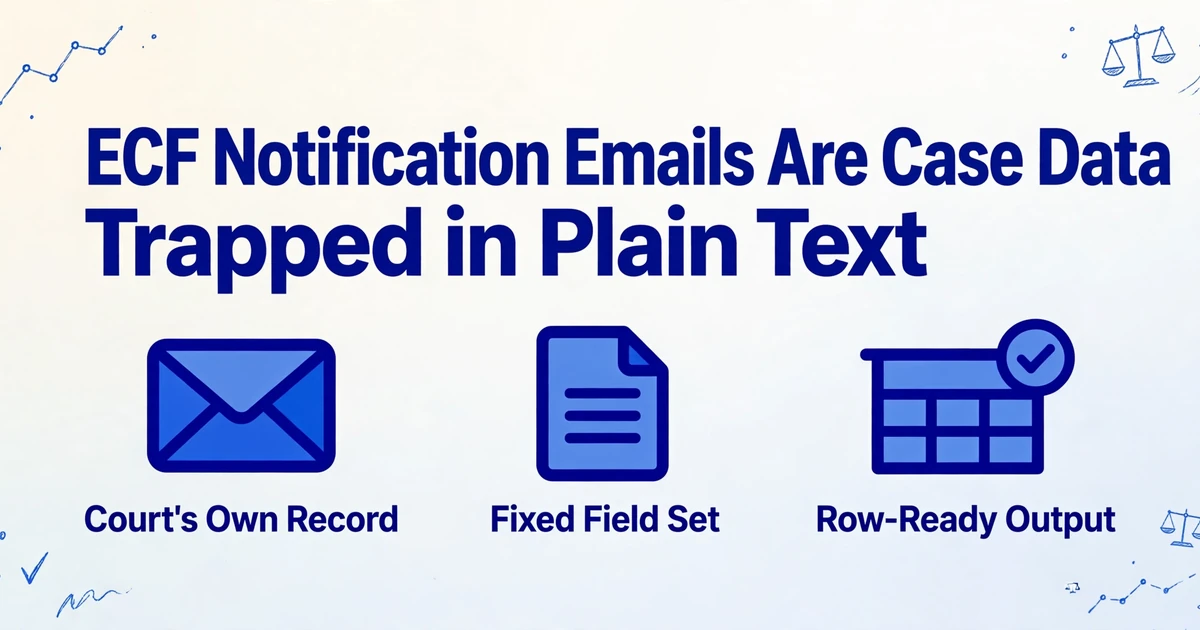
- Your court notification is already a data record, with the case number, filing date, and docket text sitting in fixed fields instead of columns.
- Pointing a generic parser at the mailbox fails, because the data lives in the message body and every court lays out its notice differently.
- Name the columns once and the AI reads each field by meaning, so a single template handles notices from any court.
What a Notice of Electronic Filing Actually Contains
The Notice of Electronic Filing, called an NEF in district and bankruptcy courts and a Notice of Docket Activity, or NDA, in appellate courts, is not a courtesy ping. When a document is filed in CM/ECF, the system generates the notice automatically and emails it to the registered parties in the case (PACER). It is the court's own record that a filing happened, which is why teams treat it as a data source rather than as routine correspondence.
The content is consistent enough to be treated as a record with fixed fields. A bankruptcy court's own participant guide enumerates what every NEF carries and provides a sample: the date and time of filing, the case caption, the case number as a link to the docket, the document number as a link to the filed PDF, the docket text describing what was filed, and the electronic recipient list (S.D. Miss. Bankr., NEF Participant's Guide). The presiding judge usually appears through the case number suffix or the docket text, and the filer is named in the docket entry.
| Field | Where it sits in the email | Why a docket sheet needs it |
|---|---|---|
| Case name | The caption line | Human-readable match to the matter file |
| Case number | Its own line, linked to the docket | The matter identifier for sorting and merging |
| Document number | Its own line, linked to the filing | The docket entry reference |
| Filing date and time | Opening transaction line | The sort key for the whole chronology |
| Docket text | The entry description | What was filed and often who filed it |
| Recipient list | Bottom of the notice | Who has been served, and who is on notice |
| Document link | The document number hyperlink | One free look at the PDF within 15 days |
The notification is already a data record with named fields. The missing piece is that nothing puts those fields into columns.
There is a small operational detail inside that last row that changes how people treat the email. Each NEF grants one free look at the filed PDF, available for 15 days from receipt and good for a single viewing. Pull the document once and it is yours to save; let the email sink into a shared inbox and the free window closes, after which every view carries a PACER charge.
Where Manual Handling of Court Emails Breaks
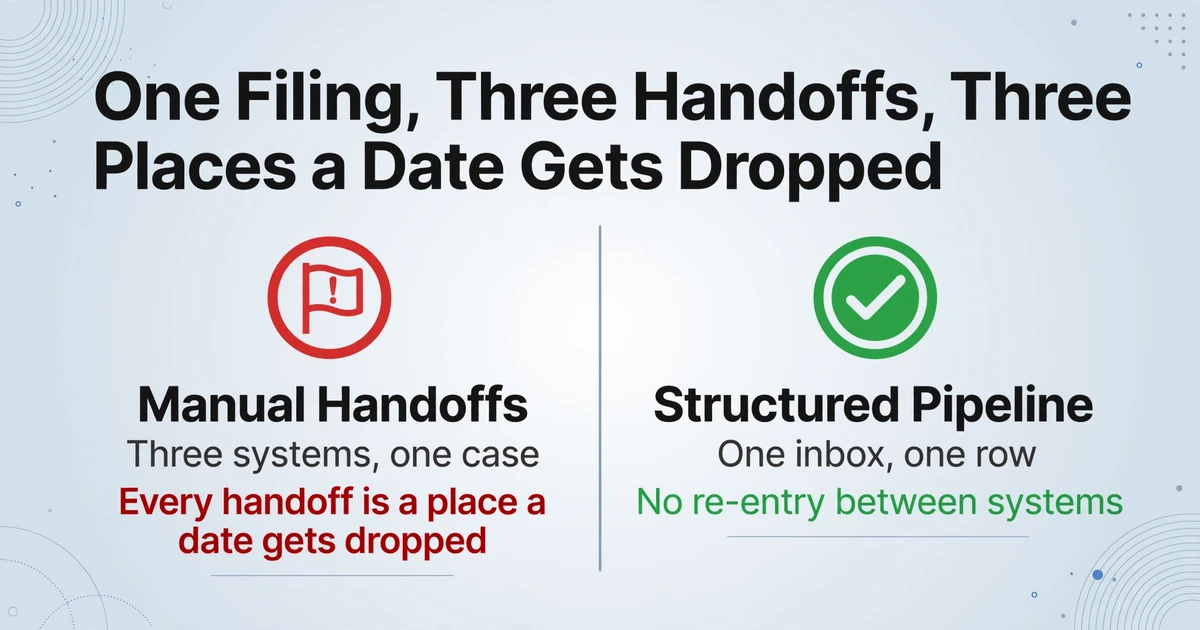
Manual processing fails for a reason that has less to do with effort than with structure. It breaks because the same notification fans out to several inboxes, most of what arrives is routine, and the one entry that matters looks identical to the rest.
Start with the fan-out. A single filing generates a notice to every registered party in the case, and firms routinely route those notices to a shared address so more than one person can act on them. A firm tracking filings across multiple districts and dozens of active matters is not reading a handful of messages a day. It is watching a high-volume stream in which each message is a potential row, and the person managing it has to decide which rows deserve attention first.
Then add the tools. A practitioner running personal injury cases across several federal districts described the reality in a 2026 r/paralegal thread: PACER notifications fire inconsistently, the rules-based calendaring tool catches deadlines but misses filings, and the local rules spreadsheet had already drifted out of date twice that year. The line that captures the whole problem is the one about the handoffs: "That's three systems for one case and every handoff is a place a date gets dropped" (r/paralegal). The retyping is not the risk by itself. The risk is that the same fact gets re-entered at each handoff, and each handoff is a chance to lose it.
The notice itself is also a single point of failure. It goes to the parties of record, and if it is filtered into a shared address, lands in a spam folder, or reaches a paralegal who is out that week, there is no automatic second channel standing behind it. A missed notification with an appearance or response date attached is one of the few administrative errors a firm cannot repair after the fact.
The task scales poorly because it depends on opening, reading, and retyping, and the part of it that carries legal consequences is exactly the part that gets compressed when the inbox is full. No one has to be careless for a date to slip through.
Why a Generic Email Parser Misses the Point
The obvious fix is to point an email parsing tool at the mailbox, and that is where the first assumption usually fails. Most email extraction tools were built for the case where the data lives in an attachment, a supplier invoice or a receipt that arrives as a PDF. An NEF has no attachment worth parsing. Its case number, filing date, and docket text are in the message body as plain text, which is the opposite of the format those tools expect. If the receiving pipeline is set to read attachments only, it will pick up nothing.
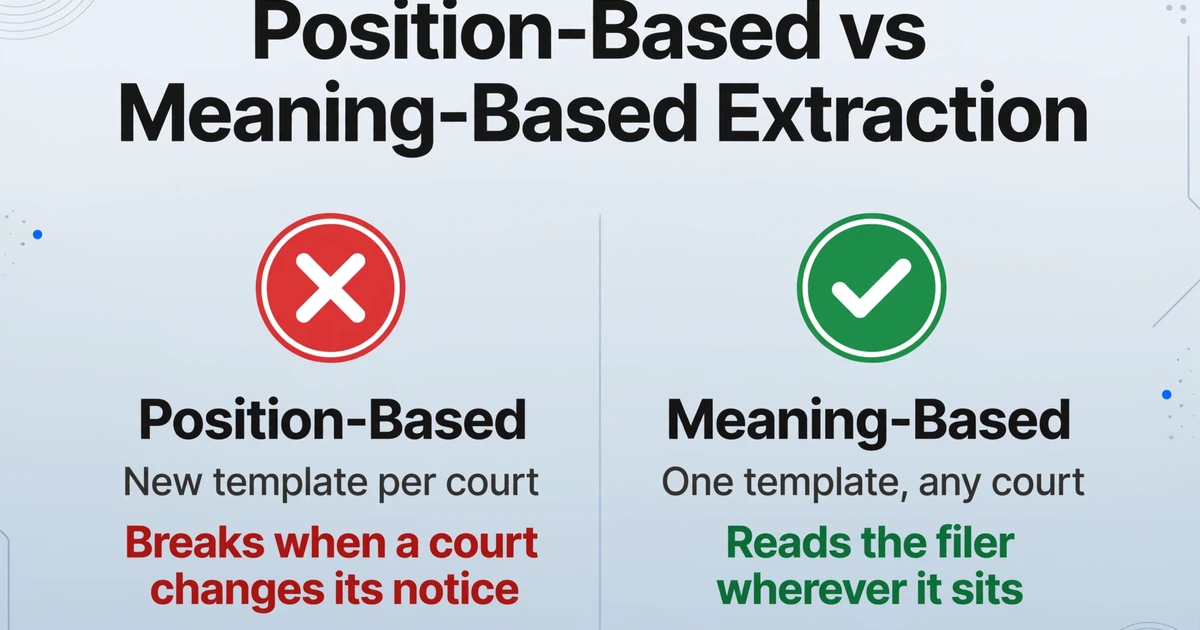
The second problem is format. Every federal district and bankruptcy court runs its own CM/ECF instance, so while the field set is stable, the exact layout, line order, and wording of the docket text are not. A tool that extracts by position, using a template or a set of drawn zones, needs a new template for each court format and breaks whenever a court changes its notice. For a firm in three districts, that is three templates to build and maintain before the first notification is processed. The same problem appears in extracting structured data from email more broadly whenever the source layout is outside your control.
What works instead is reading for meaning rather than position. When you tell the tool that you want a column called Filer, it locates the filer in the docket text because it understands what a filer is, regardless of where the line sits in a particular court's notice. That is the difference between matching a coordinate and understanding a field, and it is what makes a court-by-court template unnecessary.
The Columns to Name in Your Docket Spreadsheet
The output you want is a row per notification, with the fields from the notice mapped to columns you chose. That is a natural fit for Custom Column Extraction: you type the column names you want, and the AI locates and fills the matching value from the email by understanding what each field means rather than where it sits. The column names you enter become the headers of the final table.
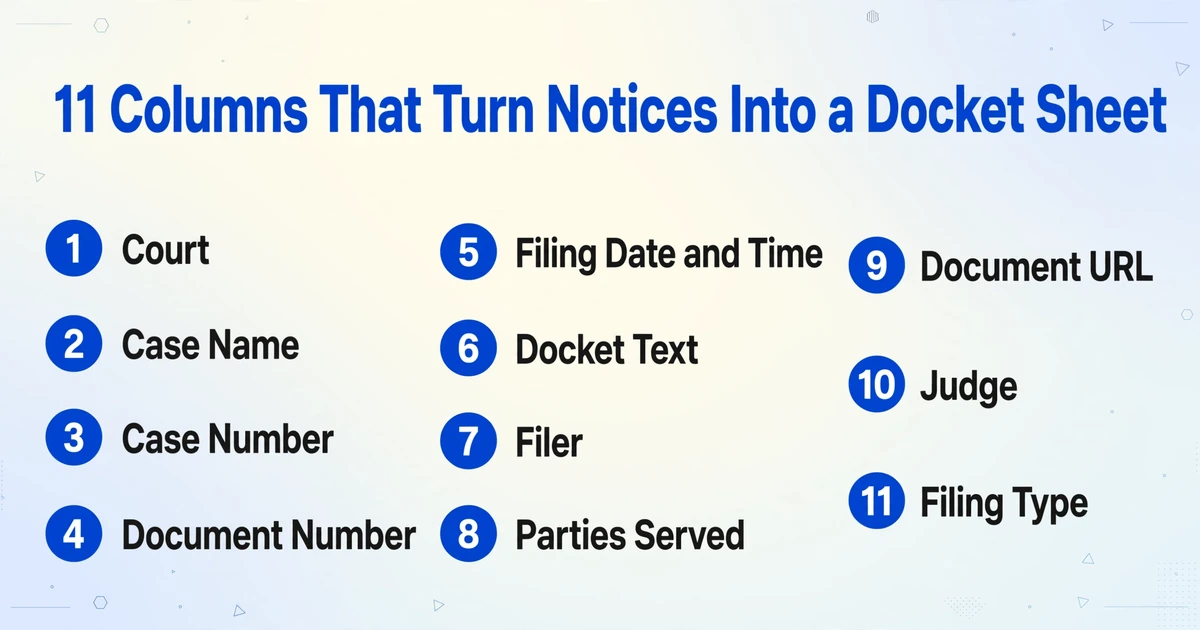
For an ECF inbox, a practical column set from the notification itself looks like this:
- Court (the district or bankruptcy court that sent the notice)
- Case Name
- Case Number
- Document Number
- Filing Date and Time
- Docket Text
- Filer
- Parties Served
- Document URL
Two more columns earn their place once the basics are in. A Judge column pulls the presiding judge from the case number suffix or the docket text, and a Filing Type column sorts the stream into categories. Filing type is a good use of an inferred column, one of three column modes the tool supports alongside direct extraction. In an inferred column you supply the allowed values, for example Filing Type (options: Motion, Order, Notice, Complaint, Scheduling, Other), and the AI reads the docket text and assigns the right label even though the notice never prints the words "Filing Type." That single column turns a flat list of notices into something you can filter by category.
This is also the moment to be precise about what a date column is and is not. Filing Date is extracted, because the notice states it. A computed response deadline is not, because it depends on jurisdiction-specific rules and the type of filing, and that calculation stays where it belongs, in your calendaring rules and with the person accountable for them. The same discipline of naming fields you want applies beyond notices, as covered in pulling key terms out of contracts.
How to Route ECF Notifications Into a Structured Sheet
The mechanism that makes this practical is the Email Inbox. Every account gets a dedicated receiving address, and mail forwarded there lands in your processing queue without anyone logging in to a portal. The setting that matters most for court notices is what the inbox is allowed to read. It defaults to attachments only, but it can be switched to process the email body alone, or the attachments and the body together. Because an NEF carries its data in the body, body mode is the setting that makes the whole workflow work.
Add the address to your court noticing
Copy the Email Inbox address and add it as a secondary recipient in your CM/ECF account, or set a forwarding rule in the firm mailbox that routes NEF and NDA mail to it. Either path gets the notices into one place without changing how your attorneys receive their own copies.
Switch the inbox to read the email body
Leave the default attachment-only mode behind. Court notice data lives in the message body, so set the inbox to process the body, or the body together with any attachment, and turn on a sender whitelist so only court and firm addresses reach the queue.
Name the columns once
Enter the docket columns from the previous section as a saved template: Court, Case Name, Case Number, Document Number, Filing Date and Time, Docket Text, Filer, Parties Served, Document URL, Judge, and Filing Type. Because the extraction is semantic, the same template handles notices from different courts.
Turn on auto-process with the template
Bind the template to the inbox so processing starts the moment a notice arrives. Each notification becomes its own row, and because processing is batch-first, notices from multiple courts collect into one table rather than one file per email.
Review the rows, then move them on
Work the table by filing date and check the entries that carry dates or deadlines. Review Mode lets you hover a cell and trace the value back to its source, so verifying a case number or a filed-by name takes seconds. Export to Excel, CSV, or JSON, write to Google Sheets, or pull the structured output through the v1 API, and import it into the system of record such as Clio, MyCase, or Filevine.
The workflow is deliberately narrow. It moves the reading and retyping out of the inbox, and it leaves the interpretation where it was. If you already keep a case chronology built from correspondence, the same row-per-document logic carries over to building a case chronology from email threads.
What This Does Not Do
Court data invites overpromising, so the boundaries are worth stating plainly before you build a firm workflow on top of them.
There is no native PACER or CM-ECF integration. The tool reads the notification emails you already receive. It does not log in to PACER, query a docket, or fetch filings for you, and it cannot see a case you are not already being notified about.
There is no case management system connector. The output is a spreadsheet you control: Excel, CSV, JSON, or rows written into Google Sheets, or structured data retrieved through the v1 API. Getting those rows into Clio, MyCase, or Filevine is a defined step in your own workflow, not an automatic sync, and no such integration is implied by naming those systems.
It is not a docketing system and it does not calculate deadlines. It can extract the filing date and the docket text, and it can flag entries, but computing a response deadline from local rules is a separate function that stays with your calendaring rules and a person. Treat the extracted sheet as an input to docketing, not a replacement for it.
Court formats vary, so test before you scale. The field set is stable, but layouts and docket wording differ by court. Run a few real notices from each jurisdiction through the template and confirm the columns land where you expect before you point a whole inbox at it.
Verification remains your responsibility. Under ABA Formal Opinion 512, lawyers who use generative AI tools carry the duties of competence, confidentiality, and supervision, and must review the output before relying on it (American Bar Association). Extraction removes transcription, not judgment, and the review step in this workflow is where that judgment happens.
FAQ
What is the difference between an NEF and a third-party docket alert?
An NEF is generated by the court's CM/ECF system when a filing occurs, and it carries legal notice and service to the registered parties in the case. A docket alert is a broader term for notifications about case activity, often from a monitoring service, and it is not the court's own notice. This workflow is built for the court notification, which is why the field set follows the NEF rather than a third-party alert format.
Which fields can be pulled from an ECF notification email?
The notice itself supplies the case name, case number, document number, filing date and time, docket text, filer, parties served, and a document link. A Judge column can be derived from the case number suffix or the docket text, and a Filing Type column can be inferred from the docket text. Filing dates are extracted as stated; response deadlines are not calculated.
Does it need an attachment, or can it read the email body?
It can read the email body. The inbox defaults to processing attachments only, and that default would miss an ECF notice entirely, because the case data lives in the body. Switch the setting to process the body, or the body and any attachment together, and the notification's own text becomes the source.
Does it calculate court deadlines?
No. It extracts the filing date and the docket text, which is what a docketing or calendaring process needs as input, but it does not apply local rules or compute a response deadline. That calculation stays with your calendaring system and requires legal review.
Does this replace Clio, MyCase, or a docketing service?
No. It replaces the step where someone opens a court email and retypes the case number, filing date, and docket text into a spreadsheet. The case management system remains the system of record, and any rules-based docketing service keeps its role. The extraction delivers clean rows to feed those tools rather than taking their place.
An ECF notification is a row your docket sheet is missing. Name the columns once and each notice supplies its own case number, filing date, filer, and docket text, so the stream from every court lands in one table you can sort. The judgment about what a filing means, and what it triggers, stays with the people who carry it. The retyping does not have to.