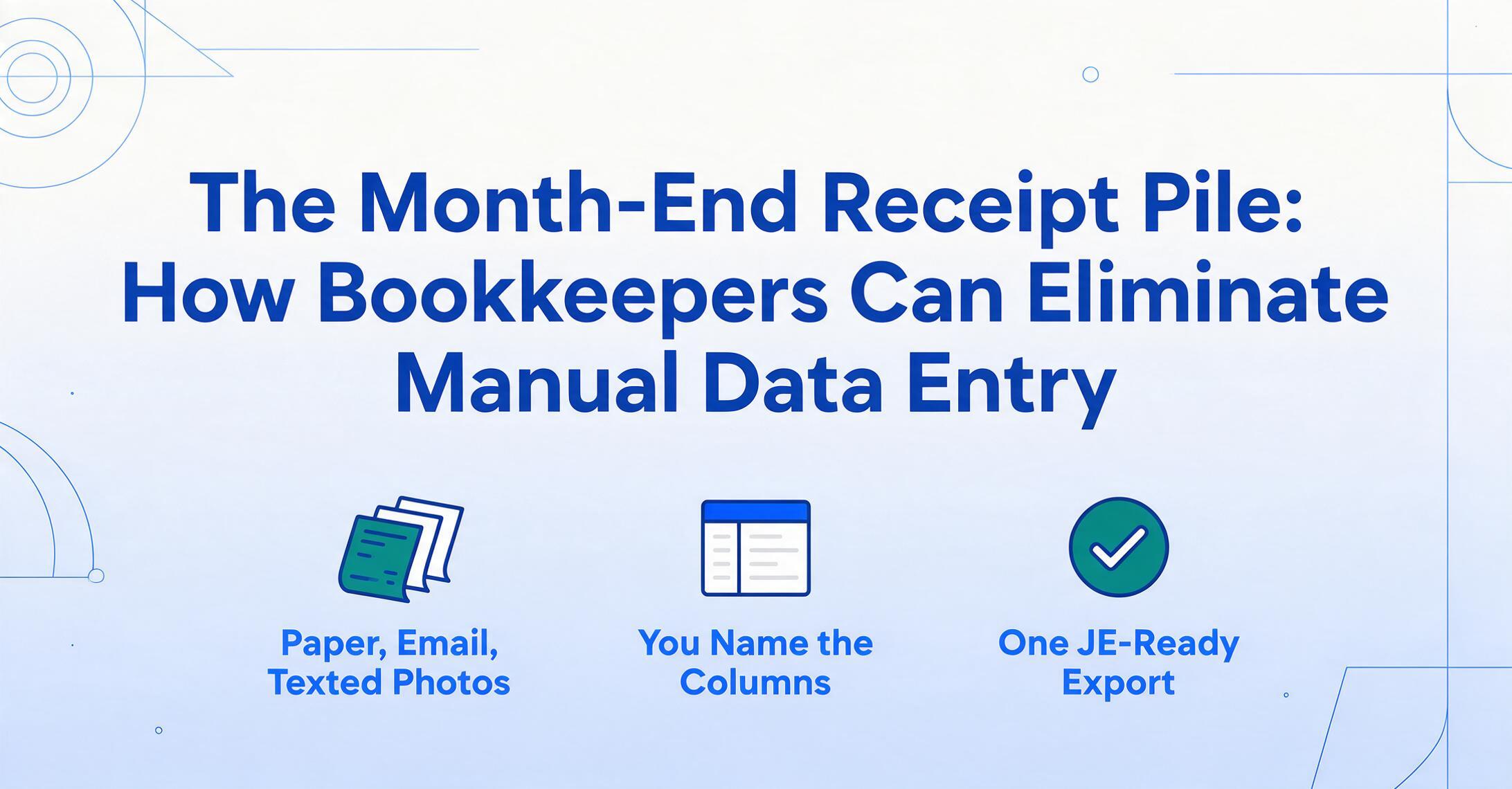
The Month-End Receipt Pile
How Bookkeepers Can Eliminate Manual Data Entry
A bookkeeper on r/Bookkeeping managing six managers who collectively spend $50K+ per month described their month-end reality in one sentence: "Each month I spend literal DAYS organizing, scanning and inputting their expenses into a spreadsheet." A few days multiplied by the average bookkeeper's effective rate turns that sentence into a $4,500 monthly margin loss. Here's the math, the regulatory context, and a workflow that eliminates the manual stack without changing how you bill or what your clients do.
Key Takeaways
- Sixty hours of receipt data entry a month burns $54,000 a year at $75 an hour for a 30-client practice, on work that adds zero advisory value.
- Existing receipt automation multiplies your workload by client count: 30 clients means 30 sets of supplier rules and category mappings to configure and maintain, a setup tax that never stops compounding.
- Type your spreadsheet columns, upload a client's full month of 40 receipts in one batch, and ImageToTable.ai fills every field by column name, with no per-client setup and every value one hover from its spot on the receipt.
What a Month-End Receipt Pile Actually Costs Your Firm
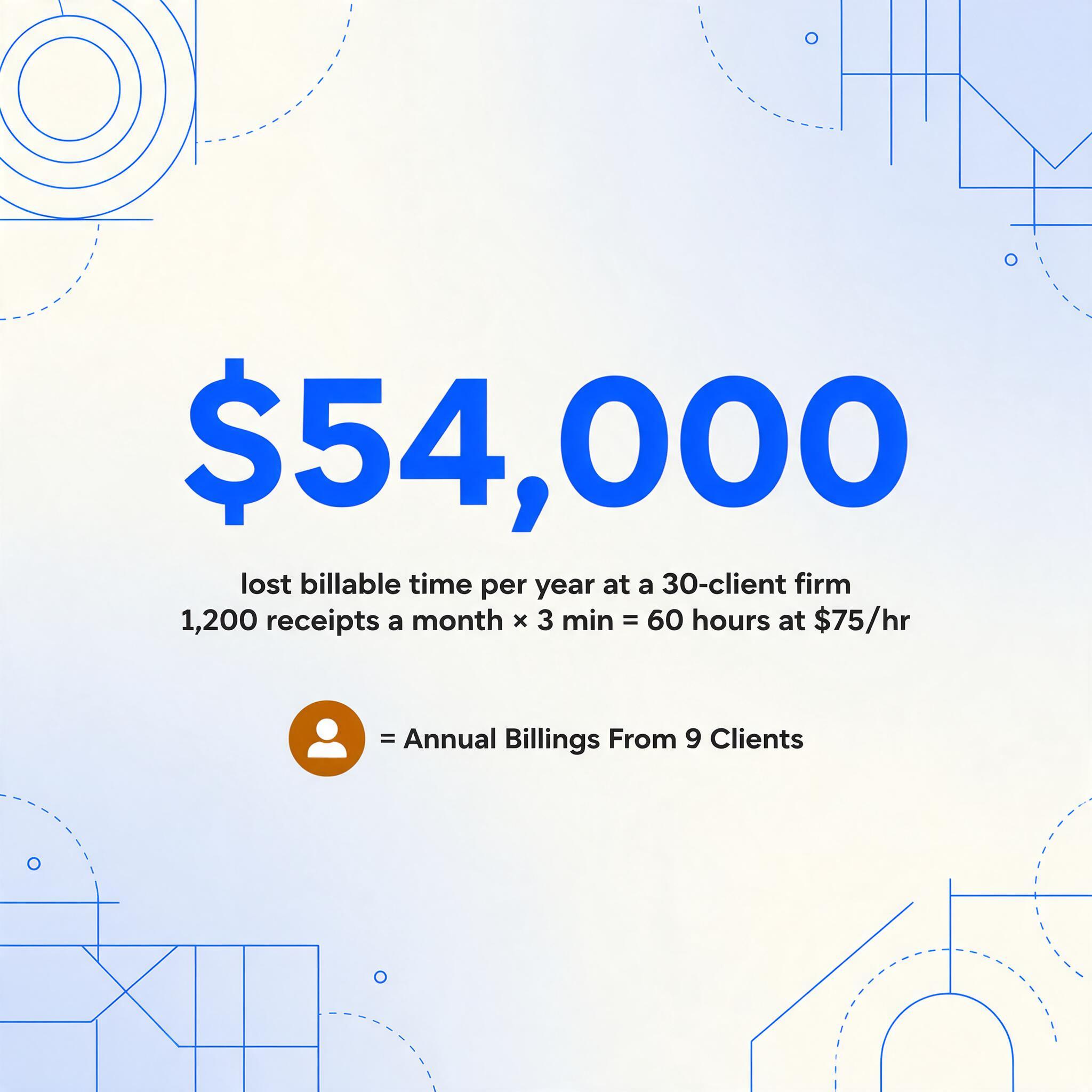
The firm economics of bookkeeper receipt organization are worse than most realize. The individual task is easy. The problem is that it compounds across clients in a way flat-fee billing never accounts for. Here's the arithmetic for a reasonable mid-range practice: 30 small-business clients, each submitting roughly 40 receipts a month, some paper, some email attachments, some texted photos from the field. Three minutes to locate the vendor name, date, subtotal, tax breakdown, and total on each receipt. That's 1,200 receipts. At three minutes each, 60 hours. At a $75/hour effective rate, $4,500 per month in lost margin, or $54,000 a year.
But the loss isn't only the hours spent typing. It's the opportunity cost of those hours. Sixty hours a month is roughly the capacity to serve 4-5 additional clients at $500/month each, or about $24,000-30,000 in billable revenue you can't capture because your time is consumed by data entry. A flat-fee firm billing $15,000/month across 30 clients might be giving up 30% of potential margin to a task that adds zero strategic value.
The math for a 30-client firm: 1,200 receipts/month × 3 min each = 60 hours = $4,500 in lost billable time at $75/hr. Over a year: $54,000, roughly the annual billings from 9 clients at $500/month.
This isn't hypothetical. The r/Bookkeeping poster managing six managers wasn't complaining about software pricing. They wanted something simple and cheap that extracts vendor name, date, subtotal, tax breakdown, and total charges, with no unnecessary features. They didn't need approval workflows or policy enforcement or mobile apps their clients wouldn't use. They needed a tool that reads receipts and populates their spreadsheet. The specificity of that request, five named fields and nothing extra, is worth paying attention to, because it represents the core need across virtually every flat-fee bookkeeping firm.
The deeper insight is that receipt data entry defines what kind of firm you can build. At 60 hours/month on receipts, you're capacity-constrained. You can't take on more clients without hiring, and hiring changes your cost structure before you've solved the underlying inefficiency. This is the fixed-fee profitability trap: the package price looks healthy on paper until you divide it by the actual hours it consumes. (We've broken down the full cost of manual data entry across firm sizes in a separate analysis.)
Why Client Receipts Are Harder Than Your Own
If you've only ever processed your own receipts, the scale problem seems straightforward: more receipts, more time. But bookkeepers face a structural multiplier that makes client receipt processing fundamentally harder than processing your own: every client is a different document universe. Different vendors, different receipt formats, different submission habits, different chart of accounts, different categorization rules. Processing 40 receipts for one client is one cognitive context. Processing 40 receipts each for 30 clients is 30 cognitive contexts, and the switching cost between them is where most of the mental fatigue lives.
Consider what happens when three clients submit their month-end piles on the same day. Client A runs a landscaping business: their receipts are from Home Depot, SiteOne, and local nurseries, mixed with fuel receipts and handwritten subcontractor invoices. Client B is a consultant, mostly digital: Uber receipts, restaurant receipts from client dinners, Amazon invoices for office supplies, screenshots of online payments. Client C is a small retailer: supplier invoices with line items, shipping receipts, utility bills, POS system daily summaries. Each pile requires you to mentally switch into that client's world: what do their typical vendors look like, how do they categorize expenses, what GL codes apply, which receipts are likely to have split tax.
Most receipt organization AI tools were designed for single-entity use: an employee scanning their own expenses, or a sole proprietor tracking their own deductions. Dext and Hubdoc, the two best-known names in bookkeeping receipt automation, partially solve the format problem. Both use machine learning to identify common fields like vendor, date, and total regardless of receipt layout. Dext's item extraction and Hubdoc's field extraction handle header-level data reasonably well, covering vendor name, date, invoice number, and total amount. But they share two gaps that matter specifically for bookkeepers managing multiple clients:
The line-item gap. A Home Depot receipt doesn't just have a total. It has 5-15 line items with SKU numbers, quantities, unit prices, and subcategories that need to be assigned to different expense accounts. Dext advertises 99%+ OCR accuracy, and Hubdoc offers free extraction with Xero, but neither reliably captures line-item detail from retail receipts. That means even after "automated" extraction, someone (still you) is keying line items into the journal entry by hand. The tool saved you from typing the vendor name and total. It didn't save you from the reconciliation work.
The client-configuration burden. Every Dext client connection requires setup: supplier rules, category mappings, publishing destinations. When you have 30 clients, that's 30 setups. When a client's chart of accounts changes, which it does because small businesses reorganize their books, you update the mapping. Hubdoc, free with Xero and now surfaced inside Xero as Smart Document Capture, is simpler but stops at header fields. Xero's extraction documentation lists supplier, date, invoice number, and total, with no line-item table. The per-client setup tax is real, and it's one of the reasons bookkeepers say automation tools "work" but don't "pay off" at scale.
The third pain point is client submission behavior. Dext's mobile app is designed for the business owner to snap receipts as they go, so in theory the bookkeeper never touches a receipt. In practice, clients don't use the app. They forget. They don't install it. They email you photos instead, or drop a physical envelope on your desk. Dext prices by plan and document volume rather than by result: its published business plan starts around $30/month for 250 documents and five users, and firm plans start near $200/month for about 10 client accounts, then climb as you add clients. That cost assumes the client participates in the automation, and when many don't, you're paying for a tool and still doing manual entry. This is the client adoption failure that nearly every bookkeeping automation pitch skips over. For the submission problem without requiring client training, see the Collection Link workflow, which side-steps it entirely.
What makes all this particularly frustrating is that the data extraction itself isn't the bottleneck anymore. The AI is capable. The bottleneck is the gap between what the AI extracts and the format your journal entry prep sheet expects. A tool that extracts vendor, date, and total but exports them into a tax-reporting dashboard you don't use adds a step, not removes one. The output needs to land exactly where your workflow picks up: in your spreadsheet, under your column headers, in your order. (For a deeper look at why receipt format variety specifically breaks template-based extraction, see how receipt format inconsistency undermines template OCR.)
What IRS Pub 583 Actually Says About Digital Receipts
IRS Publication 583 addresses the paperless question directly: "All requirements that apply to hard copy books and records also apply to electronic storage systems." The regulation further states that "the original hard copy books and records may be destroyed provided that the electronic storage system has been tested" — meaning the IRS has explicitly permitted bookkeepers and businesses to go fully paperless, destroy originals after digitization, and rely on electronic records for audit purposes, as long as the digital reproductions are complete and legible.
This is not new guidance. IRS Revenue Procedure 97-22 (1997) established the validity of electronic records nearly three decades ago. The IRS's "What Kind of Records Should I Keep" page lists the supporting documents you must retain — sales slips, paid bills, invoices, receipts, deposit slips, canceled checks — and specifies they must be organized "by year and type of income or expense." No format requirement. No "original paper only" provision. Digital is fine, as long as it's organized and retrievable.
For bookkeepers, this eliminates the most common objection to receipt automation: "what about an audit?" Auditors accept digital records. They've accepted them since 1997. The retention periods — 3 years for most records, 7 years for employment tax records, indefinitely for certain asset and loss records — apply equally to paper and digital copies. There is no IRS preference for paper originals over scanned images, provided the scan quality is adequate.
The practical implication for bookkeeping workflows: if you're currently storing physical receipts from 30 clients — filing cabinets, banker's boxes, offsite storage — you're maintaining an archive the IRS doesn't require in physical form. Digitizing receipts at the point of entry doesn't just save data-entry time; it eliminates the physical storage burden and the retrieval cost when a client gets audited and you need to produce 3 years of receipts organized by category. One searchable folder of PDFs and a corresponding Excel register of extracted data satisfies every recordkeeping requirement Pub 583 enumerates.
Multiple articles have been written about the real cost of manual data entry for bookkeepers, but the regulatory permission to go paperless has been in place since before most of today's automation tools existed. The barrier isn't the IRS. It's the workflow.
The "Batch → Done" Workflow: One Upload, One Export, One JE
The alternative to spending days organizing and typing receipts isn't a more expensive Dext plan or getting 30 clients to install a mobile app they won't use. It's a fundamentally different approach: batch processing with custom column extraction. Instead of the tool deciding which fields to extract and how to label them, you define the columns — and the AI finds the matching data in every receipt, merges all of a client's monthly receipts into one output file, and hands you a spreadsheet ready to post as a journal entry. No per-client setup. No template training. No client participation required.
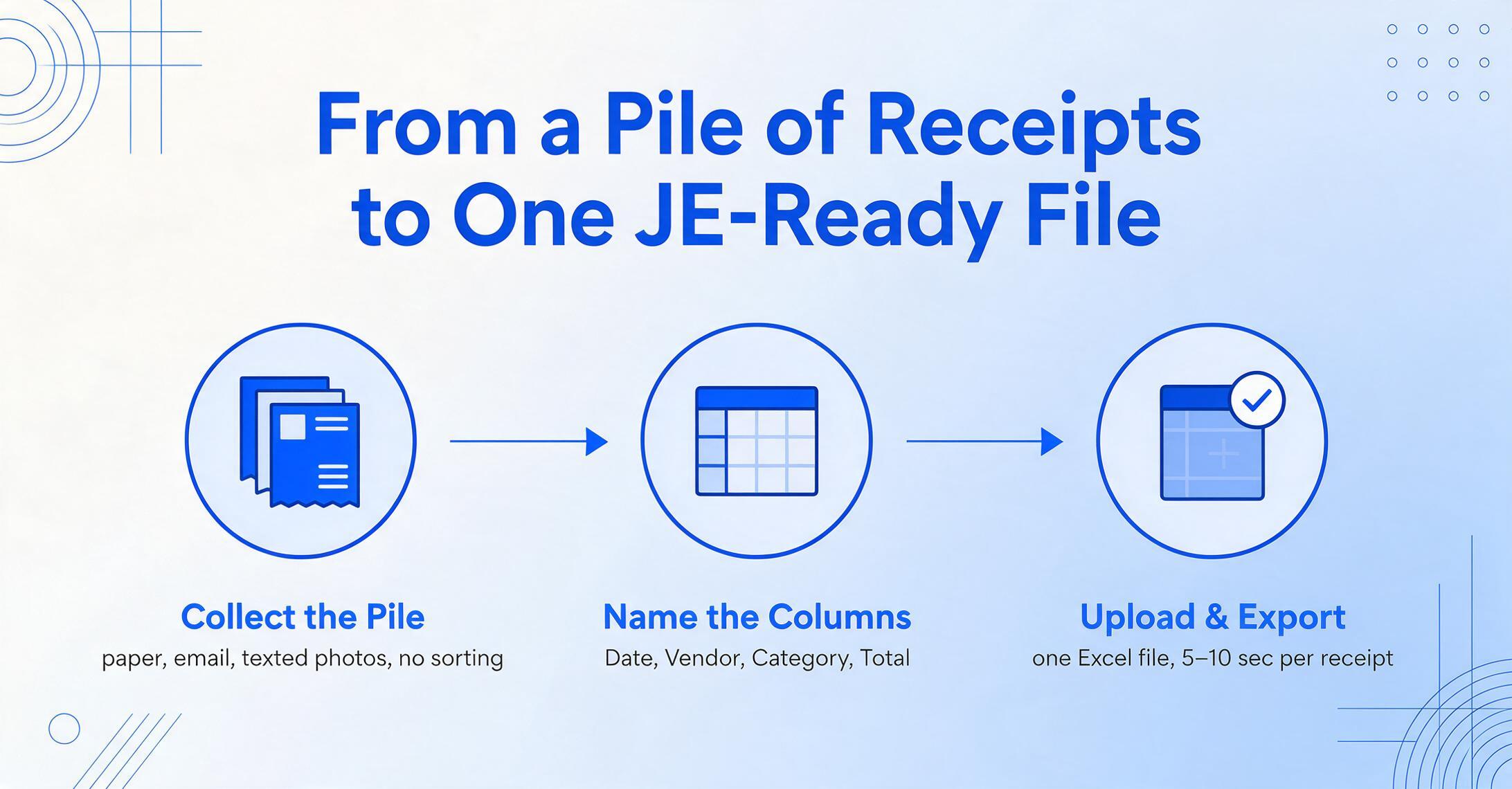
The workflow has three steps for each client at month-end:
- Collect the pile. Get the client's receipts however they arrive — paper envelope, email attachments, texted photos, shared folder. Don't sort. Don't organize. Just gather.
- Define the columns. Type the column headers you need for this client's JE prep:
Date,Vendor,Description,Category,Subtotal,Tax,Total. These become the output headers. If different clients use different columns — one usesGL Code, another usesExpense Account— you define them per batch, not per tool configuration. - Upload and export. Upload the entire month's receipts — PDFs, JPGs, PNGs, screenshots — in one batch. The AI processes each receipt, locates the values matching your column names, and merges everything into a single Excel file. The output is sorted and ready to post. Total processing time: 5-10 seconds per receipt, not 3 minutes.
Here's what that looks like in practice:
Files are processed securely and not stored.
This workflow shifts the relationship between the bookkeeper, the client, and the tool. The tool doesn't need to know about the client's chart of accounts. It doesn't need supplier rules or category mappings or GL code assignments. It needs to know what columns you want — and the column names themselves are the only instruction it needs. You type Subtotal and Tax and Total — it finds those values on each receipt and places them in the corresponding output columns. The tool's role starts and ends at extraction. Everything downstream — categorization, reconciliation, JE posting — stays where it belongs: with the bookkeeper who knows the client.
Several mechanisms compound the efficiency of this approach at scale:
Collection Links remove the receipt-gathering step from your plate entirely. Generate a shareable link for each client, a URL like /c/xxxx, and send it once. The client opens the link, enters a short verification code, and uploads their receipts directly. No account creation, no app install, no login. Files land in your processing queue automatically. For a bookkeeper with 30 clients, this eliminates 30 follow-up emails every month. If a client has employees submitting expense receipts, the same link works for them too: each person uploads their own, and you get one consolidated queue per client.
Computed Columns handle the arithmetic that otherwise forces you back into Excel. If a receipt prints a subtotal and tax rate but not the tax amount, a computed column like Tax (Subtotal × 8.75%) calculates it during extraction — the output already has the tax column populated. If the receipt's printed total doesn't match the sum of line items (common with split-payment or partial-refund receipts), a computed column can flag the discrepancy immediately. What you get isn't raw extracted data — it's a JE-ready spreadsheet where the math is already done. This is particularly valuable when your columns need to derive values not explicitly printed on the receipt — such as categorizing based on vendor name (Account = "Office Supplies" if Vendor contains "Staples"). Combined with the visual AI's ability to read receipts from any format — including expense screenshots from mobile payment apps — the output consistently matches your firm's entry standards without per-client configuration.
Batch processing across clients is where the hourly savings compound most aggressively. For one client: upload 40 receipts, get one merged Excel, post the JE, done. For the next client: repeat. There's no context-switching tax in the tool — every client's batch follows the same steps with the same interface. The only variable is the column names you type, and those map directly to each client's unique chart of accounts without requiring a saved configuration. A practice with 30 clients can process all month-end receipts in roughly 1-2 hours of supervised time (uploading files, spot-checking output, posting JEs) instead of 60 hours of manual entry.
What This Does to Your Firm's Math
Reclaiming 60 hours a month from receipt data entry doesn't just improve margins — it changes the economics of how you price and scale. The flat-fee firm that was losing $4,500/month to manual entry can redirect those hours into billable client work, increasing monthly revenue without adding headcount or changing the client roster.
Let's run the numbers for a typical practice:
| Manual Entry | Batch AI Extraction | |
|---|---|---|
| Receipts/month (30 clients × 40) | 1,200 | 1,200 |
| Time per receipt | 3 minutes | 5-10 seconds |
| Total hours/month | 60 hours | ~1.5 hours (upload + review) |
| Cost at $75/hr effective rate | $4,500/month | ~$112/month |
| Hours reclaimed | — | 58.5 hours/month |
| Additional clients that 58.5 hours supports (at ~12 hrs/client/month for full-service bookkeeping) | — | 4-5 new clients |
| Additional annual revenue at $500/client/month | — | $24,000-30,000/year |
| Effective gross margin on receipt processing | ~0% (hours consumed ≈ value billed) | ~85% (after tool cost) |
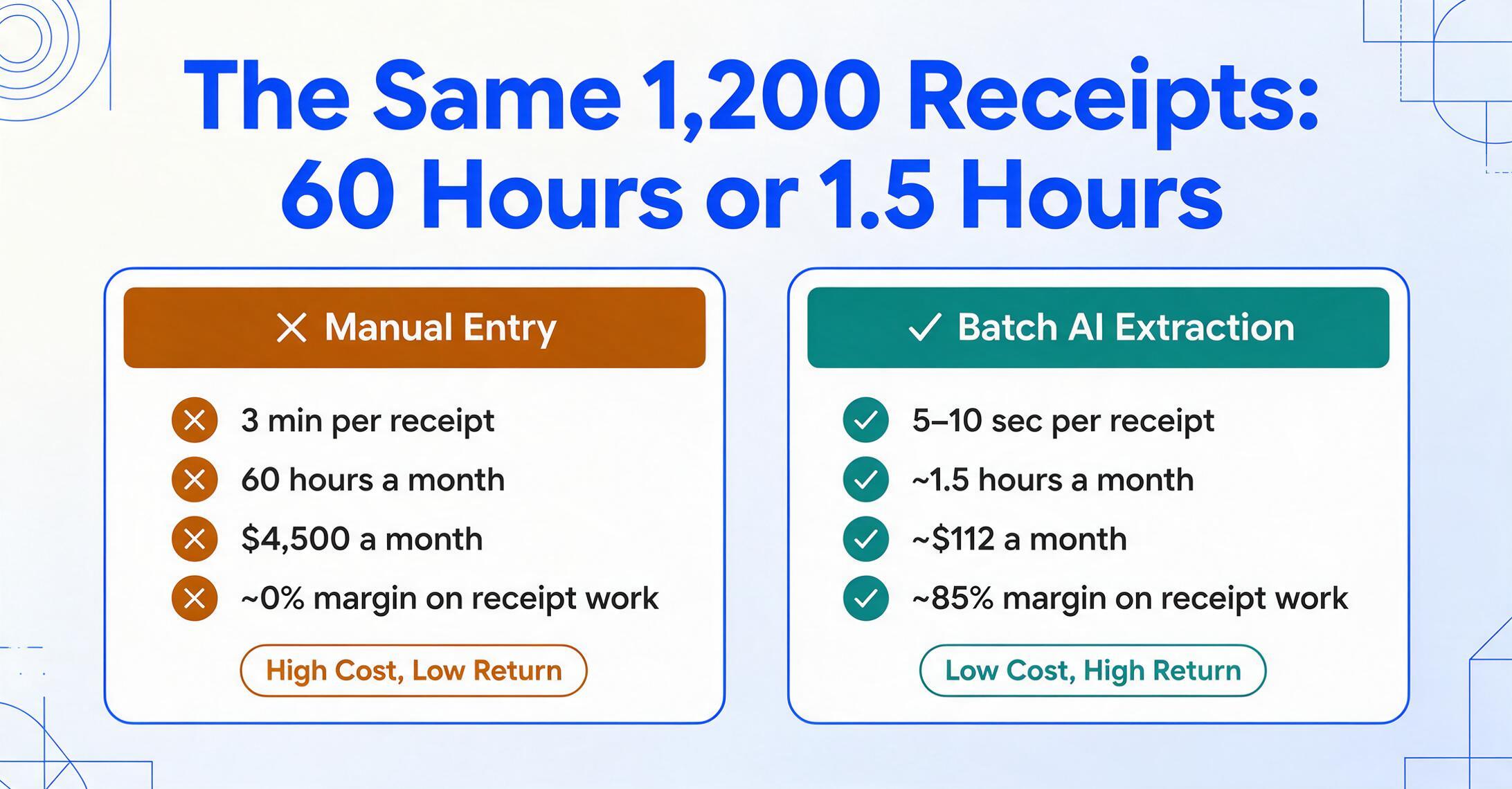
The margin improvement on the receipt-processing component alone is dramatic — but the strategic gain is larger. When you're spending 60 hours a month on data entry, you're essentially trading billable time for non-billable work at a 1:1 rate. Every hour of receipt processing is an hour not spent on advisory services, client communication, tax planning, or firm growth. Those 58 reclaimed hours per month — roughly 700 hours per year — represent the capacity to build the advisory layer of your practice: quarterly reviews, cash flow analysis, budgeting support. The services that differentiate a $500/month bookkeeping relationship from a $1,200/month client accounting services engagement.
The per-document cost comparison tells the same story from a different angle. Manual entry at 3 minutes per receipt and a $75/hr effective rate works out to roughly $3.75 in labor per receipt — not including the overhead of physical storage, the cost of errors, or the opportunity cost of the bookkeeper's time. Batch AI extraction brings that below $1 per receipt including tool cost. For a 30-client practice processing 14,400 receipts per year, the annual savings range from $40,000-50,000 — a number that represents either additional partner income or the ability to price more competitively without sacrificing margin.
The math becomes even more favorable for firms that serve clients in high-transaction-volume industries — construction, retail, hospitality, field services — where 40 receipts per month per client is conservative. A contractor client might generate 80-120 receipts monthly (materials, subcontractors, equipment rental, fuel, permits). A restaurant client generates daily supplier invoices. At those volumes, manual entry costs spiral past $1,000/month per client, and the fixed-fee model breaks entirely.
The bottom-line ROI for a 30-client firm: reclaim 58+ hours/month → serve 4-5 additional clients at $500/month → $24,000-30,000 additional annual revenue with near-zero marginal delivery cost. Or keep the same client roster and raise effective hourly margins from ~30% to 50%+ on flat-fee engagements.
FAQ
Does this work with handwritten receipts?
Yes — within the limits of legibility. The AI uses visual understanding rather than character-by-character OCR, which means it can interpret handwritten amounts, vendor names, and dates by reading them in context — the same way a human bookkeeper recognizes a handwritten total by its position on the receipt, not by parsing each digit independently. Clean handwriting on a standard receipt layout typically extracts accurately. Faint pencil, heavily smudged receipts, or cramped scribbles may produce errors that require manual verification. For critical dollar amounts on hard-to-read receipts, spot-check the output — the 30 seconds spent verifying a faint receipt is still dramatically less than the 3 minutes you'd spend typing it from scratch.
Can I use custom column names for each client?
That's the core mechanism. Different clients organize their books differently — one tracks GL Code, another uses Expense Account, a third splits Net Amount and VAT as separate columns. You type the column names that match each client's spreadsheet structure, and the output preserves those headers. There's no saved configuration to maintain across 30 clients — you define the columns per batch, which means you can adapt to a client's evolving chart of accounts without updating tool settings. If a client renames a category or adds a cost center column, you change what you type, not a stored template you have to remember to maintain.
What about multi-receipt PDFs — like a scanner dump with 15 receipts in one file?
The AI can process multi-page PDFs and identify individual receipts within a single file. If a client scans a stack of receipts into one PDF, the tool splits them and extracts data from each receipt separately, then merges the results into the combined output. This eliminates the pre-processing step of manually splitting PDFs before extraction.
How does the output get into QuickBooks Online or Xero?
The extraction output is a clean Excel or CSV file with your specified column headers. Both QBO and Xero support CSV import for journal entries, bills, and expenses. The workflow is: extract → export CSV → import into QBO/Xero using the platform's standard import tool. It's not a direct API integration (no tool in this category has a reliable real-time sync with every version of every accounting platform), but the export-and-import step takes under 60 seconds per client batch. For bookkeepers who work primarily in spreadsheets and post JEs manually, the output goes directly into the JE prep sheet without the import step.
How does this handle blurry mobile-phone photos of receipts?
Most client-submitted receipt photos are adequate — taken in reasonable light, from a reasonable angle. The AI handles typical mobile-phone quality without issue. Extreme cases — receipts photographed in a dark garage at an angle, crumpled receipts with creases obscuring amounts, thermal paper receipts that have faded over time — will reduce accuracy proportionally. The same receipt that would make you squint and guess will make the AI squint and guess. However, because the extraction takes seconds rather than minutes, even a 15% re-scan rate (asking the client to retake 1-2 particularly bad photos) is far less friction than manually typing all 40 receipts the client submitted. The tool's Collection Link feature also means clients re-upload bad photos themselves — they get the prompt, not you.
How is this different from Dext or Hubdoc?
Dext and Hubdoc are built for the "capture → categorize → publish to accounting software" workflow. They work well for single-entity use where the same supplier rules and category mappings apply to every transaction. For multi-client bookkeeping, the differences come down to four things:
- No per-client setup. Dext requires supplier rules, category mappings, and publishing destinations per client connection. Hubdoc requires client-by-client configuration in Xero. With column-name extraction, the only setup is typing the column headers you want — no saved rules, no ongoing maintenance.
- Excel-first output. Dext and Hubdoc publish to accounting software — their output destination is QBO or Xero. If your workflow lives in a JE prep spreadsheet (as many bookkeepers' do), column-name extraction outputs directly to that spreadsheet structure without an intermediate sync step.
- Computed columns and custom field definitions. Dext extracts pre-defined fields (vendor, date, total, tax, category). You can't tell it to also derive a column based on a calculation or categorize entries based on a rule. With computed columns, you define derived fields like
Tax Amount (Subtotal × Rate)orGL Code (if Vendor contains "Home Depot" → "5110")— and they populate during extraction. - Collection Links without per-client setup. Dext's client submission requires the client to install and use the Dext mobile app or forward receipts to a Dext email address. Collection Links are shareable URLs that require no account, no app, and no training from the recipient — they upload and close the page.
Dext and Hubdoc are capable tools for what they're designed to do. The question is whether what they're designed to do matches the spreadsheet-native, multi-client, flat-fee bookkeeping workflow — or whether a tool purpose-built for "define your columns, process the batch, get your spreadsheet" maps more directly to how you actually work.
What if the AI gets something wrong on an important receipt?
No extraction tool is 100% accurate, not Dext at its advertised 99%+, not Hubdoc, and not any AI-based system. The workflow accounts for this in three ways. First, the batch output is a single spreadsheet, which makes review efficient: scan down the Total column and spot-check amounts that look unusual against the original receipts. Second, Review Mode ties every extracted cell back to its source document. Hover or click a value in the output and the exact region it came from highlights on the original receipt; click a region on the image and it jumps back to the matching cell, so you confirm a field without re-reading the whole receipt. You can trigger this per file, or turn on auto-annotate so the mapping is already generated when you open a batch. Third, because extraction takes seconds per receipt, re-processing a receipt with adjusted column names or a clearer photo costs almost nothing. A five-minute review pass catches most errors, and the overall time savings hold even with a manual-verification buffer built in: 58 hours saved doesn't drop to 50 because you spent five minutes checking the output.
No per-client setup. Upload a batch, type your columns, get your Excel.