ImageToTable.ai vs ExtractTable:
Schema-Flexible Extraction vs Table-Only OCR
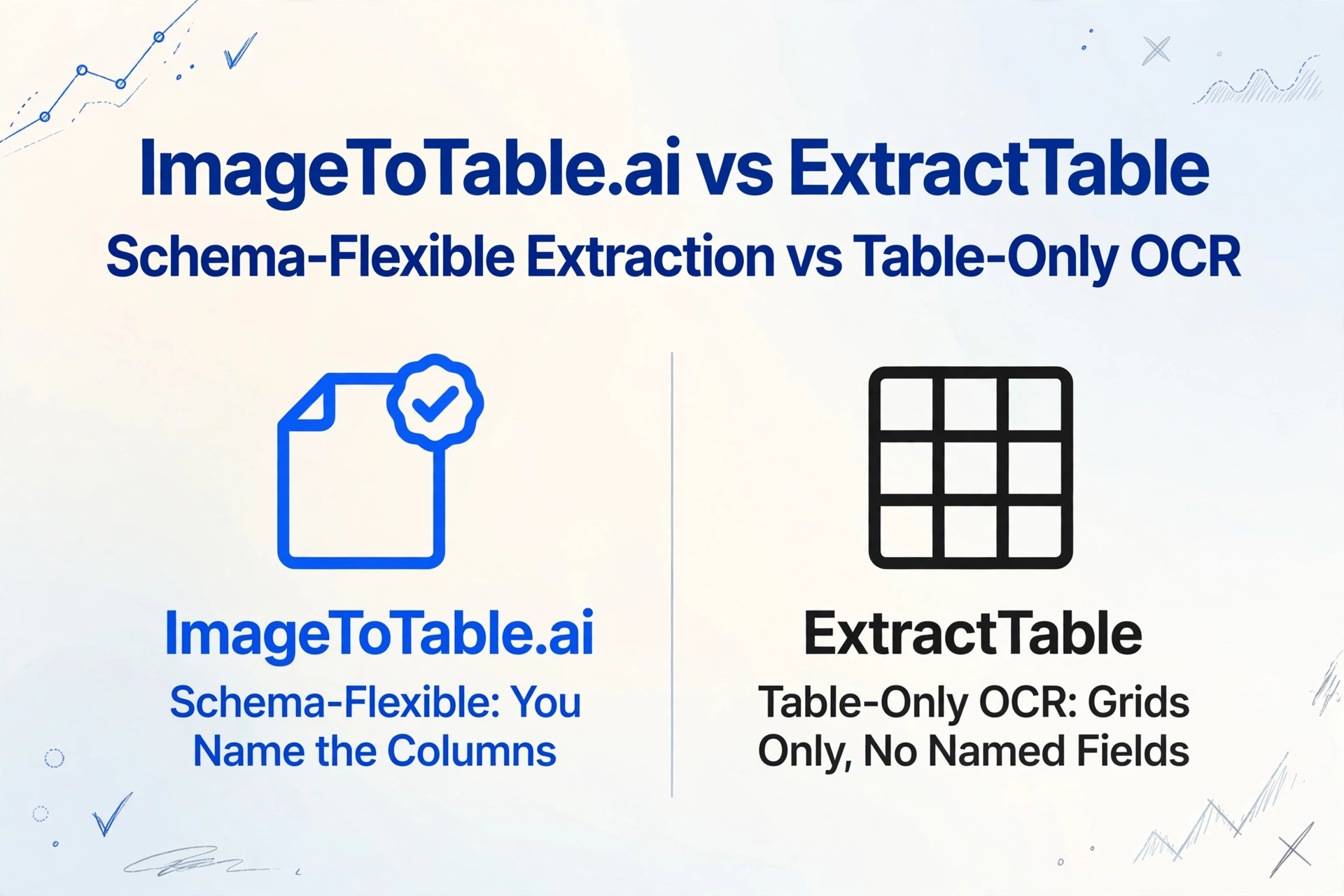
ExtractTable and ImageToTable.ai are often compared — the names overlap, and both accept images and PDFs as input. The core technology and output are different. ExtractTable uses classical OCR and computer vision to detect grid-shaped table regions in a document and return their contents. ImageToTable.ai uses a vision large model to understand what a document means — and extracts the fields you specify, regardless of whether they sit inside a bordered table or not.
Quick Comparison
Choose ImageToTable.ai if…
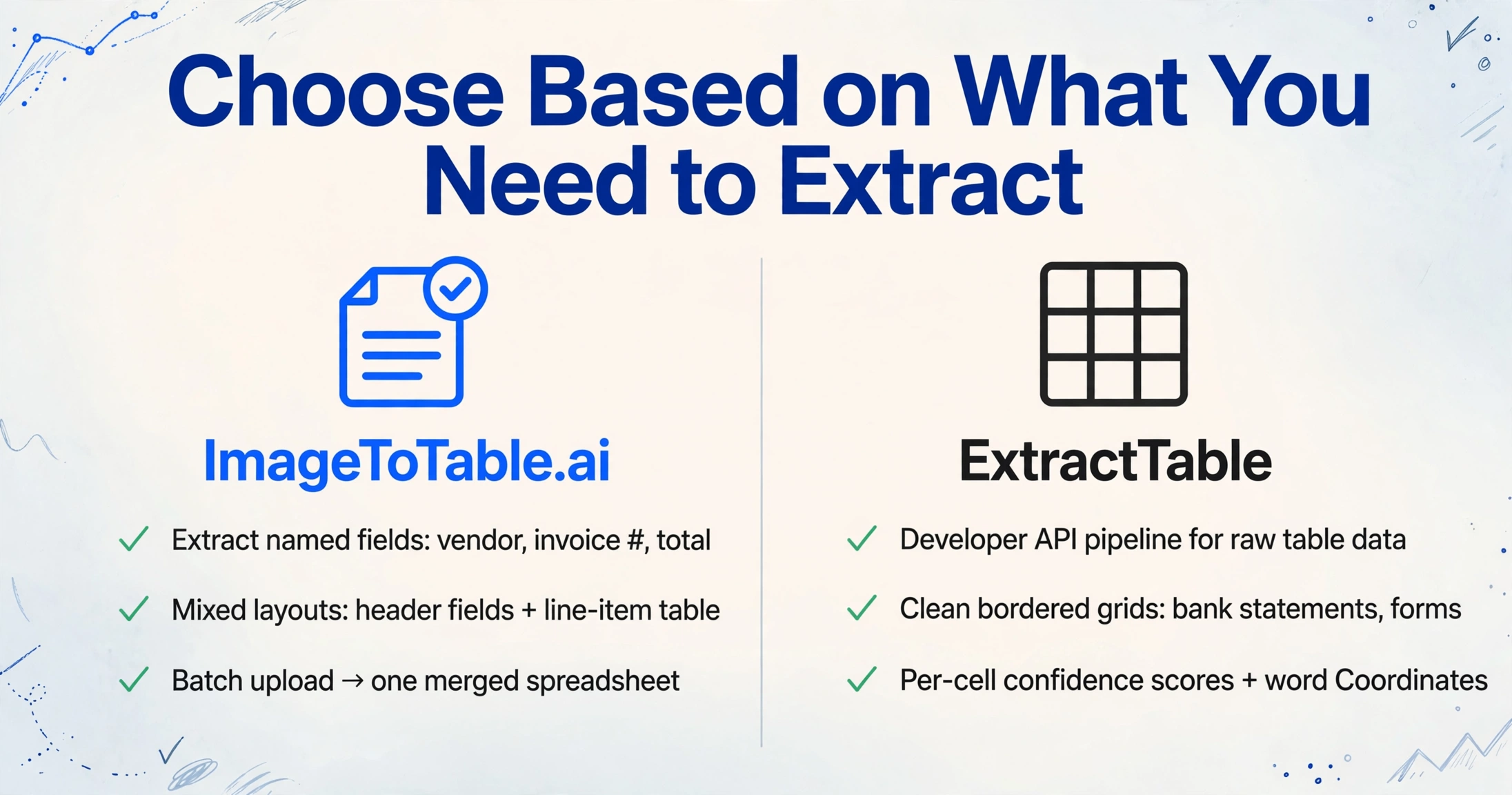
- You need to extract specific named fields — vendor name, invoice number, total — not just whatever tables happen to be on the page
- Your documents have mixed layouts: header fields above a line-item table, footer totals below
- You want to upload a batch of files and get one merged spreadsheet with consistent column names
- You work in Google Sheets and want data to land there directly via the sidebar add-on
- You need a no-code UI — not an API integration project
Choose ExtractTable if…
- You're a developer building an API pipeline and need raw table data from documents
- Your documents are primarily clean, bordered grid tables — bank statements, government forms, structured reports
- You need per-cell confidence scores and word-level coordinates for downstream validation
- Credits that never expire and a pay-per-use model (no monthly commitment) suit your workflow
- Failed extractions being refunded automatically matters for your cost model
Feature Comparison
| Feature | ExtractTable | ImageToTable.ai |
|---|---|---|
| Extraction approach | Classical OCR + computer vision; detects grid-shaped table regions in the document | Vision large model; understands document semantics and extracts named fields from any layout |
| Custom column naming | Not supported — output mirrors the column headers present in the source document | Core feature — type the column names you want; those become your spreadsheet headers |
| Non-table field extraction | Not supported — header key-value fields (vendor name, invoice #, date) outside the table grid are not extracted | Extracts any field from any part of the document regardless of layout zone |
| Merged cell handling | Known failure — CSV output cannot represent merged cells; content is arbitrarily distributed across adjacent cells | Handles merged cells and irregular table structures |
| Batch processing | API supports high-throughput batch jobs; no UI for batch upload or cross-document merging | Multi-file upload with automatic merging into one aligned spreadsheet |
| No-code UI | Demo interface only; production use requires API integration | Full no-code browser UI; no API required |
| Google Sheets | Add-on available; documented reliability issues ("Server Error - Unauthorized" reported by multiple users in 2024–2025) | Dedicated sidebar add-on — upload files, name columns, append data to active sheet without leaving Sheets |
| Output formats | CSV, Excel (XLSX) | Excel (XLSX), CSV, JSON, Word |
| Confidence scoring | Per-cell confidence scores on Full and Extra plans | Not exposed as a separate metric |
| Failed extraction refund | Yes — failed jobs do not consume credits | Yes — failed extractions do not consume credits |
| Pricing model | ~$5/100 credits (1 credit = 1 image or 1 PDF page); credits never expire; no monthly commitment | Free guest tier; paid from $9/month; pay-as-you-go from $6/50 pages |
Tables vs. Documents: A Fundamental Difference
ExtractTable's design assumption is that what you want is inside a table — a rectangular grid of rows and columns, ideally with visible borders. Feed it a bank statement or a government form with a clearly defined table structure, and it reliably captures the grid contents and returns them as CSV or Excel rows.
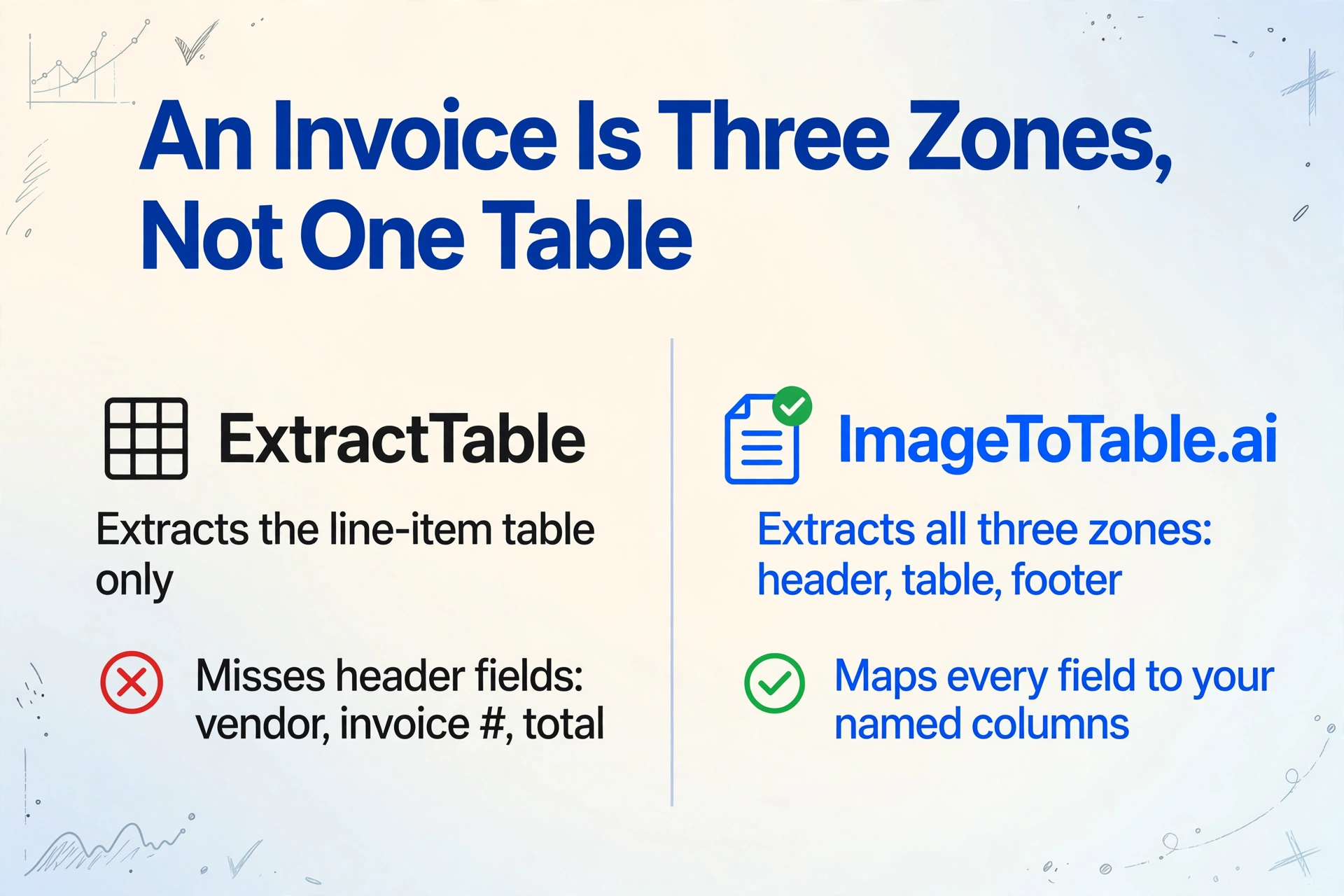
Most real business documents are not just tables. An invoice is three structural zones in one page: a header block with vendor name, billing address, invoice number, and date; a line-item table in the middle; and a footer block with subtotals, tax rate, and total due. ExtractTable will extract the line-item table. It will not extract the vendor name, the invoice number, or the total — because those fields sit outside a grid region. The tool's own documentation acknowledges this: invoices are listed as a supported input, but the extraction covers only the tabular portion.
ImageToTable.ai approaches the problem at the document level. You type "Vendor, Invoice Number, Date, Line Item, Quantity, Unit Price, Total" as your column names. The vision LLM reads the page semantically — understanding that "Invoice #: INV-2024-0892" is an identifier, that the rows under "Description" are line items, and that the value next to "Total Due" is the final amount — and maps all of it to your specified columns. The output schema is defined by you, not by the visual structure of the page. When a document set is stable enough to configure by hand instead, rule-based tools like Docparser take the opposite approach.
The Merged Cell Problem
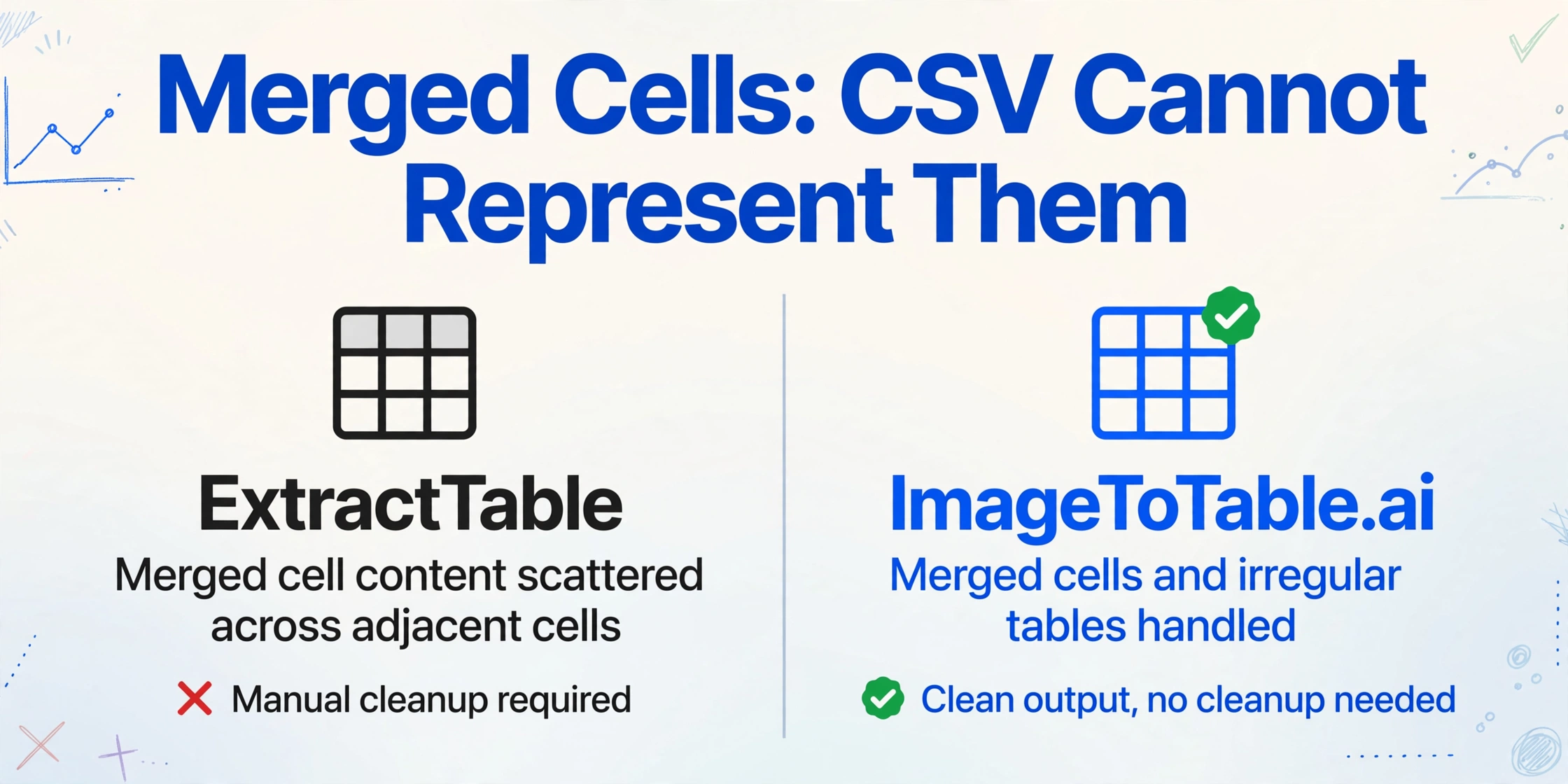
Even for documents that are primarily tables, ExtractTable hits a structural wall when merged cells are involved. The output format is CSV, and CSV cannot represent merged cells — so when the tool encounters a header that spans three columns, or a row label that covers multiple data rows, the content gets distributed arbitrarily across adjacent cells.
Mark Kramer, who tested 12 table extraction tools in a widely cited independent comparison, called this a showstopper: "Since the output format is CSV, there is no ability to represent merged cells — the content of merged cells was arbitrarily distributed among adjacent cells." He also noted the tool missed checkbox content in structured forms. — Mark Kramer, Medium
Merged cells are common in real business tables — multi-level column headers in financial reports, spanning row labels in comparison grids, category headers above grouped line items. For documents where merged cells appear, the CSV output requires significant manual cleanup before it is usable.
The Google Sheets Add-On
ExtractTable offers a Google Sheets add-on for no-code use. Based on recent user reviews on the Google Workspace Marketplace (58 reviews), reliability has been inconsistent. Multiple 2024–2025 reviews describe the same failure pattern:
"The demo on their website works great... when trying to run it from Google Sheets directly with the same picture, did not work." — Google Workspace Marketplace reviewer
Other reviewers report "Server Error - Unauthorized" failures that persist even after re-authenticating, and note that error messages are not informative enough to diagnose the issue. The add-on also has an image size limit — documents larger than approximately 4,000 pixels in one dimension may fail.
ImageToTable.ai's Google Sheets sidebar add-on works from inside Google Sheets directly: upload images or PDFs, specify the column names you want, and the extracted data is appended to the active sheet. Connect your API key to run in account mode, which syncs with your web history and templates. Usage counts against your plan quota.
Where ExtractTable Is the Right Tool
ExtractTable's strengths are real for the audience it's built for.
Developer API pipelines. The REST API is clean and well-documented, with an official Python library, R library, Postman collection, and webhook support for async processing. For a developer building an automated document processing pipeline that needs raw table data fed into a database, ExtractTable's API-first design is appropriate. The per-cell confidence scores and word-level coordinates on Full and Extra plans add validation capability that no-code tools don't expose.
High-volume, clean table documents. For documents that are predominantly well-structured bordered tables — bank transaction exports, government procurement tables, medical records grids, standardized financial reports — ExtractTable's OCR+computer vision approach performs reliably. The pay-per-use pricing with no monthly commitment and credits that never expire suits developers processing variable document volumes.
Failed extraction refunds. ExtractTable refunds credits for extractions that fail or return poor results — a meaningful policy for high-volume API users who will inevitably encounter bad inputs. As the founder notes, this is unusual in the market. If your input is simply a photo of text rather than a table, a plain OCR tool like imagetotext.info may be all you need — see our imagetotext comparison for where text output stops being enough.
Frequently Asked Questions
Can ExtractTable extract invoice fields like vendor name, invoice number, and total?
Only partially. ExtractTable extracts data from grid-shaped table regions. The line-item table in an invoice (description, quantity, unit price) will typically be captured. The header fields above the table — vendor name, billing address, invoice number, due date — sit outside the grid structure and are not extracted. If you need complete invoice field extraction including both table and header data, a vision LLM-based tool like ImageToTable.ai handles the full document layout.
Does ExtractTable support custom column names?
No. ExtractTable mirrors whatever column headers appear in the source document. If the document has a column called "Qty." and your system expects "Quantity," you handle that mapping downstream. ImageToTable.ai lets you define the column names you want before extraction — the AI then finds and maps the corresponding data from every document in your batch, using your names as the output headers.
What happens with merged cells in ExtractTable?
Merged cells are a known limitation. ExtractTable outputs CSV, which cannot represent merged cells. When the tool encounters a header spanning multiple columns or a label covering multiple rows, the content is distributed arbitrarily across adjacent cells — requiring manual cleanup before the output is usable. An independent test of 12 table extraction tools described this as a "showstopper" for real-world documents with complex table structures.
Is ExtractTable usable without writing code?
There is a web demo interface for one-off testing, but it is not a production workflow tool — there is no batch upload UI, no column mapping interface, no extraction history dashboard, and no multi-file merging. Real use requires API integration. ImageToTable.ai is a full no-code browser tool: upload files, type column names, download the merged Excel — no API knowledge required.
How does ImageToTable.ai's Google Sheets add-on compare to ExtractTable's?
ImageToTable.ai's Google Sheets sidebar add-on lets you upload images or PDFs, name the columns you want, and append extracted data directly to the active sheet without leaving Google Sheets. It runs in account mode when connected with your API key, syncing with your web history and templates. ExtractTable also has a Google Sheets add-on, but recent user reviews (2024–2025) report consistent "Server Error - Unauthorized" failures that make it unreliable for production use.
Try ImageToTable.ai Free
Upload your documents, name your columns, and download a merged Excel — or push directly to Google Sheets. No account required to try, no API setup needed.
No credit card required. Free credits included on signup.