80 German Invoices, One Spreadsheet
How to Handle Batch Rechnung Processing Without Manual Entry
The bottleneck in German AP is not extracting data from a single Rechnung. Any decent OCR tool can pull an invoice number and a total off a clean PDF. The bottleneck is what happens when you extract all 80 — and discover that Rechnung #12 from the local Elektriker has a 7% VAT on labour but 19% on materials split across the same line, Rechnung #37 from Metro applies a 4% Skonto discount buried in the footer, and the merged spreadsheet your tool produced has no column to tell you which invoice contributed which row. Extracting one Rechnung takes 3 minutes. Verifying and fixing 80 takes a full afternoon.
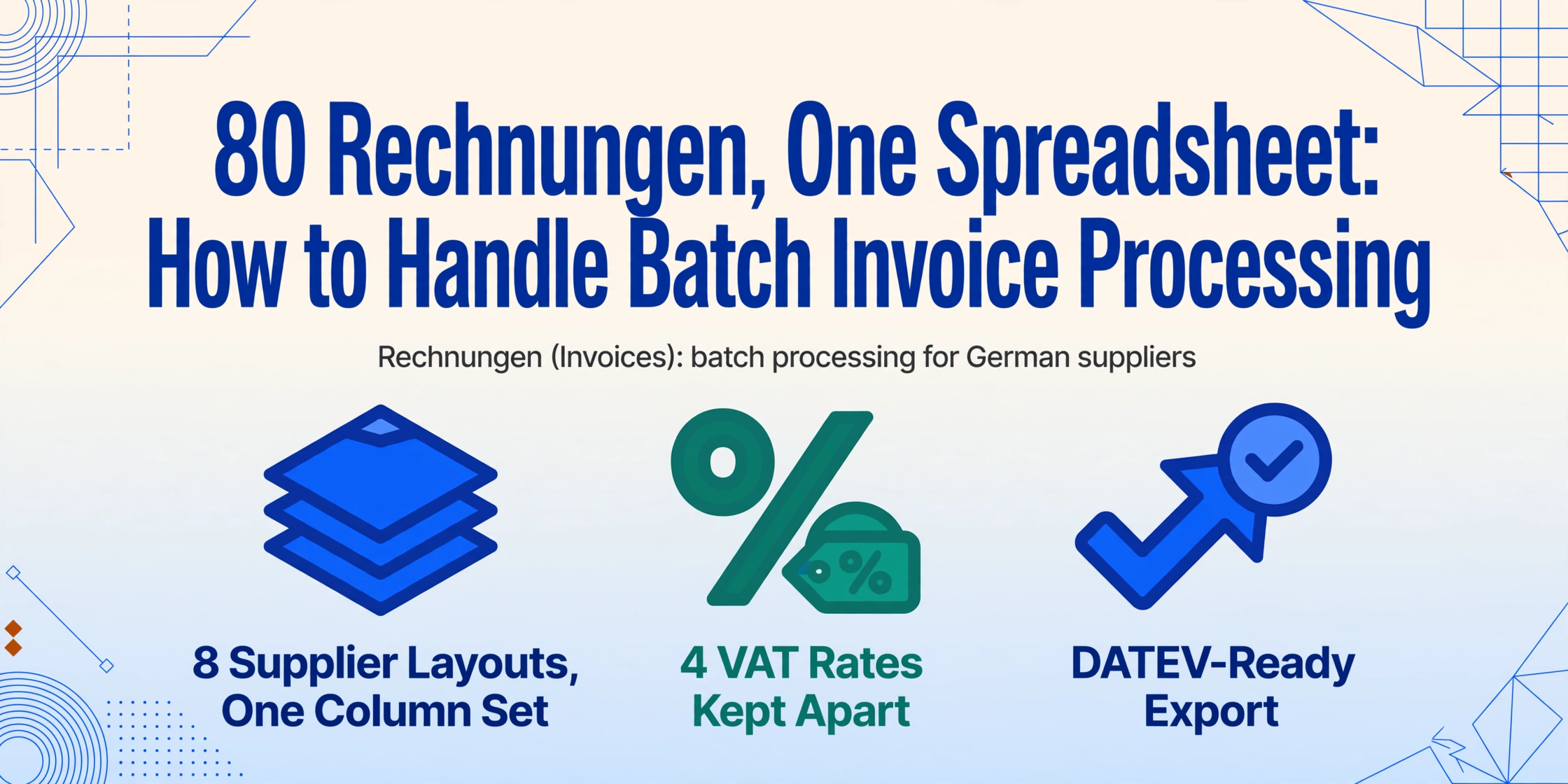
When 80 Rechnungen Arrive — Why Batch Isn't Just "Single × 80"
Processing one invoice at a time works until it doesn't. The tipping point for most German businesses lands somewhere between 30 and 50 Eingangsrechnungen per month — the threshold where the gap between "I can do this on Friday afternoon" and "this is eating my weekend" opens up. At 80 invoices, the problem isn't the data entry speed per invoice. It's that single-invoice workflows introduce four structural problems that batch processing inherits and amplifies:
Format drift. When you process invoices one by one and manually key data into Lexware or sevDesk, your brain compensates for differences in layout — you see "Rechnungs-Nr." on a Metro invoice and "Rechnungsnummer" on a Transgourmet invoice and know they're the same field. An automated batch extraction has no such intuition unless you've taught it what to look for — not by template position, but by semantic meaning. Eight suppliers, eight layouts, and a batch output that mixes them all in one spreadsheet.
VAT fragmentation. German Eingangsrechnungen don't uniformly use one VAT rate. In a batch of 80 invoices from hospitality suppliers, up to four VAT treatments appear: standard 19% (equipment, cleaning), reduced 7% (food, books), §13b reverse charge (subcontractor construction work), and §19 Kleinunternehmer (no VAT at all). A single "Tax" column that captures a number from each invoice is useless — because that number means something different on each row, and your Vorsteuerabzug calculation needs them separated by type. The §14 UStG mandatory fields on each invoice determine what must be extracted — but batch processing adds the layer of keeping that extraction semantically consistent across all 80 rows.
Error propagation. When you enter 80 invoices manually, each is an independent operation — a typo on Rechnung #44 doesn't cascade into a typo on #45. In a batch extraction, if the AI misidentifies the supplier name on one invoice because the logo placement shifted, you won't know until you review the entire output. And if the column mapping is off — say, the Leistungsdatum column captured the Rechnungsdatum instead on a supplier that formats dates differently — you need to check every row, not just the one you noticed.
Traceability gaps. A merged spreadsheet of 80 rows needs to tell you which row came from which file. If you need to go back to an original invoice to verify a USt-IdNr or check a discount line, you need a reliable filename-to-row mapping. Batch tools that spit out a CSV with no source-document column make auditing a scavenger hunt through your Downloads folder.
None of these problems exist when you process three invoices. At 80, all four are active simultaneously — and solving them is what separates a batch processing workflow from "single extraction, repeated 80 times."
The Supplier Format Problem — One Spreadsheet, Eight Different Layouts
A Metro invoice and a Transgourmet invoice share the same legal structure under §14 UStG but look nothing alike. Metro places the Rechnungsnummer in the top-right block, Transgourmet in a table header. The local Bäckerei might send a handwritten Rechnung where the supplier address block has no explicit label at all — you recognise it because it's in the top-left corner and starts with the street name. This is the core argument against template-based batch extraction for German invoices: every new supplier forces you to build and maintain a new extraction template.
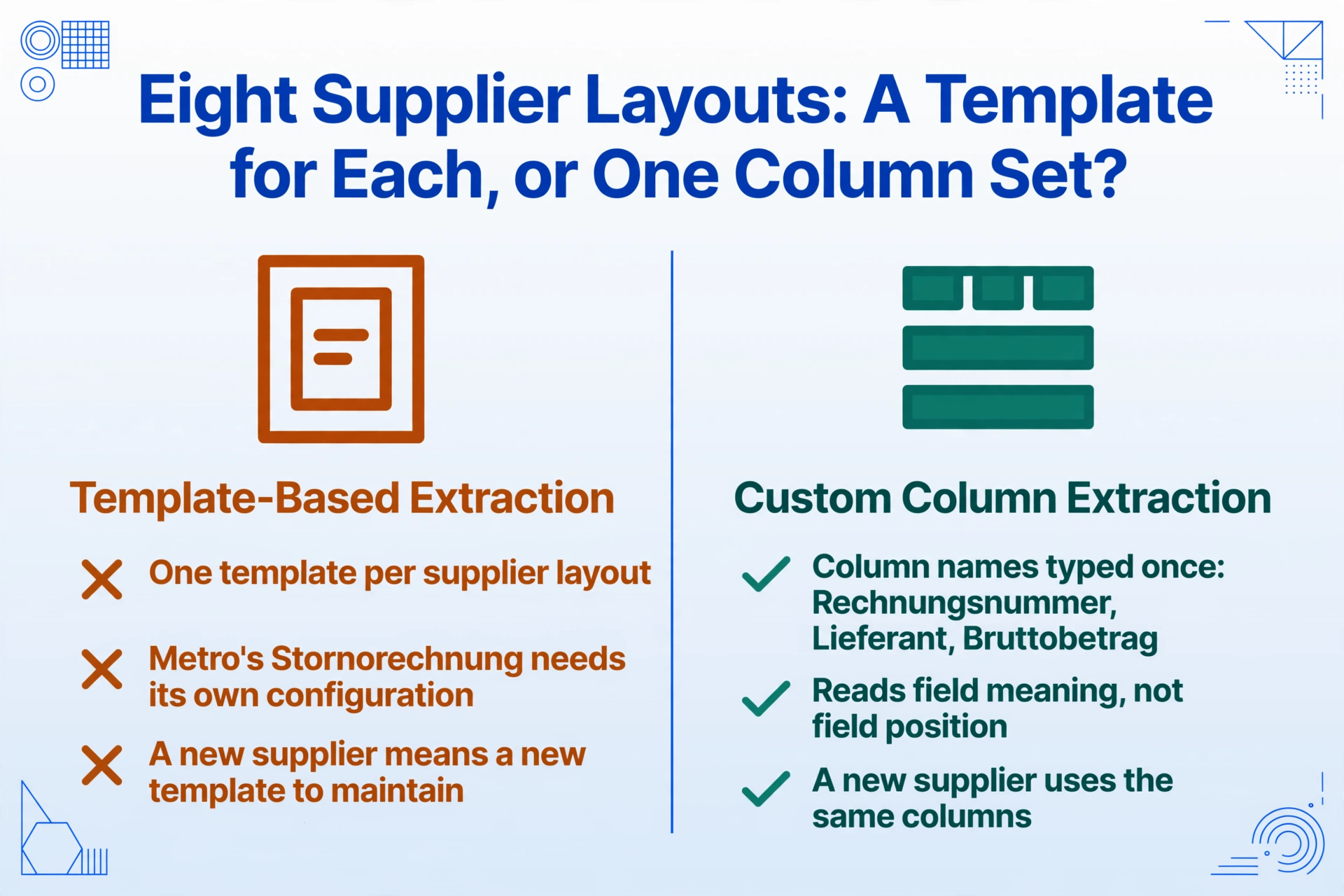
To put that in perspective: a medium-sized German restaurant group might receive invoices from Metro (food wholesale), Transgourmet (beverage), a local Gemüsehändler (produce), several Getränkelieferanten (drinks distributors), a cleaning service, a Wartungsfirma (equipment maintenance), and a marketing agency — plus occasional one-off suppliers. That's eight distinct invoice formats before considering the variations within Metro itself (standard invoice, delivery note, Stornorechnung), which use the same brand layout but rearrange fields. Template-based tools require a separate configuration for each variant. With semantic extraction, you define the column names once.
This is the difference between the column-name approach and a template approach at scale. Custom Column Extraction — the mechanism ImageToTable.ai uses — works by understanding field meaning, not by coordinates. You type your desired column names: "Rechnungsnummer", "Lieferant", "Rechnungsdatum", "Leistungsdatum", "Nettobetrag", "USt-Satz", "USt-Betrag", "Bruttobetrag", "USt-IdNr" — and the AI locates each value on every invoice in the batch by understanding what the label means, regardless of where it appears or whether the label text varies ("Rechnungs-Nr." vs "Rechnungsnummer" vs "RNr."). One column definition covers all eight supplier layouts in one batch upload.
The practical implication: you upload the month's entire folder of Eingangsrechnungen — 80 PDFs, JPGs, and scanned documents from all suppliers — and get one merged spreadsheet where every row represents a Rechnung with the same columns, regardless of format. No per-supplier template, no format pre-sorting, no "this supplier's invoices must be uploaded separately because the layout is different."
The VAT Rate Split Across 80 Invoices — Why One "Tax" Column Breaks
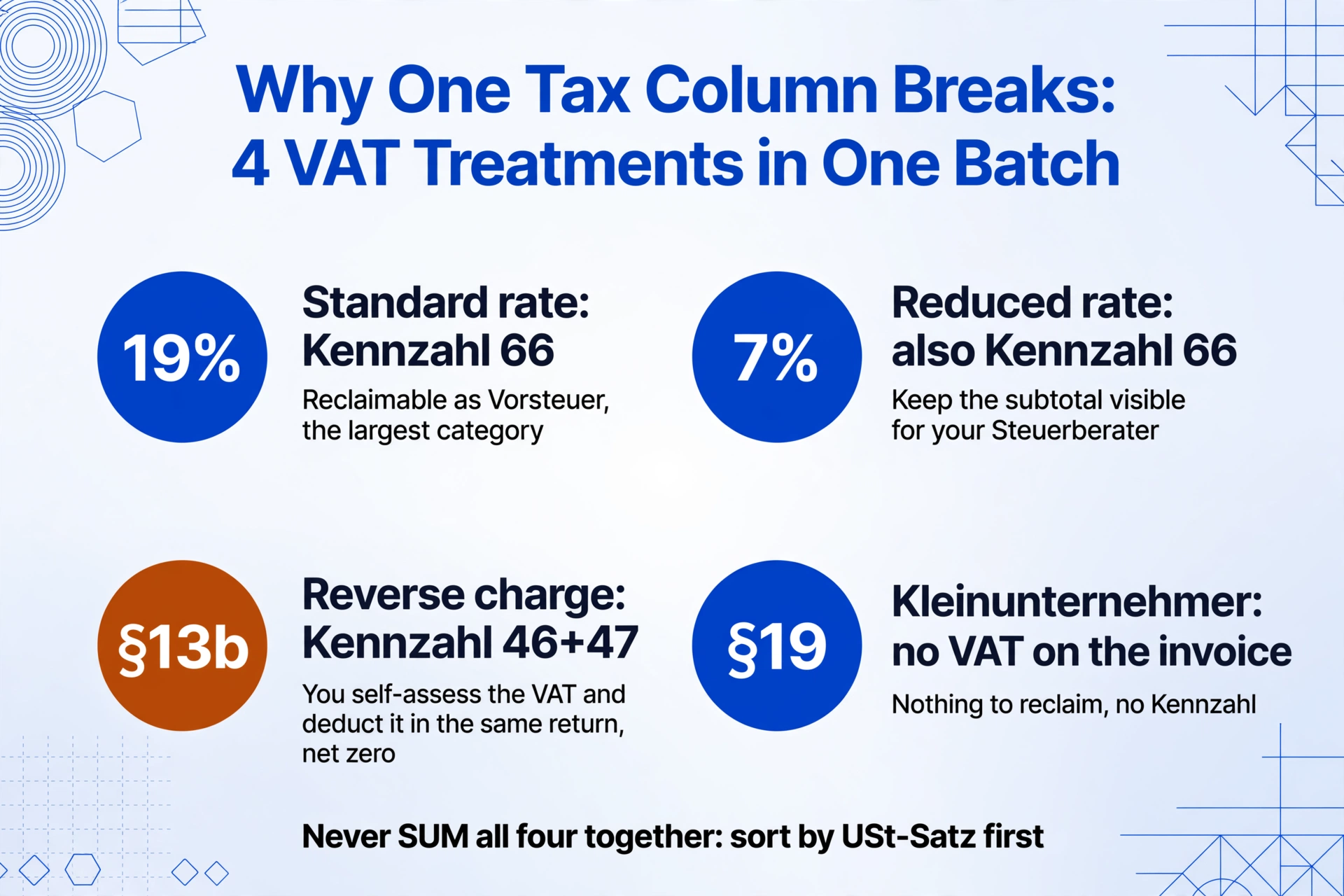
Now assume the batch extraction worked — all 80 invoices are in your spreadsheet with consistent columns. The next problem is that the USt-Satz column contains four different values — 19%, 7%, 0% (or blank), and "§13b" — and each one demands a different accounting treatment. If you simply SUM the USt-Betrag column, you're adding together 19% regular VAT that can be reclaimed as Vorsteuerabzug (under §15 UStG), 7% reduced VAT that also qualifies for deduction but must be reported separately (lines 66 of the Umsatzsteuervoranmeldung), and §13b amounts where the VAT obligation shifts to the recipient — meaning zero deduction and a separate reporting duty.
The Umsatzsteuervoranmeldung — Germany's monthly or quarterly VAT advance return, filed through ELSTER — requires VAT amounts to be reported under specific tax codes (Kennzahlen):
| VAT Scenario | ELSTER Kennzahl | What It Means in a Batch | What Your Spreadsheet Needs |
|---|---|---|---|
| 19% standard rate | Kennzahl 66 | Reclaimable input VAT — the largest category for most businesses | Rows where USt-Satz = 19% → SUM(USt-Betrag) → goes to Kz 66 |
| 7% reduced rate | Kennzahl 66 (subset) | Also reclaimable but your Steuerberater may want the split visible | Rows where USt-Satz = 7% → SUM(USt-Betrag) → separate subtotal, still Kz 66 |
| §13b reverse charge | Kennzahl 46+47 | You self-assess the VAT and deduct in the same return — net zero, but must be declared | Rows where USt-Satz = §13b → flag for Steuerberater's attention, not summed into Kz 66 |
| §19 Kleinunternehmer | Irrelevant | No VAT on invoice = no deduction to claim. Still a valid business expense. | Rows where USt-Satz = blank/0 — no VAT entry needed, but Nettobetrag still relevant as Aufwand |
| Kleinbetragsrechnung (§33 UStDV) | Kz 66 (if VAT included) | Invoices under €250 gross — simplified Pflichtangaben but VAT still applies | May not state VAT explicitly — calculate 19/119 or 7/107 from Brutto if needed |
A practical approach to handling this in a batch extraction: define an Inferred Column — a column where AI classifies the invoice based on its content rather than extracting a value that's explicitly on the page. For example, a column named VAT Type (options: Standard 19%/Reduced 7%/§13b Reverse Charge/Kleinunternehmer §19) instructs the AI to read each invoice, determine which VAT regime applies, and output the correct category label. This gives you a filterable column — and from there, you group by VAT type and sum each group's USt-Betrag separately for your Vorsteuerabzug submission. The extraction and classification happen in one pass, not two separate operations.
This also matters for the expense side of your Buchhaltung. The Nettobetrag on a §13b invoice is still an operating expense (Aufwand), even though it carries zero input VAT — if you exclude it from your cost summary because "no tax = not relevant," you're underreporting expenses. Batch extraction needs to capture the full financial picture, not just the VAT-relevant slice.
From Batch Extraction to Your Steuerberater — DATEV-Ready in One Export
Extracting 80 invoices into a spreadsheet solves the data entry problem. It does not automatically solve the handoff problem — the step where that spreadsheet needs to become something your Steuerberater can import into DATEV without re-keying every row. German tax advisors use DATEV's Kanzlei-Rechnungswesen and Unternehmen Online platforms, which import data through two primary batch mechanisms:
CSV import (DATEV-Format) for Kanzlei-Rechnungswesen — a fixed-column CSV with specific field ordering: Belegdatum, Buchungstext, Gegenkonto, Betrag, Soll/Haben indicator, and optionally the Buchungsschlüssel (posting key) and Kontierung (account number per SKR03 or SKR04). The file must use semicolons as delimiters, ISO-8859-1 encoding, and date format DD.MM.YYYY — CSV exports from English-language tools that default to commas and MM/DD/YYYY will fail silently.
XML import (dxso-Jobs) for DATEV Unternehmen Online — a batch job submission using DATEV's proprietary XML schema. The dxso (DATA XML Send Online) mechanism accepts invoice data structured as XML documents, validated against DATEV's XSD schemas. XML is mandatory for Unternehmen Online; CSV is for the desktop Rechnungswesen application — and your Steuerberater may use either or both depending on their workflow.
The key insight: your extraction columns should mirror the import columns your target system expects. If your Steuerberater needs Belegdatum in DD.MM.YYYY format, define your extraction column as "Belegdatum" — not "Invoice Date." If they book expenses to account 4930 (SKR03: Sonstige Kosten), include a column called "SKR03 Konto" with the appropriate code. This eliminates the middle step of reformatting a generic extraction output to match accounting software schemas. The extraction is the import file.
For a batch of 80 invoices heading to DATEV, the column set might look like:
- Belegdatum — DD.MM.YYYY
- Buchungstext — combination of Lieferant + Rechnungsnummer
- Gegenkonto — the supplier's Kreditor number (70000 series in SKR04)
- Betrag — Bruttobetrag (gross amount)
- Soll/Haben — "S" for debit (expense), "H" for credit
- SKR03 Konto — the expense account (e.g., 4930 for miscellaneous costs, 3400 for Waren)
- USt-Satz — 19 or 7 or 0
- Vorsteuerbetrag — the reclaimable VAT amount
Lexware Office and sevDesk use their own CSV templates but the principle is the same: define extraction columns to match the import schema, export as CSV, and import directly. The batch processing value proposition — 80 invoices in minutes — is only fully realised if the output doesn't require another hour of spreadsheet reformatting.
The Workflow — How to Process 80 Eingangsrechnungen in One Go
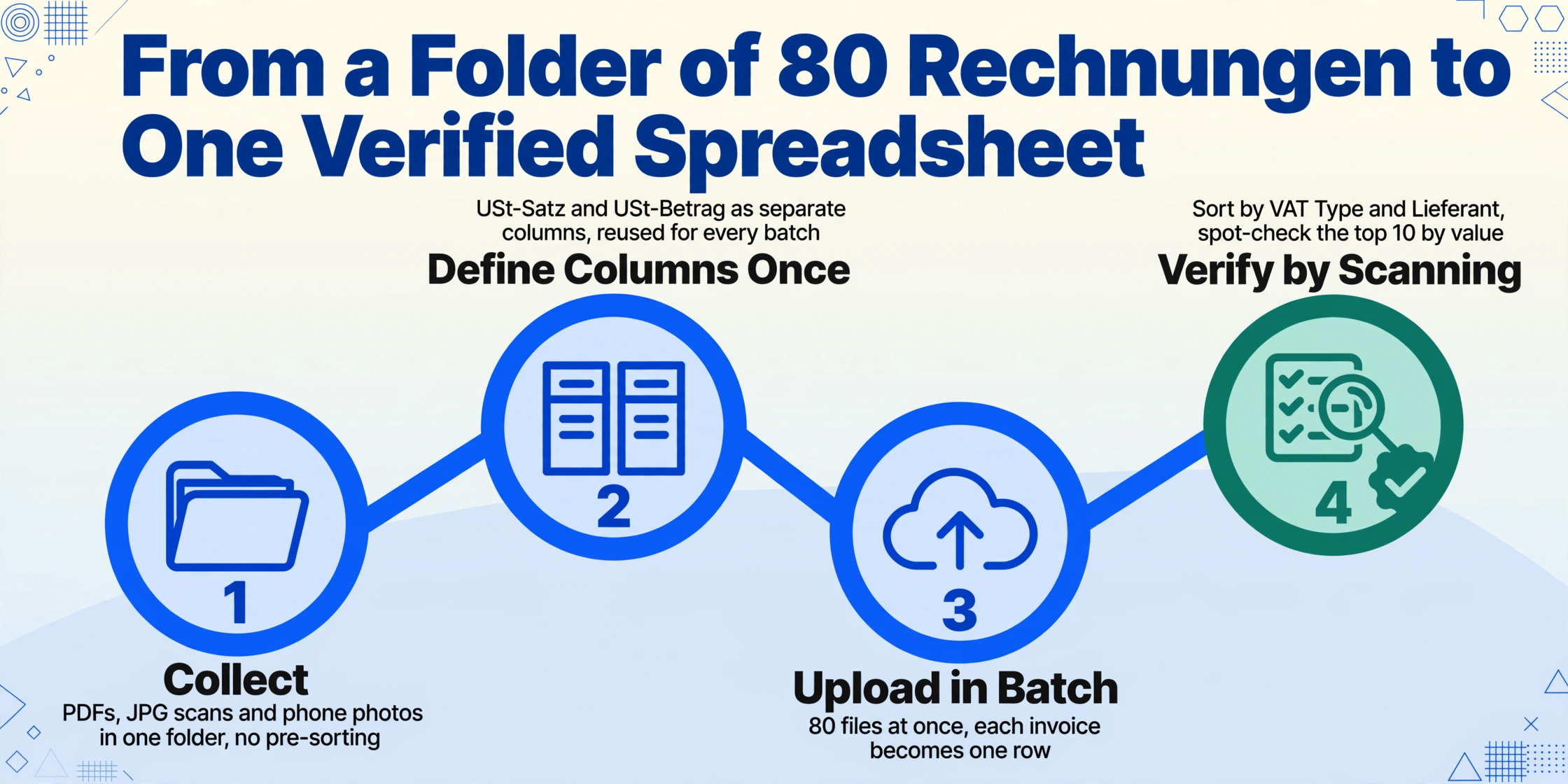
With the structural challenges mapped — format diversity, VAT fragmentation, and DATEV compatibility — here is the end-to-end batch workflow from a folder of 80 Rechnungen to a Steuerberater-ready spreadsheet:
VAT Type (options: Standard 19%/Reduced 7%/§13b Reverse Charge/Kleinunternehmer §19) to auto-classify each invoice. If exporting to DATEV, align column names with the import schema (Belegdatum not "Date," Bruttobetrag not "Total"). This column definition is reused for every batch — you define it once, not per batch.Files are processed securely and not stored. Upload multiple Rechnungen to see batch extraction in action.
For the verification step specifically: the highest-risk items in a batch are not the ones that look wrong — they're the ones that look right but contain a field that was systematically misread because of a supplier-specific formatting quirk. A Metro invoice that aligns its Nettobetrag differently from the other 79 invoices won't show an error — the cell will contain a number, and the number will look plausible. The check that catches this is the top-10-by-Bruttobetrag spot-check: open the original Metro invoice, compare the brutto total to the extracted brutto total. If it matches, the extraction is likely correct. If it doesn't, there's a formatting quirk to investigate.
GoBD-Compliant Batch Archiving — Don't Archive the Excel, Archive the Originals
Batch processing creates a tempting shortcut: extract 80 invoices into one clean spreadsheet, archive the spreadsheet, and delete the messy originals. This is the single most common GoBD compliance mistake in automated invoice processing — and it fails audit requirements on multiple levels.
The GoBD (Grundsätze zur ordnungsmäßigen Führung und Aufbewahrung von Büchern), revised July 2025 to align with Germany's e-invoicing mandate, requires that tax-relevant documents be preserved in their original received format, not in a derivative or transformed version. Specifically:
- Structured e-invoices (XRechnung XML, ZUGFeRD hybrid PDF): The XML is the authoritative tax record. If the invoice arrived as a ZUGFeRD PDF, the entire PDF/A-3 file (including the embedded XML) must be archived as one unit. The July 2025 amendment confirmed that a separate human-readable PDF copy is not required unless it contains additional tax-relevant information not present in the XML — such as handwritten payment notes on the visual layer.
- Plain PDFs and scanned documents: The original file must be retained in unaltered form for 10 years under §147 AO. An extracted Excel row is a working copy — it is not an archive substitute.
- Photographed paper invoices: The digital photo becomes the record. The GoBD principle of Unveränderbarkeit (immutability) means the photo file must be stored in a way that prevents subsequent modification — timestamped, hashed, or stored in a revision-locked system.
The extraction output — your 80-row Excel spreadsheet — is an operational document, not an archival document. It serves your day-to-day Buchhaltung, Vorsteuerabzug calculation, and DATEV import. For a Betriebsprüfung (tax audit), the auditor will request the original invoice files, not your extraction spreadsheet. The extraction only needs to enable traceability back to those originals — which means the spreadsheet must include a column that identifies the source file for each row (filename or a reference number). Without this traceability column, a batch extraction of 80 invoices creates 80 data rows that cannot be verified against their sources — a GoBD compliance failure regardless of how accurate the extraction was.
The practical batch archiving workflow: keep the original files in a dated folder (e.g., /Eingangsrechnungen/2026-05/), name them consistently (2026-05-03_Metro_INV-48291.pdf), and ensure your extraction output preserves the filename as a column. If your Steuerberater uses DATEV Unternehmen Online, the original invoice files can be attached to the corresponding booking entries through the Belegverwaltung (document management) feature — closing the traceability loop from the spreadsheet back to the source document and into the DATEV audit trail.
Germany's phased e-invoicing mandate — mandatory receipt since January 2025, mandatory sending for businesses above €800k turnover from 2027, universal sending from 2028 — is gradually reducing the "messy originals" problem. As suppliers migrate to ZUGFeRD and XRechnung, the embedded XML layer delivers structured data without OCR. But during the transition period, your batch pipeline will handle a mix: some ZUGFeRD PDFs, some plain PDFs, some scanned Rechnungen from suppliers who won't switch until 2028. The extraction workflow needs to handle all three, and the archiving workflow needs to preserve all three in their respective original formats.
Frequently Asked Questions
Can I really process invoices from Metro, Transgourmet, and a local Handwerker in the same batch?
Yes. Because extraction is driven by column-name semantics — the AI reads field meaning, not field position — the same column definition (Rechnungsnummer, Lieferant, Bruttobetrag, etc.) works across different supplier layouts. You don't need a separate template per supplier. The one caveat: if two suppliers use an identical label for different things (e.g., both have a "Datum" field but one means invoice date and the other means delivery date), define your columns precisely — "Rechnungsdatum" and "Lieferdatum" rather than a generic "Date."
How do I handle the VAT split when some invoices have both 19% and 7% items?
For invoices with mixed VAT rates, define separate column pairs: "Nettobetrag 19%," "USt-Betrag 19%," "Nettobetrag 7%," "USt-Betrag 7%." The AI extracts each rate group independently from the invoice. If an invoice only has 19% items, the 7% columns will be empty — and vice versa. In your batch output, you can then SUM the USt-Betrag 19% column and USt-Betrag 7% column separately for your Vorsteuerabzug calculation. For complex invoices where the split isn't clear — a restaurant invoice that mixes food (7%) and alcohol (19%) on the same line — add a Computed Column to recalculate the correct split from line-item quantities and unit prices, and cross-check against the invoice's stated VAT breakdown.
What happens if one invoice in the batch has a missing field — does it break the whole batch?
No. The AI processes each invoice independently within the batch. If Rechnung #23 is missing a USt-IdNr field (common with Kleinbetragsrechnungen under €250, which don't require it), that cell will be empty for that row — all other rows are unaffected. The verification step in the workflow is designed to catch these: sort by the mandatory column and look for blanks. You can then either fill in the missing value manually (if you know the supplier's USt-IdNr from a previous invoice), accept the blank if it's legitimate (Kleinbetragsrechnung), or flag it for supplier follow-up if it's a mandatory field on a full invoice.
Can I export directly to DATEV CSV format from the batch extraction?
You can export to Excel (XLSX) or CSV, and then map the columns to the DATEV CSV format your Steuerberater requires. The batch extraction output is a structured spreadsheet — the columns you defined become the Excel columns. If you name your columns to match DATEV import fields (Belegdatum, Buchungstext, Gegenkonto, Betrag, etc.), the export is already in the right structure — you may need to rearrange column order and ensure the delimiter and date formats match DATEV's exact specifications (semicolon, DD.MM.YYYY, ISO-8859-1 encoding). The tool does not produce DATEV-format CSV natively, but the extracted data maps directly to it with minimal reformatting.
Does batch processing work with ZUGFeRD XML invoices and scanned paper invoices mixed in the same upload?
Yes, the batch can contain a mix of ZUGFeRD PDFs, plain PDFs, JPG scans, and photos — the AI reads the visual layer of each document. For ZUGFeRD invoices, it reads the visible PDF rendering; it does not parse the embedded XML. In practice, this means the extraction accuracy on a ZUGFeRD invoice is determined by the visual layout quality, not by whether the XML is present — the same as a plain PDF. For pure XRechnung XML files (no visual PDF), the tool is not designed to process them — use an XML-to-CSV converter for those, or ask the supplier to also provide the human-readable PDF version.
How do I handle Skonto (early payment discount) in batch extraction?
Skonto — typically 2-3% discount for payment within 7-14 days — is often stated in a note rather than a dedicated field (e.g., "2% Skonto bei Zahlung innerhalb 10 Tagen"). If you need to track it, define a column called "Skonto (%)" — the AI will extract the percentage if it's stated on the invoice. For the Nettobetrag, you typically want the full amount before Skonto (Bemessungsgrundlage), not the discounted amount, because the VAT is calculated on the full amount under §10 UStG. If the invoice states the discounted total, use a Computed Column to back-calculate the pre-Skonto Nettobetrag for Vorsteuerabzug purposes, as the tax office determines input VAT on the gross amount before discount.
Getting Your Batch German Invoice Workflow Running
Batch processing German Eingangsrechnungen sits at a specific intersection: it's the point where the number of invoices crosses from "manual entry is annoying but manageable" to "manual entry is a structural time sink." For most German SMEs, that line lands somewhere between 40 and 60 invoices per month. Below that, the friction is from workflow — opening DATEV, typing fields, saving. Above it, the friction is systemic: format diversity, VAT fragmentation, and traceability gaps that survive any single-invoice workflow.
The batch processing approach outlined here — column-name-based extraction that works across supplier formats, inferred columns for automatic VAT classification, and DATEV-aligned export schemas — addresses the systemic problems, not just the per-invoice speed. The 18x efficiency gain (3 minutes per invoice manually vs 5-10 seconds with extraction) is the headline number. But the larger operational shift is this: the entire month's Eingangsrechnungen become one operation. Not 80 operations performed quickly — one operation done once. The difference is the difference between "I got faster at data entry" and "data entry stopped being part of my month-end close."
Upload multiple Rechnungen — free to try, no account required for the first 50 pages.