ImageToTable.ai vs imagetotext.info:
From Raw OCR Text to Structured Excel
You have 30 supplier invoices. You need Vendor Name, Invoice Number, Date, and Amount in a spreadsheet. You search "image to text" and find imagetotext.info. You upload the first invoice and get back a block of text — every word on the page, in order, with no column structure. Now you have to read that text, find the invoice number, find the amount, and type them into your spreadsheet yourself. For one invoice, that takes a few minutes. For thirty, it's the same problem you started with.
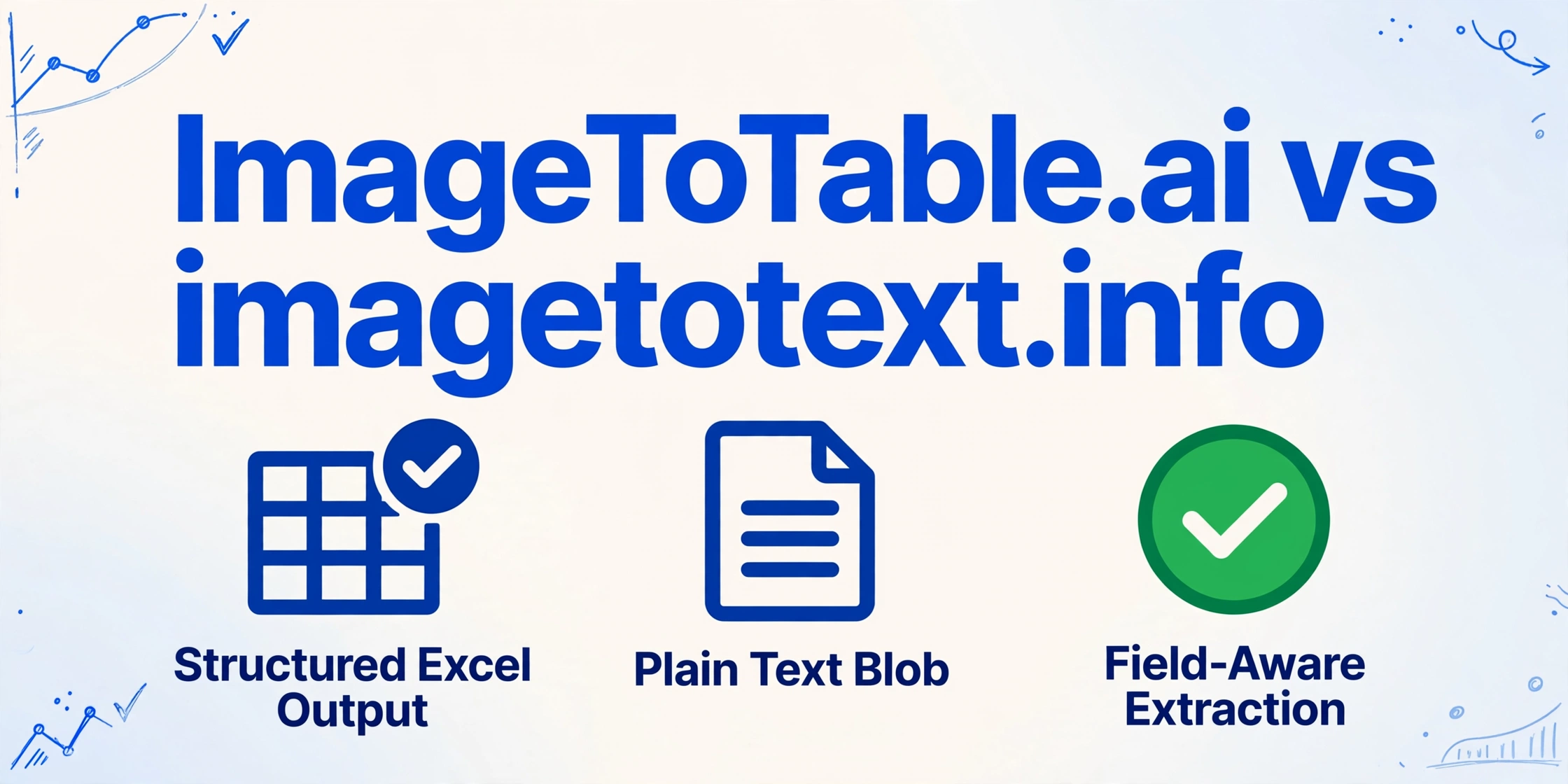
Quick Comparison
Choose ImageToTable.ai if…
- You need specific fields extracted — Invoice Number, Amount, Date — not all the text on the page
- You want output as a structured Excel table, ready for analysis
- You process multiple documents and need results merged into one spreadsheet
- Your documents have varying layouts (different vendors, forms, handwriting)
- You want to define exactly which columns appear in your output
Choose imagetotext.info if…
- You need to copy text from an image into a document or message — no structure required
- You're a developer building an NLP pipeline and need raw text as input
- You're a student extracting a quote or passage from a slide or textbook photo
- You genuinely only need the characters, and what you do with them afterward is flexible
Feature Comparison
| Dimension | imagetotext.info | ImageToTable.ai |
|---|---|---|
| Core output | Plain text block — all visible characters extracted in reading order, no column structure | Structured Excel table — user-defined column headers, one row per document |
| Field extraction | None — extracts everything indiscriminately; users must manually locate specific fields in the text output | Type the column names you want ("Invoice Number", "Amount", "Vendor"); AI maps those fields from any layout |
| "Excel" output | JPG-to-Excel sub-tool (20 credits/image) places raw OCR text into cells — not field-aware, no column definition | Native Excel (.xlsx) with user-specified headers; data is already in the right columns |
| Batch processing | Multiple uploads produce multiple separate text outputs — no merge into one table | Upload many files at once; all extracted fields merged into a single Excel table automatically |
| OCR engine | Tesseract OCR (open-source, HP/Google); strong on clean printed Latin text; weaker on handwriting, stamps, multi-column layouts | Vision large model (LLM-based); recognizes handwriting, cursive, stamps, checkboxes, mixed layouts |
| Document type support | JPG, PNG, TIFF, GIF, HEIC, PDF; 22+ languages; accuracy drops on complex layouts | PDF, JPG, PNG, WebP, AVIF, screenshots; handles printed text, handwriting, stamps, mixed image-text documents |
| Post-processing needed | Yes — users must read the text output, identify each field, and manually enter it into a spreadsheet | No — output is already structured; export to Excel and open directly |
| Free tier | 200 credits/month; plain OCR = 1 credit/image; JPG-to-Excel = 20 credits/image (= 10 Excel outputs/month free) | Free account available to test with your own documents before choosing a plan |
| Paid plans | Basic $8/mo, Standard $10/mo, Business $40/mo | Basic $9/mo (150 credits), Pro $19/mo (400), Max $59/mo (1,500); pay-as-you-go from $6/50 images |
| Primary audience | Students, developers, casual text extraction — 18–24 age skew, heavy student/developer usage | Business users processing invoices, receipts, forms — anyone who needs structured data, not raw text |
Plain Text Is Not Data — It's Just Characters
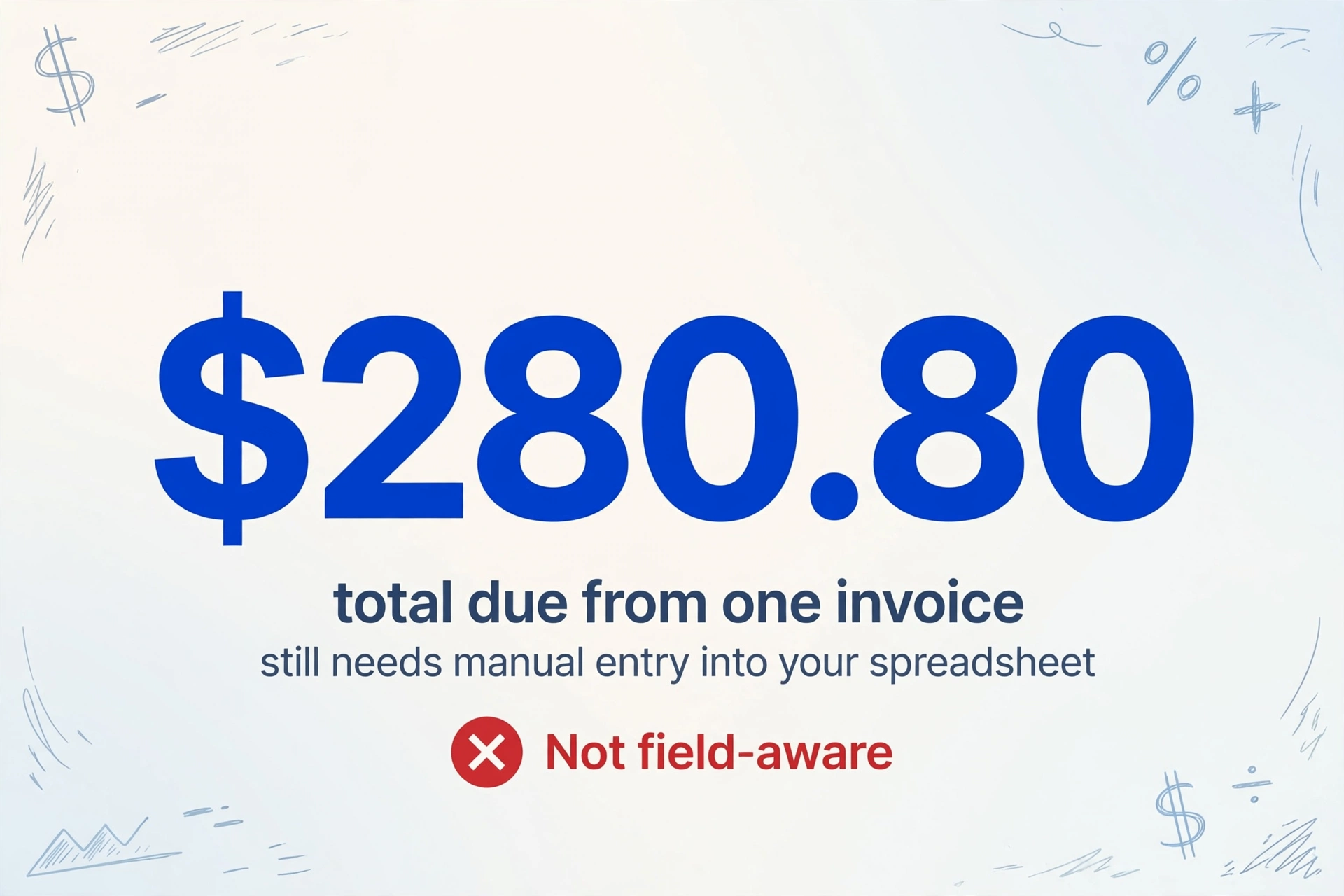
imagetotext.info uses Tesseract OCR — the open-source engine originally developed at HP and now maintained by Google. For clean, printed text on a well-lit image, it works reliably. The output is a faithful transcription of the visible characters.
But a transcription is not structured data. When you extract an invoice with imagetotext.info, you receive something like:
INVOICE
Vendor: Acme Supplies Ltd
123 Industrial Road, Chicago IL

Invoice No: INV-2024-0847    Date: March 14, 2024
Due Date: April 13, 2024

Item          Qty    Unit Price    Total
Paper reams    10     $12.00      $120.00
Printer ink     4     $35.00      $140.00

Subtotal: $260.00    Tax (8%): $20.80    Total Due: $280.80
To get "Invoice Number", "Vendor", "Total Due", and "Due Date" into your spreadsheet, you still need to read that text, locate each value, and enter it manually. imagetotext.info's job ended when it converted the pixels to characters. Your job — the part that takes time — hasn't started yet.
"Most free OCR tools extract raw text from documents, giving you an unstructured wall of characters." — Parseur, OCR to Excel: From Raw Text to Structured Data
The Two-Step Trap
The pattern that plays out for business users who reach imagetotext.info:
- Upload invoice image → get text blob → manually locate each field → enter into spreadsheet
- Upload next invoice image → get text blob → manually locate each field → enter into spreadsheet
- Repeat for every document in the batch
This is slower than just reading the original document and typing directly, because you're now reading a reformatted version of it and doing the same work afterward. The OCR step didn't save any time — it added a step.
The UiPath community forum has a thread specifically titled "How to OCR Images in a Folder and Write to Excel" — developers building custom automations because no off-the-shelf OCR tool closes this gap. The gap exists because OCR and structured extraction are two different problems. imagetotext.info solves the first one. ImageToTable.ai solves both at once.
With ImageToTable.ai, you type the column names you need — "Vendor Name", "Invoice Number", "Due Date", "Total Due" — upload your invoices, and receive an Excel table where every row is one document and every column is one field. There is no Step 2.
Batch Processing: Separate Outputs vs One Merged Table
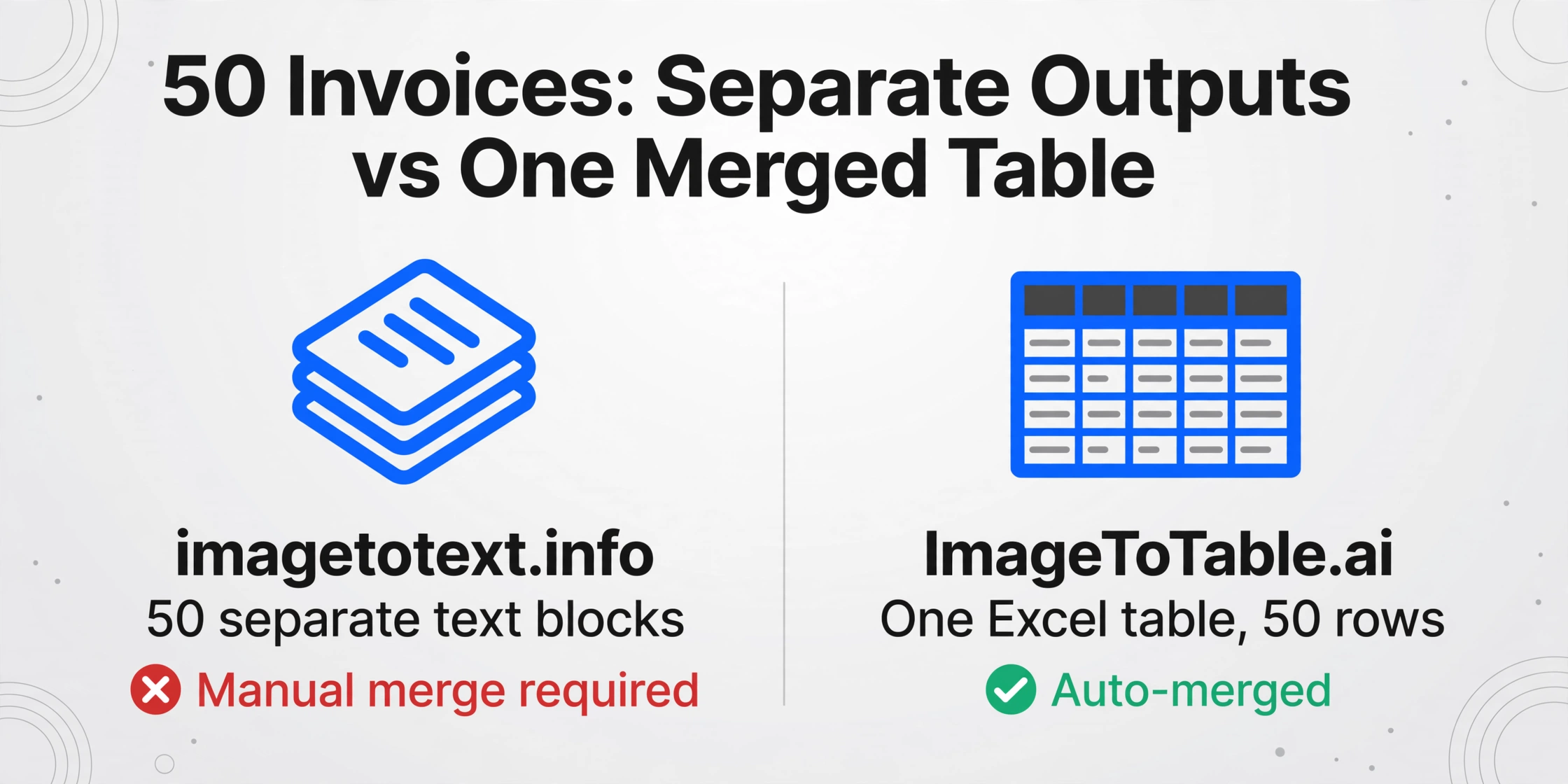
imagetotext.info's paid Business plan allows uploading up to 150 images per submission. Each image produces a separate text output. If you upload 50 invoices, you receive 50 text blocks. Getting those 50 blocks into a unified spreadsheet is still entirely manual — or requires custom scripting.
ImageToTable.ai's batch mode is designed specifically for this: upload 50 invoice images, specify the columns, and the output is a single Excel table with 50 rows — one per document, all fields aligned in the same columns. The merge is automatic.
For anyone processing documents at volume, this is the functional difference that matters most. imagetotext.info can get you text faster than typing it yourself. It can't skip the step where you organize that text into a table.
Pricing Comparison
imagetotext.info's free tier gives 200 credits per month. The main OCR tool costs 1 credit per image. But their JPG-to-Excel feature — the one that puts text into spreadsheet cells — costs 20 credits per image. That means 10 Excel outputs per month on the free plan. And the output still requires manual column mapping afterward. That grid-copying ceiling is the same one Excel's built-in Data from Picture runs into — our Excel's Data from Picture covers it.
| Monthly volume | imagetotext.info | ImageToTable.ai |
|---|---|---|
| Up to 10 documents/month | Free tier (200 credits covers 10 JPG-to-Excel conversions); output needs manual field mapping | Pay-as-you-go: $6 for 50 images; output is a structured Excel table, no mapping needed |
| ~50 documents/month | Basic $8/mo or Standard $10/mo; text outputs require manual field extraction | Pay-as-you-go: $6 for 50 images, or Basic plan $9/mo (150 credits) with structured output |
| ~150 documents/month | Standard/Business tier; still produces separate text outputs per document | Basic plan: $9/mo (150 credits) — merged Excel table, no post-processing |
| ~400 documents/month | Business $40/mo; 150 images/submission, multiple batches; all outputs separate | Pro plan: $19/mo (400 credits) — full batch merge, ready-to-use Excel |
The relevant cost comparison is not just the subscription price — it's the subscription price plus the time spent doing manual field extraction from text outputs. Pricing as of April 2026. Check imagetotext.info/premium and imagetotable.ai for current plans.
When imagetotext.info Is the Better Fit
imagetotext.info is a genuinely useful tool for the right use case.
You need text, not structured data. If you're a student who wants to copy a passage from a slide photo into an essay, or a developer extracting text for an NLP pipeline, plain text output is exactly what you need. The extra structure ImageToTable.ai provides would add complexity without benefit. If what you need is a table grid rather than free text, our ExtractTable comparison covers the closer tool.
No registration is a real advantage. imagetotext.info's basic OCR requires no account. For casual one-off extractions, that zero-friction access is genuinely valuable.
Language breadth. With 22+ language options including Arabic, CJK scripts, and Cyrillic, imagetotext.info covers a wider range of languages than most tools in this category. If multilingual plain-text extraction is the primary need, it covers more ground.
High-volume plain OCR at low cost. At 1 credit per image for plain text, the free tier's 200 credits go further for raw text extraction than for Excel output. For developers or researchers who need text at scale and will process it downstream themselves, the pricing is competitive.
What Users Say About imagetotext.info
"Most of the site is hidden behind a paywall and it is virtually impossible to use without an ad blocker." — Trustpilot review, imagetotext.info
"Legal documents with stamps and seals sometimes confuse the OCR." — Trustpilot review, imagetotext.info
"Advanced features like structured extraction may be limited." — imagetotextocr.com, Best Image to Text Converters
A 2025 deep-dive review on Skywork found that the tool "often struggled" with multi-column layouts and complex document structures — documents where Tesseract's reading-order traversal produces text that doesn't map cleanly to the original layout. For simple single-column text, it performs well. For anything more complex — invoices with header blocks, tables, multiple columns — accuracy and structure both degrade.
The heavier user complaint is usability: the free tier is ad-dense, and advanced features (formatted output, JPG-to-Excel) consume credits at a rate that makes the free tier feel limited quickly. The 20 credits per JPG-to-Excel conversion means 10 structured outputs per month before hitting the paywall.
Frequently Asked Questions
Does imagetotext.info export to Excel? How does it compare to ImageToTable.ai's Excel output?
imagetotext.info has a "JPG to Excel" sub-tool that places OCR-extracted text into spreadsheet cells. It's not field-aware: it doesn't know what "Invoice Number" or "Amount Due" means, and it can't let you define which columns you want. It transcribes visible layout into cells — useful if the source document is itself a clean table, less useful for mixed-content documents like invoices. ImageToTable.ai's Excel output is column-defined: you specify which fields you want, and those become the exact headers of the output table, regardless of how the source document is laid out.
Can imagetotext.info extract specific fields like Invoice Number, Vendor Name, or Tax Amount?
No. imagetotext.info extracts all visible text from the image without any field awareness. You receive the full text block and must manually locate specific values. ImageToTable.ai takes the opposite approach: you type the field names you want, and the AI finds and extracts those values from any document layout — printed or handwritten, standard or non-standard.
Is imagetotext.info free? How does it compare on pricing?
imagetotext.info's free tier gives 200 credits per month. Plain OCR costs 1 credit per image; JPG-to-Excel costs 20 credits per image, meaning the free tier allows 10 Excel-style outputs per month. Paid plans start at $8/month (Basic) and $10/month (Standard). ImageToTable.ai's Basic plan is $9/month for 150 credits, with pay-as-you-go available from $6 for 50 images. The meaningful cost difference is the time spent on post-processing: imagetotext.info text outputs still require manual field extraction, while ImageToTable.ai's output is already structured.
Can imagetotext.info handle handwritten invoices, stamps, or non-standard document layouts?
imagetotext.info uses Tesseract OCR, which performs well on clean printed text but degrades noticeably on handwriting, stamps, and complex multi-column layouts. A 2025 review found it "sometimes confused" by legal stamps and seals, and "often struggled" with multi-column documents. ImageToTable.ai is built on a vision large model with deep semantic understanding — it recognizes handwriting, cursive, stamps, signatures, and mixed layouts without requiring clean print.
Can I upload multiple invoices at once and get one combined spreadsheet?
imagetotext.info's Business plan allows multiple images per submission, but each image produces a separate text output. There is no feature to merge results across documents into one table. ImageToTable.ai's batch mode is designed for exactly this: upload multiple files, specify your columns, and receive one Excel table with one row per document and all fields aligned.
What's the technical difference between Tesseract OCR and ImageToTable.ai's AI extraction?
Tesseract OCR (used by imagetotext.info) is a character recognition engine: it identifies pixel patterns that correspond to letters and numbers, and outputs them in reading order. It has no understanding of what those characters mean or how they relate to each other. ImageToTable.ai uses a vision large model that understands document semantics — it knows that "Invoice No:" is a label followed by an invoice number, that a column of numbers under "Amount" represents monetary values, and that a date in the corner is the document date. This semantic understanding is what enables field-level extraction rather than character transcription.
Try Structured Extraction on Your Own Documents
Upload an invoice, receipt, or any document you're currently copying manually. Type the column names you need. Get a structured Excel table back — without reading a text block or entering a single field. For a broader browser OCR path, start with the online OCR tool and choose text, Word, or structured output.
Free account available. Pay-as-you-go from $6 for 50 documents — no monthly commitment.