Paper Job Sheets Are a Math Problem.
Here's How to Solve It in One Step.
In June 2026, Field Promax published a report analyzing over 10,000 data points across 300 HVAC companies. The finding: the average technician works 8.8 paid hours per day, but only 5.7 hours — 65% — are actually billable. The other three hours vanish into driving time, idle gaps, vehicle maintenance, and paperwork. That last category — paperwork — is one of the few items on the list that doesn't require buying new trucks or hiring dispatchers. It requires solving a math problem that lives on every paper job sheet a tech fills out.

The Math Problem Inside Every Paper Job Sheet
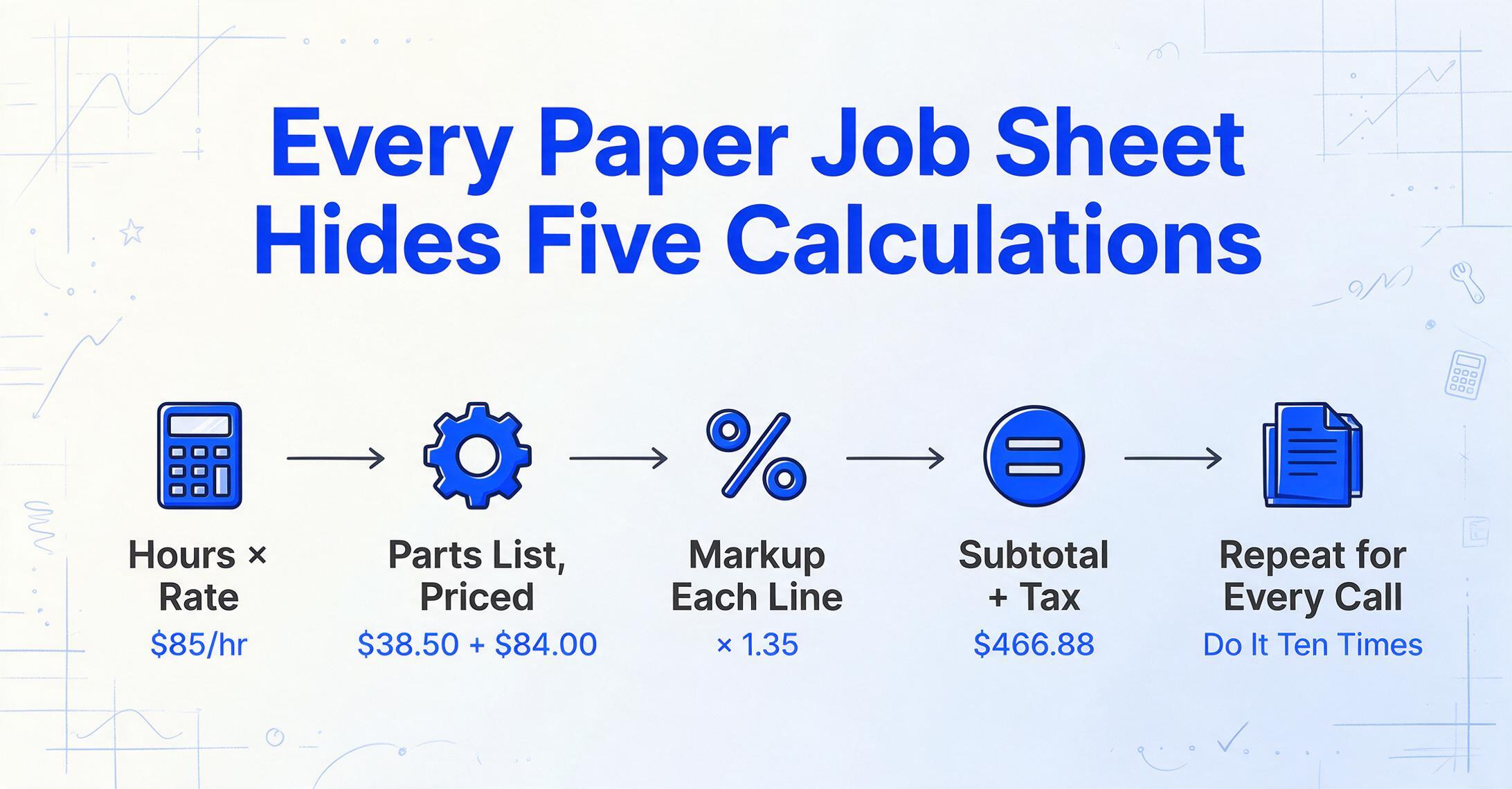
A technician finishes a service call. They grab the paper job sheet off the clipboard, scribble down what they did — 2.5 hours of labor, replaced a capacitor ($38.50), added two pounds of R-410A ($42/lb), a service call fee. They get the customer's signature and move on to the next call.
At the end of the day, those sheets land on a desk in the office. Someone — a dispatcher wearing a billing hat, the owner working late, a part-time bookkeeper — picks up the first one and starts doing math:
This is the math problem hiding in plain sight. Not a complicated one — multiplication and addition, nothing beyond middle school arithmetic. But when you do it 30 times in a row at 7pm on a Thursday, the fourth digit of a part number starts to blur. A misplaced decimal point costs you money. A forgotten markup costs you margin.
The American Productivity & Quality Center (APQC) benchmarks manual invoice processing at an annual error rate of around 2%. For a field service company processing 500 jobs a month, that's 10 jobs with calculation errors every month — overcharges that generate dispute calls or undercharges you never catch. And as one plumbing business owner put it on Reddit's r/Plumbing: "The biggest pain point I hear about isn't really dispatching, it's tracking what jobs actually made money after materials and time."
The data extraction step — reading the job sheet and getting numbers into a spreadsheet — is only half the work. The other half is doing the math on those numbers. And for most small service businesses, the math still happens inside someone's head, on a calculator, or in a spreadsheet formula that has to be re-created for every batch.
What Computed Columns Bring to the Equation
Most document extraction tools are built to extract — they find data on the page and place it into spreadsheet cells. You tell them to look for "hours worked" and "hourly rate" and they'll dutifully pull those numbers out of every job sheet. What they won't do is multiply them together. That part is left to you, in Excel, after the extraction is done.
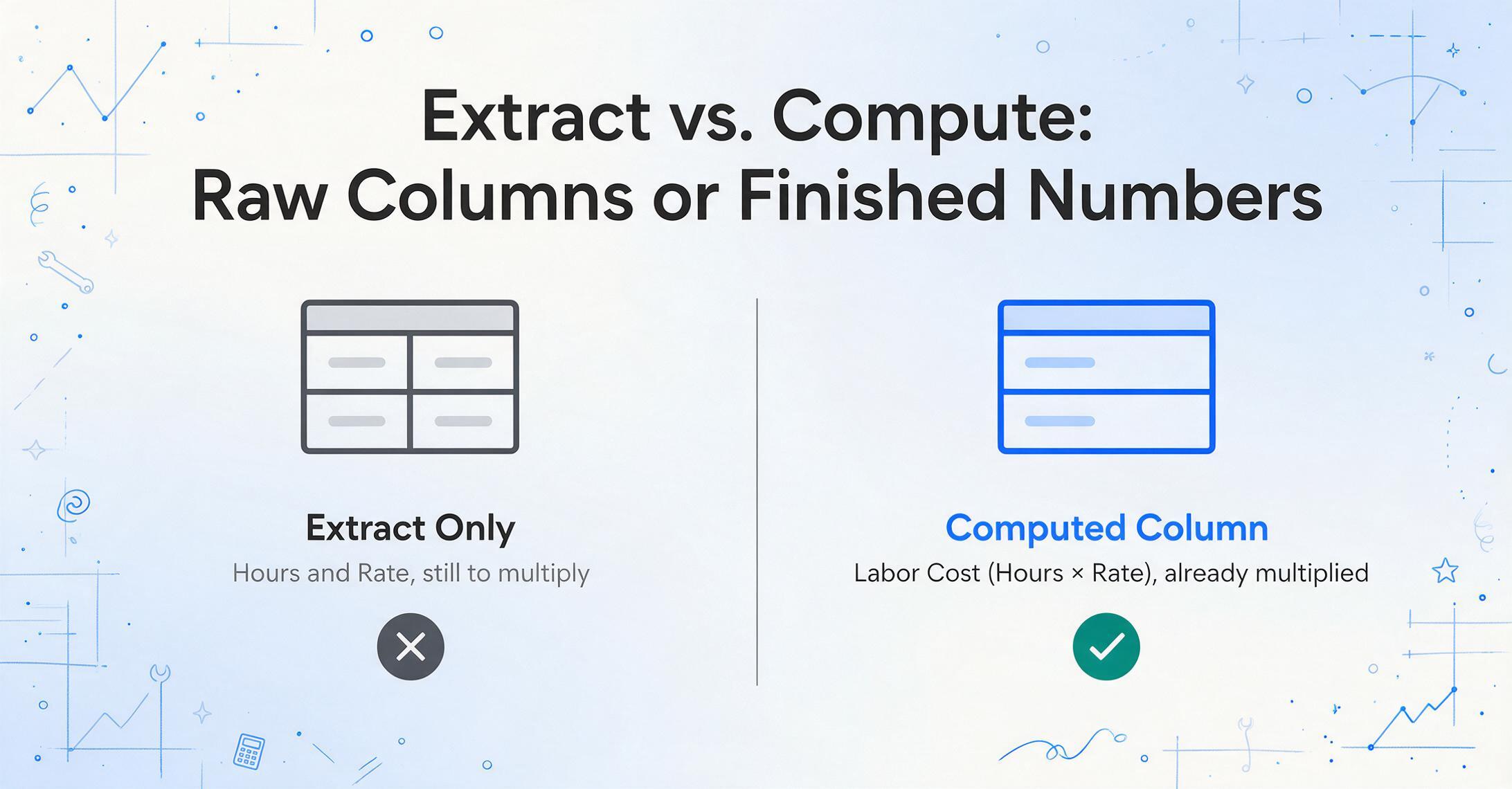
Computed columns change that division of labor. They let you define the calculation before extraction happens, so the AI performs the math at the same moment it reads the document. Instead of extracting Hours and Rate into two columns and then creating a third column with a formula, you define one column that does both:
Column name: Labor Cost (Hours × Rate)
The AI reads the job sheet, finds the hours and rate values, multiplies them, and places the result directly into the "Labor Cost" column. You never see the intermediate numbers — you get the answer.
The math happens during extraction, not after it. The AI reads the document, finds the relevant fields, performs the calculation, and outputs the result as the cell value. There is no second step and no formula to write once the data lands in the spreadsheet. That is the line between computed columns and tools that only pull values off the page.
Two ways to define these computations exist. The column name method — writing the math directly into the column header like Line Total (Qty × Unit Price) — works immediately in the demo, no login required. The Rule Format (available to logged-in users) lets you keep column names clean while defining multi-step computation logic in a JSON rule behind the scenes — useful when a single result depends on three or four extracted fields across different parts of the document.
For field service, the payoff lands at the end of the day. That five-step calculation chain (hours × rate, materials × markup, sum, tax, total) collapses into a single action: upload the job sheet photo, name your columns, and download the result.
Setting Up Your First Job Sheet Calculation
Let's work through a real example. A technician hands you a paper job sheet from a residential AC repair. The sheet has handwritten entries for:
- Date: 6/23/2026
- Technician: Mike
- Customer: Johnson Residence
- Work performed: Condenser fan motor replacement
- Labor: 1.75 hours
- Labor rate: $85/hr
- Materials: Fan motor — $142.00
- Material markup: 30%
- Service call fee: $79
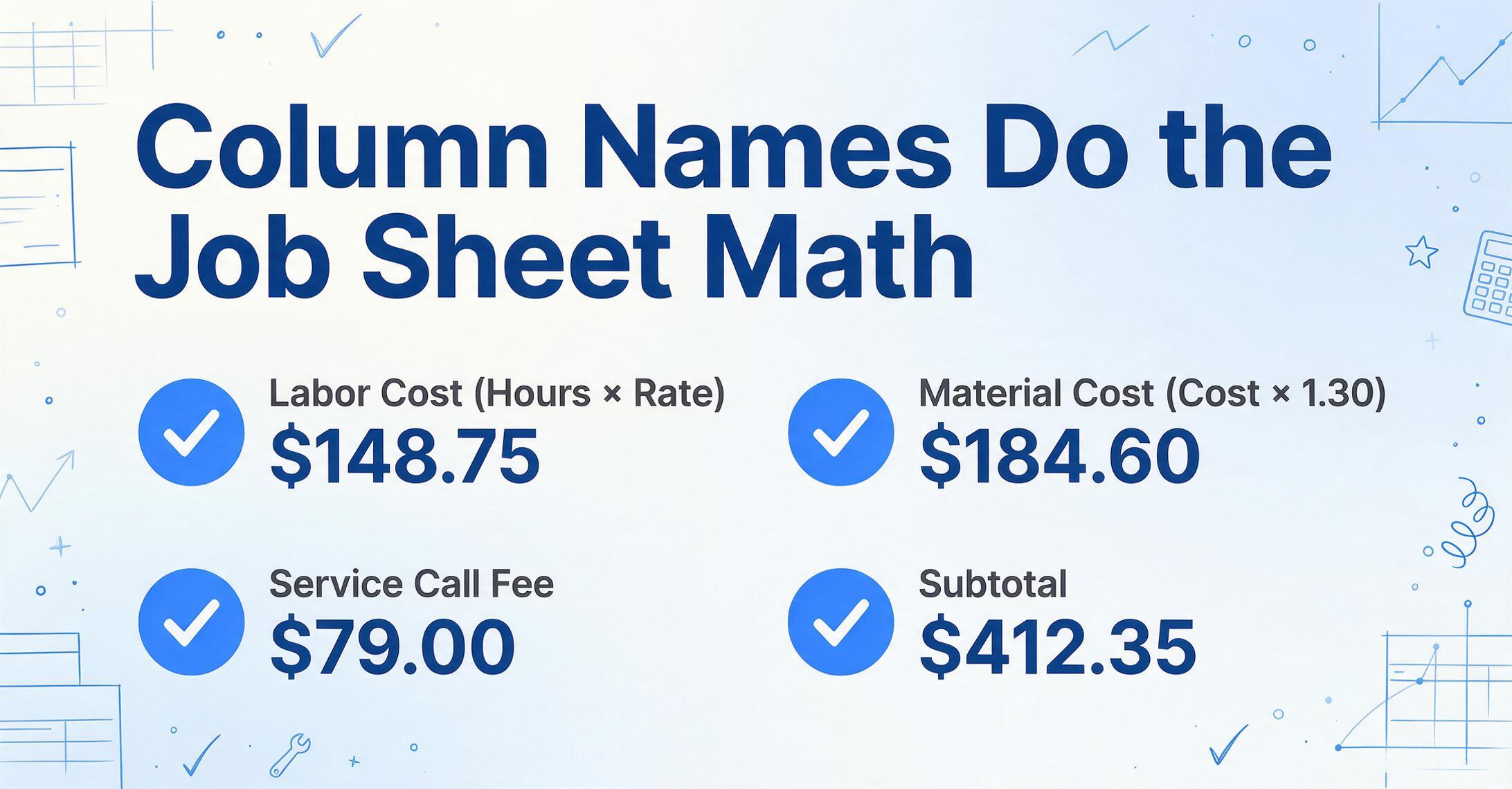
You want the output to contain the billable amounts — not just the raw numbers from the sheet, but the calculated line items that go directly onto the customer's invoice. Here's how you'd set up the columns:
| Column Name | What It Does | Example Output |
|---|---|---|
Technician | Direct extraction — just reads the name | Mike |
Customer | Direct extraction | Johnson Residence |
Labor Cost (Hours × Rate) | Finds both fields, multiplies them | $148.75 |
Material Cost (Cost × 1.30) | Applies 30% markup to each material line | $184.60 |
Service Call Fee | Direct extraction | $79.00 |
Subtotal (Labor Cost + Material Cost + Service Call Fee) | Sums the three billable categories | $412.35 |
Work Description | Direct extraction | Condenser fan motor replacement |
Upload the photo of the job sheet, enter those column names, and the output is a row in your spreadsheet where every number is already a billable amount — not a raw input waiting for a formula. The "Subtotal" column doesn't reference cells B2×C2 from this specific document the way an Excel formula would. It references the semantic meaning of "Labor Cost", "Material Cost", and "Service Call Fee" — concepts the AI can locate on any job sheet regardless of where the tech wrote them.
This is the difference between position-based formulas (which break when the layout changes) and semantic calculations (which survive layout changes because they reference meaning, not coordinates). If Mike writes the labor hours in the top-left corner on one sheet and the bottom-right on the next, it doesn't matter. The AI finds "1.75" and "85" by understanding what they represent, not where they sit.
The Five Calculations Every Job Sheet Needs
Across HVAC, plumbing, electrical, and general field service, most job sheets boil down to the same handful of mathematical operations. Here are the five that cover the vast majority of billing scenarios, with the column names you'd type to make each one work:
1. Labor Cost = Hours × Rate
The foundation of T&M (Time and Materials) billing. If every tech has the same rate, it's straightforward. If rates vary by tech or job type, you can encode that:
Single rate: Labor Cost (Hours × 85) — multiplies whatever hours appear on the sheet by the fixed rate of $85.
Rate varies by technician: Labor Cost (Hours × Rate) — reads both values from the sheet. Just make sure every tech writes down their rate.
Overtime multiplier: Overtime Pay (OT Hours × Rate × 1.5) — for after-hours or weekend calls where the rate changes.
2. Material Cost = Unit Cost × Quantity × Markup
Materials need to be billed at a marked-up price, not your wholesale cost. The markup percentage depends on your business — 15-35% is typical according to NetSuite's T&M contract guidelines.
Per-item markup: Material Line Total (Qty × Unit Cost × 1.30) — for each line item, multiplies quantity by unit cost, then applies 30% markup. If the sheet shows "Fan motor — 1 unit × $142.00," the output is $184.60.
Aggregate materials with markup: Total Materials (Sum of all material line items × 1.30) — sums all material costs first, then applies markup once.
3. Subtotal = Labor + Materials + Fees
Subtotal (Labor Cost + Total Materials + Service Call Fee)
The AI adds the three categories and produces the pre-tax total. You told it to sum "Labor Cost" — it looks for and uses the labor cost result it just calculated, not a raw document field.
4. Tax = Subtotal × Tax Rate
Tax (Subtotal × 0.0825) — calculates sales tax at 8.25%. Change the multiplier to match your jurisdiction.
5. Total = Subtotal + Tax
Total Due (Subtotal + Tax) — the final billable amount, ready to paste into the invoice.
Five calculations. One extraction pass. The AI finds the raw numbers on the job sheet, performs the arithmetic, and delivers a row where every cell is a finished billing value. The column names are the specification — you define what you want, and the AI figures out how to compute it from whatever the tech wrote down.
Unlike a formula column in Excel, the computation definition is portable. Once you've defined Labor Cost (Hours × Rate) as a column, it works on every job sheet in the batch, whether the tech's handwriting is neat or messy and whether the hours field sits in the top-left or buried in a comment box. In Excel, your =B2*C2 formula is anchored to the specific cell positions of this document's layout, and it breaks silently when the layout changes. Extracting and calculating in one step keeps the math attached to meaning instead of coordinates.
From One Job Sheet to Fifty — What Batch Processing Changes
The power of computed columns becomes visible at scale. Consider a typical week for a small HVAC shop with four technicians, each running five calls a day. That's 20 job sheets per day, 100 per week. If each sheet requires the five-step manual calculation chain described earlier, the office is doing 500 separate arithmetic operations per week — and that's assuming no errors, no corrections, no callbacks to techs asking "what does this number mean?"
With batch processing and computed columns, the workflow compresses to:
A week's worth of job sheets — 100 rows, seven columns, 700 cells — and every one of them contains a finished number. Not "hours: 1.75, rate: 85" in two separate cells waiting for a formula. Not a column of raw material costs that need to be multiplied by 1.30. Finished numbers. The spreadsheet is the invoice-ready output, not the input to another round of manual work.
For a business currently spending about 15 minutes per job sheet on manual calculation, that's 25 hours of office time per week reclaimed. At an office staff rate of $25/hour, that's $625/week saved on calculation labor alone, before you count the dispute calls you're no longer fielding.
One caveat belongs here. The AI does the arithmetic, but it still has to read the inputs off the technician's handwriting, and a smudged "1.75" can be read as "7.75." Review Mode lets you check that before the invoice goes out: hover any extracted cell and the job sheet photo highlights the exact spot the value came from, so a labor hour or a part price can be confirmed against the paper in a second. If you changed a field and want the AI's original reading back, one click restores it. Shops that want the check ready in advance can turn on auto-annotation, so the source highlights are already generated when the results arrive.
Why the Pen-and-Paper Habit Doesn't Need to Change
A common assumption in field service digitization is that you need to get technicians off paper entirely, replacing paper job sheets with mobile apps, digital forms, and tablet checklists. That's a fine long-term goal, but it's also a heavy lift. It requires buying devices, training techs who've been writing on paper for 20 years, dealing with broken screens and dead batteries on job sites, and managing an IT procurement and rollout that has nothing to do with fixing air conditioners. It's a big reason handwritten records still outlast the apps built to replace them in field-intensive trades.
The computed column approach doesn't ask technicians to change their workflow at all. They keep the clipboard. They keep the pen. They keep writing down hours, parts used, customer name, work description — exactly as they've always done. The change happens after the paper leaves their hands:
Tech fills out
paper job sheet
→
Office snaps
a photo
→
AI reads +
calculates
→
Billable amounts
in spreadsheet
The paper stays. The clipboards stay. The math — the 500 arithmetic operations per week, the 10 calculation errors per month, the 15 minutes per invoice — that part goes away.
It's the opposite of what most field service software asks of a business. ServiceTitan, Jobber, and Housecall Pro are powerful platforms, but they require every technician to use a mobile app. For a five-tech shop where two of the techs still use flip phones, that's a non-starter. Computed column extraction from paper job sheets gives you the billing automation without the device rollout. The techs keep doing what they're good at. The office stops doing math by hand.
FAQ
What if different technicians have different hourly rates?
Write the rate on the job sheet itself — each tech notes their rate alongside their hours. Use the column name Labor Cost (Hours × Rate) and the AI reads both values from each sheet, applying the correct rate per technician per job. If rates are standardized and you want to embed them in the column definition instead, use a fixed multiplier like Labor Cost (Hours × 85).
Can this handle handwritten job sheets?
Yes. The AI reads handwriting, printed and cursive, and understands the meaning of fields even when penmanship varies between technicians. It isn't doing character-by-character OCR and then hoping the letters spell a number. It reads the document as a whole: it sees a block of scribbled text next to a dollar amount next to the word "capacitor" and understands this is a material line item with a cost, even if the handwriting is rough.
How do I know the AI read a smudged handwritten amount correctly?
Check it in Review Mode before the invoice goes out. Hover an extracted cell and the original job sheet photo highlights the region the value came from, so a misread "1.75" stands out immediately. If you correct a field by hand, the AI's original reading stays one click away in case you want to revert it.
What if the markup percentage changes between job types — 30% for residential, 20% for commercial?
If the markup is written on each sheet, use Material Cost (Cost × Markup) and have the tech note the applicable percentage. If markups are standardized per job type, process residential and commercial batches separately with different column definitions, or use Inferred Columns — define a column like Job Type (options: Residential / Commercial) and another like Markup Rate (If Job Type = "Residential" then 1.30, else 1.20). The AI reads the job sheet, classifies the job type, and applies the correct markup in a single pass.
Does this work with photos taken on a phone?
Yes. Phone photos of paper job sheets work as input. The AI handles uneven lighting, slight angles, and shadows. For best results, flatten the sheet on a desk and hold the phone directly above it — but even a quick snap on the truck hood works in most cases.
How many job sheets can I process at once?
Batch uploads handle dozens or hundreds of files in a single queue. Free users can test with a limited number; paid plans scale up with monthly processing quotas. The $9/month Basic plan covers light weekly use; the $19/month Pro plan handles daily batch processing for a multi-tech operation.
What if a technician forgets to write down a field — like the service call fee?
If you use a fixed service call fee across all jobs, embed it in the column definition: Subtotal (Labor Cost + Material Cost + 79). The $79 becomes part of the calculation rule and doesn't need to appear on the sheet at all. The AI adds it to every job automatically. This is one of computed columns' underrated strengths — fixed parameter references. Numbers that live in your business rules (tax rates, standard fees, flat trip charges) don't need to be written on every sheet. They're encoded in the column definition once and applied consistently across the entire batch.
Files are processed securely and not stored.