ImageToTable.ai vs DocuClipper:
Any Document Type vs Financial-Only Extraction
DocuClipper is a financial document specialist — it converts bank statements, invoices, and receipts to Excel, CSV, and QuickBooks formats, with pre-built templates for thousands of banks. ImageToTable.ai is document-type agnostic: you name the columns you want, and the AI extracts matching data from any document — financial or not — and merges the results into one spreadsheet. The right choice depends on whether you need QuickBooks format output and only process financial documents, or whether you need flexible extraction across varied document types.
Quick Comparison
Choose ImageToTable.ai if…
- You process documents beyond financial statements — forms, contracts, logistics paperwork, medical records, purchase orders
- You need custom column names that match across all documents in a batch, not just the original field names in the source document
- You want per-document pricing that doesn't multiply with multi-page files
- You need a genuine free tier to test before committing, not a trial that limits you to 10 downloadable transactions
- You work in Google Sheets and want extracted data appended directly via the sidebar add-on
Choose DocuClipper if…
- Your workflow is exclusively financial documents — bank statements, credit card statements, invoices, receipts, W-2s, 1099s
- You need QuickBooks-compatible output formats (QBO, QFX, OFX, QIF, IIF) to import directly into accounting software
- You process statements from major banks where DocuClipper's pre-built templates cover your institutions
- Transaction categorization or fraud detection on financial data is part of your workflow
- Batch processing of up to 500 documents simultaneously at high volume is a priority
Feature Comparison
| Feature | DocuClipper | ImageToTable.ai |
|---|---|---|
| Document scope | Financial documents only: bank statements, credit card statements, invoices, receipts, W-2s, 1099s, brokerage statements | Any document type: invoices, receipts, forms, contracts, medical records, logistics paperwork, mixed-layout documents |
| Custom column naming | Not supported — output mirrors the field structure of the source document | Core feature — type the column names you want; AI maps matching data from every document in the batch to those headers |
| QuickBooks output | 8 formats including QBO, QFX, OFX, QIF, IIF — direct import into QuickBooks and other accounting software | Not supported — outputs Excel, CSV, JSON, Word |
| Extraction approach | OCR with pre-built bank templates; template-dependent accuracy — lesser-known banks without templates may underperform | Vision LLM semantic extraction; no templates required; handles varied layouts and irregular structures |
| Pricing model | Per-page billing; unused pages expire monthly. Starter: $39/mo (200 pages); Professional: $74/mo (500 pages); Business: $159/mo (2,000 pages) | Per-document billing, not per-page. Basic $9/mo; Pro $19/mo; pay-as-you-go from $6/50 pages. Credits don't expire. |
| Free tier | 14-day trial, 200 pages — but only the first 10 transactions per document are downloadable during trial | Guest mode (no account required); daily free quota on registered accounts; no transaction download limit |
| Batch processing | Up to 500 documents per batch; all at per-page cost | Multi-file upload; all files merged into one aligned spreadsheet on download |
| Transaction categorization | Available on Business plans ($159+/mo) | Not available as a built-in feature |
| Google Sheets | Not available as a native feature | Dedicated sidebar add-on — upload files, name columns, append extracted data to active sheet |
| Users per plan | Unlimited users on all plans | Single account; team access via Collection Link for file submission |
The Document Scope Wall
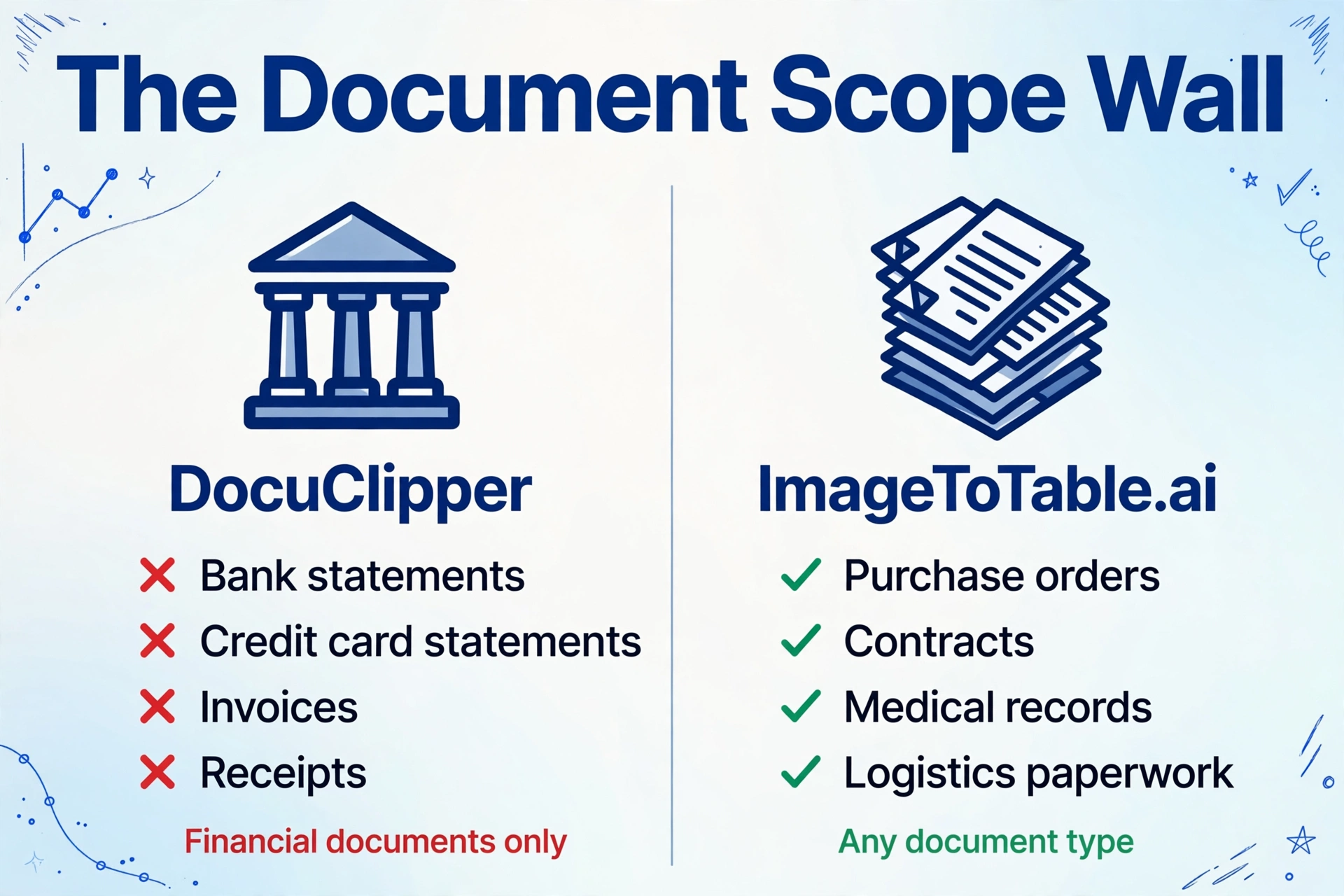
DocuClipper's strength is depth within financial documents. It supports thousands of bank templates, outputs QuickBooks-native formats, and handles transaction categorization — capabilities purpose-built for accounting workflows. If your entire document workload consists of bank statements, credit card statements, and financial forms, that specialization works in your favor.
The limitation appears the moment you need to extract data from anything outside that category. Purchase orders, bills of lading, supplier contracts, utility bills, medical intake forms, field inspection reports — DocuClipper doesn't handle these. Teams whose document mix goes beyond financial statements end up running two tools in parallel, or switching to a more general-purpose extractor. If what you actually need is the raw table grid rather than named fields, ExtractTable's table-only approach is a closer fit.
ImageToTable.ai doesn't have a document type restriction. The extraction is driven by the column names you specify — type "Vendor, Invoice Number, Amount, Due Date" and the AI finds those fields in any invoice layout; type "Patient Name, Diagnosis Code, Visit Date" and it finds those in a medical form. The document type is irrelevant to the extraction model. This makes it the more flexible choice for teams whose document workflows aren't purely financial.
Column Names vs. Source Field Names
DocuClipper's output reflects the structure of the source document. A bank statement comes out with the bank's own column headers — "Transaction Date," "Description," "Debit," "Credit." If your downstream system or spreadsheet template expects different names — "Date," "Memo," "Amount Out," "Amount In" — you handle that mapping manually after export.
ImageToTable.ai inverts this: you define the output schema before extraction begins. Type "Date, Memo, Amount Out, Amount In" as your column names, and those become the headers in the downloaded Excel — populated with the corresponding data from every document in your batch, regardless of how the original document labeled those fields. For teams processing documents from multiple sources with inconsistent field naming, this alignment happens automatically rather than in post-processing.
Pricing Comparison
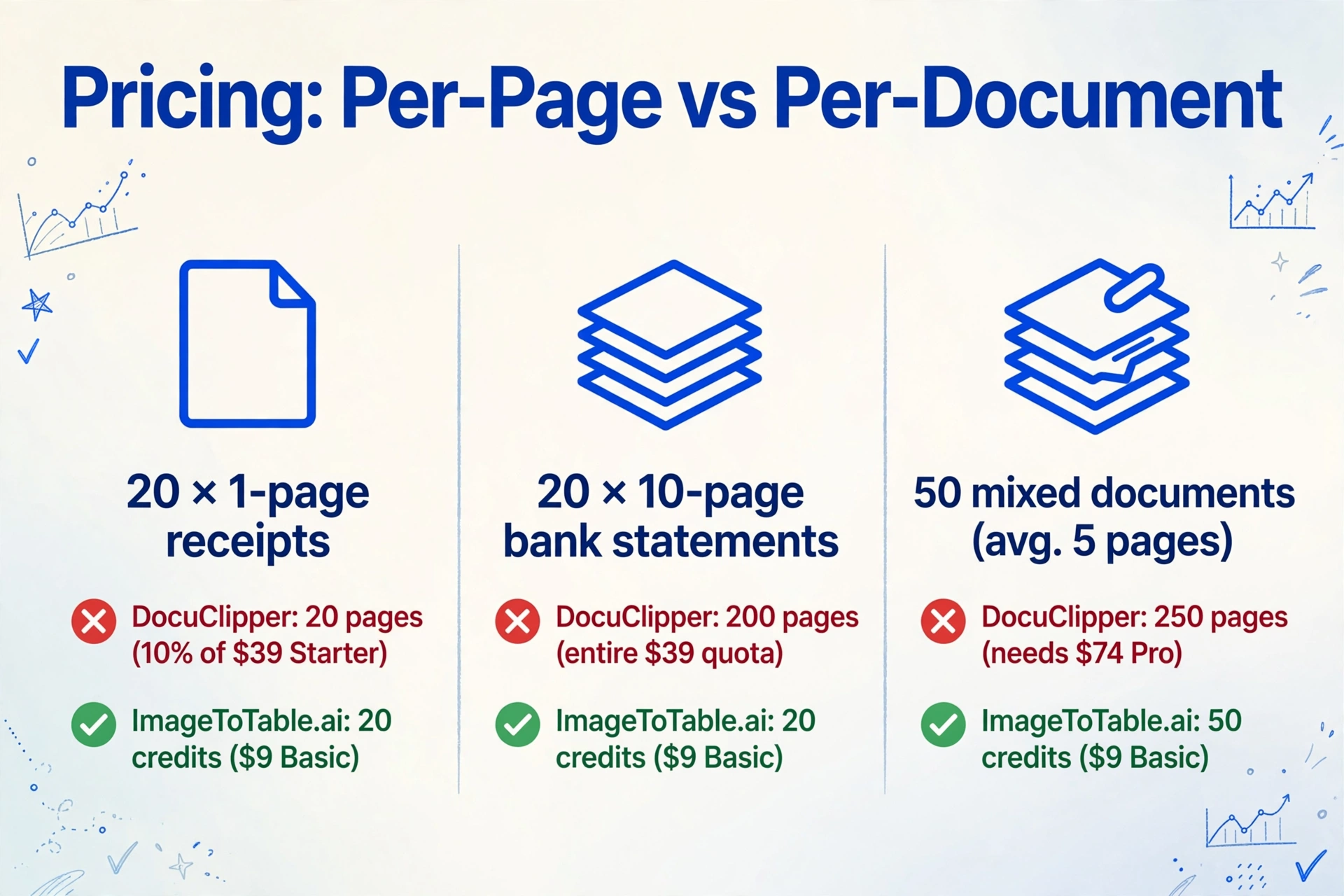
DocuClipper charges per page, not per document. A 12-page bank statement consumes 12 pages from your monthly allocation. On the Starter plan (200 pages/month at $39), that's one statement accounting for 6% of your monthly quota. Unused pages at month end don't roll over.
| Scenario | DocuClipper | ImageToTable.ai |
|---|---|---|
| Try the tool (real test) | 14-day trial, 200 pages — only first 10 transactions per document downloadable | Guest mode, no account, full download on every extraction |
| 20 × 1-page receipts/month | 20 pages — 10% of Starter quota ($39/mo) | 20 credits — Basic plan at $9/mo covers 150 |
| 20 × 10-page bank statements/month | 200 pages — entire Starter quota ($39/mo) | 20 credits — Basic plan at $9/mo covers 150 |
| 50 mixed documents (avg. 5 pages each) | 250 pages — exceeds Starter, requires Professional ($74/mo) | 50 credits — Basic plan at $9/mo |
| Annual pricing | ~30% discount: Starter $27/mo, Professional $59/mo, Business $99/mo | Monthly plans, cancel anytime; pay-as-you-go credits don't expire |
Pricing as of 2026-04. Check docuclipper.com/pricing and imagetotable.ai for current rates.
When DocuClipper Is the Better Fit
QuickBooks users with financial-only workflows. DocuClipper's native support for QBO, QFX, OFX, QIF, and IIF formats is a genuine competitive moat. If your accounting workflow ends in QuickBooks Online or QuickBooks Desktop and you process exclusively financial statements, DocuClipper removes the import step entirely. ImageToTable.ai doesn't produce these formats.
Accounting firms processing high volumes of bank statements from major institutions. DocuClipper's pre-built templates for thousands of banks mean its accuracy on well-supported institutions is consistently high. For a bookkeeping firm that processes hundreds of Chase, Bank of America, or Wells Fargo statements monthly, the template coverage and batch capacity (up to 500 documents) make it a practical production tool. Rule-based tools like Docparser follow a similar template-first philosophy — see our Docparser comparison.
Teams that need transaction categorization. DocuClipper's Business plan includes automated transaction categorization — a feature that saves significant time for bookkeepers who would otherwise tag each transaction manually. This is a downstream workflow capability ImageToTable.ai doesn't offer.
What Users Say About DocuClipper
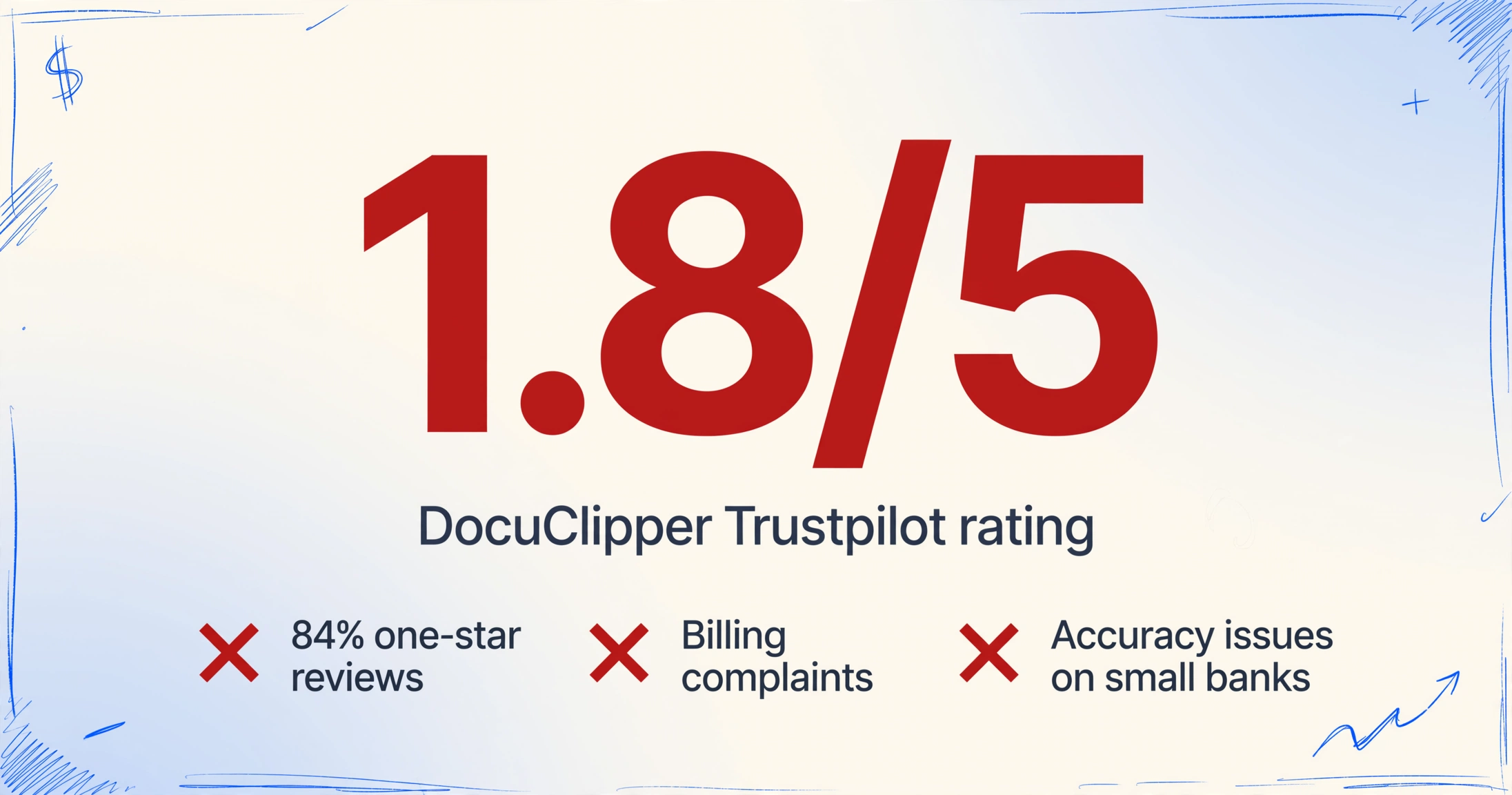
DocuClipper's review profile is polarized. Positive reviews consistently cite time savings on bank statement conversion and QuickBooks import workflows. Critical reviews cluster around two issues: billing practices and accuracy on less common bank formats.
"Continually charged for MONTHS after I cancelled." — Trustpilot reviewer
"Charged my credit card over $300 for a year subscription that I didn't sign up for." — Trustpilot reviewer
"Bank statement dates were wrong… amounts had wrong signs." — Trustpilot reviewer
Trustpilot rates DocuClipper 1.8/5 across 19 reviews, with 84% one-star ratings — Trustpilot. Customer service scores 2.3/5 on Capterra, with users reporting unanswered emails — Capterra. Reviews also note that accuracy degrades on statements from smaller banks or credit unions without pre-built templates.
Frequently Asked Questions
Does DocuClipper support non-financial documents like purchase orders or contracts?
No. DocuClipper is scoped to financial documents: bank statements, credit card statements, invoices, receipts, W-2s, 1099s, and brokerage statements. Purchase orders, bills of lading, contracts, utility bills, logistics documents, and other non-financial paperwork are outside its supported document types. ImageToTable.ai doesn't have a document type restriction — you define the column names you want extracted and the AI handles any document layout.
How does DocuClipper's per-page billing affect costs for multi-page documents?
DocuClipper bills per page, not per document. A 10-page bank statement consumes 10 pages from your monthly plan. On the Starter plan (200 pages at $39/month), processing 20 such statements uses the entire monthly allocation. Unused pages expire at month end with no rollover. ImageToTable.ai prices per document regardless of page count, which makes costs more predictable when your documents vary in length.
Does DocuClipper output QuickBooks formats? Can ImageToTable.ai do the same?
Yes — QuickBooks format output (QBO, QFX, OFX, QIF, IIF) is DocuClipper's strongest differentiator. If your workflow ends in QuickBooks import, DocuClipper removes the conversion step entirely. ImageToTable.ai does not produce QuickBooks-compatible formats; it outputs Excel (XLSX), CSV, JSON, and Word. For teams whose accounting software accepts Excel or CSV, this isn't a barrier — but for direct QuickBooks import workflows, DocuClipper is the better-suited tool.
Can I extract custom column names from bank statements using DocuClipper?
No. DocuClipper outputs the fields as structured in the source document — the column headers reflect the bank's or document issuer's original field names. If your template or downstream system uses different names, you remap manually after export. ImageToTable.ai lets you define the column names before extraction — type "Date, Description, Debit, Credit" or any other names you need, and those become the headers of your output spreadsheet, populated from each document in the batch.
Is DocuClipper accurate for all banks, or does it depend on templates?
DocuClipper's accuracy depends on whether a pre-built template exists for your bank. For major institutions (Chase, Bank of America, Wells Fargo, etc.), template coverage is strong and accuracy is high. For smaller regional banks, credit unions, or international institutions without templates, accuracy degrades — users report incorrect dates and wrong-sign amounts on non-template statements. ImageToTable.ai uses a vision LLM that reads the document semantically without templates, so accuracy doesn't depend on whether your specific bank is in a pre-built library.
Try ImageToTable.ai Free
Upload any document — invoice, receipt, form, or statement — name your columns, and download a merged Excel. No page-count billing, no financial-document restriction, no account required to start.
No credit card required. Free credits included on signup.