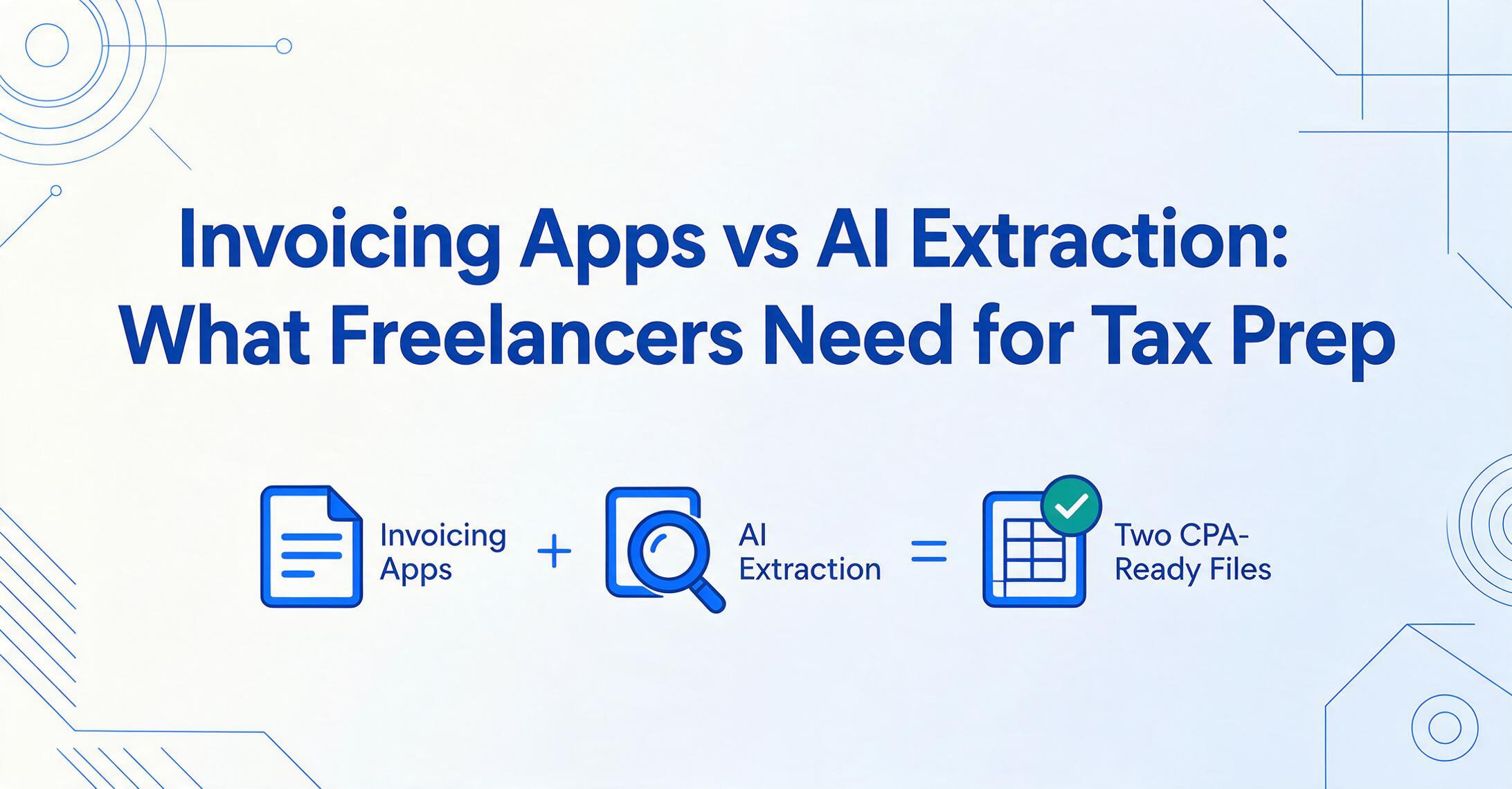
Invoicing Apps vs AI Extraction:
What Freelancers Need for Tax Prep
According to a survey by the Independent Economy Council, 40% of freelancers use accounting software — but 38% still build invoices in Word or Google Docs, and another 21% download templates to fill in by hand. Nearly every freelancer eventually asks: what tool should I use? But the tool question actually has two halves — and most answers only address one.
Key Takeaways
- Receipt photos in your invoicing app feel like tracking all year — then tax season arrives and your CPA needs every expense sorted by vendor, date, and IRS category, but a photo can’t be sorted, summed, or filtered.
- A year of freelancer receipts traps 120 to 300 individual data points inside PDFs and JPGs — vendor names, dates, amounts, and IRS expense categories — all of which must be manually typed before your CPA can file your Schedule C (the IRS form where freelancers report business profit or loss).
- ImageToTable.ai reads any expense receipt — coworking bill, subcontractor invoice, software subscription — and extracts vendor, amount, date, and category into sortable columns in 5–10 seconds per page, turning 2.5 hours of manual data entry into 8 minutes of review.
The Two Halves of a Freelancer's Financial Picture
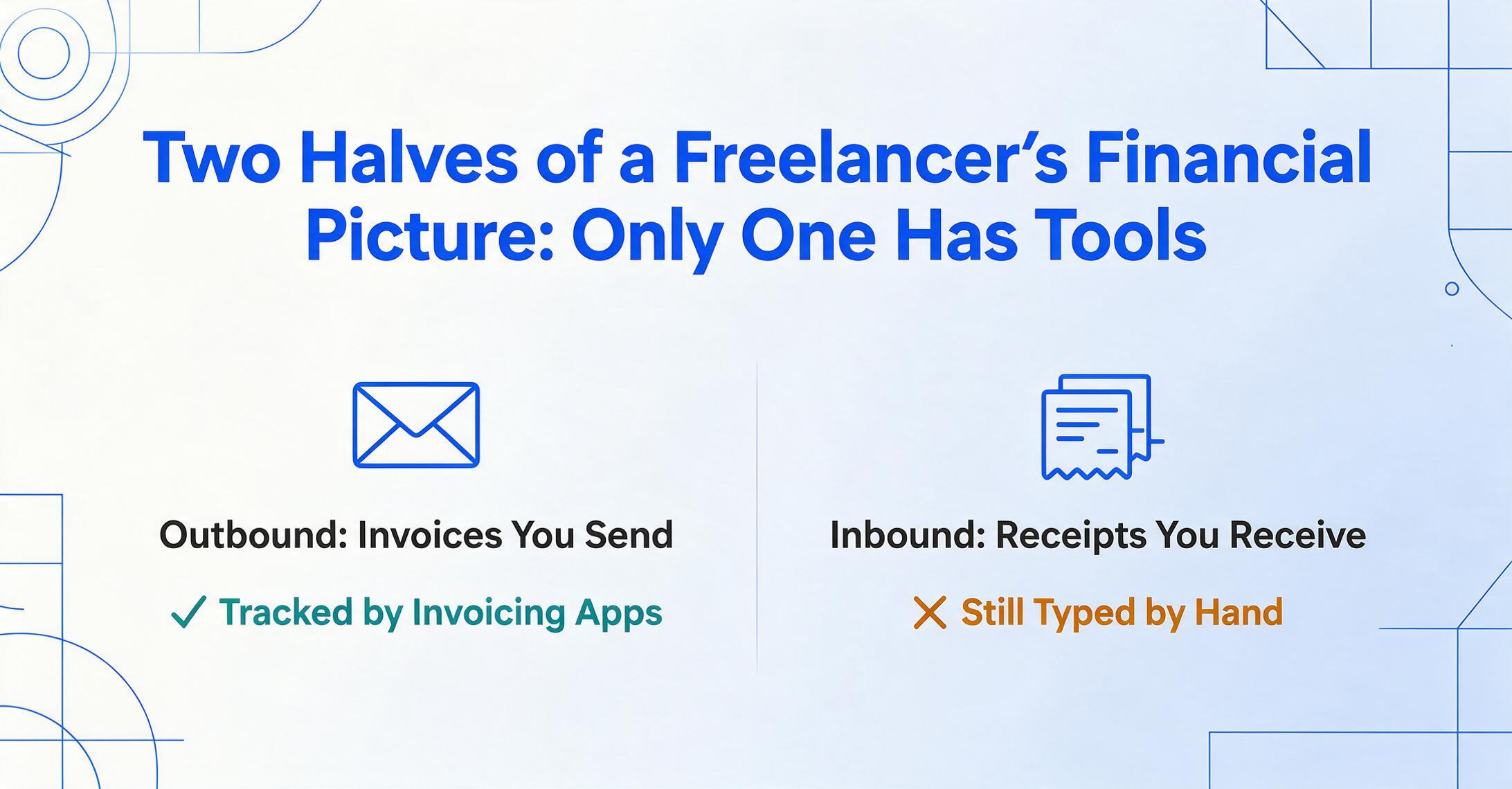
Every freelancer manages two separate financial streams: money going out (your invoices to clients) and money already spent (receipts and invoices from everyone else).
The first stream — outbound — is what generates your income. You send a client an invoice, they pay, you report the gross receipts on Schedule C (Form 1040) Part I. This is the half that every freelancer thinks about first because it's directly tied to getting paid.
The second stream — inbound — is what determines your taxable income. Every receipt from a coworking space, every invoice from a subcontractor, every software subscription renewal, every equipment purchase. These represent deductible business expenses that reduce the 15.3% self-employment tax on your net earnings. Schedule C Part II has over 20 expense categories the IRS expects you to track separately — advertising, office expenses, supplies, travel, professional services, and more.
At tax time, your CPA needs both halves organized and complete. The distinction matters because the tool ecosystem for freelancers was built almost entirely around the first half — and the gaps around the second are where tax season turns painful.
What Invoicing Apps Do Well (and What They Were Built For)
Invoicing apps like FreshBooks, Wave, QuickBooks Solopreneur, Bonsai, HoneyBook, AND.CO, Harvest, and Zoho Invoice are purpose-built for one job: generating professional invoices, sending them to clients, and tracking when you get paid.
This is not a small job. FreshBooks data shows freelancers using manual methods take an average of 38 days to get paid, while those using automated invoicing bring that down to 18 days. These apps handle invoice templates, payment reminders, online payment acceptance, recurring billing, and income dashboards — all of which directly improve cash flow. QuickBooks Solopreneur goes further, auto-calculating estimated quarterly taxes and generating Schedule C reports from the income side.
On the expense side, most of these apps include a receipt capture feature: take a photo, attach it to a transaction, and let the app categorize the expense. Expensify, a dedicated expense-tracking tool, markets a 99.5% accurate OCR engine called SmartScan specifically for this purpose. These features work reasonably well for logging individual expenses as they happen.
But there is a structural limitation built into how this feature is designed: it stores receipt images — not structured, extractable data. A photo of a Staples receipt attached to a FreshBooks transaction tells you the expense happened. It doesn't give you an itemized, sortable table where every receipt across the year appears in one view with vendor name, date, amount, and category in separate columns. When tax season arrives and you need to hand your CPA a clean expense ledger sorted by IRS category, the "receipt photo" feature starts where the real work should end.
Receipt photo storage solves audit-proofing. It doesn't solve the data-entry problem — the 200 to 600 individual data fields scattered across a year's worth of expense documents that need to be typed, categorized, and totaled before a CPA can use them.
The Gap: When Expense Tracking Hits Tax Season
The friction appears when tax season demands more than a photo of a receipt — it demands structured data organized by IRS expense category.
In discussions on Reddit's r/smallbusiness, freelancers describe the same annual ritual: "by the time taxes roll around, i'm combing through months of transactions trying to remember what was what." The problem isn't that they lack tools — many are already using QuickBooks or FreshBooks. The problem is that their tools were optimized for a different workflow.
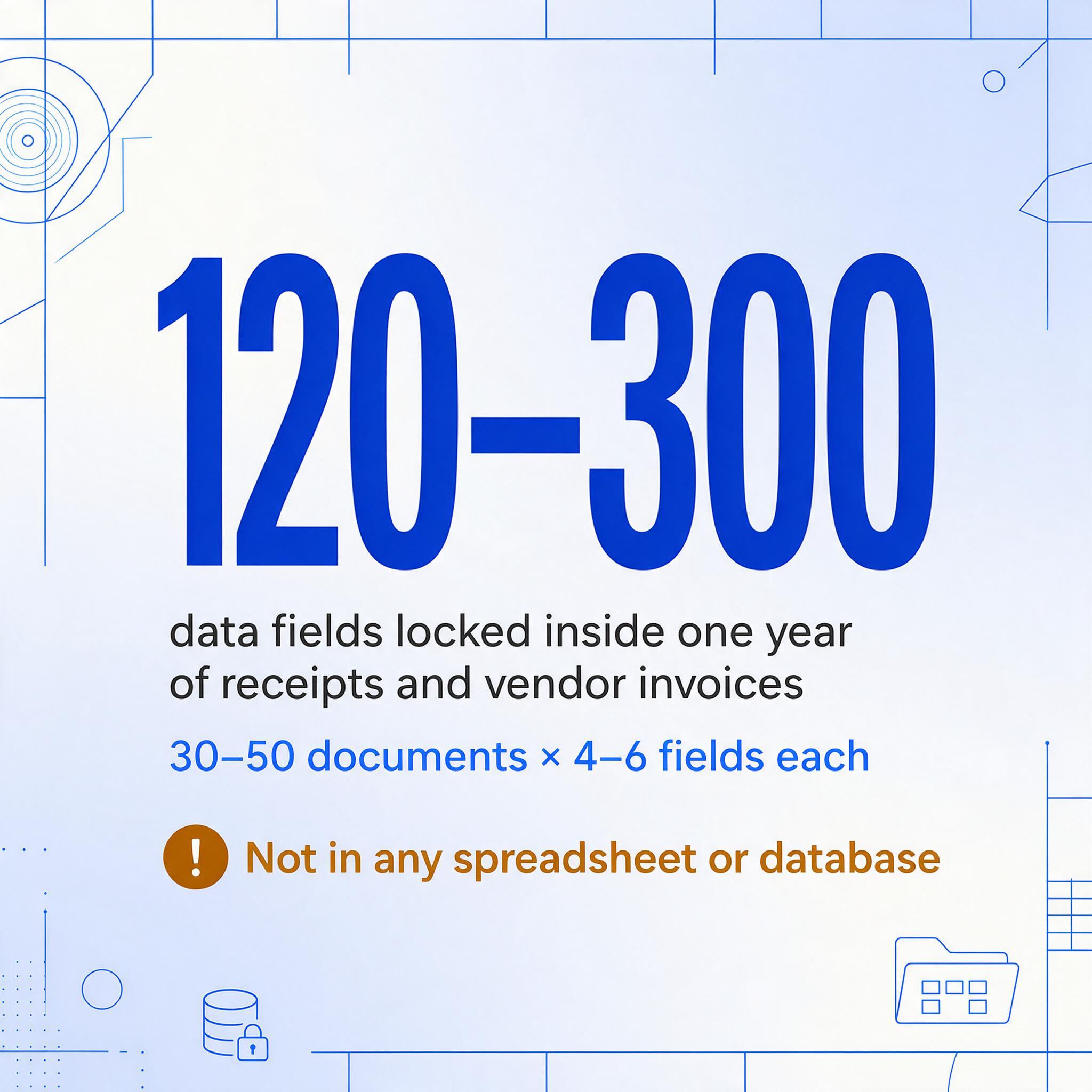
Consider a freelancer who works from a coworking space, subscribes to Adobe Creative Cloud and Notion, buys a new laptop once every three years, occasionally hires a subcontractor for overflow work, and travels to two client meetings per year. Across 12 months, this produces roughly 30-50 receipts and invoices received from vendors. Each document contains 4-6 extractable data points: vendor name, date, total amount, line items, payment method, and often a tax or VAT number.
That's 120 to 300 individual data fields that exist only inside PDFs and JPGs — not in any spreadsheet or database. To file Schedule C accurately, each one needs to be entered, categorized, and totaled. An invoicing app with receipt photo capture lets you store these documents. It doesn't extract the data from them into a CPA-ready ledger.
This distinction — between document storage and data extraction — is the core of the gap. And it's the gap the freelancer tax problem lives in.
Where AI Extraction Fits: From Receipt Image to Schedule C Line Item
AI document extraction tools approach the problem from the opposite direction: they don't send invoices — they read them.
Instead of drawing rectangles around fields on a template or training a model with sample documents, AI extraction tools use column-name extraction: you type the column headers you want in your output table — "Date," "Vendor," "Amount," "Category," "Invoice Number" — and the AI locates each corresponding value anywhere on the page by understanding what it means semantically, not where it sits. A receipt from a coworking space, a PDF invoice from a subcontractor, a screenshot of a software subscription confirmation — the AI reads each one, finds the values that match your requested columns, and populates one consolidated spreadsheet.
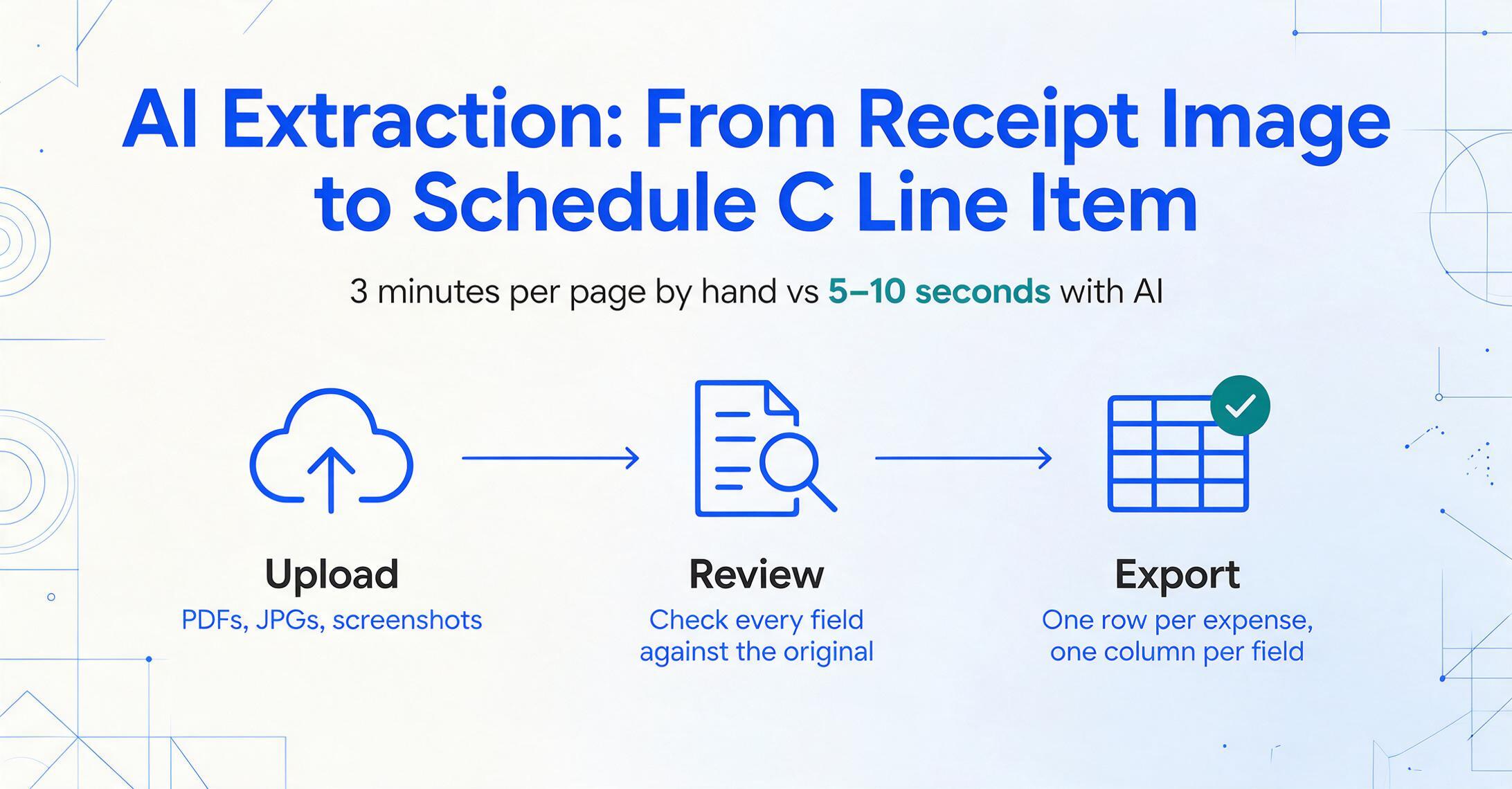
The output is fundamentally different from what an invoicing app produces on the expense side. Instead of receipt images attached to individual transaction records, you get a single Excel file with every expense document represented as a row, every data field in its own column, ready to sort by category, sum by vendor, and hand off to a CPA — or enter directly into tax software. For the freelancer filing Schedule C, this changes the tax prep workflow from "sort photos → type numbers → check totals" to "upload → review → export."
Processing speed is the other dimension where the gap is largest. Manual entry averages about 3 minutes per page of document data. AI extraction completes the same page in 5–10 seconds — roughly an 18x speed improvement. For a freelancer with 50 expense documents to process at tax time, that's the difference between roughly 2.5 hours of typing and about 8 minutes of review.
Files are processed securely and not stored.
Head-to-Head: A Structured Comparison for Tax Time
A fair comparison requires defining what matters at tax time — not just listing features, but measuring each tool category against the actual dimensions that determine whether April is a weekend project or a two-week ordeal.
| Dimension | Invoicing Apps (FreshBooks, Wave, QBO, Bonsai, etc.) | AI Document Extraction (ImageToTable.ai type tools) |
|---|---|---|
| Primary purpose | Create and send professional invoices to clients; track payments received | Convert unstructured documents into structured, searchable spreadsheet data |
| Outbound: client invoices you send | Core function — templates, reminders, payment processing, income tracking | Not designed for this — reads documents, doesn't generate or send invoices |
| Inbound: expense receipts you receive | Partial — photo capture + basic OCR + expense categorization; stores images, not structured data | Core function — extracts all fields into sortable columns regardless of format or layout |
| Processing speed per document | ~2-5 min to create an invoice from template; receipt entry is manual or photo-based with limited field extraction | ~5-10 seconds per page for full data extraction; ~18x faster than manual entry |
| Accuracy on printed data | Depends on manual entry quality; receipt OCR varies by app (~90-99% range) | Up to 99% on printed tables and text; visual AI model reads handwriting, tables, checkboxes |
| Tax-prep output | Income reports + receipt image attachments; select apps generate Schedule C summaries from income side | Structured Excel/CSV with every data field in dedicated columns — sortable, filterable, CPA-ready |
| Learning curve | ~1-2 hours to set up company profile, invoice templates, payment integrations | ~5 minutes — type the data fields you want, upload documents, review and export |
| Scalability (document volume) | Works well for ongoing transaction entry; strains when reconciling a full year's receipts retroactively | Batch processing — upload all documents at once, get one consolidated output; no volume penalty |
| Best at | Managing client relationships, getting paid on time, tracking income throughout the year | Turning a year's worth of messy expense documents into one clean, accountant-ready spreadsheet |
The pattern is clear: neither tool category does everything well. Invoicing apps dominate the outbound side. AI extraction dominates the inbound side. The question isn't which one to pick — it's when to use each.
The Combined Workflow: When Both Tools Work Together
The most efficient freelancer tax prep system isn't one tool — it's two tools, each handling the half it was built for.
An invoicing app runs your outbound financial life year-round: you send invoices, accept payments, track what clients owe, and generate income reports. When tax season arrives, your invoicing app gives your CPA the gross receipts number — total income received — plus any integrated tax estimates if you're using QuickBooks Solopreneur or a similar tool.
For the inbound half, AI extraction handles what invoicing apps were never designed to do: consolidate every expense document you've accumulated — PDF receipts from online purchases, emailed subscription confirmations, paper receipts you photographed, subcontractor invoices, coworking space bills — into one spreadsheet where every row is a categorized expense line item right-sized for Schedule C.
The combined output is what makes a CPA's job fast (and therefore cheaper): a clean P&L summary from the invoicing app showing total income, plus an itemized expense ledger from the extraction tool with every deduction documented and categorized. Instead of handing your accountant a shoebox — or a folder of receipt JPGs — you hand them two structured files.
If you're tackling this for the first time, the companion guide to organizing a year of invoices in one afternoon walks through the step-by-step workflow. The heavier lift isn't choosing tools — it's building the habit of processing documents as they arrive rather than retroactively. The complete freelancer invoice tracking guide covers the habit-building side in detail.
Frequently Asked Questions
Do I still need an invoicing app if I use AI extraction?
Yes. AI extraction reads documents — it doesn't create or send invoices to clients. These tools serve different functions. You need an invoicing app (or at minimum a template-based system) for the outbound billing workflow. AI extraction handles the inbound expense document workflow that invoicing apps only partially cover.
Can AI extraction handle handwritten receipts?
Yes. The visual AI model behind modern extraction tools can read both printed and handwritten text, including cursive and varied handwriting quality. Handwritten receipts from restaurants, parking garages, or hand-marked invoices are processed the same way as printed PDFs.
Is the extracted data accurate enough for IRS records?
Printed document extraction reaches up to 99% accuracy. The key workflow step is review: extraction tools present all extracted values alongside the original document, so you can verify and correct any field inline before exporting. The IRS requires you to substantiate deductions with original documents — the extraction output is a working file, not a replacement for the source documents. Always retain original receipts per IRS Publication 334 recordkeeping guidelines (minimum 3 years from filing date).
What does AI extraction cost compared to an invoicing app?
Most invoicing apps charge $0–35/month: Wave offers a free tier (manual bank sync), FreshBooks starts at $19/month, QuickBooks Solopreneur at $20/month. AI extraction tools typically offer free trials with monthly usage limits — enough to process a full year's tax documents within the trial window. Paid plans unlock higher volume and advanced features like computed columns, where you can embed calculation logic directly into extraction rules (e.g., "Line Total = Qty × Unit Price") and get calculated results alongside extracted data.
Does AI extraction replace my accountant?
No. It replaces the hours you would spend manually entering expense data before handing organized records to your accountant. Clean, structured input means your CPA spends billable time on tax strategy and deduction optimization — not data entry. A well-organized client file also tends to produce faster turnaround and fewer follow-up questions during tax season.
Can I collect expense receipts from subcontractors or team members?
Yes — AI extraction tools with a Collection Link feature let you generate a shareable link. Subcontractors or team members open the link, enter a short verification code, and upload their expense documents directly into your processing queue — no account creation required on their end. This is particularly useful for freelancers who occasionally hire help and need to capture subcontractor expense documentation.
Can I use AI extraction for client invoices I send out?
Technically yes — you can upload your own outgoing invoices and extract structured data from them. But that's not the efficient path. Your invoicing app already generates those as structured records. AI extraction adds the most value where invoicing apps fall short: the inbound documents you don't control the format of — vendor receipts, emailed confirmations, paper invoices, and subcontractor bills — where the data is locked inside unstructured document files.
The tool question isn't "which one?" — it's "which one for which half?" Send invoices with your invoicing app. Extract expense data with AI. Hand your CPA two clean files instead of a shoebox.
Test on your own expense receipts — free, no sign-up